K

Kirill Khatkevich

6
Workflows

Workflows by Kirill Khatkevich

Workflow preview: Receive Meta Ads ad account webhooks, log to Sheets, and alert in Slack
Free advanced

Receive Meta Ads ad account webhooks, log to Sheets, and alert in Slack

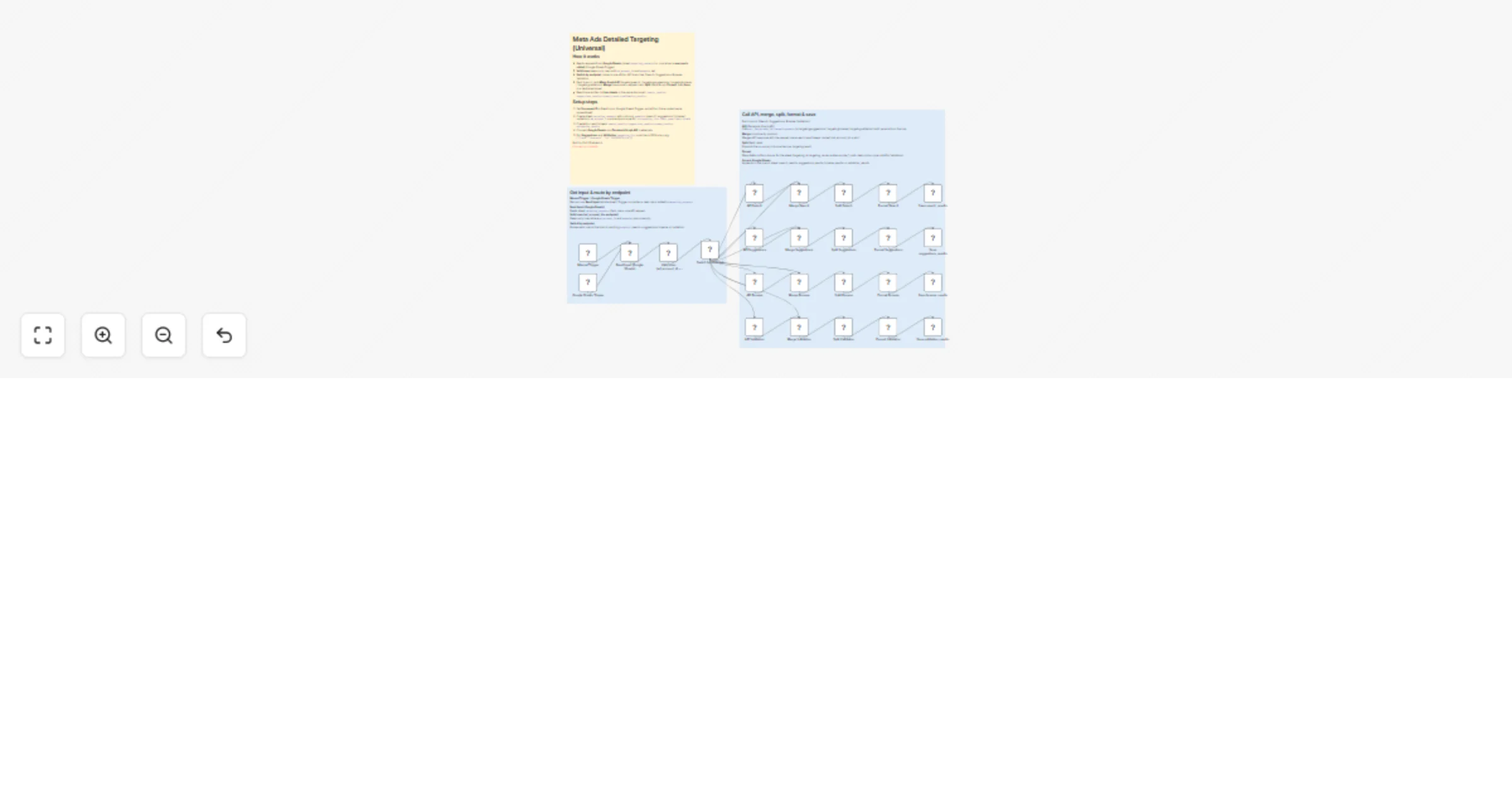
This workflow is a production-ready **Meta Ads Webhook dispatcher** for the **Ad Account** object. It receives webhook deliveries from Meta, returns the required acknowledgement, routes events by `field`, logs them to Google Sheets (separate tabs per event type), and sends a compact Slack notification with counts. #### **Use Case** Meta webhooks are powerful, but the “last mile” is usually missing: storing raw events, making them readable, and triggering the next automation reliably. This workflow is ideal if you want to: - **Centralize all Meta Ads webhook events** in one place (one endpoint, one workflow). - **Log every event** for auditing and analysis (Google Sheets). - **Get lightweight alerts** in Slack (count-based, not spammy). - **Trigger downstream workflows** depending on the webhook type (e.g., Creative Fatigue → replace creatives in the affected ad set). #### **How it Works** The workflow is organized into clear blocks: **1. Webhook endpoint + verification** - A **Webhook** trigger receives requests from Meta. - The workflow detects **verification requests** (`hub.mode=subscribe`) and validates the **Verify Token**. - It responds with the **hub.challenge** value so you can successfully subscribe your webhook in Facebook Developers. **2. Route by event field** - For real webhook deliveries (`object=ad_account`), the workflow routes execution by: - `creative_fatigue` - `ad_recommendations` - `ads_async_creation_request` - `in_process_ad_objects` - `product_set_issue` - `with_issues_ad_objects` **3. Acknowledge every webhook delivery** - For each branch, the workflow immediately returns a JSON acknowledgement (e.g., `{ "status": "received", "field": "...", "webhook_type": "..." }`), so Meta considers the delivery successful. **4. Normalize + log to Google Sheets** - The workflow splits array payloads (Meta can send multiple `entry` items and multiple `changes`). - Each event type is appended to its own Google Sheets tab (one spreadsheet, multiple sheets), with the raw webhook body also saved for future debugging. **5. Summarize + notify** - All event logs are merged and summarized to compute a compact count per `field`. - A Slack node sends a short message like “New Meta Webhook / Type / Count” with a link to the spreadsheet. --- ### **Setup Instructions** **1. Create and configure a Meta app** - Create an app in [Facebook Developers](https://developers.facebook.com/apps/). - Add the **Webhooks** product. - Subscribe to the **Ad Account** object. - Configure: - **Callback URL** (your n8n webhook URL) - **Verify Token** (must match the value in the workflow) **2. Configure the Webhook node** - Set the webhook **path**. - Use the **Production URL** when you go live. **3. Connect credentials** - Connect **Google Sheets** OAuth credentials in all Google Sheets nodes. - Connect **Slack** credentials and choose your target channel. **4. Update Google Sheets destinations** - Set your **Spreadsheet ID** and ensure the expected sheet tabs exist (one per supported webhook field). **5. Activate** - Save and activate the workflow. - Trigger a verification request from Facebook Developers to confirm everything is wired correctly. --- ### **Testing** To test the dispatcher before going live, use the open-source tool: [meta-ads-webhook-tester](https://github.com/KhatkevichKirill/meta-ads-webhook-tester). --- ### **Further Ideas & Customization** - **Add Telegram**: duplicate the Slack notification step and send the same summary message to Telegram. - **Trigger automations**: after routing by `field`, execute another workflow (e.g., Creative Fatigue → fetch affected ad set → rotate creatives). - **Hardening**: add de-duplication (event IDs), retries, and a dead-letter/error sheet tab for failed log writes.

K
Kirill Khatkevich
Market Research
28 Dec 2025
7
0
Workflow preview: Track TikTok Ads Library with Apify, Google Sheets & Slack/Telegram Notifications
Free advanced

Track TikTok Ads Library with Apify, Google Sheets & Slack/Telegram Notifications

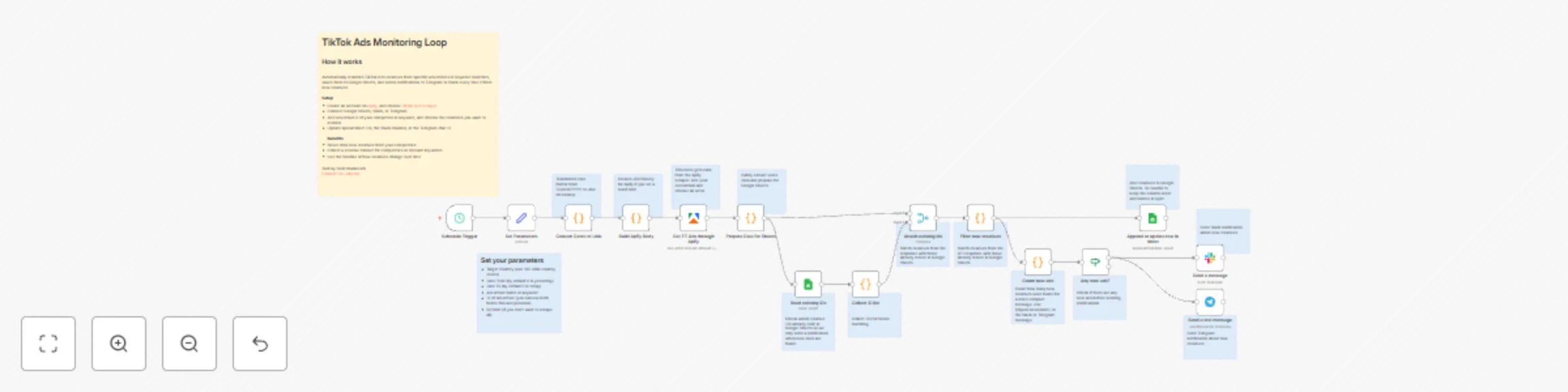
This workflow continuously monitors the TikTok Ads Library for new creatives from specific advertisers or keyword searches, scrapes them via Apify, logs them into Google Sheets, and sends concise notifications to Telegram or Slack with the number of newly discovered ads. It is built as a safe, idempotent loop that can run on a schedule without creating duplicates in your sheet. #### **Use Case** Manually checking the TikTok Ads Library for competitor creatives is time-consuming, and it's easy to lose track of which ads you've already seen. This workflow is ideal if you want to: - **Track competitor creatives over time** in a structured Google Sheet. - **Avoid duplicates** by matching ads via their unique `adId` field. - **Get lightweight notifications** in Telegram or Slack that tell you *how many* new ads appeared, without spamming you with full ad lists. - **Run the process on autopilot** (daily, weekly, etc.) with a single schedule. - **Monitor by advertiser ID or keywords** with flexible search parameters. #### **How it Works** The workflow is organized into four logical blocks: **1. Configuration & Date Conversion** - **Configuration:** The `Set Parameters` Set node stores all key request variables: - `Ad target country` (e.g., `all` or specific ISO country codes), - `Ad published date From` (automatically set to yesterday by default), - `Ad published To` (automatically set to today by default), - `Advertiser name or keyword` (for keyword-based searches), - `adv_biz_ids` (advertiser business IDs for specific advertiser tracking), - `Ad limit` (optional limit on the number of results to scrape). - **Date Conversion:** `Convert Dates to Unix` transforms the human-readable date format (DD/MM/YYYY) into Unix timestamps in milliseconds, which are required by the TikTok Ads Library API. **2. Request Building & Data Fetching** - **Body Construction:** `Build Apify Body` creates the JSON request body for the Apify actor: - Builds the TikTok Ads Library URL with all search parameters (region, date range, advertiser name/keyword, advertiser IDs). - Conditionally adds `resultsLimit` to the request body only if the `Ad limit` field is not empty, allowing you to scrape all results or limit them as needed. - **Data Fetching:** `Get TT Ads through Apify` executes the Apify actor (Tiktok Ads Scraper) and retrieves all matching ads from the TikTok Ads Library. **3. Data Preparation & De-duplication** - **Data Extraction:** `Prepare Data for Sheets` safely extracts nested data from the API response: - Extracts the first video URL from the `videos` array (if available). - Extracts the cover image URL from the first video object. - Extracts the TikTok username from the `tiktokUser` object (if available). - Handles cases where arrays are empty or objects are missing without throwing errors. - **Load Existing IDs:** - `Read existing IDs` pulls the existing `adId` column from your Google Sheet (configured to read a specific column/range, e.g., column K). - `Collect ID list` converts these into a unique, normalized string array `existingIds`, which represents all ads you have already logged. - **Attach State:** - `Attach existing ids` (Merge node) combines, for each execution, the freshly fetched TikTok response with the historical `existingIds` array from Sheets. - **Filter New Creatives:** - `Filter new creatives` Code node compares each ad's `adId` (string) against the `existingIds` set and builds a new array containing **only ads that are not yet present** in the sheet. - It also protects against duplicates inside the same batch by tracking seen IDs in a local `Set`. **4. Data Logging & Notification** - **Write New Ads:** - `Append or update row in sheet` performs an `appendOrUpdate` into Google Sheets, mapping core fields such as `adId`, `adName`, `advertiserName`, `advertiserId`, `paidBy`, `impressions`, `regionStats`, `targeting`, `tiktokUser`, `startUrl`, `videos`, and `coverImageURL` (using the `=IMAGE()` formula to display images directly in the sheet). - The column mapping uses `adId` as the matching column so that existing rows can be updated if needed. - **Count:** - In parallel with the write step, `Filter new creatives` also feeds into `Count new ads`. - This Code node returns a single summary item with `newCount = items.length`, i.e., the total number of **new** creatives processed in this run. - **Guard:** - `Any new ads?` checks whether `newCount` is greater than `0`. If not, the workflow ends silently and no message is sent, avoiding noise. - **Notify:** - When there are new creatives, both `Send a text message` (Telegram) and `Send a message` (Slack) send notifications to the configured channels. - The message includes `{{$json.newCount}}` and a fixed link to the Google Sheet, giving you a quick heads-up without listing individual ads. --- ### **Setup Instructions** To use this template, configure the following components. **1. Credentials** - **Apify:** - Configure the `Apify account` credentials used by `Get TT Ads through Apify`. - You'll need an Apify account with access to the [Tiktok Ads Scraper](https://console.apify.com/actors/AovGexsTSmlalAFzp/input) actor. - **Google Sheets:** - Connect your Google account in: - `Read existing IDs`, - `Append or update row in sheet`. - **Telegram (optional):** - Connect your `Telegram account` credentials in `Send a text message`. - **Slack (optional):** - Configure your Slack credentials in `Send a message`. **2. The `Set Parameters` Node** Open the `Set Parameters` Set node and customize: - `Ad target country`: Which countries to monitor (`all` for all countries, or specific ISO 3166 country codes like `US`, `GB`, etc.). - `Ad published date From`: Start date for the search range (defaults to yesterday using `{{ $now.minus({ days: 1 }).toFormat('dd/MM/yyyy') }}`). - `Ad published To`: End date for the search range (defaults to today using `{{ $now.toFormat('dd/MM/yyyy') }}`). - `Advertiser name or keyword`: Search by advertiser name or keywords (URL-encoded format, e.g., `%22Applicave%20LLC%22`). - `adv_biz_ids`: Specific advertiser business IDs to track (comma-separated if multiple). - `Ad limit`: Optional limit on the number of results (leave empty to scrape all available results). **3. Google Sheets Configuration** - **`Read existing IDs`** - Set `documentId` and `sheetName` to your tracking spreadsheet and sheet (e.g., `Sheet1`). - Configure the range to read only the column holding the ad `adId` values (e.g., column K: `K:K`). - **`Append or update row in sheet`** - Point `documentId` and `sheetName` to the same spreadsheet/sheet. - Make sure your sheet has the columns expected by the node (e.g., `adId`, `coverImageURL`, `adName`, `Impressions`, `regionStats`, `targeting`, `tiktokUser`, `advertiserID`, `paidBy`, `advertiserName`, `startURL`, `videos`). - Confirm that `adId` is included in `matchingColumns` so de-duplication works correctly. **4. Notification Configuration** - **Telegram:** In `Send a text message`, set: - `chatId`: Your target Telegram chat or channel ID. - `text`: Customize the message template as needed, but keep `{{$json.newCount}}` to show the number of new creatives. - **Slack:** In `Send a message`, set: - `channelId`: Your target Slack channel ID. - `text`: Customize the message template as needed, but keep `{{$json.newCount}}` to show the number of new creatives. **5. Schedule** - Open `Schedule Trigger` and configure when you want the workflow to run (e.g., every morning). - Save and activate the workflow. --- ### **Further Ideas & Customization** This workflow is a solid foundation for systematic TikTok competitor monitoring. You can extend it to: - **Track multiple advertisers** by turning `adv_biz_ids` into a list and iterating over it with a loop or separate executions. - **Enrich the log with performance data** by creating a second workflow that reads the sheet, pulls engagement metrics (likes, shares, comments) for each logged `adId` from TikTok's API (if available), and merges the metrics back. - **Add more notification channels** such as email, or send a weekly summary that aggregates new ads by advertiser, format, or country. - **Tag or categorize creatives** (e.g., "video vs image", "country", "language", "advertiser type") directly in the sheet to make later analysis easier. - **Combine with Meta Ads monitoring** by running both workflows in parallel and creating a unified competitor intelligence dashboard. - **Add image analysis** by integrating Google Vision API to automatically detect objects, text, and themes in the cover images, similar to the Meta Ads creative analysis workflow.

K
Kirill Khatkevich
Market Research
9 Dec 2025
132
0
Workflow preview: Monitor competitor Meta Ads creatives and send alerts with Google Sheets & Telegram
Free advanced

Monitor competitor Meta Ads creatives and send alerts with Google Sheets & Telegram

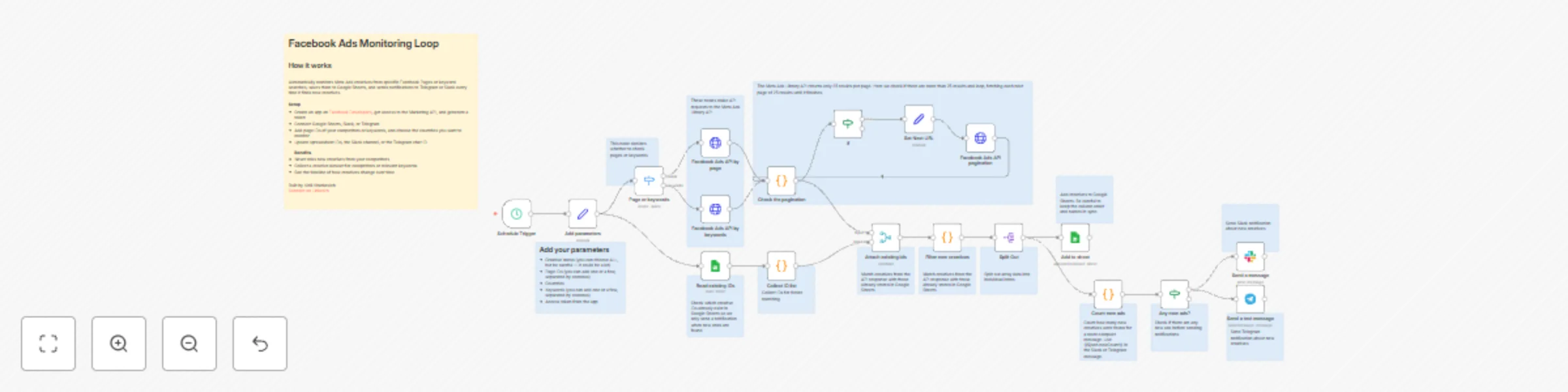
This workflow continuously monitors the Meta Ads Library for new creatives from a specific competitor pages, logs them into Google Sheets, and sends a concise Telegram notification with the number of newly discovered ads. It is built as a safe, idempotent loop that can run on a schedule without creating duplicates in your sheet. #### **Use Case** Manually checking the Meta Ads Library for competitor creatives is time‑consuming, and it’s easy to lose track of which ads you’ve already seen. This workflow is ideal if you want to: - **Track competitor creatives over time** in a structured Google Sheet. - **Avoid duplicates** by matching ads via their unique `id` field. - **Get lightweight notifications** in Telegram that tell you *how many* new ads appeared, without spamming you with full ad lists. - **Run the process on autopilot** (daily, weekly, etc.) with a single schedule. #### **How it Works** The workflow is organized into three logical blocks: **1. Fetch Ads & Handle Pagination** - **Configuration:** The `Add parameters` Set node stores all key request variables: - `ad_active_status` (e.g. `active`), - `search_page_ids` (competitor page IDs), - `ad_reached_countries`, - `access_token`. - **Routing:** `Page or keywords` routes execution into one of two HTTP Request nodes: - `Facebook Ads API by page` — the main branch that queries ads by page ID. - `Facebook Ads API by keywords` — an optional branch for keyword‑based searches. - **Normalization:** `Facebook Ads API by ...` returns the raw `ads_archive` response. `Check the pagination` then: - extracts `data` (array of ad objects) into a dedicated field, - reads `paging.next` into `next_url` for pagination. - **Pagination Loop:** - `If` checks whether `next_url` is not empty. - `Set Next URL` assigns `next_url` to a generic `url` field. - `Facebook Ads API pagination` requests the next page and feeds it back into `Check the pagination`. This loop continues until there is no `next_url`, ensuring all pages of the Ads Library response are processed. **2. De‑duplicate Ads & Log to Google Sheets** - **Load Existing IDs:** - `Read existing IDs` pulls the existing `id` column from your Google Sheet (configured to read a specific column/range). - `Collect ID list` converts these into a unique, normalized string array `existingIds`, which represents all ads you have already logged. - **Attach State:** - `Attach existing ids` (Merge node) combines, for each execution, the freshly fetched Meta response (`data`) with the historical `existingIds` array from Sheets. - **Filter New Creatives:** - `Filter new creatives` Code node compares each ad’s `id` (string) against the `existingIds` set and builds a new `data` array containing **only ads that are not yet present** in the sheet. - It also protects against duplicates inside the same batch by tracking seen IDs in a local `Set`. - **Write New Ads:** - `Split Out` expands the filtered `data` array into individual items (one item per new ad). - `Add to sheet` then performs an `appendOrUpdate` into Google Sheets, mapping core fields such as `id`, `ad_creation_time`, `page_name`, `ad_creative_bodies`, `ad_snapshot_url`, `languages`, `publisher_platforms`, and link fields. - The column mapping uses `id` as the matching column so that existing rows can be updated if needed. **3. Count New Ads & Notify in Telegram** - **Count:** - In parallel with the write step, `Split Out` also feeds into `Count new ads`. - This Code node returns a single summary item with `newCount = items.length`, i.e. the total number of **new** creatives processed in this run. - **Guard:** - `Any new ads?` checks whether `newCount` is greater than `0`. If not, the workflow ends silently and no message is sent, avoiding noise. - **Notify:** - When there are new creatives, `Send a text message` sends a Telegram message to the configured `chatId`. - The message includes `{{$json.newCount}}` and a fixed link to the Google Sheet, giving you a quick heads‑up without listing individual ads. --- ### **Setup Instructions** To use this template, configure the following components. **1. Credentials** - **Meta Ads / HTTP Header Auth:** - Configure the `Meta Ads` HTTP Header credentials used by: - `Facebook Ads API by page`, - `Facebook Ads API by keywords`, - `Facebook Ads API pagination`. - **Google Sheets:** - Connect your Google account in: - `Read existing IDs`, - `Add to sheet`. - **Telegram:** - Connect your `Telegram account` credentials in `Send a text message`. **2. The `Add parameters` Node** Open the `Add parameters` Set node and customize: - `ad_active_status`: Which ads to monitor (`active`, `all`, etc.). - `search_page_ids`: The numeric ID of the competitor Facebook Page you want to track. - `ad_reached_countries`: Comma‑separated list of country codes (`US`, `US, CA`, etc.). - `access_token`: A valid long‑lived access token with permission to query the Ads Library. **3. Google Sheets Configuration** - **`Read existing IDs`** - Set `documentId` and `sheetName` to your tracking spreadsheet and sheet (e.g. an `ads` tab). - Configure the range to read only the column holding the ad `id` values. - **`Add to sheet`** - Point `documentId` and `sheetName` to the same spreadsheet/sheet. - Make sure your sheet has the columns expected by the node (e.g. `id`, `creation time`, `page`, `title`, `description`, `delivery_start_time`, `snapshot`, `languages`, `platforms`, `link`). - Confirm that `id` is included in `matchingColumns` so de‑duplication works correctly. **4. Telegram Configuration** - In `Send a text message`, set: - `chatId`: Your target Telegram chat or channel ID. - `text`: Customize the message template as needed, but keep `{{$json.newCount}}` to show the number of new creatives. **5. Schedule** - Open `Schedule Trigger` and configure when you want the workflow to run (e.g. every morning). - Save and activate the workflow. --- ### **Further Ideas & Customization** This workflow is a solid foundation for systematic competitor monitoring. You can extend it to: - **Track multiple competitors** by turning `search_page_ids` into a list and iterating over it with a loop or separate executions. - **Enrich the log with performance data** by creating a second workflow that reads the sheet, pulls spend/impressions/CTR for each logged `ad_id` from Meta, and merges the metrics back. - **Add more notification channels** such as Slack or email, or send a weekly summary that aggregates new ads by page, format, or country. - **Tag or categorize creatives** (e.g. “video vs image”, “country”, “language”) directly in the sheet to make later analysis easier.

K
Kirill Khatkevich
Market Research
27 Nov 2025
231
0
Workflow preview: Analyze Meta ads creatives with Google Vision & Video Intelligence APIs
Free advanced

Analyze Meta ads creatives with Google Vision & Video Intelligence APIs

This workflow transforms your Meta Ads creatives into a rich dataset of actionable insights. It's designed for data-driven marketers, performance agencies, and analysts who want to move beyond basic metrics and understand the specific visual and textual elements that drive ad performance. By automatically analyzing every video and image with Google's powerful AI (Video Intelligence and Vision APIs), it systematically deconstructs your creatives into labeled data, ready for correlation with campaign results. #### Use Case You know some ads perform better than others, but do you know *why*? Is it the presence of a person, a specific object, the on-screen text, or the spoken words in a video? Answering these questions manually is nearly impossible at scale. This workflow automates the deep analysis process, allowing you to: * **Automate Creative Analysis:** Stop guessing and start making data-backed decisions about your creative strategy. * **Uncover Hidden Performance Drivers:** Identify which objects, themes, text, or spoken phrases correlate with higher engagement and conversions. * **Build a Structured Creative Database:** Create a detailed, searchable log of every element within your ads for long-term analysis and trend-spotting. * **Save Countless Hours:** Eliminate the tedious manual process of watching, tagging, and logging creative assets. #### How it Works The workflow is triggered on a schedule and follows a clear, structured path: **1. Configuration & Ad Ingestion:** * The workflow begins on a schedule (e.g., weekly on Monday at 10 AM). * It starts by fetching all active ads from a specific **Meta Ads Campaign**, which you define in the **`Set Campaign ID`** node. **2. Intelligent Branching (Video vs. Image):** * An **IF node** inspects each creative to determine its type. * **Video creatives** are routed to the Google Video Intelligence API pipeline. * **Image creatives** are routed to the Google Vision API pipeline. **3. The Video Analysis Pipeline:** * For each video, the workflow gets a direct source URL, downloads the file, and converts it to a Base64 string. * It then initiates an asynchronous analysis job in the **Google Video Intelligence API**, requesting `LABEL_DETECTION`, `SPEECH_TRANSCRIPTION`, and `TEXT_DETECTION`. * A **loop with a wait timer** periodically checks the job status until the analysis is complete. * Finally, a **Code node** parses the complex JSON response, structuring the annotations (like detected objects with timestamps or full speech transcripts) into clean rows. **4. The Image Analysis Pipeline:** * For each image, the file is downloaded, converted to Base64, and sent to the **Google Vision API**. * It requests a wide range of features, including label, text, logo, and object detection. * A **Code node** parses the response and formats the annotations into a standardized structure. **5. Data Logging & Robust Error Handling:** * All successfully analyzed data from both pipelines is appended to a primary **Google Sheet**. * The workflow is built to be resilient. If an error occurs (e.g., a video fails to be processed by the API, or an image URL is missing), a detailed error report is logged to a separate **`errors` sheet** in your Google Sheet, ensuring no data is lost and problems are easy to track. --- ### Setup Instructions To use this template, you need to configure a few key nodes. **1. Credentials:** * Connect your **Meta Ads** account. * Connect your **Google** account. This account needs access to Google Sheets and must have the **Google Cloud Vision API** and **Google Cloud Video Intelligence API** enabled in your GCP project. **2. The `Set Campaign ID` Node:** * This is the primary configuration step. Open this `Set` node and replace the placeholder value with the **ID of the Meta Ads campaign** you want to analyze. **3. Google Sheets Nodes:** You need to configure two Google Sheets nodes: * **`Add Segments data`:** * Select your spreadsheet and the specific sheet where you want to save the successful analysis results. * Ensure your sheet has the following headers: `campaign_id`, `ad_id`, `creative_id`, `video_id`, `file_name`, `image_url`, `source`, `annotation_type`, `label_or_text`, `category`, `full_transcript`, `confidence`, `start_time_s`, `end_time_s`, `language_code`, `processed_at_utc`. * **`Add errors`:** * Select your spreadsheet and the sheet you want to use for logging errors (e.g., a sheet named "errors"). * Ensure this sheet has headers like: `error_type`, `error_message`, `campaign_id`, `ad_id`, `creative_id`, `file_name`, `processed_at_utc`. **4. Activate the Workflow:** * Set your desired frequency in the `Run Weekly on Monday at 10 AM` (Schedule Trigger) node. * Save and activate the workflow. --- ### Further Ideas & Customization This workflow provides the "what" inside your creatives. The next step is to connect it to performance. * **Build a Performance Analysis Workflow:** Create a second workflow that reads this Google Sheet, fetches performance data (spend, clicks, conversions) for each `ad_id` from the Meta Ads API, and merges the two datasets. This will allow you to see which labels correlate with the best performance. * **Create Dashboards:** Use the structured data in your Google Sheet as a source for a Looker Studio or Tableau dashboard to visualize creative trends. * **Incorporate Generative AI:** Add a final step that sends the combined performance and annotation data to an LLM (like in the example you provided) to automatically generate qualitative summaries and recommendations for each creative. * **Add Notifications:** Use the Slack or Email nodes to send a summary after each run, reporting how many creatives were analyzed and if any errors occurred.

K
Kirill Khatkevich
Market Research
13 Aug 2025
1458
0
Workflow preview: Meta Ads Performance Analysis with GPT-4 & Gemini AI Comparisons
Free advanced

Meta Ads Performance Analysis with GPT-4 & Gemini AI Comparisons

This workflow transforms raw Meta Ads data into actionable, expert-level insights. It acts as a virtual performance marketer, analyzing each creative's performance, comparing it against your historical benchmarks, and delivering clear recommendations on whether to scale, optimize, or stop the ad. By running parallel analyses with both OpenAI and Gemini, it provides a unique, dual-perspective evaluation. This template is the perfect sequel to our "Automation of Creative Testing" workflow but also works powerfully on its own. #### **Use Case** Manually sifting through ads manager reports is tedious, and identifying true winners from early data is challenging. This workflow solves these problems by automating the entire analysis pipeline. It's designed for performance marketing teams who need to: - Make faster, data-driven decisions on which creatives to scale. - Get objective, AI-powered second opinions on ad performance. - Systematically evaluate creatives against consistent, pre-defined benchmarks. - Maintain a central log in Google Sheets with both raw metrics and qualitative AI analysis. - Save hours spent on manual data crunching and report generation. #### **How it Works** The workflow is structured into three logical stages: 1. **Configuration & Data Ingestion**: - A central ⚙️ Set parameters node holds all key variables: the data source (Meta or Sheets), campaign_id, and, most importantly, your historical performance benchmarks as a simple text block. - An IF node directs the workflow to fetch data either directly from a Meta Ads campaign or from a specified Google Sheet (ideal for analyzing a curated list of ads). 2. **Data Processing & AI Analysis (Parallel Execution)**: After fetching raw performance data (spend, impressions, clicks, actions), the workflow splits into three parallel branches for maximum resilience: - Branch 1 (Data Logging): Immediately writes or updates a row in Google Sheets with the raw metrics for the creative. This ensures no data is lost, even if the AI analysis fails. - Branch 2 (OpenAI Analysis): Prepares a CSV string of the creative's data, sends it along with the benchmarks to an OpenAI model (e.g., GPT-4), and instructs it to return a structured JSON analysis. - Branch 3 (Gemini Analysis): Performs the exact same process but using Google's Gemini model via a LangChain agent, providing a second, independent evaluation. 3. **Results Aggregation**: - The results from both AI models are received as structured JSON. - Two final Google Sheets nodes take these results and update the original row (matching by AdID), adding the evaluation, significance, summary, and recommendation into separate columns. The final sheet contains a complete picture: raw data side-by-side with analyses from two different AIs. --- ### **Setup Instructions** 1. **Credentials**: 1.1 Connect your Meta Ads account. 1.2 Connect your Google account (for Sheets). 1.3 Connect your OpenAI account. 1.4 Connect your Google Gemini (Palm) account. 2. **The ⚙️ Set parameters Node**: This is the central control panel. Open this first Set node and customize it: - source: Set to "Meta" to pull from a campaign or "sheets" to read from a Google Sheet. - campaign_id: If source is "Meta", enter your Meta Campaign ID here. - benchmarks_data: This is critical. Paste your own historical performance data here as a CSV-formatted text block. The template includes an example. For best results, use an export from Ads Manager of your top-performing creatives, including key metrics. 3. **Google Sheets Nodes**: There are three Google Sheets nodes that write data. You need to configure all of them to point to the same spreadsheet and sheet. - Ad metrics (for raw metrics): Select your spreadsheet and sheet. Ensure "Operation" is set to Append or Update. - Ad data from OpenAI (for OpenAI results): Select the same spreadsheet/sheet. Set "Operation" to Update. - Ad data from Gemini (for Gemini results): Select the same spreadsheet/sheet. Set "Operation" to Update. - Make sure your sheet has columns for all the data fields, e.g., AdID, FileName, spend, impressions, evaluation, summary, recommendation, evaluation G, summary G, etc. 4. **Activate the Workflow**: Set your desired frequency in the Schedule Trigger node. Save and activate the workflow. --- ### **Further Ideas & Customization** This powerful analysis engine can be extended even further: - Add a "Decision" Node: After the AI analyses are logged, add a final step that compares their recommendations. If both AIs say "scale", automatically increase the ad's budget via the Meta Ads API. - Create Summary Reports: Add a branch that, after all ads are processed, calculates an overall summary (e.g., "3 creatives recommended for scaling, 5 for stopping") and sends it to a Slack channel. - Dynamic Benchmarks: Instead of pasting benchmarks into the Set node, create a step that reads them from a dedicated "Benchmarks" tab in your Google Sheet, making them even easier to update. - Experiment with Prompts and Benchmarks: The quality of the AI analysis is highly dependent on the quality of your input. Don't be afraid to: -- Refine the prompts in the AI Agent and Message a model nodes to better match your specific business context and KPIs. -- Curate your benchmarks_data. Test different sets of benchmark data (e.g., "last 30 days top performers" vs. "all-time best") to see how it influences the AI's recommendations. Finding the right combination of prompt and data is key to unlocking the most effective insights.

K
Kirill Khatkevich
Market Research
28 Jul 2025
2129
0
Workflow preview: Automation of creative testing and campaign launching for Meta ads
Free advanced

Automation of creative testing and campaign launching for Meta ads

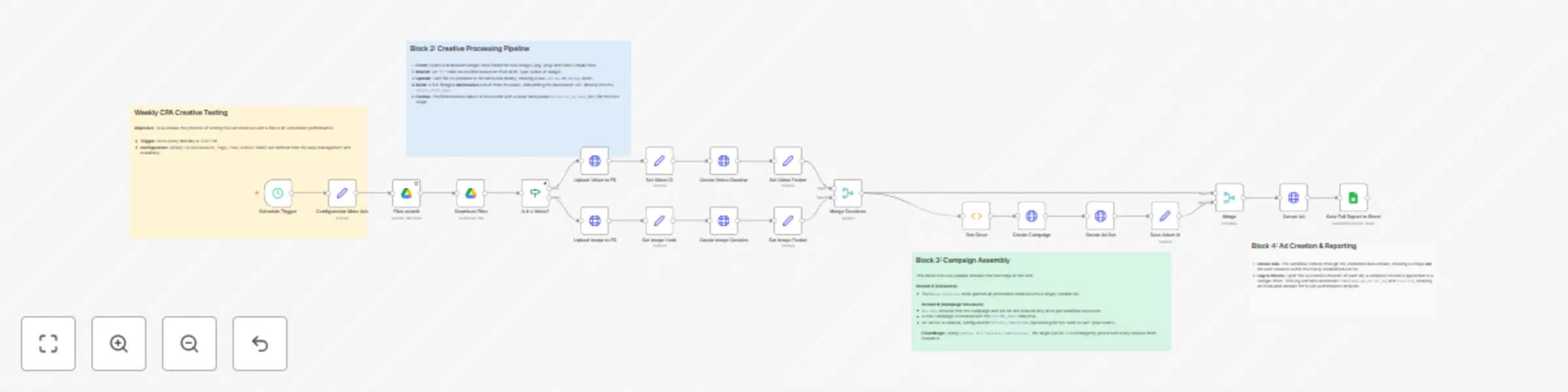
This workflow is a comprehensive solution for digital marketers, performance agencies, and e-commerce brands looking to scale their creative testing process on Meta Ads efficiently. It eliminates the tedious manual work of uploading assets, creating campaigns, and setting up ads one by one. #### **Use Case** Manually launching weekly creative tests is time-consuming and prone to errors. This workflow solves that problem by creating a fully automated pipeline: from a creative asset in a folder to a complete, ready-to-launch (but paused) ad structure in your Meta Ads account. It's perfect for teams that want to: * Save hours of manual work every week. * Systematically test a high volume of creatives. * Maintain a structured and consistent campaign naming convention. * Keep a detailed log of all created assets for data-driven performance analysis. #### **How it Works** The workflow is structured into four logical blocks: **1. Configuration & Scheduling:** * The workflow runs on a weekly schedule. * A central **"Configuration" Set node** at the beginning holds all key variables (Ad Account ID, Page ID, Pixel ID, making it incredibly easy to adapt the template for different projects. **2. Creative Ingestion & Processing:** * It scans a specific Google Drive folder for new image and video files. * Using an **IF node**, it branches the logic based on the file type. * Each file is uploaded to the Meta Ads library, and a corresponding **Ad Creative** is built with a pre-defined destination URL. **3. Campaign & Ad Set Assembly:** * The workflow creates a single new **Campaign** with an `OUTCOME_SALES` objective. * It then creates a single **Ad Set** optimized for `OFFSITE_CONVERSIONS` (e.g., "Add to Cart"), using the Pixel ID from the configuration. * A **Merge node** intelligently combines the single Ad Set ID with every creative processed in the previous block, preparing the data for the final step. **4. Ad Creation & Data Logging:** * The workflow iterates through the prepared data, creating a unique **Ad** for each creative. * Upon the successful creation of each ad, a new row is appended to a Google Sheet, logging all relevant IDs (`CampaignID`, `AdSetID`, `AdID`, `CreativeID`) and metadata for a complete audit trail. --- ### **Setup Instructions** To use this template, you need to configure a few key nodes. **1. Credentials:** * Connect your **Meta Ads** account. * Connect your **Google** account (for both Drive and Sheets). **2. The `⚙️ Configuration` Node (Set node):** This is the most important step. Open the first `Set` node and fill in your specific values: * `adAccountId`: Your Meta Ad Account ID. * `pageId`: The ID of the Facebook Page you're advertising for. * `pixelId`: Your Meta Pixel ID for conversion tracking. **3. Google Sheets Node (`Save Full Report to Sheet`):** * Select your spreadsheet and the specific sheet where you want to save the reports. * Make sure your sheet has columns with the following headers: `CampaignID`, `AdSetID`, `AdID`, `CreativeID`, `FileName`, `MimeType`, `Timestamp`. **4. Check URLs and IDs in HTTP Request Nodes:** * The template is configured to use the variables from the `⚙️ Configuration` node. Double-check that the URLs in the `Create Campaign`, `Create Ad Set`, and `Create ... Creative` nodes correctly reference these variables (e.g., `.../act_{{ $('⚙️ Configuration Meta Ads').item.json.adAccountId }}/campaigns`). * Verify the `link` in the `Create Video Creative` and `Create Image Creative` nodes points to your desired landing page. **5. Activate the Workflow:** * Set your desired schedule in the `Schedule Trigger` node. * Save and activate the workflow. --- ### **Further Ideas & Customization** This workflow is a powerful foundation. You can easily extend it to: * **Create a second workflow** that runs a week later, reads the Google Sheet, and pulls performance data for all the ads created. * **A/B test ad copy** by adding different text variations from a spreadsheet. * **Add a Slack or Email notification** at the end to confirm that the weekly campaign launch was successful.

K
Kirill Khatkevich
Social Media
16 Jul 2025
2603
0