Monitor AppSumo lifetime deals with ScrapeOps and Google Sheets

Workflow preview

Workflow preview
100%
Monitor AppSumo lifetime deals with ScrapeOps and Google Sheets preview
Open on n8n.io

1. Workflow Overview

Overview This n8n template automates daily monitoring of AppSumo lifetime deals. Using ScrapeOps Proxy with JavaScript rendering to reliably fetch pages and a structured parsing pipeline, the workf...

Best for

  • Market Research automation workflows
  • advanced n8n builders looking for reusable templates

Tools used

n8n-nodes-base.scheduletrigger, @scrapeops/n8n-nodes-scrapeops.scrapeops, n8n-nodes-base.code, n8n-nodes-base.googlesheets, n8n-nodes-base.merge, n8n-nodes-base.if, n8n-nodes-base.stickynote

Source and attribution

This workflow is cataloged by N8N Workflows and links back to its original n8n.io source page by Ian Kerins.

Original n8n.io source

1.1 Workflow description

Title
Monitor AppSumo lifetime deals with ScrapeOps and Google Sheets
Workflow name
Monitor AppSumo lifetime deals with ScrapeOps and Google Sheets

Overview

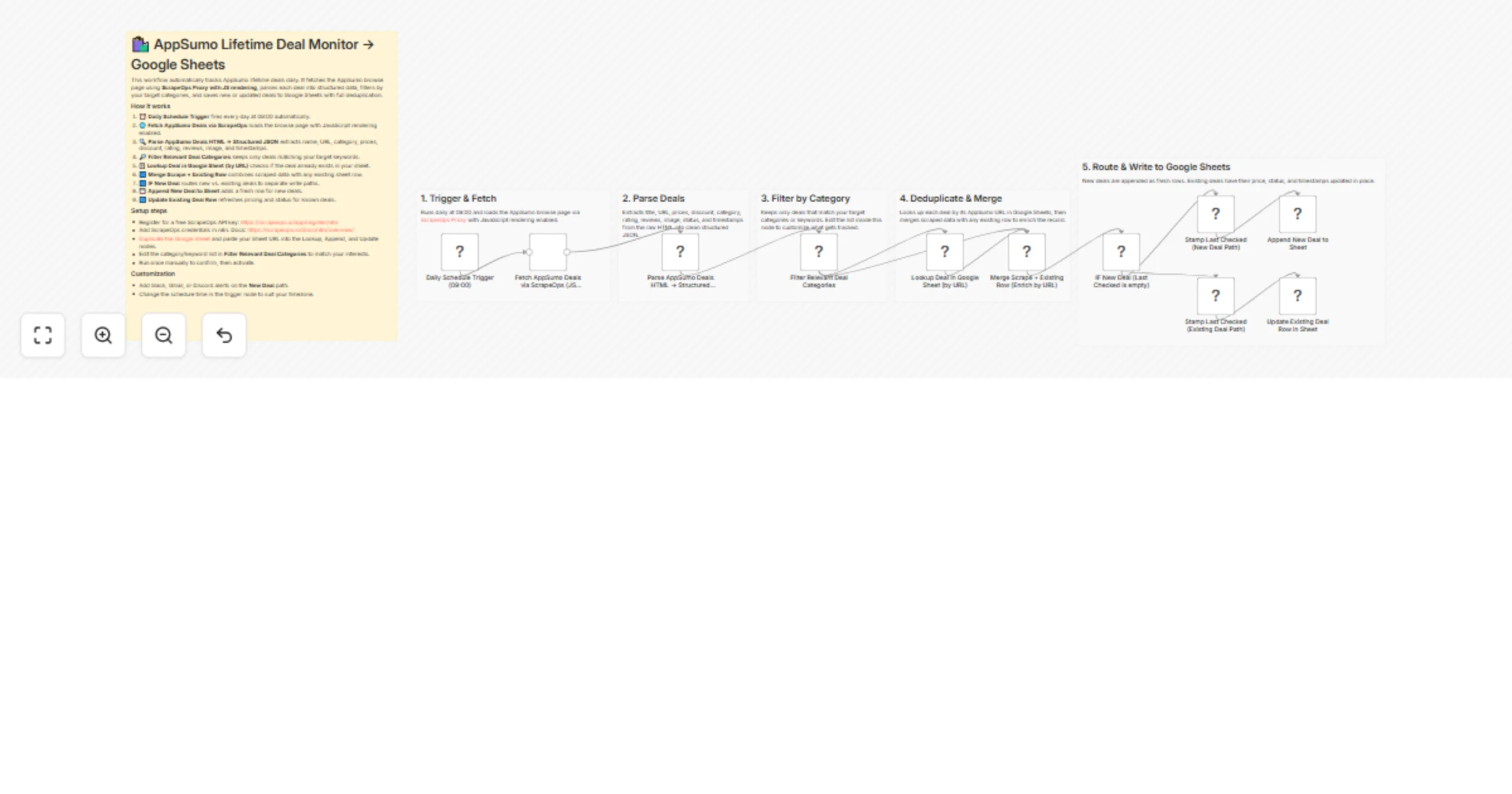
This n8n template automates daily monitoring of AppSumo lifetime deals. Using ScrapeOps Proxy with JavaScript rendering to reliably fetch pages and a structured parsing pipeline, the workflow tracks new and updated deals — saving everything to Google Sheets with full deduplication and change tracking.

Who is this for?

  • SaaS enthusiasts and deal hunters who follow AppSumo regularly
  • Founders and marketers tracking competitor tools available as lifetime deals
  • Agencies managing software budgets who want alerts on new tools
  • Investors or analysts monitoring the AppSumo marketplace

What problem does it solve?

Manually checking AppSumo for new lifetime deals is easy to forget and inconsistent. This workflow runs every day, automatically fetches the latest listings, filters by categories you care about, and keeps your Google Sheet updated — appending new deals and refreshing existing ones — so you never miss a deal.

How it works

  1. A daily schedule triggers the workflow at 09:00 automatically.
  2. ScrapeOps Proxy fetches the AppSumo browse page with JavaScript rendering to bypass dynamic content blocks.
  3. The HTML is parsed into structured JSON: name, URL, prices, discount, category, rating, reviews, image, and timestamps.
  4. A filter node keeps only deals matching your target categories or keywords.
  5. Each deal is looked up in Google Sheets by its URL to check if it already exists.
  6. New deals are appended as fresh rows; existing deals have their data updated in place.

Set up steps (~10–15 minutes)

  1. Register for a free ScrapeOps API key: https://scrapeops.io/app/register/n8n
  2. Install the ScrapeOps community node and add credentials. Docs: https://scrapeops.io/docs/n8n/overview/
  3. Duplicate the Google Sheet template and paste your Sheet URL into the Lookup, Append, and Update nodes.
  4. Edit the category/keyword list inside Filter Relevant Deal Categories to match what you want to track.
  5. Run the workflow once manually to confirm results, then activate.

Pre-conditions

Disclaimer

This template uses ScrapeOps as a community node. You are responsible for complying with AppSumo's Terms of Use, robots.txt directives, and applicable laws in your jurisdiction. Scraping targets may change at any time; adjust render, scroll, and wait settings and parsers as needed. Use responsibly and only for legitimate business purposes.

1.2 Logical Blocks

This catalog entry is organized from the workflow JSON. The node-level section below shows the executable blocks available for review before importing the template.

2. Block-by-Block Analysis

Block 1 - Daily Schedule Trigger (09:00)

Type / Role
n8n-nodes-base.scheduleTrigger - scheduleTrigger
Config choices
Version 1.1

Block 2 - Fetch AppSumo Deals via ScrapeOps (JS Render)

Type / Role
@scrapeops/n8n-nodes-scrapeops.ScrapeOps - ScrapeOps
Config choices
Version 1

Block 3 - Parse AppSumo Deals HTML → Structured JSON

Type / Role
n8n-nodes-base.code - code
Config choices
Version 2

Block 4 - Lookup Deal in Google Sheet (by URL)

Type / Role
n8n-nodes-base.googleSheets - googleSheets
Config choices
Version 4

Block 5 - Merge Scrape + Existing Row (Enrich by URL)

Type / Role
n8n-nodes-base.merge - merge
Config choices
Version 2.1

Block 6 - IF New Deal (Last Checked is empty)

Type / Role
n8n-nodes-base.if - if
Config choices
Version 1

Block 7 - Stamp Last Checked (New Deal Path)

Type / Role
n8n-nodes-base.code - code
Config choices
Version 2

Block 8 - Stamp Last Checked (Existing Deal Path)

Type / Role
n8n-nodes-base.code - code
Config choices
Version 2

Block 9 - Append New Deal to Sheet

Type / Role
n8n-nodes-base.googleSheets - googleSheets
Config choices
Version 4

Block 10 - Update Existing Deal Row in Sheet

Type / Role
n8n-nodes-base.googleSheets - googleSheets
Config choices
Version 4

Block 11 - Sticky Note

Type / Role
n8n-nodes-base.stickyNote - stickyNote
Config choices
Version 1

Block 12 - Sticky Note1

Type / Role
n8n-nodes-base.stickyNote - stickyNote
Config choices
Version 1

Block 13 - Sticky Note2

Type / Role
n8n-nodes-base.stickyNote - stickyNote
Config choices
Version 1

Block 14 - Sticky Note3

Type / Role
n8n-nodes-base.stickyNote - stickyNote
Config choices
Version 1

Block 15 - Filter Relevant Deal Categories

Type / Role
n8n-nodes-base.code - code
Config choices
Version 2

Block 16 - Sticky Note4

Type / Role
n8n-nodes-base.stickyNote - stickyNote
Config choices
Version 1

Block 17 - Sticky Note5

Type / Role
n8n-nodes-base.stickyNote - stickyNote
Config choices
Version 1

3. Summary Table

Workflow Monitor AppSumo lifetime deals with ScrapeOps and Google Sheets
Complexity advanced
Nodes 17
Categories Market Research
Author Ian Kerins
Published 11 Mar 2026

4. Reproducing the Workflow from Scratch

  1. 1. Download the workflow JSON

    Use the JSON export at /data/workflows/13994/13994.json as the source template for this automation.

  2. 2. Import the template into n8n

    Open n8n, import the downloaded JSON, and review each node before activating the workflow.

  3. 3. Configure credentials and variables

    Replace placeholder credentials, API keys, webhook URLs, account IDs, and environment-specific values with your own settings.

  4. 4. Test with sample data

    Run the workflow manually or in a staging workspace, inspect node output, and confirm downstream systems receive the expected data.

  5. 5. Activate and monitor

    Enable the workflow only after testing, then monitor executions, errors, and rate limits during the first production runs.

5. General Notes & Resources

Review imported nodes carefully before activation. This catalog entry is intended to help you inspect the workflow structure, understand required services, and find related templates faster.

Node names, credentials, schedules, webhook paths, and external service limits may need adjustment for your workspace.

Frequently asked questions

What does Monitor AppSumo lifetime deals with ScrapeOps and Google Sheets do?

Overview This n8n template automates daily monitoring of AppSumo lifetime deals. Using ScrapeOps Proxy with JavaScript rendering to reliably fetch pages and a structured parsing pipeline, the workf...

What do I need before importing this workflow?

Review the workflow JSON, configure any required credentials in n8n, and test the automation in a safe workspace before using it in production.

Can I customize this workflow?

Yes. Use the block-by-block analysis and the downloadable JSON to inspect each node, then adjust credentials, prompts, schedules, filters, or destinations for your Market Research use case.