Block 1 - Zendesk – New Ticket Trigger
- Type / Role
- n8n-nodes-base.zendeskTrigger - zendeskTrigger
- Config choices
- Version 1


 Early Deal
Zendesk New Ticket → WooCommerce Order Matching, Tagging & Email Automation Automatically enrich Zendesk tickets with WooCommerce order details and reduce manual lookups. This workflow listens for ...
n8n-nodes-base.zendesktrigger, n8n-nodes-base.zendesk, n8n-nodes-base.woocommerce, n8n-nodes-base.if, n8n-nodes-base.code, n8n-nodes-base.set, n8n-nodes-base.gmail, n8n-nodes-base.stickynote
This workflow is cataloged by N8N Workflows and links back to its original n8n.io source page by WeblineIndia.
Original n8n.io sourceAutomatically enrich Zendesk tickets with WooCommerce order details and reduce manual lookups.
This workflow listens for new Zendesk tickets, fetches the ticket requester’s details, retrieves recent WooCommerce orders, matches them by customer email and updates the ticket with order information and relevant tags. If a matching order is marked as completed, it also sends a confirmation email to the customer.
That’s it — new tickets will now automatically include order context.
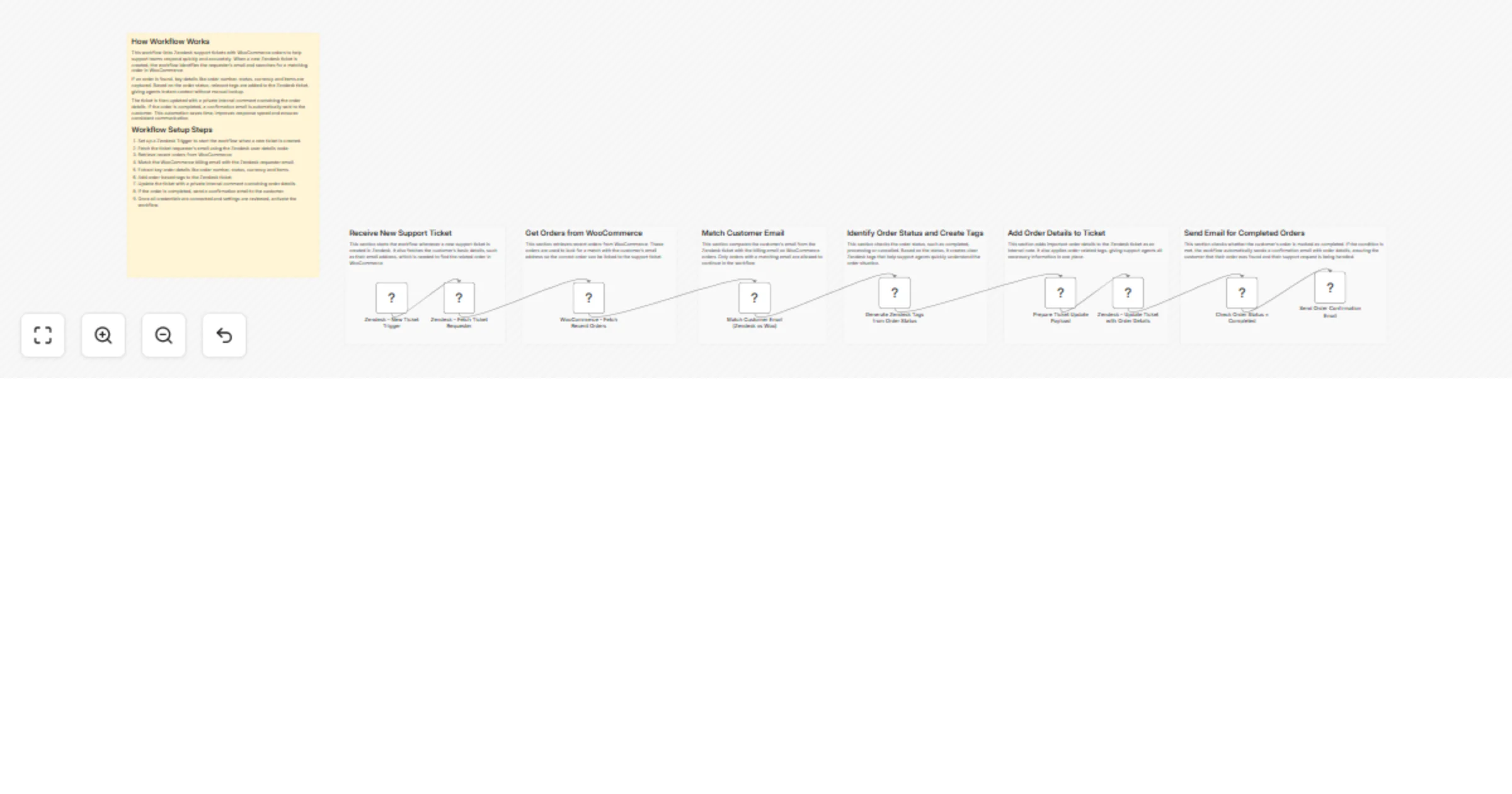
This workflow bridges the gap between customer support and order management by linking Zendesk tickets with WooCommerce orders. When a new ticket is created, the workflow retrieves the requester’s profile to identify their email address, which is then used to find related orders in WooCommerce.
Because direct email-based filtering is not available in the WooCommerce node, the workflow fetches the latest five orders and performs email matching internally within n8n. This ensures accurate matching while working around platform limitations.
Once a matching order is found, the workflow extracts essential details such as order number, status, currency and purchased items. It updates the Zendesk ticket with a private internal note and applies clear order-status-based tags. If the order is marked as completed, the workflow also sends a confirmation email to the customer.
Trigger on New Ticket
The workflow starts when a new Zendesk ticket is created with status new.
Fetch Ticket Requester Details The requester’s user profile is retrieved to obtain their email address.
Fetch Recent WooCommerce Orders The workflow retrieves the latest five orders from WooCommerce.
Match Customer Email Each order’s billing email is compared with the Zendesk requester’s email. Only matching orders continue through the workflow.
Generate Zendesk Tags Order status is evaluated and mapped to meaningful Zendesk tags.
Prepare Ticket Update Payload Order details and tags are formatted for the Zendesk update.
Update Zendesk Ticket A private internal note is added to the ticket, along with order-related tags.
Check for Completed Orders
If the order status is completed, the workflow proceeds to send an email.
Send Confirmation Email The customer receives a confirmation email with their order details.
limit value to control how many recent orders are checked.There are many more possible use cases depending on how this workflow is extended or customized.
| Issue | Possible Cause | Solution |
|---|---|---|
| No order found | Customer used a different email | Ask the customer to confirm the checkout email |
| Wrong order matched | Order not in recent fetch range | Increase the WooCommerce order fetch limit |
| No email sent | Order status is not completed |
Confirm order status or customize the IF condition |
| Ticket not updated | Zendesk permission issue | Verify API credentials and scopes |
| Tags missing | Code node not triggered | Check order status logic in the Code node |
If you need help setting up this workflow, customizing nodes or building additional automation, WeblineIndia is here to support you.
Our team specializes in n8n workflow automation, Zendesk integrations and WooCommerce process optimization. Whether you want to extend this workflow or build a similar solution tailored to your business, feel free to reach out to WeblineIndia for expert assistance.
This catalog entry is organized from the workflow JSON. The node-level section below shows the executable blocks available for review before importing the template.
| Workflow | Match WooCommerce orders to new Zendesk tickets and send confirmation emails |
|---|---|
| Complexity | advanced |
| Nodes | 16 |
| Categories | Ticket Management, AI Summarization |
| Author | WeblineIndia |
| Published | 22 Jan 2026 |
Use the JSON export at /data/workflows/12906/12906.json as the source template for this automation.
Open n8n, import the downloaded JSON, and review each node before activating the workflow.
Replace placeholder credentials, API keys, webhook URLs, account IDs, and environment-specific values with your own settings.
Run the workflow manually or in a staging workspace, inspect node output, and confirm downstream systems receive the expected data.
Enable the workflow only after testing, then monitor executions, errors, and rate limits during the first production runs.
Review imported nodes carefully before activation. This catalog entry is intended to help you inspect the workflow structure, understand required services, and find related templates faster.
Node names, credentials, schedules, webhook paths, and external service limits may need adjustment for your workspace.
Zendesk New Ticket → WooCommerce Order Matching, Tagging & Email Automation Automatically enrich Zendesk tickets with WooCommerce order details and reduce manual lookups. This workflow listens for ...
Review the workflow JSON, configure any required credentials in n8n, and test the automation in a safe workspace before using it in production.
Yes. Use the block-by-block analysis and the downloadable JSON to inspect each node, then adjust credentials, prompts, schedules, filters, or destinations for your Ticket Management, AI Summarization use case.