Manage customer inquiries from email & web forms with Slack & Google Sheets

Workflow preview

Workflow preview
100%
Manage customer inquiries from email & web forms with Slack & Google Sheets preview
Open on n8n.io

Important notice

This workflow is provided as-is. Please review and test before using in production.

1. Workflow Overview

This n8n workflow is designed to centralize the management and tracking of customer inquiries received through multiple channels (email and web forms). Who's it for? Customer support teams Marketin...

Best for

  • Ticket Management automation workflows
  • advanced n8n builders looking for reusable templates

Tools used

n8n-nodes-base.emailreadimap, n8n-nodes-base.webhook, n8n-nodes-base.html, n8n-nodes-base.set, n8n-nodes-base.merge, n8n-nodes-base.switch, n8n-nodes-base.googlesheets, n8n-nodes-base.slack

Source and attribution

This workflow is cataloged by N8N Workflows and links back to its original n8n.io source page by 對馬 瑠斗.

Original n8n.io source

1.1 Workflow description

Title
Manage customer inquiries from email & web forms with Slack & Google Sheets
Workflow name
Manage customer inquiries from email & web forms with Slack & Google Sheets

This n8n workflow is designed to centralize the management and tracking of customer inquiries received through multiple channels (email and web forms).

Who's it for?

  • Customer support teams
  • Marketing teams
  • Sales teams
  • Small to medium-sized businesses
  • Individuals looking to streamline customer inquiry processes

How it works / What it does

This workflow is designed to automatically collect, process, route, and track customer inquiries from different sources.

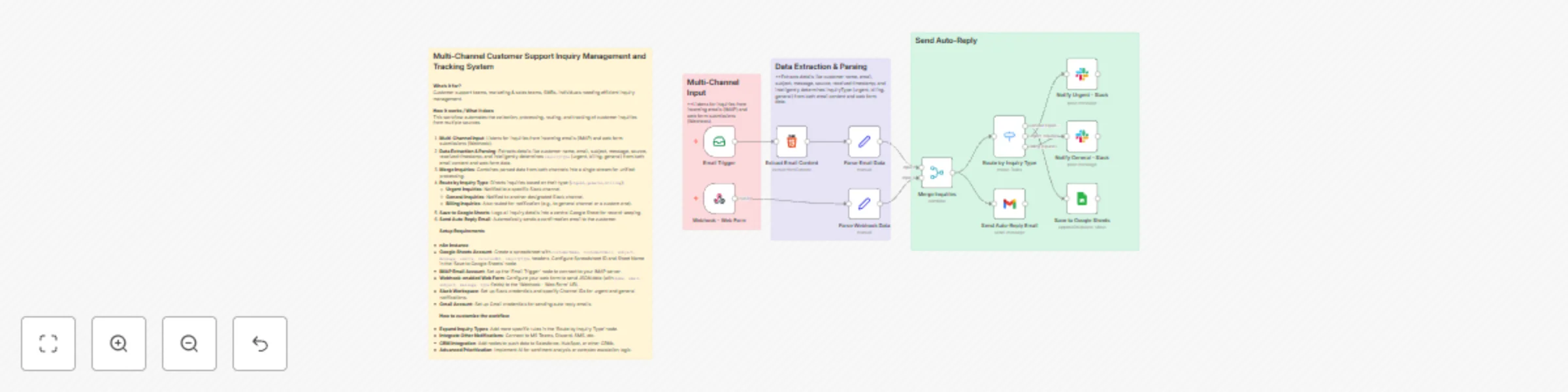
  1. Multi-Channel Input: The workflow listens for inquiries from both incoming emails and web form submissions.

    • Email Trigger: Monitors a specific inbox for sent emails.
    • Webhook - Web Form: Listens for web form data submitted to a designated endpoint.
  2. Data Extraction and Parsing:

    • Extract Email Content: Extracts HTML content from incoming emails to get a clean text message.
    • Parse Email Data: Extracts relevant information from the email, such as customer name, email address, subject, message, received timestamp, source ("email"), and inquiry type (e.g., "urgent", "billing", "general") based on the subject line.
    • Parse Webhook Data: Extracts customer name, email, subject, message, received timestamp, source ("webform"), and inquiry type from the web form data based on the provided type or a default of "general".
  3. Merge Inquiries: The parsed email and web form inquiry data are combined into a single stream for continued processing.

  4. Route by Inquiry Type: The workflow then routes the inquiries based on the extracted inquiryType.

    • Urgent Inquiries: Inquiries marked as "urgent" are routed to a specific Slack channel for immediate alerts.
    • General Inquiries: Inquiries marked as "general" are notified in another Slack channel.
    • Billing Inquiries: Inquiries marked as "billing" are routed to the general inquiries channel, or can be customized for a separate channel if needed.
  5. Save to Google Sheets: All inquiry data is logged into a Google Sheet, which serves as a central repository, including details like customer name, email, subject, message, source, received timestamp, and inquiry type.

  6. Send Auto-Reply Email: Customers receive an automated email reply confirming that their inquiry has been successfully received.

How to set up

  1. Google Sheets:

    • Create a new spreadsheet in your Google Drive.
    • Name the first sheet "Inquiries" and create the following header row: customerName, customerEmail, subject, message, source, receivedAt, inquiryType.
    • In the 'Save to Google Sheets' node, configure the Spreadsheet ID and Sheet Name. Link your Google Sheets credentials.
  2. Email Trigger (IMAP):

    • Set up the 'Email Trigger' node to connect to your IMAP email account. Test it to ensure it correctly listens for incoming emails before activating the workflow.
  3. Webhook - Web Form:

    • Copy the Webhook URL from the 'Webhook - Web Form' node and configure your web form to submit data to it. Ensure your web form sends fields like name, email, subject, message, and type in JSON format.
  4. Slack:

    • Configure your Slack credentials to connect to your Slack workspace.
    • Update the relevant Slack Channel IDs in both the 'Notify Urgent - Slack' and 'Notify General - Slack' nodes for sending notifications for urgent and general inquiries.
  5. Gmail:

    • Set up your Gmail credentials to connect to your Gmail account.
    • Ensure the 'Send Auto-Reply Email' node is correctly linked to your sending Gmail account.

Requirements

  • An n8n instance
  • A Google Sheets account
  • An IMAP-enabled email account
  • A Slack workspace
  • A Gmail account
  • A basic web form (to integrate with the Webhook node)

How to customize the workflow

  • Add more Inquiry Types: You can add more specific inquiry types (e.g., "technical support", "returns") by adding more rules in the 'Route by Inquiry Type' node.
  • Additional Notification Channels: To integrate other notification systems (e.g., Microsoft Teams, Discord, SMS) beyond Slack, create new routing outputs and add new notification nodes for the desired service.
  • CRM Integration: Instead of or in addition to saving data to Google Sheets, you can add new nodes to connect to CRM systems like Salesforce, HubSpot, or others.
  • Prioritization and Escalation: Implement more complex logic to trigger escalation processes or prioritization rules based on inquiry type or keywords.
  • AI Sentiment Analysis: Integrate an AI node to analyze the sentiment of inquiry messages and route or prioritize them accordingly.

`

1.2 Logical Blocks

This catalog entry is organized from the workflow JSON. The node-level section below shows the executable blocks available for review before importing the template.

2. Block-by-Block Analysis

Block 1 - Email Trigger

Type / Role
n8n-nodes-base.emailReadImap - emailReadImap
Config choices
Version 2.1

Block 2 - Webhook - Web Form

Type / Role
n8n-nodes-base.webhook - webhook
Config choices
Version 2.1

Block 3 - Extract Email Content

Type / Role
n8n-nodes-base.html - html
Config choices
Version 1.2

Block 4 - Parse Email Data

Type / Role
n8n-nodes-base.set - set
Config choices
Version 3.4

Block 5 - Parse Webhook Data

Type / Role
n8n-nodes-base.set - set
Config choices
Version 3.4

Block 6 - Merge Inquiries

Type / Role
n8n-nodes-base.merge - merge
Config choices
Version 3.2

Block 7 - Route by Inquiry Type

Type / Role
n8n-nodes-base.switch - switch
Config choices
Version 3.3

Block 8 - Save to Google Sheets

Type / Role
n8n-nodes-base.googleSheets - googleSheets
Config choices
Version 4.7

Block 9 - Notify Urgent - Slack

Type / Role
n8n-nodes-base.slack - slack
Config choices
Version 2.3

Block 10 - Notify General - Slack

Type / Role
n8n-nodes-base.slack - slack
Config choices
Version 2.3

Block 11 - Send Auto-Reply Email

Type / Role
n8n-nodes-base.gmail - gmail
Config choices
Version 2.1

Block 12 - Sticky Note

Type / Role
n8n-nodes-base.stickyNote - stickyNote
Config choices
Version 1

Block 13 - Sticky Note1

Type / Role
n8n-nodes-base.stickyNote - stickyNote
Config choices
Version 1

Block 14 - Sticky Note2

Type / Role
n8n-nodes-base.stickyNote - stickyNote
Config choices
Version 1

Block 15 - Sticky Note3

Type / Role
n8n-nodes-base.stickyNote - stickyNote
Config choices
Version 1

3. Summary Table

Workflow Manage customer inquiries from email & web forms with Slack & Google Sheets
Complexity advanced
Nodes 15
Categories Ticket Management
Author 對馬 瑠斗
Published 24 Oct 2025

4. Reproducing the Workflow from Scratch

  1. 1. Download the workflow JSON

    Use the JSON export at /data/workflows/10114/10114.json as the source template for this automation.

  2. 2. Import the template into n8n

    Open n8n, import the downloaded JSON, and review each node before activating the workflow.

  3. 3. Configure credentials and variables

    Replace placeholder credentials, API keys, webhook URLs, account IDs, and environment-specific values with your own settings.

  4. 4. Test with sample data

    Run the workflow manually or in a staging workspace, inspect node output, and confirm downstream systems receive the expected data.

  5. 5. Activate and monitor

    Enable the workflow only after testing, then monitor executions, errors, and rate limits during the first production runs.

5. General Notes & Resources

Review imported nodes carefully before activation. This catalog entry is intended to help you inspect the workflow structure, understand required services, and find related templates faster.

Node names, credentials, schedules, webhook paths, and external service limits may need adjustment for your workspace.

Frequently asked questions

What does Manage customer inquiries from email & web forms with Slack & Google Sheets do?

This n8n workflow is designed to centralize the management and tracking of customer inquiries received through multiple channels (email and web forms). Who's it for? Customer support teams Marketin...

What do I need before importing this workflow?

Review the workflow JSON, configure any required credentials in n8n, and test the automation in a safe workspace before using it in production.

Can I customize this workflow?

Yes. Use the block-by-block analysis and the downloadable JSON to inspect each node, then adjust credentials, prompts, schedules, filters, or destinations for your Ticket Management use case.