Make outbound sales calls from Google Sheets using a VAPI voice agent

Workflow preview

Workflow preview
100%
Make outbound sales calls from Google Sheets using a VAPI voice agent preview
Open on n8n.io

1. Workflow Overview

This n8n workflow automates outbound phone calls to new leads using VAPI, with built in timezone detection to ensure you're only calling during business hours. U...

Best for

  • Lead Nurturing automation workflows
  • AI Chatbot automation workflows
  • advanced n8n builders looking for reusable templates

Tools used

n8n-nodes-base.stickynote, n8n-nodes-base.httprequest, n8n-nodes-base.code, n8n-nodes-base.googlesheetstrigger, n8n-nodes-base.if, n8n-nodes-base.wait, n8n-nodes-base.filter, n8n-nodes-base.googlesheets

Source and attribution

This workflow is cataloged by N8N Workflows and links back to its original n8n.io source page by Marcus Taylor.

Original n8n.io source

1.1 Workflow description

Title
Make outbound sales calls from Google Sheets using a VAPI voice agent
Workflow name
Make outbound sales calls from Google Sheets using a VAPI voice agent

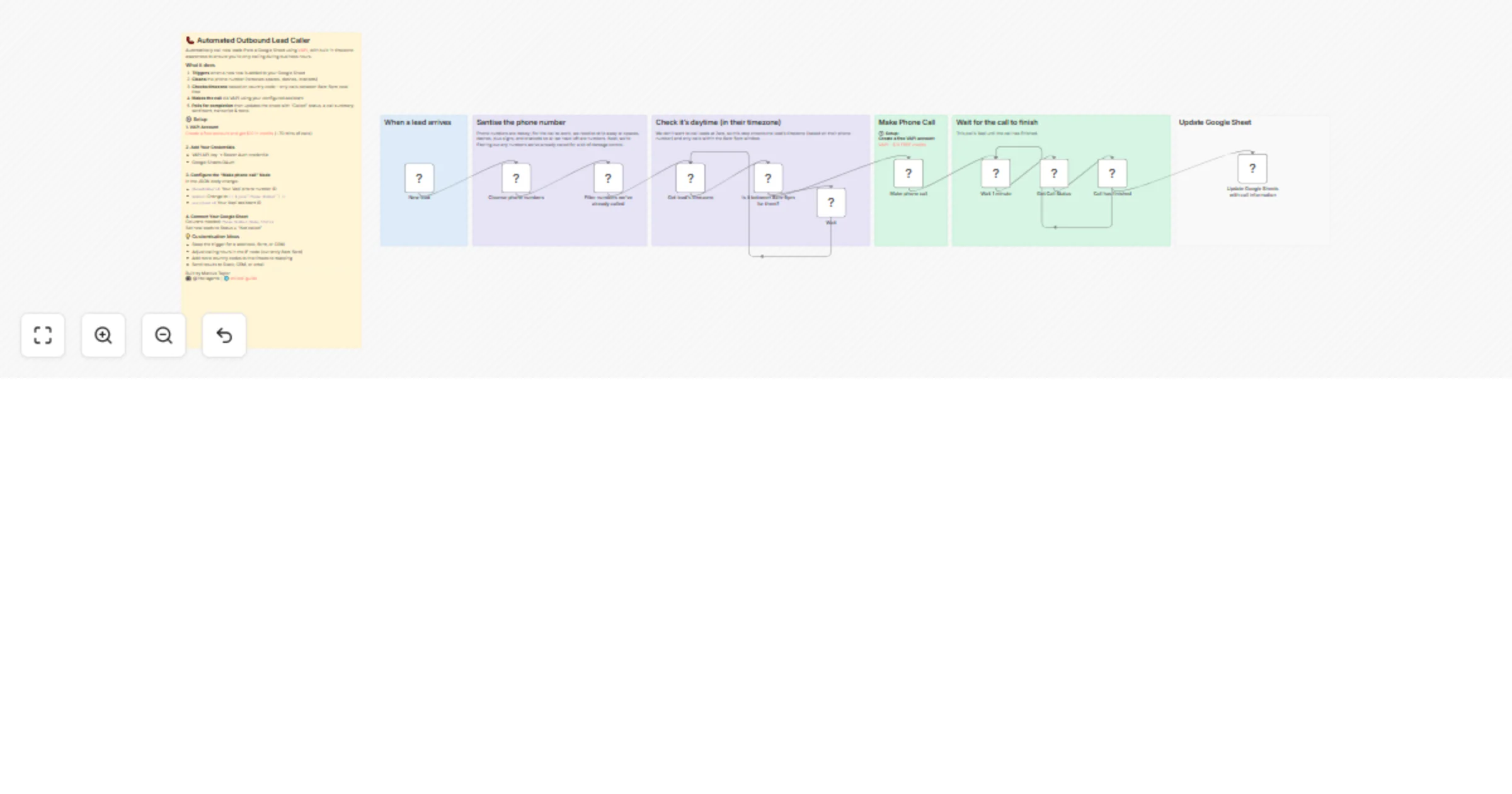
This n8n workflow automates outbound phone calls to new leads using VAPI, with built-in timezone detection to ensure you're only calling during business hours.

Use cases include appointment setting, lead qualification, follow-up surveys, payment reminders, and sales outreach—anywhere you need to scale phone conversations without scaling headcount.

Good to know

  • You'll need a VAPI phone number and configured voice agent before using this workflow.
  • VAPI offers $10 free credit when you sign up (~70 minutes of calls). Create your account here.
  • The timezone logic covers common country codes (UK, US, EU, Australia, India, UAE, Singapore, Japan). You can extend this in the Code node.

How it works

  • A new row in Google Sheets triggers the workflow (you can swap this for a webhook, form, or CRM trigger).
  • The phone number is sanitised—stripping spaces, dashes, and brackets so it's in the correct format for dialling.
  • The lead's timezone is determined from their country code, and the workflow checks whether it's between 8am-5pm local time. If not, it waits and retries.
  • VAPI places the outbound call using your configured voice agent.
  • The workflow polls VAPI's API until the call ends, then retrieves the transcript.
  • The Google Sheet is updated to mark the lead as "Called", as well as entering the call summary, transcript, call sentiment, and other useful details from Vapi's call logs.

Requirements

  • VAPI account with a phone number and voice agent
  • Google Sheets with columns: Phone Number, Name, Status

Customising this workflow

  • Change the trigger: Replace Google Sheets with a webhook, n8n form, or CRM trigger (HubSpot, Pipedrive, etc.)
  • Adjust calling hours: Modify the IF node to change the 8am-5pm window
  • Expand timezone coverage: Add more country codes to the mapping in the "Get lead's timezone" Code node
  • Add your own AI analysis: We currently use VAPI's default call summary - but you could add an agent that extracts different insights (e.g., buying signals, objections)
  • Route the output elsewhere: Send results to Slack, a CRM, email, or Airtable instead of updating Google Sheets

Built by Marcus Taylor (@intellagents / voiceai.guide)

1.2 Logical Blocks

This catalog entry is organized from the workflow JSON. The node-level section below shows the executable blocks available for review before importing the template.

2. Block-by-Block Analysis

Block 1 - Sticky Note

Type / Role
n8n-nodes-base.stickyNote - stickyNote
Config choices
Version 1

Block 2 - Sticky Note1

Type / Role
n8n-nodes-base.stickyNote - stickyNote
Config choices
Version 1

Block 3 - Sticky Note2

Type / Role
n8n-nodes-base.stickyNote - stickyNote
Config choices
Version 1

Block 4 - Make phone call

Type / Role
n8n-nodes-base.httpRequest - httpRequest
Config choices
Version 4.2

Block 5 - Sticky Note3

Type / Role
n8n-nodes-base.stickyNote - stickyNote
Config choices
Version 1

Block 6 - Sticky Note4

Type / Role
n8n-nodes-base.stickyNote - stickyNote
Config choices
Version 1

Block 7 - Get lead's timezone

Type / Role
n8n-nodes-base.code - code
Config choices
Version 2

Block 8 - Cleanse phone numbers

Type / Role
n8n-nodes-base.code - code
Config choices
Version 2

Block 9 - New lead

Type / Role
n8n-nodes-base.googleSheetsTrigger - googleSheetsTrigger
Config choices
Version 1

Block 10 - Is it between 8am-5pm for them?

Type / Role
n8n-nodes-base.if - if
Config choices
Version 2.3

Block 11 - Wait

Type / Role
n8n-nodes-base.wait - wait
Config choices
Version 1.1

Block 12 - Wait 1 minute

Type / Role
n8n-nodes-base.wait - wait
Config choices
Version 1.1

Block 13 - Call has finished

Type / Role
n8n-nodes-base.if - if
Config choices
Version 2

Block 14 - Get Call Status

Type / Role
n8n-nodes-base.httpRequest - httpRequest
Config choices
Version 4.2

Block 15 - Sticky Note5

Type / Role
n8n-nodes-base.stickyNote - stickyNote
Config choices
Version 1

Block 16 - Filter numbers we've already called

Type / Role
n8n-nodes-base.filter - filter
Config choices
Version 2.3

Block 17 - Sticky Note7

Type / Role
n8n-nodes-base.stickyNote - stickyNote
Config choices
Version 1

Block 18 - Update Google Sheets with call information

Type / Role
n8n-nodes-base.googleSheets - googleSheets
Config choices
Version 4.7

3. Summary Table

Workflow Make outbound sales calls from Google Sheets using a VAPI voice agent
Complexity advanced
Nodes 18
Categories Lead Nurturing, AI Chatbot
Author Marcus Taylor
Published 30 Jan 2026

4. Reproducing the Workflow from Scratch

  1. 1. Download the workflow JSON

    Use the JSON export at /data/workflows/13114/13114.json as the source template for this automation.

  2. 2. Import the template into n8n

    Open n8n, import the downloaded JSON, and review each node before activating the workflow.

  3. 3. Configure credentials and variables

    Replace placeholder credentials, API keys, webhook URLs, account IDs, and environment-specific values with your own settings.

  4. 4. Test with sample data

    Run the workflow manually or in a staging workspace, inspect node output, and confirm downstream systems receive the expected data.

  5. 5. Activate and monitor

    Enable the workflow only after testing, then monitor executions, errors, and rate limits during the first production runs.

5. General Notes & Resources

Review imported nodes carefully before activation. This catalog entry is intended to help you inspect the workflow structure, understand required services, and find related templates faster.

Node names, credentials, schedules, webhook paths, and external service limits may need adjustment for your workspace.

Frequently asked questions

What does Make outbound sales calls from Google Sheets using a VAPI voice agent do?

This n8n workflow automates outbound phone calls to new leads using VAPI, with built in timezone detection to ensure you're only calling during business hours. U...

What do I need before importing this workflow?

Review the workflow JSON, configure any required credentials in n8n, and test the automation in a safe workspace before using it in production.

Can I customize this workflow?

Yes. Use the block-by-block analysis and the downloadable JSON to inspect each node, then adjust credentials, prompts, schedules, filters, or destinations for your Lead Nurturing, AI Chatbot use case.