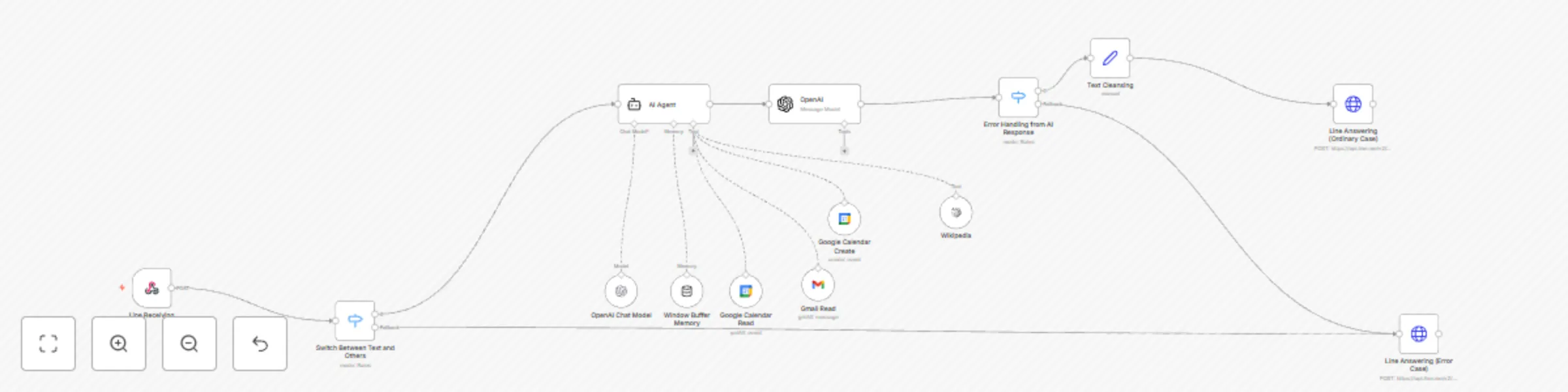
LINE assistant with Google Calendar and Gmail integration

Workflow preview

Workflow preview
100%
LINE assistant with Google Calendar and Gmail integration preview
Open on n8n.io

Important notice

This workflow is provided as-is. Please review and test before using in production.

1. Workflow Overview

Who is this for? This workflow is for small business owners, personal assistants, or project managers who rely on multiple platforms for communication and scheduling. Ideal for users managing custo...

Best for

  • Support Chatbot automation workflows
  • AI Chatbot automation workflows
  • intermediate n8n builders looking for reusable templates

Tools used

@n8n/n8n-nodes-langchain.agent, @n8n/n8n-nodes-langchain.memorybufferwindow, @n8n/n8n-nodes-langchain.lmchatopenai, @n8n/n8n-nodes-langchain.toolwikipedia, @n8n/n8n-nodes-langchain.openai, n8n-nodes-base.switch, n8n-nodes-base.webhook, n8n-nodes-base.set

Source and attribution

This workflow is cataloged by N8N Workflows and links back to its original n8n.io source page by Boriwat Chanruang.

Original n8n.io source

1.1 Workflow description

Title
LINE assistant with Google Calendar and Gmail integration
Workflow name
LINE assistant with Google Calendar and Gmail integration

Who is this for?

  • This workflow is for small business owners, personal assistants, or project managers who rely on multiple platforms for communication and scheduling.
  • Ideal for users managing customer support, personal scheduling, or group event coordination via LINE, Google Calendar, and Gmail.

What problem is this workflow solving?

  • Reduces the manual effort needed to manage conversations, schedule events, and handle email communications.
  • Provides an intelligent system for replying to user messages and fetching relevant calendar or email information in real time.
  • Bridges the gap between messaging platforms and productivity tools, improving efficiency.

What this workflow does

  • LINE Chatbot Automation: Automatically processes and responds to messages received via LINE.
  • Google Calendar Management: Retrieves upcoming events or schedules new events dynamically based on user queries.
  • Email Retrieval: Fetches recent emails using Gmail and filters them based on user instructions.
  • AI-Powered Replies: Uses OpenAI GPT to interpret user queries and provide tailored responses.

Setup

  1. Prerequisites:

    • LINE Developer account and API access.
    • Google Calendar and Gmail accounts with OAuth credentials.
    • An n8n instance with access to environment variables.
  2. Steps:

    • Set up environment variables (LINE_API_TOKEN and DYNAMIC_EMAIL).
    • Configure API credentials for Google Calendar and Gmail in n8n.
    • Test the workflow by sending a sample message via LINE.
  3. Enhancements:

    • Use sticky notes to provide inline instructions for each node.
    • Include a video walkthrough or a step-by-step document for first-time users.

How to customize this workflow to your needs

  • Localization: Modify responses in the AI Agent node to match the language and tone of your audience.
  • Integration: Add more integrations like Slack or Microsoft Teams for additional notifications.
  • Advanced Filters: Add specific conditions to Gmail or Google Calendar nodes to fetch only relevant data, such as events with specific keywords or emails from certain senders.

Advanced Use Cases

  • Customer Support: Automatically schedule meetings with clients based on their messages in LINE.
  • Event Management: Handle RSVP confirmations, event reminders, and email follow-ups for planned events.
  • Personalized Assistant: Use the workflow to act as a personal virtual assistant that syncs your schedule, replies to messages, and summarizes emails.

Tips for Optimization

  • Edit Fields Node: Add a centralized node to configure dynamic inputs (e.g., tokens, emails, or thresholds) for easy updates.
  • Fallback Responses: Use a switch node to handle unrecognized input gracefully and provide clear feedback to users.
  • Logs and Monitoring: Add nodes to log interactions and track message flows for debugging or analytics.

Let me know if you'd like me to expand on any specific section or add more customization ideas!

1.2 Logical Blocks

This catalog entry is organized from the workflow JSON. The node-level section below shows the executable blocks available for review before importing the template.

2. Block-by-Block Analysis

Block 1 - AI Agent

Type / Role
@n8n/n8n-nodes-langchain.agent - agent
Config choices
Version 1.7

Block 2 - Window Buffer Memory

Type / Role
@n8n/n8n-nodes-langchain.memoryBufferWindow - memoryBufferWindow
Config choices
Version 1.3

Block 3 - OpenAI Chat Model

Type / Role
@n8n/n8n-nodes-langchain.lmChatOpenAi - lmChatOpenAi
Config choices
Version 1

Block 4 - Wikipedia

Type / Role
@n8n/n8n-nodes-langchain.toolWikipedia - toolWikipedia
Config choices
Version 1

Block 5 - OpenAI

Type / Role
@n8n/n8n-nodes-langchain.openAi - openAi
Config choices
Version 1.7

Block 6 - Switch Between Text and Others

Type / Role
n8n-nodes-base.switch - switch
Config choices
Version 3.2

Block 7 - Line Receiving

Type / Role
n8n-nodes-base.webhook - webhook
Config choices
Version 2

Block 8 - Error Handling from AI Response

Type / Role
n8n-nodes-base.switch - switch
Config choices
Version 3.2

Block 9 - Text Cleansing

Type / Role
n8n-nodes-base.set - set
Config choices
Version 3.4

Block 10 - Line Answering (Error Case)

Type / Role
n8n-nodes-base.httpRequest - httpRequest
Config choices
Version 4.2

Block 11 - Line Answering (Ordinary Case)

Type / Role
n8n-nodes-base.httpRequest - httpRequest
Config choices
Version 4.2

Block 12 - Google Calendar Create

Type / Role
n8n-nodes-base.googleCalendarTool - googleCalendarTool
Config choices
Version 1.2

Block 13 - Google Calendar Read

Type / Role
n8n-nodes-base.googleCalendarTool - googleCalendarTool
Config choices
Version 1.2

Block 14 - Gmail Read

Type / Role
n8n-nodes-base.gmailTool - gmailTool
Config choices
Version 2.1

3. Summary Table

Workflow LINE assistant with Google Calendar and Gmail integration
Complexity intermediate
Nodes 14
Categories Support Chatbot, AI Chatbot
Author Boriwat Chanruang
Published 23 Dec 2024

4. Reproducing the Workflow from Scratch

  1. 1. Download the workflow JSON

    Use the JSON export at /data/workflows/2671/2671.json as the source template for this automation.

  2. 2. Import the template into n8n

    Open n8n, import the downloaded JSON, and review each node before activating the workflow.

  3. 3. Configure credentials and variables

    Replace placeholder credentials, API keys, webhook URLs, account IDs, and environment-specific values with your own settings.

  4. 4. Test with sample data

    Run the workflow manually or in a staging workspace, inspect node output, and confirm downstream systems receive the expected data.

  5. 5. Activate and monitor

    Enable the workflow only after testing, then monitor executions, errors, and rate limits during the first production runs.

5. General Notes & Resources

Review imported nodes carefully before activation. This catalog entry is intended to help you inspect the workflow structure, understand required services, and find related templates faster.

Node names, credentials, schedules, webhook paths, and external service limits may need adjustment for your workspace.

Frequently asked questions

What does LINE assistant with Google Calendar and Gmail integration do?

Who is this for? This workflow is for small business owners, personal assistants, or project managers who rely on multiple platforms for communication and scheduling. Ideal for users managing custo...

What do I need before importing this workflow?

Review the workflow JSON, configure any required credentials in n8n, and test the automation in a safe workspace before using it in production.

Can I customize this workflow?

Yes. Use the block-by-block analysis and the downloadable JSON to inspect each node, then adjust credentials, prompts, schedules, filters, or destinations for your Support Chatbot, AI Chatbot use case.