Block 1 - JotForm Trigger
- Type / Role
- n8n-nodes-base.jotFormTrigger - jotFormTrigger
- Config choices
- Version 1


 Early Deal
This workflow is provided as-is. Please review and test before using in production.
Automate your lead qualification process by connecting Jotform to Gemini AI. This workflow instantly analyzes new form submissions, assigns a priority score, filters out spam, and routes legitimate...
n8n-nodes-base.jotformtrigger, @n8n/n8n-nodes-langchain.agent, @n8n/n8n-nodes-langchain.outputparserstructured, @n8n/n8n-nodes-langchain.lmchatgooglegemini, n8n-nodes-base.if, n8n-nodes-base.switch, n8n-nodes-base.gmail, n8n-nodes-base.stickynote
This workflow is cataloged by N8N Workflows and links back to its original n8n.io source page by Atta.
Original n8n.io sourceAutomate your lead qualification process by connecting Jotform to Gemini AI. This workflow instantly analyzes new form submissions, assigns a priority score, filters out spam, and routes legitimate leads for immediate action. Stop manually sorting through submissions and let your sales team focus on what matters: closing deals with hot leads.
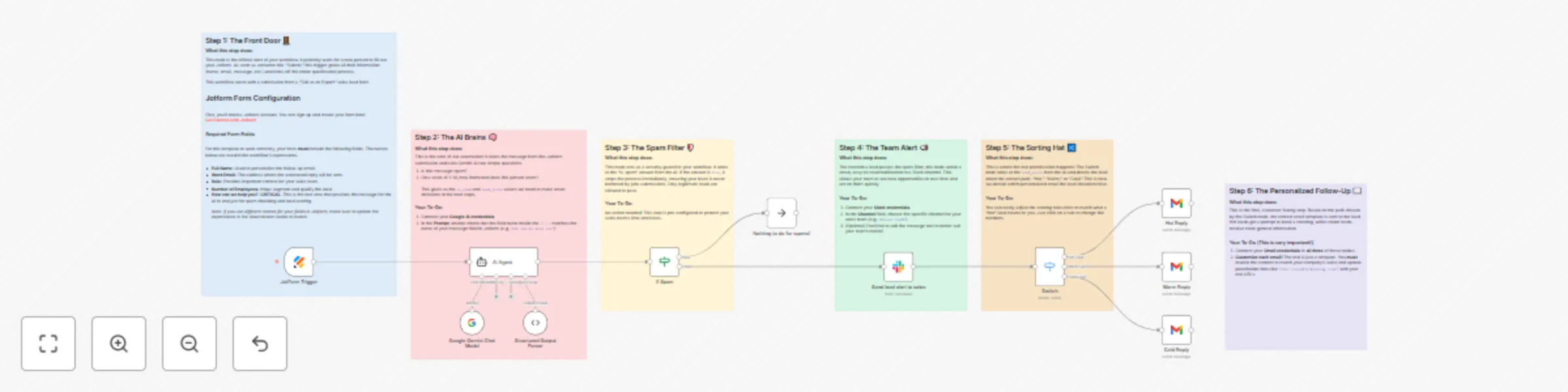
This template captures a lead from a "Talk to an Expert" form, uses AI to determine its quality, sends a real-time notification to your sales team on Slack, and automatically sends a tiered, personalized email response to the lead based on their qualification score.
This workflow is designed to be easy to set up. Follow these steps to get it running:
1. Set up your Jotform Trigger:
2. Configure the AI Agent / Google AI Node:
JSON object with is_spam (a boolean) and lead_score (an integer) keys.3. Set up the IF Node:
is_spam value from the AI node. The workflow should only continue on the false path.4. Configure the Slack Node:
#sales-leads).5. Configure the Switch Node:
lead_score from the AI node.6. Configure the Gmail Nodes
Connect your Gmail account credentials to each of the three Gmail nodes. This step is critical for personalization, and you must adapt the content to fit your business. The provided text is a template; its effectiveness depends on your customization.
For each of the three email templates (Hot, Warm, and Cold), be sure to:
[Your Company Name] and update the signature from The Team to your specific team or company name (e.g., The Sales Team at Acme Corp).[Your Calendly/Booking Link] with your actual link from Calendly, HubSpot Meetings, or another scheduling tool.[Link to a resource or case study] with a real link to a relevant blog post, whitepaper, or case study on your website.7. Activate your Workflow:
This workflow is a powerful starting point. Here are a few ideas to customize it for your specific needs:
Switch node's outputs to send notifications to different channels. For example, send "Hot" leads to a high-priority #sales-urgent channel with an @channel mention, and send "Warm" or "Cold" leads to a less noisy #leads-review channel.Switch node to match your business rules (e.g., you might consider any score of 7 or higher to be a hot lead).For this template to work correctly, your Jotform should have the following fields. The names in parentheses are the internal field names used in the n8n expressions.
Full Name): A text input for the user's name, used for personalizing emails.Work Email): An email field, used as the recipient for the automated follow-up.Role): A text input for the user's job title, providing context for your sales team.Number of Employees): A dropdown or number input for company size, used for lead segmentation.How can we help you?): A text area. This is the most critical field, as its content is sent to the AI for spam checking and lead scoring.About Jotform
Jotform is a powerful and easy-to-use online form builder that helps you create and publish online forms without writing a single line of code. It's an excellent tool for capturing leads, conducting surveys, accepting payments, and much more. Its seamless integration capabilities make it a perfect starting point for all kinds of n8n automations.
If you don't have an account yet, you can get started with Jotform through the link above.
This catalog entry is organized from the workflow JSON. The node-level section below shows the executable blocks available for review before importing the template.
| Workflow | Lead qualification and scoring with Jotform, Gemini AI, and Slack |
|---|---|
| Complexity | advanced |
| Nodes | 17 |
| Categories | Lead Nurturing, AI Summarization |
| Author | Atta |
| Published | 14 Oct 2025 |
Use the JSON export at /data/workflows/9650/9650.json as the source template for this automation.
Open n8n, import the downloaded JSON, and review each node before activating the workflow.
Replace placeholder credentials, API keys, webhook URLs, account IDs, and environment-specific values with your own settings.
Run the workflow manually or in a staging workspace, inspect node output, and confirm downstream systems receive the expected data.
Enable the workflow only after testing, then monitor executions, errors, and rate limits during the first production runs.
Review imported nodes carefully before activation. This catalog entry is intended to help you inspect the workflow structure, understand required services, and find related templates faster.
Node names, credentials, schedules, webhook paths, and external service limits may need adjustment for your workspace.
Automate your lead qualification process by connecting Jotform to Gemini AI. This workflow instantly analyzes new form submissions, assigns a priority score, filters out spam, and routes legitimate...
Review the workflow JSON, configure any required credentials in n8n, and test the automation in a safe workspace before using it in production.
Yes. Use the block-by-block analysis and the downloadable JSON to inspect each node, then adjust credentials, prompts, schedules, filters, or destinations for your Lead Nurturing, AI Summarization use case.