Block 1 - Create Jira ticket
- Type / Role
- n8n-nodes-base.jiraTool - jiraTool
- Config choices
- Version 1


 Early Deal
This workflow is provided as-is. Please review and test before using in production.
What it does This n8n workflow creates a powerful AI powered Jira management system that allows you to use Claude or other AI assistants to create, update, and manage Jira tickets through natural l...
n8n-nodes-base.jiratool, @n8n/n8n-nodes-langchain.mcptrigger, n8n-nodes-base.httprequesttool
This workflow is cataloged by N8N Workflows and links back to its original n8n.io source page by Tamer.
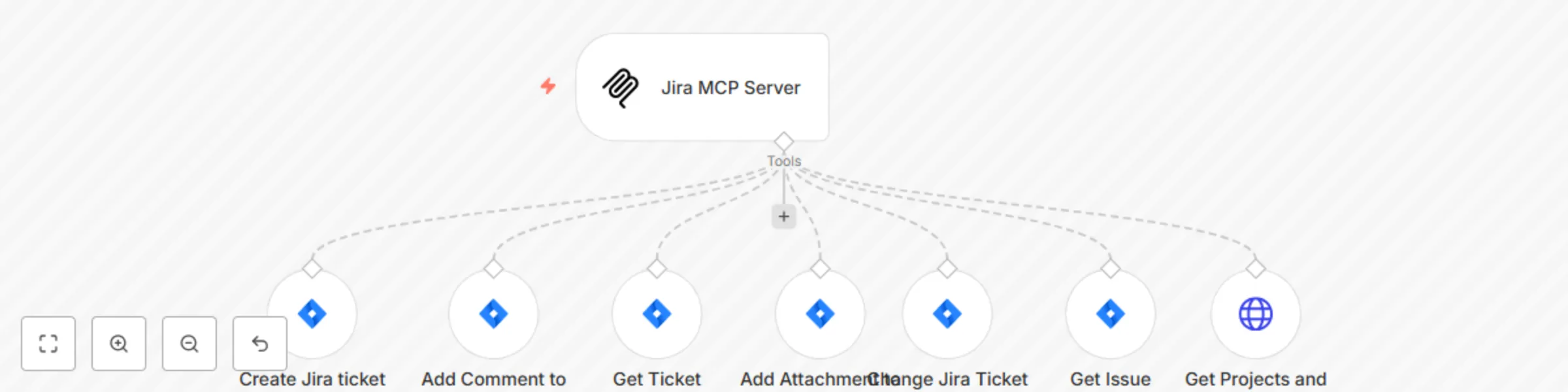
Original n8n.io sourceWhat it does This n8n workflow creates a powerful AI-powered Jira management system that allows you to use Claude or other AI assistants to create, update, and manage Jira tickets through natural language requests. The workflow exposes key Jira functions as AI tools, enabling you to interact with your Jira instance through conversational commands. How it works
The workflow sets up an MCP (Model Control Protocol) server, allowing compatible AI assistants to use a suite of Jira management tools The AI assistant can perform various Jira operations including:
Creating new tickets with customized fields Adding comments to existing tickets Retrieving available status transitions for tickets Attaching files to tickets Changing ticket statuses Retrieving detailed information about tickets Getting available projects and issue types
When you make a request to your AI assistant, it determines which Jira operation to perform and executes it through this workflow
Setup Steps
Prerequisites:
Active Jira Cloud account with admin access n8n instance with the Langchain and MCP nodes installed Claude Desktop App or another compatible AI assistant
Jira Credentials Setup:
Configure your Jira Cloud API credentials in n8n Ensure your Jira account has sufficient permissions for all operations
Workflow Configuration:
Import this template into your n8n instance Set up the MCP Trigger node with your desired path (currently "test_mcp") Verify that all Jira tool nodes are correctly connected to the MCP Server node Activate the workflow
Using Claude as an MCP Client:
Open your Claude Desktop App Navigate to Settings > Developer Settings Enable "Connect to local MCP servers" Add a new connection with the URL path to your n8n MCP server (e.g., "http://localhost:5678/webhook/test_mcp") Start a new conversation and ask Claude to perform Jira tasks
Example Usage with Claude Once you've set up the connection between Claude and your MCP server, you can use natural language to manage your Jira tickets. Here are some examples:
Creating a ticket: "Claude, please create a new Jira ticket in the Web Development project with bug issue type. The summary should be 'Homepage loading slowly' and the description should be 'Users are experiencing delays of 5+ seconds when loading the homepage on mobile devices.'" Adding a comment: "Claude, please add a comment to Jira ticket WEB-123 saying 'This issue has been reproduced on multiple devices and browsers. Priority should be increased.'" Checking status: "Claude, can you get the details of ticket WEB-123 and tell me its current status?" Changing status: "Claude, please move ticket WEB-123 to 'In Progress' status."
This workflow creates a seamless bridge between your AI assistant and Jira, making project management more efficient through natural language interactions.
This catalog entry is organized from the workflow JSON. The node-level section below shows the executable blocks available for review before importing the template.
| Workflow | Jira MCP server |
|---|---|
| Complexity | intermediate |
| Nodes | 8 |
| Categories | Project Management, AI Chatbot |
| Author | Tamer |
| Published | 08 May 2025 |
Use the JSON export at /data/workflows/3939/3939.json as the source template for this automation.
Open n8n, import the downloaded JSON, and review each node before activating the workflow.
Replace placeholder credentials, API keys, webhook URLs, account IDs, and environment-specific values with your own settings.
Run the workflow manually or in a staging workspace, inspect node output, and confirm downstream systems receive the expected data.
Enable the workflow only after testing, then monitor executions, errors, and rate limits during the first production runs.
Review imported nodes carefully before activation. This catalog entry is intended to help you inspect the workflow structure, understand required services, and find related templates faster.
Node names, credentials, schedules, webhook paths, and external service limits may need adjustment for your workspace.
What it does This n8n workflow creates a powerful AI powered Jira management system that allows you to use Claude or other AI assistants to create, update, and manage Jira tickets through natural l...
Review the workflow JSON, configure any required credentials in n8n, and test the automation in a safe workspace before using it in production.
Yes. Use the block-by-block analysis and the downloadable JSON to inspect each node, then adjust credentials, prompts, schedules, filters, or destinations for your Project Management, AI Chatbot use case.