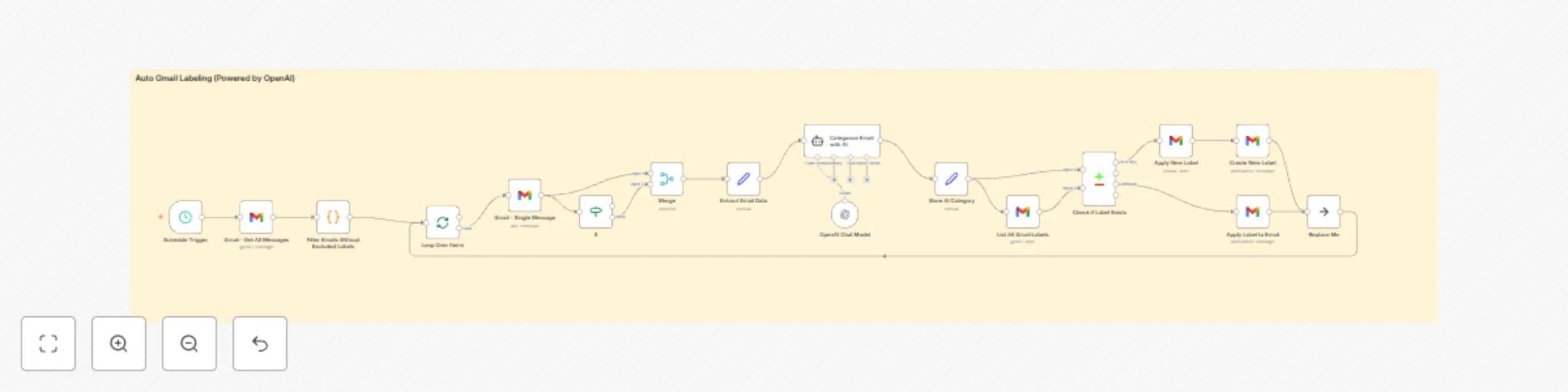
Intelligent email organization with AI-powered content classification for Gmail

Workflow preview

Workflow preview
100%
Intelligent email organization with AI-powered content classification for Gmail preview
Open on n8n.io

Important notice

This workflow is provided as-is. Please review and test before using in production.

1. Workflow Overview

This workflow leverages AI to intelligently analyze incoming Gmail messages and automatically apply relevant labels based on the email content. The default configuration includes the following labe...

Best for

  • Ticket Management automation workflows
  • AI Summarization automation workflows
  • advanced n8n builders looking for reusable templates

Tools used

n8n-nodes-base.splitinbatches, n8n-nodes-base.noop, n8n-nodes-base.if, n8n-nodes-base.merge, n8n-nodes-base.gmail, n8n-nodes-base.stickynote, n8n-nodes-base.scheduletrigger, n8n-nodes-base.set

Source and attribution

This workflow is cataloged by N8N Workflows and links back to its original n8n.io source page by Niranjan G.

Original n8n.io source

1.1 Workflow description

Title
Intelligent email organization with AI-powered content classification for Gmail
Workflow name
Intelligent email organization with AI-powered content classification for Gmail

This workflow leverages AI to intelligently analyze incoming Gmail messages and automatically apply relevant labels based on the email content.

The default configuration includes the following labels:

  • Newsletter: Subscription updates or promotional content.
  • Inquiry: Emails requesting information or responses.
  • Invoice: Billing and payment-related emails.
  • Proposal: Business offers or collaboration opportunities.
  • Action Required: Emails demanding immediate tasks or actions.
  • Follow-up Reminder: Emails prompting follow-up actions.
  • Task: Emails containing actionable tasks.
  • Personal: Non-work-related emails.
  • Urgent: Time-sensitive or critical communications.
  • Bank: Banking alerts and financial statements.
  • Job Update: Recruitment or job-related communications.
  • Spam/Junk: Unwanted or irrelevant bulk emails.
  • Social/Networking: Notifications from social platforms.
  • Receipt: Purchase confirmations and receipts.
  • Event Invite: Invitations or calendar-related messages.
  • Subscription Renewal: Reminders for subscription expirations.
  • System Notification: Technical alerts from services or systems.

You can customize labels and definitions based on your specific use case.

How it works:

  • The workflow periodically retrieves new Gmail messages.
  • Only emails without existing labels, regardless of read status, are sent to the AI for analysis.
  • Email content (subject and body) is analyzed by an AI model to determine the appropriate label.
  • Labels identified by the AI are applied to each email accordingly.

Note: This workflow performs 100% better than the default Gmail trigger method, which is why the workflow was switched from Gmail trigger to a scheduled workflow. By selectively processing only unlabeled emails, it ensures comprehensive labeling while significantly reducing AI processing costs.

Setup Steps:

  1. Configure credentials for Gmail and your chosen AI service (e.g., OpenAI).
  2. Ensure labels exist in your Gmail account matching the workflow definitions.
  3. Adjust the AI prompt to match your labeling needs.
  4. Optionally customize the polling interval (default: every 2 minutes).

This workflow streamlines your email management, keeping your inbox organized effortlessly while optimizing resource usage.

1.2 Logical Blocks

This catalog entry is organized from the workflow JSON. The node-level section below shows the executable blocks available for review before importing the template.

2. Block-by-Block Analysis

Block 1 - Loop Over Items

Type / Role
n8n-nodes-base.splitInBatches - splitInBatches
Config choices
Version 3

Block 2 - Replace Me

Type / Role
n8n-nodes-base.noOp - noOp
Config choices
Version 1

Block 3 - If

Type / Role
n8n-nodes-base.if - if
Config choices
Version 2.2

Block 4 - Merge

Type / Role
n8n-nodes-base.merge - merge
Config choices
Version 3.1

Block 5 - Gmail - Get All Messages

Type / Role
n8n-nodes-base.gmail - gmail
Config choices
Version 2.1

Block 6 - Gmail - Single Message

Type / Role
n8n-nodes-base.gmail - gmail
Config choices
Version 2.1

Block 7 - Sticky Note

Type / Role
n8n-nodes-base.stickyNote - stickyNote
Config choices
Version 1

Block 8 - Schedule Trigger

Type / Role
n8n-nodes-base.scheduleTrigger - scheduleTrigger
Config choices
Version 1.2

Block 9 - Extract Email Data

Type / Role
n8n-nodes-base.set - set
Config choices
Version 3.4

Block 10 - Categorize Email with AI

Type / Role
@n8n/n8n-nodes-langchain.agent - agent
Config choices
Version 1.7

Block 11 - Store AI Category

Type / Role
n8n-nodes-base.set - set
Config choices
Version 3.4

Block 12 - List All Gmail Labels

Type / Role
n8n-nodes-base.gmail - gmail
Config choices
Version 2.1

Block 13 - Check if Label Exists

Type / Role
n8n-nodes-base.compareDatasets - compareDatasets
Config choices
Version 2.3

Block 14 - Apply Label to Email

Type / Role
n8n-nodes-base.gmail - gmail
Config choices
Version 2.1

Block 15 - Apply New Label

Type / Role
n8n-nodes-base.gmail - gmail
Config choices
Version 2.1

Block 16 - Create New Label

Type / Role
n8n-nodes-base.gmail - gmail
Config choices
Version 2.1

Block 17 - OpenAI Chat Model

Type / Role
@n8n/n8n-nodes-langchain.lmChatOpenAi - lmChatOpenAi
Config choices
Version 1.2

Block 18 - Filter Emails Without Excluded Labels

Type / Role
n8n-nodes-base.code - code
Config choices
Version 2

3. Summary Table

Workflow Intelligent email organization with AI-powered content classification for Gmail
Complexity advanced
Nodes 18
Categories Ticket Management, AI Summarization
Author Niranjan G
Published 01 Jun 2025

4. Reproducing the Workflow from Scratch

  1. 1. Download the workflow JSON

    Use the JSON export at /data/workflows/4557/4557.json as the source template for this automation.

  2. 2. Import the template into n8n

    Open n8n, import the downloaded JSON, and review each node before activating the workflow.

  3. 3. Configure credentials and variables

    Replace placeholder credentials, API keys, webhook URLs, account IDs, and environment-specific values with your own settings.

  4. 4. Test with sample data

    Run the workflow manually or in a staging workspace, inspect node output, and confirm downstream systems receive the expected data.

  5. 5. Activate and monitor

    Enable the workflow only after testing, then monitor executions, errors, and rate limits during the first production runs.

5. General Notes & Resources

Review imported nodes carefully before activation. This catalog entry is intended to help you inspect the workflow structure, understand required services, and find related templates faster.

Node names, credentials, schedules, webhook paths, and external service limits may need adjustment for your workspace.

Frequently asked questions

What does Intelligent email organization with AI-powered content classification for Gmail do?

This workflow leverages AI to intelligently analyze incoming Gmail messages and automatically apply relevant labels based on the email content. The default configuration includes the following labe...

What do I need before importing this workflow?

Review the workflow JSON, configure any required credentials in n8n, and test the automation in a safe workspace before using it in production.

Can I customize this workflow?

Yes. Use the block-by-block analysis and the downloadable JSON to inspect each node, then adjust credentials, prompts, schedules, filters, or destinations for your Ticket Management, AI Summarization use case.