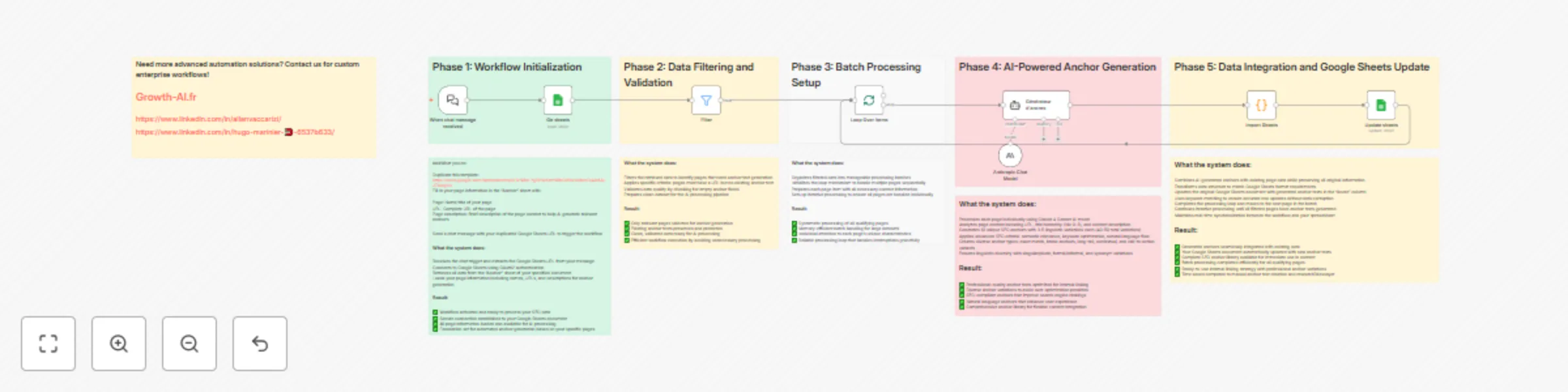
Generate SEO anchor texts from Google Sheets with Claude 4 Sonnet

Workflow preview

Workflow preview
100%
Generate SEO anchor texts from Google Sheets with Claude 4 Sonnet preview
Open on n8n.io

Important notice

This workflow is provided as-is. Please review and test before using in production.

1. Workflow Overview

SEO Anchor Text Generator with n8n and Claude AI Generate optimized SEO anchor texts for internal linking using AI automation. This workflow processes your website pages and creates diverse, SEO co...

Best for

  • Market Research automation workflows
  • Multimodal AI automation workflows
  • advanced n8n builders looking for reusable templates

Tools used

@n8n/n8n-nodes-langchain.chattrigger, n8n-nodes-base.filter, n8n-nodes-base.splitinbatches, @n8n/n8n-nodes-langchain.agent, @n8n/n8n-nodes-langchain.lmchatanthropic, n8n-nodes-base.googlesheets, n8n-nodes-base.code, n8n-nodes-base.stickynote

Source and attribution

This workflow is cataloged by N8N Workflows and links back to its original n8n.io source page by Growth AI.

Original n8n.io source

1.1 Workflow description

Title
Generate SEO anchor texts from Google Sheets with Claude 4 Sonnet
Workflow name
Generate SEO anchor texts from Google Sheets with Claude 4 Sonnet

SEO Anchor Text Generator with n8n and Claude AI

Generate optimized SEO anchor texts for internal linking using AI automation. This workflow processes your website pages and creates diverse, SEO-compliant anchor variations automatically.

Who's it for

  • SEO specialists managing large websites with extensive internal linking needs
  • Content managers looking to automate anchor text creation for better search rankings
  • Digital marketers seeking to optimize internal linking strategies at scale
  • Web agencies handling multiple client websites with SEO requirements

What it does

This workflow automatically generates 10 unique SEO anchor texts with 3-5 linguistic variations each (40-50 total variations per page) using Claude AI. It analyzes your page content, applies advanced SEO criteria, and creates diverse anchor types including exact match, brand anchors, long-tail keywords, contextual phrases, and call-to-action variants.

How it works

The system connects to your Google Sheets document containing page information, filters pages needing anchor generation, processes each page individually through Claude AI, and updates your spreadsheet with generated anchor texts. The workflow ensures semantic relevance, keyword optimization, natural language flow, and linguistic diversity while avoiding over-optimization penalties.

Requirements

  • Google Sheets with OAuth2 authentication configured in n8n
  • Anthropic API key for Claude AI model access
  • Template spreadsheet with proper column structure (Page, URL, Description, Anchors)
  • Pages must have URL and description but empty anchor fields to trigger processing

How to set up

Step 1: Prepare Your Data

Duplicate the template spreadsheet: https://docs.google.com/spreadsheets/d/1VNl8xLYgRrNcKrmN9hCdfov1dMnwD44tAALJZAlagCo Fill in your page information in the "Anchor" sheet:

  • Page: Name/title of your page (can use hierarchical levels Niv 0-3)
  • URL: Complete URL of the page
  • Description: Brief description of page content to help AI generate relevant anchors Leave the "Anchors" column empty for pages needing anchor generation

Step 2: Configure n8n Credentials

Set up Google Sheets OAuth2:

  • Go to n8n credentials settings
  • Add new Google Sheets OAuth2 API credential
  • Follow OAuth flow to authenticate with Google
  • Test connection with your spreadsheet Configure Anthropic API:
  • Obtain API key from Anthropic Console
  • Add new Anthropic API credential in n8n
  • Enter your API key and test connection

Step 3: Import and Activate Workflow

Import the workflow from the provided JSON Update credential references to match your configured credentials Test the Chat Trigger webhook to ensure it's accessible Activate the workflow in n8n

Step 4: Execute the Workflow

Send a chat message with your Google Sheets URL to trigger the workflow Monitor execution through n8n interface to track progress Check your spreadsheet for automatically generated anchor texts Review and customize generated anchors as needed for your content

How to customize the workflow

Modify AI Prompt Instructions

Update the "Générateur d'ancres" node prompt to:

  • Change the number of anchor variations generated
  • Adjust SEO criteria and anchor types
  • Modify linguistic variation requirements
  • Customize language style and tone
  • Add specific industry terminology

Adjust Data Processing

Customize the "Filter" node conditions to:

  • Change criteria for pages requiring anchor generation
  • Add additional validation rules
  • Modify column names to match your spreadsheet structure

Enhance Output Formatting

Modify the "Import Sheets" code node to:

  • Change data transformation logic
  • Add additional processing steps
  • Customize how results are formatted for Google Sheets
  • Include timestamp or processing metadata

Scale for Large Datasets

Optimize the "Loop Over Items" batch processing:

  • Adjust batch sizes for better performance
  • Add error handling for failed API calls
  • Implement retry logic for robustness
  • Add progress tracking mechanisms

Integration Extensions

Extend functionality by adding nodes for:

  • Slack notifications when processing completes
  • Email reports with generation statistics
  • Integration with content management systems
  • Automated content publishing with generated anchors

Advanced Customization Tips

  • Language Adaptation: Modify the AI prompt for different languages by adjusting linguistic variation rules
  • Industry Specialization: Add domain-specific terminology and SEO best practices to the prompt
  • Quality Control: Implement additional filtering to review generated anchors before updating sheets
  • Analytics Integration: Connect with Google Analytics to prioritize high-traffic pages for anchor generation
  • Content Integration: Add nodes to automatically insert generated anchors into CMS or static site generators

1.2 Logical Blocks

This catalog entry is organized from the workflow JSON. The node-level section below shows the executable blocks available for review before importing the template.

2. Block-by-Block Analysis

Block 1 - When chat message received

Type / Role
@n8n/n8n-nodes-langchain.chatTrigger - chatTrigger
Config choices
Version 1.3

Block 2 - Filter

Type / Role
n8n-nodes-base.filter - filter
Config choices
Version 2.2

Block 3 - Loop Over Items

Type / Role
n8n-nodes-base.splitInBatches - splitInBatches
Config choices
Version 3

Block 4 - Générateur d'ancres

Type / Role
@n8n/n8n-nodes-langchain.agent - agent
Config choices
Version 2.2

Block 5 - Anthropic Chat Model

Type / Role
@n8n/n8n-nodes-langchain.lmChatAnthropic - lmChatAnthropic
Config choices
Version 1.3

Block 6 - Update sheets

Type / Role
n8n-nodes-base.googleSheets - googleSheets
Config choices
Version 4.5

Block 7 - Import Sheets

Type / Role
n8n-nodes-base.code - code
Config choices
Version 2

Block 8 - Sticky Note

Type / Role
n8n-nodes-base.stickyNote - stickyNote
Config choices
Version 1

Block 9 - Sticky Note1

Type / Role
n8n-nodes-base.stickyNote - stickyNote
Config choices
Version 1

Block 10 - Sticky Note2

Type / Role
n8n-nodes-base.stickyNote - stickyNote
Config choices
Version 1

Block 11 - Sticky Note3

Type / Role
n8n-nodes-base.stickyNote - stickyNote
Config choices
Version 1

Block 12 - Ge sheets

Type / Role
n8n-nodes-base.googleSheets - googleSheets
Config choices
Version 4.7

Block 13 - Sticky Note4

Type / Role
n8n-nodes-base.stickyNote - stickyNote
Config choices
Version 1

Block 14 - Sticky Note5

Type / Role
n8n-nodes-base.stickyNote - stickyNote
Config choices
Version 1

Block 15 - Sticky Note6

Type / Role
n8n-nodes-base.stickyNote - stickyNote
Config choices
Version 1

Block 16 - Sticky Note7

Type / Role
n8n-nodes-base.stickyNote - stickyNote
Config choices
Version 1

Block 17 - Sticky Note8

Type / Role
n8n-nodes-base.stickyNote - stickyNote
Config choices
Version 1

Block 18 - Sticky Note9

Type / Role
n8n-nodes-base.stickyNote - stickyNote
Config choices
Version 1

Block 19 - Sticky Note13

Type / Role
n8n-nodes-base.stickyNote - stickyNote
Config choices
Version 1

3. Summary Table

Workflow Generate SEO anchor texts from Google Sheets with Claude 4 Sonnet
Complexity advanced
Nodes 19
Categories Market Research, Multimodal AI
Author Growth AI
Published 25 Sept 2025

4. Reproducing the Workflow from Scratch

  1. 1. Download the workflow JSON

    Use the JSON export at /data/workflows/8928/8928.json as the source template for this automation.

  2. 2. Import the template into n8n

    Open n8n, import the downloaded JSON, and review each node before activating the workflow.

  3. 3. Configure credentials and variables

    Replace placeholder credentials, API keys, webhook URLs, account IDs, and environment-specific values with your own settings.

  4. 4. Test with sample data

    Run the workflow manually or in a staging workspace, inspect node output, and confirm downstream systems receive the expected data.

  5. 5. Activate and monitor

    Enable the workflow only after testing, then monitor executions, errors, and rate limits during the first production runs.

5. General Notes & Resources

Review imported nodes carefully before activation. This catalog entry is intended to help you inspect the workflow structure, understand required services, and find related templates faster.

Node names, credentials, schedules, webhook paths, and external service limits may need adjustment for your workspace.

Frequently asked questions

What does Generate SEO anchor texts from Google Sheets with Claude 4 Sonnet do?

SEO Anchor Text Generator with n8n and Claude AI Generate optimized SEO anchor texts for internal linking using AI automation. This workflow processes your website pages and creates diverse, SEO co...

What do I need before importing this workflow?

Review the workflow JSON, configure any required credentials in n8n, and test the automation in a safe workspace before using it in production.

Can I customize this workflow?

Yes. Use the block-by-block analysis and the downloadable JSON to inspect each node, then adjust credentials, prompts, schedules, filters, or destinations for your Market Research, Multimodal AI use case.