Growth AI
Workflows by Growth AI
Monitor & filter French procurement tenders with BOAMP API and Google Sheets
# French Public Procurement Tender Monitoring Workflow ## Overview This n8n workflow automates the monitoring and filtering of French public procurement tenders (BOAMP - Bulletin Officiel des Annonces des Marchés Publics). It retrieves tenders based on your preferences, filters them by market type, and identifies relevant opportunities using keyword matching. ## Who is this for? - Companies seeking French public procurement opportunities - Consultants monitoring specific market sectors - Organizations tracking government contracts in France ## What it does The workflow operates in two main phases: **Phase 1: Automated Tender Collection** - Retrieves all tenders from the BOAMP API based on your configuration - Filters by market type (Works, Services, Supplies) - Stores complete tender data in Google Sheets - Handles pagination automatically for large datasets **Phase 2: Intelligent Keyword Filtering** - Downloads and extracts text from tender PDF documents - Searches for your specified keywords within tender content - Saves matching tenders to a separate "Target" sheet for easy review - Tracks processing status to avoid duplicates ## Requirements - n8n instance (self-hosted or cloud) - Google account with Google Sheets access - Google Sheets API credentials configured in n8n ## Setup Instructions ### Step 1: Duplicate the Configuration Spreadsheet 1. Access the template spreadsheet: [Configuration Template](https://docs.google.com/spreadsheets/d/1wapLLWjwzo7SfG_YEsUlFaPRs1MmjxPRhRc6BlwBUAY/edit?gid=966659321#gid=966659321) 2. Click **File → Make a copy** 3. Save to your Google Drive 4. Note the URL of your new spreadsheet ### Step 2: Configure Your Preferences Open your copied spreadsheet and configure the **Config** tab: **Market Types** - Check the categories you want to monitor: - Travaux (Works/Construction) - Services - Fournitures (Supplies) **Search Period** - Enter the number of days to look back (e.g., "30" for the last 30 days) **Keywords** - Enter your search terms as a comma-separated list (e.g., "informatique, cloud, cybersécurité") ### Step 3: Import the Workflow 1. Copy the workflow JSON from this template 2. In n8n, click **Workflows → Import from File/URL** 3. Paste the JSON and import ### Step 4: Update Google Sheets Connections Replace all Google Sheets node URLs with your spreadsheet URL: **Nodes to update:** - Get config (2 instances) - Get keyword - Get Offset - Get All - Append row in sheet - Update offset - Reset Offset - Ok - Target offre **For each node:** 1. Open the node settings 2. Update the **Document ID** field with your spreadsheet URL 3. Verify the **Sheet Name** matches your spreadsheet tabs ### Step 5: Configure Schedule Triggers The workflow has two schedule triggers: **Schedule Trigger1** (Phase 1 - Tender Collection) - Default: `0 8 1 * *` (1st day of month at 8:00 AM) - Adjust based on how frequently you want to collect tenders **Schedule Trigger** (Phase 2 - Keyword Filtering) - Default: `0 10 1 * *` (1st day of month at 10:00 AM) - Should run after Phase 1 completes **To modify:** 1. Open the Schedule Trigger node 2. Click **Cron Expression** 3. Adjust timing as needed ### Step 6: Test the Workflow 1. Manually execute **Phase 1** by clicking the **Schedule Trigger1** node and selecting **Execute Node** 2. Verify tenders appear in your "All" sheet 3. Execute **Phase 2** by triggering the **Schedule Trigger** node 4. Check the "Target" sheet for matching tenders ## How the Workflow Works ### Phase 1: Tender Collection Process 1. **Configuration Loading** - Reads your preferences from Google Sheets 2. **Offset Management** - Tracks pagination position for API calls 3. **API Request** - Fetches up to 100 tenders per batch from BOAMP 4. **Market Type Filtering** - Keeps only selected market categories 5. **Data Storage** - Formats and saves tenders to the "All" sheet 6. **Pagination Loop** - Continues until all tenders are retrieved 7. **Offset Reset** - Prepares for next execution ### Phase 2: Keyword Matching Process 1. **Keyword Loading** - Retrieves search terms from configuration 2. **Tender Retrieval** - Gets unprocessed tenders from "All" sheet 3. **Sequential Processing** - Loops through each tender individually 4. **PDF Extraction** - Downloads and extracts text from tender documents 5. **Keyword Analysis** - Searches for matches with accent/case normalization 6. **Status Update** - Marks tender as processed 7. **Match Evaluation** - Determines if keywords were found 8. **Target Storage** - Saves relevant tenders with match details ## Customization Options ### Adjust API Parameters In the **HTTP Request** node, you can modify: - `limit`: Number of records per batch (default: 100) - Additional filters in the `where` parameter ### Modify Keyword Matching Logic Edit the **Get query** node to adjust: - Text normalization (accent removal, case sensitivity) - Match proximity requirements - Context length around matches ### Change Data Format Update the **Format Results** node to modify: - Date formatting - PDF URL generation - Field mappings ## Spreadsheet Structure Your Google Sheets should contain these tabs: - **Config** - Your configuration settings - **Offset** - Pagination tracking (managed automatically) - **All** - Complete tender database - **Target** - Filtered tenders matching your keywords ## Troubleshooting **No tenders appearing in "All" sheet:** - Verify your configuration period isn't too restrictive - Check that at least one market type is selected - Ensure API is accessible (test the HTTP Request node) **PDF extraction errors:** - Some PDFs may be malformed or protected - Check the URL generation in Format Results node - Verify PDF URLs are accessible in a browser **Duplicate tenders in Target sheet:** - Ensure the "Ok" status is being written correctly - Check the Filter node is excluding processed tenders - Verify row_number matching in update operations **Keywords not matching:** - Keywords are case-insensitive and accent-insensitive - Verify your keywords are spelled correctly - Check the extracted text contains your terms ## Performance Considerations - Phase 1 processes 100 tenders per iteration with a 10-second wait between batches - Phase 2 processes tenders sequentially to avoid overloading PDF extraction - Large datasets (1000+ tenders) may take significant time to process - Consider running Phase 1 less frequently if tender volume is manageable ## Data Privacy - All data is stored in your Google Sheets - No external databases or third-party storage - BOAMP API is publicly accessible (no authentication required) - Ensure your Google Sheets permissions are properly configured ## Support and Updates This workflow retrieves data from the BOAMP public API. If API structure changes, nodes may require updates. Monitor the workflow execution logs for errors and adjust accordingly.
Generate SEO content with Claude AI & competitor analysis using Apify
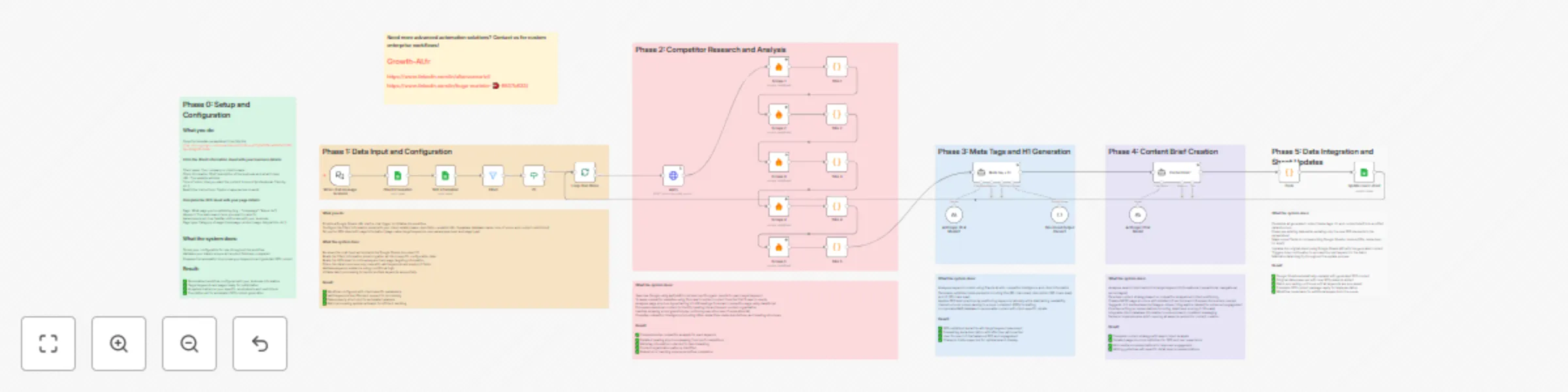
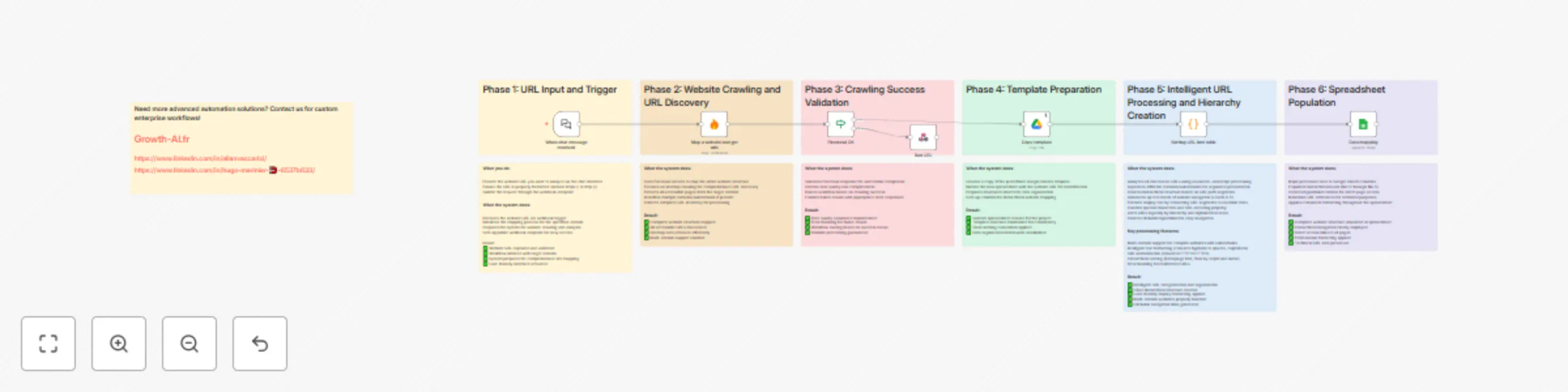
# SEO Content Generation Workflow (Basic Version) - n8n Template Instructions ## Who's it for This workflow is designed for SEO professionals, content marketers, digital agencies, and businesses who need to generate optimized meta tags, H1 headings, and content briefs at scale. Perfect for teams managing multiple clients or large keyword lists who want to automate competitor analysis and SEO content creation without the complexity of vector databases. ## How it works The workflow automates the entire SEO content creation process by analyzing your target keywords against top competitors, then generating optimized meta elements and comprehensive content briefs. It uses AI-powered analysis combined with real competitor data to create SEO-friendly content that's tailored to your specific business context. The system processes keywords in batches, performs Google searches, scrapes competitor content, analyzes heading structures, and generates personalized SEO content using your company information for maximum relevance. ## Requirements ### Required Services and Credentials - **Google Sheets API**: For reading configuration and updating results - **Anthropic API**: For AI content generation (Claude Sonnet 4) - **Apify API**: For Google search results - **Firecrawl API**: For competitor website scraping ### Template Spreadsheet Copy this template spreadsheet and configure it with your information: **[Template Link](https://docs.google.com/spreadsheets/d/1cRlqsueCTgfMjO7AzwBsAOzTCPBrGpHSzRg05fLDnWc)** ## How to set up ### Step 1: Copy and Configure Template 1. Make a copy of the template spreadsheet 2. Fill in the **Client Information** sheet: - **Client name**: Your company or client's name - **Client information**: Brief business description - **URL**: Website address - **Tone of voice**: Content style preferences - **Restrictive instructions**: Topics or approaches to avoid 3. Complete the **SEO** sheet with your target pages: - **Page**: Page you're optimizing (e.g., "Homepage", "Product Page") - **Keyword**: Main search term to target - **Awareness level**: User familiarity with your business - **Page type**: Category (homepage, blog, product page, etc.) ### Step 2: Import Workflow 1. Import the n8n workflow JSON file 2. Configure all required API credentials in n8n: - Google Sheets OAuth2 - Anthropic API key - Apify API key - Firecrawl API key ### Step 3: Test Configuration 1. Activate the workflow 2. Send your Google Sheets URL to the chat trigger 3. Verify that all sheets are readable and credentials work 4. Test with a single keyword row first ## Workflow Process Overview ### Phase 0: Setup and Configuration - Copy template spreadsheet - Configure client information and SEO parameters - Set up API credentials in n8n ### Phase 1: Data Input and Processing - Chat trigger receives Google Sheets URL - System reads client configuration and SEO data - Filters valid keywords and empty H1 fields - Initiates batch processing ### Phase 2: Competitor Research and Analysis - Searches Google for top 10 results per keyword using Apify - Scrapes first 5 competitor websites using Firecrawl - Extracts heading structures (H1-H6) from competitor pages - Analyzes competitor meta tags and content organization - Processes markdown content to identify heading hierarchies ### Phase 3: Meta Tags and H1 Generation - AI analyzes keyword context and competitor data using Claude - Incorporates client information for personalization - Generates optimized meta title (65 characters maximum) - Creates compelling meta description (165 characters maximum) - Produces user-focused H1 (70 characters maximum) - Uses structured output parsing for consistent formatting ### Phase 4: Content Brief Creation - Analyzes search intent percentages (informational, transactional, navigational) - Develops content strategy based on competitor analysis - Creates detailed MECE page structure with H2 and H3 sections - Suggests rich media elements (images, videos, infographics, tables) - Provides writing recommendations and detail level scoring (1-10 scale) - Ensures SEO optimization while maintaining user relevance ### Phase 5: Data Integration and Updates - Combines all generated content into unified structure - Updates Google Sheets with new SEO elements - Preserves existing data while adding new content - Continues batch processing for remaining keywords ## Key Differences from Advanced Version This basic version focuses on core SEO functionality without additional complexity: - **No Vector Database**: Removes Supabase integration for simpler setup - **Streamlined Architecture**: Fewer dependencies and configuration steps - **Essential Features Only**: Core competitor analysis and content generation - **Faster Setup**: Reduced time to deployment - **Lower Costs**: Fewer API services required ## How to customize the workflow ### Adjusting AI Models - Replace Anthropic Claude with other LLM providers in the agent nodes - Modify system prompts for different content styles or languages - Adjust character limits for meta elements in the structured output parser ### Modifying Competitor Analysis - Change number of competitors analyzed (currently 5) by adding/removing Scrape nodes - Adjust scraping parameters in Firecrawl nodes for different content types - Modify heading extraction logic in JavaScript Code nodes ### Customizing Output Format - Update Google Sheets column mapping in the final Code node - Modify structured output parser schema for different data structures - Change batch processing size in Split in Batches node ### Adding Quality Controls - Insert validation nodes between workflow phases - Add error handling and retry logic to critical nodes - Implement content quality scoring mechanisms ### Extending Functionality - Add keyword research capabilities with additional APIs - Include image optimization suggestions - Integrate social media content generation - Connect to CMS platforms for direct publishing ## Best Practices ### Setup and Testing - Always test with small batches before processing large keyword lists - Monitor API usage and costs across all services - Regularly update system prompts based on output quality - Maintain clean data in your Google Sheets template ### Content Quality - Review generated content before publishing - Customize system prompts to match your brand voice - Use descriptive node names for easier workflow maintenance - Keep competitor analysis current by running regularly ### Performance Optimization - Process keywords in small batches to avoid timeouts - Set appropriate retry policies for external API calls - Monitor workflow execution times and optimize bottlenecks ## Troubleshooting ### Common Issues and Solutions **API Errors** - Check credential configuration in n8n settings - Verify API usage limits and billing status - Ensure proper authentication for each service **Scraping Failures** - Firecrawl nodes have error handling enabled to continue on failures - Some websites may block scraping - this is normal behavior - Check if competitor URLs are accessible and valid **Empty Results** - Verify keyword formatting in Google Sheets - Ensure competitor websites contain the expected content structure - Check if meta tags are properly formatted in system prompts **Sheet Update Errors** - Ensure proper column mapping in final Code node - Verify Google Sheets permissions and sharing settings - Check that target sheet names match exactly **Processing Stops** - Review batch processing limits and timeout settings - Check for errors in individual nodes using execution logs - Verify all required fields are populated in input data ## Template Structure ### Required Sheets 1. **Client Information**: Business details and configuration 2. **SEO**: Target keywords and page information 3. **Results Sheet**: Where generated content will be written ### Expected Columns - **Keywords**: Target search terms - **Description**: Brief page description - **Type de page**: Page category - **Awareness level**: User familiarity level - **title, meta-desc, h1, brief**: Generated output columns This streamlined version provides all essential SEO content generation capabilities while being easier to set up and maintain than the advanced version with vector database integration.
Generate SEO content with Claude AI, competitor analysis & Supabase RAG
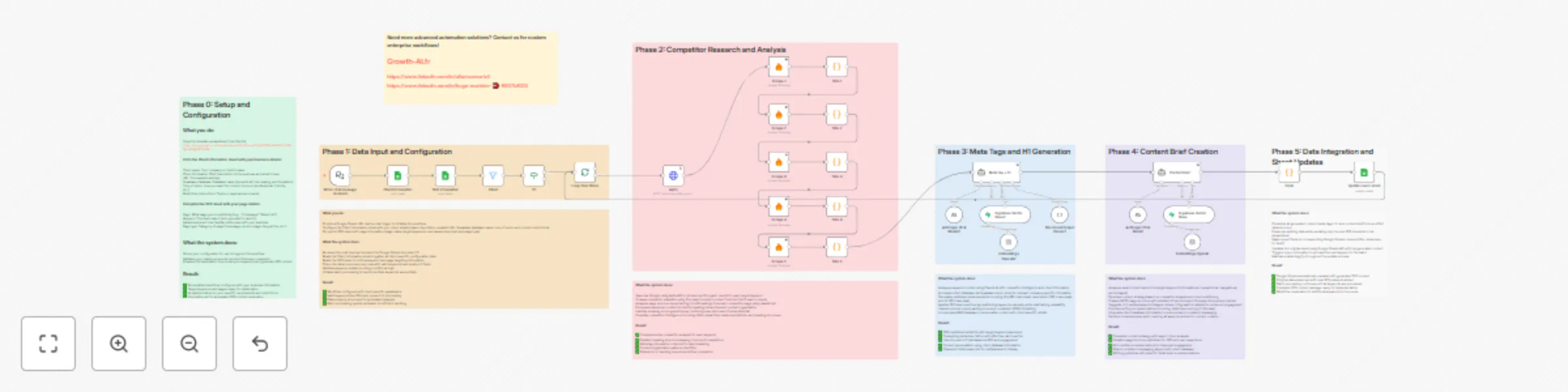
# SEO Content Generation Workflow - n8n Template Instructions ## Who's it for This workflow is designed for SEO professionals, content marketers, digital agencies, and businesses who need to generate optimized meta tags, H1 headings, and content briefs at scale. Perfect for teams managing multiple clients or large keyword lists who want to automate competitor analysis and SEO content creation while maintaining quality and personalization. ## How it works The workflow automates the entire SEO content creation process by analyzing your target keywords against top competitors, then generating optimized meta elements and comprehensive content briefs. It uses AI-powered analysis combined with real competitor data to create SEO-friendly content that's tailored to your specific business context. The system processes keywords in batches, performs Google searches, scrapes competitor content, analyzes heading structures, and generates personalized SEO content using your company's database information for maximum relevance. ## Requirements ### Required Services and Credentials - **Google Sheets API**: For reading configuration and updating results - **Anthropic API**: For AI content generation (Claude Sonnet 4) - **OpenAI API**: For embeddings and vector search - **Apify API**: For Google search results - **Firecrawl API**: For competitor website scraping - **Supabase**: For vector database (optional but recommended) ### Template Spreadsheet Copy this template spreadsheet and configure it with your information: **[Template Link](https://docs.google.com/spreadsheets/d/1cRlqsueCTgfMjO7AzwBsAOzTCPBrGpHSzRg05fLDnWc)** ## How to set up ### Step 1: Copy and Configure Template 1. Make a copy of the template spreadsheet 2. Fill in the **Client Information** sheet: - **Client name**: Your company or client's name - **Client information**: Brief business description - **URL**: Website address - **Supabase database**: Database name (prevents AI hallucination) - **Tone of voice**: Content style preferences - **Restrictive instructions**: Topics or approaches to avoid 3. Complete the **SEO** sheet with your target pages: - **Page**: Page you're optimizing (e.g., "Homepage", "Product Page") - **Keyword**: Main search term to target - **Awareness level**: User familiarity with your business - **Page type**: Category (homepage, blog, product page, etc.) ### Step 2: Import Workflow 1. Import the n8n workflow JSON file 2. Configure all required API credentials in n8n: - Google Sheets OAuth2 - Anthropic API key - OpenAI API key - Apify API key - Firecrawl API key - Supabase credentials (if using vector database) ### Step 3: Test Configuration 1. Activate the workflow 2. Send your Google Sheets URL to the chat trigger 3. Verify that all sheets are readable and credentials work 4. Test with a single keyword row first ## Workflow Process Overview ### Phase 0: Setup and Configuration - Copy template spreadsheet - Configure client information and SEO parameters - Set up API credentials in n8n ### Phase 1: Data Input and Processing - Chat trigger receives Google Sheets URL - System reads client configuration and SEO data - Filters valid keywords and empty H1 fields - Initiates batch processing ### Phase 2: Competitor Research and Analysis - Searches Google for top 10 results per keyword - Scrapes first 5 competitor websites - Extracts heading structures (H1-H6) - Analyzes competitor meta tags and content organization ### Phase 3: Meta Tags and H1 Generation - AI analyzes keyword context and competitor data - Accesses client database for personalization - Generates optimized meta title (65 chars max) - Creates compelling meta description (165 chars max) - Produces user-focused H1 (70 chars max) ### Phase 4: Content Brief Creation - Analyzes search intent percentages - Develops content strategy based on competitor analysis - Creates detailed MECE page structure - Suggests rich media elements - Provides writing recommendations and detail level scoring ### Phase 5: Data Integration and Updates - Combines all generated content into unified structure - Updates Google Sheets with new SEO elements - Preserves existing data while adding new content - Continues batch processing for remaining keywords ## How to customize the workflow ### Adjusting AI Models - Replace Anthropic Claude with other LLM providers - Modify system prompts for different content styles - Adjust character limits for meta elements ### Modifying Competitor Analysis - Change number of competitors analyzed (currently 5) - Adjust scraping parameters in Firecrawl nodes - Modify heading extraction logic in JavaScript nodes ### Customizing Output Format - Update Google Sheets column mapping in Code node - Modify structured output parser schema - Change batch processing size in Split in Batches node ### Adding Quality Controls - Insert validation nodes between phases - Add error handling and retry logic - Implement content quality scoring ### Extending Functionality - Add keyword research capabilities - Include image optimization suggestions - Integrate social media content generation - Connect to CMS platforms for direct publishing ## Best Practices - Test with small batches before processing large keyword lists - Monitor API usage and costs across all services - Regularly update system prompts based on output quality - Maintain clean data in your Google Sheets template - Use descriptive node names for easier workflow maintenance ## Troubleshooting - **API Errors**: Check credential configuration and usage limits - **Scraping Failures**: Firecrawl nodes have error handling enabled - **Empty Results**: Verify keyword formatting and competitor availability - **Sheet Updates**: Ensure proper column mapping in final Code node - **Processing Stops**: Check batch processing limits and timeout settings
Generate SEO anchor texts from Google Sheets with Claude 4 Sonnet
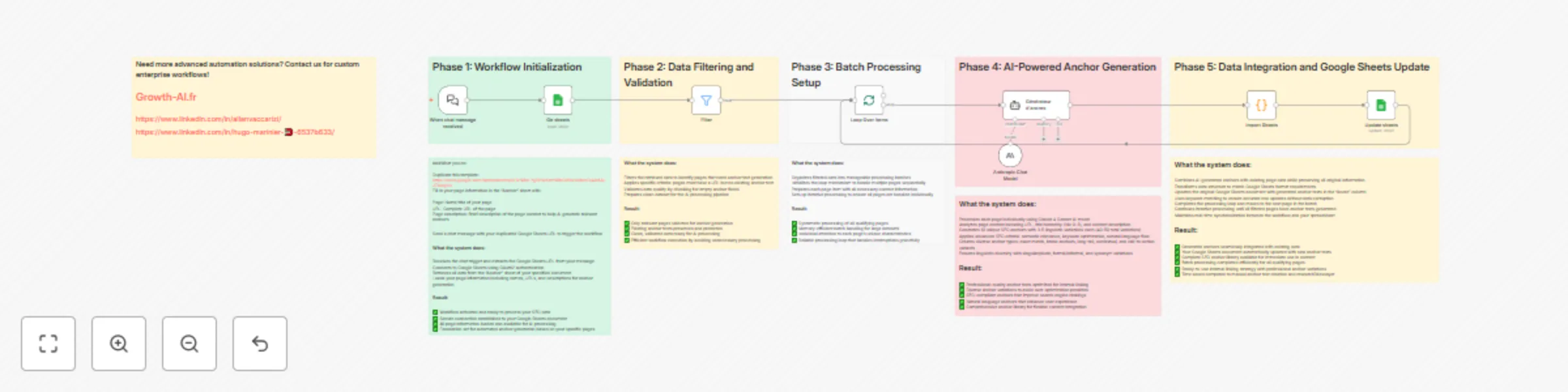
# SEO Anchor Text Generator with n8n and Claude AI Generate optimized SEO anchor texts for internal linking using AI automation. This workflow processes your website pages and creates diverse, SEO-compliant anchor variations automatically. ## Who's it for - SEO specialists managing large websites with extensive internal linking needs - Content managers looking to automate anchor text creation for better search rankings - Digital marketers seeking to optimize internal linking strategies at scale - Web agencies handling multiple client websites with SEO requirements ## What it does This workflow automatically generates 10 unique SEO anchor texts with 3-5 linguistic variations each (40-50 total variations per page) using Claude AI. It analyzes your page content, applies advanced SEO criteria, and creates diverse anchor types including exact match, brand anchors, long-tail keywords, contextual phrases, and call-to-action variants. ## How it works The system connects to your Google Sheets document containing page information, filters pages needing anchor generation, processes each page individually through Claude AI, and updates your spreadsheet with generated anchor texts. The workflow ensures semantic relevance, keyword optimization, natural language flow, and linguistic diversity while avoiding over-optimization penalties. ## Requirements - Google Sheets with OAuth2 authentication configured in n8n - Anthropic API key for Claude AI model access - Template spreadsheet with proper column structure (Page, URL, Description, Anchors) - Pages must have URL and description but empty anchor fields to trigger processing ## How to set up ### Step 1: Prepare Your Data Duplicate the template spreadsheet: https://docs.google.com/spreadsheets/d/1VNl8xLYgRrNcKrmN9hCdfov1dMnwD44tAALJZAlagCo Fill in your page information in the "Anchor" sheet: - Page: Name/title of your page (can use hierarchical levels Niv 0-3) - URL: Complete URL of the page - Description: Brief description of page content to help AI generate relevant anchors Leave the "Anchors" column empty for pages needing anchor generation ### Step 2: Configure n8n Credentials Set up Google Sheets OAuth2: - Go to n8n credentials settings - Add new Google Sheets OAuth2 API credential - Follow OAuth flow to authenticate with Google - Test connection with your spreadsheet Configure Anthropic API: - Obtain API key from Anthropic Console - Add new Anthropic API credential in n8n - Enter your API key and test connection ### Step 3: Import and Activate Workflow Import the workflow from the provided JSON Update credential references to match your configured credentials Test the Chat Trigger webhook to ensure it's accessible Activate the workflow in n8n ### Step 4: Execute the Workflow Send a chat message with your Google Sheets URL to trigger the workflow Monitor execution through n8n interface to track progress Check your spreadsheet for automatically generated anchor texts Review and customize generated anchors as needed for your content ## How to customize the workflow ### Modify AI Prompt Instructions Update the "Générateur d'ancres" node prompt to: - Change the number of anchor variations generated - Adjust SEO criteria and anchor types - Modify linguistic variation requirements - Customize language style and tone - Add specific industry terminology ### Adjust Data Processing Customize the "Filter" node conditions to: - Change criteria for pages requiring anchor generation - Add additional validation rules - Modify column names to match your spreadsheet structure ### Enhance Output Formatting Modify the "Import Sheets" code node to: - Change data transformation logic - Add additional processing steps - Customize how results are formatted for Google Sheets - Include timestamp or processing metadata ### Scale for Large Datasets Optimize the "Loop Over Items" batch processing: - Adjust batch sizes for better performance - Add error handling for failed API calls - Implement retry logic for robustness - Add progress tracking mechanisms ### Integration Extensions Extend functionality by adding nodes for: - Slack notifications when processing completes - Email reports with generation statistics - Integration with content management systems - Automated content publishing with generated anchors ## Advanced Customization Tips - Language Adaptation: Modify the AI prompt for different languages by adjusting linguistic variation rules - Industry Specialization: Add domain-specific terminology and SEO best practices to the prompt - Quality Control: Implement additional filtering to review generated anchors before updating sheets - Analytics Integration: Connect with Google Analytics to prioritize high-traffic pages for anchor generation - Content Integration: Add nodes to automatically insert generated anchors into CMS or static site generators
Generate UGC videos from product images with Gemini and VEO3
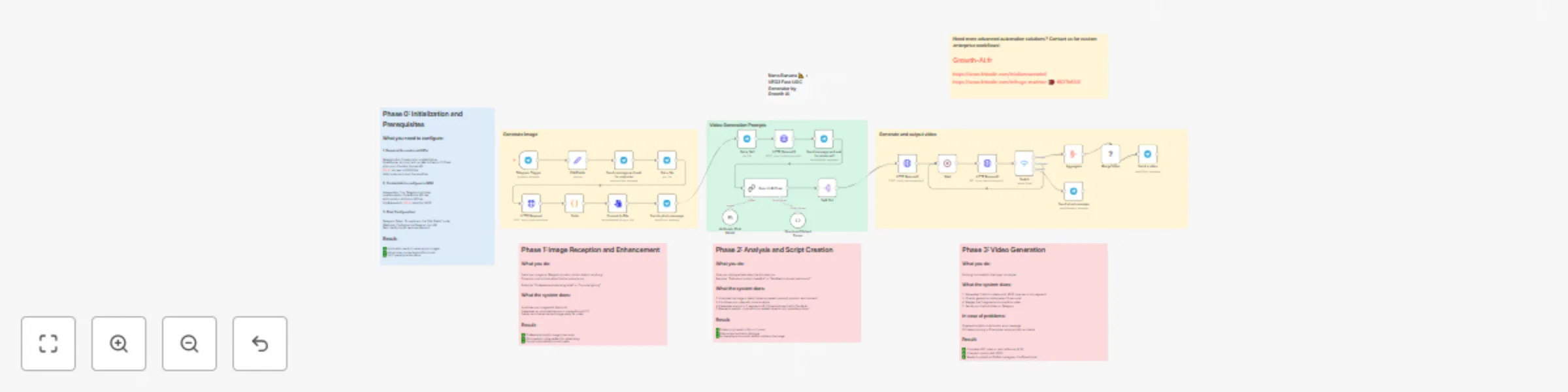
# N8N UGC Video Generator - Setup Instructions ## Transform Product Images into Professional UGC Videos with AI This powerful n8n workflow automatically converts product images into professional User-Generated Content (UGC) videos using cutting-edge AI technologies including Gemini 2.5 Flash, Claude 4 Sonnet, and VEO3 Fast. ## Who's it for - **Content creators** looking to scale video production - **E-commerce businesses** needing authentic product videos - **Marketing agencies** creating UGC campaigns for clients - **Social media managers** requiring quick video content ## How it works The workflow operates in 4 distinct phases: **Phase 0: Setup** - Configure all required API credentials and services **Phase 1: Image Enhancement** - AI analyzes and optimizes your product image **Phase 2: Script Generation** - Creates authentic dialogue scripts based on your input **Phase 3: Video Production** - Generates and merges professional video segments ## Requirements ### Essential Services & APIs - **Telegram Bot Token** (create via @BotFather) - **OpenRouter API** with Gemini 2.5 Flash access - **Anthropic API** for Claude 4 Sonnet - **KIE.AI Account** with VEO3 Fast access - **N8N Instance** (cloud or self-hosted) ### Technical Prerequisites - Basic understanding of n8n workflows - API key management experience - Telegram bot creation knowledge ## How to set up ### Step 1: Service Configuration 1. **Create Telegram Bot** - Message @BotFather on Telegram - Use `/newbot` command and follow instructions - Save the bot token for later use 2. **OpenRouter Setup** - Sign up at openrouter.ai - Purchase credits for Gemini 2.5 Flash access - Generate and save API key 3. **Anthropic Configuration** - Create account at console.anthropic.com - Add credits to your account - Generate Claude API key 4. **KIE.AI Access** - Register at kie.ai - Subscribe to VEO3 Fast plan - Obtain bearer token ### Step 2: N8N Credential Setup Configure these credentials in your n8n instance: 1. **Telegram API Credential** - Name: `telegramApi` - Bot Token: Your Telegram bot token 2. **OpenRouter API Credential** - Name: `openRouterApi` - API Key: Your OpenRouter key 3. **Anthropic API Credential** - Name: `anthropicApi` - API Key: Your Anthropic key 4. **HTTP Bearer Auth Credential** - Name: `httpBearerAuth` - Token: Your KIE.AI bearer token ### Step 3: Workflow Configuration 1. **Import the Workflow** - Copy the provided JSON workflow - Import into your n8n instance 2. **Update Telegram Token** - Locate the "Edit Fields" node - Replace "Your Telegram Token" with your actual bot token 3. **Configure Webhook URLs** - Ensure all Telegram nodes have proper webhook configurations - Test webhook connectivity ### Step 4: Testing & Validation 1. **Test Individual Nodes** - Verify each API connection - Check credential configurations - Confirm node responses 2. **End-to-End Testing** - Send a test image to your Telegram bot - Follow the complete workflow process - Verify final video output ## How to customize the workflow ### Modify Image Enhancement Prompts - Edit the HTTP Request node for Gemini - Adjust the prompt text to match your style preferences - Test different aspect ratios (current: 1:1 square format) ### Customize Script Generation - Modify the Basic LLM Chain node prompt - Adjust video segment duration (current: 7-8 seconds each) - Change dialogue style and tone requirements ### Video Generation Settings - Update VEO3 API parameters in HTTP Request1 node - Modify aspect ratio (current: 16:9) - Adjust model settings and seeds for consistency ### Output Customization - Change final video format in MediaFX node - Modify Telegram message templates - Add additional processing steps before delivery ## Workflow Operation ### Phase 1: Image Reception and Enhancement 1. User sends product image via Telegram 2. System prompts for enhancement instructions 3. Gemini AI analyzes and optimizes image 4. Enhanced square-format image returned ### Phase 2: Analysis and Script Creation 1. System requests dialogue concept from user 2. AI analyzes image details and environment 3. Claude generates realistic 2-segment script 4. Scripts respect physical constraints of original image ### Phase 3: Video Generation 1. Two separate videos generated using VEO3 2. System monitors generation status 3. Videos merged into single flowing sequence 4. Final video delivered via Telegram ## Troubleshooting ### Common Issues - **API Rate Limits**: Implement delays between requests - **Webhook Failures**: Verify URL configurations and SSL certificates - **Video Generation Timeouts**: Increase wait node duration - **Credential Errors**: Double-check all API keys and permissions ### Error Handling The workflow includes automatic error detection: - Failed video generation triggers error message - Status checking prevents infinite loops - Alternative outputs for different scenarios ## Advanced Features ### Batch Processing - Modify trigger to handle multiple images - Add queue management for high-volume usage - Implement user session tracking ### Custom Branding - Add watermarks or logos to generated videos - Customize color schemes and styling - Include brand-specific dialogue templates ### Analytics Integration - Track usage metrics and success rates - Monitor API costs and optimization opportunities - Implement user behavior analytics ## Cost Optimization ### API Usage Management - Monitor token consumption across services - Implement caching for repeated requests - Use lower-cost models for testing phases ### Efficiency Improvements - Optimize image sizes before processing - Implement smart retry mechanisms - Use batch processing where possible This workflow transforms static product images into engaging, professional UGC videos automatically, saving hours of manual video creation while maintaining high quality output perfect for social media platforms.
WhatsApp AI assistant with Claude & GPT4O: multi-format processing & productivity suite
# WhatsApp AI Personal Assistant - n8n Workflow Instructions ## Who's it for This workflow is designed for business professionals, entrepreneurs, and individuals who want to transform their WhatsApp into a powerful AI-powered personal assistant. Perfect for users who need to manage emails, calendar events, document searches, and various productivity tasks through a single messaging interface. ## What it does This comprehensive n8n workflow creates an intelligent WhatsApp bot that can process multiple message types (text, voice, images, PDF documents) and execute complex tasks using integrated tools including Gmail, Google Calendar, Google Drive, Airtable, Discord, and internet search capabilities. The assistant maintains conversation context and can handle sophisticated requests through natural language processing. ## How it works ### Phase 1: Message Reception and Classification The workflow begins when a message is received through the WhatsApp Trigger. A Switch node automatically classifies the incoming message type (text, audio, image, or document) and routes it to the appropriate processing pathway. ### Phase 2: Content Processing by Format **Text Messages**: Direct extraction and formatting for AI processing **Voice Messages**: - Retrieves audio URL from WhatsApp API - Downloads audio file with authenticated requests - Transcribes speech to text using OpenAI Whisper - Formats transcribed content for AI agent **Images**: - Downloads image from WhatsApp API - Analyzes visual content using GPT-4O-mini vision model - Generates detailed French descriptions covering composition, objects, people, and atmosphere - Combines user requests with AI analysis **PDF Documents**: - Validates file format (rejects non-PDF files) - Downloads and extracts text content - Processes document text for AI analysis ### Phase 3: AI Assistant Processing The processed content is handled by a Claude Sonnet 4-powered agent with access to: - **SerpAPI** for internet searches - **Airtable database** for email contact management - **Gmail integration** for email operations - **Google Calendar** for event scheduling and management - **Google Drive** for document searches - **Discord messaging** for notifications - **Calculator** for mathematical operations - **PostgreSQL chat memory** for conversation context ### Phase 4: Response Delivery The system intelligently determines response format: - For voice inputs: Converts AI response to speech using OpenAI TTS - For other inputs: Sends text responses directly - Handles technical requirements like MIME type compatibility for WhatsApp ## Requirements ### API Credentials Required: - **WhatsApp Business API** (Trigger and messaging) - **OpenAI API** (GPT-4O-mini, Whisper, TTS) - **Anthropic API** (Claude Sonnet 4) - **Google APIs** (Gmail, Calendar, Drive OAuth2) - **Airtable API** (Database operations) - **Discord Bot API** (Messaging) - **SerpAPI** (Internet search) - **PostgreSQL Database** (Conversation memory) ### Self-hosted n8n Instance This workflow requires a self-hosted n8n installation as it uses community nodes and advanced integrations not available in n8n Cloud. ## How to set up ### 1. Prerequisites Setup - Deploy n8n on a server with public access - Obtain WhatsApp Business API credentials - Create developer accounts for all required services - Set up a PostgreSQL database for conversation memory ### 2. Credential Configuration Configure the following credentials in n8n: - WhatsApp API credentials for both trigger and messaging nodes - OpenAI API key with access to GPT-4O-mini, Whisper, and TTS - Anthropic API key for Claude Sonnet 4 - Google OAuth2 credentials for Gmail, Calendar, and Drive - Airtable Personal Access Token - Discord Bot token - SerpAPI key - PostgreSQL database connection ### 3. WhatsApp Configuration - Configure webhook URLs in WhatsApp Business API settings - Set up phone number verification - Configure message templates if required ### 4. Tool Configuration - **Airtable**: Set up email database with 'Nom' and 'Mails' columns - **Google Calendar**: Configure calendar access permissions - **Google Drive**: Set up appropriate folder permissions - **Discord**: Configure bot permissions and channel access ### 5. Testing and Validation - Test each message type (text, audio, image, PDF) - Verify all tool integrations work correctly - Test conversation memory persistence - Validate response delivery in both text and audio formats ## How to customize the workflow ### Modify AI Assistant Personality Edit the system message in the "Agent personnel" node to customize the assistant's behavior, tone, and capabilities according to your needs. ### Add New Tools Integrate additional n8n tool nodes to extend functionality: - CRM systems (Salesforce, HubSpot) - Project management tools (Notion, Trello) - File storage services (Dropbox, OneDrive) - Communication platforms (Slack, Microsoft Teams) ### Customize Content Processing - Modify image analysis prompts for specific use cases - Add document format support beyond PDF - Implement content filtering or moderation - Add language detection and multi-language support ### Enhance Memory and Context - Implement user-specific memory sessions - Add conversation summaries for long interactions - Create user preference storage - Implement conversation analytics ### Response Customization - Add multimedia response capabilities - Implement response templates for common queries - Add typing indicators or read receipts - Create custom response formatting ### Security Enhancements - Implement user authentication - Add rate limiting for API calls - Create audit logs for sensitive operations - Implement data encryption for stored conversations ### Performance Optimization - Add caching for frequently accessed data - Implement queue management for high-volume usage - Add error handling and retry mechanisms - Create monitoring and alerting systems ## Important Notes - This workflow processes sensitive data; ensure proper security measures are in place - Monitor API usage limits across all integrated services - Regularly backup conversation memory data - Test thoroughly before deploying to production - Consider implementing user access controls for business environments - Keep all API credentials secure and rotate them regularly ## Troubleshooting - **Audio Issues**: Verify MIME type handling in the "Fix mimeType for Audio" node - **WhatsApp Delivery**: Check webhook configurations and phone number verification - **Tool Failures**: Validate all API credentials and permissions - **Memory Issues**: Monitor PostgreSQL database performance and storage - **Response Delays**: Optimize tool timeout settings and add proper error handling
Build multi-client agentic RAG document processing pipeline with Supabase Vector DB
# Ultimate n8n Agentic RAG Template **Author:** [Cole Medin](https://www.youtube.com/@ColeMedin) ## What is this? This template provides a complete implementation of an **Agentic RAG (Retrieval Augmented Generation)** system in n8n that can be extended easily for your specific use case and knowledge base. Unlike standard RAG which only performs simple lookups, this agent can reason about your knowledge base, self-improve retrieval, and dynamically switch between different tools based on the specific question. ## Why Agentic RAG? Standard RAG has significant limitations: - Poor analysis of numerical/tabular data - Missing context due to document chunking - Inability to connect information across documents - No dynamic tool selection based on question type ## What makes this template powerful: - **Intelligent tool selection**: Switches between RAG lookups, SQL queries, or full document retrieval based on the question - **Complete document context**: Accesses entire documents when needed instead of just chunks - **Accurate numerical analysis**: Uses SQL for precise calculations on spreadsheet/tabular data - **Cross-document insights**: Connects information across your entire knowledge base - **Multi-file processing**: Handles multiple documents in a single workflow loop - **Efficient storage**: Uses JSONB in Supabase to store tabular data without creating new tables for each CSV ## Getting Started 1. Run the table creation nodes first to set up your database tables in Supabase 2. Upload your documents through Google Drive (or swap out for a different file storage solution) 3. The agent will process them automatically (chunking text, storing tabular data in Supabase) 4. Start asking questions that leverage the agent's multiple reasoning approaches ## Customization This template provides a solid foundation that you can extend by: - Tuning the system prompt for your specific use case - Adding document metadata like summaries - Implementing more advanced RAG techniques - Optimizing for larger knowledge bases --- I do intend on making a local version of this agent very soon!
Automated news monitoring with Claude 4 AI analysis for Discord & Google News
## Who's it for Marketing teams, business intelligence professionals, competitive analysts, and executives who need consistent industry monitoring with AI-powered analysis and automated team distribution via Discord. ## What it does This intelligent workflow automatically monitors multiple industry topics, scrapes and analyzes relevant news articles using Claude AI, and delivers professionally formatted intelligence reports to your Discord channel. The system provides weekly automated monitoring cycles with personalized bot communication and comprehensive content analysis. ## How it works The workflow follows a sophisticated 7-phase automation process: Scheduled Activation: Triggers weekly monitoring cycles (default: Mondays at 9 AM) Query Management: Retrieves monitoring topics from centralized Google Sheets configuration News Discovery: Executes comprehensive Google News searches using SerpAPI for each configured topic Content Extraction: Scrapes full article content from top 3 sources per topic using Firecrawl AI Analysis: Processes scraped content using Claude 4 Sonnet for intelligent synthesis and formatting Discord Optimization: Automatically segments content to comply with Discord's 2000-character message limits Automated Delivery: Posts formatted intelligence reports to Discord channel with branded "Claptrap" bot personality ## Requirements Google Sheets account for query management SerpAPI account for Google News access Firecrawl account for article content extraction Anthropic API access for Claude 4 Sonnet Discord bot with proper channel permissions Scheduled execution capability (cron-based trigger) ## How to set up ### Step 1: Configure Google Sheets query management Create monitoring sheet: Set up Google Sheets document with "Query" sheet Add search topics: Include industry keywords, competitor names, and relevant search terms Sheet structure: Simple column format with "Query" header containing search terms Access permissions: Ensure n8n has read access to the Google Sheets document ### Step 2: Configure API credentials Set up the following credentials in n8n: Google Sheets OAuth2: For accessing query configuration sheet SerpAPI: For Google News search functionality with proper rate limits Firecrawl API: For reliable article content extraction across various websites Anthropic API: For Claude 4 Sonnet access with sufficient token limits Discord Bot API: With message posting permissions in target channel ### Step 3: Customize scheduling settings Cron expression: Default set to "0 9 * * 1" (Mondays at 9 AM) Frequency options: Adjust for daily, weekly, or custom monitoring cycles Timezone considerations: Configure according to team's working hours Execution timing: Ensure adequate processing time for multiple topics ### Step 4: Configure Discord integration Set up Discord delivery settings: Guild ID: Target Discord server (currently: 919951151888236595) Channel ID: Specific monitoring channel (currently: 1334455789284364309) Bot permissions: Message posting, embed suppression capabilities Brand personality: Customize "Claptrap" bot messaging style and tone ### Step 5: Customize content analysis Configure AI analysis parameters: Analysis depth: Currently processes top 3 articles per topic Content format: Structured markdown format with consistent styling Language settings: Currently configured for French output (easily customizable) Quality controls: Error handling for inaccessible articles and content ## How to customize the workflow ### Query management expansion Topic categories: Organize queries by industry, competitor, or strategic focus areas Keyword optimization: Refine search terms based on result quality and relevance Dynamic queries: Implement time-based or event-triggered query modifications Multi-language support: Add international keyword variations for global monitoring ### Advanced content processing Article quantity: Modify from 3 to more articles per topic based on analysis needs Content filtering: Add quality scoring and relevance filtering for article selection Source preferences: Implement preferred publisher lists or source quality weighting Content enrichment: Add sentiment analysis, trend identification, or competitive positioning ### Discord delivery enhancements Rich formatting: Implement Discord embeds, reactions, or interactive elements Multi-channel distribution: Route different topics to specialized Discord channels Alert levels: Add priority-based messaging for urgent industry developments Archive functionality: Create searchable message threads or database storage ### Integration expansions Slack compatibility: Replace or supplement Discord with Slack notifications Email reports: Add formatted email distribution for executive summaries Database storage: Implement persistent storage for historical analysis and trending API endpoints: Create webhook endpoints for third-party system integration ### AI analysis customization Analysis templates: Create topic-specific analysis frameworks and formatting Competitive focus: Enhance competitor mention detection and analysis depth Trend identification: Implement cross-topic trend analysis and strategic insights Summary levels: Create executive summaries alongside detailed technical analysis ## Advanced monitoring features ### Intelligent content curation The system provides sophisticated content management: Relevance scoring: Automatic ranking of articles by topic relevance and publication authority Duplicate detection: Prevents redundant coverage of the same story across different sources Content quality assessment: Filters low-quality or promotional content automatically Source diversity: Ensures coverage from multiple perspectives and publication types ### Error handling and reliability Graceful degradation: Continues processing even if individual articles fail to scrape Retry mechanisms: Automatic retry logic for temporary API failures or network issues Content fallbacks: Uses article snippets when full content extraction fails Notification continuity: Ensures Discord delivery even with partial content processing ## Results interpretation ### Intelligence report structure Each monitoring cycle delivers: Topic-specific summaries: Individual analysis for each configured search query Source attribution: Complete citation with publication date, source, and URL Structured formatting: Consistent presentation optimized for quick scanning Professional analysis: AI-generated insights maintaining factual accuracy and business context ### Performance analytics Monitor system effectiveness through: Processing metrics: Track successful article extraction and analysis rates Content quality: Assess relevance and usefulness of delivered intelligence Team engagement: Monitor Discord channel activity and report utilization System reliability: Track execution success rates and error patterns ## Use cases ### Competitive intelligence Market monitoring: Track competitor announcements, product launches, and strategic moves Industry trends: Identify emerging technologies, regulatory changes, and market shifts Partnership tracking: Monitor alliance formations, acquisitions, and strategic partnerships Leadership changes: Track executive movements and organizational restructuring ### Strategic planning support Market research: Continuous intelligence gathering for strategic decision-making Risk assessment: Early warning system for industry disruptions and regulatory changes Opportunity identification: Spot emerging markets, technologies, and business opportunities Brand monitoring: Track industry perception and competitive positioning ### Team collaboration enhancement Knowledge sharing: Centralized distribution of relevant industry intelligence Discussion facilitation: Provide common information baseline for strategic discussions Decision support: Deliver timely intelligence for business planning and strategy sessions Competitive awareness: Keep teams informed about competitive landscape changes ## Workflow limitations Language dependency: Currently optimized for French analysis output (easily customizable) Processing capacity: Limited to 3 articles per query (configurable based on API limits) Platform specificity: Configured for Discord delivery (adaptable to other platforms) Scheduling constraints: Fixed weekly schedule (customizable via cron expressions) Content access: Dependent on article accessibility and website compatibility with Firecrawl API dependencies: Requires active subscriptions and proper rate limit management for all integrated services
Monitor social media trends across Reddit, Instagram & TikTok with Apify
## Who's it for Social media managers, content creators, brand managers, and marketing teams who need to track keyword performance and trending content across TikTok, Instagram, and Reddit for competitive analysis and content inspiration. ## What it does This workflow automatically monitors trending content across three major social media platforms using specified keywords. It scrapes posts from TikTok, Instagram, and Reddit, calculates engagement scores using platform-specific metrics, ranks content by performance, and generates a comprehensive HTML email report with the top-performing posts across all platforms. ## How it works The workflow follows a sequential multi-platform scraping process: Reddit Scraping: Searches for keyword-based posts and comments with engagement metrics Instagram Monitoring: Analyzes hashtag-based content with likes and comments data TikTok Analysis: Tracks hashtag performance including views, likes, shares, and comments Score Calculation: Applies platform-specific scoring algorithms based on engagement metrics Unified Ranking: Combines and ranks all content across platforms by engagement score Report Generation: Creates a detailed HTML email report with top performers and analytics ## Requirements Apify account with API access Gmail account for report delivery Platform-specific scrapers: Reddit Scraper Lite, Instagram Scraper, TikTok Scraper ## How to set up ### Step 1: Configure Apify credentials Set up Apify HTTP header authentication in n8n Ensure access to the required scrapers: Reddit: trudax~reddit-scraper-lite Instagram: apify~instagram-scraper TikTok: clockworks~tiktok-scraper ### Step 2: Customize search parameters Reddit configuration: Search terms: Modify "searches" array with your keywords Content type: Posts and comments (searchComments can be enabled) Sort method: "top" (alternatives: hot, new, relevance) Time period: "month" (alternatives: hour, day, week, year, all) Result limits: maxItems: 50, maxPostCount: 25 Instagram configuration: Hashtag URLs: Update directUrls with target hashtags Results type: "posts" (alternatives: stories, reels) Time filter: "onlyPostsNewerThan": "7 days" Result limit: resultsLimit: 15 TikTok configuration: Hashtags: Update hashtags array with target keywords Results per page: resultsPerPage: 20 Time filter: "oldestPostDateUnified": "7 days" ### Step 3: Set up email reporting Configure Gmail OAuth2 credentials Update recipient email address in "Send a message" node Customize email subject and styling as needed ### Step 4: Adjust scoring algorithms Current scoring formulas: Reddit: (upvotes × 1) + (comments × 2) Instagram: (likes × 1) + (comments × 2) TikTok: (likes × 1) + (comments × 2) + (shares × 3) + (views ÷ 1000) Modify the code nodes to adjust scoring based on your priorities. ## How to customize the workflow ### Keyword and hashtag targeting Multiple keywords: Add arrays of search terms for broader monitoring Brand-specific terms: Include brand names, product names, competitor analysis Seasonal tracking: Adjust keywords based on campaigns or seasonal trends Negative filtering: Exclude irrelevant content with filtering logic ### Platform-specific customization Reddit enhancements: Subreddit targeting: Focus on specific communities Comment analysis: Enable comment scraping for deeper insights User profiling: Track specific user activity and influence Instagram modifications: Story monitoring: Track story mentions and hashtag usage Influencer tracking: Monitor specific account performance Location-based: Add geo-targeted hashtag monitoring TikTok optimizations: Trend detection: Identify viral sounds and effects Creator analysis: Track trending creators in your niche Challenge monitoring: Follow hashtag challenge performance ### Scoring and ranking customization Weighted metrics: Adjust multipliers based on platform importance Recency factors: Give bonus points to newer content Quality filters: Exclude low-engagement or spam content Sentiment analysis: Integrate sentiment scoring for brand monitoring ### Reporting enhancements Multiple recipients: Send reports to different team members Scheduled execution: Add scheduling triggers for automated monitoring Data export: Save results to spreadsheets or databases Alert thresholds: Set up notifications for high-performing content ## Engagement scoring methodology ### Platform-specific algorithms Reddit scoring logic: Emphasizes community engagement through upvotes and discussion Comments weighted higher (×2) as they indicate deeper engagement Filters out low-quality posts and spam content Instagram scoring approach: Balances visual appeal (likes) with engagement depth (comments) Focuses on recent content to capture trending moments Excludes carousel sub-items to avoid duplicate counting TikTok scoring system: Multi-factor algorithm considering all engagement types Views normalized (÷1000) to balance with other metrics Shares heavily weighted (×3) as they indicate viral potential ### Level classification Content automatically categorized into performance tiers: High: Score ≥ 10,000 (viral or highly engaging content) Medium: Score ≥ 1,000 (good engagement, worth monitoring) Low: Score < 1,000 (baseline engagement) ## Results interpretation ### Comprehensive analytics dashboard The email report includes: Cross-platform leaderboard: Top 15 posts ranked by engagement score Platform breakdown: Performance summary by social network Engagement metrics: Detailed scoring and classification Direct links: Clickable access to original content Author tracking: Creator identification for influencer outreach ### Actionable insights Content inspiration: Identify high-performing content formats and topics Competitor analysis: Monitor competitor content performance Trend identification: Spot emerging topics before they peak Influencer discovery: Find creators driving engagement in your niche ## Use cases ### Brand monitoring and competitive analysis Brand mention tracking: Monitor how your brand performs across platforms Competitor surveillance: Track competitor content and engagement rates Crisis management: Early detection of negative sentiment or issues Market positioning: Understand your brand's social media presence ### Content strategy optimization Content format analysis: Identify which content types perform best Hashtag research: Discover effective hashtags for your niche Posting timing: Analyze when high-engagement content is published Trend forecasting: Spot emerging trends for proactive content creation ### Influencer and partnership identification Creator discovery: Find influential voices in your industry Partnership evaluation: Assess potential collaborator engagement rates Campaign performance: Track sponsored content and brand partnerships Community building: Identify active community members and advocates ## Workflow limitations API rate limiting: Subject to Apify scraper limitations and quotas Platform restrictions: Some content may be private or restricted Real-time delays: 30-second waits between platform scraping prevent rate limiting Manual execution: Currently triggered manually (easily schedulable) Single keyword focus: Current setup optimized for one keyword at a time Platform availability: Dependent on third-party scrapers and their maintenance
Generate accessible alt text with AI from Google Sheets to WordPress
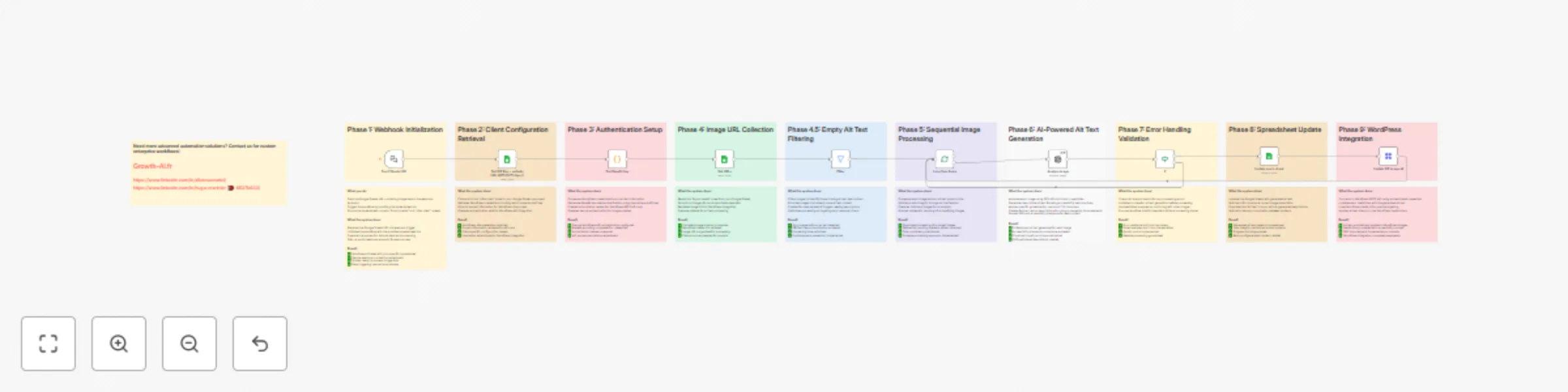
# AI-powered alt text generation from Google Sheets to WordPress media ## Who's it for WordPress site owners, content managers, and accessibility advocates who need to efficiently add alt text descriptions to multiple images for better SEO and web accessibility compliance. ## What it does This workflow automates the process of generating and updating alt text for WordPress media files using AI analysis. It reads image URLs from a Google Sheet, analyzes each image with Claude AI to generate accessibility-compliant descriptions, updates the sheet with the generated alt text, and automatically applies the descriptions to the corresponding WordPress media files. The workflow includes error handling to skip unsupported media formats and continue processing. ## How it works Input: Provide a Google Sheets URL containing image URLs and WordPress media IDs Authentication: Retrieves WordPress credentials from a separate sheet and generates Base64 authentication Processing: Loops through each image URL in the sheet AI Analysis: Claude AI analyzes each image and generates concise, accessible alt text (max 125 characters) Error Handling: Automatically skips unsupported media formats and continues with the next item Update Sheet: Writes the generated alt text back to the Google Sheet WordPress Update: Updates the WordPress media library with the new alt text via REST API ## Requirements Google Sheets with image URLs and WordPress media IDs WordPress site with Application Passwords enabled Claude AI (Anthropic) API credentials WordPress admin credentials stored in Google Sheets Export Media URLs WordPress plugin for generating the media list ## How to set up ### Step 1: Export your WordPress media URLs Install the "Export Media URLs" plugin on your WordPress site Go to the plugin settings and check both ID and URL columns for export (these are mandatory for the workflow) Export your media list to get the required data ### Step 2: Configure WordPress Application Passwords Go to WordPress Admin → Users → Your Profile Scroll down to "Application Passwords" section Enter application name (e.g., "n8n API") Click "Add New Application Password" Copy the generated password immediately (it won't be shown again) ### Step 3: Set up Google Sheets [Duplicate this Google Sheets template](https://docs.google.com/spreadsheets/d/1BKGQRx_xDiuh3QD3ACOOTJomsWFuPBjCHYMQX8UzTBE/edit?usp=sharing\) to get the correct structure. The template includes two sheets: Sheet 1: "Export media" - Paste your exported media data with columns: ID (WordPress media ID) URL (image URL) Alt text (will be populated by the workflow) Sheet 2: "Infos client" - Add your WordPress credentials: Admin Name: Your WordPress username KEY: The application password you generated Domaine: Your site URL without https:// (format: "example.com") ### Step 4: Configure API credentials Add your Anthropic API credentials to the Claude node Connect your Google Sheets account to the Google Sheets nodes ## How to customize Language: The Claude prompt is in French - modify it in the "Analyze image" node for other languages Alt text length: Adjust the 125-character limit in the Claude prompt Batch processing: Change the batch size in the Split in Batches node Error handling: The workflow automatically handles unsupported formats, but you can modify the error handling logic Authentication: Customize for different WordPress authentication methods This workflow is perfect for managing accessibility compliance across large WordPress media libraries while maintaining consistent, AI-generated descriptions. It's built to be resilient and will continue processing even when encountering unsupported media formats.
Automated Google Ads campaign reporting to Google Sheets with Airtable
# Google Ads automated reporting to spreadsheets with Airtable ## Who's it for Digital marketing agencies, PPC managers, and marketing teams who manage multiple Google Ads accounts and need automated monthly performance reporting organized by campaign types and conversion metrics. ## What it does This workflow automatically retrieves Google Ads performance data from multiple client accounts and populates organized spreadsheets with campaign metrics. It differentiates between e-commerce (conversion value) and lead generation (conversion count) campaigns, then organizes data by advertising channel (Performance Max, Search, Display, etc.) with monthly tracking for budget and performance analysis. ## How it works The workflow follows an automated data collection and reporting process: Account Retrieval: Fetches client information from Airtable (project names, Google Ads IDs, campaign types) Active Filter: Processes only accounts marked as "Actif" for budget reporting Campaign Classification: Routes accounts through e-commerce or lead generation workflows based on "Typologie ADS" Google Ads Queries: Executes different API calls depending on campaign type (conversion value vs. conversion count) Data Processing: Organizes metrics by advertising channel (Performance Max, Search, Display, Video, Shopping, Demand Gen) Dynamic Spreadsheet Updates: Automatically fills the correct monthly column in client spreadsheets Sequential Processing: Handles multiple accounts with wait periods to avoid API rate limits ## Requirements Airtable account with client database Google Ads API access with developer token Google Sheets API access Client-specific spreadsheet templates (provided) ## How to set up ### Step 1: Prepare your reporting template Copy the Google Sheets reporting template Create individual copies for each client Ensure proper column structure (months B-M for January-December) Link template URLs in your Airtable database ### Step 2: Configure your Airtable database Set up the following fields in your Airtable: Project names: Client project identifiers ID GADS: Google Ads customer IDs Typologie ADS: Campaign classification ("Ecommerce" or "Lead") Status - Prévisionnel budgétaire: Account status ("Actif" for active accounts) Automation budget: URLs to client-specific reporting spreadsheets ### Step 3: Set up API credentials Configure the following authentication: Airtable Personal Access Token: For client database access Google Ads OAuth2: For advertising data retrieval Google Sheets OAuth2: For spreadsheet updates Developer Token: Required for Google Ads API access Login Customer ID: Manager account identifier ### Step 4: Configure Google Ads API settings Update the HTTP request nodes with your credentials: Developer Token: Replace "[Your token]" with your actual developer token Login Customer ID: Replace "[Your customer id]" with your manager account ID API Version: Currently using v18 (update as needed) ### Step 5: Set up scheduling Default schedule: Runs on the 3rd of each month at 5 AM Cron expression: 0 5 3 * * Recommended timing: Early month execution for complete previous month data Processing delay: 1-minute waits between accounts to respect API limits ## How to customize the workflow ### Campaign type customization E-commerce campaigns: Tracks: Cost and conversion value metrics Query: metrics.conversions_value for revenue tracking Use case: Online stores, retail businesses Lead generation campaigns: Tracks: Cost and conversion count metrics Query: metrics.conversions for lead quantity Use case: Service businesses, B2B companies ### Advertising channel expansion Current channels tracked: Performance Max: Automated campaign type Search: Text ads on search results Display: Visual ads on partner sites Video: YouTube and video partner ads Shopping: Product listing ads Demand Gen: Audience-focused campaigns Add new channels by modifying the data processing code nodes. ### Reporting period adjustment Current setting: Last month data (DURING LAST_MONTH) Alternative periods: Last 30 days, specific date ranges, quarterly reports Custom timeframes: Modify the Google Ads query date parameters ### Multi-account management Sequential processing: Handles multiple accounts automatically Error handling: Continues processing if individual accounts fail Rate limiting: Built-in waits prevent API quota issues Batch size: No limit on number of accounts processed ## Data organization features ### Dynamic monthly columns Automatic detection: Determines previous month column (B-M) Column mapping: January=B, February=C, ..., December=M Data placement: Updates correct month automatically Multi-year support: Handles year transitions seamlessly ### Campaign performance breakdown Each account populates 10 rows of data: Performance Max Cost (Row 2) Performance Max Conversions/Value (Row 3) Demand Gen Cost (Row 4) Demand Gen Conversions/Value (Row 5) Search Cost (Row 6) Search Conversions/Value (Row 7) Video Cost (Row 8) Video Conversions/Value (Row 9) Shopping Cost (Row 10) Shopping Conversions/Value (Row 11) ### Data processing logic Cost conversion: Automatically converts micros to euros (÷1,000,000) Precision rounding: Rounds to 2 decimal places for clean presentation Zero handling: Shows 0 for campaign types with no activity Data validation: Handles missing or null values gracefully ## Results interpretation ### Monthly performance tracking Historical data: Year-over-year comparison across all channels Channel performance: Identify best-performing advertising types Budget allocation: Data-driven decisions for campaign investments Trend analysis: Month-over-month growth or decline patterns ### Account-level insights Multi-client view: Consolidated reporting across all managed accounts Campaign diversity: Understanding which channels clients use most Performance benchmarks: Compare similar account types and industries Resource allocation: Focus on high-performing accounts and channels ## Use cases ### Agency reporting automation Client dashboards: Automated population of monthly performance reports Budget planning: Historical data for next month's budget recommendations Performance reviews: Ready-to-present data for client meetings Trend identification: Spot patterns across multiple client accounts ### Internal performance tracking Team productivity: Track account management efficiency Campaign optimization: Identify underperforming channels for improvement Growth analysis: Monitor client account growth and expansion Forecasting: Use historical data for future performance predictions ### Strategic planning Budget allocation: Data-driven distribution across advertising channels Channel strategy: Determine which campaign types to emphasize Client retention: Proactive identification of declining accounts New business: Performance data to support proposals and pitches ## Workflow limitations Monthly execution: Designed for monthly reporting (not real-time) API dependencies: Requires stable Google Ads and Sheets API access Rate limiting: Sequential processing prevents parallel account handling Template dependency: Requires specific spreadsheet structure for proper data placement Previous month focus: Optimized for completed month data (run early in new month) Manual credential setup: Requires individual configuration of API tokens and customer IDs
Batch scrape website URLs from Google Sheets to Google Docs with Firecrawl
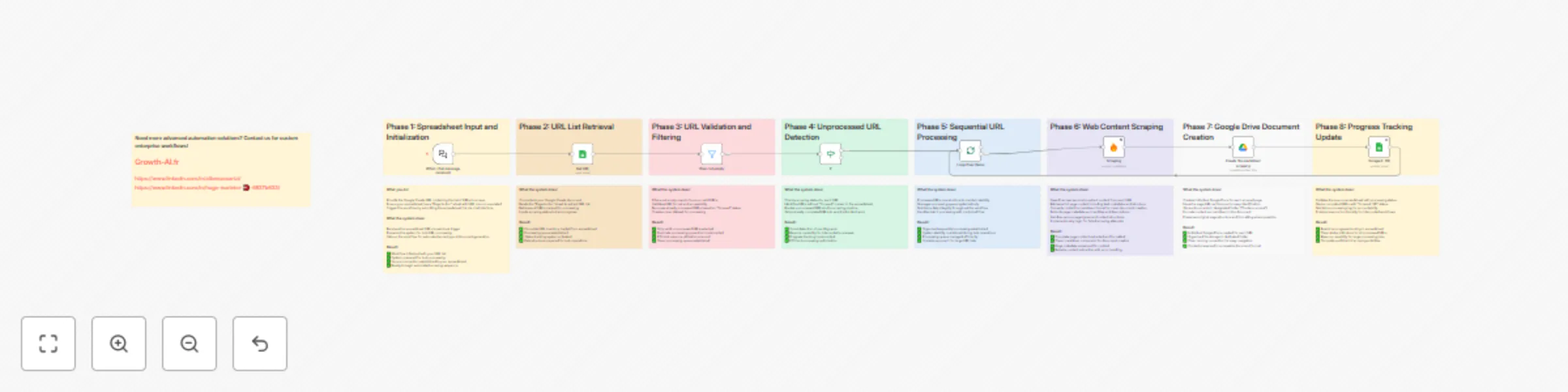
*This workflow contains community nodes that are only compatible with the self-hosted version of n8n.* # Firecrawl batch scraping to Google Docs ## Who's it for AI chatbot developers, content managers, and data analysts who need to extract and organize content from multiple web pages for knowledge base creation, competitive analysis, or content migration projects. ## What it does This workflow automatically scrapes content from a list of URLs and converts each page into a structured Google Doc in markdown format. It's designed for batch processing multiple pages efficiently, making it ideal for building AI knowledge bases, analyzing competitor content, or migrating website content to documentation systems. ## How it works The workflow follows a systematic scraping process: URL Input: Reads a list of URLs from a Google Sheets template Data Validation: Filters out empty rows and already-processed URLs Batch Processing: Loops through each URL sequentially Content Extraction: Uses Firecrawl to scrape and convert content to markdown Document Creation: Creates individual Google Docs for each scraped page Progress Tracking: Updates the spreadsheet to mark completed URLs Final Notification: Provides completion summary with access to scraped content ## Requirements Firecrawl API key (for web scraping) Google Sheets access Google Drive access (for document creation) Google Sheets template (provided) ## How to set up ### Step 1: Prepare your template Copy the Google Sheets template Create your own version for personal use Ensure the sheet has a tab named "Page to doc" List all URLs you want to scrape in the "URL" column ### Step 2: Configure API credentials Set up the following credentials in n8n: Firecrawl API: For web content scraping and markdown conversion Google Sheets OAuth2: For reading URLs and updating progress Google Drive OAuth2: For creating content documents ### Step 3: Set up your Google Drive folder The workflow saves scraped content to a specific Drive folder Default folder: "Contenu scrapé" (Content Scraped) Folder ID: 1ry3xvQ9UqM2Rf9C4-AoJdg1lfB9inh_5 (customize this to your own folder) Create your own folder and update the folder ID in the "Create file markdown scraping" node ### Step 4: Choose your trigger method Option A: Chat interface Use the default chat trigger Send your Google Sheets URL through the chat interface Option B: Manual trigger Replace chat trigger with manual trigger Set the Google Sheets URL as a variable in the "Get URL" node ## How to customize the workflow ### URL source customization Sheet name: Change "Page to doc" to your preferred tab name Column structure: Modify field mappings if using different column names URL validation: Adjust filtering criteria for URL format requirements Batch size: The workflow processes all URLs sequentially (no batch size limit) ### Scraping configuration Firecrawl options: Add specific scraping parameters (wait times, JavaScript rendering) Content format: Currently outputs markdown (can be modified for other formats) Error handling: The workflow continues processing even if individual URLs fail Retry logic: Add retry mechanisms for failed scraping attempts ### Output customization Document naming: Currently uses the URL as document name (customizable) Folder organization: Create subfolders for different content types File format: Switch from Google Docs to other formats (PDF, TXT, etc.) Content structure: Add headers, metadata, or formatting to scraped content ### Progress tracking enhancements Status columns: Add more detailed status tracking (failed, retrying, etc.) Metadata capture: Store scraping timestamps, content length, etc. Error logging: Track which URLs failed and why Completion statistics: Generate summary reports of scraping results ## Use cases ### AI knowledge base creation E-commerce product pages: Scrape product descriptions and specifications for chatbot training Documentation sites: Convert help articles into structured knowledge base content FAQ pages: Extract customer service information for automated support systems Company information: Gather about pages, services, and team information ### Content analysis and migration Competitor research: Analyze competitor website content and structure Content audits: Extract existing content for analysis and optimization Website migrations: Backup content before site redesigns or platform changes SEO analysis: Gather content for keyword and structure analysis ### Research and documentation Market research: Collect information from multiple industry sources Academic research: Gather content from relevant web sources Legal compliance: Document website terms, policies, and disclaimers Brand monitoring: Track content changes across multiple sites ## Workflow features ### Smart processing logic Duplicate prevention: Skips URLs already marked as "Scrapé" (scraped) Empty row filtering: Automatically ignores rows without URLs Sequential processing: Handles one URL at a time to avoid rate limiting Progress updates: Real-time status updates in the source spreadsheet ### Error handling and resilience Graceful failures: Continues processing remaining URLs if individual scrapes fail Status tracking: Clear indication of completed vs. pending URLs Completion notification: Summary message with link to scraped content folder Manual restart capability: Can resume processing from where it left off ## Results interpretation ### Organized content output Each scraped page creates: Individual Google Doc: Named with the source URL Markdown formatting: Clean, structured content extraction Metadata preservation: Original URL and scraping timestamp Organized storage: All documents in designated Google Drive folder ### Progress tracking The source spreadsheet shows: URL list: Original URLs to be processed Status column: "OK" for completed, empty for pending Real-time updates: Progress visible during workflow execution Completion summary: Final notification with access instructions ## Workflow limitations Sequential processing: Processes URLs one at a time (prevents rate limiting but slower for large lists) Google Drive dependency: Requires Google Drive for document storage Firecrawl rate limits: Subject to Firecrawl API limitations and quotas Single format output: Currently outputs only Google Docs (easily customizable) Manual setup: Requires Google Sheets template preparation before use No content deduplication: Creates separate documents even for similar content
Automated task tracking & notifications with Motion and Airtable
# Automated project status tracking with Airtable and Motion ## Who's it for Project managers, team leads, and agencies who need to automatically monitor project completion status across multiple clients and send notifications when specific milestones are reached. ## What it does This workflow automatically tracks project progress by connecting Airtable project databases with Motion task management. It monitors specific tasks within active projects and triggers email notifications when key milestones are completed. The system is designed to handle multiple projects simultaneously and can be customized for various notification triggers. ## How it works The workflow follows a structured monitoring process: Data Retrieval: Fetches project information from Airtable (project names and Motion workspace IDs) Motion Integration: Connects to Motion API using HTTP requests to retrieve project details Project Filtering: Identifies only active projects with "Todo" status containing "SEO" in the name Task Monitoring: Checks for specific completed tasks (e.g., "Intégrer les articles de blog") Conditional Notifications: Sends email alerts only when target tasks are marked as "Completed" Database Updates: Updates Airtable with last notification timestamps ## Requirements Airtable account with project database Motion account with API access Gmail account for email notifications HTTP request authentication for Motion API ## How to set up ### Step 1: Configure your Airtable database Ensure your Airtable contains the following fields: Project names: Names of projects to monitor Motion Workspace ID: Workspace identifiers for Motion API calls Status - Calendrier éditorial: Project status field (set to "Actif" for active projects) Last sent - Calendrier éditorial: Timestamp tracking for notification frequency Email addresses: Client and team member contact information ### Step 2: Set up API credentials Configure the following authentication in n8n: Airtable Personal Access Token: For database access Motion API: HTTP header authentication for Motion integration Gmail OAuth2: For email notification sending ### Step 3: Configure Motion API integration Base URL: Uses Motion API v1 endpoints Project retrieval: Fetches projects using workspace ID parameter Task monitoring: Searches for specific task names and completion status Custom filtering: Targets projects with "SEO" in name and "Todo" status ### Step 4: Customize scheduling Default schedule: Runs daily between 10th-31st of each month at 8 AM Cron expression: 0 8 10-31 * * (modify as needed) Frequency options: Can be adjusted for weekly, daily, or custom intervals ### Step 5: Set up email notifications Configure Gmail settings: Recipients: Project managers, clients, and collaborators Subject line: Dynamic formatting with project name and month Message template: HTML-formatted email with professional signature Sender name: Customizable organization name ## How to customize the workflow ### Single project, multiple tasks monitoring To adapt for monitoring one project with several different tasks: Modify the filter conditions to target your specific project Add multiple HTTP requests for different task names Create conditional branches for each task type Set up different notification templates per task ### Multi-project customization Database fields: Add custom fields in Airtable for different project types Filtering logic: Modify conditions to match your project categorization Motion workspace: Support multiple workspaces per client Notification rules: Set different notification frequencies per project ### Alternative notification methods Replace or complement Gmail with: Slack notifications: Send updates to team channels Discord integration: Alert development teams SMS notifications: Urgent milestone alerts Webhook integrations: Connect to custom internal systems Teams notifications: Enterprise communication ### Task monitoring variations Multiple task types: Monitor different milestones (design, development, testing) Task dependencies: Check completion of prerequisite tasks Progress tracking: Monitor task progress percentages Deadline monitoring: Alert on approaching deadlines ## Conditional logic features ### Smart filtering system Active project detection: Only processes projects marked as "Actif" Date-based filtering: Prevents duplicate notifications using timestamp comparison Status verification: Confirms task completion before sending notifications Project type filtering: Targets specific project categories (SEO projects in this example) ### Notification frequency control Monthly notifications: Prevents spam by tracking last sent dates Conditional execution: Only sends emails when tasks are actually completed Database updates: Automatically records notification timestamps Loop management: Processes multiple projects sequentially ## Results interpretation ### Automated monitoring outcomes Project status tracking: Real-time monitoring of active projects Milestone notifications: Immediate alerts when key tasks complete Database synchronization: Automatic updates of notification records Team coordination: Ensures all stakeholders are informed of progress ### Email notification content Each notification includes: Project identification: Clear project name and context Completion confirmation: Specific task that was completed Calendar reference: Links to editorial calendars or project resources Professional formatting: Branded email template with company signature Action items: Clear next steps for recipients ## Use cases ### Agency project management Client deliverable tracking: Monitor when content is ready for client review Milestone notifications: Alert teams when phases complete Quality assurance: Ensure all deliverables meet completion criteria Client communication: Automated updates on project progress ### Editorial workflow management Content publication: Track when articles are integrated into websites Editorial calendar: Monitor content creation and publication schedules Team coordination: Notify writers, editors, and publishers of status changes Client approval: Alert clients when content is ready for review ### Development project tracking Feature completion: Monitor when development milestones are reached Testing phases: Track QA completion and deployment readiness Client delivery: Automate notifications for UAT and launch phases Team synchronization: Keep all stakeholders informed of progress ## Workflow limitations Motion API dependency: Requires stable Motion API access and proper authentication Single task monitoring: Currently tracks one specific task type per execution Email-only notifications: Default setup uses Gmail (easily expandable) Monthly frequency: Designed for monthly notifications (customizable) Project naming dependency: Filters based on specific naming conventions Manual configuration: Requires setup for each new project type or workspace
Complete Webflow to Pipedrive integration with smart phone formatting
# Advanced Form Submission to CRM Automation with International Phone Support ## Who's it for Sales teams, marketing professionals, and business owners who need sophisticated lead management with international phone number support, automated CRM record creation, intelligent duplicate detection, and multi-channel team notifications. ## What it does This advanced workflow automatically processes form submissions from your website and creates a complete, intelligent CRM structure in Pipedrive. It transforms raw form data into organized sales records including companies, contacts, deals, and relevant notes while handling international phone number formatting and providing real-time team notifications via Discord and WhatsApp messaging. ## How it works The workflow follows an intelligent automation process with four distinct scenarios: Form Trigger: Captures form submissions from your website (Webflow in this example) Advanced Phone Processing: Automatically detects and formats international phone numbers with proper country codes for 20+ countries including France, Belgium, Switzerland, Germany, Spain, Italy, Morocco, Algeria, Tunisia, and more Intelligent CRM Logic: Uses a sophisticated 4-scenario approach: Scenario A: Existing Organization + Existing Person - Links records and creates new deal Scenario B: Existing Organization + New Person - Creates person, links to organization, creates deal Scenario C: New Organization + Existing Person - Creates organization, links person, creates deal Scenario D: New Organization + New Person - Creates complete new structure from scratch Enhanced Data Management: Adds lead source tracking, custom properties, and conditional data enhancement Multi-Channel Communication: Sends formatted alerts to Discord and personalized WhatsApp messages to leads ## Requirements Webflow account (or any platform that supports webhook triggers) Pipedrive CRM account with proper API credentials Team notification service: Discord, Slack, Microsoft Teams, email service, or any webhook-compatible notification tool WhatsApp Business API access for lead messaging International phone number handling capability ## How to set up ### Step 1: Configure your form trigger Default setup: The template uses Webflow Form Trigger with site ID configuration Alternative platforms: Replace with webhook trigger for other platforms (WordPress, custom websites, etc.) Webhook configuration: Set up your website's form to send data to the n8n webhook URL Form fields: Ensure your form captures the necessary fields: Prénom (First Name) Nom (Last Name) Entreprise (Company) Mail professionnel (Professional Email) Téléphone pro (Professional Phone) URL du site internet (Website URL) Message ### Step 2: Configure API credentials Set up the following credentials in n8n: Webflow OAuth2: For form trigger authentication (or webhook authentication for other platforms) Pipedrive API: For CRM record creation and management - ensure proper permissions for organizations, persons, deals, and notes Discord Bot API: For team notifications with guild and channel access WhatsApp Business API: For automated lead messaging with phone number ID configuration ### Step 3: Customize international phone formatting The "international dialing code" node automatically handles: European countries: France (+33), Belgium (+32), Switzerland (+41), Germany (+49), Spain (+34), Italy (+39), Portugal (+351) North African countries: Morocco (+212), Algeria (+213), Tunisia (+216) Global coverage: US/Canada (+1), UK (+44), and many Asian countries Fallback handling: Defaults to French formatting for unrecognized patterns Error management: Uses +330000000000 as fallback for invalid numbers ### Step 4: Configure Pipedrive settings Adjust Pipedrive-specific settings in deal creation nodes: Deal pipeline stage: Currently set to default stage (customize for your pipeline) Deal ownership: Configure owner_id for appropriate team member assignment Currency settings: Adjust currency code for your business region Custom properties: Lead source automatically set to "Growth AI" (customize as needed) ### Step 5: Set up team notifications Configure your preferred notification system: Discord (default): Set guild ID: 1377297267014504520, channel ID: 1380469490139009106 Alternative platforms: Replace Discord node with Slack, Teams, email, or custom webhook Message formatting: Customize notification content and structure Multi-channel setup: Add multiple notification nodes for different channels ### Step 6: Configure WhatsApp messaging Set up automated lead engagement: Phone number ID: Configure WhatsApp Business API phone number (currently: 752773604591912) Message personalization: Uses prospect's first name and customizable content International compatibility: Works with formatted international phone numbers Message templates: Customize welcome messages and follow-up content ## How to customize the workflow ### Form platform integration Webflow: Use the existing Webflow trigger with site ID configuration WordPress: Replace with webhook trigger and configure Contact Form 7, Gravity Forms, or WPForms Custom websites: Set up webhook trigger with your form's POST endpoint Landing page builders: Configure webhook integration (Unbounce, Leadpages, Instapage, etc.) Form field mapping: Adjust the "Data refinement" node for your specific form structure ### Advanced CRM customization Pipeline management: Configure different stage IDs for various lead sources Lead scoring: Add conditional logic for deal values based on form responses Custom fields: Map additional form fields to Pipedrive custom properties Multiple pipelines: Route different form types to different sales pipelines Ownership rules: Implement round-robin or territory-based assignment logic ### International phone number expansion The phone formatting system supports extensive customization: Additional countries: Add new country patterns to the JavaScript code Regional preferences: Modify default formatting rules for specific regions Validation rules: Implement stricter phone number validation Carrier detection: Add mobile vs. landline detection logic ### Notification enhancements Multi-platform notifications: Send to Discord, Slack, Teams, and email simultaneously Conditional notifications: Route different lead types to different channels Rich formatting: Add embeds, attachments, or rich text formatting Escalation rules: Implement priority-based notification routing Integration expansion: Connect to internal tools or third-party notification services ### Data validation and enrichment Email validation: Add email verification steps before CRM creation Company enrichment: Integrate with data enrichment services (Clearbit, ZoomInfo, Apollo) Duplicate detection: Enhanced logic to check for existing contacts across multiple fields Lead qualification: Implement sophisticated scoring based on form responses and external data Data cleaning: Add standardization for company names, job titles, and other fields ## Advanced conditional logic features ### Intelligent scenario routing The workflow uses sophisticated logic to determine the correct processing path: Organization detection: Exact matching search for existing companies Person identification: Full name matching within relevant organization contexts Relationship preservation: Maintains proper links between organizations, persons, and deals Data consistency: Ensures no duplicate records while preserving historical relationships ### Smart data handling Enhanced conditional processing includes: Phone number intelligence: Automatic international formatting with country detection Message processing: Creates deal notes only when message field contains meaningful content URL handling: Adds website URLs as separate notes when provided Empty field management: Gracefully handles incomplete form submissions Custom property management: Adds lead source tracking and other metadata ### Error handling and resilience Graceful failures: Workflow continues even if individual steps fail Data validation: Comprehensive checks for required fields before processing Notification reliability: Ensures team is notified even if some CRM operations fail Logging capabilities: Detailed error tracking for troubleshooting Rollback mechanisms: Ability to handle partial failures without data corruption ## Results interpretation ### CRM structure created For each form submission, the workflow creates: Organization record: Complete company information with proper formatting Person record: Contact information linked to correct organization with phone formatting Deal record: Sales opportunity with appropriate stage, owner, and metadata Enhanced notes: Separate notes for messages and website URLs when provided Proper relationships: Full linking between organization, person, and deal records Custom tracking: Lead source attribution and other custom properties ### Team notifications and engagement Comprehensive communication includes: Discord notifications: Formatted team alerts with complete prospect information WhatsApp engagement: Personalized messages to leads with international number support Immediate alerts: Real-time notifications for instant follow-up capability Formatted display: Clean, organized presentation of all prospect data Multi-channel flexibility: Easy adaptation to any notification platform ## Advanced use cases ### International lead generation Global forms: Handle submissions from multiple countries with proper phone formatting Multi-language support: Process forms in different languages with consistent data structure Regional routing: Route leads to appropriate regional sales teams based on phone country codes Currency handling: Automatic currency assignment based on detected country ### Sophisticated lead management Lead scoring: Advanced qualification based on company size, industry, and message content Progressive profiling: Build complete prospect profiles over multiple interactions Engagement tracking: Monitor response rates and optimize messaging Attribution analysis: Track lead sources and optimize marketing spend ### Enterprise integration Custom CRM fields: Map to complex Pipedrive custom field structures Multiple pipelines: Route leads to different sales processes based on criteria Team assignment: Intelligent routing based on territory, expertise, or workload Compliance handling: Ensure data processing meets regional privacy requirements ## Workflow architecture details ### Processing phases Form capture and data extraction: Webflow trigger processes submitted data International phone formatting: Advanced JavaScript processing for global numbers Organization discovery: Intelligent search and creation logic Person management: Sophisticated duplicate detection and relationship management Deal creation: Context-aware opportunity generation with proper associations Enhanced communication: Multi-channel notifications and lead engagement ### Performance characteristics Processing time: Typically completes within 10-15 seconds for complex scenarios Reliability: Built-in error handling ensures high success rates Scalability: Handles high-volume form submissions without performance degradation Flexibility: Easy customization for different business requirements and CRM configurations ## Limitations and considerations Platform dependencies: Currently optimized for Webflow and Pipedrive but adaptable Phone number coverage: Supports 20+ countries but may need expansion for specific regions CRM limitations: Requires proper Pipedrive API permissions and rate limit considerations Form structure: Field mapping requires customization for different form designs Language considerations: Currently configured for French field names but easily adaptable Notification dependencies: Requires proper configuration of Discord and WhatsApp APIs for full functionality
Create a knowledge-powered chatbot with Claude, Supabase & Postgres
# Intelligent chatbot with custom knowledge base ## Who's it for Businesses, developers, and organizations who need a customizable AI chatbot for internal documentation access, customer support, e-commerce assistance, or any use case requiring intelligent conversation with access to specific knowledge bases. ## What it does This workflow creates a fully customizable AI chatbot that can be deployed on any platform supporting webhook triggers (websites, Slack, Teams, etc.). The chatbot accesses a personalized knowledge base stored in Supabase and can perform advanced actions like sending emails, scheduling appointments, or updating databases beyond simple conversation. ## How it works The workflow combines several powerful components: Webhook Trigger: Accepts messages from any platform that supports webhooks AI Agent: Processes user queries with customizable personality and instructions Vector Database: Searches relevant information from your Supabase knowledge base Memory System: Maintains conversation history for context and traceability Action Tools: Performs additional tasks like email sending or calendar booking ## Technical architecture Chat trigger connects directly to AI Agent Language model, memory, and vector store all connect as tools/components to the AI Agent Embeddings connect specifically to the Supabase Vector Store for similarity search ## Requirements Supabase account and project AI model API key (any LLM provider of your choice) OpenAI API key (for embeddings - this is covered in Cole Medin's tutorial) n8n built-in PostgreSQL access (for conversation memory) Platform-specific webhook configuration (optional) ## How to set up ### Step 1: Configure your trigger The template uses n8n's default chat trigger For external platforms: Replace with webhook trigger and configure your platform's webhook URL Supported platforms: Any service with webhook capabilities (websites, Slack, Teams, Discord, etc.) ### Step 2: Set up your knowledge base For creating and managing your vector database, follow this comprehensive guide: Watch Cole Medin's tutorial on document vectorization This video shows how to build a complete knowledge base on Supabase The tutorial covers document processing, embedding creation, and database optimization Important: The video explains the OpenAI embeddings configuration required for vector search ### Step 3: Configure the AI agent Define your prompt: Customize the agent's personality and role Example: "You are the virtual assistant for example.com. Help users by answering their questions about our products and services." Select your language model: Choose any AI provider you prefer (OpenAI, Anthropic, Google, etc.) Set behavior parameters: Define response style, tone, and limitations ### Step 4: Connect Supabase Vector Store Add the "Supabase Vector Store" tool to your agent Configure your Supabase project credentials Mode: Set to "retrieve-as-tool" for automatic agent integration Tool Description: Customize description (default: "Database") to describe your knowledge base Table configuration: Specify the table containing your knowledge base (example shows "growth_ai_documents") Ensure your table name matches your actual knowledge base structure Multiple tables: You can connect several tables for organized data structure The agent will automatically decide when to search the knowledge base based on user queries ### Step 5: Set up conversation memory (recommended) Use "Postgres Chat Memory" with n8n's built-in PostgreSQL credentials Configure table name: Choose a name for your chat history table (will be auto-created) Context Window Length: Set to 20 messages by default (adjustable based on your needs) Benefits: Conversation traceability and analytics Context retention across messages Unique conversation IDs for user sessions Stored in n8n's database, not Supabase ## How to customize the workflow ### Basic conversation features Response style: Modify prompts to change personality and tone Knowledge scope: Update Supabase tables to expand or focus the knowledge base Language support: Configure for multiple languages Response length: Set limits for concise or detailed answers Memory retention: Adjust context window length for longer or shorter conversation memory ### Advanced action capabilities The chatbot can be extended with additional tools for: Email automation: Send support emails when users request assistance Calendar integration: Book appointments directly in Google Calendar Database updates: Modify Airtable or other databases based on user interactions API integrations: Connect to external services and systems File handling: Process and analyze uploaded documents ### Platform-specific deployments #### Website integration Replace chat trigger with webhook trigger Configure your website's chat widget to send messages to the n8n webhook URL Handle response formatting for your specific chat interface #### Slack/Teams deployment Set up webhook trigger with Slack/Teams webhook URL Configure response formatting for platform-specific message structures Add platform-specific features (mentions, channels, etc.) #### E-commerce integration Connect to product databases Add order tracking capabilities Integrate with payment systems Configure support ticket creation ## Results interpretation ### Conversation management Chat history: All conversations stored in n8n's PostgreSQL database with unique IDs Context tracking: Agent maintains conversation flow and references previous messages Analytics potential: Historical data available for analysis and improvement ### Knowledge retrieval Semantic search: Vector database returns most relevant information based on meaning, not just keywords Automatic decision: Agent automatically determines when to search the knowledge base Source tracking: Ability to trace answers back to source documents Accuracy improvement: Continuously refine knowledge base based on user queries ## Use cases ### Internal applications Developer documentation: Quick access to technical guides and APIs HR support: Employee handbook and policy questions IT helpdesk: Troubleshooting guides and system information Training assistant: Learning materials and procedure guidance ### External customer service E-commerce support: Product information and order assistance Technical support: User manuals and troubleshooting Sales assistance: Product recommendations and pricing FAQ automation: Common questions and instant responses ### Specialized implementations Lead qualification: Gather customer information and schedule sales calls Appointment booking: Healthcare, consulting, or service appointments Order processing: Take orders and update inventory systems Multi-language support: Global customer service with language detection ## Workflow limitations Knowledge base dependency: Quality depends on source documentation and embedding setup Memory storage: Requires active n8n PostgreSQL connection for conversation history Platform restrictions: Some platforms may have webhook limitations Response time: Vector search may add slight delay to responses Token limits: Large context windows may increase API costs Embedding costs: OpenAI embeddings required for vector search functionality
Generate website sitemaps & visual trees with Firecrawl and Google Sheets
*This workflow contains community nodes that are only compatible with the self-hosted version of n8n.* # Website sitemap generator and visual tree creator ## Who's it for Web developers, SEO specialists, UX designers, and digital marketers who need to analyze website structure, create visual sitemaps, or audit site architecture for optimization purposes. ## What it does This workflow automatically generates a comprehensive sitemap from any website URL and creates an organized hierarchical structure in Google Sheets. It follows the website's sitemap to discover all pages, then organizes them by navigation levels (Level 1, Level 2, etc.) with proper parent-child relationships. The output can be further processed to create visual tree diagrams and mind maps. ## How it works The workflow follows a five-step automation process: URL Input: Accepts website URL via chat interface Site Crawling: Uses Firecrawl to discover all pages following the website's sitemap only Success Validation: Checks if crawling was successful (some sites block external crawlers) Hierarchical Organization: Processes URLs into a structured tree with proper level relationships Google Sheets Export: Creates a formatted spreadsheet with the complete site architecture The system respects robots.txt and follows only sitemap-declared pages to ensure ethical crawling. ## Requirements Firecrawl API key (for website crawling and sitemap discovery) Google Sheets access Google Drive access (for template duplication) ## How to set up ### Step 1: Prepare your template (recommended) It's recommended to create your own copy of the base template: Access the base Google Sheets template Make a copy for your personal use Update the workflow's "Copy template" node with your template's file ID (replace the default ID: 12lV4HwgudgzPPGXKNesIEExbFg09Tuu9gyC_jSS1HjI) This ensures you have control over the template formatting and can customize it as needed ### Step 2: Configure API credentials Set up the following credentials in n8n: Firecrawl API: For crawling websites and discovering sitemaps Google Sheets OAuth2: For creating and updating spreadsheets Google Drive OAuth2: For duplicating the template file ### Step 3: Configure Firecrawl settings (optional) The workflow uses optimized Firecrawl settings: ignoreSitemap: false - Respects the website's sitemap sitemapOnly: true - Only crawls URLs listed in sitemap files These settings ensure ethical crawling and faster processing ### Step 4: Access the workflow The workflow uses a chat trigger interface - no manual configuration needed Simply provide the website URL you want to analyze when prompted ## How to use the workflow ### Basic usage Start the chat: Access the workflow via the chat interface Provide URL: Enter the website URL you want to analyze (e.g., "https://example.com") Wait for processing: The system will crawl, organize, and export the data Receive your results: Get an automatic direct clickable link to your generated Google Sheets - no need to search for the file ### Error handling Invalid URLs: If the provided URL is invalid or the website blocks crawling, you'll receive an immediate error message Graceful failure: The workflow stops without creating unnecessary files when errors occur Common causes: Incorrect URL format, robots.txt restrictions, or site security settings ### File organization Automatic naming: Generated files follow the pattern "[Website URL] - n8n - Arborescence" Google Drive storage: Files are automatically organized in your Google Drive Instant access: Direct link provided immediately upon completion ### Advanced processing for visual diagrams #### Step 1: Copy sitemap data Once your Google Sheets is ready: Copy all the hierarchical data from the generated spreadsheet Prepare it for AI processing #### Step 2: Generate ASCII tree structure Use any AI model with this prompt: Create a hierarchical tree structure from the following website sitemap data. Return ONLY the tree structure using ASCII tree formatting with ├── and └── characters. Do not include any explanations, comments, or additional text - just the pure tree structure. The tree should start with the root domain and show all pages organized by their hierarchical levels. Use proper indentation to show parent-child relationships. Here is the sitemap data: [PASTE THE SITEMAP DATA HERE] Requirements: - Use ASCII tree characters (├── └── │) - Show clear hierarchical relationships - Include all pages from the sitemap - Return ONLY the tree structure, no other text - Start with the root domain as the top level #### Step 3: Create visual mind map Visit the Whimsical Diagrams GPT Request a mind map creation using your ASCII tree structure Get a professional visual representation of your website architecture ## Results interpretation ### Google Sheets output structure The generated spreadsheet contains: Niv 0 to Niv 5: Hierarchical levels (0 = homepage, 1-5 = navigation depth) URL column: Complete URLs for reference Hyperlinked structure: Clickable links organized by hierarchy Multi-domain support: Handles subdomains and different domain structures ### Data organization features Automatic sorting: Pages organized by navigation depth and alphabetical order Parent-child relationships: Clear hierarchical structure maintained Domain separation: Main domains and subdomains processed separately Clean formatting: URLs decoded and formatted for readability ## Workflow limitations Sitemap dependency: Only discovers pages listed in the website's sitemap Crawling restrictions: Some websites may block external crawlers Level depth: Limited to 5 hierarchical levels for clarity Rate limits: Respects Firecrawl API limitations Template dependency: Requires access to the base template for duplication ## Use cases SEO audits: Analyze site structure for optimization opportunities UX research: Understand navigation patterns and user paths Content strategy: Identify content gaps and organizational issues Site migrations: Document existing structure before redesigns Competitive analysis: Study competitor site architectures Client presentations: Create visual site maps for stakeholder reviews
Automated content strategy with Google Trends, News, Firecrawl & Claude AI
# Automated trend monitoring for content strategy ## Who's it for Content creators, marketers, and social media managers who want to stay ahead of emerging trends and generate relevant content ideas based on data-driven insights. ## What it does This workflow automatically identifies trending topics related to your industry, collects recent news articles about these trends, and generates content suggestions. It transforms raw trend data into actionable editorial opportunities by analyzing search volume growth and current news coverage. ## How it works The workflow follows a three-step automation process: Trend Analysis: Examines searches related to your topics and identifies those with the strongest recent growth Article Collection: Searches Google News for current articles about emerging trends and scrapes their full content Content Generation: Creates personalized content suggestions based on collected articles and trend data The system automatically excludes geo-localized searches to provide a global perspective on trends, though this can be customized. ## Requirements SerpAPI account (for trend and news data) Firecrawl API key (for scraping article content from Google News results) Google Sheets access AI model API key (for content analysis and recommendations - you can use any LLM provider you prefer) ## How to set up ### Step 1: Prepare your tracking sheet Duplicate this Google Sheets template Rename your copy and ensure it's accessible ### Step 2: Configure API credentials Before running the workflow, set up the following credentials in n8n: SerpAPI: For trend analysis and Google News search Firecrawl API: For scraping article content AI Model API: For content analysis and recommendations (Anthropic Claude, OpenAI GPT, or any other LLM provider) Google Sheets OAuth2: For accessing and updating your tracking spreadsheet ### Step 3: Configure your monitoring topics In your Google Sheet "Query" tab: Query column: Enter the main topics/keywords you want to monitor for trending queries (e.g., "digital marketing", "artificial intelligence", "sustainable fashion") Query to avoid column: Optionally add specific queries you want to exclude from trend analysis (e.g., brand names, irrelevant terms, or overly specific searches that don't match your content strategy) This step is crucial as these queries will be the foundation for discovering related trending topics. ### Step 4: Configure the workflow In the "Get Query" node, paste your duplicated Google Sheets URL in the "Document" field Ensure your Google Sheet contains your monitoring topics in the Query column ### Step 5: Customize language and location settings The workflow is currently configured for French content and France location. You can modify these settings in the SerpAPI nodes: Language (hl): Change from "fr" to your preferred language code Geographic location (geo/gl): Change from "FR" to your target country code Date range: Currently set to "today 1-m" (last month) but can be adjusted ### Step 6: Adjust filtering (optional) The "Sorting Queries" node excludes geo-localized queries by default. You can modify the AI agent's instructions to include location-specific queries or change filtering criteria based on your requirements. The system will also automatically exclude any queries you've listed in the "Query to avoid" column. ### Step 7: Configure scheduling (optional) The workflow includes an automated scheduler that runs monthly (1st day of each month at 8 AM). You can modify the cron expression 0 8 1 * * in the Schedule Trigger node to change: Frequency (daily, weekly, monthly) Time of execution Day of the month ## How to customize the workflow Change trend count: The workflow processes up to 10 related queries per topic but filters them through AI to select the most relevant non-geolocalized ones Adjust article collection: Currently collects exactly 3 news articles per query for analysis Content style: Customize the AI prompts in content generation nodes to match your brand voice Output format: Modify the Google Sheets structure to include additional data points AI model: Replace the Anthropic model with your preferred LLM provider Scraping options: Configure Firecrawl settings to extract specific content elements from articles ## Results interpretation For each monitored topic, the workflow generates a separate sheet named by month and topic (e.g., "January Digital Marketing") containing: Data structure (four columns): Query: The trending search term ranked by growth Évolution: Growth percentage over the last month News: Links to 3 relevant news articles Idée: AI-generated content suggestions based on comprehensive article analysis The workflow provides monthly retrospective analysis, helping you identify emerging topics before competitors and optimize your content calendar with high-potential subjects. ## Workflow limitations Processes up to 10 related queries per topic with AI filtering Collects exactly 3 news articles per query Results are automatically organized in monthly sheets Requires stable internet connection for API calls