Block 1 - Gmail Trigger
- Type / Role
- n8n-nodes-base.gmailTrigger - gmailTrigger
- Config choices
- Version 1.2


 Early Deal
This workflow is provided as-is. Please review and test before using in production.
Description: This template is designed for healthcare providers, sales reps, and medical tourism companies who need to process diagnosis emails efficiently. It automates the full flow from email...
n8n-nodes-base.gmailtrigger, n8n-nodes-base.set, n8n-nodes-base.googlesheets, @n8n/n8n-nodes-langchain.agent, @n8n/n8n-nodes-langchain.lmchatgooglegemini, n8n-nodes-base.code, n8n-nodes-base.googledocs, n8n-nodes-base.googledrive
This workflow is cataloged by N8N Workflows and links back to its original n8n.io source page by Abdullah Alshiekh.
Original n8n.io sourceThis template is designed for healthcare providers, sales reps, and medical tourism companies who need to process diagnosis emails efficiently. It automates the full flow from email to report delivery.
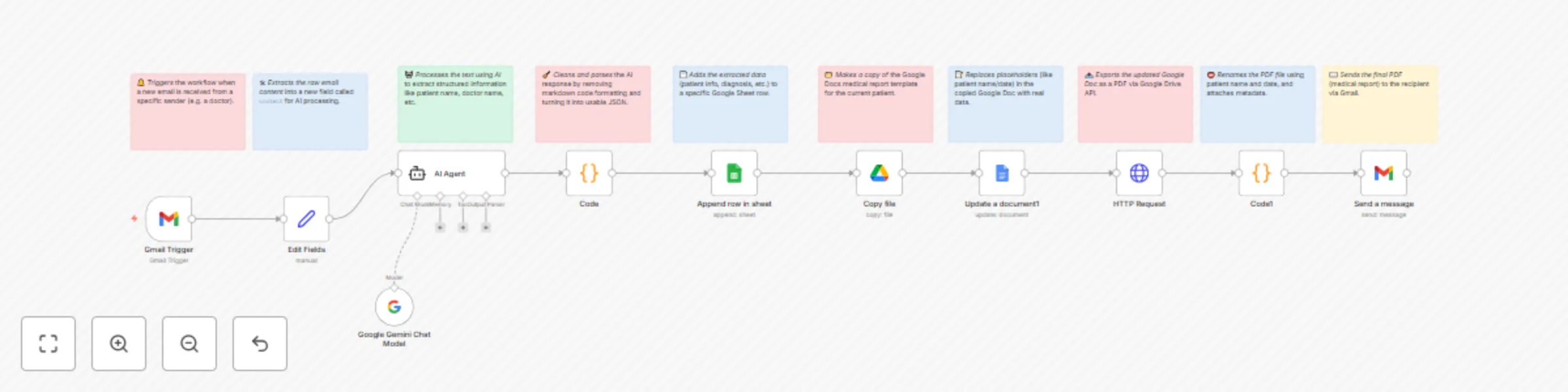
When a new diagnosis email arrives:
The email content is captured and parsed by an AI agent (Gemini or any customizable LLM).
Patient and medical data is extracted into structured fields (e.g., name, phone, diagnosis).
Data is logged into a Google Sheet for records.
A Google Docs medical report is generated using a predefined template.
The report is exported as PDF and emailed to stakeholders (e.g., managers or sales team).
This template supports custom AI models, customizable Google Docs templates, and flexible filtering based on sender email.
Gmail email trigger (customizable sender filter)
AI-powered diagnosis parsing using Gemini (easily switchable to OpenAI or others)
Google Sheets log
Google Docs templated report (auto-filled)
PDF export and email sending
Full flexibility & customization
Before using this template, you'll need:
A connected Gmail account (to receive diagnosis emails)
A valid Google Sheets integration (create your own sheet with the desired columns)
A Google Docs template document that includes placeholder tags like {{patient_name}}, {{date}}, etc.
A Gemini or OpenAI API connection for the AI agent (fully customizable)
Note: You must replace all Google Drive, Docs, and Sheets references with your own documents. This template does not grant access to the original creator's files.
In the Gmail Trigger node, change the sender filter to match the doctor’s email you want to process.
Modify the AI prompt if your use case needs different extracted fields.
Replace the Google Docs template link with your own file and customize its structure and variables.
Change recipient email addresses in the final Gmail node to notify the correct team members.
Optional: Add fallback flows or error branches for when AI fails or input is malformed.
Medical tourism agencies auto-generating patient reports for incoming diagnosis summaries
Clinics storing structured data from messy email inputs
Sales teams instantly notified of new leads with completed medical summaries
This catalog entry is organized from the workflow JSON. The node-level section below shows the executable blocks available for review before importing the template.
| Workflow | Generate medical reports from emails with Gemini AI & Google Workspace |
|---|---|
| Complexity | advanced |
| Nodes | 21 |
| Categories | Document Extraction, AI Summarization |
| Author | Abdullah Alshiekh |
| Published | 26 Jul 2025 |
Use the JSON export at /data/workflows/6487/6487.json as the source template for this automation.
Open n8n, import the downloaded JSON, and review each node before activating the workflow.
Replace placeholder credentials, API keys, webhook URLs, account IDs, and environment-specific values with your own settings.
Run the workflow manually or in a staging workspace, inspect node output, and confirm downstream systems receive the expected data.
Enable the workflow only after testing, then monitor executions, errors, and rate limits during the first production runs.
Review imported nodes carefully before activation. This catalog entry is intended to help you inspect the workflow structure, understand required services, and find related templates faster.
Node names, credentials, schedules, webhook paths, and external service limits may need adjustment for your workspace.
Description: This template is designed for healthcare providers, sales reps, and medical tourism companies who need to process diagnosis emails efficiently. It automates the full flow from email...
Review the workflow JSON, configure any required credentials in n8n, and test the automation in a safe workspace before using it in production.
Yes. Use the block-by-block analysis and the downloadable JSON to inspect each node, then adjust credentials, prompts, schedules, filters, or destinations for your Document Extraction, AI Summarization use case.