Block 1 - Webhook Simulator
- Type / Role
- n8n-nodes-base.webhook - webhook
- Config choices
- Version 2


 Early Deal
This workflow is provided as-is. Please review and test before using in production.
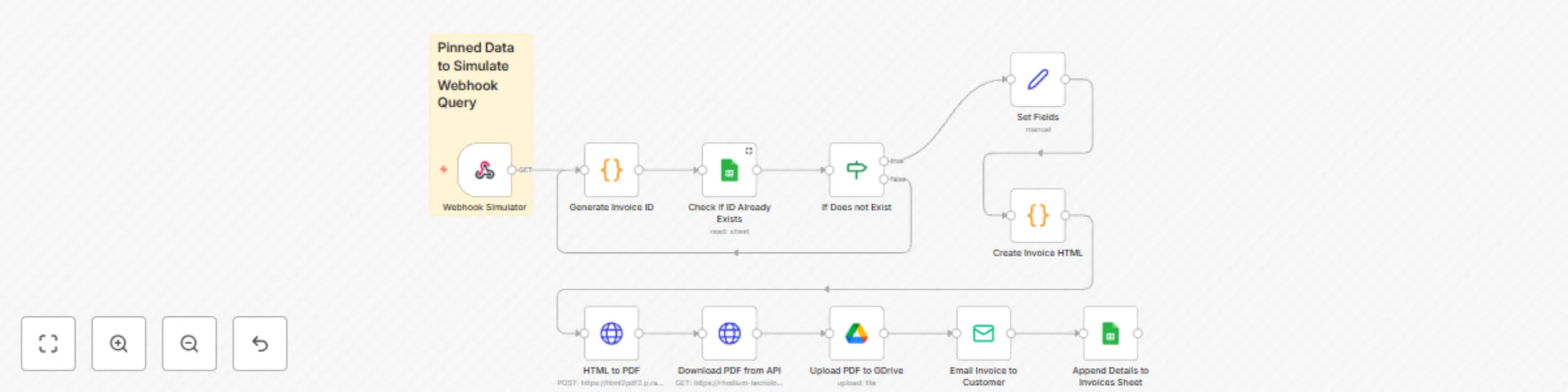
This workflow automates invoice generation from form submissions, ensuring unique order IDs, creating PDF invoices, storing files, emailing customers, and logging invoice data — all seamlessly inte...
n8n-nodes-base.webhook, n8n-nodes-base.code, n8n-nodes-base.googlesheets, n8n-nodes-base.if, n8n-nodes-base.set, n8n-nodes-base.httprequest, n8n-nodes-base.googledrive, n8n-nodes-base.emailsend
This workflow is cataloged by N8N Workflows and links back to its original n8n.io source page by Joseph.
Original n8n.io sourceThis workflow automates invoice generation from form submissions, ensuring unique order IDs, creating PDF invoices, storing files, emailing customers, and logging invoice data — all seamlessly integrated.
Trigger (Webhook) Starts when an order form is submitted, capturing customer and order details.
Generate Random Order ID
A Function node creates a unique alphanumeric invoice ID (e.g., INV-X92B7D).
Check for Duplicate Order ID Google Sheets looks up the generated order ID in your invoice log sheet to prevent duplicates.
Conditional Check (IF Node)
Prepare Invoice Data A Set node formats customer info, date, order items, and the unique order ID to fit your invoice template.
Convert HTML to PDF HTTP Request node sends your invoice HTML to the RapidAPI HTML-to-PDF service and receives the PDF file.
Upload PDF to Cloud Storage
Save the PDF in Google Drive or Dropbox with a clear file name like Invoice-INV-X92B7D.pdf.
Send Invoice Email to Customer Email node attaches the PDF and includes the order ID in the email subject/body.
Log Invoice Details Append invoice data (customer info, order ID, total, PDF link) to your Google Sheet for tracking.
INV-.Invoice-{{$json["order_id"]}}.pdfYou can make a copy of the invoice log template here
This sheet includes columns for order\_id, customer name, email, total, and invoice PDF link. Customize it as needed.
Reach out via email at [email protected].
This catalog entry is organized from the workflow JSON. The node-level section below shows the executable blocks available for review before importing the template.
| Workflow | Generate invoices, save to Drive and send email to customer with JS + G Sheets |
|---|---|
| Complexity | intermediate |
| Nodes | 12 |
| Categories | Invoice Processing |
| Author | Joseph |
| Published | 16 May 2025 |
Use the JSON export at /data/workflows/4105/4105.json as the source template for this automation.
Open n8n, import the downloaded JSON, and review each node before activating the workflow.
Replace placeholder credentials, API keys, webhook URLs, account IDs, and environment-specific values with your own settings.
Run the workflow manually or in a staging workspace, inspect node output, and confirm downstream systems receive the expected data.
Enable the workflow only after testing, then monitor executions, errors, and rate limits during the first production runs.
Review imported nodes carefully before activation. This catalog entry is intended to help you inspect the workflow structure, understand required services, and find related templates faster.
Node names, credentials, schedules, webhook paths, and external service limits may need adjustment for your workspace.
This workflow automates invoice generation from form submissions, ensuring unique order IDs, creating PDF invoices, storing files, emailing customers, and logging invoice data — all seamlessly inte...
Review the workflow JSON, configure any required credentials in n8n, and test the automation in a safe workspace before using it in production.
Yes. Use the block-by-block analysis and the downloadable JSON to inspect each node, then adjust credentials, prompts, schedules, filters, or destinations for your Invoice Processing use case.