Joseph
Workflows by Joseph
Transform meeting transcripts into AI-generated presentations with Google Slides & Flux
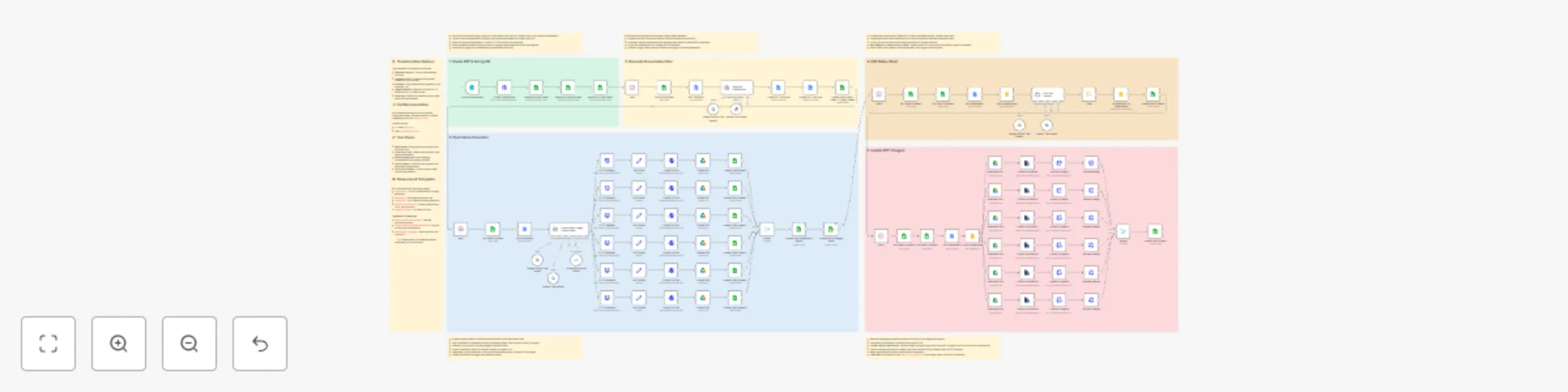
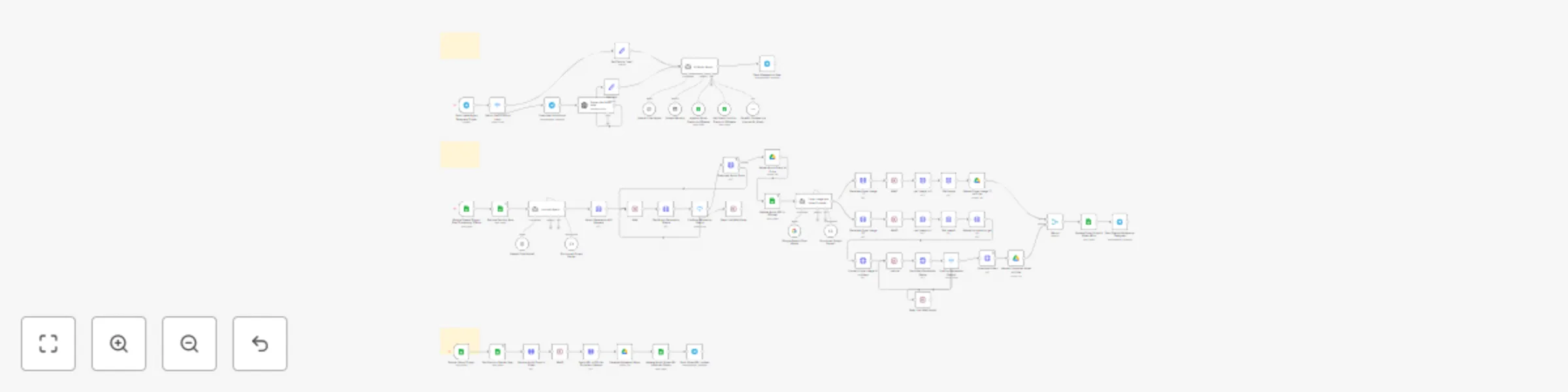
Transform meeting transcripts into fully customized, AI-powered presentations automatically. This comprehensive 5-workflow automation system analyzes client conversations and generates professional slide decks complete with personalized content and AI-generated illustrations. ## 🎯 What This Automation Does This end-to-end solution takes a meeting transcript (Google Docs) and client information as input, then automatically: - Creates a presentation from your custom template - Generates a strategic presentation plan tailored to the client's needs - Creates custom illustrations using AI image generation - Populates slides with personalized text content - Inserts generated images into the appropriate slides - Delivers a client-ready presentation Perfect for sales teams, consultants, agencies, and anyone who needs to create customized presentations at scale. ## 🔧 How It Works The automation is split into 5 interconnected workflows: **Workflow 1: Clone Presentation & Database Setup** - Form trigger captures client name, transcript URL, and submission time - Clones your presentation template via Google Slides API - Saves presentation details to Google Sheets for tracking **Workflow 2: AI Presentation Plan Generation** - Analyzes meeting transcript to understand client pain points - Generates comprehensive presentation structure and content strategy - Saves plan to Google Docs for review and tracking - Uses company profile (customizable) to match solutions to client needs **Workflow 3: AI Illustration Generation** - AI agent creates image prompts based on presentation plan - Generates illustrations using Flux model via OpenRouter (nanobanana) - Uploads images to Google Drive for slide insertion - Tracks all generated assets in database **Workflow 4: Text Content Population** - AI agent generates final presentation text from the plan - Replaces template placeholders with personalized content - Uses Object IDs to target specific text elements in slides - Updates slides using native n8n Google Slides node **Workflow 5: Image Insertion** - Retrieves image Object IDs from presentation structure - Downloads illustrations from Google Drive - Converts images for ImgBB hosting (resolves Google Drive URL limitations) - Updates slide images via Google Slides API ## 📋 Prerequisites **Required Accounts & API Keys:** - Google Workspace (Drive, Slides, Docs) - OpenAI API (for AI agents) - OpenRouter API (for Flux image generation) - ImgBB API (free tier available) - Gemini API (optional, for additional AI tasks) **Setup Requirements:** - Google Sheets database (template provided in article and inside the workflow) - Google Slides presentation template with standard Object IDs - Meeting transcript in Google Docs format ## 🎨 Customization Options This automation is designed to be flexible: - **Template Flexibility**: Use any slide template structure - **Company Profile**: Customize the business context for your use case - **AI Models**: Swap OpenAI/Gemini agents for your preferred LLM - **Image Generation**: Replace Flux with DALL-E, Midjourney API, or other models - **Slide Logic**: Extend to dynamically select slides based on content needs ## 💡 Key Technical Insights - **Structured Output Handling**: Uses JavaScript for reliable JSON parsing when AI output structure is complex - **Object ID System**: Template placeholders use unique IDs for precise element targeting - **Image Hosting Workaround**: ImgBB resolves Google Drive direct URL limitations in API calls - **HTTP Request Nodes**: Used for API operations not covered by native n8n nodes (copying presentations, image updates) ## 🔗 Full Documentation For a detailed breakdown of each workflow, configuration steps, and best practices, read the complete guide on this [Medium article](https://medium.com/@jmjomba/automating-google-slides-creation-text-images-in-n8n-a-complete-guide-e3454a2d660f) ## 🚀 Use Cases - **Sales Teams**: Auto-generate pitch decks from discovery calls - **Consulting Firms**: Create client proposals from needs assessments - **Marketing Agencies**: Build campaign presentations from strategy sessions - **Product Teams**: Transform user research into stakeholder presentations - **Training & Education**: Convert session notes into learning materials ## ⚠️ Important Notes - Template must use consistent Object IDs for automation to work - Google Drive images require ImgBB hosting for reliable URL access - AI agent output structure is complex; JavaScript parsing recommended - Rate limits apply for API services (especially image generation) ## 📦 Resources & Templates ### API Services (Get Your Keys Here) - **[OpenRouter](https://openrouter.ai/)** - For Flux (nanobanana) AI image generation - **[ImgBB API](https://api.imgbb.com/)** - Free image hosting service - **[OpenAI API](https://platform.openai.com/api-keys)** - For AI agents and text generation - **[Google Cloud Console](https://console.cloud.google.com/)** - Enable Google Slides, Drive, and Docs APIs - **[Google AI Studio](https://aistudio.google.com/app/apikey)** - For Gemini API key ### Templates & Examples - **[Meeting Transcript Sample](https://docs.google.com/document/d/14-jV8CYie47u3kbWpEYcYIBW4TClB7lIy5GkSv7dPeI/edit?tab=t.0#heading=h.vjsbagw50nxg)** - Example transcript structure - **[Google Sheets Database Template](https://docs.google.com/spreadsheets/d/1Jacq1P_z9XSAR7YNz0SiaMqwZ0oQ4qy-vbAiP5FcHNs/edit?usp=sharing)** - Copy this to track your presentations - **[Presentation Template](https://docs.google.com/presentation/d/1B5KbL9qPKzFgQZFwHqs43RDQITNwCKlZu_lHVQWQSJs/edit?usp=sharing)** - Base slide deck with Object IDs **💡 Tip:** Make copies of all templates before using them in your workflows! --- **Have questions or improvements?** Connect with me: - X (Twitter): [@juppfy](https://x.com/juppfy) - Email: [email protected] P.S: I'd love to hear how you adapt this for your workflow!
Convert PDF, DOC, and images to Markdown using Datalab.to API
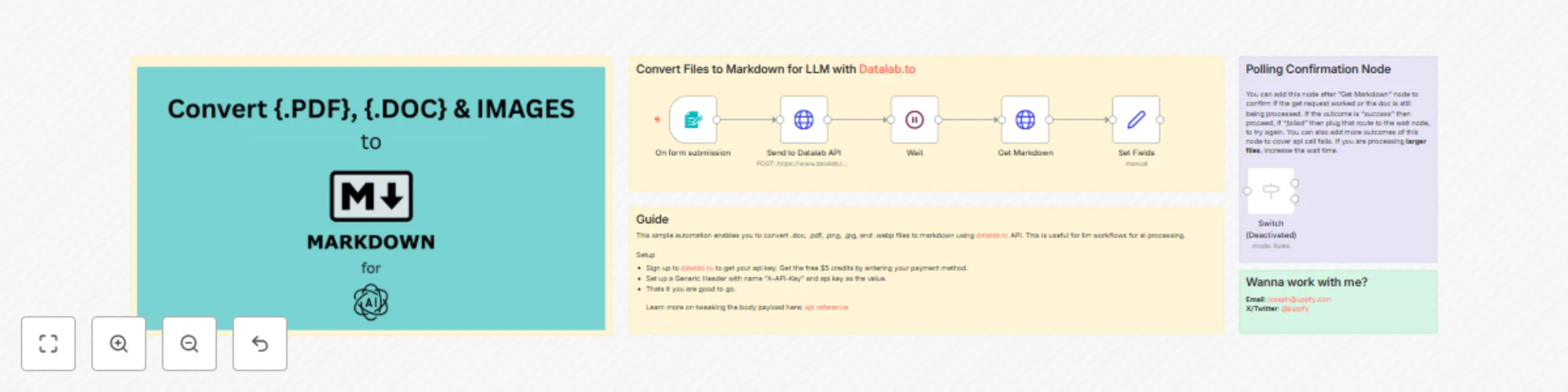
This n8n workflow converts various file formats (.pdf, .doc, .png, .jpg, .webp) to clean markdown text using the [datalab.to](https://datalab.to) API. Perfect for AI agents, LLM processing, and RAG (Retrieval Augmented Generation) data preparation for vector databases. ## Workflow Description ### Input - **Trigger Node**: Form trigger or webhook to accept file uploads - **Supported Formats**: PDF documents, Word documents (.doc/.docx), and images (PNG, JPG, WEBP) ### Processing Steps 1. **File Validation**: Check file type and size constraints 2. **HTTP Request Node**: - Method: POST to `https://api.datalab.to/v1/marker` - Headers: `X-API-Key` with your datalab.to API key - Body: Multipart form data with the file 3. **Response Processing**: Extract the converted markdown text 4. **Output Formatting**: Clean and structure the markdown for downstream use ### Output - Clean, structured markdown text ready for: - LLM prompt injection - Vector database ingestion - AI agent knowledge base processing - Document analysis workflows ## Setup Instructions 1. **Get API Access**: Sign up at [datalab.to](https://www.datalab.to/app/dashboard) to obtain your API key 2. **Configure Credentials**: - Create a new credential in n8n - Add Generic Header: `X-API-Key` with your API key as the value 3. **Import Workflow**: Ready to process files immediately ## Use Cases - **AI Workflows**: Convert documents for LLM analysis and processing - **RAG Systems**: Prepare clean text for vector database ingestion - **Content Management**: Batch convert files to searchable markdown format - **Document Processing**: Extract text from mixed file types in automated pipelines The workflow handles the complexity of different file formats while delivering consistent, AI-ready markdown output for your automation needs.
Automate browser tasks with Airtop & GPT-4 - Reddit posting example
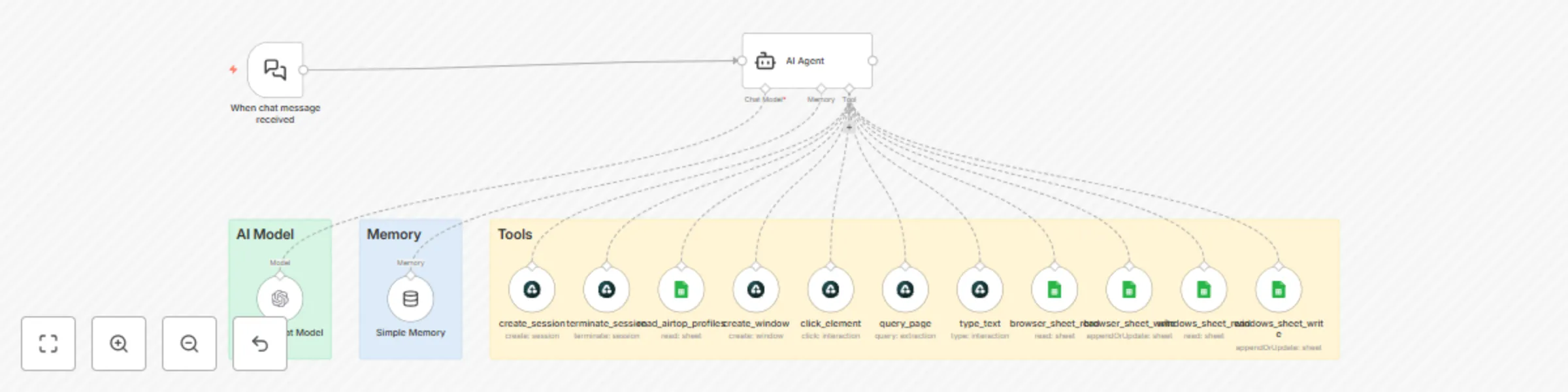
## Overview This n8n workflow creates an intelligent AI agent that automates browser interactions through Airtop's browser automation platform. The agent can control real browser sessions, navigate websites, interact with web elements, and maintain detailed session records - all while providing live viewing capabilities for real-time monitoring. Youtube Tutorial: https://www.youtube.com/watch?v=XoZqFY7QFps ## What This Workflow Does The AI agent acts as your virtual assistant in the browser, capable of: - **Session Management**: Creates, monitors, and terminates browser sessions with proper tracking - **Web Navigation**: Visits websites, clicks elements, fills forms, and performs complex interactions - **Multi-Window Support**: Manages multiple browser windows within sessions - **Live Monitoring**: Provides real-time viewing URLs so you can watch the automation - **Data Tracking**: Maintains comprehensive records of all browser activities - **Profile Integration**: Uses Airtop profiles for authenticated sessions - **Email Notifications**: Sends live URLs and status updates via Gmail ## Demo Use Case: Automated Reddit Posting The tutorial demonstrates the agent's capabilities by: 1. **Logging into Reddit** using pre-configured Airtop profile credentials 2. **Navigating to a specific subreddit** based on user input 3. **Creating and publishing a new post** with title and content 4. **Tracking the entire process** with detailed session records 5. **Providing live viewing access** throughout the automation ## Core Workflow Components ### 1. Chat Interface Trigger - **Node Type**: Chat Trigger - **Purpose**: Accepts user commands for browser automation tasks - **Input**: Natural language instructions (e.g., "Create a Reddit post in r/automation") ### 2. AI Agent Processing - **Node Type**: OpenAI GPT-4 - **Purpose**: Interprets user requests and determines appropriate browser actions - **System Message**: Contains the comprehensive agent instructions from your documentation - **Capabilities**: - Understands complex web interaction requests - Plans multi-step browser workflows - Manages session states intelligently - Handles error scenarios gracefully ### 3. Google Sheets Data Management Multiple Google Sheets nodes manage different aspects of session tracking: #### Browser Sessions Sheet - **Fields**: `session_id`, `description`, `status`, `created_date` - **Purpose**: Tracks active browser sessions - **Operations**: Create, read, update session records #### Window Sessions Sheet - **Fields**: `session_id`, `window_id`, `description`, `airtop_live_view_url`, `status` - **Purpose**: Tracks individual browser windows within sessions - **Operations**: Create, read, update window records #### Airtop Profiles Sheet - **Fields**: `platform_name`, `platform_url`, `profile_name` - **Purpose**: Stores available authenticated profiles - **Operations**: Read available profiles for session creation ### 4. Airtop Browser Automation Nodes Multiple specialized nodes for browser control: #### Session Management - **create_session**: Creates new browser sessions with optional profile authentication - **terminate_session**: Closes browser sessions and updates records - **read_airtop_profiles**: Retrieves available authentication profiles #### Window Management - **create_window**: Opens new browser windows with specified URLs - **query_page**: Analyzes page content and identifies interactive elements #### Web Interaction - **click_element**: Clicks specific page elements based on AI descriptions - **type_text**: Inputs text into form fields and input elements ### 5. Gmail Integration - **Node Type**: Gmail Send - **Purpose**: Sends live viewing URLs and status updates - **Recipients**: User email for real-time monitoring - **Content**: Complete Airtop live view URLs for browser session observation ### 6. Error Handling & Validation - **Input Validation**: Ensures required parameters are present - **Session State Checks**: Verifies browser session status before operations - **Error Recovery**: Handles failed operations gracefully - **Data Consistency**: Maintains accurate session records even during failures ## Technical Requirements ### API Credentials Needed 1. **Airtop.ai API Key** - Sign up at airtop.ai - Generate API key from dashboard - Required for all browser automation functions 2. **OpenAI API Key** - OpenAI account with GPT-4 access - Required for AI agent intelligence and decision-making 3. **Google Sheets Access** - Google account with Google Sheets API access - Copy the provided template and get your sheet URL - Required for session and profile data management 4. **Gmail OAuth** - Google account with Gmail API access - Required for sending live viewing URLs and notifications ### Airtable Base Structure Create three tables in your Airtable base: #### 1. Browser Details (Sessions) ``` - session_id (Single line text) - description (Single line text) - status (Single select: Open, Closed) - created_date (Date) ``` #### 2. Window Details (Windows) ``` - session_id (Single line text) - window_id (Single line text) - description (Single line text) - airtop_live_view_url (URL) - status (Single select: Open, Closed) ``` #### 3. Airtop Profiles ``` - platform_name (Single line text) - platform_url (URL) - profile_name (Single line text) ``` ## Workflow Logic Flow ### User Request Processing 1. **User Input**: Natural language command via chat interface 2. **AI Analysis**: OpenAI processes request and determines required actions 3. **Session Check**: Agent reads current browser session status 4. **Action Planning**: AI creates step-by-step execution plan ### Browser Session Lifecycle 1. **Session Creation**: - Check for existing open sessions - Ask user about profile usage if needed - Create new Airtop session - Record session details in Airtable 2. **Window Management**: - Create browser window with target URL - Capture live viewing URL - Record window details in Airtable - Send live URL via Gmail 3. **Web Interactions**: - Query page content for element identification - Execute clicks, form fills, navigation - Monitor page state changes - Handle dynamic content loading 4. **Session Cleanup**: - Terminate browser session when complete - Update all related records to "Closed" status - Send completion notification ### Data Flow Architecture ``` User Input → AI Processing → Session Management → Browser Actions → Data Recording → User Notifications ``` ## Key Features & Benefits ### Intelligent Automation - **Natural Language Control**: Users can describe tasks in plain English - **Context Awareness**: AI understands complex multi-step workflows - **Adaptive Responses**: Handles unexpected page changes and errors - **Profile Integration**: Seamlessly uses stored authentication credentials ### Real-Time Monitoring - **Live View URLs**: Watch browser automation as it happens - **Status Updates**: Real-time notifications of task progress - **Session Tracking**: Complete audit trail of all browser activities - **Multi-Window Support**: Handle complex workflows across multiple tabs ### Enterprise-Ready Features - **Error Recovery**: Robust handling of network issues and page failures - **Session Persistence**: Maintains state across workflow interruptions - **Data Integrity**: Consistent record-keeping even during failures - **Scalable Architecture**: Can handle multiple concurrent automation tasks ## Use Cases Beyond Reddit This workflow architecture supports automation for any website: ### Social Media Management - **Multi-platform posting**: Facebook, Twitter, LinkedIn, Instagram - **Community engagement**: Responding to comments, messages - **Content scheduling**: Publishing posts at optimal times - **Analytics gathering**: Collecting engagement metrics ### Business Process Automation - **CRM data entry**: Updating customer records across platforms - **Support ticket management**: Creating, updating, routing tickets - **E-commerce operations**: Product listings, inventory updates - **Report generation**: Gathering data from multiple web sources ### Personal Productivity - **Travel booking**: Comparing prices, making reservations - **Bill management**: Paying utilities, checking statements - **Job applications**: Submitting applications, tracking status - **Research tasks**: Gathering information from multiple sources ## Advanced Configuration Options ### Custom Profiles - Create Airtop profiles for different websites - Store authentication credentials securely - Switch between different user accounts - Handle multi-factor authentication flows ### Workflow Customization - Modify AI system prompts for specific use cases - Add custom validation rules - Implement retry logic for failed operations - Create domain-specific interaction patterns ### Integration Extensions - Connect to additional data sources - Add webhook notifications - Implement approval workflows - Create audit logs and reporting ## Getting Started 1. **📊 [Copy the Google Sheets Template](https://docs.google.com/spreadsheets/d/1SZ_P9Ike3xodjAVEsoxfJzgk0kKyaL-EJAEQ7UVibFs/edit?usp=sharing)** - Just click and make a copy! 2. **Set up credentials** for Airtop, OpenAI, and Gmail 3. **Import workflow** into your n8n instance 4. **Configure node credentials** with your API keys and Google Sheets URL 5. **Test with simple commands** like "Visit google.com" 6. **Expand to complex workflows** as you become comfortable ## Best Practices ### Session Management - Always check for existing sessions before creating new ones - Properly terminate sessions to avoid resource waste - Use descriptive names for sessions and windows - Regularly clean up old session records ### Error Handling - Implement timeout handling for slow-loading pages - Add retry logic for network failures - Validate element existence before interactions - Log detailed error information for debugging ### Security Considerations - Store sensitive credentials in Airtop profiles, not workflow - Use webhook authentication for production deployments - Implement rate limiting to avoid being blocked by websites - Regular audit of browser session activities This workflow transforms n8n into a powerful browser automation platform, enabling you to automate virtually any web-based task while maintaining full visibility and control over the automation process.
Create complete 20-song YouTube playlists with Suno API, Claude & Telegram bot
 **Transform your music creation process with this comprehensive automated system that generates complete playlists from simple text descriptions!** ## 🚀 What You Get This professional-grade N8N workflow system automatically creates **20 unique songs per playlist** (40 total tracks with 2 versions each) using cutting-edge AI technology. Simply describe your desired playlist through Telegram, and watch as the system generates song ideas, writes lyrics, produces audio, and organizes everything in Google Drive. ## ⚡ Key Features - **🤖 Telegram Bot Interface** - User-friendly chat interface for playlist creation - **🎼 AI Song Generation** - 20 unique song titles and descriptions per playlist - **📝 Automated Lyrics Writing** - Professional-quality lyrics for each song - **🎵 Audio Production** - High-quality music tracks via Suno AI - **📁 Organized Storage** - Automatic Google Drive folder management - **🔄 Complete Automation** - End-to-end workflow with minimal manual intervention ## 🛠️ APIs & Services Used - **Telegram Bot API** - User interaction interface - **Claude AI (Anthropic)** - Song ideation and lyrics generation - **Suno AI** - Professional music track generation - **Google Sheets** - Database management - **Google Drive** - Automated file storage and organization - **Google Apps Script** - Seamless file upload integration ## 📦 What's Included ✅ **7 Complete N8N Workflows** - Ready-to-import automation system ✅ **Comprehensive Setup Guide** - Step-by-step installation instructions ✅ **Google Sheets Database Template** - Pre-configured data structure ✅ **Google Apps Script Code** - Custom Drive upload functionality ✅ **AI Prompt Templates** - Optimized system messages for all agents ✅ **Troubleshooting Guide** - Solutions for common issues ✅ **Customization Instructions** - Modify outputs to match your style ## 💡 Perfect For - Music producers and content creators - Playlist curators and music enthusiasts - Digital agencies offering music services - Developers interested in AI automation - Anyone looking to streamline music creation workflows ## 🎯 System Requirements - Active N8N instance (cloud or self-hosted) - API access to: Telegram, Claude AI, Suno AI, Google Services - Basic understanding of N8N workflows (setup guide included) ## 💰 Cost Considerations - **Suno AI**: ~240 credits per playlist (20 songs × 2 versions) - **Claude AI**: Variable based on usage - **Other APIs**: Minimal costs for most use cases ## ⏱️ Expected Processing Time Complete playlist generation: **30-45 minutes** per playlist (fully automated) --- **🎁 Bonus: Complete documentation includes AI agent customization guide, allowing you to fine-tune song styles, lyrics generation, and bot behavior to match your specific needs.** *Get instant access to this powerful automation system and start generating professional playlists today!* --- If you need a csutom workflow please reach out via email [email protected]
Create AI-generated music playlists for YouTube using Suno, GPT-4, Runway & Creatomate
# Automated AI Playlist Creator - Complete Music Production Pipeline Demo Youtube Video: [https://www.youtube.com/watch?v=B_RDqM0kcgc](https://www.youtube.com/watch?v=B_RDqM0kcgc) ## Overview Transform your music creation process with this comprehensive 11-workflow automation system that generates complete music playlists from concept to YouTube publication. Using advanced AI services, this template creates original songs, lyrics, cover art, animated videos, and handles the entire publishing pipeline automatically. ## What This Template Does - **AI-Powered Song Creation**: Generates 20 unique song ideas based on your specifications - **Lyric Generation**: Creates custom lyrics for each song using advanced AI - **Music Production**: Produces high-quality audio tracks with AI music generation - **Visual Content**: Creates cover art and animated cover videos - **Video Compilation**: Renders complete playlist videos with all songs - **Auto-Publishing**: Uploads finished videos directly to YouTube - **Smart Selection**: Allows manual curation from multiple AI-generated versions ## Workflow Architecture ### Core Workflows (11 Total) 1. **Playlist Details Setup** - Telegram bot interface for configuration 2. **Database & Drive Configuration** - Automated folder structure and data management 3. **Song Ideas Generator** - AI-powered creative song concept generation 4. **Lyrics & Task Generation (Batch 1 & 2)** - Parallel lyric creation and task management 5. **Audio Fetch & Drive Upload** - Retrieves generated music and organizes files 6. **Song Selection Migration** - Handles user curation of AI-generated alternatives 7. **Cover Image Generation** - AI-powered visual artwork creation 8. **Cover Animation** - Dynamic video cover creation 9. **Video Rendering (20 Songs)** - Full playlist compilation 10. **Video Rendering (15 Songs)** - Alternative stable rendering option 11. **YouTube Upload & Publishing** - Automated social media publishing ## APIs & Services Used ### AI & Machine Learning - **OpenAI GPT-4.1** - Conversational AI, lyrics generation, image creation - **Suno API** - High-quality AI music generation - **Runway ML** - AI-powered video animation and effects ### Media & Storage - **Google Sheets** - Database and workflow management - **Google Drive** - File storage and organization via Google Apps Script - **ImageBB** - Image hosting and CDN services - **Creatomate** - Professional video rendering and compilation ### Communication & Publishing - **Telegram Bot API** - User interface and workflow control - **YouTube Data API** - Automated video publishing - **SerpAPI** - Optional web search for creative inspiration ## Key Features ### Intelligent Automation - **Conversational Setup**: Natural language playlist configuration via Telegram - **Batch Processing**: Efficient handling of multiple songs simultaneously - **Quality Control**: Multiple AI-generated versions with manual selection - **Error Recovery**: Robust workflow design with alternative processing paths - **Status Tracking**: Real-time progress monitoring through Google Sheets ### Professional Output - **High-Quality Audio**: Professional-grade AI music generation - **Custom Visuals**: Unique cover art and animated videos for each playlist - **Optimized Rendering**: Smart video compilation with duration management - **Platform-Ready**: Direct YouTube integration with metadata handling ### Flexibility & Customization - **Adjustable AI Prompts**: Customize creativity and style parameters - **Multiple Rendering Options**: Choose between 15 or 20 song compilations - **Genre Versatility**: Works across all music genres and styles - **Scalable Architecture**: Easily handle multiple playlists simultaneously ## Cost Breakdown (Per Playlist) ### API Service Costs - **Suno API**: $2.40 (480 credits for 20 songs with 2 versions each) - **OpenAI Services**: $0.50-$2.00 (varies by conversation length and customizations) - **Runway ML**: $0.50 (10-second animated cover video) - **Creatomate**: $0.20-$0.27 (within monthly plan of $45-$54/month) - **ImageBB**: Free (within standard limits) **Total Estimated Cost: $3.60-$5.17 per complete playlist** *Additional services (Google, YouTube, Telegram) operate within free tiers for normal usage* ## Technical Requirements ### Platform Compatibility - **N8N Instance**: Self-hosted or cloud deployment - **Google Workspace**: Sheets and Drive integration - **API Access**: Valid keys for all integrated services ### Setup Complexity - **Beginner-Friendly**: Detailed documentation with step-by-step instructions - **Template Database**: Pre-configured Google Sheets structure included - **Guided Configuration**: Clear setup process for all API integrations ## Use Cases ### Content Creators - Music channels and playlists - Background music for videos - Themed compilations and mixes ### Business Applications - Brand-specific playlists - Marketing campaign soundtracks - Event and presentation music ### Personal Projects - Custom playlists for special occasions - Experimental music creation - Learning AI music production ## What's Included ### Complete Workflow Package - 11 pre-configured N8N workflows - Google Sheets database template - Custom Google Apps Script for file management - Creatomate video template (JSON) - Comprehensive setup documentation ### Support Resources - Step-by-step API configuration guides - Troubleshooting documentation - Customization instructions for AI prompts - Performance optimization guidelines ## Performance & Reliability ### Processing Capacity - **Concurrent Processing**: Multiple songs generated simultaneously - **Batch Operations**: Efficient API usage with rate limit management - **Alternative Pathways**: Backup workflows for enhanced reliability ### Quality Assurance - **Multi-Version Generation**: Compare and select best AI outputs - **Duration Management**: Smart handling of video length limitations - **Error Handling**: Comprehensive workflow error recovery --- *This template represents a complete AI-powered music production pipeline, transforming simple text descriptions into professional playlist videos ready for publication. Perfect for content creators, musicians, and businesses looking to automate their music content creation workflow.* After the Purchase in Gumroad, you will have access to all the workflows JSON files, creatomate template, google script gs code and comprehensive documentation guide. Reach out to me via email at [email protected] incase you want a custom workflow.
Jobs newsletter automation system (N8N, Bolt.new, RapidAPI, Mails.so & ChatGPT)
 [**Watch on Youtube▶️**](https://www.youtube.com/watch?v=2Xbi-8ywPXg) Welcome to this complete step-by-step guide on how to build your own newsletter automation system using n8n, Bolt.new, and RapidAPI. Whether you're a solo founder, indie hacker, or community builder, this setup will allow you to collect subscribers, send them curated job updates, and manage unsubscriptions — all with full control and zero reliance on third-party newsletter tools. ## 🚀 Goal of This Guide By the end of this guide, you will have a fully working system that allows you to: - Collect user subscriptions from a modern frontend interface - Send welcome or rejection emails (using your own SMTP) - Automatically scrape jobs via an API and send them to subscribers weekly or daily - Manage unsubscriptions with confirmation and webhook logic - Customize and manage all this using n8n workflows with no-code/low-code skills This system is perfect for niche job boards, community newsletters, or any project that needs automated content delivery to subscribers. ## 🧱 Tools You'll Be Using - **n8n** – for automation workflows and acting as your backend - **Bolt.new** – to build your newsletter landing page and subscription interface - **Google Sheets** – to act as your lightweight subscriber/job database - **RapidAPI** – to pull job listings from the Jobs Search API - **Custom SMTP Email (Optional)** – to send branded emails using your own domain ## 📄 Step 1: Set Up Your Google Sheets Database Make a copy of this Google Sheets template that will serve as your database: 🔗 **Click here to copy the Google Sheet template](https://docs.google.com/spreadsheets/d/11vxYkjfwIrnNHN6PIdAOa_HZdTvMXI0lm_Jecac4YO0/edit?gid=0#gid=0)** This includes: - A Subscribers sheet to store new signups - An Unsubscribers sheet to prevent duplicates - A Jobs sheet to store scraped job listings ## ⚙ Step 2: Get Your API Key for Jobs Scraping We use this API from RapidAPI to pull job listings programmatically: 🔗 **[Jobs Search API on RapidAPI](https://rapidapi.com/rphrp1985/api/jobs-search-api/playground/apiendpoint_a166931a-12c8-4513-bcd3-f4c0f3f34a5b)** 1. Sign up or log into RapidAPI 2. Subscribe to the Jobs Search API 3. Copy your API key — you'll need this in n8n ## ⚙ Step 3: Get Your API Key for Email Validation We use this API from Mails.so to confirm email's validity before adding them to our database: 🔗 **[Mails.so API](http://mails.so/dashboard/api)** 1. Sign up or log into mails dot so 2. Visit the dashboard, then click on API 3. Copy the cURL command and import on http request node ## 🌐 Step 4: Set Up Your Frontend with Bolt.new You'll be building a beautiful, modern newsletter landing page using Bolt.new. Use this link for prompts to generate: - Your landing page - Email templates (welcome, already subscribed, unsubscribe confirmation) - Terms & Privacy Policy pages - Unsubscribe confirmation page 🔗 **[Access the Bolt.new Prompt Document](https://docs.google.com/document/d/1DX6FgTyJYHxxyrqCt1b9-ejYCUUYyADGWHw5P4AqjZM/edit?tab=t.0)** This includes: - A homepage form with input fields (Name, Email) and consent checkbox - Logic to send data to n8n webhook using `fetch()` - UI logic for showing webhook response (Success, Already Exists, Invalid Email) - Unsubscribe page handling *(Make your own copy so that you can edit it while we format the prompts)* ## 📤 Step 5: Set Up Email Sending With Your Custom Domain (Optional but Recommended) To send branded HTML emails from your own domain, follow this tutorial to configure SMTP properly on n8n with your cPanel email account: 🔗 **[Guide: How to Set Up SMTP with cPanel Email on n8n](https://community.n8n.io/t/how-to-configure-smtp-on-n8n-using-a-cpanel-email-add-a-dmarc-record/113056)** This setup helps: - Improve deliverability - Avoid Gmail spam filters - Send beautiful HTML emails you can customize fully ## 🔄 Step 6: Create n8n Workflows for Subscription Management In n8n, you'll need to build these workflows: ### ✅ 1. Handle Subscriptions - Receives webhook from frontend with `name` and `email` - Validates email (using mails.so) - Checks if already subscribed - Sends appropriate HTML email (Welcome, Already Exists, Invalid Email) - Adds to Google Sheet database ### ✅ 2. Scrape Jobs and Email Subscribers - Use Cron node to run daily/weekly - Use RapidAPI to fetch new jobs - Format jobs into readable HTML - Send jobs to all active subscribers via SMTP ### ✅ 3. Handle Unsubscriptions - Expose a webhook for `/unsubscribe` - Confirm email, show a button - On confirmation, add email to Unsubscribers sheet - Show feedback and redirect user back to homepage after 2 seconds ## 🧠 What You're Learning Along the Way - How to use n8n as a backend service (reliable, scalable, visual) - How to use webhooks to connect frontend and backend logic - How to scrape APIs, format JSON data, and convert it to HTML emails - How to use Function nodes for data processing - How to build logic with IF and Switch nodes - How to design a minimal, clean frontend with Bolt.new - How to control the entire newsletter system without external platforms --- Follow me on twitter [@juppfy](https://x.com/juppfy) | or check out my [agency website](https://automate.uppfy.com).
Generate invoices, save to Drive and send email to customer with JS + G Sheets
This workflow automates invoice generation from form submissions, ensuring unique order IDs, creating PDF invoices, storing files, emailing customers, and logging invoice data — all seamlessly integrated. --- ## 🔹 Workflow Overview 1. **Trigger (Webhook)** Starts when an order form is submitted, capturing customer and order details. 2. **Generate Random Order ID** A Function node creates a unique alphanumeric invoice ID (e.g., `INV-X92B7D`). 3. **Check for Duplicate Order ID** Google Sheets looks up the generated order ID in your invoice log sheet to prevent duplicates. 4. **Conditional Check (IF Node)** * If the ID already exists → regenerates a new ID (loops back) * If unique → proceeds to invoice creation 5. **Prepare Invoice Data** A Set node formats customer info, date, order items, and the unique order ID to fit your invoice template. 6. **Convert HTML to PDF** HTTP Request node sends your invoice HTML to the RapidAPI HTML-to-PDF service and receives the PDF file. 7. **Upload PDF to Cloud Storage** Save the PDF in Google Drive or Dropbox with a clear file name like `Invoice-INV-X92B7D.pdf`. 8. **Send Invoice Email to Customer** Email node attaches the PDF and includes the order ID in the email subject/body. 9. **Log Invoice Details** Append invoice data (customer info, order ID, total, PDF link) to your Google Sheet for tracking. --- ## ⚙️ Node Details & Setup ### 1. Webhook Trigger * Configure to receive form submissions (order details like name, email, items, total). ### 2. Function: Generate Random Order ID * Sample JS code generates unique IDs prefixed by `INV-`. ### 3. Google Sheets: Lookup Row * Set up connection to your invoice log sheet. * Search for existing order ID to avoid duplicates. ### 4. IF Node: Check Order ID Existence * Condition: If order ID found → loop to regenerate. * Else → continue workflow. ### 5. Set Node: Prepare Invoice HTML * Define variables like customer name, date, items, and order ID. * This data populates your HTML invoice template. ### 6. HTTP Request: Convert HTML to PDF * [API URL to get your key](https://rapidapi.com/rhodium/api/html2pdf2/playground/apiendpoint_9b1017c6-2f56-4b7e-80d5-0fe24937d398) * Send invoice HTML in the request body. * Receive PDF file blob or download URL. ### 7. Google Drive (or Dropbox) Upload * Upload the PDF file. * Use file name format: `Invoice-{{$json["order_id"]}}.pdf` ### 8. Email Node * Recipient: customer email from the form data. * Attach generated PDF. * Include order ID in email subject or body for reference. ### 9. Google Sheets: Append Row * Log invoice metadata to keep records updated. --- ## 📁 Google Sheets Template You can make a copy of the invoice log template [here](https://docs.google.com/spreadsheets/d/1QW_Lg1aoEBku8GaxwPbZfBY5ITAuSdvoAXRyNdCEujM/edit?gid=0) `This sheet includes columns for order\_id, customer name, email, total, and invoice PDF link. Customize it as needed.` --- ## 📌 Additional Notes * Customize the invoice HTML template inside the Set node to match your branding. * Ensure API credentials for RapidAPI, Google Drive/Dropbox, and email are properly set up in your n8n credentials. * You can expand this workflow by adding payment processing or SMS notifications. --- ## Need help or want a custom workflow? Reach out via email at [[email protected]](mailto:[email protected]).
Generate images and convert to video using Flux, Kraken & Runway
**(Image Generation → Hosting → Video Generation)** *This workflow is designed for creators, automation enthusiasts, and indie hackers who want to generate image-based videos automatically using AI tools — at a low cost.* --- ## ⚙️ Workflow Overview This automation performs the following steps: 1. **Trigger** (Schedule or manual) 2. **Generate an image** using **Flux** (choose between two APIs) 3. **Upload the image** to **Kraken.io** to get a public URL 4. **Send the image** to **Runway ML** (choose between two APIs) to generate a video 5. **Receive the video** as a URL — ready for posting, download, or further automation --- ## 🛠️ Step-by-Step Setup ### 🖼️ Flux (Image Generation) You can use **either** of the following providers: #### Option 1: Flux by BlackForest Labs (Direct API) 🔑 Get your API key here: [https://docs.bfl.ml/](https://docs.bfl.ml/) * Paste your API key in the **HTTP Request** node named `Flux (Blackforest)` * You can customize prompts or styles inside the JSON body #### Option 2: Flux via RapidAPI 🔑 Subscribe and get your key here: [https://rapidapi.com/poorav925/api/ai-text-to-image-generator-flux-free-api/playground/apiendpoint\_e38039ee-1912-4ef9-b4d4-270d72fca851](https://rapidapi.com/poorav925/api/ai-text-to-image-generator-flux-free-api/playground/apiendpoint_e38039ee-1912-4ef9-b4d4-270d72fca851) * Enter your RapidAPI key in the `X-RapidAPI-Key` header * Optional: tweak prompts, style, or resolution inside the JSON body --- ### 🐙 Kraken.io (Hosting the Image Publicly) Runway ML requires the image to be publicly accessible. We use **Kraken.io** to host the generated image and return a public URL. 🔑 Get your API credentials: [https://kraken.io/account/api-credentials](https://kraken.io/account/api-credentials) #### Setup: 1. Copy your **API Key** and **API Secret** 2. Open the `Kraken Upload` node in n8n 3. Replace placeholders with your credentials 4. The node uploads your image and gives back a **public image URL** for Runway to use --- ### 🎬 RunwayML (Video Generation) You also have two options here: #### Option 1: Runway Official API 🔑 Get your credentials at: [https://dev.runwayml.com/](https://dev.runwayml.com/) * Use the public image URL from Kraken in the JSON body * Paste your **Bearer token** in the `Authorization` header * Customize other settings like video length, style, FPS, etc. #### Option 2: Runway via RapidAPI 🔑 Subscribe and get your key here: [https://rapidapi.com/fortunehoppers/api/runwayml/playground/apiendpoint\_93c8554d-8097-40cd-8252-3d4dec9c0e68](https://rapidapi.com/fortunehoppers/api/runwayml/playground/apiendpoint_93c8554d-8097-40cd-8252-3d4dec9c0e68) * Paste your RapidAPI key in the request header * Customize prompt and generation options in the body * Use the Kraken-generated image URL as the input source --- ## 📤 What to Do with the Video Once the video is generated, you’ll get a direct video URL. You can: * Save it to Google Sheets or Notion * Send it via email * Trigger a YouTube upload automation * Or download manually for editing and reposting --- ## 💡 Optional Tips & Notes * You can schedule this workflow to generate AI videos daily or weekly * Combine it with a Google Sheet of prompts for bulk automation * Try using a consistent visual style or theme for better branding * This workflow is lightweight and affordable — perfect for indie projects or experimental content generation * Great for shorts, quote visuals, music loops, AI art promos, etc. --- ## 🔗 Resources * [Flux (Blackforest) Docs](https://docs.bfl.ml/) * [Flux on RapidAPI](https://rapidapi.com/poorav925/api/ai-text-to-image-generator-flux-free-api/) * [RunwayML Official Docs](https://dev.runwayml.com/) * [Runway on RapidAPI](https://rapidapi.com/fortunehoppers/api/runwayml/) * [Kraken.io API Dashboard](https://kraken.io/account/api-credentials) --- ## 🙋 Need Help? Feel free to reach out: * 🐦 Twitter: [@juppfy](https://x.com/juppfy) * 📧 Email: [[email protected]](mailto:[email protected]) If you’d like to hire me for custom n8n workflows or product automations, don’t hesitate to get in touch.
Generate riddle shorts & post on YouTube with Sonnet 3.5, Pinecone & Creatomate
This workflow allows you to generate riddle-themed vertical videos (9:16), render them using Creatomate, and upload them directly to YouTube — all automatically. It's optimized for low-cost operation while still integrating AI and automation at key stages. Here is a sample: [https://youtube.com/shorts/svhgti9L6Fw?feature=share](https://youtube.com/shorts/svhgti9L6Fw?feature=share) --- ### 🔄 Workflow Overview This is a **schedule-triggered** workflow that: 1. **Generates riddles with answers** using an AI agent. 2. **Checks Pinecone** vector store to avoid repeating riddles. 3. **Inserts new riddles** into Pinecone under a namespace structured by `month/year` for easier indexing. 4. **Fetches an unused music track URL** for video background. 5. **Generates a video** using Creatomate with the riddles and audio. 6. **Uploads the video to YouTube** via a custom HTTP request with OAuth. 7. **Updates the worksheet and riddle numbering**, and notifies via email. --- ### 🔗 Integration Guide #### 🔎 Pinecone Setup * You need an active Pinecone account with an index created. * The vector index should be accessible from n8n. * Follow \[n8n's Pinecone Node Documentation] for help setting up credentials and connecting. #### 📝 Google Sheet Setup 1. Open the sheets template provided in the Gumroad documentation pdf. 2. Make a copy to your Google Drive. 3. Set up the required credentials in n8n and link the Google Sheets node to your new copy. #### 🎧 Audio Tracks * Get copyright-free tracks from [Royalty Free Music Library](https://royaltyfreemusiclibrary.com/). * Ensure files are in `.mp3` format for compatibility. #### 🎞️ Background Videos (Optional) * For optional background visuals, use free stock videos from [Pexels](https://www.pexels.com/videos/). --- ### 💡 Creatomate Setup 1. Create a Creatomate account at \[creatomate.com]. 2. Create a **9:16 aspect ratio** template. 3. Press **F12** to open the source editor. 4. Download the Creatomate JSON file from the Gumroad page and paste its contents into the source editor. 5. Refresh the page and click **"Use Template" > API Integration**. 6. Copy the **cURL**. 7. From the cURL, extract your `Bearer Token` and `Template ID`. 8. Paste them in the respective fields in the `Creatomate Render Node` inside n8n. --- ### 📉 YouTube Upload Configuration 1. Inside n8n, set up a **YouTube OAuth credential**. 2. Search for "YouTube" in the credentials list and select the OAuth type. 3. Use the Custom HTTP Request node with `multipart/form-data` to upload the video using: * Title (e.g., "Riddles4U #001") * Description * Video file binary * Category ID (find ID here: [https://gist.github.com/dgp/1b24bf2961521bd75d6c](https://gist.github.com/dgp/1b24bf2961521bd75d6c)) --- ### 🔄 Workflow Logic Detail 1. **Riddle Generation** * Checks Pinecone vector store for existing riddles (to avoid duplicates). * Generates 4 new riddles with answers. * Stores them in Pinecone under `month/year` namespace. * Extracts a numbered title for current riddle post (e.g., Riddles4U #001). * Prepares next riddle title counter (but only updates after YouTube post succeeds). 2. **Track URL Fetching** * Pulls the first unused track from Google Sheets. 3. **Render & Upload** * Sends the riddles + track to Creatomate for rendering. * Fetches binary video and uploads it directly to YouTube via HTTP. * Note: For video source url, I downloaded a video, uploaded it to drive and used that video drive link. You can add a new sheet and rotate videos too, although youtube likes consistency in shorts so I think it is best to have one very beautiful and calm background video then change to a new one after some months or when you generate like 50 shorts. 4. **Post Actions** * Sends email with YouTube video link. * Marks used audio row as "used". * Updates to next riddle title. * If all tracks have been used, resets them to "unused". --- ### 🚀 Customization Ideas * Add AI-generated voiceover to the riddles. * Replace riddles with trivia, quotes, or jokes. * Integrate TikTok or Instagram upload APIs for multichannel publishing. --- ### ✉️ Support Refer to the **comprehensive setup guide** included in the Gumroad download folder to configure your template, credentials, and API keys correctly. This is a beginner-friendly, low-cost automation you can build on for more advanced content pipelines. Happy building! You can find me on [twitter](https://x.com/juppfy) and via [email](mailto:[email protected]) incase you need any custom n8n workflows or wanna chat.
Upload & rename videos to Google Drive via Apps Script from URL
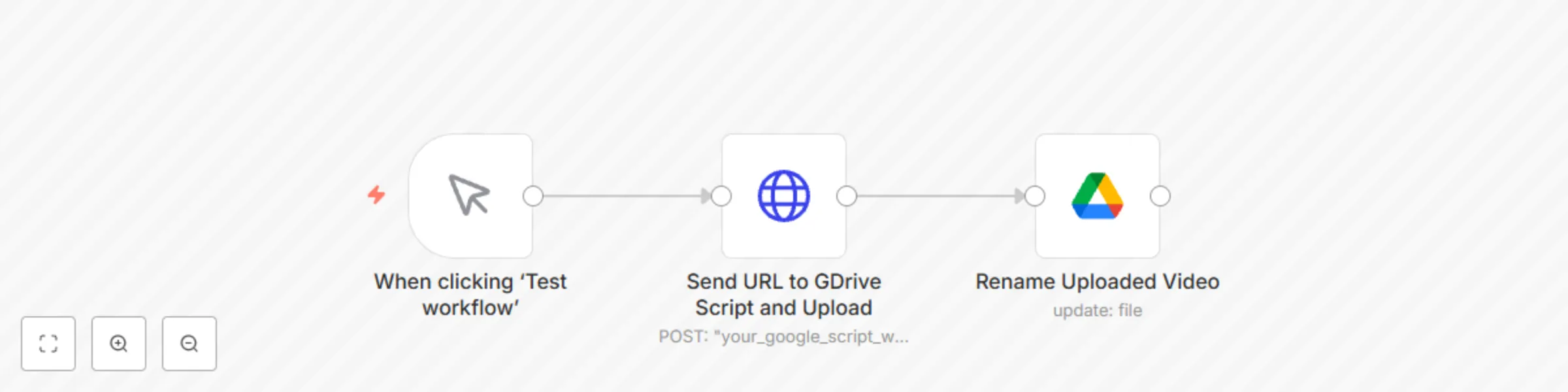
## 📄 Google Script Workflow: Upload File from URL to Google Drive (via n8n) ### 🔧 Purpose: This lightweight Google Apps Script acts as a server endpoint that receives a file URL (from `n8n`), downloads the file, uploads it to your specified Google Drive folder, and responds with the file’s metadata (like Drive file ID and URL). This is useful for large video/audio files that `n8n` cannot handle directly via HTTP Download nodes. --- ## 🚀 Setup Steps: ### 1. **Create a New Script Project** - Go to [https://script.google.com](https://script.google.com) - Click **“New Project”** - Rename the project to something like: `DriveUploader` --- ### 2. **Paste the Script Code** Replace the default `Code.gs` content with the following (your custom script): ```javascript function doPost(e) { const SECRET_KEY = 'your-strong-secret-here'; // Set your secret key here try { const data = JSON.parse(e.postData.contents); // 🔒 Check for correct secret key if (!data.secret || data.secret !== SECRET_KEY) { return ContentService.createTextOutput("Unauthorized") .setMimeType(ContentService.MimeType.TEXT); } const videoUrl = data.videoUrl; const folderId = 'YOUR_FOLDER_ID_HERE'; // Replace with your target folder ID const folder = DriveApp.getFolderById(folderId); const response = UrlFetchApp.fetch(videoUrl); const blob = response.getBlob(); const file = folder.createFile(blob); file.setName('uploaded_video.mp4'); // You can customize the name return ContentService.createTextOutput(file.getUrl()) .setMimeType(ContentService.MimeType.TEXT); } catch (err) { return ContentService.createTextOutput("Error: " + err.message) .setMimeType(ContentService.MimeType.TEXT); } } ``` --- ### 3. Generate & Set Up Secret Key To allow authorized post requests to your script only, we need to generate a secret key from aany reliable key generator. - You can head over to [acte](https://acte.ltd/utils/randomkeygen), click generate and copy the "Encryption key 256". - Paste it in the 'your-strong-secret-here' placeholder in your script then click save ```js const SECRET_KEY = 'your-strong-secret-here'; // Set your secret key here; ``` ### 4. **Replace Folder ID in Code** - Open the target Drive folder in your browser - The folder ID is the part of the URL after `/folders/` Example: ``` https://drive.google.com/drive/u/0/folders/1Xabc12345678defGHIJklmn ``` - Paste that ID in the script: ```js var folderId = "1Xabc12345678defGHIJklmn"; ``` --- ### 5. **Set Up Deployment as Web App** - Click **“Deploy” > “Manage Deployments” > “New Deployment”** - Under **Select type**, choose **Web app** - Description: `Upload from URL to Drive` - Execute as: **Me** - Who has access: **Anyone** - Click **Deploy** - Authorize the script when prompted - Copy the **Web App URL** --- ## 📤 How to Use in n8n ### 1. **HTTP Request Node** - Method: `POST` - URL: (your web app URL) - Secret Key: (Secret Key set in script) - Body Content Type: `JSON` - Paste code: ```json { "videoUrl": "https://example.com/path/to/your.mp4", "secret": "your-strong-secret-here" } ``` - `videoUrl`: The file download URL - `secret`: The generated and set up secret key ### 2. **Rename Node** - A simple drive update node to rename the file using the file drive url returned from the script. ---
Generate AI songs + music videos using Suno API, Flux, Runway and Creatomate
This automation is designed to help you generate AI-powered music tracks, cover art, and fully rendered music videos — all triggered from a simple Telegram chat and managed via Google Sheets. Sample Audio Generated: [Youtube Link](https://youtu.be/61MEf6MJEAM) ⚠️ **Note:** This is only a summary. The full setup guide (with detailed steps, API setup, code snippets, and integrations) is included in a **PDF** on the Gumroad **download page**. Follow it to configure everything seamlessly. --- ## ⚙️ What This Workflow Does - Lets users interact with an AI agent on Telegram to submit song ideas. - Automatically logs ideas in Google Sheets. - Generates lyrics, music, cover images, and looping video backgrounds using AI APIs. - Merges audio + video into a polished final clip. - Uploads everything to Google Drive and sends a final video link back to the Telegram user. --- ## 🔗 Built with 3 Modular Workflows 1. **Telegram & Sheet Logger** Collects ideas from users, stores them in a Google Sheet, and saves their chat ID for later notifications. 2. **AI Generation Engine** Handles lyrics creation, music generation, image prompts, artwork, video background generation, and uploads. 3. **Final Render + Delivery** Merges audio and video, uploads to cloud storage, updates the Sheet, and sends the finished video to Telegram. --- ## 🧩 Integrations Used - Google Sheets - Telegram Bot API - Multiple AI APIs (for music, images, video, and compression) - Google Apps Script - Creatomate for video rendering - Cloud storage (via Google Drive) --- ## 🚀 How to Set It Up - Import the `.json` file into your n8n instance. - Copy the included Google Sheets and Creatomate templates. - Set up the Google Apps Script using the included code. - Replace all placeholder API keys and folder IDs. - Test everything end-to-end using your Telegram bot. --- ✅ **Tip:** No coding experience needed — just follow the step-by-step documentation PDF provided in your Gumroad download. Everything is laid out clearly to get you running fast. 💰**Costs** Song generation costs (suno): $5 gets you 1000 credits, 1 song generation costs 12 credits, every api call for one song generates two versions by default. Check the song generation node to see the two versions. You can update the GSheet to append the two versions and send back to you to choose one. Flux Image gen cost is $0.04 per image. Runway cost is $0.16 per 10 seconds of video. ---
Track SEO keyword position in Google SERP (Google Sheets + SerpAPI integration)
This **n8n workflow** automates scheduled checks for your target keywords’ positions in Google’s organic search results using **SerpAPI**. It logs new positions in **Google Sheets**, compares them to previous rankings, and sends **notifications via WhatsApp and/or email** based on the movement. --- ## Problem Statement & Target Audience ### **Who is this for?** This workflow is ideal for: - SEO specialists monitoring keyword rankings. - Website owners tracking performance. - Agencies managing multiple client campaigns. It helps reduce manual effort by automatically checking rankings on a schedule and sending notifications only when there’s movement in position. --- ## Pre-conditions & API Requirements ### **APIs & Services Used** 1. **SerpAPI** – Fetch Google search results - Get API Key: [https://serpapi.com/manage-api-key](https://serpapi.com/manage-api-key) - Docs for usage: [SerpAPI Search API](https://serpapi.com/search-api) - **Note:** Use `Generic` credential type in n8n for this to work with the preset configuration. 2. **Google Sheets API** – To store and update keyword data 3. **Email API** – To notify users of position changes 4. **WhatsApp API** (e.g., Twilio, Ultramsg) – To send notifications > Setup help for Google Sheets, Email, and WhatsApp is available via the **Docs tab** in each respective node in n8n. --- ## Step-by-Step Workflow Explanation ### 🗓 1. **Scheduled Trigger (Support Workflow)** - Marks all rows in the sheet as `"notchecked"` in the `checkstatus` column. - This is the user-defined frequency trigger (e.g. weekly, daily). - Triggers the main workflow. ### 🚀 2. **Main Workflow Trigger** - Starts when a row with `checkstatus = notchecked` is found. ### 🔍 3. **HTTP Node (SerpAPI Call)** - Sends a request to SerpAPI for each keyword. - Fetches the current Google SERP for that keyword. ### 🧠 4. **JavaScript Node (Parse Position)** - Loops through the SERP results and finds the position of the target URL. - Extracts and returns the current rank. ### ✍️ 5. **Google Sheets Node (Update Data)** - Writes the new ranking into the spreadsheet. - Updates the `currentposition` and sets `checkstatus` to `"checked"`. ### 🔀 6. **Switch Node (Compare Rankings)** - Compares `previousposition` with `currentposition`: - If rank has improved → send positive alert. - If rank has dropped → send negative alert. - If unchanged → no alert. ### 📩 7. **Notification Nodes (WhatsApp / Email)** - Sends a message to chosen channels when a change is detected. --- ## Customization Guide ### ⏱️ Change Frequency - Adjust the **supporting schedule workflow** to change how often the tracker runs. ### ✉️ Edit Notification Content - Customize the **WhatsApp and Email message content** in their respective nodes. ### 🔗 Track Multiple URLs per Keyword (Advanced) - Extend the JavaScript logic if you need to monitor several pages for the same keyword. ### 🌐 Expand Search Engine Targets - SerpAPI also supports other search engines like Bing and Yahoo. Modify the request params to switch. --- ## How to Set Up This Workflow ### ✅ Step 1: Use This Google Sheets Template To get started quickly, **make a copy** of the template below: 👉 [Google Sheets Template](https://docs.google.com/spreadsheets/d/1mWXr7qonRLOtNYU8cPYr-PXTNLh6vFasu5L_iAjvdQ0/edit?gid=0#gid=0) This template includes the required structure: - `keyword` - `Website_url` - `position` - `timestamp` - `checkstatus` > ⚠️ Be sure to make your own copy to edit and connect via the Google Sheets node. --- ### 🔐 Step 2: Configure Your APIs - **SerpAPI:** Get API key from [serpapi.com/manage-api-key](https://serpapi.com/manage-api-key) - Set credential type to `Generic` in n8n for compatibility. - **Google Sheets, Email & WhatsApp:** Use the instructions found in each node’s **Docs tab** to connect your accounts. --- ### 📦 Step 3: Import the Workflow - Both the **main keyword tracking workflow** and the **supporting scheduler workflow** are in one file --- ### ▶️ Step 4: The workflow will start - Since the check status columns will be 'notChecked' **schedule workflow**. - The update sheets node will update each processed row's checkstatus to 'checked' and the workflow will process the next row - the schedule trigger workflow will update `checkstatus = notchecked` and triggers the keyword tracking automatically. --- ### 🎉 Done! From now on, your keyword positions will be monitored at the frequency you set. You’ll receive WhatsApp and/or email updates only when rankings change. in case you need customized workflows or wanna reach out here is my [twitter](https://x.com/juppfy) and [email](mailto:[email protected]).
Generate & enrich LinkedIn leads with Apollo.io, LinkedIn API, Mail.so & GPT-3.5
**Note:** *Now includes an Apify alternative for Rapid API (Some users can't create new accounts on Rapid API, so I have added an alternative for you. But immediately you are able to get access to Rapid API, please use that option, it returns more detailed data). **Scroll to bottom for APify setup guide*** This n8n workflow automates **LinkedIn lead generation, enrichment, and activity analysis** using **Apollo.io**, **RapidAPI**, **Google Sheets** and **Mail.so**. Perfect for **sales teams, founders, B2B marketers**, and cold outreach pros who want **personalized lead insights** to drive better conversion rates. --- ## ⚙️ How This Workflow Works The workflow is broken down into several key steps, each designed to help you build and enrich a valuable list of LinkedIn leads: ### 1. 🔑 Lead Discovery (Keyword Search via Apollo) - Pulls leads using **Apollo.io's API** based on keywords, industries, or job titles. - Saves lead name, title, company, and LinkedIn URL to your Google Sheet. - You can replace the trigger node from the form node to a webhook, whatsapp, telegram, etc, any way for you to send over your query variables over to initiate the workflow. ### 2. 🧠 Username Extraction (from LinkedIn URL) - Extracts the **LinkedIn username** from profile URLs using a simple script node. - This is required for further enrichment via RapidAPI. ### 3. ✉️ Email Lookup (via Apollo User ID) - Uses the **Apollo User ID** to retrieve the lead’s **verified work email**. - Ensures high-quality leads with reliable contact info. - To double check that the email is currently valid, we use the mail.so api and filter out emails that fail deliverability and mx-record check. We don't wanna risk sending emails to no longer existent addresses, right? ### 4. 🧾 Profile Summary Enrichment (via RapidAPI) - Queries the **LinkedIn Data API** to fetch a lead’s **profile summary/bio**. - Gives you a deeper understanding of their background and expertise. ### 5. 📰 Recent Activity Collection (Posts & Reposts) - Retrieves **recent posts or reposts** from each lead’s profile. - Great for tailoring outreach with reference to what they’re currently talking about. ### 6. 🗂️ Leads Database Update - All enriched data is written to the same Google Sheet. - New columns are filled in without overwriting existing data. --- ## ✅ Smart Retry & Row Status Logic Every subworkflow includes a **fail-safe mechanism** to ensure: - ✅ Each row has status columns (e.g., `done`, `failed`, `pending`). - 🕒 A **scheduled retry workflow** resets failed rows to `pending` after **2 weeks** (customizable). - 💬 This gives failed enrichments another chance to be processed later, reducing data loss. --- ## 📋 Google Sheets Setup Template 1: [Apollo Leads Scraping & Enrichment](https://docs.google.com/spreadsheets/d/1d99PlHkp9RPeSAtmATgQ4OC4Selcp8JSFLNuKx-n1EQ/edit?gid=0#gid=0) Template 2: [Enriched Leads Database](https://docs.google.com/spreadsheets/d/1c5USULUPS-2_RdNf29cyDguuHH7A7JNwzFCjQQUJTvE/edit?gid=0#gid=0) Make a copy to your Drive and use. Columns will be filled as each subworkflow runs (email, summary, interests, etc.) --- ## 🔐 Required API Keys To use this workflow, you’ll need the following credentials: ### 🧩 Apollo.io - Sign up and get your key here: [Apollo.io API Keys](https://developer.apollo.io/keys/) - ⚠️ **Important:** Toggle the **“Master API Key”** option to **ON** when generating your key. This ensures the same key can be used for all Apollo endpoints in this workflow. ### 🌐 RapidAPI (LinkedIn Data API) - Subscribe to the API here: [LinkedIn Data API on RapidAPI](https://rapidapi.com/rockapis-rockapis-default/api/linkedin-data-api) - Use the key in the `x-rapidapi-key` header in the relevant nodes. ### ✉️ Mail.so - Sign up and get your key here: [Mail.so API](https://mails.so/dashboard/api) > 💡 For both APIs, set up the credentials in **n8n as “Generic Credential”** types. This way, you won’t need to reconfigure the headers in each node. --- ## 🛠️ Customization Options - Modify the Apollo filters (location, industry, seniority) to target your ideal customers. - Change retry interval in the scheduler (e.g., weekly instead of 2 weeks). - Connect the database to your email campaign tool like Mailchimp or Instantly.ai. - Replace the AI nodes with your desired AI agents and customize the system messages further to get desired results. --- ## 🆕 Apify Update Guide To use this workflow, you’ll need the following credentials: Login to Apify, then open this link; [https://console.apify.com/actors/2SyF0bVxmgGr8IVCZ/](https://console.apify.com/actors/2SyF0bVxmgGr8IVCZ/) Click on integrations and scroll down to API Solutions and select "Use API endpoints". Scroll to "Run Actor synchronously and get dataset items" and copy the actor endpoint url then paste it in the placeholder inside the http node of Apify alternative flow "apify-actor-endpoint". That's it, you are set to go. --- I am available for custom n8n workflows, if you like my work, please get in touch with me on email at [[email protected]](mailto:[email protected])
Perform SEO keyword research & insights with Ahrefs API and Gemini 1.5 Flash
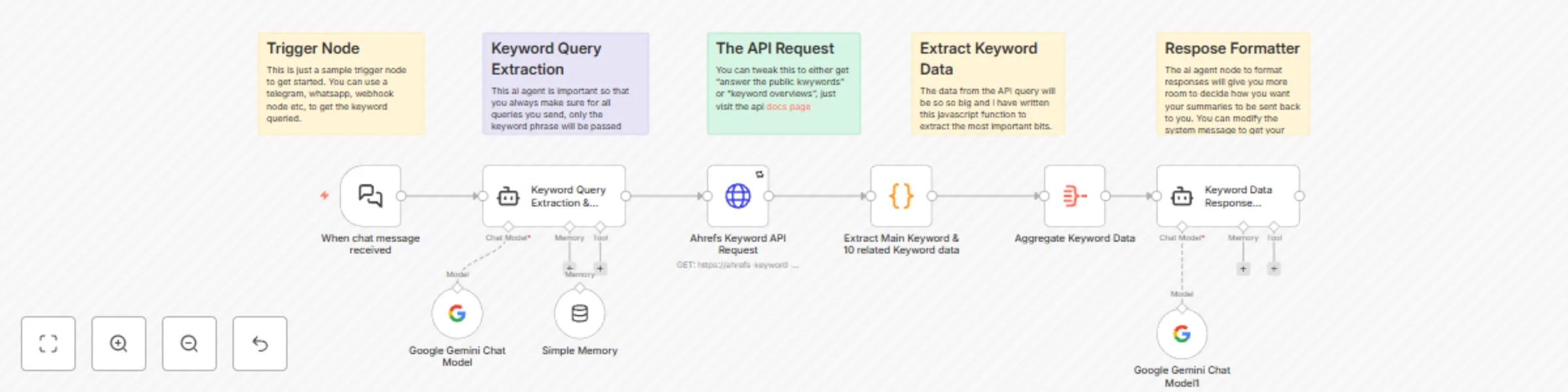
This n8n workflow automates **SEO keyword research** by querying the **Ahrefs API** for keyword data and related keyword insights. The enriched data is then processed by an AI agent to format a response and provide valuable SEO recommendations. Perfect for **SEO specialists, content marketers, digital agencies**, and anyone looking to gain valuable insights into keyword opportunities to boost their rankings. --- ## ⚙️ How This Workflow Works This workflow guides you through the entire SEO keyword research process, from entering the initial keyword to receiving detailed insights and related keyword suggestions. ### 1. 🗣️ User Input (Keyword Query) - The user enters a **keyword** they want to research. - This input is captured by the **Chat Input Node**, ready for analysis. ### 2. 🤖 AI Agent (Input Verification) - The AI Agent reviews the keyword input for any **grammatical errors** or extra commentary. - If necessary, it cleans the input to ensure a seamless query to the API. ### 3. 🔑 Ahrefs API (Keyword Data Retrieval) - The cleaned **keyword** is sent to the **Ahrefs Keyword Tool API**. - This retrieves a detailed report including metrics like **search volume**, **keyword difficulty**, and **CPC**. ### 4. 💡 Related Keywords Extraction (Using JavaScript Function) - The workflow uses a **JavaScript function** to extract main keyword data and **10 related keywords data** from the Ahrefs response. - You can tweak the script to adjust the number of related keywords or the level of detail you want. ### 5. 🧠 AI Agent (Text Formatting) - The aggregated data, including both the main keyword and related keywords, is sent to an **AI agent**. - The AI agent formats the data into a concise, readable format that can be shared with the user. ### 6. 📨 Final Response - The formatted text is delivered to the user with keyword insights, recommendations, and related keyword suggestions. --- ## ✅ Smart Retry & Error Handling Each subworkflow includes a **fail-safe mechanism** to ensure: - ✅ Proper error handling for any issues with the API request. - 🕒 Failed API requests are retried after a **customizable period** (e.g., 2 hours or 1 day). - 💬 **User input validation** prevents any incorrect or malformed queries from being processed. --- ## 📋 Ahrefs API Setup To use this workflow, you’ll need to set up your Ahrefs API credentials: ### 🔑 Ahrefs API - Sign up for an Ahrefs account and get your key here: [Ahrefs Keyword Tool API](https://rapidapi.com/environmentn1t21r5/api/ahrefs-keyword-tool) - Once signed up, you'll receive an API key, which you’ll use in the `x-rapidapi-key` header in n8n. - Ensure you check the **Ahrefs Keyword Tool API documentation** for more details on available parameters. --- ## 📥 How to Import This Workflow 1. Copy the json code. 2. Open your n8n instance. 3. Open a new workflow. 4. Paste anywhere inside the workflow. 5. Voila. --- ## 🛠️ Customization Options - Adjust the **number of related keywords** extracted (default is 10). - Customize the **AI agent response** formatting or add specific recommendations for users. - Modify the JavaScript function to **extract different metrics** from the Ahrefs API. --- ## 🧪 Use Case Example Trying to optimize your blog post around a specific keyword? 1. Query a broad keyword, like **“SEO tips”**. 2. Get related keyword data and **search volume insights**. 3. Use the AI agent to provide **keyword recommendations** and additional topics to target. 4. 💥 Boost your content strategy with fresh keywords and relevant search data!
Extract and clean YouTube video transcripts with RapidAPI
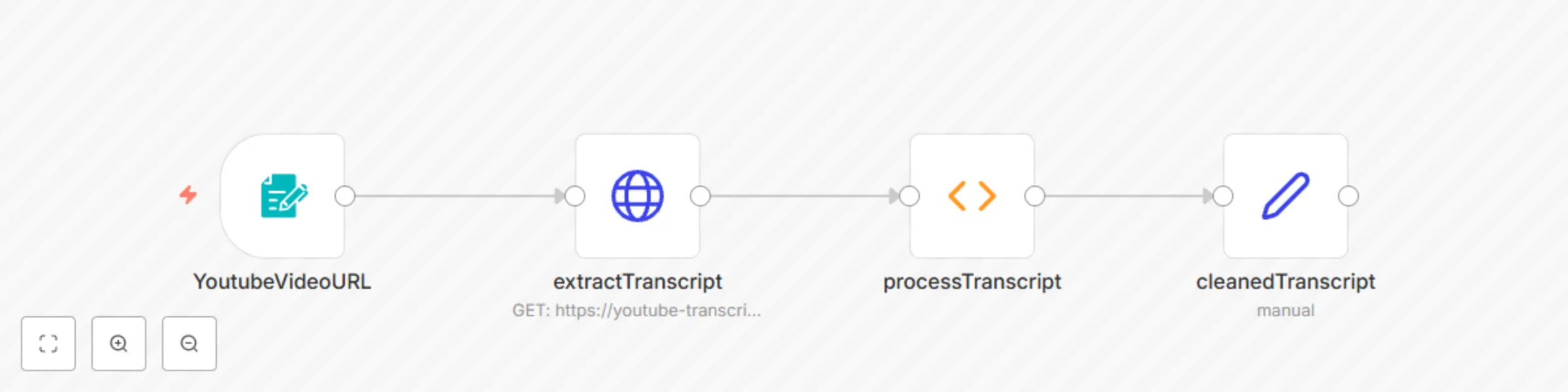
Here is your refined template description with detailed step-by-step instructions, markdown formatting, and customization guidance. --- # YouTube Transcript Extraction Workflow This **n8n workflow** extracts and processes transcripts from YouTube videos using the **YouTube Transcript API** on RapidAPI. It allows users to retrieve subtitles from YouTube videos, clean them up, and return structured transcript data for further processing. ## Table of Contents - [Problem Statement & Target Audience](#problem-statement--target-audience) - [Pre-conditions & API Requirements](#pre-conditions--api-requirements) - [Step-by-Step Workflow Explanation](#step-by-step-workflow-explanation) - [Customization Guide](#customization-guide) - [How to Set Up This Workflow](#how-to-set-up-this-workflow) --- ## Problem Statement & Target Audience ### **Who is this for?** This workflow is ideal for content creators, researchers, and developers who need to: - Extract **subtitles** from YouTube videos automatically. - **Format and clean** transcript data for readability. - Use transcripts for **summarization, content repurposing, or language analysis**. --- ## Pre-conditions & API Requirements ### **API Required** - **YouTube Transcript API** ([RapidAPI](https://rapidapi.com/solid-api-solid-api-default/api/youtube-transcript3/playground)) ### **n8n Setup Prerequisites** - A running **n8n instance** ([Installation Guide](https://docs.n8n.io/)) - A **RapidAPI account** to access the **YouTube Transcript API** - An **API key** from RapidAPI to authenticate requests --- ## Step-by-Step Workflow Explanation ### **1. Input YouTube Video URL (Trigger)** - This step provides a simple input form where users enter a YouTube video URL. ### **2. HTTP Request Node (Retrieve Transcript Data)** - Makes a **POST request** to the YouTube Transcript API via RapidAPI. - Passes the video URL received from the input form. - Uses an **environment variable** to store the API key securely. ### **3. Function Node (Process Transcript)** - **Receives** the API response containing the **raw transcript**. - **Processes and cleans** the transcript: - Removes unwanted characters. - Formats text for readability. - **Handles errors** when no transcript is available. - **Outputs** both the **raw and cleaned transcript** for further use. ### **4. Set Field Node (Response Formatting)** - **Structures** the processed transcript data into a user-friendly format. - **Returns** the final transcript data to the client. --- ## Customization Guide ### **1. Modify Transcript Cleaning Rules** - Update the **Function Node** to apply custom text processing, such as: - Removing timestamps. - Changing the output format (e.g., JSON, plain text). ### **2. Store Transcripts in a Database** - Add a **Database Node** (e.g., MySQL, PostgreSQL, or Firebase) to save transcripts. ### **3. Generate Summaries from Transcripts** - Integrate **AI services** (e.g., OpenAI, Google Gemini) to summarize transcripts. ### **4. Convert Transcripts into Speech** - Use **ElevenLabs API** to generate an AI-powered voiceover from transcripts. --- ## How to Set Up This Workflow ### **Step 1: Import the Workflow into n8n** - Download or copy the workflow JSON file. - Import it into your **n8n instance**. ### **Step 2: Set Up the API Key** - Sign up for the **[YouTube Transcript API](https://rapidapi.com/solid-api-solid-api-default/api/youtube-transcript3/playground)**. - Subscribe to the api. - Copy and paste your api key where the "your_api_key" is. ### **Step 3: Activate the Workflow** - Start the workflow in **n8n**. - Enter a **YouTube video URL** in the input form. - The workflow will return a **cleaned transcript**. --- This workflow ensures seamless YouTube transcript extraction and processing with minimal manual effort. 🚀
Generate AI YouTube shorts with Flux, Runway, Eleven Labs and Creatomate
# Automated Video Creation Workflow Using n8n This workflow automates the creation and publishing of animated videos based on ideas listed in a Google Sheet. It processes one idea at a time, generating text prompts, images, animations, sound effects, and merging them into a final video before uploading it to YouTube. ## Table of Contents - [Pre-conditions and Requirements](#pre-conditions-and-requirements) - [Google Sheets Setup](#google-sheets-setup) - [Step-by-Step Workflow Explanation](#step-by-step-workflow-explanation) - [Customization Guide](#customization-guide) --- ## Pre-conditions and Requirements ### 1. **API Keys Required** To run this workflow, you'll need API access to the following services: - **Anthropic Claude or Google Gemini** (for text prompt generation) - **Flux AI** ([RapidAPI](https://rapidapi.com/poorav925/api/ai-text-to-image-generator-flux-free-api/playground/apiendpoint_b28cd8ef-63fe-4242-98e4-908a332770d3)) (for AI-generated images) - **RunwayML** ([API Documentation](https://dev.runwayml.com/)) (for AI video animation) - **ElevenLabs** (for AI-generated voiceovers and sound effects) - **Creatomate** ([Website](https://creatomate.com)) (for video/audio merging and rendering) - **YouTube API** (for video upload and posting) ### 2. **n8n Instance Setup** - Use cloud (n8n.io) or Install and run n8n ([Official Guide](https://docs.n8n.io/)) - Set up credentials for each API in n8n’s settings --- ## Google Sheets Setup Before running the workflow, ensure your Google Sheet is structured as follows: | **Column Name** | **Description** | |------------------|----------------| | `title` | Video title (e.g., "Elijah's Fiery Chariot") | | `bibleverse` | Corresponding Bible verse reference | | `idea` | Brief description of the scene | | `style` | Animation style (e.g., cinematic, vibrant, etc.) | | `caption` | Suggested caption for social media | | `videoStatus` | Status of video creation (`To Do`, `Created`) | | `publishStatus`| Publishing status (`Not Processed`, `Processed`) | --- ## Step-by-Step Workflow Explanation ### 1. **Extract an Idea from Google Sheets** - The workflow retrieves the first row where `videoStatus = "To Do"`. - Marks it as `Processing` to avoid duplicate processing. ### 2. **Generate a Prompt for AI Image Creation and Sound Effects/Audio** - Uses **Anthropic Claude** or **Google Gemini** to generate prompts. ### 3. **Generate an AI Image with Flux AI** - Sends the prompt to **Flux AI** to create a high-quality image. ### 4. **Animate the Image Using RunwayML** - The generated image is sent to **RunwayML**, which animates the image. ### 5. **Generate Sound Effects and Voiceover with ElevenLabs** - ElevenLabs produces a realistic narration based on the video content. - Background sound effects (e.g., storm sounds, fire crackling) are also generated. ### 6. **Merge Video and Audio Using Creatomate** - **Creatomate** compiles the animated video with the audio. ### 7. **Upload and Publish to YouTube** - The finalized video is automatically uploaded to **YouTube** using the YouTube API. ### 8. **Update Google Sheet Status** - Marks `videoStatus` as `Created`. - Marks `publishStatus` as `Processed`. --- ## Customization Guide ### **Modifying the Animation Style** - Update the `style` column in Google Sheets with custom animation preferences (e.g., cinematic, slow-motion). - Modify the prompt generation step in n8n to incorporate different styles. ### **Changing the Video Length** - Adjust the **RunwayML** settings to control animation speed and length. - Modify the **Creatomate** rendering step to adjust clip duration. ### **Adding Subtitles** - Modify the **Creatomate** step to include AI-generated subtitles from ElevenLabs' text output. ### **Publishing to Other Platforms** - Add additional steps to post to TikTok, Instagram, or Facebook using their respective APIs. --- This workflow ensures a fully automated video creation pipeline, reducing manual effort and optimizing content production. 🚀