Generate Google Maps lead lists with SerpApi, Google Gemini and Sheets

Workflow preview

Workflow preview
100%
Generate Google Maps lead lists with SerpApi, Google Gemini and Sheets preview
Open on n8n.io

1. Workflow Overview

This workflow automates the process of identifying local businesses with a weak digital presence to offer them specialized marketing services. By combining real time data from Google Maps with the ...

Best for

  • Lead Generation automation workflows
  • AI Summarization automation workflows
  • advanced n8n builders looking for reusable templates

Tools used

@n8n/n8n-nodes-langchain.lmchatgooglegemini, n8n-nodes-base.stickynote, n8n-nodes-base.formtrigger, n8n-nodes-base.httprequest, n8n-nodes-base.splitout, n8n-nodes-base.filter, n8n-nodes-base.sort, n8n-nodes-base.limit

Source and attribution

This workflow is cataloged by N8N Workflows and links back to its original n8n.io source page by JESUS PACAHUALA ARROYO.

Original n8n.io source

1.1 Workflow description

Title
Generate Google Maps lead lists with SerpApi, Google Gemini and Sheets
Workflow name
Generate Google Maps lead lists with SerpApi, Google Gemini and Sheets

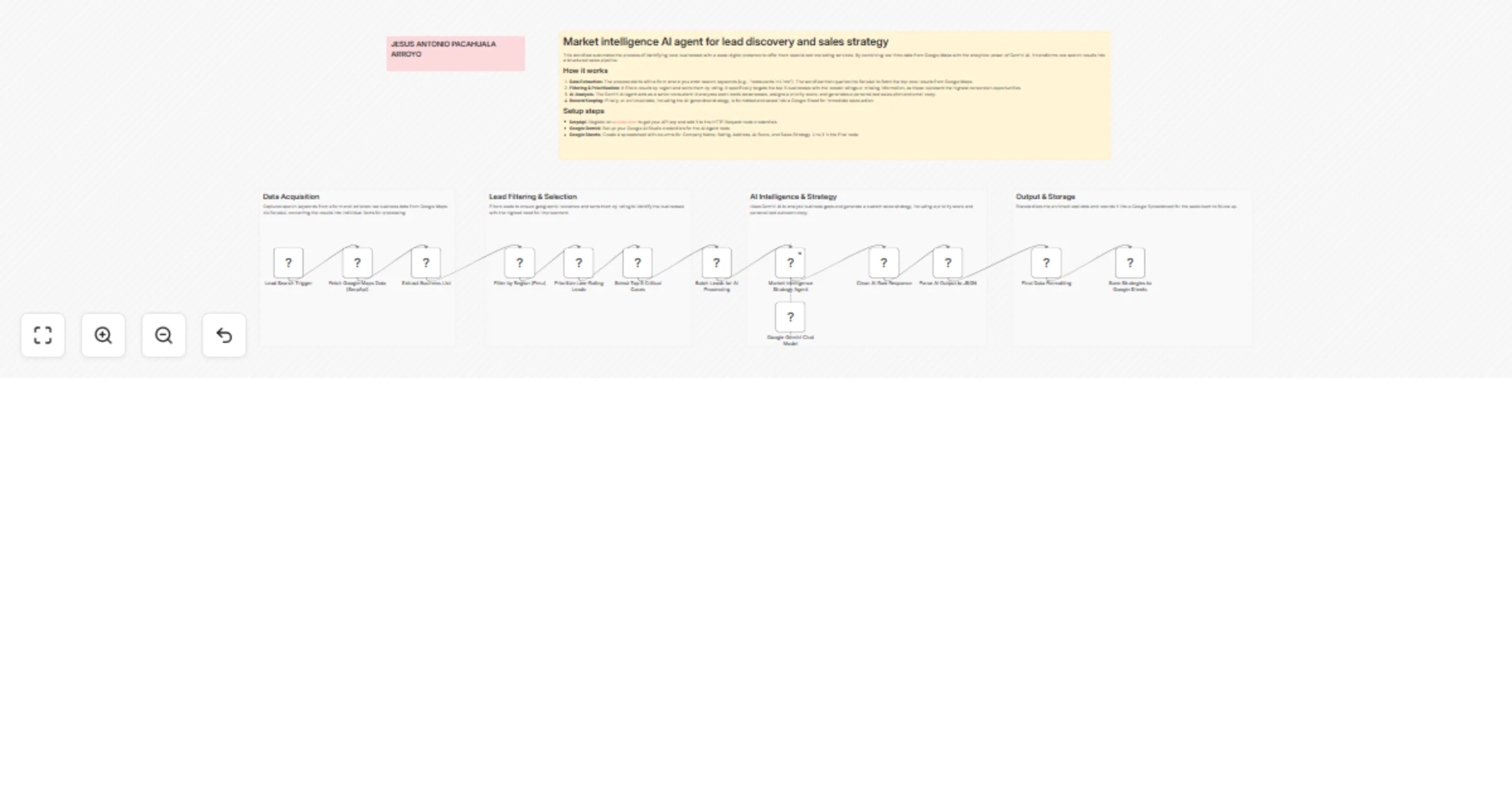
This workflow automates the process of identifying local businesses with a weak digital presence to offer them specialized marketing services. By combining real-time data from Google Maps with the analytical power of Gemini AI, it transforms raw search results into a structured sales pipeline.

How it works

  1. Data Extraction: The process starts with a form where you enter search keywords (e.g., "restaurants in Lima"). The workflow then queries the SerpApi to fetch the top local results from Google Maps.
  2. Filtering & Prioritization: It filters results by region and sorts them by rating. It specifically targets the top 5 businesses with the lowest ratings or missing information, as these represent the highest conversion opportunities.
  3. AI Analysis: The Gemini AI agent acts as a senior consultant. It analyzes each lead's weaknesses, assigns a priority score, and generates a personalized sales pitch and email copy.
  4. Record Keeping: Finally, all enriched data, including the AI-generated strategy, is formatted and saved into a Google Sheet for immediate sales action.

Setup steps

  • SerpApi: Register at serpapi.com to get your API key and add it to the HTTP Request node credentials.
  • Google Gemini: Set up your Google AI Studio credentials for the AI Agent node.
  • Google Sheets: Create a spreadsheet with columns for Company Name, Rating, Address, AI Score, and Sales Strategy. Link it in the final node.

1.2 Logical Blocks

This catalog entry is organized from the workflow JSON. The node-level section below shows the executable blocks available for review before importing the template.

2. Block-by-Block Analysis

Block 1 - Google Gemini Chat Model

Type / Role
@n8n/n8n-nodes-langchain.lmChatGoogleGemini - lmChatGoogleGemini
Config choices
Version 1

Block 2 - Sticky Note

Type / Role
n8n-nodes-base.stickyNote - stickyNote
Config choices
Version 1

Block 3 - Sticky Note12

Type / Role
n8n-nodes-base.stickyNote - stickyNote
Config choices
Version 1

Block 4 - Lead Search Trigger

Type / Role
n8n-nodes-base.formTrigger - formTrigger
Config choices
Version 2.5

Block 5 - Fetch Google Maps Data (SerpApi)

Type / Role
n8n-nodes-base.httpRequest - httpRequest
Config choices
Version 4.4

Block 6 - Extract Business List

Type / Role
n8n-nodes-base.splitOut - splitOut
Config choices
Version 1

Block 7 - Filter by Region (Peru)

Type / Role
n8n-nodes-base.filter - filter
Config choices
Version 2.3

Block 8 - Prioritize Low-Rating Leads

Type / Role
n8n-nodes-base.sort - sort
Config choices
Version 1

Block 9 - Select Top 5 Critical Cases

Type / Role
n8n-nodes-base.limit - limit
Config choices
Version 1

Block 10 - Batch Leads for AI Processing

Type / Role
n8n-nodes-base.aggregate - aggregate
Config choices
Version 1

Block 11 - Market Intelligence Strategy Agent

Type / Role
@n8n/n8n-nodes-langchain.agent - agent
Config choices
Version 3.1

Block 12 - Clean AI Raw Response

Type / Role
n8n-nodes-base.set - set
Config choices
Version 3.4

Block 13 - Parse AI Output to JSON

Type / Role
n8n-nodes-base.code - code
Config choices
Version 2

Block 14 - Final Data Formatting

Type / Role
n8n-nodes-base.set - set
Config choices
Version 3.4

Block 15 - Save Strategies to Google Sheets

Type / Role
n8n-nodes-base.googleSheets - googleSheets
Config choices
Version 4.7

Block 16 - Sticky Note13

Type / Role
n8n-nodes-base.stickyNote - stickyNote
Config choices
Version 1

Block 17 - Sticky Note14

Type / Role
n8n-nodes-base.stickyNote - stickyNote
Config choices
Version 1

Block 18 - Sticky Note15

Type / Role
n8n-nodes-base.stickyNote - stickyNote
Config choices
Version 1

Block 19 - Sticky Note16

Type / Role
n8n-nodes-base.stickyNote - stickyNote
Config choices
Version 1

3. Summary Table

Workflow Generate Google Maps lead lists with SerpApi, Google Gemini and Sheets
Complexity advanced
Nodes 19
Categories Lead Generation, AI Summarization
Author JESUS PACAHUALA ARROYO
Published 25 Feb 2026

4. Reproducing the Workflow from Scratch

  1. 1. Download the workflow JSON

    Use the JSON export at /data/workflows/13678/13678.json as the source template for this automation.

  2. 2. Import the template into n8n

    Open n8n, import the downloaded JSON, and review each node before activating the workflow.

  3. 3. Configure credentials and variables

    Replace placeholder credentials, API keys, webhook URLs, account IDs, and environment-specific values with your own settings.

  4. 4. Test with sample data

    Run the workflow manually or in a staging workspace, inspect node output, and confirm downstream systems receive the expected data.

  5. 5. Activate and monitor

    Enable the workflow only after testing, then monitor executions, errors, and rate limits during the first production runs.

5. General Notes & Resources

Review imported nodes carefully before activation. This catalog entry is intended to help you inspect the workflow structure, understand required services, and find related templates faster.

Node names, credentials, schedules, webhook paths, and external service limits may need adjustment for your workspace.

Frequently asked questions

What does Generate Google Maps lead lists with SerpApi, Google Gemini and Sheets do?

This workflow automates the process of identifying local businesses with a weak digital presence to offer them specialized marketing services. By combining real time data from Google Maps with the ...

What do I need before importing this workflow?

Review the workflow JSON, configure any required credentials in n8n, and test the automation in a safe workspace before using it in production.

Can I customize this workflow?

Yes. Use the block-by-block analysis and the downloadable JSON to inspect each node, then adjust credentials, prompts, schedules, filters, or destinations for your Lead Generation, AI Summarization use case.