Block 1 - Rate Limit Delay
- Type / Role
- n8n-nodes-base.wait - wait
- Config choices
- Version 1.1


 Early Deal
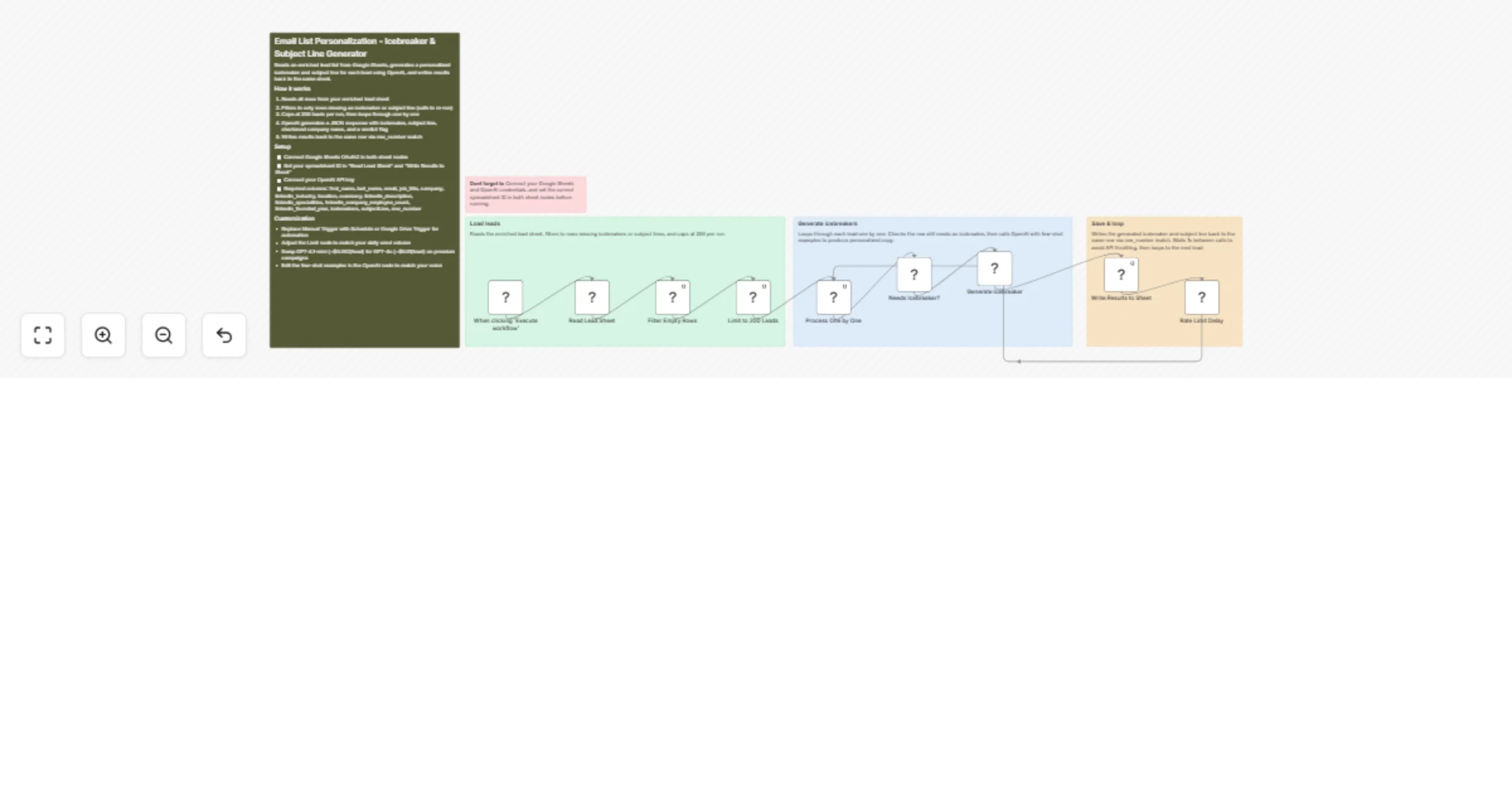
Email List Personalization Icebreaker & Subject Line Generator Reads an enriched lead list from Google Sheets, generates a personalized icebreaker + subject line for each lead using OpenAI, and wri...
n8n-nodes-base.wait, n8n-nodes-base.googlesheets, n8n-nodes-base.filter, n8n-nodes-base.limit, n8n-nodes-base.splitinbatches, n8n-nodes-base.if, @n8n/n8n-nodes-langchain.openai, n8n-nodes-base.manualtrigger
This workflow is cataloged by N8N Workflows and links back to its original n8n.io source page by Devon Toh.
Original n8n.io sourceReads an enriched lead list from Google Sheets, generates a personalized icebreaker + subject line for each lead using OpenAI, and writes results back to the same sheet -- ready for your email sequencer.
SDRs, founders, and agency owners running cold outbound who want personalized first lines without spending 2-3 minutes per lead on manual research. Sits between your Apollo / Sales Nav export and Instantly / Smartlead / Lemlist.
Generic cold emails get ignored. Writing unique icebreakers for 200+ leads/day is not realistic by hand. This workflow does it at ~$0.002/lead with GPT-4.1-mini -- spartan, human-sounding copy that references real prospect details.
icebreakers or subjectLine is empty (safe to re-run)icebreaker -- spartan one-liner referencing their company/role/industrysubjectLine -- personalized with name + relevant hookshortenedCompanyName -- strips "Agency", "Inc.", "LLC" for natural copyverdict -- true for real people, false for company pages (filter before sending)row_number match keyfirst_name, last_name, email, job_title, company, linkedin_industry, location, summary, linkedin_description, linkedin_specialities, linkedin_company_employee_count, linkedin_founded_year, icebreakers, subjectLine, row_numberBuilt by Devon Toh
This catalog entry is organized from the workflow JSON. The node-level section below shows the executable blocks available for review before importing the template.
| Workflow | Generate cold email icebreakers and subject lines with Google Sheets and OpenAI |
|---|---|
| Complexity | intermediate |
| Nodes | 14 |
| Categories | Lead Generation, AI Summarization |
| Author | Devon Toh |
| Published | 20 Mar 2026 |
Use the JSON export at /data/workflows/14199/14199.json as the source template for this automation.
Open n8n, import the downloaded JSON, and review each node before activating the workflow.
Replace placeholder credentials, API keys, webhook URLs, account IDs, and environment-specific values with your own settings.
Run the workflow manually or in a staging workspace, inspect node output, and confirm downstream systems receive the expected data.
Enable the workflow only after testing, then monitor executions, errors, and rate limits during the first production runs.
Review imported nodes carefully before activation. This catalog entry is intended to help you inspect the workflow structure, understand required services, and find related templates faster.
Node names, credentials, schedules, webhook paths, and external service limits may need adjustment for your workspace.
Email List Personalization Icebreaker & Subject Line Generator Reads an enriched lead list from Google Sheets, generates a personalized icebreaker + subject line for each lead using OpenAI, and wri...
Review the workflow JSON, configure any required credentials in n8n, and test the automation in a safe workspace before using it in production.
Yes. Use the block-by-block analysis and the downloadable JSON to inspect each node, then adjust credentials, prompts, schedules, filters, or destinations for your Lead Generation, AI Summarization use case.