Block 1 - Schedule Trigger
- Type / Role
- n8n-nodes-base.scheduleTrigger - scheduleTrigger
- Config choices
- Version 1.3


 Early Deal
Social Media Post & Caption Generator (Google Drive → AI Caption → Approval → Auto Post) Automatically turn your existing content library into approved, AI written social media posts. This workflow...
n8n-nodes-base.scheduletrigger, n8n-nodes-base.googledrive, n8n-nodes-base.if, @blotato/n8n-nodes-blotato.blotato, n8n-nodes-base.code, @n8n/n8n-nodes-langchain.openai, n8n-nodes-base.gmail, n8n-nodes-base.stickynote
This workflow is cataloged by N8N Workflows and links back to its original n8n.io source page by Automate With Marc.
Original n8n.io sourceAutomatically turn your existing content library into approved, AI-written social media posts. This workflow selects a random file from Google Drive, generates an Instagram caption using AI, sends it to you for approval, and—once approved—uploads and publishes the post via Blotato.
🎥 Watch Step-By-Step Guide: https://youtu.be/9XU9ECcj9dg
On a scheduled basis (default: 10:00 AM), this workflow: Searches a specified Google Drive folder for content files Randomly selects one file to avoid repetitive posting Uses AI to generate an Instagram-ready caption based on the file name Sends the caption + file link to you via email for approval
If approved: Downloads the file from Drive Uploads the media to Blotato Creates and publishes the social media post
If rejected: Automatically loops back and selects a different random file
Keeps your social media consistent with minimal manual effort Adds a human-in-the-loop approval step for quality control Eliminates the need to manually write captions or pick content Ideal for creators, solo marketers, and small teams managing content at scale
Requirements Before using this template, connect the following credentials in n8n: Google Drive OAuth (searching & downloading files) OpenAI API (caption generation) Gmail OAuth (approval email workflow) Blotato API (media upload & social posting)
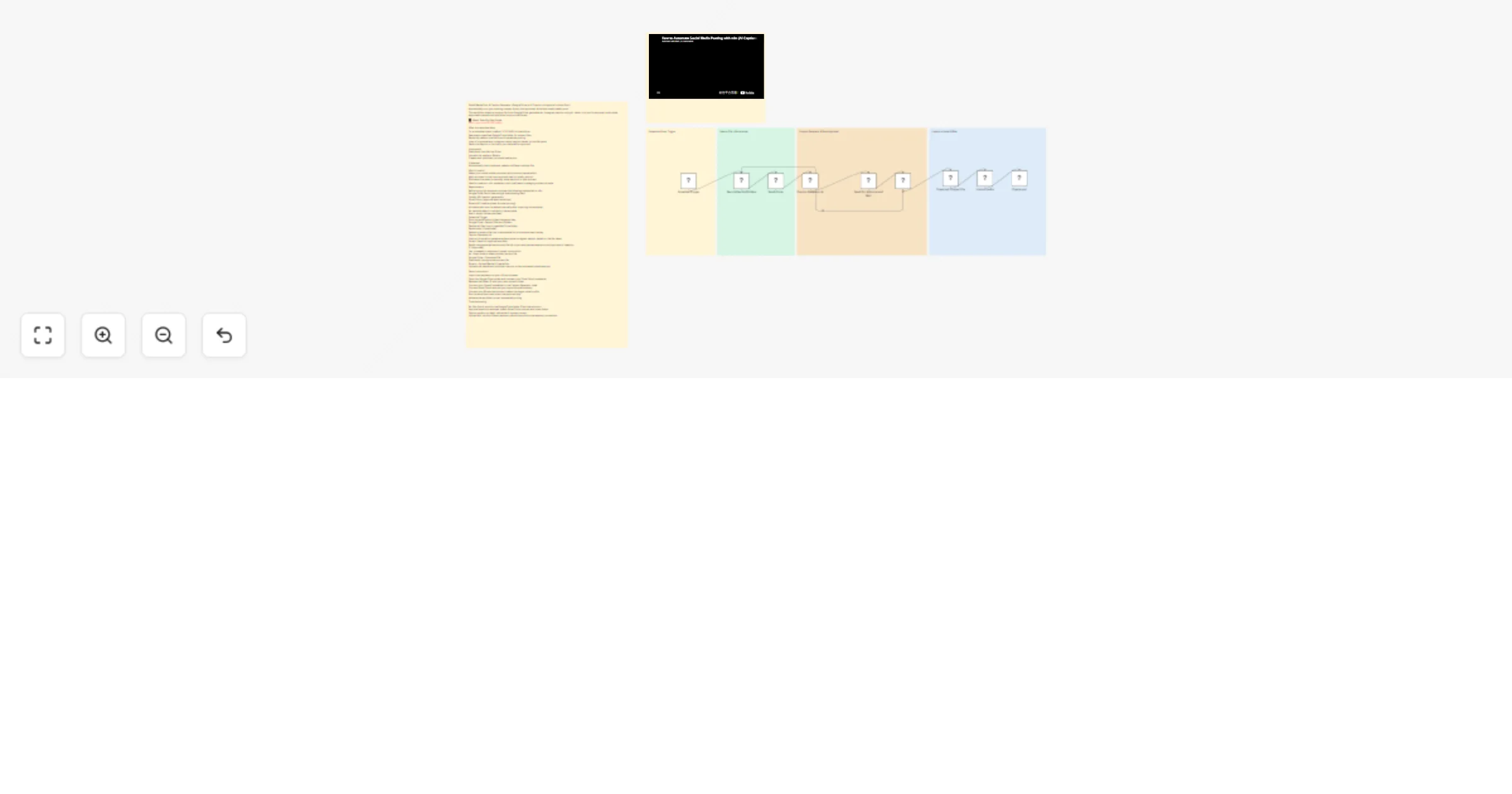
All credentials must be added manually after importing the template. No sensitive data is included in the template. How it works (Node overview) Schedule Trigger Runs the workflow at a fixed time each day. Google Drive – Search Files and Folders Fetches all files from a specified Drive folder. Randomizer (Code Node) Selects a random file from the available list to ensure content variety. Caption Generator AI Uses an AI model to generate a descriptive Instagram caption based on the file name. Gmail – Send for Approval and Wait Emails the generated caption and file link to you and pauses execution until approval or rejection. IF (Approved) Yes: proceeds to download, upload, and publish No: loops back to select another random file Google Drive – Download File Downloads the approved content file. Blotato – Upload Media & Create Post Uploads the media and publishes the post to the connected social account.
Import the template into your n8n workspace Open the Google Drive nodes and connect your Drive OAuth credential Replace the Folder ID with your own content folder Connect your OpenAI credential in the Caption Generator node Connect Gmail OAuth and set your approval email address Connect your Blotato account and select the target social profile Run the workflow once to test the approval loop Activate the workflow to start automated posting
Adjust the AI system prompt to change tone (funny, educational, sales-focused)
Add hashtag rules (e.g. max 5 hashtags, niche-specific only)
Replace random selection with “least recently posted” logic using a Data Table
Duplicate the Blotato node to post to multiple platforms
Add a fallback step to auto-edit captions that exceed character limits
No files found: confirm the Google Drive folder ID and permissions
Approval email not received: check Gmail OAuth scopes and spam folder
Caption quality not ideal: refine the AI system prompt
Upload fails: confirm Blotato account permissions and social account connection
This catalog entry is organized from the workflow JSON. The node-level section below shows the executable blocks available for review before importing the template.
| Workflow | Generate and post Instagram captions with Google Drive, GPT-4.1-mini, Gmail and Blotato |
|---|---|
| Complexity | advanced |
| Nodes | 15 |
| Categories | Social Media, Multimodal AI |
| Author | Automate With Marc |
| Published | 16 Jan 2026 |
Use the JSON export at /data/workflows/12755/12755.json as the source template for this automation.
Open n8n, import the downloaded JSON, and review each node before activating the workflow.
Replace placeholder credentials, API keys, webhook URLs, account IDs, and environment-specific values with your own settings.
Run the workflow manually or in a staging workspace, inspect node output, and confirm downstream systems receive the expected data.
Enable the workflow only after testing, then monitor executions, errors, and rate limits during the first production runs.
Review imported nodes carefully before activation. This catalog entry is intended to help you inspect the workflow structure, understand required services, and find related templates faster.
Node names, credentials, schedules, webhook paths, and external service limits may need adjustment for your workspace.
Social Media Post & Caption Generator (Google Drive → AI Caption → Approval → Auto Post) Automatically turn your existing content library into approved, AI written social media posts. This workflow...
Review the workflow JSON, configure any required credentials in n8n, and test the automation in a safe workspace before using it in production.
Yes. Use the block-by-block analysis and the downloadable JSON to inspect each node, then adjust credentials, prompts, schedules, filters, or destinations for your Social Media, Multimodal AI use case.