A

Automate With Marc

47
Workflows

Workflows by Automate With Marc

Workflow preview: Create AI personalized video & voice outreach with HeyGen, ElevenLabs & Perplexity
Free advanced

Create AI personalized video & voice outreach with HeyGen, ElevenLabs & Perplexity

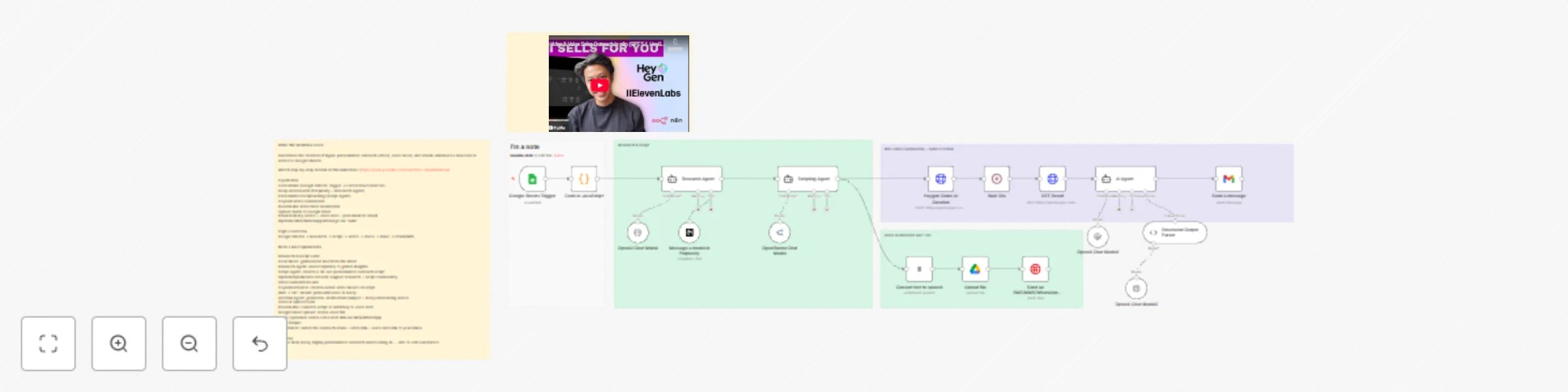
# Automated Sales Rep Clone Outreach Video and Voice Note for B2B Outbound This workflow automatically transforms new leads from Google Sheets into hyper-personalized outreach videos, voice notes, and emails using AI research, scriptwriting, video cloning, and voice generation. Perfect for SDRs, founders, and agencies who want to scale outreach without sacrificing personalization. 🎥 Watch step by step build: https://www.youtube.com/watch?v=q9AAh9zRou4 ## What this template does Whenever a new row is added to your Google Sheets CRM, this workflow: Reads the new lead (Name, Email, Phone, Company, Industry, LinkedIn URL) Runs deep research on the person & company using Perplexity Generates a personalized 30-second outreach script Creates a cloned-face, AI-generated HeyGen video with the script Creates an ElevenLabs voice note using the same personalized insights Uploads the audio file to Google Drive Sends an email to yourself containing: Outreach subject line Email body Personalized video link Personalized voice note link (Optional) Sends a WhatsApp/SMS/MMS message via Twilio with the files or links This template builds a complete AI-powered outbound engine—research, video, voice note, and email—fully automated. ## Why this is useful Turns manual outbound into a hands-free, 360° AI workflow Personalized video outreach dramatically increases reply rates Consistent research quality for every lead SDRs save hours per day on manual prep Perfect for: Influencer agencies SaaS outbound teams Founders doing cold outreach Recruitment agencies Real estate & service businesses Requirements Before running this workflow, connect: Google Sheets OAuth (trigger + CRM sheet) Perplexity API Key OpenAI API Key (GPT-5.1, GPT-4.1-mini) OpenRouter API Key HeyGen API Key (for video avatar) ElevenLabs API Key (for voice note) Google Drive OAuth (for file upload) Twilio credentials (optional SMS/WhatsApp) ⚠️ All credentials must be added manually after importing. This ensures security and complies with n8n Template Guidelines. ## How it works (Node Breakdown) 1. Google Sheets Trigger Watches your CRM sheet and fires whenever a new lead row is added. 2. Code Node — Extract Latest Row Ensures only the newly added row continues through the workflow. 3. Research Agent Powered by OpenAI + Perplexity Scrapes professional history, company insights, marketing gaps Identifies outreach opportunities & triggers Produces a structured research summary 4. Scripting Agent Writes a natural, human-sounding 30-second outreach script tailored to that exact lead. 5. HeyGen Video Generator Creates a personalized avatar video narrating the script (720×1280). 6. ElevenLabs Voice Generation Generates a custom voice note version of the pitch. 7. Google Drive Upload Saves the voice note file for sharing or sending via WhatsApp. 8. Twilio Message (optional) Sends the voice note or video link via SMS/WhatsApp. 9. Email Output Creates a fully structured JSON email including: Subject line Personalized body HeyGen video link Voice note link Delivered via Gmail node. Setup (Step-by-Step) Import the template into n8n Open Google Sheets Trigger → choose your CRM sheet Add all required credentials: Perplexity OpenAI OpenRouter HeyGen ElevenLabs Google Drive Gmail Twilio (optional) In HeyGen node, choose: Your avatar Your preferred voice ID In ElevenLabs node, set: Your preferred voice model Review the system prompts of: Research Agent Script Agent Email Agent Adjust for your brand tone if needed. Run once manually to test. Turn on the workflow—your AI outbound engine is live. Customization Ideas Swap HeyGen avatar to match your brand identity Add a Slack notification when each video is ready Save research & scripts into a Notion database Create a HubSpot contact for each lead Add duplicate detection logic Auto-post video to social channels for public outreach ## Troubleshooting Video stuck in “processing”? → Increase the Wait node duration (30–60 sec). Voice note too robotic? → Switch to a premium ElevenLabs voice. Research not specific enough? → Strengthen the system prompt with more constraints. Emails not arriving? → Ensure Gmail OAuth has send permission configured. API authentication errors? → Check credentials in each node (OpenAI, Perplexity, HeyGen, etc.).

A
Automate With Marc
Lead Nurturing
28 Nov 2025
538
0
Workflow preview: Analyze images & PDFs from Google Drive with Gemini 3 AI
Free advanced

Analyze images & PDFs from Google Drive with Gemini 3 AI

# Gemini 3 Image & PDF Extractor (Google Drive → Gemini 3 → Summary) Automatically summarize newly uploaded images or PDF reports using Google Gemini 3, triggered directly from a Google Drive folder. Perfect for anyone who needs fast AI-powered analysis of financial reports, charts, screenshots, or scanned documents. 🎥 Watch the full step-by-step video tutorial: https://www.youtube.com/watch?v=UuWYT_uXiw0 ## What this template does This workflow watches a Google Drive folder for new files and automatically: 1. Detects new uploaded files - Uses Google Drive Trigger - Watches a specific folder for fileCreated events Filters by MIME type: - image/png - image/webp - application/pdf 2. Downloads the file automatically Depending on the file type: Images → Download via HTTP Request → Send to Gemini 3 Vision PDFs → Download via HTTP Request → Extract content → Send to Gemini 3 3. Analyzes content using Gemini 3 Two separate processing lanes: 🖼️ Image Lane Image is sent to Gemini 3 (Vision / Image Analyze) Extracts textual + visual meaning from charts, diagrams, or screenshots Passes structured output to an AI Analyst Agent Agent summarizes and highlights top 3 findings 📄 PDF Lane PDF is downloaded Text is extracted using Extract From File Processed using Gemini 3 via OpenRouter Chat Model AI Analyst Agent summarizes charts/tables and extracts insights ## Why this workflow is useful Save hours manually reading PDFs, charts, and screenshots Convert dense financial or operational documents into digestible insights Great for: Financial analysts Operations teams Market researchers Content & reporting teams Anyone receiving frequent reports via Drive Requirements Before using this template, you will need: Google Drive OAuth credential (for Drive trigger + file download) Gemini 3 / PaLM or OpenRouter API key (Optional) Update folder ID to your own Google Drive target folder ⚠️ No credentials are included in this template. Add them manually after importing it. Node Overview Google Drive Trigger Watches a specific Drive folder for newly added files Provides metadata like webContentLink and MIME type Filter by Type (IF Node) Routes files to Image lane or PDF lane png or webp → Image pdf → PDF 🖼️ Image Processing Lane Download Image (HTTP Request) Analyze Image (Gemini Vision) Analyzer Agent Summarizes findings Highlights actionable insights Powered by OpenRouter Gemini 3 📄 PDF Processing Lane Download PDF (HTTP Request) Extract From File → PDF Analyzer Agent (PDF) Summarizes extracted chart/report information Highlights key takeaways ## Setup Guide Import the template into your n8n workspace Open Google Drive Trigger Select your Drive OAuth credential Replace folder ID with your target folder Open Gemini 3 / OpenRouter AI Model nodes Add your API credentials Test by uploading: A PNG/WebP chart screenshot A multi-page PDF report Check the execution to view summary outputs ## Customization Ideas Add email delivery (send the summary to yourself daily) Save summaries into: Google Sheets Notion Slack channels n8n Data Tables Add a second agent to convert summaries into: Weekly reports PowerPoint slides Slack-ready bullet points Add classification logic: Revenue reports Marketing analytics Product dashboards Financial charts ## Troubleshooting Trigger not firing? Confirm your Drive OAuth credential has read access to the folder. Gemini errors? Ensure your model ID matches your API provider: models/gemini-3-pro-preview google/gemini-3-pro-preview PDF extraction empty? Check if the file contains selectable text or only images. (You can add OCR if needed.)

A
Automate With Marc
Document Extraction
20 Nov 2025
500
0
Workflow preview: Create comedic marketing reels with Sora2, OpenAI & auto-post to social media
Free advanced

Create comedic marketing reels with Sora2, OpenAI & auto-post to social media

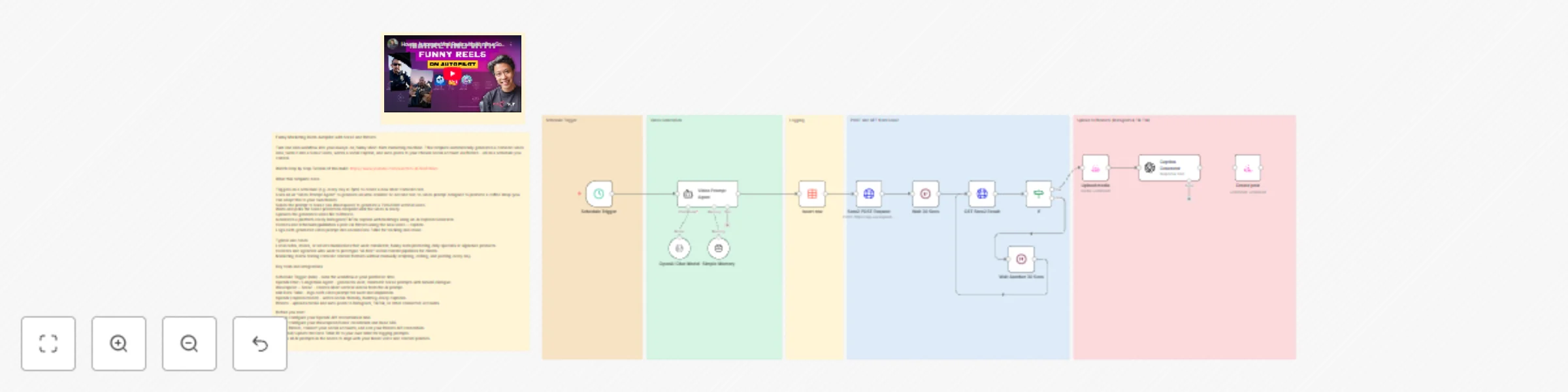
# Viral Marketing Reel & Autopost with Sora2 + Blotato Create funny, ultra-realistic marketing reels on autopilot using n8n, Sora2, Blotato, and OpenAI. This beginner-friendly template generates a comedic video prompt, creates a 12-second Sora2 video, writes a caption, and auto-posts to Instagram/TikTok — all on a schedule. 🎥 Watch the full step-by-step tutorial: https://www.youtube.com/watch?v=lKZknEzhivo ## What this template does This workflow automates an entire short-form content production pipeline: Scheduled Trigger: Runs automatically at your chosen time (e.g., every evening at 7PM). AI “Video Prompt Agent”: Creates a cinematic, funny, 12-second Sora2 text-to-video prompt designed to promote a product (default: Sally’s Coffee). Insert Row (Data Table): Logs each generated video prompt for tracking, reuse, or inspiration. Sora2 (via Wavespeed): Sends POST request to generate a video. Waits 30 seconds. Polls the prediction endpoint until the video is completed. Blotato Integration: Uploads the finished video to your connected social account(s). Automatically publishes or schedules the post. Caption Generator: Uses an AI agent to create an Instagram/TikTok-ready caption with relevant hashtags. This turns n8n into a hands-free comedic marketing engine that writes, creates, and posts content for you. ## Why it’s useful Create daily or weekly marketing reels without filming, editing, or writing scripts. Experiment with new comedic formats, hooks, and product placements in seconds. Perfect for small businesses, agencies, creators, and social media managers. Demonstrates how to combine AI agents + Sora2 + polling + external posting services inside one workflow. ## Requirements Before running this template, configure: OpenAI API Key (for the prompt agent & caption model) Wavespeed / Sora2 API credentials Blotato account connected to Instagram/TikTok (for posting) n8n Data Table (optional, or replace with your own) ⚠️ All credentials must be added manually after import. No real credentials are included in the template. ## How it works 1. Schedule Trigger Runs at a fixed time or interval. 2. Video Prompt Agent (LangChain Agent) Generates a cinematic, realistic comedic video idea. Built with a detailed system prompt. Ensures brand integration (e.g., Sally’s Coffee) happens naturally. 3. Insert Row (Data Table) Logs each generated prompt so future videos can be referenced or reused. 4. Sora2 POST Request Sends the generated prompt to Sora2 via Wavespeed’s /text-to-video endpoint. 5. Wait 30s + GET Sora2 Result Polls the result until data.status === "completed". Continues looping if still “processing”. 6. Upload Media (Blotato) Uploads the finished video file. 7. Caption Generator Creates a funny, platform-ready Instagram/TikTok caption with hashtags. 8. Create Post (Blotato) Publishes (or schedules) the video + caption. Setup Instructions (Step-by-Step) Import template into n8n. Open Video Prompt Agent → review or customize the brand name, style, humor tone. Add your OpenAI API credentials: For prompt generation For caption generation Add your Wavespeed/Sora2 credentials to the POST and GET nodes. Connect your Blotato credential for uploading and posting. (Optional) Replace the Data Table ID with your own table. Adjust the Schedule Trigger time to your desired posting schedule. Run once manually to confirm: Prompt is generated Video is created Caption is written Video uploads successfully Enable workflow → your daily/weekly comedic autoposter is live. ## Customization Ideas Change the brand from Sally’s Coffee to any business, product, or influencer brand. Modify the prompt agent to enforce specific camera styles, settings, or comedic tones. Swap posting destinations: Blotato supports multiple networks—configure IG/TikTok/Facebook/YouTube Shorts. Add approval steps: Insert a Slack/Telegram “Approve before posting” step. Add analytics logging: Store video URLs, caption, and AI cost estimate. ## Troubleshooting Sora video stuck in processing: Increase the wait time or add another polling loop. Upload fails: Ensure media URL exists and Blotato account has posting permissions. Caption empty: Reconnect OpenAI credential or check model availability. Posting fails: Confirm your Blotato API key is valid and linked to a connected account. Category: Marketing, AI Video, Social Media Automation Difficulty: Beginner–Intermediate Core Nodes: LangChain Agent, HTTP Request, Wait, Data Table, Blotato, OpenAI Includes: System prompts, polling logic, caption generator, posting workflow

A
Automate With Marc
Social Media
13 Nov 2025
2808
0
Workflow preview: Generate AI videos with OpenAI Sora 2 & Google Veo 3.1 via parallel processing
Free advanced

Generate AI videos with OpenAI Sora 2 & Google Veo 3.1 via parallel processing

# **Automate Video Generation with Sora 2 & Veo 3.1 - For Beginners** Kick-start AI video generation in n8n with two popular paths: OpenAI Sora 2 and Google Veo 3.1 (via Wavespeed). This beginner-friendly template lets you type a prompt in Chat Trigger, then automatically: Call Sora 2 to generate a short 720p clip and email the MP4. Call Veo 3.1 through Wavespeed, poll until ready, and email the result link. 🎥 Watch the full step-by-step build: https://www.youtube.com/watch?v=qjFWfYvHxlY ## ## What this template does Chat input → Two video routes run in parallel: Sora 2 route: HTTP Request (POST /v1/videos) → HTTP Request (GET /videos/{id}/content) → Gmail (attach MP4). Veo 3.1 route (Wavespeed): HTTP Request (POST /google/veo3.1/text-to-video) → poll result with HTTP Request (GET /predictions/{id}/result) inside a Wait + IF loop → Gmail (send result URL). Includes pinned sample prompt for a marketing use case. Uses Sticky Notes to explain each lane and link to the tutorial. ### Why it’s useful (for beginners) No code required: fill credentials, paste your prompt, run. Side-by-side comparison: learn how Sora 2 vs Veo 3.1 flows differ (direct file vs polled URL). Email delivery built-in: get outputs in your inbox for quick review. ### Requirements OpenAI API key with access to Sora 2 video endpoint. Wavespeed API key (for Veo 3.1). Google Gmail OAuth2 (to send yourself the results). n8n (self-hosted or Cloud), with internet access. Note: Replace any placeholder or demo credentials after import. Never commit real keys to public templates. ### Credentials to set in n8n HTTP Header Auth – OpenAI Sora 2 Header Name: Authorization Value: Bearer YOUR_OPENAI_API_KEY HTTP Header Auth – Wavespeed Header Name: Authorization Value: Bearer YOUR_WAVESPEED_API_KEY Gmail OAuth2 Connect your Google account. In the two Gmail nodes, change “sendTo” to your email. ### How it works (nodes overview) When chat message received (Chat Trigger) Receives your chatInput prompt. Veo 3.1 lane (top) HTTP Request — Post to Wavespeed POST https://api.wavespeed.ai/api/v3/google/veo3.1/text-to-video Body params (editable): aspect_ratio, duration, generate_audio, prompt, resolution. Wait 1 Minute → HTTP Request — Get result Polls GET /api/v3/predictions/{id}/result. IF (status === "completed") True → Gmail — Send Video Result to Email (sends the output URL). False → Wait another 60 secs → back to Wait 1 Minute (poll again). Sora 2 lane (bottom) HTTP Request — POST /v1/videos (OpenAI) Multipart form: prompt={{$json.chatInput}}, model="sora-2-pro", size="1280x720", seconds="8". HTTP Request — GET /v1/videos/{id}/content Downloads the MP4 as binary (video.mp4). Gmail — Send Video to Email Attaches video.mp4 and emails it to you. ### Setup (step-by-step) Import the template into n8n. Open each HTTP Request node and select the correct HTTP Header Auth credentials. Open both Gmail nodes and: Select your Gmail OAuth2 credential. Change “sendTo” to your email. ### (Optional) Tweak defaults: Sora 2: size (e.g., 1920x1080), seconds (e.g., 5–10). Veo 3.1 via Wavespeed: aspect_ratio (9:16, 16:9, 1:1), duration, resolution. Wait timing and max polling passes (add an extra IF to stop after N attempts). Execute Workflow and enter your prompt in the Chat window. ### Customization tips Different delivery: swap Gmail for Google Drive, Slack, or Telegram nodes. Approval loop: after email, branch to a Slack approval step before archiving the file. Brand presets: store common prompt fragments (tone, overlays, logo instructions) in an Item Lists/Set node and merge into the main prompt. Content length: Sora and Veo costs/latency grow with duration—start short (5–8s), then iterate. ### Troubleshooting 403/401 errors: re-check API keys and header names (Authorization: Bearer …). Empty Veo output: confirm polling loop runs until status = completed; inspect the GET result JSON path used in email (data.outputs[0]). Sora content fetch fails: ensure the second GET uses the returned id path and outputs binary video.mp4. Email not received: verify Gmail OAuth2 scope and recipient; check n8n executions for errors. NSFW/safety blocks: refine the prompt to avoid restricted content.

A
Automate With Marc
Content Creation
30 Oct 2025
8570
0
Workflow preview: Automate podcast creation with GPT, Claude & Eleven Labs text-to-speech
Free advanced

Automate podcast creation with GPT, Claude & Eleven Labs text-to-speech

# ## Podcast on Autopilot — Generate Podcast Ideas, Scripts & Audio Automatically with Eleven Labs, GPT-5 and Claude Sonnet 4.0 Bring your solo podcast to life — on full autopilot. This workflow uses GPT-5 and Claude Sonnet to turn a single topic input into a complete podcast episode intro and ready-to-send audio file. ## How it works Start a chat trigger – enter a seed idea or topic (e.g., “habits,” “failure,” “technology and purpose”). Podcast Idea Agent (GPT-5) instantly crafts a thought-provoking, Rogan- or Bartlett-style episode concept with a clear angle and takeaway. Podcast Script Agent (Claude 4.0 Sonnet) expands that idea into a natural, engaging 60-second opening monologue ready for recording. Text-to-Speech via ElevenLabs automatically converts the script into a high-quality voice track. Email automation sends the finished MP3 directly to your inbox. ## Perfect for • Solo creators who want to ideate, script and voice short podcasts effortlessly • Content teams prototyping daily or weekly audio snippets • Anyone testing AI-driven storytelling pipelines ## Customization tips • Swap ElevenLabs with your preferred TTS service by editing the HTTP Request node. • Adjust prompt styles for tone or audience in the Idea and Script Agents. • Modify the Gmail (or other mail service) node to send audio to any destination (Drive, Slack, Notion, etc.). • For reuse at scale, add variables for episode number, guest name, or theme category — just clone and update the trigger node. ## Watch step-by-step tutorial (how to build it yourself) https://www.youtube.com/watch?v=Dan3_W1JoqU ## Requirements & disclaimer • Requires API keys for OpenAI + Anthropic + ElevenLabs (or your chosen TTS). • You’re responsible for managing costs incurred through AI or TTS usage. • Avoid sharing sensitive or private data as input into prompt flows. • Designed with modularity so you can turn off or swap/deep-link any stage (idea → script → voice → email) without breaking the chain.

A
Automate With Marc
Content Creation
22 Oct 2025
1060
0
Workflow preview: Daily stock market digest with GPT-5, Decodo scraping & Gmail delivery
Free intermediate

Daily stock market digest with GPT-5, Decodo scraping & Gmail delivery

# Step-By-Step AI Stock Market Research Agent (Beginner) Build your own AI-powered daily stock market digest — automatically researched, summarized, and delivered straight to your inbox. This beginner-friendly n8n workflow shows how to combine OpenAI GPT-5, Decodo scraping tool, and Gmail to produce a concise daily financial update without writing a single line of code. 🎥 Watch a full tutorial and walkthrough on how to build and customize similar workflows at: https://www.youtube.com/watch?v=DdnxVhUaQd4 ## What this template does Every day, this agent automatically: Triggers on schedule (e.g., 9 a.m. daily). Uses Decodo Tool to fetch real market headlines from Bloomberg, CNBC, Reuters, Yahoo Finance, etc. Passes the information to GPT-5, which summarizes key events into a clean daily report covering: Major indices (S&P 500, Nasdaq, Dow) Global markets (Europe & Asia) Sector trends and earnings Congressional trading activity Major financial and regulatory news Emails the digest to you in a neat, ready-to-read HTML format. ## Why it’s useful (for beginners) Zero coding: everything configured through n8n nodes. Hands-on AI Agent logic: learn how a language-model node, memory, and web-scraping tool work together. Practical use case: a real-world agent that automates market intelligence for investors, creators, or business analysts. ## Requirements OpenAI API Key (GPT-4/5 compatible) Decodo API Key (for market data scraping) Gmail OAuth2 Credential (to send daily digest) Credentials to set in n8n OpenAI API (Chat Model) → Connect your OpenAI key. Decodo API → Paste your Decodo access key. Gmail OAuth2 → Connect your Google Account and edit “send to” email address. ## How it works (nodes overview) 1. Schedule Trigger Starts the workflow at a preset time (default: daily). 2. AI Research Agent Acts as a Stock Market Research Assistant. Uses GPT-5 via OpenAI Chat Model. Uses Decodo Tool to fetch real-time data from trusted finance sites. Applies custom system rules for concise summaries and email-ready HTML output. 3. Simple Memory Maintains short-term context for clean message passing between nodes. 4. Decodo Tool Handles all data scraping and extraction using the AI’s tool calls. 5. Gmail Node Emails the final daily digest to the user (default subject: “Daily AI News Update”). ## Setup (step-by-step) Import template into n8n. Open each credential node → connect your accounts. In the Gmail node, replace “sendTo” with your email. Adjust Schedule Trigger → e.g., every weekday 8:30 a.m. (Optional) Edit the system prompt in AI Research Agent to focus on different sectors (crypto, energy, tech). Click Execute Workflow Once to test — you’ll receive an AI-curated digest in your inbox. ## Customization tips 🕒 Change frequency: adjust Schedule Trigger to run multiple times daily or weekly. 📰 Add sources: extend the Decodo Tool input with new URLs (e.g., Seeking Alpha, MarketWatch). 📈 Switch topic: modify prompt to track crypto, commodities, or macroeconomic data. 💬 Alternative delivery: send digest via Slack, Telegram, or Notion instead of Gmail. ## Troubleshooting 401 errors: verify OpenAI/Decodo credentials. Empty output: ensure Decodo Tool returns valid data; inspect the agent’s log. Email not sent: confirm Gmail OAuth2 scope and recipient email. Formatting issues: keep output in HTML mode; avoid Markdown.

A
Automate With Marc
Crypto Trading
2 Oct 2025
307
0
Workflow preview: Create & auto-post Instagram reels with AI clones: Script-to-post (Heygen + Submagic + Blotato)
Free advanced

Create & auto-post Instagram reels with AI clones: Script-to-post (Heygen + Submagic + Blotato)

# AI Clone Instagram Influencer Reel Builder + Auto-Post (Heygen + Submagic + Blotato) ## Description Turn an idea into a finished Instagram Reel—end to end, on autopilot. This template generates a compelling Reel script, sends it to Heygen to produce an AI avatar/clone video, applies dynamic on-video captions with Submagic, then uploads and auto-posts to Instagram via Blotato, complete with a tailored AI-written caption. Ideal for creators, agencies, and brands who want consistent short-form output without manual editing. ##### 👉 Watch step-by-step automation builds on YouTube: https://youtu.be/MmZxLuAkqig?si=DRfS89yQlSlbMbfZ ### What This Template Does ✍️ Generates a short-form Reel script from your topic/idea (optimized hook → body → close). 🧑‍🎤 Creates an AI avatar video using Heygen (character + voice) from that script. 🅰️ Adds stylized overlaid captions using Submagic (template selectable). ☁️ Uploads media to Blotato and auto-posts to Instagram Reels. 🧠 Writes an IG caption (with hashtags) using an AI Caption Agent tuned for engagement. ### How It Works (Node Flow) Chat Trigger – Send a topic/idea to start the run. Instagram Script Generator (Agent) – Creates a 25–30s script (hook → insights → soft CTA). POST to Heygen – Generates an avatar video from the script (avatar_id, voice_id, size). Wait & Poll – Checks Heygen status until the video is ready. POST to Submagic – Creates a project and applies your caption style (e.g., “Hormozi 2”). Wait & Poll – Retrieves the captioned video URL when completed. Upload media (Blotato) – Uploads the final video to your Blotato account. Instagram Caption Agent – Produces an on-brand IG caption + hashtag block from the original script. Create Post (Blotato) – Publishes to Instagram as a Reel with the AI caption and uploaded media. ### Required Credentials OpenAI (or compatible) – for script + caption agents. Heygen API – HTTP Header Auth (API key). Submagic API – HTTP Header Auth (API key). Blotato API – Account + token. (Optional) KodeKey/Base URL if you route OpenAI-compatible models through your gateway. Best practice: store all secrets in n8n Credentials, not hard-coded in nodes. ### Quick Start Import the template into n8n. Create/assign credentials for OpenAI (or compatible), Heygen, Submagic, and Blotato. In Heygen, set your avatar_id and voice_id (or swap with your own). In Submagic, set templateName, language, and style preferences. In Blotato, confirm the accountId and instagramMediaType: reel. Run the workflow from the Chat Trigger with a topic (e.g., “3 money habits for 2025”). Confirm the Reel shows up in your connected Instagram account. Customization Tips Script Persona: Adjust the agent system prompt (niche, tone, audience). Caption Style: Tweak the Caption Agent for hook length, CTAs, and hashtag strategy. Heygen Output: Change dimension to 1080×1920 for full-HD vertical. Submagic Template: Swap templateName to match your brand. Posting Targets: Extend Blotato to cross-post to TikTok/YouTube Shorts. Error Handling & Reliability Uses Wait + status polling for both Heygen and Submagic before downstream steps. Includes IF checks to re-poll when processing is not complete. Recommendation: add Slack/Email alerts and Retry options for production use. ### Ideal For Solo creators and founders posting daily Social media managers and agencies Edu/Coach brands scaling short-form content

A
Automate With Marc
Content Creation
25 Sep 2025
1456
0
Workflow preview: Automate Instagram carousel creation with GPT-5, Nano Banana, and Blotato
Free advanced

Automate Instagram carousel creation with GPT-5, Nano Banana, and Blotato

## 🎨 Instagram Carousel & Caption Generator on Autopilot (GPT-5 + Nano Banana + Blotato + Google Sheets) ### Description **Watch the full step-by-step tutorial on YouTube:** **https://youtu.be/id22R7iBTjo** ![automateinstagramcarouselnanobananan8nbuildalong 1.jpg](fileId:2970) Disclaimer (self-hosted requirement): This template assumes you have valid API credentials for OpenAI, Wavespeed/Nano Banana, Blotato, and Google. If using n8n Self-Hosted, ensure HTTPS access and credentials are set in your instance. ### How It Works Chat Trigger – Receive a topic/idea (e.g. “5 best podcast tips”). Image Prompt Generator (GPT-5) – Creates 5 prompts using the “Hook → Problem → Insight → Solution → CTA” framework. Structured Output Parser – Formats output into a JSON array. Generate Images (Nano Banana) – Converts prompts into high-quality visuals. Wait for Render – Ensures image generation completes. Fetch Rendered Image URLs – Retrieves image links. Upload to Blotato – Hosts and prepares images for posting. Collect Media URLs – Gathers all uploaded image URLs. Log to Google Sheets – Stores image URLs + timestamps for tracking. Caption Generator (GPT-5) – Writes an SEO-friendly caption. Merge Caption + Images – Combines data. Post Carousel (Blotato) – Publishes directly to Instagram. ### Step-by-Step Setup Instructions 1) Prerequisites n8n (Cloud or Self-Hosted) OpenAI API Key (GPT-5) Wavespeed API Key (Nano Banana) Blotato API credentials (connected to Instagram) Google Sheets OAuth credentials 2) Add Credentials in n8n OpenAI: Settings → Credentials → Add “OpenAI API” Wavespeed: HTTP Header Auth (e.g. Authorization: Bearer <API_KEY>) Blotato: Add “Blotato API” Google Sheets: Add “Google Sheets OAuth2 API” 3) Configure & Test Run with an idea like “Top 5 design hacks”. Check generated images, caption, and logged sheet entry. Confirm posting works via Blotato. 4) Optional Add a Schedule Trigger for weekly automation. Insert a Slack approval loop before posting. ### Customization Guide ✏️ Change design style: Modify adjectives in the Image Prompt Generator. 📑 Adjust number of slides: Change Split node loop count. 💬 Tone of captions: Edit Caption Generator’s system prompt. ⏱️ Adjust render wait time: If image generation takes longer, increase the Wait node duration from 30 seconds to 60 seconds or more. 🗂️ Log extra data: Add columns in Google Sheets for campaign or topic. 🔁 Swap posting tool: Replace Blotato with your scheduler or email node. ### Requirements OpenAI API key (GPT-5 or compatible) Wavespeed API key (Nano Banana) Blotato API credentials Google Sheets OAuth credentials n8n account (Cloud or Self-Hosted)

A
Automate With Marc
Content Creation
24 Sep 2025
2484
0
Workflow preview: Enhance real-estate photos with Google Nano Banana AI via Telegram bot
Free advanced

Enhance real-estate photos with Google Nano Banana AI via Telegram bot

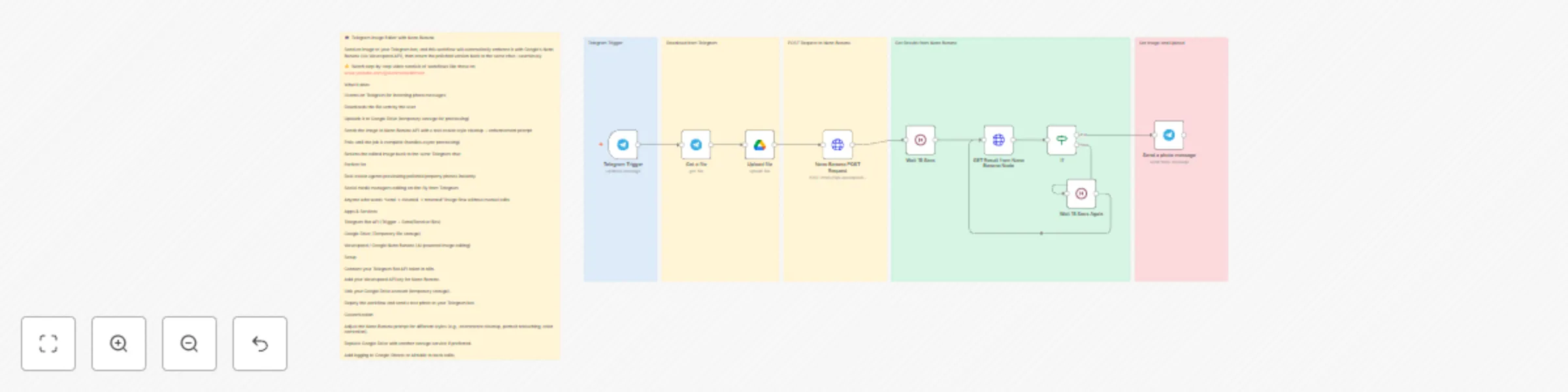
**🤖 Telegram Image Editor with Nano Banana** Send an image to your Telegram bot, and this workflow will automatically enhance it with Google’s Nano Banana (via Wavespeed API), then return the polished version back to the same chat—seamlessly. 👉 Watch step-by-step video tutorials of workflows like these on www.youtube.com/@automatewithmarc **What it does** - Listens on Telegram for incoming photo messages - Downloads the file sent by the user - Uploads it to Google Drive (temporary storage for processing) - Sends the image to Nano Banana API with a real-estate style cleanup + enhancement prompt - Polls until the job is complete (handles async processing) - Returns the edited image back to the same Telegram chat **Perfect for** Real-estate agents previewing polished property photos instantly Social media managers editing on-the-fly from Telegram Anyone who wants “send → cleaned → returned” image flow without manual edits Apps & Services Telegram Bot API (Trigger + Send/Receive files) Google Drive (Temporary file storage) Wavespeed / Google Nano Banana (AI-powered image editing) **Setup** Connect your Telegram Bot API token in n8n. Add your Wavespeed API key for Nano Banana. Link your Google Drive account (temporary storage). Deploy the workflow and send a test photo to your Telegram bot. **Customization** Adjust the Nano Banana prompt for different styles (e.g., ecommerce cleanup, portrait retouching, color correction). Replace Google Drive with another storage service if preferred. Add logging to Google Sheets or Airtable to track edits.

A
Automate With Marc
Content Creation
18 Sep 2025
977
0
Workflow preview: Automate image editing & Instagram posting with Nano Banana & GPT-5 captions
Free advanced

Automate image editing & Instagram posting with Nano Banana & GPT-5 captions

## **Auto-Edit Google Drive Images with Nano Banana + Social Auto-Post** Drop an image into Google Drive and let this workflow handle the rest: it auto-cleans and enhances the image with Google’s Nano Banana (via Wavespeed API), generates a catchy caption with GPT-5, and publishes directly to your connected social accounts using Postiz. **👉 Watch step-by-step video tutorials of workflows like these on ****https://www.youtube.com/watch?v=4wk6PYgBtBM&list=PL05w1TE8X3bb1H9lXBqUy98zmTrrPP-s1** ## What it does - Triggers from Google Drive when a new image is uploaded - Sends the image to Nano Banana to declutter, brighten, and make it real-estate/photo-listing ready - Polls for the edited result until it’s complete - Logs the edited image URL into Google Sheets for tracking - Downloads and uploads the edited image into Postiz media library - Generates an engaging caption with GPT-5 Caption Agent - Publishes instantly to Instagram (can be extended to TikTok, LinkedIn, etc.) ## Perfect for - Real-estate agents posting property shots - Ecommerce sellers updating product catalogs - Social media marketers needing fast, polished posts - Apps & Services ## Tools Used - Google Drive (Trigger) - Wavespeed API – Google Nano Banana (Image editing) - Google Sheets (Logging) - Postiz (Social scheduling/posting) - OpenAI GPT-5 (Caption agent) ## Setup - Connect your Google Drive and select the upload folder. - Add your Wavespeed API key for Nano Banana. - Connect Google Sheets for logging. - Add Postiz API credentials and set the integration ID for your channel(s). - Enter your OpenAI API key for GPT-5 captioning. ## Customization - Adjust the edit prompt for different use cases (e.g., product cleanup, lighting tweaks). - Change Postiz post type to scheduled instead of “now.” - Add more Postiz posts for multi-platform publishing. - Insert an approval loop (Slack/Email) before posting. ## Logs - Edited Image Log (Sheets): stores final image URL + timestamp. - Publishing Log (Sheets): tracks workflow status per asset. ## Notes - Sticky notes in the template explain each major block. - Replace sample IDs with your own (folder IDs, sheet IDs, Postiz integration). - Keep all API keys in n8n Credentials, not in node parameters.

A
Automate With Marc
Social Media
18 Sep 2025
1896
0
Workflow preview: Auto-edit images from Google Drive with Nano Banana and send via Gmail
Free intermediate

Auto-edit images from Google Drive with Nano Banana and send via Gmail

Auto-Edit Images from Google Drive with (Wavespeed) Nano Banana and Send via Gmail When a new image is uploaded to a specific Google Drive folder, this workflow sends it to Wavespeed’s Google Nano Banana image editing API, waits for the edited version, and then emails the result automatically. Perfect for creators, marketers, and ops teams who want hands-off, consistent image edits with instant delivery to a stakeholder inbox. 👉 Watch step-by-step video tutorials of workflows like these on: www.youtube.com/@automatewithmarc Highlights Google Drive trigger detects new image uploads Wavespeed API (Google Nano Banana) performs automated image editing Polling loop checks job status until complete Gmail auto-sends the edited image to your chosen recipient Great for social media pipelines, product photo retouching, or team approvals Apps & Nodes Used Trigger: Google Drive Trigger (fileCreated in folder) HTTP Request: POST to Wavespeed (submit edit job) Wait: Delay before first status check (15s) HTTP Request: GET result (poll prediction status) IF: Status == completed → proceed, else wait & recheck Gmail: Send edited image output to recipient Prerequisites n8n account (Cloud or Self-hosted) Google Drive folder for uploads Wavespeed API key (HTTP Header Auth) Gmail account with OAuth2 connected to n8n Configuration (5 Steps) Google Drive Trigger – set to your image upload folder. POST Image Edit Request – sends file URL + prompt (default: “Change the lighting to night scene”). Wait 15s – lets the job start. GET Image Edit Request – checks prediction status/result. IF → Gmail – once status = completed, send edited image to your chosen email. Customization Change the prompt (e.g., “remove background”, “enhance product lighting”). Set Gmail recipient dynamically or statically. Adjust polling wait times based on job length. Save results to Drive/S3 instead of email if needed. Error Handling Add IF nodes to catch API errors. Set a retry limit to avoid infinite loops. Use Drive “Share File” if API can’t access the uploaded file link.

A
Automate With Marc
Content Creation
14 Sep 2025
1171
0
Workflow preview: Automatic personalized sales follow-up with GPT-5, Pinecone, and Tavily Research
Free intermediate

Automatic personalized sales follow-up with GPT-5, Pinecone, and Tavily Research

Automatic Personalized Sales Follow-Up with GPT-5, Pinecone, and Tavily Research Description Never let a lead go cold. This workflow automatically sends personalized follow-up emails to every inbound inquiry. It combines GPT-5, Pinecone Vector DB, and Tavily Research to craft responses that align with your brand’s best practices, tone, and the latest product updates. With embedded research tools, every response is both timely and relevant—helping your sales team convert more leads without manual effort. 👉 Watch step-by-step builds of workflows like these on: www.youtube.com/@automatewithmarc How It Works Form Trigger – Captures inbound lead details (name, company, email, and message). AI Sales Agent (GPT-5) – Researches the lead’s business and problem statement, referencing Pinecone for your brand guidelines and product updates. Uses Tavily research for real-time enrichment. Structured Output Parser – Ensures the subject line and email body are formatted cleanly in JSON. Send Follow-Up Email (Gmail Node) – Delivers a polished, ready-to-go follow-up directly to the lead. Simple Memory – Maintains context across follow-ups for more natural conversations. Why Sales Teams Will Love It ⏱ Faster responses — every lead gets an immediate, high-quality reply. 📝 On-brand every time — Pinecone ensures tone matches your playbook. 🌍 Research-driven — Tavily enriches responses with fresh, relevant context. 📈 Higher conversions — timely, personalized outreach drives more meetings. 🤖 Hands-off automation — sales reps focus on closing, not chasing. Setup Instructions Form Trigger Configure your inbound form to capture lead details (name, email, company, message). Connect it to this workflow. Pinecone Setup Create a Pinecone index and embed your brand guidelines, sales playbook, and product updates. Update the Pinecone Vector Store node with your index name. Tavily Setup Add your Tavily API key to the Tavily Research node. OpenAI Setup Add your OpenAI API key to the GPT-5 Chat Model node. Adjust the system prompt inside the AI Agent to reflect your company’s style and tone. Gmail Node Connect your Gmail account to the Send Follow-Up Email node. Update sender details if you want the emails to come from a shared inbox or a rep’s personal account. Customization Tone of Voice – Modify the system prompt inside the AI Agent to be more professional, casual, or industry-specific. Scheduling Links – Replace the default Calendly link with your own booking tool. Form Fields – Add or remove fields depending on the information you collect (e.g., budget, role, region). Requirements Gmail account (for sending follow-up emails) OpenAI API key (GPT-5) Pinecone account (for storing/retrieving guidelines + updates) Tavily API key (for online research enrichment)

A
Automate With Marc
Lead Nurturing
5 Sep 2025
397
0
Workflow preview: Create research-backed blog content with Slack, Perplexity, Pinecone and Google Docs
Free intermediate

Create research-backed blog content with Slack, Perplexity, Pinecone and Google Docs

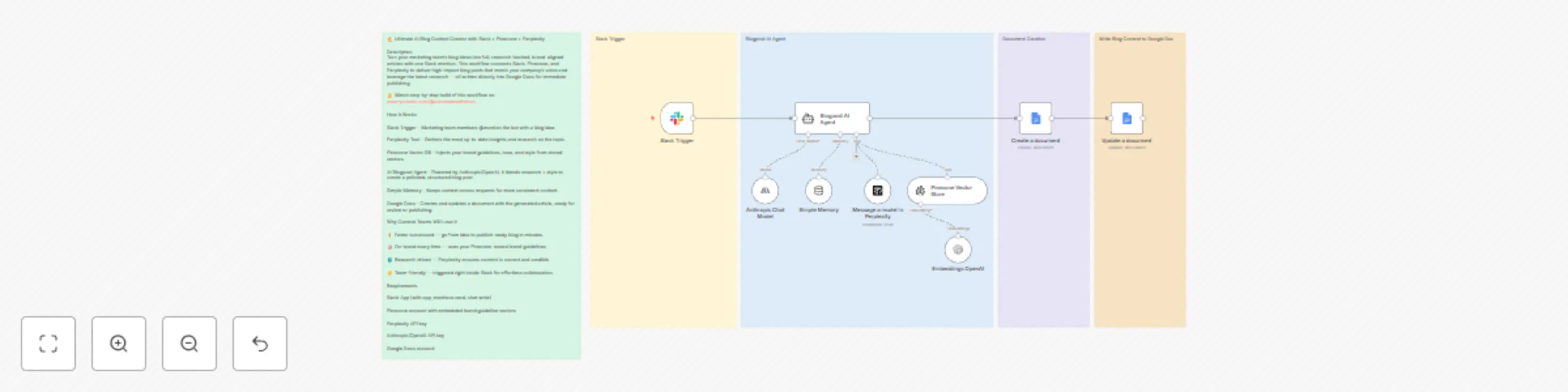
✍️ Ultimate AI Blog Content Creator with Slack + Pinecone + Perplexity Description Turn your marketing team’s blog ideas into full, research-backed, brand-aligned articles with one Slack mention. This workflow connects Slack, Pinecone, and Perplexity to deliver high-impact blog posts that match your company’s voice and leverage the latest research — all written directly into Google Docs for immediate publishing. 👉 Watch step-by-step build of this workflow on: www.youtube.com/@automatewithmarc How It Works Slack Trigger – Marketing team members @mention the bot with a blog idea. Perplexity Tool – Gathers the most up-to-date insights and research on the topic. Pinecone Vector DB – Injects your brand guidelines, tone, and style from stored vectors. AI Blogpost Agent – Powered by Anthropic/OpenAI, it blends research + style to create a polished, structured blog post. Simple Memory – Keeps context across requests for more consistent content. Google Docs – Creates and updates a document with the generated article, ready for review or publishing. Why Content Teams Will Love It ⚡ Faster turnaround — go from idea to publish-ready blog in minutes. 📝 On-brand every time — uses your Pinecone-stored brand guidelines. 🌍 Research-driven — Perplexity ensures content is current and credible. 🤝 Team-friendly — triggered right inside Slack for effortless collaboration. Requirements Slack App (with app_mentions:read, chat:write) Pinecone account with embedded brand guideline vectors Perplexity API key Anthropic/OpenAI API key Google Docs account

A
Automate With Marc
Content Creation
29 Aug 2025
324
0
Workflow preview: Auto-caption & post videos to Instagram & TikTok with Submagic, Postiz & OpenAI
Free advanced

Auto-caption & post videos to Instagram & TikTok with Submagic, Postiz & OpenAI

# 🎥 Auto-Caption & Autopost Videos to Instagram & TikTok ## Description Automate your short-form content pipeline! This workflow takes any video uploaded to a specific Google Drive folder, generates engaging captions with Submagic, and then auto-posts the finished video (with AI-generated captions) directly to Instagram or TikTok via Postiz. Captions are further refined with OpenAI for brand-ready social text. Finally, each published video is logged into a Google Sheet for tracking. 👉 Watch step-by-step build of this workflow on: www.youtube.com/@automatewithmarc ## How It Works Google Drive Trigger – Detects new video uploads. Submagic API – Adds styled captions automatically. Wait + Poll – Monitors job status until the captioned video is ready. Download Video – Retrieves the finished captioned video. Upload to Postiz – Sends the file to Postiz for multi-platform posting. Caption Agent (OpenAI) – Generates optimized Instagram/TikTok captions. Post to Instagram/TikTok – Publishes the video with caption. Update Log – Saves video details, captions, and status into Google Sheets. ## Why You’ll Love It ⚡ Hands-off publishing — videos go from raw to posted automatically. 📝 AI captions + Submagic styling — engaging text and visual consistency. 📊 Content tracking — every post logged in Google Sheets. 🎯 Perfect for Reels & TikToks — optimized for fast workflows and social reach. ## Requirements - Google Drive account - Submagic API key - Postiz account (for IG/TikTok posting) - OpenAI API key (for caption generation) - Google Sheets account

A
Automate With Marc
Multimodal AI
28 Aug 2025
1564
0
Workflow preview: Generate videos from chat with Google Vertex AI (Veo3)
Free intermediate

Generate videos from chat with Google Vertex AI (Veo3)

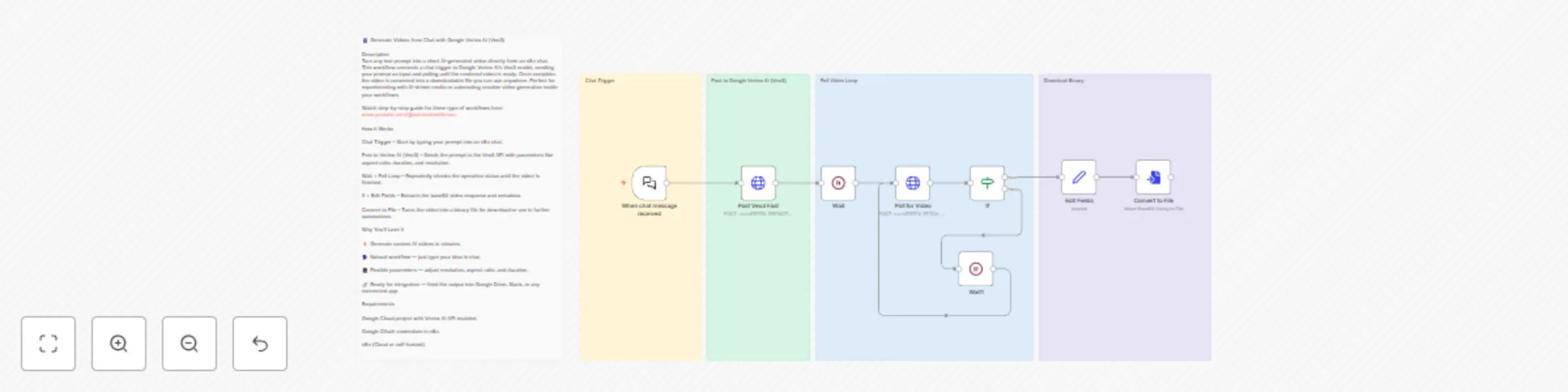
Generate Videos from Chat with Google Vertex AI (Veo3) - Beginner Friendly Description Turn any text prompt into a short AI-generated video directly from an n8n chat. This workflow connects a chat trigger to Google Vertex AI’s Veo3 model, sending your prompt as input and polling until the rendered video is ready. Once complete, the video is converted into a downloadable file you can use anywhere. Perfect for experimenting with AI-driven media or automating creative video generation inside your workflows. Watch step-by-step guide for these type of workflows here: www.youtube.com/@automatewithmarc How It Works Chat Trigger – Start by typing your prompt into an n8n chat. Post to Vertex AI (Veo3) – Sends the prompt to the Veo3 API with parameters like aspect ratio, duration, and resolution. Wait + Poll Loop – Repeatedly checks the operation status until the video is finished. If + Edit Fields – Extracts the base64 video response and metadata. Convert to File – Turns the video into a binary file for download or use in further automations. Why You’ll Love It ⚡ Generate custom AI videos in minutes. 🗣️ Natural workflow — just type your idea in chat. 🎥 Flexible parameters — adjust resolution, aspect ratio, and duration. 🔗 Ready for integration — feed the output into Google Drive, Slack, or any connected app. Requirements Google Cloud project with Vertex AI API enabled. Google OAuth credentials in n8n. n8n (Cloud or self-hosted).

A
Automate With Marc
Content Creation
27 Aug 2025
1003
0
Workflow preview: Auto-caption videos for Instagram/TikTok with Google Drive and Submagic
Free intermediate

Auto-caption videos for Instagram/TikTok with Google Drive and Submagic

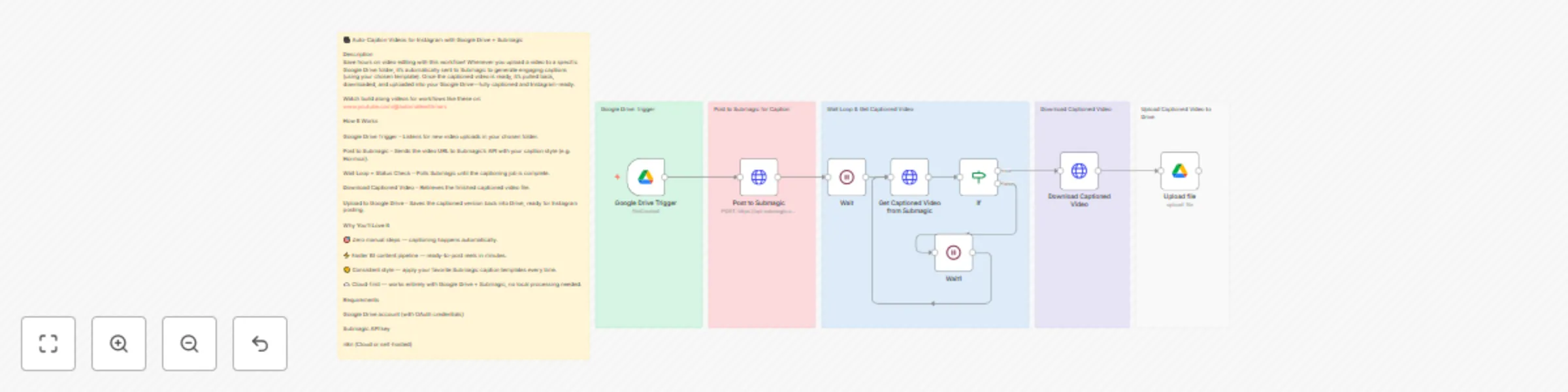
🎥 Auto-Caption Videos for Instagram with Google Drive + Submagic Description Save hours on video editing with this workflow! Whenever you upload a video to a specific Google Drive folder, it’s automatically sent to Submagic to generate engaging captions (using your chosen template). Once the captioned video is ready, it’s pulled back, downloaded, and uploaded into your Google Drive—fully captioned and Instagram-ready. Watch build along videos for workflows like these on: www.youtube.com/@automatewithmarc How It Works Google Drive Trigger – Listens for new video uploads in your chosen folder. Post to Submagic – Sends the video URL to Submagic’s API with your caption style (e.g. Hormozi). Wait Loop + Status Check – Polls Submagic until the captioning job is complete. Download Captioned Video – Retrieves the finished captioned video file. Upload to Google Drive – Saves the captioned version back into Drive, ready for Instagram posting. Why You’ll Love It 🎯 Zero manual steps — captioning happens automatically. ⚡ Faster IG content pipeline — ready-to-post reels in minutes. 🎨 Consistent style — apply your favorite Submagic caption templates every time. ☁️ Cloud-first — works entirely with Google Drive + Submagic, no local processing needed. Requirements Google Drive account (with OAuth credentials) Submagic API key n8n (Cloud or self-hosted)

A
Automate With Marc
Content Creation
22 Aug 2025
433
0
Workflow preview: Email drafting & news research assistant with OpenAI, Gmail, Tavily & Perplexity
Free advanced

Email drafting & news research assistant with OpenAI, Gmail, Tavily & Perplexity

AI Agent MCP for Email & News Research Build a chat-first MCP-powered research and outreach agent. This workflow lets you ask questions in an n8n chat, then the agent researches news (via Tavily + Perplexity through an MCP server) and drafts emails (via Gmail through a separate MCP server). It uses OpenAI for reasoning and short-term memory for coherent, multi‑turn conversations. Watch build along videos for workflows like these on: www.youtube.com/@automatewithmarc What this template does Chat-native trigger: Start a conversation and ask for research or an email draft. MCP client tools: The agent talks to two MCP servers — one for Email work, one for News research. News research stack: Uses Tavily (search) and Perplexity (LLM retrieval/answers) behind a News MCP server. Email stack: Uses Gmail Tool to generate and send messages via an Email MCP server. Reasoning + memory: OpenAI Chat Model + Simple Memory for context-aware, multi-step outputs. How it works (node map) When chat message received → collects your prompt and routes it to the agent. AI Agent (system prompt = “helpful email assistant”) → orchestrates tools via MCP Clients. OpenAI Chat Model → reasoning/planning for research or email drafting. Simple Memory → keeps recent chat context for follow-ups. News MCP Server exposes: Tavily Tool (Search) and Perplexity Tool (Ask) for up-to-date findings. Email MCP Server exposes: Gmail Tool (To, Subject, Message via AI fields) to send or draft emails. The MCP Clients (News/Email) plug into the Agent, so your single chat prompt can research and then draft/send emails in one flow. Requirements n8n (Cloud or self‑hosted) OpenAI API key for the Chat Model (set on the node) Tavily, Perplexity, and Gmail credentials (connected on their respective tool nodes) Publicly reachable MCP Server endpoints (provided in the MCP Client nodes) Setup (quick start) Import the template and open it in the editor. Connect credentials on: OpenAI, Tavily, Perplexity, and Gmail tool nodes. Confirm MCP endpoints in both MCP Client nodes (News/Email) and leave transport as httpStreamable unless you have special requirements. Run the workflow. In chat, try: “Find today’s top stories on Kubernetes security and draft an intro email to Acme.” “Summarize the latest AI infra trends and email a 3‑bullet update to my team.” Inputs & outputs Input: Natural-language prompt via chat trigger. Tools used: News MCP (Tavily + Perplexity), Email MCP (Gmail). Output: A researched summary and/or a drafted/sent email, returned in the chat and executed via Gmail when requested. Why teams will love it One prompt → research + outreach: No tab‑hopping between tools. Up-to-date answers: Pulls current info through Tavily/Perplexity. Email finalization: Converts findings into send-ready drafts via Gmail. Context-aware: Memory keeps threads coherent across follow-ups. Pro tips Use clear verbs in your prompt: “Research X, then email Y with Z takeaways.” For safer runs, point Gmail to a test inbox first (or disable send and only draft). Add guardrails in the Agent’s system message to match your voice/tone.

A
Automate With Marc
AI Chatbot
21 Aug 2025
395
0
Workflow preview: Auto-respond to Slack messages with GPT and Pinecone Vector RAG context
Free intermediate

Auto-respond to Slack messages with GPT and Pinecone Vector RAG context

🛠 GPT-5 + Pinecone-Powered Slack Auto-Responder — Real-Time, Context-Aware Replies for IT & Engineering Teams Description Cut down on context-switching and keep your Slack threads moving with an AI agent that responds on your behalf, pulling real-time knowledge from a Pinecone vector database. Built for IT, DevOps, and engineering environments, this n8n workflow ensures every reply is accurate, context-aware, and instantly available—without you lifting a finger. Check out step-by-step video build of workflows like these here: https://www.youtube.com/@automatewithmarc How It Works Slack Listener: Triggers when you’re mentioned or messaged in relevant channels. Pinecone RAG Retrieval: Pulls the most relevant technical details from your indexed documents, architecture notes, or runbooks. GPT-5 Processing: Formats the retrieved data into a clear, concise, and technically accurate reply. Thread-Aware Memory: Maintains the conversation state to avoid repeating answers. Slack Send-as-User: Posts the message under your identity for seamless integration into team workflows. Why IT Teams Will Love It 📚 Always up-to-date — If your Pinecone index is refreshed with system docs, runbooks, or KB articles, the bot will always deliver the latest info. 🏗 Technical context retention — Perfect for answering ongoing infrastructure or incident threads. ⏱ Reduced interruption time — No more breaking focus to answer “quick questions.” 🔐 Controlled outputs — Tune GPT-5 to deliver fact-based, low-fluff responses for critical environments. Common Use Cases DevOps: Automated responses to common CI/CD, deployment, or incident queries. Support Engineering: Pulling troubleshooting steps directly from KB entries. Project Coordination: Instant status updates pulled from sprint or release notes. Pro Tips for Deployment Keep your Pinecone vector DB updated with the latest architecture diagrams, release notes, and SOPs. Use embeddings tuned for technical documentation to improve retrieval accuracy. Add channel-specific prompts if different teams require different response styles (e.g., #devops vs #product).

A
Automate With Marc
AI RAG
17 Aug 2025
604
0
Workflow preview: Auto-respond to Slack messages as yourself using GPT and Google Docs RAG
Free intermediate

Auto-respond to Slack messages as yourself using GPT and Google Docs RAG

💬 GPT-5 Slack Impersonation Agent with RAG – Auto-Respond to Messages Using Live Project Docs Let AI handle your Slack conversations — and always have the right answer. This n8n workflow transforms GPT-5 into your on-brand Slack assistant, capable of responding as you in real-time while referencing a Google Docs RAG (Retrieval-Augmented Generation) document for accurate project updates. Watch step-by-step build like these on: https://www.youtube.com/@automatewithmarc Here’s how it works: Listens for Slack mentions or messages — triggered instantly when someone talks to you. Understands the conversation context using GPT-5 and conversation memory. Retrieves the latest project updates from your linked Google Doc via RAG. Responds in Slack as you — maintaining your tone, style, and workplace personality. Key Features & Benefits: 🧠 RAG-powered accuracy – Always pulls the latest info from your project docs. 🤖 GPT-5 natural conversation – Replies feel human, friendly, and context-aware. ⚡ Instant responses – No more message backlog or missed updates. 🎯 Impersonation mode – Sends replies under your Slack name for seamless collaboration. 🔄 Continuous conversation memory – Keeps track of what was said before. Ideal Use Cases: Acting as a stand-in during busy periods so no message goes unanswered. Project managers who want instant, document-backed answers. Customer support or client-facing roles needing quick, accurate replies. Included Integrations: Slack Trigger & Send Message – Listen and reply in real-time. GPT-5 Agent – Craft context-aware, on-brand responses. Google Docs Tool – Pull live data from your RAG document. Conversation Memory – Maintain context across messages. 💡 Pro Tip: Customize the system prompt to mimic your exact tone and integrate with multiple docs for broader knowledge coverage.

A
Automate With Marc
Internal Wiki
15 Aug 2025
514
0
Workflow preview: Auto-create & post social media reels with Google Veo-3 AI and GPT
Free advanced

Auto-create & post social media reels with Google Veo-3 AI and GPT

🚀 GPT-5 + Veo-3 Instagram Reel Auto-Creator & Auto-Poster Description: This n8n workflow is a fully automated short-form video content engine that takes your creative idea, turns it into a cinematic video using Google Veo-3 via Wavespeed API, writes an engaging Instagram caption with GPT-5, and instantly posts it to Instagram via Postiz—all without lifting a finger. It’s designed for content creators, social media managers, and brands who want to produce high-quality, on-brand reels at scale without manual editing or posting. Watch Step-by-step build: www.youtube.com/@automatewithmarc 💡 Key Features: 💬 Chat-Triggered Automation (You can replace this with On Schedule trigger for automated generation) – Start the workflow with a simple message describing your video idea. 🧠 GPT-5 Video Prompt Agent – Transforms your concept into a visually rich, cinematic prompt optimized for Veo-3. 🎥 Veo-3 AI Video Generation – Creates a polished short-form reel with cinematic motion, effects, and branding. ✍️ GPT-5 Caption Writer – Crafts an impactful, scroll-stopping caption tailored for Instagram engagement. 📤 Auto-Posting with Postiz – Uploads and schedules (or instantly posts) your reel to Instagram without manual steps. ⏳ Automated Progress Checking – Wait & retry logic ensures posting only happens when the video is fully generated. 🔧 Tech Stack: GPT-5 via OpenAI API – AI for prompt engineering & caption creation. Google Veo-3 (via Wavespeed API) – Next-gen text-to-video model for short-form content. Postiz API – Multi-platform social media posting automation. n8n – Orchestration & automation engine. 📌 Ideal Use Cases: Instagram Reels / TikTok Creators who want to post daily without editing. Fitness, Fashion, Travel & Lifestyle Brands looking for high-quality, thematic reels. Social Media Agencies producing client content at scale. Event Marketers creating same-day recap videos. 🛠 Setup Instructions: Add your API keys for OpenAI (GPT-5), Wavespeed (Veo-3), and Postiz. Connect Postiz to your Instagram account. Trigger the workflow with a chat message describing your desired video. Watch your idea transform into a reel—fully captioned and posted automatically. 🎯 Why This Workflow Stands Out: End-to-end automation from idea → video → caption → Instagram post. AI-driven creative consistency for brand identity. Scales your content production without hiring editors. SEO & engagement-ready captions crafted for social virality.

A
Automate With Marc
Content Creation
12 Aug 2025
3094
0
Workflow preview: Automated sales follow-up with GPT, Tavily Research and Gmail
Free intermediate

Automated sales follow-up with GPT, Tavily Research and Gmail

*This workflow contains community nodes that are only compatible with the self-hosted version of n8n.* 🚀 GPT-5 AI Lead Research & Auto-Email Agent – Instant Personalized Follow-Ups for Inbound Leads Description: Turn every inbound lead into a booked meeting — automatically. For step-by-step guide on how to build workflows like these, watch the free tutorial videos here: https://www.youtube.com/@Automatewithmarc This n8n workflow uses the latest GPT-5 model as your 24/7 AI research and email assistant. The moment a prospect submits your lead form, the workflow: Captures lead details (name, business URL, email, and inquiry). Researches the lead’s business online using the Tavily AI search tool for relevant context. Writes a highly-personalized email with GPT-5, including a compelling subject line, friendly tone, and clear call-to-action to book a meeting. Sends the email automatically via Gmail — no manual work required. Perfect for startups, agencies, SaaS companies, and B2B sales teams, this template ensures lightning-fast responses and higher conversion rates. Key Features & Benefits: 🔍 AI-powered research – pulls real, up-to-date insights on your leads before responding. ✍ Natural, persuasive copywriting – GPT-5 crafts emails that sound human, not robotic. ⏱ Instant follow-ups – zero delay from form submission to inbox. 📈 Boost booking rates – every email includes your scheduling link (e.g., Calendly). ⚙ No-code automation – easily customize tone, style, or meeting link. Ideal Use Cases: Automating inbound lead follow-up in marketing agencies. Personalized outreach for B2B SaaS sales teams. High-touch response for consultants and service providers. Included Integrations: Form Trigger – capture lead data. Tavily Search Tool – enrich lead profiles with live research. GPT-5 Agent – craft tailored responses with contextual awareness. Gmail – send professional follow-up emails instantly. 💡 Pro Tip: Pair this with your CRM in n8n to log every lead interaction and track conversions end-to-end.

A
Automate With Marc
Lead Nurturing
10 Aug 2025
538
0
Workflow preview: Build a customer support RAG agent with GPT-5, Telegram & Pinecone
Free intermediate

Build a customer support RAG agent with GPT-5, Telegram & Pinecone

🧠 RAG-Based Customer Support Agent (GPT-5 + Telegram) Description: This workflow builds a powerful Retrieval-Augmented Generation (RAG) Customer Support Agent that interacts with users directly through Telegram using the GPT-5 model. It combines real-time conversational capabilities with context-aware responses by leveraging vector search via Pinecone, making it ideal for automated, intelligent support systems. Watch Video Tutorial Build on Workflows Like These: https://www.youtube.com/@Automatewithmarc 💬 Key Features: Telegram Integration: Listens to customer queries via the Telegram Trigger node and sends back intelligent responses in the same chat. GPT-5 Agent (LangChain): A powerful AI agent node orchestrates the conversation using OpenAI's GPT-5 model. Contextual Memory: A Memory Buffer stores the last 15 interactions per user to provide more personalized and coherent multi-turn conversations. RAG with Pinecone: Integrates with Pinecone to fetch relevant answers from your “Customer FAQ” vector namespace, enabling grounded and accurate responses. Embeddings Generation: Uses OpenAI’s Embeddings node to process and vectorize documents for retrieval. End-to-End AI Pipeline: Connects all components from input to output, providing seamless and intelligent customer support. 🔧 Tech Stack: GPT-5 via OpenAI API Pinecone vector store (namespace: Customer FAQ) Telegram Bot API LangChain agent, memory, and embedding tools n8n self-hosted or cloud instance 📌 Ideal Use Cases: Automated customer support for e-commerce, SaaS, or community support FAQ bots with up-to-date product or policy documents Multilingual support agents (customizable via GPT-5) 🛠️ Setup Instructions: Set up your Telegram bot and insert credentials. Add your OpenAI and Pinecone API keys. Upload or index your support documents into the Customer FAQ namespace on Pinecone. Deploy and test your Telegram bot.

A
Automate With Marc
Support Chatbot
8 Aug 2025
1402
0
Workflow preview: Generate videos from images with Telegram, GPT-4.1 & Seedance/Veo3 integration
Free advanced

Generate videos from images with Telegram, GPT-4.1 & Seedance/Veo3 integration

🎥 Telegram Image-to-Video Generator Agent (Veo3 / Seedance Integration) ⚠️ This template uses [community nodes] and some credential-based HTTP API calls (e.g. Seedance/Wavespeed). Ensure proper credentials are configured before running. 🛠️ In the accompanying video tutorial, this logic is built as two separate workflows: Telegram → Image Upload + Prompt Agent Prompt Output → Video Generation via API Watch Full Video Tutorial: https://youtu.be/iaZHef5bZAc&list=PL05w1TE8X3baEGOktlXtRxsztOjeOb8Vg&index=1 ✨ What This Workflow Does This powerful automation allows you to generate short-form videos from a Telegram image input and user prompt — perfect for repurposing content into engaging reels. From the moment a user sends a photo with a caption to your Telegram bot, this n8n workflow: 📸 Captures the image and saves it to Google Drive 🧠 Uses an AI Agent (via LangChain + OpenAI) to craft a Seedance/Veo3-compatible video prompt 📑 Logs the interaction to a Google Sheet 🎞️ Sends the prompt + image to the Seedance (Wavespeed) API to generate a video 🚀 Sends the resulting video back to the user on Telegram — fully automated 🔗 How It Works (Step-by-Step) Telegram Bot Trigger Listens for incoming images and captions Conditional Logic Filters out invalid inputs AI Agent (LangChain) Uses OpenAI GPT to: Generate a video prompt Attach the most recent image URL (from Google Sheet) Google Drive Upload Saves the Telegram image and logs the share link Google Sheets Logging Appends a new row with date + file link Wavespeed (Seedance/Veo3) API Calls the /bytedance/seedance-v1-pro-i2v-480p endpoint with image and prompt Video Polling & Output Waits for generation completion Sends back final video file to Telegram user 🛠️ Tools & APIs Used Telegram Bot (Trigger + Video Reply) LangChain Agent Node OpenAI GPT-4.1-mini for Prompt Generation Simple Memory & Tools (Google Sheets) Google Drive (Image upload) Google Sheets (Log prompts + image URLs) Wavespeed / Seedance API (Image-to-video generation) 🧩 Requirements Before running this workflow: ✅ Set up a Telegram Bot and configure credentials ✅ Connect your Google Drive and Google Sheets credentials ✅ Sign up for Wavespeed / Seedance and generate an API key ✅ Replace placeholder values in: HTTP Request nodes Google Drive folder ID Google Sheet document ID 📦 Suggested Use Cases Generate short-form videos from image ideas Reformat static images into dynamic reels Repurpose visual content for TikTok/Instagram

A
Automate With Marc
Content Creation
5 Aug 2025
1785
0
Workflow preview: PDF invoice data extraction & tracking with Google Drive, Claude AI & Telegram
Free advanced

PDF invoice data extraction & tracking with Google Drive, Claude AI & Telegram

📥 Invoice Intake & Notification Workflow This automated n8n workflow monitors a Google Drive folder for newly uploaded invoice PDFs, extracts essential information (like client name, invoice number, amount, due date), logs the data into a Google Sheet for recordkeeping, and sends a formatted Telegram message to notify the billing team. For step-by-step video build of workflows like this: https://www.youtube.com/@automatewithmarc ✅ What This Workflow Does 🕵️ Watches a Google Drive folder for new invoice files 📄 Extracts data from PDF invoices using AI (LangChain Information Extractor) 📊 Appends extracted data into a structured Google Sheet 💬 Notifies the billing team via Telegram with invoice details 🤖 Optionally uses Claude Sonnet AI model to format human-friendly summaries ⚙️ How It Works – Step-by-Step Trigger: Workflow starts when a new PDF invoice is added to a specific Google Drive folder. Download & Parse: The file is downloaded and its content extracted. Data Extraction: AI-powered extractor pulls invoice details (invoice number, client, date, amount, etc.). Log to Google Sheets: All extracted data is appended to a predefined Google Sheet. AI Notification Formatting: An Anthropic Claude model formats a clear invoice notification message. Telegram Alert: The formatted summary is sent to a Telegram channel or group to alert the billing team. 🧠 AI & Tools Used Google Drive Trigger & File Download PDF Text Extraction Node LangChain Information Extractor Google Sheets Node (Append Data) Anthropic Claude (Telegram Message Formatter) Telegram Node (Send Notification) 🛠️ Setup Instructions Google Drive: Set up OAuth2 credentials and specify the folder ID to watch. Google Sheets: Link the workflow to your invoice tracking sheet. Telegram: Set up your Telegram bot and obtain the chat ID. Anthropic & OpenAI: Add your Claude/OpenAI credentials if formatting is enabled. 💡 Use Cases Automated bookkeeping and invoice tracking Real-time billing alerts for accounting teams AI-powered invoice ingestion and summary

A
Automate With Marc
Invoice Processing
26 Jul 2025
13919
0