Block 1 - RSS Feed Trigger
- Type / Role
- n8n-nodes-base.rssFeedReadTrigger - rssFeedReadTrigger
- Config choices
- Version 1


 Early Deal
This workflow is provided as-is. Please review and test before using in production.
How it works Every hour, the workflow checks the RSS feed https://www.artificialintelligence news.com/feed/ for new articles. For each new item, it extracts the title, snippet, and full content, th...
n8n-nodes-base.rssfeedreadtrigger, @n8n/n8n-nodes-langchain.informationextractor, @n8n/n8n-nodes-langchain.lmchatopenai, @n8n/n8n-nodes-langchain.openai, n8n-nodes-base.gmail, n8n-nodes-base.stickynote
This workflow is cataloged by N8N Workflows and links back to its original n8n.io source page by Patrik Schick.
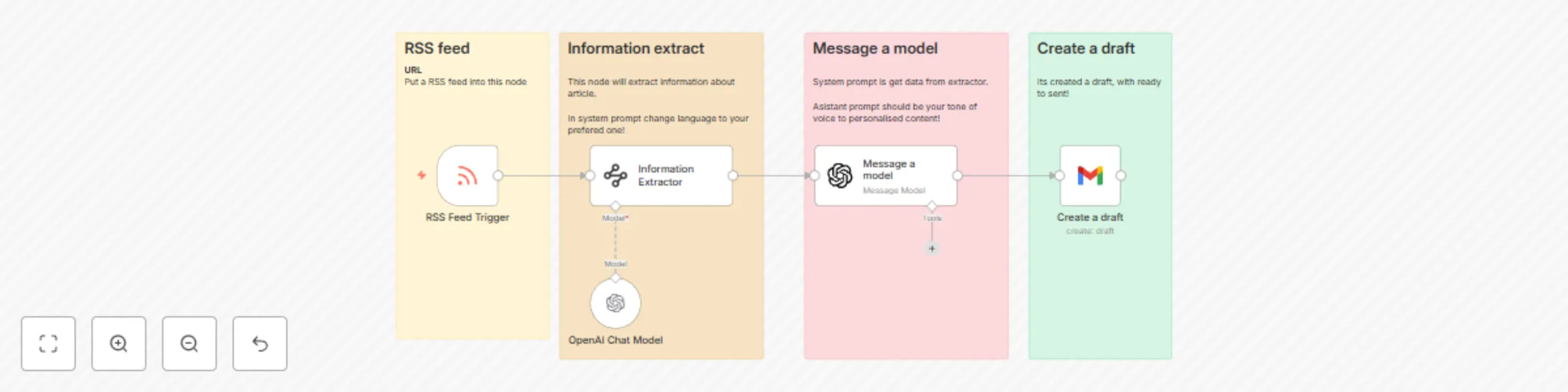
Original n8n.io sourceEvery hour, the workflow checks the RSS feed https://www.artificialintelligence-news.com/feed/ for new articles. For each new item, it extracts the title, snippet, and full content, then sends them to an AI model to summarize and optionally translate. The processed summary is passed to another AI model (with a personalized “Patrik” assistant tone) to generate a newsletter-style text. Finally, the result is saved as a draft email in Gmail, ready to review and send.
Set your preferred language in the Information Extractor system prompt.
Update the RSS feed URL if you want to pull articles from a different source.
Customize the assistant tone in the Message a model node for your newsletter style.
Connect your Gmail account to the Create a draft node.
Activate the workflow — every hour it will fetch new articles, generate newsletter content, and save them as Gmail drafts.
Change the source: Replace the RSS feed URL in the RSS Feed Trigger node.
Language & length: Edit the system prompt in the Information Extractor to set your preferred language and summary style.
Tone & format: Adjust the Message a model node to define the assistant’s personality, structure (headlines, bullets, CTA), or output as HTML.
Email settings: Change the subject, sender, or draft folder in the Create a draft node.
Frequency: Modify the trigger schedule to run daily, weekly, or at custom intervals.
This catalog entry is organized from the workflow JSON. The node-level section below shows the executable blocks available for review before importing the template.
| Workflow | Generate AI-summarized newsletter drafts from RSS feeds with GPT-4 and Gmail |
|---|---|
| Complexity | intermediate |
| Nodes | 9 |
| Categories | Social Media, Multimodal AI |
| Author | Patrik Schick |
| Published | 11 Aug 2025 |
Use the JSON export at /data/workflows/7264/7264.json as the source template for this automation.
Open n8n, import the downloaded JSON, and review each node before activating the workflow.
Replace placeholder credentials, API keys, webhook URLs, account IDs, and environment-specific values with your own settings.
Run the workflow manually or in a staging workspace, inspect node output, and confirm downstream systems receive the expected data.
Enable the workflow only after testing, then monitor executions, errors, and rate limits during the first production runs.
Review imported nodes carefully before activation. This catalog entry is intended to help you inspect the workflow structure, understand required services, and find related templates faster.
Node names, credentials, schedules, webhook paths, and external service limits may need adjustment for your workspace.
How it works Every hour, the workflow checks the RSS feed https://www.artificialintelligence news.com/feed/ for new articles. For each new item, it extracts the title, snippet, and full content, th...
Review the workflow JSON, configure any required credentials in n8n, and test the automation in a safe workspace before using it in production.
Yes. Use the block-by-block analysis and the downloadable JSON to inspect each node, then adjust credentials, prompts, schedules, filters, or destinations for your Social Media, Multimodal AI use case.