Generate AI-Powered LinkedIn Posts with Google Gemini and Gen-Imager

Workflow preview

Workflow preview
100%
Generate AI-Powered LinkedIn Posts with Google Gemini and Gen-Imager preview
Open on n8n.io

Important notice

This workflow is provided as-is. Please review and test before using in production.

1. Workflow Overview

AI Powered LinkedIn Post Automation How It Works This workflow automatically generates LinkedIn posts based on a user submitted topic, including both content creation and image generation , t...

Best for

  • Social Media automation workflows
  • Multimodal AI automation workflows
  • advanced n8n builders looking for reusable templates

Tools used

n8n-nodes-base.formtrigger, n8n-nodes-base.set, @n8n/n8n-nodes-langchain.agent, @n8n/n8n-nodes-langchain.lmchatgooglegemini, n8n-nodes-base.code, n8n-nodes-base.httprequest, n8n-nodes-base.linkedin, n8n-nodes-base.stickynote

Source and attribution

This workflow is cataloged by N8N Workflows and links back to its original n8n.io source page by Evoort Solutions.

Original n8n.io source

1.1 Workflow description

Title
Generate AI-Powered LinkedIn Posts with Google Gemini and Gen-Imager
Workflow name
Generate AI-Powered LinkedIn Posts with Google Gemini and Gen-Imager

🚀 AI-Powered LinkedIn Post Automation


🧩 How It Works

This workflow automatically generates LinkedIn posts based on a user-submitted topic, including both content creation and image generation, then publishes the post to LinkedIn. Ideal for marketers, content creators, or businesses looking to streamline their social media activity, without the need for manual post creation.

High-Level Workflow:

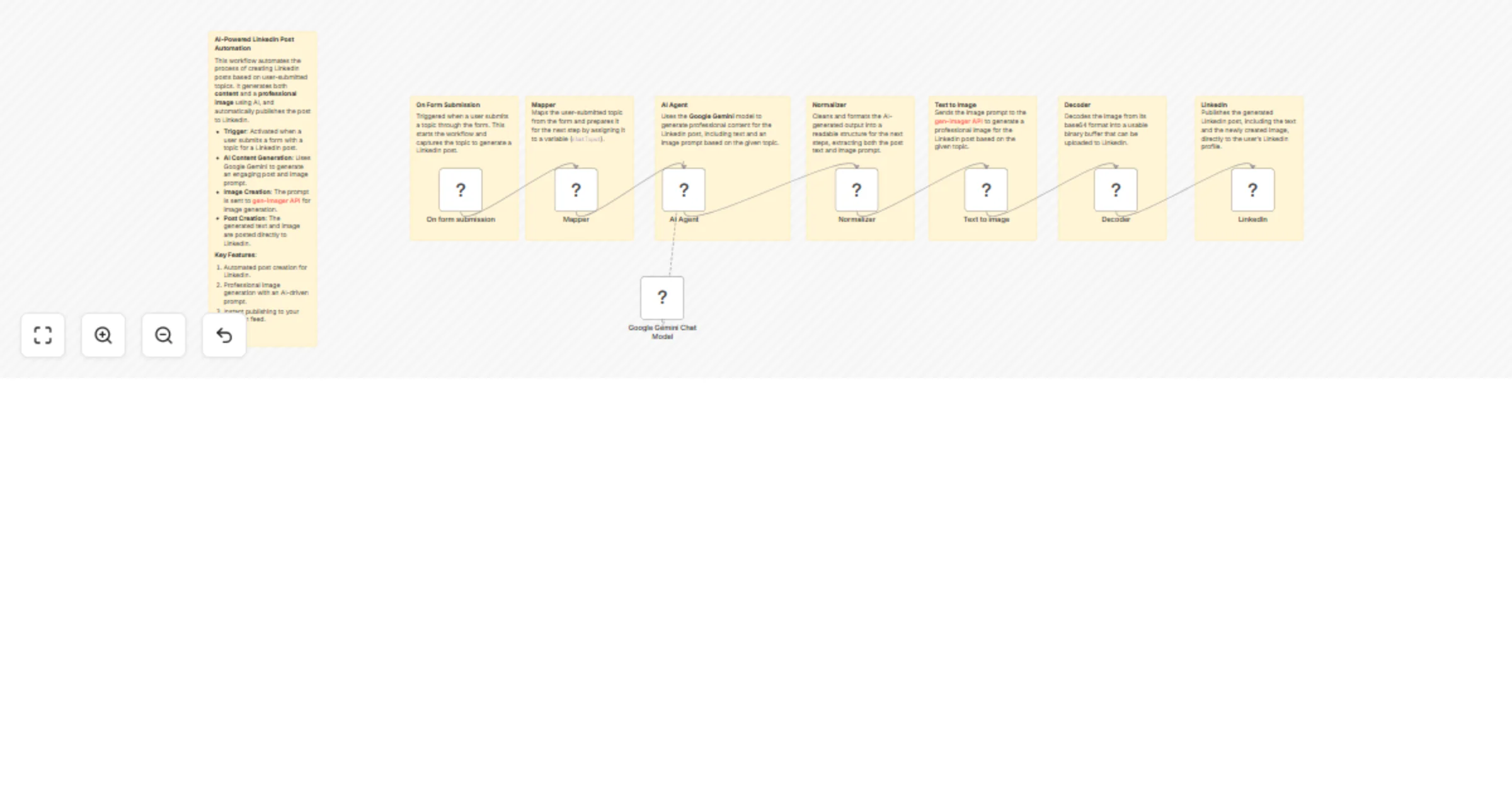
  1. Trigger: The workflow is triggered when a user submits a form with a topic for the LinkedIn post.
  2. Data Mapping: The topic is mapped and prepared for the AI model.
  3. AI Content Generation: Calls the Google Gemini AI model to generate engaging post content and a visual image prompt.
  4. Image Creation: Sends the image prompt to the external API, gen-imager, to generate a professional image matching the topic.
  5. Post Creation: Publishes the text and image to LinkedIn, automatically updating the user's feed.

⚙️ Set Up Steps (Quick Overview)

🕐 Estimated Setup Time: ~10–20 minutes

  1. Connect Google Gemini: Set up your Google Gemini API credentials to interact with the AI model for content creation.
  2. Set Up External Image API: Configure the external image generation API (gen-imager API) for visual creation based on the post prompt.
  3. Connect LinkedIn: Set up OAuth2 credentials to authenticate your LinkedIn account and allow publishing posts.
  4. Form Submission Setup: Create a simple web form for users to submit the topic for LinkedIn posts.
  5. Activate the Workflow: Once everything is connected, activate the workflow. It will trigger automatically upon receiving form submissions.

💡 Important Notes:

  • The flow uses Google Gemini (PaLM) for generating content based on the user's topic.
  • Text to Image: The image generation process involves creating a professional, LinkedIn-appropriate image based on the post’s topic using the gen-imager API.
  • You can customize the visual elements of the posts and adjust the tone of the generated content based on preferences.

🛠 Detailed Node Breakdown:

  1. On Form Submission

    • Trigger: Captures the user-submitted topic and initializes the workflow.
    • Action: Start the process by gathering the topic information.
  2. Mapper (Field Mapping)

    • Action: Maps the captured topic to a variable that is passed along for content generation.
  3. AI Agent (Content Generation)

    • Action: Calls Google Gemini to generate professional LinkedIn post content and an image prompt based on the submitted topic.
    • Key: Outputs content in a structured form — post text and image prompt.
  4. Google Gemini Chat Model

    • Action: AI model that generates actionable insights, engaging copy, and an image prompt for LinkedIn post.
  5. Normalizer (Data Cleanup)

    • Action: Cleans the output from the AI model to ensure the content and image prompt are correctly formatted for use in the next steps.
  6. Text to Image (Image Generation)

    • Action: Sends the image prompt to the gen-imager API, which returns a custom image based on the post's topic.
  7. Decoder (Base64 Decoding)

    • Action: Decodes the image from base64 format for easier uploading to LinkedIn.
  8. LinkedIn (Post Creation)

    • Action: Publishes the generated text and image to LinkedIn, automatically creating a polished post for the user’s feed.

Execution Time Breakdown:

  • Total Estimated Execution Time: ~15–40 seconds per workflow run.
    • On Form Submission: Instant (Trigger)
    • Mapper (Field Mapping): ~1–2 seconds
    • AI Content Generation: ~5–10 seconds (depending on server load)
    • Text to Image: ~5–15 seconds (depends on external API)
    • LinkedIn Post Creation: ~2–5 seconds

🚀 Ready to Get Started?

Let’s get you started with automating your LinkedIn posts!
Create your free n8n account and set up the workflow using this link.


📝 Notes & Customizations

  • Form Fields: Customize the form to gather more specific information for the LinkedIn posts (like audience targeting, post category, etc.).
  • Image API Customization: Adjust the image generation prompt to fit your brand’s style, or change the color palette as needed.
  • Content Tone: The tone can be adjusted by modifying the system message sent to Google Gemini for content generation.

1.2 Logical Blocks

This catalog entry is organized from the workflow JSON. The node-level section below shows the executable blocks available for review before importing the template.

2. Block-by-Block Analysis

Block 1 - On form submission

Type / Role
n8n-nodes-base.formTrigger - formTrigger
Config choices
Version 2.2

Block 2 - Mapper

Type / Role
n8n-nodes-base.set - set
Config choices
Version 3.4

Block 3 - AI Agent

Type / Role
@n8n/n8n-nodes-langchain.agent - agent
Config choices
Version 2

Block 4 - Google Gemini Chat Model

Type / Role
@n8n/n8n-nodes-langchain.lmChatGoogleGemini - lmChatGoogleGemini
Config choices
Version 1

Block 5 - Decoder

Type / Role
n8n-nodes-base.code - code
Config choices
Version 2

Block 6 - Normalizer

Type / Role
n8n-nodes-base.code - code
Config choices
Version 2

Block 7 - Text to image

Type / Role
n8n-nodes-base.httpRequest - httpRequest
Config choices
Version 4.2

Block 8 - LinkedIn

Type / Role
n8n-nodes-base.linkedIn - linkedIn
Config choices
Version 1

Block 9 - Sticky Note

Type / Role
n8n-nodes-base.stickyNote - stickyNote
Config choices
Version 1

Block 10 - Sticky Note1

Type / Role
n8n-nodes-base.stickyNote - stickyNote
Config choices
Version 1

Block 11 - Sticky Note2

Type / Role
n8n-nodes-base.stickyNote - stickyNote
Config choices
Version 1

Block 12 - Sticky Note3

Type / Role
n8n-nodes-base.stickyNote - stickyNote
Config choices
Version 1

Block 13 - Sticky Note4

Type / Role
n8n-nodes-base.stickyNote - stickyNote
Config choices
Version 1

Block 14 - Sticky Note5

Type / Role
n8n-nodes-base.stickyNote - stickyNote
Config choices
Version 1

Block 15 - Sticky Note6

Type / Role
n8n-nodes-base.stickyNote - stickyNote
Config choices
Version 1

Block 16 - Sticky Note7

Type / Role
n8n-nodes-base.stickyNote - stickyNote
Config choices
Version 1

3. Summary Table

Workflow Generate AI-Powered LinkedIn Posts with Google Gemini and Gen-Imager
Complexity advanced
Nodes 16
Categories Social Media, Multimodal AI
Author Evoort Solutions
Published 17 Jun 2025

4. Reproducing the Workflow from Scratch

  1. 1. Download the workflow JSON

    Use the JSON export at /data/workflows/5002/5002.json as the source template for this automation.

  2. 2. Import the template into n8n

    Open n8n, import the downloaded JSON, and review each node before activating the workflow.

  3. 3. Configure credentials and variables

    Replace placeholder credentials, API keys, webhook URLs, account IDs, and environment-specific values with your own settings.

  4. 4. Test with sample data

    Run the workflow manually or in a staging workspace, inspect node output, and confirm downstream systems receive the expected data.

  5. 5. Activate and monitor

    Enable the workflow only after testing, then monitor executions, errors, and rate limits during the first production runs.

5. General Notes & Resources

Review imported nodes carefully before activation. This catalog entry is intended to help you inspect the workflow structure, understand required services, and find related templates faster.

Node names, credentials, schedules, webhook paths, and external service limits may need adjustment for your workspace.

Frequently asked questions

What does Generate AI-Powered LinkedIn Posts with Google Gemini and Gen-Imager do?

AI Powered LinkedIn Post Automation How It Works This workflow automatically generates LinkedIn posts based on a user submitted topic, including both content creation and image generation , t...

What do I need before importing this workflow?

Review the workflow JSON, configure any required credentials in n8n, and test the automation in a safe workspace before using it in production.

Can I customize this workflow?

Yes. Use the block-by-block analysis and the downloadable JSON to inspect each node, then adjust credentials, prompts, schedules, filters, or destinations for your Social Media, Multimodal AI use case.