Evoort Solutions
Workflows by Evoort Solutions

Improving title clarity with Google Sheets and email notifications
## 🎁 Automate YouTube Giveaway Winner Selection with YouTube Comments Scraper API **Description:** Easily automate your YouTube video giveaways using n8n and the [**YouTube Comments Scraper API**](https://rapidapi.com/PrineshPatel/api/youtube-comments-scraper). This workflow fetches comments, selects a random winner, logs results to Google Sheets, and notifies the admin—all hands-free! --- ## 🧩 Node-by-Node Breakdown | Node | Name | Purpose | | ---- | -------------------------------- | -------------------------------------------------------------------------------------------------------------------------------------------- | | 1️⃣ | **Form Trigger** | Captures a YouTube video URL from a user via form submission. | | 2️⃣ | **Fetch YouTube Comments** | Makes a POST request to [**YouTube Comments Scraper API**](https://rapidapi.com/PrineshPatel/api/youtube-comments-scraper) to retrieve comments. | | 3️⃣ | **Check API Response Status** | Ensures that the response status is `200` before proceeding. | | 4️⃣ | **Select Random Commenter** | Parses the comments and selects a random commenter as the giveaway winner. | | 5️⃣ | **Log Winner to Google Sheet** | Appends winner name, video URL, and date to a Google Sheet for record-keeping. | | 6️⃣ | **Notify Winner Email** | Sends a congratulatory email to the admin with the selected winner's name. | | 7️⃣ | **Notify: Invalid API Response** | If the API fails, sends an alert to the admin about the issue. | --- ## 🔑 How to Get Your RapidAPI Key To use the [**YouTube Comments Scraper API**](https://rapidapi.com/PrineshPatel/api/youtube-comments-scraper), follow these steps: 1. Go to [**YouTube Comments Scraper API**](https://rapidapi.com/PrineshPatel/api/youtube-comments-scraper). 2. Sign in or create a free RapidAPI account. 3. Click the **"Subscribe to Test"** button. 4. Copy your **x-rapidapi-key** from the "Code Snippets" or "Header Parameters" section. 5. Paste it into your HTTP Request node in n8n. --- ## 🎯 Use Case & Benefits ### ✅ Use Case: * Automatically pick a **random commenter** from a **YouTube video** as a **giveaway winner**. ### 🚀 Benefits: * **Fully automated** – no manual comment scanning or random selection. * **Accurate & fair** – random selection from valid commenters only. * **Time-saving** – especially for creators running multiple giveaways. * **Integrated logging** – keep a historical record of all winners in Google Sheets. * **Email alerts** – get notified whether the flow succeeds or fails. --- ## 👥 Who Is This For? * **YouTube Content Creators** running giveaways. * **Marketing Teams** promoting products via YouTube contests. * **Agencies** managing influencer campaigns. * **Developers & Automation Enthusiasts** looking to simplify giveaway processes. --- ## 💡 Why Use YouTube Comments Scraper API? The [**YouTube Comments Scraper API**](https://rapidapi.com/PrineshPatel/api/youtube-comments-scraper) offers a simple and effective way to extract public YouTube comments programmatically. It’s fast, reliable, and integrates smoothly with platforms like n8n. You’ll use this API: * To retrieve all comments from a YouTube video. * To power fair and transparent giveaways. * To trigger downstream automations like winner logging and notification. --- Create your **free n8n account** and set up the workflow in just a few minutes using the link below: 👉 [Start Automating with n8n](https://n8n.partnerlinks.io/7fuarh1e6dz5) Save time, stay consistent, and grow your LinkedIn presence effortlessly!
Automate job searches with Job Search Global API & Google Sheets
## Job Search Automation with Job Search Global API & Google Sheet Logging **Description:** Automate your job search process by querying the [**Job Search Global API**](https://rapidapi.com/PrineshPatel/api/job-search-global) via RapidAPI every 6 hours for a specified keyword like “Web Developer.” This workflow extracts job listings and saves them directly to Google Sheets, with alerts sent for any API failures. --- ## Workflow Overview 1. **Schedule Trigger** Runs the workflow automatically every 6 hours to ensure up-to-date job listings. 2. **Set Search Term** Defines the dynamic job keyword, e.g., "Web Developer," used in API requests. 3. **Fetch Job Listings** Sends a POST request to the [**Job Search Global API**](https://rapidapi.com/PrineshPatel/api/job-search-global) (via RapidAPI) to retrieve job listings with pagination. 4. **Check API Response** Validates the API response status, branching workflow on success or failure. 5. **Extract Job Data** Parses the job listings array from the API response for processing. 6. **Save to Google Sheet** Appends or updates job listings in Google Sheets, avoiding duplicates by matching job titles. 7. **Send Failure Notification Email** Sends an alert email if the API response fails or returns an error. --- ## How to Obtain Your RapidAPI Key (Quick Steps) 1. Go to [**RapidAPI Job Search Global API**](https://rapidapi.com/PrineshPatel/api/job-search-global). 2. Sign up or log in to your RapidAPI account. 3. Subscribe to the API plan that suits your needs. 4. Copy your unique **X-RapidAPI-Key** from the dashboard. 5. Insert this key into your workflow’s HTTP Request node headers. --- ## How to Configure Google Sheets 1. Create a new Google Sheet for job listings. 2. Share the sheet with your Google Service Account email to enable API access. 3. Use the sheet URL in the Google Sheets node within your workflow. 4. Map columns correctly based on the job data fields. --- ## Google Sheet Columns Used | Column Name | Description | | ----------- | ----------------------------------- | | title | Job title | | url | Job posting URL | | company | Company name | | postDate | Date job was posted | | jobSource | Source of the job listing | | slug | Unique job identifier or slug | | sentiment | Sentiment analysis score (if any) | | dateAdded | Date the job was added to the sheet | | tags | Associated tags or keywords | | viewCount | Number of views for the job post | --- ## Use Cases & Benefits * **Automated Job Tracking:** Get fresh job listings without manual searching by automatically querying the Job Search Global API multiple times per day. * **Centralized Job Data:** Save and update listings in Google Sheets for easy filtering, sharing, and tracking. * **Failure Alerts:** Get notified immediately if API calls fail, helping maintain workflow reliability. * **Customizable Search:** Change keywords anytime to tailor job searches for different roles or industries. --- ## Who Is This Workflow For? * **Recruiters** looking to monitor job market trends in real-time. * **Job Seekers** who want to automate job discovery for specific roles like “Web Developer.” * **HR Teams** managing talent pipelines and job postings. * **Data Analysts** needing structured job market data for research or reporting. --- Create your **free n8n account** and set up the workflow in just a few minutes using the link below: 👉 [Start Automating with n8n](https://n8n.partnerlinks.io/7fuarh1e6dz5) Save time, stay consistent, and grow your LinkedIn presence effortlessly!
Form-triggered Instagram video downloads to Google Drive with Sheets logging
## 📥 Instagram to MP4 Converter with Google Drive Integration This **n8n workflow** enables users to **convert Instagram video links into downloadable MP4 files**, store them in **Google Drive**, and log the results (success or failure) in **Google Sheets**. --- ## 🔧 Node-by-Node Overview 1. **On form submission** – Triggers when a user submits an Instagram video URL. 2. **Instagram Downloader API Request** – Calls the [**Instagram Downloader API**](https://rapidapi.com/PrineshPatel/api/instagram-downloader51) to retrieve a downloadable link for the video. 3. **If** – Checks if the API response indicates success. 4. **MP4 Downloader** – Downloads the video from the provided media URL. 5. **Upload To Google Drive** – Uploads the MP4 video to a specified folder in Google Drive. 6. **Google Drive Set Permission** – Sets the uploaded file to public with a sharable link. 7. **Google Sheets** – Logs successful conversions, including the original URL and Drive link. 8. **Wait** – Adds a pause before logging failure to avoid rapid writes to Google Sheets. 9. **Google Sheets Append Row** – Logs failed attempts with `Drive_URL` marked as `N/A`. --- ## 🚀 Key Features - 🔗 Uses the [**Instagram Downloader API**](https://rapidapi.com/PrineshPatel/api/instagram-downloader51) to convert Instagram video URLs - 🗂 Uploads MP4s directly to **Google Drive** - 📊 Logs all actions in **Google Sheets** - 🧠 Smart error handling using conditional and wait nodes --- ## 📌 Use Case & Benefits - Convert Instagram videos to MP4 instantly from a simple form submission - Automatically upload videos to **Google Drive** - Log successful and failed conversions into **Google Sheets** - Ideal for marketers, content managers, educators, and archivists - No manual downloading, renaming, or organizing — it's fully automated --- ## 🌐 API Key Requirement To use this workflow, you’ll need an API key from the [**Instagram Downloader API**](https://rapidapi.com/PrineshPatel/api/instagram-downloader51). Follow these steps to obtain your API key: 1. Go to the [**Instagram Downloader API**](https://rapidapi.com/PrineshPatel/api/instagram-downloader51) 2. Sign up or log in to RapidAPI 3. Subscribe to a plan (either free or paid) 4. Copy your `x-rapidapi-key` and paste it in the HTTP Request node where required --- ## 🛠 Full Setup Instructions ### 1. **API Setup** - Create an account with [RapidAPI](https://rapidapi.com/). - Subscribe to the **Instagram Downloader API** and copy your API key. - Use this key in the HTTP Request node in n8n to call the Instagram Downloader API. ### 2. **Google Services Setup** - **Google Drive Integration**: - Go to the [Google Developer Console](https://console.developers.google.com/). - Create a new project. - Enable the **Google Drive API**. - Create OAuth 2.0 credentials and download the JSON credentials file. - Upload this file to n8n under your Google Drive credentials setup. - **Google Sheets Integration**: - Enable the **Google Sheets API** in the Google Developer Console. - Create OAuth 2.0 credentials for Sheets access. - Download the credentials file and upload it to n8n for authentication. - Make sure the Google Sheet you're using has columns for `Original_URL`, `Drive_URL`, and `Status`. ### 3. **Customizing the Template** - **Custom Folder for Google Drive**: - In the "Upload To Google Drive" node, change the folder ID to match your desired folder in Google Drive where videos should be stored. - **Custom Google Sheets Columns**: - By default, the template logs the `Original_URL`, `Drive_URL`, and `Status` (success/failure). - To add more columns, simply update the "Google Sheets Append Row" node with new column headers and ensure the data from each step corresponds correctly. ### 4. **Column Mapping for Google Sheets** - The default columns in your Google Sheet are: - **Original_URL**: The original Instagram video URL submitted by the user. - **Drive_URL**: The sharable link to the uploaded MP4 in Google Drive. - **Status**: Whether the conversion was successful or failed. **Important Note**: Ensure your Google Sheet is properly formatted with these columns before running the workflow. --- ## 💡 Additional Tips - **Monitoring API Usage**: The Instagram Downloader API has rate limits. Check your API usage in the [RapidAPI dashboard](https://rapidapi.com/). - **Automating with Triggers**: You can trigger the workflow automatically when a user submits a form URL through tools like Google Forms or external services that integrate with n8n. - **Error Handling**: If you encounter frequent failures, check the API's response format and ensure that all your credentials are correctly set up.
SERP keyword ranking checker with RapidAPI & Google Sheets
## 🔍 SERP Keyword Ranking Checker with RapidAPI & Google Sheets **Automate keyword SERP ranking lookups** and log the data into Google Sheets using this no-code n8n workflow. Perfect for SEO professionals, digital marketers, or anyone tracking keyword visibility across regions. --- ## 🧰 Tools Used - [**SERP Keyword Ranking Checker API**](https://rapidapi.com/PrineshPatel/api/serp-keyword-ranking-checker) – Fetch real-time keyword SERP data - **Google Sheets** – Log keyword data for tracking, analysis, or client reporting --- ## 📌 Workflow Overview 1. User submits a **keyword** and **country code** via an n8n form 2. Workflow sends a request to the **SERP Keyword Ranking Checker API** 3. API response is checked: - If **valid data is found**, it is logged to Google Sheets - If **no results are found**, a fallback message is saved instead 4. Optional delays added to space out operations --- ## ⚙️ Node-by-Node Breakdown ### 1. 🟢 Form Trigger: `On form submission` - Accepts user input for: - `keyword` (e.g. "labubu") - `country` (e.g. "us") ### 2. 📦 Set Node: `Global Storage` - Stores form input into variables (`keyword`, `country`) for use in API requests and logging. ### 3. 🌐 HTTP Request: `SERP Keyword Ranking Checker` - Sends a `POST` request to the [SERP Keyword Ranking Checker API](https://rapidapi.com/PrineshPatel/api/serp-keyword-ranking-checker) with: - `keyword` - `country` - Includes headers: ```http x-rapidapi-host: serp-keyword-ranking-checker.p.rapidapi.com x-rapidapi-key: YOUR_RAPIDAPI_KEY ### 4. ⚖️ If Node: Condition Checking Checks whether the `serpResults` array returned by the API is non-empty. - ✅ **True Branch**: Proceeds if valid SERP data is available. - ❌ **False Branch**: Proceeds if no SERP data is returned (e.g., empty result). --- ### 5. ⏳ Wait Node: 5-Second Delay Adds a 5-second delay before proceeding to Google Sheets insertion. This helps control execution pace and ensures API rate limits or spreadsheet latency is handled smoothly. - Used on **both True and False branches** for consistency. --- ### 6. 📊 Google Sheets (Success Path) Appends a new row into the selected Google Sheet with: - `Keyword` – the submitted keyword - `Country` – selected country code - `Json data` – full `serpResults` JSON array returned by the API 💡 Ideal for tracking keyword rankings over time or populating live dashboards. --- ### 7. 📊 Google Sheets (Failure Path) Appends a fallback message into the Google Sheet when no SERP results are found. - `Keyword` – the submitted keyword - `Country` – selected country code - `Json data` – `"No result found. Please try another keyword..."` 🔍 Helps maintain a log of unsuccessful queries for debugging or auditing. --- ### 💡 Use Cases - **SEO Audits** Automate keyword performance snapshots across different markets to identify opportunities and gaps. - **Competitor Analysis** Track keyword rankings of rival brands in real time to stay ahead of competition. - **Client Reporting** Feed live SERP data into dashboards or reports for transparent, real-time agency deliverables. - **Content Strategy** Discover which keywords surface top-ranking pages to guide content creation and optimization efforts. --- ### 🔑 How to Obtain Your API Key for SERP Keyword Ranking Checker API 1. **Sign Up or Log In** Visit [RapidAPI](https://rapidapi.com/PrineshPatel/api/serp-keyword-ranking-checker) and create a free account using your email or social login. 2. **Go to the API Page** Navigate to the [SERP Keyword Ranking Checker APi](https://rapidapi.com/PrineshPatel/api/serp-keyword-ranking-checker). 3. **Subscribe to the API** Click **Subscribe to Test**, then choose a pricing plan that fits your needs (Free, Basic, Pro). 4. **Get Your API Key** After subscribing, go to the **Security** tab on the API page to find your **X-RapidAPI-Key**. 5. **Use Your API Key** Add the API key to your HTTP request headers: ```http X-RapidAPI-Key: YOUR_API_KEY --- Create your **free n8n account** and set up the workflow in just a few minutes using the link below: 👉 [Start Automating with n8n](https://n8n.partnerlinks.io/7fuarh1e6dz5)
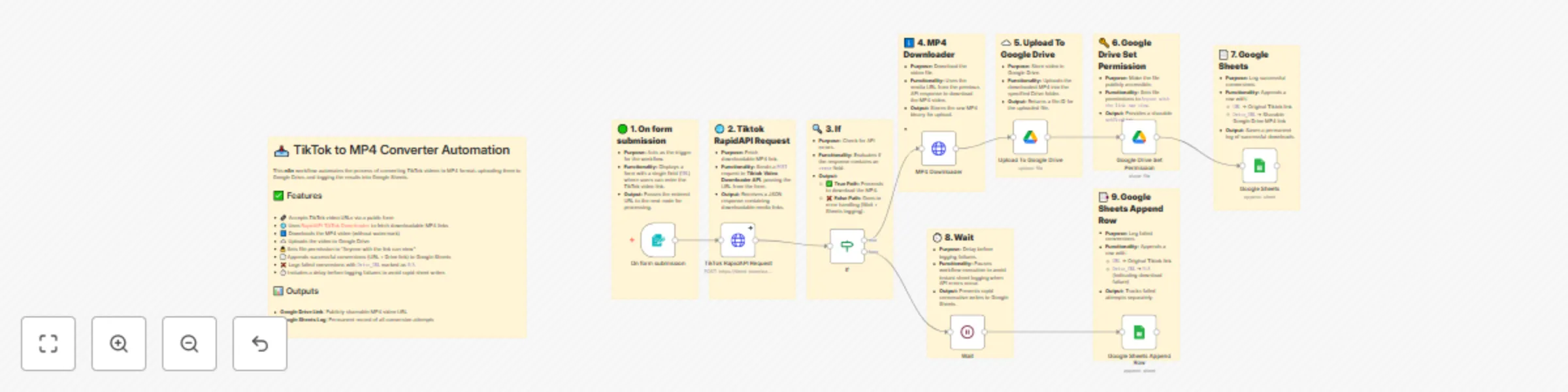
Download watermark-free TikTok videos to Google Drive with automated sheets logging
## 📥 TikTok to MP4 Converter with Google Drive & Sheets **Convert TikTok videos to MP4 , MP3 (without watermark), upload to Google Drive, and log conversion attempts into Google Sheets automatically — powered by [TikTok Download Audio Video API](https://rapidapi.com/PrineshPatel/api/tiktok-download-audio-video).** --- ## 📝 Description This **n8n automation** accepts a TikTok video URL via a form, sends it to the [TikTok Download Audio Video API](https://rapidapi.com/PrineshPatel/api/tiktok-download-audio-video), downloads the watermark-free MP4, uploads it to Google Drive, and logs the result (success/failure) into Google Sheets. --- ## 🧩 Node-by-Node Overview | # | Node | Functionality | |---|-------------------------------|-------------------------------------------------------------------------------| | 1 | 🟢 **Form Trigger** | Displays a form for user input of TikTok video URL. | | 2 | 🌐 **TikTok RapidAPI Request** | Calls the [TikTok Downloader API](https://rapidapi.com/PrineshPatel/api/tiktok-download-audio-video) to get the MP4 link. | | 3 | 🔍 **If Condition** | Checks if the API response status is "success". | | 4 | ⬇️ **MP4 Downloader** | Downloads the video file using the returned "no watermark" MP4 URL. | | 5 | ☁️ **Upload to Google Drive** | Uploads the video file to Google Drive root folder. | | 6 | 🔑 **Set Google Drive Permission** | Makes the file publicly shareable via link. | | 7 | 📄 **Google Sheets (Success)** | Logs TikTok URL + public Drive link into a Google Sheet. | | 8 | ⏱️ **Wait Node** | Delays to prevent rapid write operations on error. | | 9 | 📑 **Google Sheets (Failure)** | Logs failed attempts with `Drive_URL = N/A`. | --- ## ✅ Use Cases - 📲 Social media managers downloading user-generated content - 🧠 Educators saving TikTok content for offline lessons - 💼 Agencies automating short-form video curation - 🤖 Workflow automation demonstrations with n8n --- ## 🎯 Key Benefits - ✔️ **MP4 without watermark** via [TikTok Download Audio Video API](https://rapidapi.com/PrineshPatel/api/tiktok-download-audio-video) - ✔️ **Automated Google Drive upload & shareable links** - ✔️ **Centralized logging** in Google Sheets - ✔️ **Error handling and retry-safe structure** - ✔️ Fully customizable and extendable within **n8n** --- 💡 *Ideal for anyone looking to automate TikTok video archiving with full control over file storage and access.* ## 🔐 How to Get Your API Key for the TikTok Download Audio Video API 1. Go to 👉 [TikTok Download Audio Video API - RapidAPI](https://rapidapi.com/PrineshPatel/api/tiktok-download-audio-video) 2. Click **"Subscribe to Test"** (you may need to sign up or log in). 3. Choose a pricing plan (there’s a free tier for testing). 4. After subscribing, click on the **"Endpoints"** tab. 5. Your **API Key** will be visible in the **"x-rapidapi-key"** header. 🔑 Copy and paste this key into the `httpRequest` node in your workflow. --- Create your **free n8n account** and set up the workflow in just a few minutes using the link below: 👉 [Start Automating with n8n](https://n8n.partnerlinks.io/7fuarh1e6dz5)
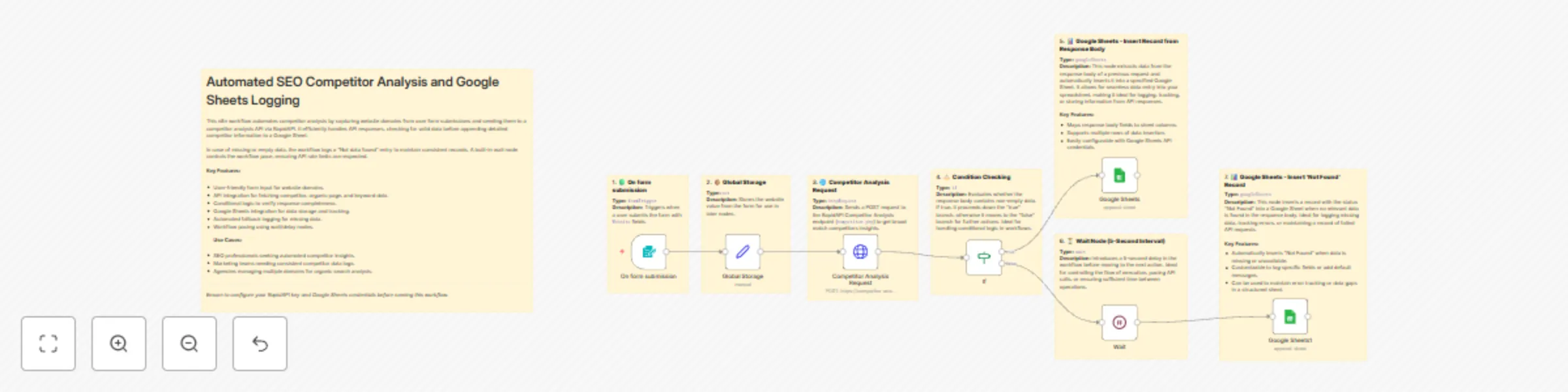
SEO competitor analysis with RapidAPI and Google Sheets logging
## Automated SEO Competitor Analysis with Google Sheets Logging **Description:** This n8n workflow automates SEO competitor analysis by integrating the [**Competitor Analysis API**](https://rapidapi.com/PrineshPatel/api/competitor-analysis2). It captures website domains via a simple user form, sends them to the API to retrieve competitor data, and logs the results directly into Google Sheets. The workflow intelligently handles empty or missing data and incorporates a wait node to respect API rate limits, making your competitor tracking seamless and reliable. --- ## Node-by-Node Explanation 1. **On Form Submission** Triggers the workflow when a user submits a website domain. 2. **Global Storage** Stores the submitted website domain for use in subsequent nodes. 3. **Competitor Analysis Request** Sends a POST request to the [**Competitor Analysis API**](https://rapidapi.com/PrineshPatel/api/competitor-analysis2/endpoint) to fetch organic competitors, pages, and keyword data. 4. **If (Condition Check)** Verifies that the API response contains valid, non-empty data. 5. **Google Sheets (Insert Success Data)** Appends the fetched competitor data to a specified Google Sheet. 6. **Wait Node** Adds a 5-second delay to avoid exceeding API rate limits. 7. **Google Sheets (Insert 'Not Found' Record)** Logs a “Not data found.” entry into Google Sheets if the API response lacks relevant data. --- ## Use Cases & Benefits - **SEO Professionals:** Automate competitor insights collection for efficient SEO research. - **Marketing Teams:** Maintain consistent, automated logs of competitor data across multiple websites. - **Agencies:** Manage organic search competitor tracking for many clients effortlessly. - **Reliability:** Conditional checks and wait nodes ensure smooth API interaction and data integrity. - **Scalable & User-Friendly:** Simple form input and Google Sheets integration enable easy adoption and scalability. --- ### 🔐 How to Get Your API Key for the Competitor Keyword Analysis API 1. Go to 👉 [Competitor Keyword Analysis API](https://rapidapi.com/PrineshPatel/api/competitor-analysis2/endpoint) 2. Click **"Subscribe to Test"** (you may need to sign up or log in). 3. Choose a pricing plan (there’s a free tier for testing). 4. After subscribing, click on the **"Endpoints"** tab. 5. Your **API Key** will be visible in the **"x-rapidapi-key"** header. 🔑 Copy and paste this key into the `httpRequest` node in your workflow. --- Create your **free n8n account** and set up the workflow in just a few minutes using the link below: 👉 [Start Automating with n8n](https://n8n.partnerlinks.io/7fuarh1e6dz5)
Seo keyword difficulty & SERP analysis with RapidAPI and Google Sheets
## 🚀 Automated Keyword Difficulty & SERP Checker with Google Sheets Integration **Description:** This n8n workflow automates keyword SEO analysis by collecting user input via a form, querying the [**Difficulty Checker API on RapidAPI**](https://rapidapi.com/PrineshPatel/api/keyword-difficulty-checker1) to retrieve keyword difficulty and SERP data, and storing the results in Google Sheets for further SEO tracking and decision-making. --- ### 🔗 Node-by-Node Breakdown ### 1. 📝 **On form submission** Triggers the workflow by capturing `keyword` and `country` from a user-submitted form. ### 2. 🌐 **Keyword Difficulty Checker** Makes a POST request to the [**Keyword Difficulty Checker API on RapidAPI**](https://rapidapi.com/PrineshPatel/api/keyword-difficulty-checker1) to fetch keyword difficulty index and SERP results. ### 3. 📦 **Reformat 1** Extracts only the `keywordDifficulty` value from the API response JSON. ### 4. 📊 **Keyword Difficulty Checker1** Appends the `keyword` and its difficulty index to the "backlink overflow" Google Sheet for structured keyword tracking. ### 5. 📦 **Reformat 2** Extracts the `serpResults` list from the API response for additional ranking data. ### 6. 📄 **SERP Results** Stores the extracted SERP data into the "backlinks" Google Sheet for ranking comparison and analysis. --- ### ✅ Benefits of This Workflow - **Automation of SEO research** — Eliminates manual keyword analysis by integrating with the [**Keyword Difficulty Checker API on RapidAPI**](https://rapidapi.com/PrineshPatel/api/keyword-difficulty-checker1). - **Real-time keyword tracking** — Automatically stores difficulty scores and SERP results into Google Sheets. - **Scalable** — Easily extendable for bulk keyword analysis or reporting. - **Reliable data source** — Uses trusted third-party API ([**Keyword Difficulty Checker**](https://rapidapi.com/PrineshPatel/api/keyword-difficulty-checker1)) for accurate and updated metrics. - **No code** — Built with n8n, enabling low-code/no-code automation without writing backend services. --- ### 💡 Use Cases 1. **Content Planning for SEO Teams** Identify low-competition keywords using real-time difficulty scoring to prioritize blog content. 2. **Client SEO Reporting** Track and present SERP visibility and keyword trends in Google Sheets dashboards. 3. **Keyword Competition Monitoring** Periodically monitor keyword rankings and adjust backlink strategy accordingly. 4. **Freelance SEO Projects** Save time by automating research tasks using the [**Keyword Difficulty Checker API on RapidAPI**](https://rapidapi.com/PrineshPatel/api/keyword-difficulty-checker1). --- ### 🔑 How to Obtain Your API Key for Keyword Difficulty Checker API 1. **Sign Up or Log In** Visit [RapidAPI](https://rapidapi.com/) and create a free account using your email or social login. 2. **Go to the API Page** Navigate to the [Keyword Difficulty Checker API by PrineshPatel](https://rapidapi.com/PrineshPatel/api/keyword-difficulty-checker1). 3. **Subscribe to the API** Click **Subscribe to Test**, then choose a pricing plan that fits your needs (Free, Basic, Pro). 4. **Get Your API Key** After subscribing, go to the **Security** tab on the API page to find your **X-RapidAPI-Key**. 5. **Use Your API Key** Add the API key to your HTTP request headers: ```http X-RapidAPI-Key: YOUR_API_KEY --- Create your **free n8n account** and set up the workflow in just a few minutes using the link below: 👉 [Start Automating with n8n](https://n8n.partnerlinks.io/7fuarh1e6dz5) Save time, stay consistent, and grow your LinkedIn presence effortlessly!
Automatic backlink data export from Semrush to Google Sheets via RapidAPI
## 🔗 Automated Semrush Backlink Checker with n8n and Google Sheets ## 📘 Description This n8n workflow automates backlink data extraction using the [**Semrush Backlink Checker API**](https://rapidapi.com/PrineshPatel/api/semrush-backlink-checker) available on RapidAPI. By submitting a website via a simple form, the workflow fetches both backlink overview metrics and detailed backlink entries, saving the results directly into a connected Google Sheet. This is an ideal solution for SEO professionals who want fast, automated insights without logging into multiple tools. --- ## 🧩 Node-by-Node Explanation - **On form submission** – Starts the workflow when a user submits a website URL through a web form. - **HTTP Request** – Sends the URL to the [**Semrush Backlink Checker API**](https://rapidapi.com/PrineshPatel/api/semrush-backlink-checker) using a POST request with headers and form data. - **Reformat 1** – Extracts high-level backlink overview data like total backlinks and referring domains. - **Reformat 2** – Extracts individual backlink records such as source URLs, anchors, and metrics. - **Backlink overview** – Appends overview metrics into the "backlink overflow" tab of a Google Sheet. - **Backlinks** – Appends detailed backlink data into the main "backlinks" tab of the same Google Sheet. --- ## ✅ Benefits of This Workflow - **No-code integration**: Built entirely within n8n—no scripting required. - **Time-saving automation**: Eliminates the need to manually log in or export reports from Semrush. - **Centralized results**: All backlink data is organized in Google Sheets for easy access and sharing. - **Powered by RapidAPI**: Uses the [**Semrush Backlink Checker API**](https://rapidapi.com/PrineshPatel/api/semrush-backlink-checker) hosted on RapidAPI for fast, reliable access. - **Easily extendable**: Can be enhanced with notifications, dashboards, or additional data enrichment. --- ## 🛠️ Use Cases - 📊 **SEO Audit Automation** – Auto-generate backlink insights for multiple websites via form submissions. - 🧾 **Client Reporting** – Streamline backlink reporting for SEO agencies or consultants. - 📥 **Lead Capture Tool** – Offer a free backlink analysis tool on your site to capture leads while showcasing value. - 🔁 **Scheduled Backlink Monitoring** – Modify the trigger to run on a schedule for recurring reports. - 📈 **Campaign Tracking** – Monitor backlinks earned during content marketing or digital PR campaigns. --- ## 🔐 How to Get Your API Key for the Competitor Keyword Analysis API 1. Go to 👉 [Semrush Backlink Checker API - RapidAPI](https://rapidapi.com/PrineshPatel/api/semrush-backlink-checker) 2. Click **"Subscribe to Test"** (you may need to sign up or log in). 3. Choose a pricing plan (there’s a free tier for testing). 4. After subscribing, click on the **"Endpoints"** tab. 5. Your **API Key** will be visible in the **"x-rapidapi-key"** header. 🔑 Copy and paste this key into the `httpRequest` node in your workflow. --- Create your **free n8n account** and set up the workflow in just a few minutes using the link below: 👉 [Start Automating with n8n](https://n8n.partnerlinks.io/7fuarh1e6dz5) Save time, stay consistent, and grow your LinkedIn presence effortlessly!
Generate automated GST reports with GST Insights API and Google Docs
## 📊 GST Data Analytics Automation Flow with Google Docs Reporting **Description:** Streamline GST data collection, analysis, and automated reporting using the [**GST Insights API**](https://rapidapi.com/PrineshPatel/api/gst-insights) and **Google Docs** integration. This workflow allows businesses to automate the extraction of GST data and directly generate formatted reports in Google Docs, making compliance easier. --- ## ⚙️ Node-by-Node Explanation ### On form submission Triggers the automation whenever a user submits the GST-related data (like GSTIN) via a web form. It collects all necessary input for further processing in the workflow. ### Fetch GST Data Using GST Insights API Sends a request to the **[GST Insights API](https://rapidapi.com/PrineshPatel/api/gst-insights)** to fetch GST data based on the user's input. This is done via a POST request that includes the required authentication and the inputted GSTIN. ### Data Reformatting This node processes and structures the raw [**GST data received from the API**](https://rapidapi.com/PrineshPatel/api/gst-insights). The reformatting ensures only the essential information (e.g., tax summaries, payment status, etc.) is extracted for reporting. ### Google Docs Reporting Generates a Google Docs document and auto-populates it with the reformatted GST data. The report is structured in a clean format, ready for sharing or downloading. --- ## 💡 Use Cases - **Tax Consultants & Agencies:** Automate the GST insights and reporting process for clients by extracting key metrics directly from the GST Insights API. - **Accountants & Auditors:** Streamline GST compliance by generating automated reports based on the most current data from the API. - **E-commerce Platforms:** Automatically track GST payments, returns, and summaries for each sale and consolidate them into structured reports. - **SMEs and Startups:** Track your GST status and compliance without the need for manual intervention. Generate reports directly within Google Docs for easy access. --- ## 🎯 Benefits of this Workflow - **Automated GST Data Collection:** Fetch GST insights directly using the [**GST Insights API**](https://rapidapi.com/PrineshPatel/api/gst-insights) without manually searching through different resources. - **Google Docs Integration:** Automatically generate customized Google Docs reports with detailed GST data, making the reporting process efficient. - **Error-Free Data Analysis:** Automates data extraction and reporting, significantly reducing the risk of human errors. - **Customizable Reporting:** Customize the flow for various GST-related data such as payments, returns, and summaries. - **Centralized Document Storage:** All GST reports are saved and managed within Google Docs, ensuring easy collaboration and access. --- ### Quick Note: The [**GST Insights API**](https://rapidapi.com/PrineshPatel/api/gst-insights) provides detailed GST data analysis for Indian businesses. It can extract crucial data like returns, payments, and summaries directly from the GST system, which you can then use for compliance and reporting. Would you like to explore the API further or need help with other integrations? ## 🔑 How to Get Your API Key for **GST Insights API** 1. **Visit the API Page:** Go to the [**GST Insights API**](https://rapidapi.com/PrineshPatel/api/gst-insights) on RapidAPI. 2. **Sign Up/Login:** Create an account or log in if you already have one. 3. **Subscribe to the API:** Click **"Subscribe to Test"** and choose a plan (free or paid). 4. **Copy Your API Key:** After subscribing, your **API Key** will be available in the **"X-RapidAPI-Key"** section under "Endpoints". 5. **Use the Key:** Include the key in your API requests like this: ```bash -H "X-RapidAPI-Key: YOUR_API_KEY"
Analyze competitor keywords with RapidAPI and Google Sheets reporting
## 🔍 Analyze Competitor Keywords with RapidAPI and Google Sheets Reporting ## 📄 Description This n8n workflow streamlines the process of analyzing SEO competitor keywords using the [**Competitor Keyword Analysis API** on RapidAPI](https://rapidapi.com/PrineshPatel/api/competitor-keyword-analysis). It collects a website and country via form submission, calls the API to retrieve keyword metrics, reformats the response, and logs the results into Google Sheets — all automatically. It is ideal for SEO analysts, marketing teams, and agencies who need a hands-free solution for competitive keyword insights. --- ## 🧩 Node-by-Node Explanation 1. **📝 On form submission (`formTrigger`)** Starts the workflow when a user submits their `website` and `country` through a form. 2. **🌐 Competitor Keyword Analysis (`httpRequest`)** Sends a POST request to the [**Competitor Keyword Analysis API** on RapidAPI](https://rapidapi.com/PrineshPatel/api/competitor-keyword-analysis) with form input to fetch keyword data. 3. **🔄 Reformat Code (`code`)** Extracts the `domainOrganicSearchKeywords` array from the API response for structured processing. 4. **📊 Google Sheets (`googleSheets`)** Appends the cleaned keyword metrics into a Google Sheet for easy viewing and tracking. --- ## 🚀 Benefits of This Workflow - ✅ **Automates SEO research** using the [**Competitor Keyword Analysis API**](https://rapidapi.com/PrineshPatel/api/competitor-keyword-analysis). - ✅ **Eliminates manual data entry** — results go straight into Google Sheets. - ✅ **Scalable and reusable** for any number of websites or countries. - ✅ **Reformatting logic is built-in**, so you get clean, analysis-ready data. --- ## 💼 Use Cases 1. **Marketing Agencies** Use the [**Competitor Keyword Analysis API**](https://rapidapi.com/PrineshPatel/api/competitor-keyword-analysis) to gather insights for client websites and store the results automatically. 2. **In-house SEO Teams** Quickly compare keyword performance across competitors and monitor shifts over time with historical Google Sheets logs. 3. **Freelancers and Consultants** Provide fast, data-backed SEO reports using this automation with the [**Competitor Keyword Analysis API**](https://rapidapi.com/PrineshPatel/api/competitor-keyword-analysis). 4. **Keyword Research Automation** Make this flow part of a larger system for identifying keyword gaps, content opportunities, or campaign ideas. --- ## 📁 Output Example (Google Sheets) | keyword | searchVolume | cpc | competition | position | previousPosition | keywordDifficulty | |---------------|--------------|-----|-------------|----------|------------------|-------------------| | best laptops | 9900 | 2.3 | 0.87 | 5 | 7 | 55 | --- ## 🔐 How to Get Your API Key for the Competitor Keyword Analysis API 1. Go to 👉 [Competitor Keyword Analysis API - RapidAPI](https://rapidapi.com/PrineshPatel/api/competitor-keyword-analysis) 2. Click **"Subscribe to Test"** (you may need to sign up or log in). 3. Choose a pricing plan (there’s a free tier for testing). 4. After subscribing, click on the **"Endpoints"** tab. 5. Your **API Key** will be visible in the **"x-rapidapi-key"** header. 🔑 Copy and paste this key into the `httpRequest` node in your workflow. ## ✅ Summary This workflow is a powerful no-code automation tool that leverages the [**Competitor Keyword Analysis API on RapidAPI**](https://rapidapi.com/PrineshPatel/api/competitor-keyword-analysis) to deliver real-time SEO insights directly to Google Sheets — saving time, boosting efficiency, and enabling smarter keyword strategy decisions. --- Create your **free n8n account** and set up the workflow in just a few minutes using the link below: 👉 [Start Automating with n8n](https://n8n.partnerlinks.io/7fuarh1e6dz5)
Track website traffic data with SEMrush API and Google Sheets
## 🚀 Website Traffic Monitoring with SEMrush API and Google Sheets Integration Leverage the powerful [**SEMrush Website Traffic Checker API**](https://rapidapi.com/PrineshPatel/api/semrush-website-traffic-checker) to automatically fetch detailed website traffic insights and log them into Google Sheets for real-time monitoring and reporting. This **no-code n8n workflow** simplifies traffic analysis for marketers, analysts, and website owners. --- ## ⚙️ Node-by-Node Workflow Breakdown #### 1. 🟢 **On Form Submission** - **Trigger:** The workflow is initiated when a user submits a website URL via a form. This serves as the input for further processing. - **Use Case:** When you want to track multiple websites and monitor their performance over time. #### 2. 🌐 **Website Traffic Checker** - **API Request:** The workflow makes a POST request to the [**SEMrush Website Traffic Checker API**](https://rapidapi.com/PrineshPatel/api/semrush-website-traffic-checker) via RapidAPI using the website URL that was submitted. - **API Data:** The API returns detailed traffic insights, including: - Visits - Bounce rate - Page views - Sessions - Traffic sources - And more! #### 3. 🔄 **Reformat** - **Parsing:** The raw API response is parsed to extract the relevant data under `trafficSummary`. - **Data Structure:** The workflow creates a clean dataset of traffic data, making it easy to store in Google Sheets. #### 4. 📄 **Google Sheets** - **Logging Data:** The traffic data is appended as a new row in your Google Sheet. - **Google Sheet Setup:** The data is organized and updated in a structured format, allowing you to track website performance over time. --- ## 💡 Use Cases - **📊 SEO & Digital Marketing Agencies:** Automate client website audits by pulling live traffic data into reports. - **🌐 Website Owners & Bloggers:** Monitor traffic growth and analyze content performance automatically. - **📈 Data Analysts & Reporting Teams:** Feed traffic data into dashboards and integrate with other KPIs for deeper analysis. - **🕵️ Competitor Tracking:** Regularly log competitor site metrics for comparative benchmarking. --- ## 🎯 Key Benefits - ✅ **Automated Traffic Monitoring** — Run reports automatically on-demand or on a scheduled basis. - ✅ **Real-Time Google Sheets Logging** — Easily centralize and structure traffic data for easy sharing and visualization. - ✅ **Zero Code Required** — Powered by n8n’s visual builder, set up workflows quickly without writing a single line of code. - ✅ **Scalable & Flexible** — Extend the workflow to include alerts, additional API integrations, or other automated tasks. --- ## 🔐 How to Get Your SEMrush API Key via RapidAPI 1. **Visit the API Listing** 👉 [SEMrush Website Traffic Checker API](https://rapidapi.com/PrineshPatel/api/semrush-website-traffic-checker) 2. **Sign In or Create an Account** - Log in to RapidAPI or sign up for a free account. 3. **Subscribe to the API** - Choose the appropriate pricing plan and click **Subscribe**. 4. **Access Your API Key** - Go to the **Endpoints** tab. - Your API key is located under the `X-RapidAPI-Key` header. 5. **Secure & Use the Key** - Add your API key to the request headers in your workflow. - **Never expose the key publicly**. --- ## 🔧 Step-by-Step Setup Instructions ### 1. **Creating the Form to Capture URL** - In n8n, create a new workflow and add a **Webhook** trigger node to capture website URLs. - Configure the webhook to accept URL submissions from your form. - Add a form to your website or app that triggers the webhook when a URL is submitted. ### 2. **Configure SEMrush API Request Node** - Add an **HTTP Request** node after the webhook. - Set the method to `POST` and the URL to the SEMrush API endpoint. - Add the necessary headers: - `X-RapidAPI-Host: semrush-website-traffic-checker.p.rapidapi.com` - `X-RapidAPI-Key: [Your API Key]` - Pass the captured website URL from the webhook as a parameter in the request body. ### 3. **Reformat API Response** - Add a **Set** node to parse and structure the API response. - Extract only the necessary data, such as: - `trafficSummary.visits` - `trafficSummary.bounceRate` - `trafficSummary.pageViews` - `trafficSummary.sessions` - Format the response to be clean and suitable for Google Sheets. ### 4. **Store Data in Google Sheets** - Add the **Google Sheets** node to your workflow. - Authenticate with your Google account. - Select the spreadsheet and worksheet where you want to store the traffic data. - Configure the node to append new rows with the extracted traffic data. #### **Google Sheets Columns Setup** - **A**: Website URL - **B**: Visits - **C**: Bounce Rate - **D**: Page Views - **E**: Sessions - **F**: Date/Time (optional, you can use a timestamp) ### 5. **Test and Deploy** - Run a test submission through your form to ensure the workflow works as expected. - Check the Google Sheets document to verify that the data is being logged correctly. - Set up scheduling or additional workflows as needed (e.g., periodic updates). --- ## 📈 Customizing the Template You can modify the workflow to suit your specific needs: - **Add more data points**: Customize the SEMrush API request to fetch additional metrics (e.g., traffic sources, keywords, etc.). - **Create separate sheets**: If you're tracking multiple websites, you can create a different sheet for each website or group websites by category. - **Add alerts**: Set up email or Slack notifications if specific traffic conditions (like sudden drops) are met. - **Visualize data**: Integrate Google Sheets with Google Data Studio or other tools for more advanced visualizations. --- ### 🚀 Start Automating in Minutes Build your automated website traffic dashboard with n8n today — no coding required. 👉 [Start with n8n for Free](https://n8n.partnerlinks.io/7fuarh1e6dz5) Save time, improve accuracy, and supercharge your traffic insights workflow!
Automated SEO Keyword Tracking and Research via Semrush API in Google Sheets
## 🔎 Automated Keyword Research Workflow with Google sheet logging & Semrush API **Description:** Easily collect keywords and country input, run automated keyword research via the [**Semrush Keyword Research**](https://rapidapi.com/PrineshPatel/api/semrush-keyword-research-tool) API on RapidAPI, and store results in Google Sheets for seamless tracking and analysis. --- ## ⚙️ Node-by-Node Explanation ### 🟢 On form submission (`formTrigger`) - Collects `keyword` and `country` inputs from the user via a simple form to start the research process. - Triggers the workflow execution upon submission. ### 🌐 Keyword Research (`httpRequest`) - Sends a POST request with user inputs (`keyword` and `country`) to the [**Semrush Keyword Research**](https://rapidapi.com/PrineshPatel/api/semrush-keyword-research-tool). - Retrieves keyword suggestions, search volume, and related data for comprehensive keyword insights. ### 📄 Append Data to Google Sheet (`googleSheets`) - Automatically appends the keyword research results into a connected Google Sheets document. - Enables easy tracking, sharing, and further analysis of keyword data. --- ## 📈 Example Spreadsheet Structure | Keyword | Country | Search Volume | CPC | Competition | Keyword Difficulty | Related Keywords | Date of Research | |---------------|---------|---------------|------|-------------|--------------------|-------------------------------------|------------------| | keyword1 | US | 10,000 | $2.50| 0.75 | 45 | keyword2, keyword3 | 2025-09-09 | | example term | UK | 15,000 | $1.80| 0.60 | 38 | term1, example keyword | 2025-09-09 | ## 🌟 Benefits - 🚀 **Powered by [**Semrush Keyword Research**](https://rapidapi.com/PrineshPatel/api/semrush-keyword-research-tool) API on RapidAPI:** Reliable, up-to-date keyword insights accessible via a simple API integration. - 🔄 **Fully Automated:** From user input to data storage, the process is seamless and requires no manual handling. - 📊 **Centralized Data Storage:** Storing results in Google Sheets ensures accessibility and easy collaboration. - 📈 **Scalable & Repeatable:** Run keyword research on-demand for multiple keywords and countries effortlessly. --- ## 🚀 Use Cases - 🏢 **SEO Agencies:** Quickly gather keyword data for clients in different markets using the [**Semrush Keyword Research**](https://rapidapi.com/PrineshPatel/api/semrush-keyword-research-tool). - 📱 **Digital Marketing Teams:** Monitor and expand keyword strategies by collecting keyword ideas and volume regularly through the [**Semrush Keyword Research**](https://rapidapi.com/PrineshPatel/api/semrush-keyword-research-tool). - 🔎 **Content Creators:** Identify trending and high-traffic keywords tailored by country to optimize content via the [**Semrush Keyword Research API**](https://rapidapi.com/PrineshPatel/api/semrush-keyword-research-tool). - 📅 **Automated Reporting:** Generate scheduled keyword research reports by integrating this workflow into larger marketing automation pipelines. --- ## 🔑 How to Get Your API Key for **Semrush Keyword Research** 1. **Visit the API Page:** Go to the [**Semrush Keyword Research**](https://rapidapi.com/PrineshPatel/api/semrush-keyword-research-tool) on RapidAPI. 2. **Sign Up/Login:** Create an account or log in if you already have one. 3. **Subscribe to the API:** Click **"Subscribe to Test"** and choose a plan (free or paid). 4. **Copy Your API Key:** After subscribing, your **API Key** will be available in the **"X-RapidAPI-Key"** section under "Endpoints". 5. **Use the Key:** Include the key in your API requests like this: ```bash -H "X-RapidAPI-Key: YOUR_API_KEY" ## 🛠 **Customizing the Workflow** To modify the automated workflow and adapt it to your specific use case, follow these guidelines: 1. **Adjust the Data Retrieval Process**: You can modify the data you want to receive from the Semrush API. For example, if you’re only interested in **search volume** and **CPC**, you can filter out the other results in the API request. 2. **Add More Countries**: If you work with multiple regions, modify the workflow to accept multiple country inputs. You could either pass in a list of countries or have a dropdown on the form that lets users select their country of choice. 3. **Expand Keyword Types**: The workflow can be expanded to collect data for different types of keywords, such as **long-tail** or **LSI (Latent Semantic Indexing)** keywords, depending on your SEO needs. 4. **Set Up Scheduled Keyword Reporting**: To automate reporting, you can schedule keyword research reports to run at regular intervals, such as monthly, using **Google Apps Script** or another task scheduler. This way, you’ll always have fresh data on hand for analysis. ## ✅ Tips for Smooth Workflow Integration 1. **Test Your API Integration**: Run a test to check if data is properly flowing into your Google Sheet before automating the process. 2. **Set Up Notifications**: Use **Google Sheets' built-in notifications** or an external automation tool (e.g., Zapier, Integromat) to notify you when new data is added or if there’s an issue with the workflow. 3. **Handle Errors Gracefully**: Add error handling in your automated process to prevent issues like missing data or API request failures from disrupting your workflow.
Generate Automated SEO Reports with RapidAPI's SEO Analyzer and Google Docs
## Automated SEO Website Audit with n8n, Google Docs & RapidAPI's SEO Analyzer **Description:** Use n8n to automate SEO audits with the [**Website SEO Analyzer and Audit AI**](https://rapidapi.com/PrineshPatel/api/website-seo-analyzer-and-audit-ai) from RapidAPI. Capture a URL, run a full audit, and export a structured SEO report to Google Docs — all without manual steps. --- ## ⚙️ Node-by-Node Explanation ### 🟢 `formTrigger` — On Form Submission - Starts the workflow when a user submits a URL through a form. - Collects the website to be analyzed. ### 🌐 `httpRequest` — Website Audit - Sends the submitted URL to the [**Website SEO Analyzer and Audit AI**](https://rapidapi.com/PrineshPatel/api/website-seo-analyzer-and-audit-ai) via a POST request. - Fetches detailed SEO data, including meta tags, keyword usage, and technical performance. ### 🧠 `code` — Reformat - Transforms raw JSON from the [**Website SEO Analyzer and Audit AI**](https://rapidapi.com/PrineshPatel/api/website-seo-analyzer-and-audit-ai) into a structured Markdown summary. - Organizes insights into sections like Metadata, Keyword Density, Page Performance, and Security. ### 📄 `googleDocs` — Add Data In Google Docs - Automatically inserts the formatted SEO audit report into a pre-connected Google Docs file. - Allows audit data to be easily shared, tracked, or archived. --- ## 🌟 Benefits - ✅ **Powered by [**Website SEO Analyzer and Audit AI**](https://rapidapi.com/PrineshPatel/api/website-seo-analyzer-and-audit-ai):** Leverage a reliable, cloud-based SEO tool via RapidAPI. - 🔁 **End-to-End SEO Workflow:** Fully automates input, audit, formatting, and export to documentation. - 📊 **Human-Readable Reports:** Translates raw API output into structured, insightful summaries. - 📂 **Centralized Documentation:** Stores SEO audits in Google Docs for easy reference and historical tracking. --- ## 🚀 Use Cases - 📈 **SEO Agencies:** Generate fast and consistent SEO audits using the [**Website SEO Analyzer and Audit AI**](https://rapidapi.com/PrineshPatel/api/website-seo-analyzer-and-audit-ai) — ideal for client reporting. - 🏢 **In-House Web Teams:** Regularly audit corporate websites and track performance in a document-based SEO log. - 🧲 **Lead Generation for SEO Services:** Offer real-time audits through a public form to attract and qualify leads. - 📅 **Monthly SEO Health Checks:** Automate recurring site audits and log results using n8n and RapidAPI. --- Create your **free n8n account** and set up the workflow in just a few minutes using the link below: 👉 [Start Automating with n8n](https://n8n.partnerlinks.io/7fuarh1e6dz5) Save time, stay consistent, and grow your LinkedIn presence effortlessly!
Extract YouTube Channel Metadata to Google Docs using RapidAPI
## Automate YouTube Channel Metadata Extraction to Google Docs **Description:** This workflow leverages the powerful [**YouTube Metadata API**](https://rapidapi.com/PrineshPatel/api/youtube-metadata1) to automatically extract detailed metadata from any YouTube channel URL. Using the [**YouTube Metadata API**](https://rapidapi.com/PrineshPatel/api/youtube-metadata1), it collects information like subscribers, views, keywords, and banners, reformats it for readability, and saves it directly to Google Docs for easy sharing and record-keeping. Ideal for marketers, content creators, and analysts looking to streamline YouTube channel data collection. By integrating the [**YouTube Metadata**](https://rapidapi.com/PrineshPatel/api/youtube-metadata1), this workflow ensures accurate and up-to-date channel insights fetched instantly from the source. --- ## Node-by-Node Explanation ### 1. On form submission Triggers the workflow when a user submits a YouTube channel URL via a web form, starting the metadata extraction process. ### 2. YouTube Channel Metadata (HTTP Request) Calls the [**YouTube Metadata API**](https://rapidapi.com/PrineshPatel/api/youtube-metadata1) with the provided channel URL to retrieve comprehensive channel details like title, subscriber count, and banner images. ### 3. Reformat (Code) Transforms the raw API response into a clean, formatted string with emojis and markdown styling for easy reading and better presentation. ### 4. Add Data in Google Docs Appends the formatted channel metadata into a specified Google Docs document, providing a centralized and accessible record of the data. --- ## Benefits of This Workflow - **Automated Data Collection:** Eliminates manual effort by automatically extracting YouTube channel data via the [**YouTube Metadata API**](https://rapidapi.com/PrineshPatel/api/youtube-metadata1). - **Accurate & Reliable:** Ensures data accuracy by using a trusted API source, keeping metadata current. - **Improved Organization:** Saves data in Google Docs, allowing for easy sharing, editing, and collaboration. - **User-Friendly:** Simple form-based trigger lets anyone gather channel info without technical knowledge. - **Scalable & Flexible:** Can process multiple URLs easily, perfect for marketing or research teams handling numerous channels. --- ## Use Cases - **Marketing Teams:** Track competitor YouTube channel stats and trends for strategic planning. - **Content Creators:** Monitor channel growth metrics and optimize content strategy accordingly. - **Researchers:** Collect and analyze YouTube channel data for academic or market research projects. - **Social Media Managers:** Automate reporting by documenting channel performance metrics in Google Docs. - **Businesses:** Maintain up-to-date records of brand or partner YouTube channels efficiently. --- By leveraging the [**YouTube Metadata**](https://rapidapi.com/PrineshPatel/api/youtube-metadata1), this workflow provides an efficient, scalable solution to extract and document YouTube channel metadata with minimal manual input. --- ## 🔑 How to Get Your API Key for **YouTube Metadata API** 1. **Visit the API Page:** Go to the [**YouTube Metadata**](https://rapidapi.com/PrineshPatel/api/youtube-metadata1) on RapidAPI. 2. **Sign Up/Login:** Create an account or log in if you already have one. 3. **Subscribe to the API:** Click **"Subscribe to Test"** and choose a plan (free or paid). 4. **Copy Your API Key:** After subscribing, your **API Key** will be available in the **"X-RapidAPI-Key"** section under "Endpoints". 5. **Use the Key:** Include the key in your API requests like this: ```bash -H "X-RapidAPI-Key: YOUR_API_KEY" Create your **free n8n account** and set up the workflow in just a few minutes using the link below: 👉 [Start Automating with n8n](https://n8n.partnerlinks.io/7fuarh1e6dz5)
Extract YouTube Video Metadata and Save to Google Docs using RapidAPI
## 📺 Automated YouTube Video Metadata Extraction Workflow **Description:** This workflow leverages the [**YouTube Metadata API**](https://rapidapi.com/PrineshPatel/api/youtube-metadata1) to automatically extract detailed video information from any YouTube URL. It uses [**n8n**](https://n8n.io) to automate the entire process and stores the metadata in a neatly formatted **Google Docs** document. Perfect for content creators, marketers, and researchers who need quick, organized YouTube video insights at scale. --- ## ⚙️ Node-by-Node Explanation ### 1. ✅ On Form Submission This node acts as the **trigger**. When a user submits a form containing a YouTube video URL, the workflow is activated. * Input: YouTube Video URL * Platform: `Webhook` or `n8n Form Trigger` --- ### 2. 🌐 YouTube Metadata API (HTTP Request) This node sends the video URL to the [**YouTube Metadata API**](https://rapidapi.com/PrineshPatel/api/youtube-metadata1) via HTTP request. * Action: `GET` request * Headers: ```bash -H "X-RapidAPI-Key: YOUR_API_KEY" -H "X-RapidAPI-Host: youtube-metadata1.p.rapidapi.com" ``` * Endpoint Example: ``` https://youtube-metadata1.p.rapidapi.com/video?url=YOUTUBE_VIDEO_URL ``` * Output: JSON with metadata like: * Title * Description * Views, Likes, Comments * Duration * Upload Date * Channel Info * Thumbnails --- ### 3. 🧠 Reformat Metadata (Code Node) This node reformats the raw metadata into a clean, human-readable text block. * Example Output Format: ``` 🎬 **Title:** How to Build Workflows with n8n 🧾 **Description:** This tutorial explains how to build... 👤 **Channel:** n8n Tutorials 📅 **Published On:** 2023-05-10 ⏱️ **Duration:** 10 minutes, 30 seconds 👁️ **Views:** 45,678 👍 **Likes:** 1,234 💬 **Comments:** 210 🔗 **URL:** https://youtube.com/watch?v=abc123 ``` --- ### 4. 📝 Append to Google Docs This node connects to your Google Docs and appends the formatted metadata into a selected document. * **Document Format Example:** ```markdown ## 📌 Video Entry – [Date] 🎬 **Title:** 🧾 **Description:** 👤 **Channel:** 📅 **Published On:** ⏱️ **Duration:** 👁️ **Views:** 👍 **Likes:** 💬 **Comments:** 🔗 **URL:** --- ``` --- ## 📄 Use Cases * **Content Creators**: Quickly analyze competitor content or inspirations. * **Marketers**: Collect campaign video performance data. * **Researchers**: Compile structured metadata across videos. * **Social Media Managers**: Create content briefs effortlessly. --- ## ✅ Benefits * 🚀 **Time-saving**: Automates manual video data extraction * 📊 **Accurate**: Uses reliable, updated YouTube API * 📁 **Organized**: Formats and stores data in Google Docs * 🔁 **Scalable**: Handles unlimited YouTube URLs * 🎯 **User-friendly**: Simple setup and clean output --- ## 🔑 How to Get Your API Key for YouTube Metadata API 1. Go to the [**YouTube Metadata API on RapidAPI**](https://rapidapi.com/PrineshPatel/api/youtube-metadata1). 2. Sign up or log in to your RapidAPI account. 3. Click **Subscribe to Test** and choose a pricing plan (free or paid). 4. Copy your **API Key** shown in the **"X-RapidAPI-Key"** section. 5. Use it in your HTTP request headers. --- ## 🧰 Google Docs Integration – Full Setup Instructions ### 🔐 Step 1: Enable Google Docs API 1. Go to the [Google Cloud Console](https://console.cloud.google.com/). 2. Create a new project or select an existing one. 3. Navigate to **APIs & Services > Library**. 4. Search for **Google Docs API** and click **Enable**. 5. Also enable **Google Drive API** (for document access). --- ### 🛠 Step 2: Create OAuth Credentials 1. Go to **APIs & Services > Credentials**. 2. Click **Create Credentials > OAuth Client ID**. 3. Select **Web Application** or **Desktop App**. 4. Add authorized redirect URIs if needed (e.g., for n8n OAuth). 5. Save your **Client ID** and **Client Secret**. --- ### 🔗 Step 3: Connect n8n to Google Docs 1. In n8n, go to **Credentials > Google Docs API**. 2. Add new credentials using the Client ID and Secret from above. 3. Authenticate with your Google account and allow access. --- ### 📘 Step 4: Create and Format Your Google Document 1. Go to Google Docs and create a new document. 2. Name it (e.g., `YouTube Metadata Report`). 3. Optionally, add a title or table of contents. 4. Copy the **Document ID** from the URL: ``` https://docs.google.com/document/d/DOCUMENT_ID/edit ``` --- ### 🔄 Step 5: Use `Append Content to Document` Node in n8n * Use the `Google Docs` node in n8n with: * Operation: `Append Content` * Document ID: Your copied Google Doc ID * Content: The formatted video summary string --- ## 🎨 Customization Options * 💡 **Add Tags**: Insert hashtags or categories based on video topics. * 📆 **Organize by Date**: Create headers for each day or week’s entries. * 📸 **Embed Thumbnails**: Use `thumbnail_url` to embed preview images. * 📊 **Spreadsheet Export**: Use Google Sheets instead of Docs if preferred. --- ## 🛠 Troubleshooting Tips | Issue | Solution | | ------------------------------ | ------------------------------------------------------------------- | | ❌ **Auth Error (Google Docs)** | Ensure correct OAuth redirect URI and permissions. | | ❌ **API Request Fails** | Check API key and request structure; test on RapidAPI's playground. | | 📄 **Doc Not Updating** | Verify Document ID and sharing permissions. | | 🧾 **Bad Formatting** | Debug the code node output using logging or console in n8n. | | 🌐 **n8n Timeout** | Consider using `Wait` or `Split In Batches` for large submissions. | --- ## 🚀 Ready to Launch? You can deploy this workflow in just minutes using **n8n**. 👉 [Start Automating with n8n](https://n8n.partnerlinks.io/7fuarh1e6dz5) ---
Analyze webpages with Landing Page Analyzer AI & generate Google Docs reports
## Analyze Webpages with Landing Page Analyzer AI & Generate Google Docs Reports (CRO) ## Description This workflow integrates the [**Landing Page Analyzer AI**](https://rapidapi.com/PrineshPatel/api/landing-page-analyzer-ai) to automatically audit landing pages, format the insights into a conversion-focused report, and save it directly into Google Docs. It leverages the [**Landing Page Analyzer AI**](https://rapidapi.com/PrineshPatel/api/landing-page-analyzer-ai)to grade your page, highlight strengths, and suggest improvements—all without manual steps. --- ## Nodes Explanation 1. **On form submission** Captures the URL of the landing page entered by the user to trigger the workflow. Serves as the entry point to pass the URL to the [**Landing Page Analyzer AI**](https://rapidapi.com/PrineshPatel/api/landing-page-analyzer-ai). 2. **WebPage Analyzer (API Call via RapidAPI)** Sends the URL to the [**Landing Page Analyzer AI**](https://rapidapi.com/PrineshPatel/api/landing-page-analyzer-ai) for audit data. Retrieves key analytics: grade, score, suggestions, strengths, and conversion metrics. 3. **Reformat (Code Node)** Converts the raw JSON from the [**Landing Page Analyzer AI**](https://rapidapi.com/PrineshPatel/api/landing-page-analyzer-ai) into structured Markdown. Builds sections for grade, overall score, suggestions, strengths, and score breakdown. 4. **Upload In Google Docs** Inserts the formatted Markdown report into a predefined Google Document. Ensures the audit output from the [**Landing Page Analyzer AI**](https://rapidapi.com/PrineshPatel/api/landing-page-analyzer-ai) is saved and shareable. --- ## Benefits of This Workflow - **Hands-Free Audits**: Automatically performs a landing page evaluation using the powerful [**Landing Page Analyzer AI**](https://rapidapi.com/PrineshPatel/api/landing-page-analyzer-ai). - **Consistent, Professional Reports**: Standardized Markdown formatting ensures clarity and readability. - **Effortless Documentation**: Results are directly stored in Google Docs—no manual copying required. - **Scalable & Repeatable**: Ideal for continuous optimization across multiple pages or campaigns. --- ## Use Cases - **SEO & CRO Agencies**: Quickly generate conversion audit reports using the [**Landing Page Analyzer AI**](https://rapidapi.com/PrineshPatel/api/landing-page-analyzer-ai) to optimize client landing pages at scale. - **Marketing Teams**: Automate weekly or campaign-based auditing of landing pages, with results logged in Google Docs for easy sharing and review. - **Freelancers & Consultants**: Deliver polished, data-driven conversion reports to clients—powered by [**Landing Page Analyzer AI**](https://rapidapi.com/PrineshPatel/api/landing-page-analyzer-ai) via RapidAPI—without repetitive manual work. - **Growth Hackers & Product Managers**: Monitor iterations of landing pages over time; each version can be audited automatically and archived in Docs for comparison. --- ## 🔐 How to Get Your API Key for the Landing Page Analyzer AI API 1. Go to 👉 [**Landing Page Analyzer AI**](https://rapidapi.com/PrineshPatel/api/landing-page-analyzer-ai) 2. Click **"Subscribe to Test"** (you may need to sign up or log in). 3. Choose a pricing plan (there’s a free tier for testing). 4. After subscribing, click on the **"Endpoints"** tab. 5. Your **API Key** will be visible in the **"x-rapidapi-key"** header. 🔑 Copy and paste this key into the `httpRequest` node in your workflow. ## Conclusion This n8n workflow streamlines landing page optimization by leveraging the [**Landing Page Analyzer AI**](https://rapidapi.com/PrineshPatel/api/landing-page-analyzer-ai), transforming raw audit output into insightful, presentation-ready reports in Google Docs. Perfect for teams and individuals focused on data-driven improvements, scalability, and efficiency. --- Create your **free n8n account** and set up the workflow in just a few minutes using the link below: 👉 [Start Automating with n8n](https://n8n.partnerlinks.io/7fuarh1e6dz5)
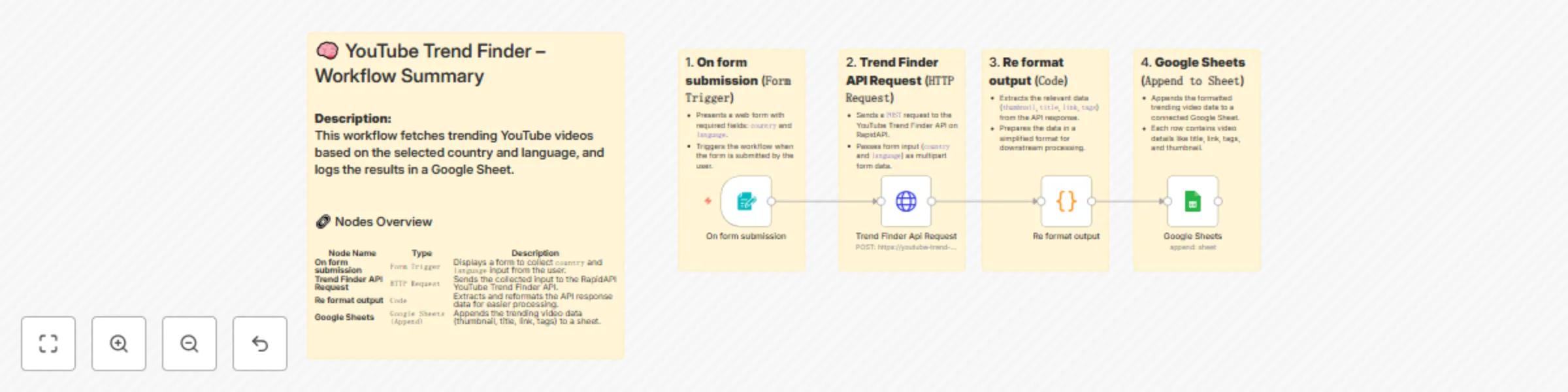
Track YouTube trends by country and language with RapidAPI & Google Sheets
## 📈 YouTube Trend Finder Workflow using n8n & RapidAPI **Description:** Easily discover trending YouTube videos by country and language using this automated n8n workflow. The flow leverages the [**YouTube Trend Finder API**](https://rapidapi.com/PrineshPatel/api/youtube-trend-finder) and logs insights to Google Sheets — ideal for content creators, marketers, and researchers. --- ## 🔗 Node-by-Node Explanation | Node Name | Type | Description | |-----------------------------|--------------------|-----------------------------------------------------------------------------| | **1. On form submission** | `Form Trigger` | Captures user input for `country` and `language` through a web form. | | **2. Trend Finder API Request** | `HTTP Request` | Sends a request to [**YouTube Trend Finder API**](https://rapidapi.com/PrineshPatel/api/youtube-trend-finder) with the form data. | | **3. Re format output** | `Code` | Extracts and reshapes API response data like `title`, `link`, and `tags`. | | **4. Google Sheets** | `Google Sheets` | Appends the trending video data into a structured spreadsheet. | --- ## 🎯 Use Cases - 🔍 **Content Research:** Find top-trending videos in any region or language for idea inspiration. - 📈 **Marketing Intelligence:** Track video trends to tailor your video marketing strategy. - 📰 **Trend Monitoring:** Journalists and analysts can quickly surface viral video topics. --- ## ✅ Benefits of this Workflow - **No Coding Required:** Easy-to-use form interface for non-technical users. - **Real-Time Trends:** Instantly access trending YouTube content with the [**YouTube Trend Finder API**](https://rapidapi.com/PrineshPatel/api/youtube-trend-finder). - **Automated Logging:** Stores data directly in Google Sheets for future analysis or sharing. - **Customizable:** Easily modify for more inputs like `video category`, `max results`, or add filters. --- Create your **free n8n account** and set up the workflow in just a few minutes using the link below: 👉 [Start Automating with n8n](https://n8n.partnerlinks.io/7fuarh1e6dz5) Save time, stay consistent, and grow your LinkedIn presence effortlessly!
Automated on-page SEO analysis & logging with RapidAPI and Google Sheets
## [SEO On Page API](https://rapidapi.com/PrineshPatel/api/seo-on-page) – Complete Guide, Use Cases & Benefits The [**SEO On Page API**](https://rapidapi.com/PrineshPatel/api/seo-on-page) is a powerful tool for keyword research, competitor analysis, backlink insights, and overall SEO optimization. With multiple endpoints, you can instantly gather actionable SEO data without juggling multiple tools. You can explore and subscribe via [**SEO On Page API**](https://rapidapi.com/PrineshPatel/api/seo-on-page). --- ## 📌 Description The **SEO On Page API** on [**SEO On Page API**](https://rapidapi.com/PrineshPatel/api/seo-on-page) allows you to quickly analyze websites, keywords, backlinks, and competitors — all in one place. Ideal for SEO professionals, marketers, and developers who want fast, accurate, and easy-to-integrate data. --- ## Node-by-node Overview 1. **On form submission** — Shows a web form (field: `website`) and triggers the workflow on submit. 2. **Global Storage** — Copies `website` (and optional `country`) into the execution JSON for reuse. 3. **Website Traffic Cheker** — POSTs `website` to `webtraffic.php` (RapidAPI) to fetch traffic summary. 4. **Re-Format** — Extracts `data.semrushAPI.trafficSummary[0]` from the traffic API response. 5. **Website Traffic** — Appends traffic metrics (visits, users, bounce, etc.) to the **"WebSite Traffic"** sheet. 6. **Website Metrics DA PA** — POSTs `website` to `dapa.php` (RapidAPI) to get DA, PA, spam score, DR, org traffic. 7. **Re-Format 2** — Pulls the `data` object from the DA/PA API response for clean mapping. 8. **DA PA** — Appends DA/PA and related fields into the **"DA PA"** sheet. 9. **Top Baclinks** — POSTs `website` to `backlink.php` (RapidAPI) to retrieve backlink data. 10. **Re-Format 3** — Extracts `data.semrushAPI.backlinksOverview` (aggregate backlink metrics). 11. **Backlinks Overview** — Appends overview metrics into the **"Backlinks Overview"** sheet. 12. **Re-Format 4** — Extracts detailed `data.semrushAPI.backlinks` (individual backlinks list). 13. **Backlinks** — Appends each backlink row into the **"Backlinks"** sheet. 14. **Competitors Analysis** — POSTs `website` to `competitor.php` (RapidAPI) to fetch competitors/data sets. 15. **Re-Format 5** — Flattens all array datasets under `data.semrushAPI` into rows with a `dataset` label. 16. **Competitor Analysis** — Appends the flattened competitor and keyword rows into the **"Competitor Analysis"** sheet. --- ## 🚀 Use Cases - **Keyword Research** – Find high-volume, low-competition keywords for content planning. - **Competitor Analysis** – Identify competitor strategies and ranking keywords. - **Backlink Insights** – Discover referring domains and link-building opportunities. - **Domain Authority Checks** – Evaluate site authority before guest posting or partnerships. - **Content Optimization** – Improve on-page SEO using actionable data. --- ## 💡 Benefits - **One API, Multiple Insights** – No need for multiple SEO tools. - **Accurate Data** – Get trusted metrics for informed decision-making. - **Fast Integration** – Simple POST requests for quick setup. - **Time-Saving** – Automates complex SEO analysis in seconds. - **Affordable** – Access enterprise-grade SEO insights without breaking the bank. --- 📍 *Start using the [**SEO On Page API**](https://rapidapi.com/PrineshPatel/api/seo-on-page) today to supercharge your keyword research, backlink tracking, and competitor analysis.* Create your **free n8n account** and set up the workflow in just a few minutes using the link below: 👉 [Start Automating with n8n](https://n8n.partnerlinks.io/7fuarh1e6dz5) Save time, stay consistent, and grow your LinkedIn presence effortlessly!
Automated SEO keyword analysis with RapidAPI and Google Sheets
## 🚀 Automated Keyword Analysis with On-Page SEO Workflow ## 📌 Description Boost your SEO strategy by automating keyword research and on-page SEO analysis with n8n. This workflow uses user input (keyword + country), retrieves essential data using the powerful [**SEO On-Page API**](https://rapidapi.com/PrineshPatel/api/seo-on-page), and saves it directly into Google Sheets. Ideal for marketers, content strategists, and SEO agencies looking for efficiency. --- ## 🔁 Node-by-Node Flow explanation ### 1. **🟢 On form submission** Triggers the workflow when a user submits a keyword and country via a simple form. ### 2. **📦 Global Storage** Captures and stores the submitted keyword and country for use across the workflow. ### 3. **🌍 Keyword Insights Request** Sends a POST request to the [**SEO On-Page API**](https://rapidapi.com/PrineshPatel/api/seo-on-page) to fetch keyword suggestions (broad match keywords). ### 4. **🧾 Re-Format** Extracts the relevant `broadMatchKeywords` array from the keyword API response. ### 5. **📊 Keyword Insights** Appends extracted keyword suggestions into the **"Keyword Insights"** tab in Google Sheets. ### 6. **📉 KeyWord Difficulty Request** Sends a second POST request to the [**SEO On-Page API**](https://rapidapi.com/PrineshPatel/api/seo-on-page) to fetch keyword difficulty and SERP data. ### 7. **📈 Re-Format 2** Extracts the `keywordDifficultyIndex` value from the API response. ### 8. **📄 KeyWord Difficulty** Saves the keyword difficulty score into the **"KeyWord Difficulty"** sheet for reference. ### 9. **🔍 Re -Format 5** Extracts SERP result data from the difficulty API response. ### 10. **🗂️ SERP Result** Appends detailed SERP data into the **"Serp Analytics"** sheet in Google Sheets. --- ## 🎯 Benefits - ✅ **Fully Automated SEO Research** – No manual data entry or API calls required. - 🔁 **Real-time Data Collection** – Powered by [**SEO On-Page API on RapidAPI**](https://rapidapi.com/PrineshPatel/api/seo-on-page), ensuring fresh and reliable results. - 📊 **Organized Insights** – Data is cleanly categorized into separate Google Sheets tabs. - ⏱️ **Time Saver** – Instantly analyze keywords without switching between tools. --- ## 💡 Use Cases - 📌 **SEO Agencies** – Generate keyword reports for clients automatically. - 📝 **Content Writers** – Discover keyword difficulty and SERP competition before drafting. - 🧑💻 **Digital Marketers** – Monitor keyword trends and search visibility in real-time. - 📈 **Bloggers & Influencers** – Choose better keywords to rank faster on search engines. --- ## 🔗 API Reference This workflow is powered by the **[SEO On-Page API](https://rapidapi.com/PrineshPatel/api/seo-on-page)** available on RapidAPI. It offers keyword research, difficulty metrics, and SERP analytics through simple endpoints, making it ideal for automation with n8n. --- > ⚠️ **Note:** Make sure to replace `"your key"` with your actual RapidAPI key in both HTTP Request nodes for successful API calls. Create your **free n8n account** and set up the workflow in just a few minutes using the link below: 👉 [Start Automating with n8n](https://n8n.partnerlinks.io/7fuarh1e6dz5) Save time, stay consistent, and grow your LinkedIn presence effortlessly!
Convert YouTube videos to MP3 with RapidAPI, Google Drive storage & sheets logging
### Automated [YouTube to MP3 Conversion](https://rapidapi.com/PrineshPatel/api/youtube-to-mp3-downloader1) and Storage with Google Sheets This automated workflow allows seamless conversion of YouTube videos to MP3, using the **[YouTube to MP3 Downloader API](https://rapidapi.com/PrineshPatel/api/youtube-to-mp3-downloader1)**. The converted MP3 files are uploaded to Google Drive, and all relevant conversion data like download links and file sizes are logged in Google Sheets. Ideal for content creators and download enthusiasts, it enhances efficiency and accuracy in handling YouTube-to-MP3 conversions. ## Node-by-Node Explanation: 1. **On form submission** - Triggers the workflow when a user submits a YouTube video URL for conversion. 2. **HTTP Request** - Sends a POST request to the **[YouTube to MP3 Downloader API](https://rapidapi.com/PrineshPatel/api/youtube-to-mp3-downloader1)** to initiate the conversion of the YouTube URL to MP3 format. 3. **Google Drive** - Uploads the converted MP3 file to Google Drive for cloud storage. 4. **Google Sheets (Initial Log)** - Logs initial details such as URL and status in Google Sheets before the conversion is complete. 5. **Google Sheets (Final Log)** - After successful conversion, logs the download link, file size, and other relevant data in Google Sheets. 6. **If Condition** - Filters the process to only proceed if the conversion status is "done." 7. **Wait** - Pauses the workflow until the conversion process is completed. 8. **Code** - Converts file size from bytes to megabytes (MB) for easier reference in Google Sheets. 9. **Download MP3** - Triggers the MP3 file download once the conversion is finished. ## Problem Solved: Converting YouTube videos to MP3 manually is time-consuming and tedious. The process involves multiple steps, such as downloading the video, extracting audio, and organizing the files, which can be a hassle, especially if you need to do it frequently. Additionally, managing and tracking these files and their statuses can be chaotic, leading to disorganization. This workflow automates the entire process: - **Conversion automation**: No need for third-party apps or websites to handle YouTube-to-MP3 conversion. - **Efficient tracking**: All conversion details (file size, download link, etc.) are logged in Google Sheets, keeping everything organized. - **Cloud storage**: Directly stores converted MP3s in Google Drive, ensuring files are secure, easy to access, and well-managed. By leveraging the **[YouTube to MP3 Downloader API](https://rapidapi.com/PrineshPatel/api/youtube-to-mp3-downloader1)**, this workflow removes all the manual steps, allowing you to save time and effort while keeping everything organized. ## Benefits of the Flow: - **Time-Saving Automation**: Automatically converts YouTube videos to MP3 using the **[YouTube to MP3 Downloader API](https://rapidapi.com/PrineshPatel/api/youtube-to-mp3-downloader1)**, eliminating the need for manual conversion. - **Data Logging**: Automatically logs essential conversion details (like file size, download link, etc.) in Google Sheets for easy reference. - **Cloud Storage Integration**: Converted MP3 files are directly uploaded to Google Drive for secure, cloud-based storage. - **No Hassle**: Eliminates the need for third-party tools or manual tracking of conversions. ## Use Cases: 1. **Content Creators** If you’re a YouTuber or a podcast creator, you might need to convert and store multiple audio files for your content. This workflow can help by automatically converting YouTube videos or podcasts to MP3 and saving them to Google Drive, all while keeping a detailed log in Google Sheets. 2. **Educators and Trainers** Teachers or trainers often use YouTube videos for educational purposes and might want to extract the audio (e.g., for podcasts or lectures). With this automation, they can easily convert YouTube content into MP3 format for use in offline teaching or sharing with students. 3. **Social Media Managers** Social media managers working with audio content can use this workflow to quickly convert YouTube videos to MP3 files and upload them to Google Drive for easy sharing with their team or posting on social platforms. 4. **Music Enthusiasts** Music lovers who want to save YouTube music videos or tracks into MP3 format for personal use or offline listening can benefit from this automated conversion process. The workflow makes it fast and easy to convert, store, and track MP3 files. 5. **Content Archivists** If you’re working on archiving online media or curating content libraries, this system allows for quick and efficient conversion, storing, and cataloging of YouTube videos in MP3 format with all relevant metadata stored in Google Sheets for easy management. --- Create your **free n8n account** and set up the workflow in just a few minutes using the link below: 👉 [Start Automating with n8n](https://n8n.partnerlinks.io/7fuarh1e6dz5) Save time, stay consistent, and grow your LinkedIn presence effortlessly!
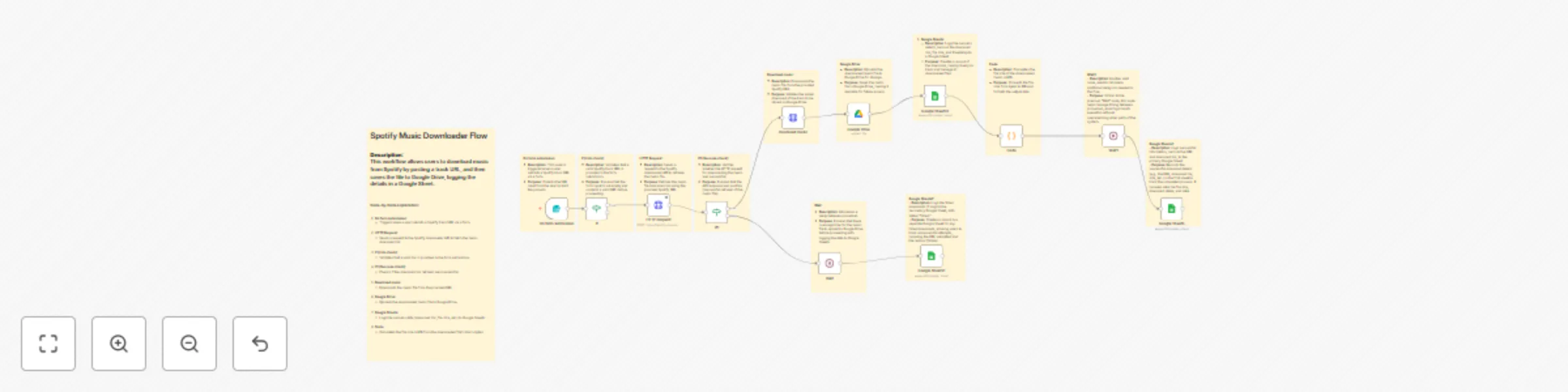
Download Spotify music to Google Drive with automatic logging in sheets
### [**Spotify Music Downloader**](https://rapidapi.com/PrineshPatel/api/spotify-downloader11): Effortless Music Downloading from Spotify **Description**: The **Spotify Music Downloader** is an automation flow that allows users to easily download music from Spotify tracks. By leveraging the powerful [**Spotify Downloader API**](https://rapidapi.com/PrineshPatel/api/spotify-downloader11), the flow downloads Spotify tracks, uploads them to Google Drive, and logs the details to Google Sheets for better management. With this tool, you can save time and effort while enjoying the convenience of direct downloads and automatic organization. --- ## Use Case: - **Music Enthusiasts**: Easily download your favorite Spotify tracks and store them in Google Drive. - **Content Creators**: Automate the process of storing and tracking downloaded music files. - **Organizational Automation**: Store download links and file sizes in Google Sheets to track downloads systematically. - **Spotify Users**: Provides a hassle-free way to access and organize your Spotify music offline. ## Benefits: - **Simple & Automated**: Easily download and organize music from Spotify with minimal effort. - **Seamless Integration**: Directly integrates with Google Drive for storage and Google Sheets for tracking. - **Fast**: Uses the [**Spotify Downloader API**](https://rapidapi.com/PrineshPatel/api/spotify-downloader11) to quickly fetch and download the tracks. - **Track Downloads**: Keep a record of each download, including size, download link, and other details. - **Google Drive Storage**: Automatic storage of downloaded tracks in your Google Drive, making it easy to access files anytime. --- ## Node-by-Node Explanation: 1. **On Form Submission**: - The flow starts when the user submits a Spotify track URL through a form. 2. **HTTP Request (Spotify Downloader API)**: - Sends a request to the [**Spotify Downloader API**](https://rapidapi.com/PrineshPatel/api/spotify-downloader11) to retrieve the music file associated with the given Spotify URL. 3. **If (Link Validation)**: - Ensures that the provided Spotify URL is not empty. 4. **If1 (Success Validation)**: - Checks if the API response was successful. 5. **Download Music**: - Downloads the music file from the provided Spotify link using the fetched download URL. 6. **Google Drive**: - Uploads the downloaded music file to Google Drive. 7. **Google Sheets**: - Logs the successful download details (like URL, download link, size, and timestamp) to Google Sheets. 8. **Code (File Size Calculation)**: - Calculates the file size of the downloaded music file in MB. 9. **Wait**: - Introduces a delay to ensure that the upload process to Google Drive is complete before continuing. 10. **Wait1**: - Another wait node to allow additional time between the various steps in the flow. 11. **Google Sheets1 (Success Logs)**: - Adds a new record for a successful download to a Google Sheet. 12. **Google Sheets2 (Failed Logs)**: - Records failed download attempts in a secondary Google Sheet. --- By utilizing this flow, you can automate the process of downloading music from Spotify and storing it in Google Drive while keeping track of every download in Google Sheets. It's an ideal solution for music lovers, content creators, or anyone looking to automate their music download and storage process with ease. Create your **free n8n account** and set up the workflow in just a few minutes using the link below: 👉 [Start Automating with n8n](https://n8n.partnerlinks.io/7fuarh1e6dz5) Save time, stay consistent, and grow your LinkedIn presence effortlessly!
Auto-translate WordPress blog posts to any language with AI Translate Pro to Google Docs
### Workflow: Auto-Translate WordPress Posts Using **[AI Translate Pro](https://rapidapi.com/PrineshPatel/api/ai-translate-pro)** This n8n workflow automates the translation of WordPress blog content into any language using the **[AI Translate Pro](https://rapidapi.com/PrineshPatel/api/ai-translate-pro)** API, and inserts the translated text into a Google Doc. --- ## 📌 Workflow Steps 1. **Manual Trigger** Initiates the workflow manually (can be replaced with a webhook or schedule trigger). 2. **WordPress Node** Retrieves a specific blog post (by ID) from your WordPress site using the REST API. 3. **HTTP Request Node** Sends the blog content to **[AI Translate Pro](https://rapidapi.com/PrineshPatel/api/ai-translate-pro)** via `multipart/form-data`. 4. **Google Docs Node** Appends the translated text into a specified Google Document using Google Docs API. --- ## 🌍 API Usage: [**AI Translate Pro**](https://rapidapi.com/PrineshPatel/api/ai-translate-pro) **Endpoint:** `POST https://ai-translate-pro.p.rapidapi.com/translate.php` **Content-Type:** `multipart/form-data` **Required Parameters:** | Field | Type | Description | |-----------|--------|-----------------------------------------| | `text` | string | The text or HTML content to translate | | `language`| string | Target language (e.g., `Hindi`, `French`) | **Headers:** | Header Name | Value | |---------------------|---------------------------------------| | `x-rapidapi-host` | `ai-translate-pro.p.rapidapi.com` | | `x-rapidapi-key` | Your RapidAPI key | --- ## ✅ Benefits of Using **AI Translate Pro** - ⚡ **Fast AI-Powered Translation** – Instantly translate content with no need for manual input. - 🌎 **Supports Multiple Languages** – Easily switch languages to serve global audiences. - 🧠 **Context-Aware** – More accurate than basic dictionary translation tools. - 🛠 **Easy Integration with n8n** – No-code/low-code implementation. - 🗃 **Content Reuse** – Save translations directly into Google Docs for future use or edits. - 💼 **Cost-Effective** – Efficient alternative to expensive manual translation services. --- ## 🛠️ Problems Solved - ❌ Manual copy-pasting into Google Translate - ❌ Limited or slow in-house translation - ❌ Difficulty managing multilingual content - ❌ Inconsistent formatting or storage - ✅ With **[AI Translate Pro](https://rapidapi.com/PrineshPatel/api/ai-translate-pro)**, translations are fast, automated, and saved where your team can access them instantly. --- ## ✅ Example Use Case - Translate WordPress blog posts from English to Hindi. - Store translated content in Google Docs for editing or reuse. - Expand to multilingual sites with a simple language switch. - Use **[AI Translate Pro](https://rapidapi.com/PrineshPatel/api/ai-translate-pro)** in any low-code or no-code platform like n8n. --- ## 📎 Requirements - WordPress REST API credentials - RapidAPI access to **[AI Translate Pro](https://rapidapi.com/PrineshPatel/api/ai-translate-pro)** - Google Docs API service account --- ## 🔗 More Info Explore full documentation and pricing on the **[AI Translate Pro](https://rapidapi.com/PrineshPatel/api/ai-translate-pro)** RapidAPI listing page. Create your **free n8n account** and set up the workflow in just a few minutes using the link below: 👉 [Start Automating with n8n](https://n8n.partnerlinks.io/7fuarh1e6dz5) Save time, stay consistent, and grow your LinkedIn presence effortlessly!
Process images with Background Remover AI and track results in Google Sheets
### **AI-Powered Image Background Removal Workflow with Google Sheets Integration** ## **Flow Description:** This workflow utilizes **AI-powered image background removal** integrated with **Google Sheets** to create a fully automated and streamlined process for handling and managing image files. The flow is triggered when a user uploads an image through a form. The image is sent to the API [**Background Remover AI**](https://rapidapi.com/PrineshPatel/api/background-remover-ai3), where it undergoes automatic background removal. Upon successful processing, the new image is uploaded to a temporary file storage service using the [**Temp File Upload**](https://rapidapi.com/PrineshPatel/api/temp-file-upload). Afterward, the relevant data, including the image link and status, is logged in a **Google Sheets** document for easy access and tracking. In case the process fails, the system automatically logs a failure status in the same Google Sheet, along with the reason (if applicable). This allows users to have a transparent, organized, and real-time view of both successful and failed background removal attempts. ### **Used APIs:** 1. [**Background Remover AI**](https://rapidapi.com/PrineshPatel/api/background-remover-ai3): An AI-powered service that removes backgrounds from images. This service offers a fast, accurate, and scalable solution for background removal in images. 2. [**Temp File Upload**](https://rapidapi.com/PrineshPatel/api/temp-file-upload): This API facilitates the upload of processed images to a temporary file storage service, making it easy to access and manage files before permanent storage. --- ## **Use Case:** This workflow is highly beneficial for businesses and developers who need to process multiple images automatically. It helps automate tedious tasks such as background removal, making it an efficient tool for industries like: - **E-commerce**: Automatically removing backgrounds from product images for clean, professional-looking listings across online platforms such as Amazon, eBay, or Shopify. - **Content Creation**: Content creators can quickly remove backgrounds from images for blogs, social media posts, and marketing campaigns, saving significant time in photo editing. - **Real Estate**: Real estate businesses can use this workflow to enhance property images by removing unwanted backgrounds, making them look more polished and appealing for listings. - **Advertising & Marketing**: This workflow simplifies image preparation for digital ads, banners, and promotional content by automatically cleaning up images for a more professional look. --- ## **Benefits:** - **Time-Saving**: By automating the background removal process via the **Background Remover AI** API, you eliminate the need for manual image editing, saving time and resources. - **AI-Powered Accuracy**: The AI-powered background removal service ensures precise and high-quality results consistently. - **Seamless Integration with Google Sheets**: All successful and failed image processing attempts are automatically logged into a **Google Sheets** document, ensuring you have a transparent, real-time record of each operation. - **Error Tracking**: In case of failure, detailed error logs are created in Google Sheets, allowing easy tracking and troubleshooting. - **Efficient Cloud Storage**: The **Temp File Upload** API stores processed images securely in the cloud, offering a temporary solution before permanent storage. --- ## **Google Sheets Table Example:** The data from the workflow will be automatically added to a **Google Sheets** document, creating an organized table with information about the processed images. The table will have the following columns: | **Image Name** | **Link** | **Status** | **Expire At** | |-----------------|----------|------------|---------------------| | `image1.jpg` | [Link](#) | Success | 2025-07-25T12:00:00Z | | `image2.jpg` | [Link](#) | Success | 2025-07-25T12:00:00Z | | `image3.jpg` | Not found | Failed | 2025-07-24T12:00:00Z | | `image4.jpg` | [Link](#) | Success | 2025-07-25T12:00:00Z | ### **Columns Explained:** - **Image Name**: The name of the image file uploaded by the user. - **Link**: A direct link to the processed image stored in temporary file storage. - **Status**: Indicates whether the background removal was **Successful** or **Failed**. - **Expire At**: The expiration date and time when the temporary file link will no longer be accessible. This table provides real-time tracking of each image processing event, offering full visibility of the workflow results. It is ideal for businesses or developers who need to keep a record of their image-processing operations. --- ## **Additional Features:** - **Automatic Error Logging**: If the background removal fails for any reason, a failure entry is recorded in Google Sheets with a timestamp and an error message. - **Custom Expiry Time**: The system automatically sets an expiry time for the processed image, allowing temporary access before it expires and is removed from storage. - **Scalable Process**: The workflow can easily handle multiple form submissions and process images in bulk, making it scalable for various use cases. ___ Create your **free n8n account** and set up the workflow in just a few minutes using the link below: 👉 [Start Automating with n8n](https://n8n.partnerlinks.io/7fuarh1e6dz5) Save time, stay consistent, and grow your LinkedIn presence effortlessly!
Summarize text with RapidAPI and log results to Google Sheets
# ✨ AI Text Summarizer with Google Sheets Logging Summarize large blocks of text into concise outputs using the [Text Summarizer AI API](https://rapidapi.com/PrineshPatel/api/text-summarizer-ai) and automatically log results in Google Sheets. This automation is ideal for content creators, marketers, researchers, and teams who need efficient summarization and record-keeping—without writing a single line of code. --- ## 🚀 Features | Feature | Description | |--------------------------|-----------------------------------------------------------------------------| | **Web Form Trigger** | Collects title, content, mode (Paragraph/Bullet), and length preferences. | | **API Integration** | Sends content to [Text Summarizer AI API](https://rapidapi.com/PrineshPatel/api/text-summarizer-ai) via RapidAPI. | | **Conditional Logic** | Routes success and error cases appropriately. | | **Google Sheets Logging**| Stores summaries or error messages into Google Sheets. | | **Error Handling** | Captures failed summaries and ensures no data is lost. | --- ## 🧠 Problem Solved Manually summarizing long-form content is time-consuming and repetitive. Storing this output in structured logs (like Google Sheets) adds an extra layer of manual effort. This workflow solves that by: - 🔁 Automating AI-driven summarization using [Text Summarizer AI API](https://rapidapi.com/PrineshPatel/api/text-summarizer-ai). - 📊 Storing results (or fallback errors) directly into a Google Sheet. - ✅ Ensuring no request goes unlogged—even on API failure. --- ## 🎯 Use Cases - 📝 **Blog Writers**: Quickly convert articles into summaries for social captions. - 📚 **Students**: Break down textbook or lecture content. - 🧠 **Knowledge Management**: Turn raw meeting notes into concise summaries. - 📢 **SEO Teams**: Use bullet-point output for schema markup or meta descriptions. --- ## 🧩 Nodes in the Flow | Node Name | Purpose | |----------------------|-------------------------------------------------------------------------| | **On form submission** | Captures user input via form (title, content, mode, length). | | **Mapping** | Formats input to match [Text Summarizer AI API](https://rapidapi.com/PrineshPatel/api/text-summarizer-ai) specs. | | **HTTP Request** | Sends POST request to the summarization API on [RapidAPI](https://rapidapi.com/PrineshPatel/api/text-summarizer-ai). | | **If** | Validates whether a `summary` was returned. | | **Wait** | Adds short delay before writing to spreadsheet (success). | | **Google Sheets** | Appends summary data to Google Sheet. | | **Wait1** | Adds delay for error handling path. | | **Google Sheets1** | Logs failure with an “Error occurred” message. | --- ## ✅ Benefits - 🧠 **AI-Powered**: Uses [Text Summarizer AI API](https://rapidapi.com/PrineshPatel/api/text-summarizer-ai) for fast and contextual summaries. - 📁 **Organized Logs**: Google Sheets integration ensures easy tracking and auditing. - 🔐 **Reliable**: Captures all submissions, including failed ones. - 🧩 **Customizable**: Easily adapt inputs or connect to other tools like Notion, Slack, or Airtable. --- ## 🛠️ Requirements - ✅ n8n account (Cloud or Self-Hosted) - ✅ Access to [Text Summarizer AI API](https://rapidapi.com/PrineshPatel/api/text-summarizer-ai) - ✅ Google account (for Sheets integration) - 🔑 API key from RapidAPI (used in the HTTP Request node) --- ## 🔄 Workflow Overview 1. User submits text and preferences (mode, length) via a form. 2. Workflow triggers and transforms the input. 3. Formatted data is sent to the [Text Summarizer AI API](https://rapidapi.com/PrineshPatel/api/text-summarizer-ai). 4. If a valid summary is returned: - Log it into Google Sheets. 5. If the API fails: - Log the error message instead. --- ## 📥 Import Instructions - Open n8n and import the workflow JSON. - Replace the `x-rapidapi-key` in the HTTP node with your personal RapidAPI key. - Configure your Google Sheets credentials. - Deploy and test. ✅ --- ## 🔗 Suggested Extensions - 🟢 Notion database logging - 🟣 Slack/Discord notification for each summary - 🔵 CSV download or Airtable sync --- ## 🏷 Tags `ai` `summarization` `text-processing` `rapidapi` `google-sheets` `automation` `markdown` `n8n` `Text Summarizer AI API` ___ Create your **free n8n account** and set up the workflow in just a few minutes using the link below: 👉 [Start Automating with n8n](https://n8n.partnerlinks.io/7fuarh1e6dz5) Save time, stay consistent, and grow your LinkedIn presence effortlessly!