Gather complete YouTube channel data to Google Sheets

Workflow preview

Workflow preview
100%
Gather complete YouTube channel data to Google Sheets preview
Open on n8n.io

Important notice

This workflow is provided as-is. Please review and test before using in production.

1. Workflow Overview

This N8N template demonstrates how to use our tool to collect key information from any YouTube channel including title, description, custom URL, stats (views, subscribers, videos), creation date, c...

Best for

  • Market Research automation workflows
  • intermediate n8n builders looking for reusable templates

Tools used

n8n-nodes-base.manualtrigger, n8n-nodes-base.if, n8n-nodes-base.googlesheets, n8n-nodes-base.splitinbatches, n8n-nodes-base.stickynote, n8n-nodes-base.httprequest, n8n-nodes-base.switch

Source and attribution

This workflow is cataloged by N8N Workflows and links back to its original n8n.io source page by Agent Circle.

Original n8n.io source

1.1 Workflow description

Title
Gather complete YouTube channel data to Google Sheets
Workflow name
Gather complete YouTube channel data to Google Sheets

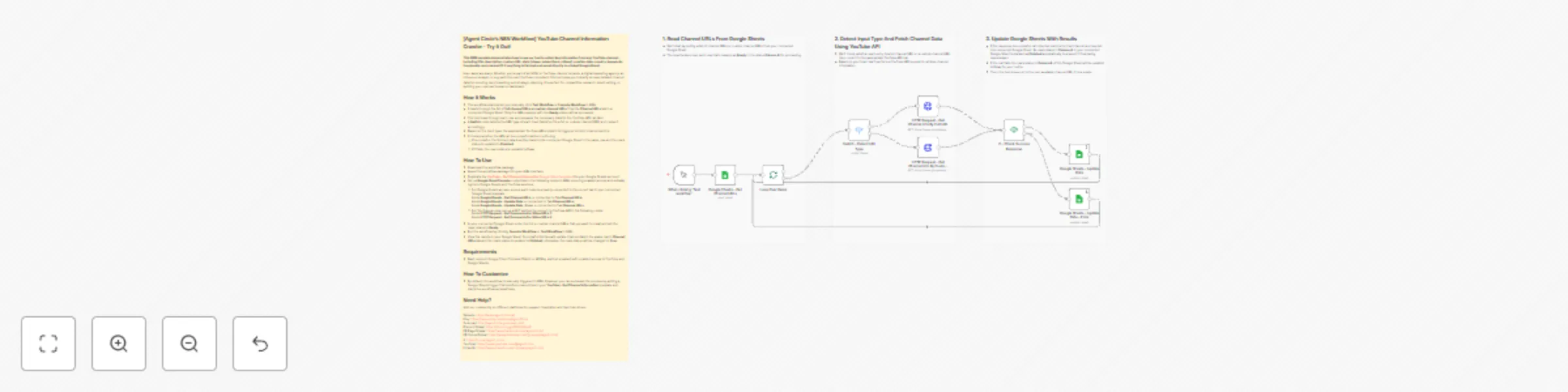
This N8N template demonstrates how to use our tool to collect key information from any YouTube channel - including title, description, custom URL, stats (views, subscribers, videos), creation date, country, keywords, thumbnails, and channel ID. Everything is fetched and saved directly in a linked Google Sheet.

Use cases are many: Whether you're part of an MCN or YouTube channel network, a digital marketing agency, an influencer analyst, or a growth-focused YouTube consultant, this tool helps you instantly access detailed channel data for scouting, benchmarking, and strategic planning. It's perfect for competitive research, brand vetting, or building your next performance dashboard.

How It Works

  • The workflow starts when you manually click Test Workflow or Execute Workflow in N8N.
  • It reads through the list of full channel URLs or custom channel URLs from the Channel URLs tab in a connected Google Sheet. Only the URLs marked with the Ready status will be processed.
  • The tool loops through each row and prepares the necessary data for the YouTube API call later.
  • A Switch node detects the URL type of each input (whether it's a full or custom channel URL) and routes it accordingly.
  • Based on the input type, the appropriate YouTube API endpoint is triggered to fetch channel metrics.
  • It checks whether the API call is successful before continuing:
    • If successful, the fetched data is written back to the connected Google Sheet in the same row and the row's status is updated to Finished.
    • If it fails, the row's status is updated to Error.

How To Use

  • Download the workflow package.
  • Import the workflow package into your N8N interface.
  • Duplicate the YouTube - Get Channel Information Google Sheet template into your Google Sheets account.
  • Set up Google Cloud Console credentials in the following nodes in N8N, ensuring enabled access and suitable rights to Google Sheets and YouTube services:
    • For Google Sheets access, ensure each node is properly connected to the correct tab in your connected Google Sheet template: Node Google Sheets - Get Channel URLs → connected to Tab Channel URLs; Node Google Sheets - Update Data → connected to Tab Channel URLs; Node Google Sheets - Update Data - Error → connected to Tab Channel URLs.
    • For YouTube access, set up a GET method to connect to YouTube API in the following nodes: Node HTTP Request - Get Comments For Video URLs 1;
      Node HTTP Request - Get Comments For Video URLs 2.
  • In your connected Google Sheet, enter the full or custom channel URLs that you want to crawl and set the rows' status to Ready.
  • Run the workflow by clicking Execute Workflow or Test Workflow in N8N.
  • View the results in your Google Sheet: Successful fetches will update channel data in the same row in Channel URLs tab and the row's status is updated to Finished; otherwise, the row's status will be changed to Error.

Requirements

  • Basic setup in Google Cloud Console (OAuth or API Key method enabled) with enabled access to YouTube and Google Sheets.

How To Customize

  • By default, the workflow is manually triggered in N8N. However, you can automate the process by adding a Google Sheets trigger that monitors new entries in your YouTube – Get Channel Information template and starts the workflow automatically.

Need Help?

Join our community on different platforms for support, inspiration and tips from others.

Website: https://www.agentcircle.ai/ Etsy: https://www.etsy.com/shop/AgentCircle Gumroad: http://agentcircle.gumroad.com/ Discord Global: https://discord.gg/d8SkCzKwnP FB Page Global: https://www.facebook.com/agentcircle/ FB Group Global: https://www.facebook.com/groups/aiagentcircle/ X: https://x.com/agent_circle YouTube: https://www.youtube.com/@agentcircle LinkedIn: https://www.linkedin.com/company/agentcircle

1.2 Logical Blocks

This catalog entry is organized from the workflow JSON. The node-level section below shows the executable blocks available for review before importing the template.

2. Block-by-Block Analysis

Block 1 - When clicking ‘Test workflow’

Type / Role
n8n-nodes-base.manualTrigger - manualTrigger
Config choices
Version 1

Block 2 - If - Check Success Response

Type / Role
n8n-nodes-base.if - if
Config choices
Version 2.2

Block 3 - Google Sheets - Update Data

Type / Role
n8n-nodes-base.googleSheets - googleSheets
Config choices
Version 4.5

Block 4 - Google Sheets - Update Data - Error

Type / Role
n8n-nodes-base.googleSheets - googleSheets
Config choices
Version 4.5

Block 5 - Loop Over Items

Type / Role
n8n-nodes-base.splitInBatches - splitInBatches
Config choices
Version 3

Block 6 - Sticky Note

Type / Role
n8n-nodes-base.stickyNote - stickyNote
Config choices
Version 1

Block 7 - Google Sheets - Get Channel URLs

Type / Role
n8n-nodes-base.googleSheets - googleSheets
Config choices
Version 4.5

Block 8 - Sticky Note1

Type / Role
n8n-nodes-base.stickyNote - stickyNote
Config choices
Version 1

Block 9 - Sticky Note2

Type / Role
n8n-nodes-base.stickyNote - stickyNote
Config choices
Version 1

Block 10 - Sticky Note3

Type / Role
n8n-nodes-base.stickyNote - stickyNote
Config choices
Version 1

Block 11 - HTTP Request - Get Channel Info By Full URL

Type / Role
n8n-nodes-base.httpRequest - httpRequest
Config choices
Version 4.2

Block 12 - HTTP Request - Get Channel Info By Custom URL

Type / Role
n8n-nodes-base.httpRequest - httpRequest
Config choices
Version 4.2

Block 13 - Switch - Detect URL Type

Type / Role
n8n-nodes-base.switch - switch
Config choices
Version 3.2

3. Summary Table

Workflow Gather complete YouTube channel data to Google Sheets
Complexity intermediate
Nodes 13
Categories Market Research
Author Agent Circle
Published 07 Jul 2025

4. Reproducing the Workflow from Scratch

  1. 1. Download the workflow JSON

    Use the JSON export at /data/workflows/5728/5728.json as the source template for this automation.

  2. 2. Import the template into n8n

    Open n8n, import the downloaded JSON, and review each node before activating the workflow.

  3. 3. Configure credentials and variables

    Replace placeholder credentials, API keys, webhook URLs, account IDs, and environment-specific values with your own settings.

  4. 4. Test with sample data

    Run the workflow manually or in a staging workspace, inspect node output, and confirm downstream systems receive the expected data.

  5. 5. Activate and monitor

    Enable the workflow only after testing, then monitor executions, errors, and rate limits during the first production runs.

5. General Notes & Resources

Review imported nodes carefully before activation. This catalog entry is intended to help you inspect the workflow structure, understand required services, and find related templates faster.

Node names, credentials, schedules, webhook paths, and external service limits may need adjustment for your workspace.

Frequently asked questions

What does Gather complete YouTube channel data to Google Sheets do?

This N8N template demonstrates how to use our tool to collect key information from any YouTube channel including title, description, custom URL, stats (views, subscribers, videos), creation date, c...

What do I need before importing this workflow?

Review the workflow JSON, configure any required credentials in n8n, and test the automation in a safe workspace before using it in production.

Can I customize this workflow?

Yes. Use the block-by-block analysis and the downloadable JSON to inspect each node, then adjust credentials, prompts, schedules, filters, or destinations for your Market Research use case.