Agent Circle
Workflows by Agent Circle
Automate real-time SEO keyword research with DataForSEO and Google Sheets
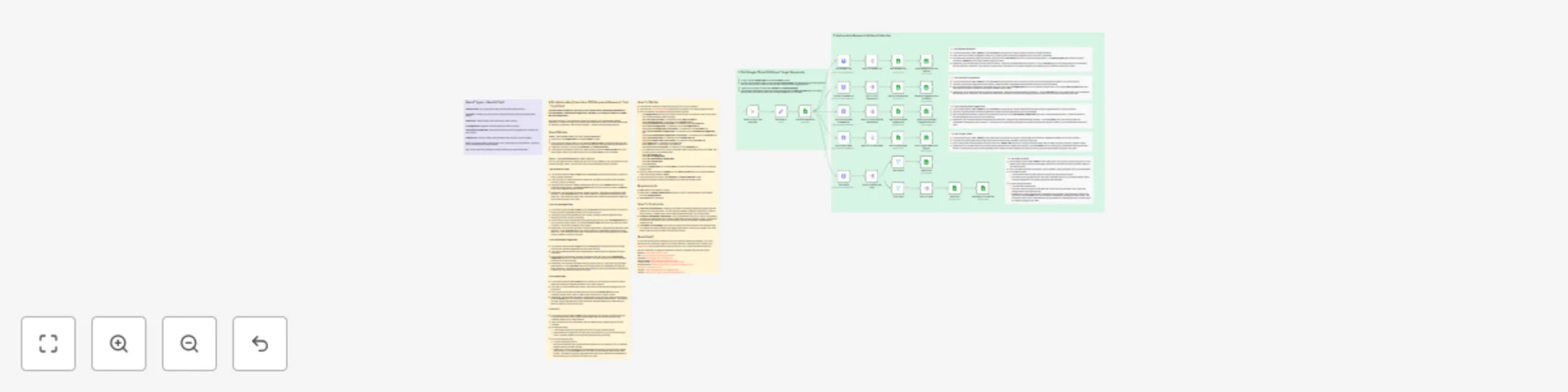
### This n8n template automates real-time SEO keyword research, delivering comprehensive keyword insights, autocomplete suggestions, subtopics, SERP analysis, and more, straight into your Google Sheet. Use cases are many: This workflow is perfect for bloggers, SEO professionals, affiliate marketers, e-commerce teams, and content creators who need fresh, actionable keyword data for planning, optimization, and content expansion - without endless manual research. ## How It Works ### Phase 1: Set Google Sheet ID & Input Target Keywords - In n8n, enter the **Google Sheet ID** in the **Set Sheet ID** node. - In the connected Google Sheet, for the first tab **Main Keyword**, you manually add the main keywords that you want the tool to research and generate relevant keyword suggestions for. - Trigger the process by clicking **Test Workflow** or **Execute Workflow**. - The workflow automatically reads your main keywords from the **Main Keyword** tab in your linked Google Sheet, only those marked with the status **Ready** will be processed. ### Phase 2: Automated Research & Data Collection For your input main keyword (considering here you only set **Ready** for one main keyword in the connected Google Sheet), the workflow runs multiple automated queries in parallel: **1. Get Related Keywords:** - The workflow sends a **POST request** to the **DataForSEO API** endpoint to directly retrieve an array of related keywords. - Then, the array of related keywords is parsed out, preparing each keyword as a separate record for further processing. - It appends each extracted related keyword as a new row in the **Related KW** tab of your connected Google Sheet. The **Main Keyword** value from your input is included in **Column A** of the tab to maintain keyword context. - Additionally, the workflow appends the related keywords - along with the associated main keyword - to the **All Results** tab in your Google Sheet for consolidated tracking and future reference. This ensures you have both a dedicated list of related keywords and a master log of all research results in one place. **2. Get Keyword Suggestions:** - The workflow sends a **POST request** to the **DataForSEO API** endpoint to directly retrieve an array of keyword suggestions related to your main keyword. - This array of keyword suggestions is then parsed, splitting out each suggestion as an individual record for further processing. - Each extracted keyword suggestion is appended as a new row in the **KW Suggestion** tab of your connected Google Sheet. The original **Main Keyword** value from your input is included in Column A of the tab to maintain clear context. - Additionally, the workflow appends all keyword suggestions - along with the associated main keyword - to the **All Results** tab in your Google Sheet for consolidated tracking and future reference. This ensures you have both a dedicated list of keyword suggestions and a master log of all research results in one place. **3. Get Autocomplete Suggestions:** - The workflow sends a **POST request** to the **DataForSEO API** endpoint to retrieve Google autocomplete keyword suggestions for your main keyword. - The array of autocomplete keyword suggestions is parsed out as an individual record for processing. - Each extracted autocomplete keyword is appended as a new row in the **Autocomplete Suggestion** tab of your connected Google Sheet. The Main Keyword is included alongside each entry for proper tracking. - Additionally, the workflow appends all autocomplete keywords - along with the associated main keyword - to the **All Results** tab in your Google Sheet for consolidated tracking and future reference. This ensures you have both a dedicated list of autocomplete keywords and a master log of all research results in one place. **4. Get Content Ideas:** - The workflow sends a **POST request** to the DataForSEO API endpoint to retrieve content ideas and fresh topic suggestions based on your main keyword. - The array of content ideas is then parsed; each idea is extracted as a separate record for further use. - Every content idea is then appended as a new row in the **Content Idea** tab of your connected Google Sheet, with the Main Keyword included to provide context. - Additionally, the workflow appends all content ideas, along with their related main keyword, to the **All Results** tab in your sheet for consolidated tracking and easy access. This ensures you have both a dedicated list of content ideas for brainstorming and a central log of all keyword research outputs in one place. **5. Get SERPs:** - The workflow sends a **POST request** to the DataForSEO API endpoint, retrieving both the current Google SERP (Search Engine Results Page) data and People Also Ask (PAA) questions related to your main keyword. - Then, the data is split into two streams: one for standard SERP results and one for PAA questions. - For Standard SERPs: + The workflow filters the SERP data to keep only the most relevant results. + Each SERP entry is appended as a new row in the **SERP** tab of your connected Google Sheet, providing insights into top-ranking pages and their attributes. - For PAA (People Also Ask): + The PAA data is also filtered. + Each PAA question is split out and added as a new row in the **PAA** tab in your connected Google Sheet for focused tracking. + Additionally, all PAA questions are consolidated and appended, along with their related main keyword, to the **All Results** tab in your sheet for consolidated tracking and easy access. This ensures you have both a dedicated list of PAA questions for brainstorming and a central log of all research outputs in one place. ## Result Types **Main Keyword**: Your original list of main keywords with status tracking. **All Results**: A master log of all relevant keyword and idea research outputs for easy review. **Related KW**: Lists of related keywords for each main keyword. **KW Suggestion**: Suggested keyword ideas for broader targeting. **Autocomplete Suggestion**: Google autocomplete keyword suggestions to capture real user queries. **Content Idea**: Keyword-related content ideas to build out your content clusters. **SERP**: top-ranking pages, including their URLs, page titles, and descriptions - perfect for quick competitor and content analysis. **PAA**: People Also Ask questions for intent research and content expansion. ## How To Set Up - Download the workflow package and import it into your n8n interface. - Duplicate the [**Keyword Research**](https://docs.google.com/spreadsheets/d/1QiaKcy5MwLwmBqD4FrBTd_m3GCK1Jjll9IsNi7q96QA/edit?gid=0#gid=0) Google Sheet template to your Google Sheets account. - Set up necessary credentials for tools access and usability: + For **Google Sheets** access, ensure each node is properly connected to the correct tab in your connected Google Sheet template: Node **Get Main Keywords** → connected to the **Main Keyword** tab Node **Add Related KWs** → connected to the **Related KW** tab Node **Save Related KWs to All Results** → connected to the **All Results** tab Node **Add KW Suggestions** → connected to the **KW Suggestion** tab Node **Save KW Suggestions to All Results** → connected to the **All Results** tab Node **Add Autocomplete Suggestions** → connected to the **Autocomplete Suggestion** tab Node **Save Autocomplete Suggestions to All Results** → connected to the **All Results** tab Node **Add Content Ideas** → connected to the **Content Idea** tab Node **Save Content Ideas to All Results** → connected to the **All Results** tab Node **Add SERPs** → connected to the **SERP** tab Node **Add PAAs** → connected to the **PAA** tab Node **Save PAAs to All Results** → connected to the **All Results** tab + For DataForSEO access, set up API credentials (Basic Auth) along with correct **POST URL** for each query in the following node: Node **Get Related KWs** Node **Get KW Suggestions** Node **Get Autocomplete Suggestions** Node **Get Content Ideas** Node **Get SERPs** - Enter your **Google Sheet ID** in the **Set Sheet ID** node to link the workflow to your connected Google Sheet. - Add your target keywords to **Column B** in the **Main Keyword** tab in the connected Google Sheet and set their status to **Ready** - Run the workflow by clicking **Test Workflow** or **Execute Workflow** in n8n. - Review the results across all output tabs in your connected Google Sheet. ## Requirements - **n8n** instance (self-hosted or cloud). - Basic setup in **Google Cloud Console** (OAuth or API Key method enabled) with enabled access to **Google Sheets**. - **DataForSEO** API credentials. ## How To Customize - **Add Extra Research Steps**: Expand the workflow by integrating additional research queries related to the main keywords - such as backlink analysis, competitor monitoring, or search trend tracking - to gather even more valuable insights alongside your keyword data. - **Automate Scheduling & Notifications**: Set up an automatic schedule in n8n so the workflow runs at your preferred intervals. Connect notification tools like Telegram, Slack, or a chatbox to receive alerts whenever the process finishes, keeping you instantly updated without manual checks. - **Personalize Data Mapping**: Tailor how the research results are saved to your Google Sheet by customizing column mapping and naming conventions. This lets you organize your data exactly how you want for easier analysis and reporting. ## Need Help? If you’d like this workflow customized to fit your tools and platforms availability, or if you’re looking to build a tailored AI Agent for your own business - please feel free to reach out to [**Agent Circle**](https://www.agentcircle.ai/). We’re always here to support and help you to bring automation ideas to life. Join our community on different platforms for support, inspiration and tips from others. Website: https://www.agentcircle.ai/ Etsy: https://www.etsy.com/shop/AgentCircle Gumroad: http://agentcircle.gumroad.com/ Discord Global: https://discord.gg/d8SkCzKwnP FB Page Global: https://www.facebook.com/agentcircle/ FB Group Global: https://www.facebook.com/groups/aiagentcircle/ X: https://x.com/agent_circle YouTube: https://www.youtube.com/@agentcircle LinkedIn: https://www.linkedin.com/company/agentcircle
Auto-generate SEO articles in WordPress with Gemini AI and OpenAI images
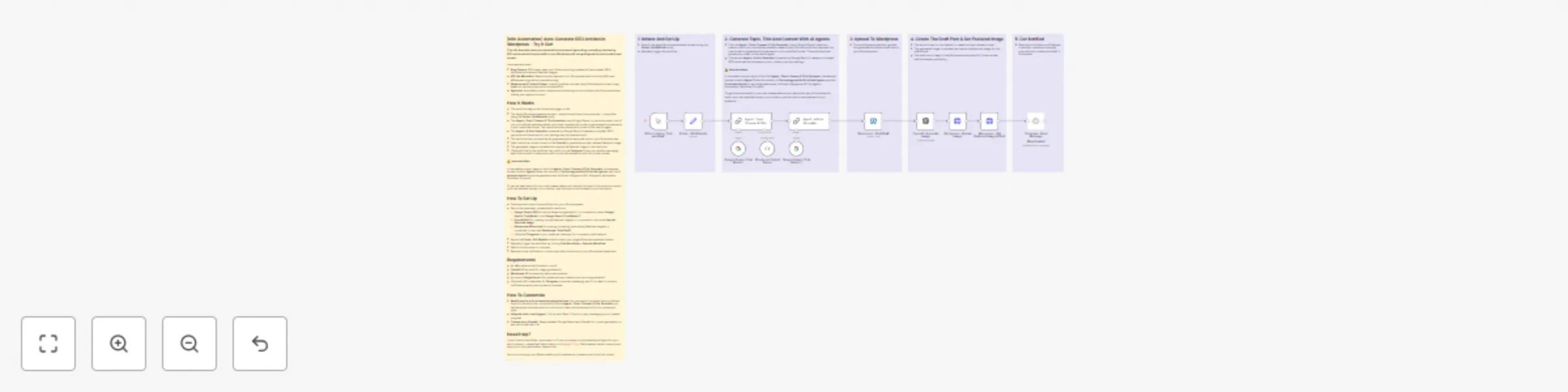
### This n8n template helps you automate the process of generating, uploading, and saving SEO-optimized articles as drafts in your Wordpress site using AI agents for both content and visuals. Use cases are many: - **Blog Owners**: Effortlessly keep your Wordpress blog updated with automated, SEO-optimized articles and featured images. - **Affiliate Marketers**: Rapidly publish keyword-rich Wordpress posts to boost traffic and affiliate earnings without manual writing. - **Newsrooms & Content Teams**: Instantly draft and upload timely Wordpress articles to stay ahead on trending topics with minimal effort. - **Agencies**: Automate content creation and publishing across multiple client Wordpress sites, scaling your agency’s output. ## How It Works - The workflow begins with a manual trigger in n8n. - The target Wordpress website domain - where the article will be published - is specified using the **Fields – Set Website** node. - The **Agent – Topic Chooser & Title Generator** uses Google Gemini to randomly select one of your pre-defined website-related topics and requests the model to generate article elements in your specified format. The results are then parsed and routed to the next AI agent. - The **Agent – Article Generator** (powered by Google Gemini) creates a complete, SEO-optimized article tailored to your settings and the selected topic. - The workflow then uploads the AI-generated article as a draft post to your Wordpress site. - Next, the article content is sent to the **OpenAI** to generate a unique, relevant featured image. - The generated image is uploaded and set as the featured image in the draft post. - (Optional) Finally, the workflow can notify you via **Telegram** (or any connected messaging app) that the post is ready as a draft on your Wordpress account for further review. ⚠️ **Important Note**: In the default prompt setup of the first **Agent – Topic Chooser & Title Generator**, the website domain is set to **Agent Circle**, the industry is **Technology and Artificial Intelligence**, and the **5 available topics** for article generation are: Artificial Intelligence (AI); AI Agents; Automation; Workflow; Prompts). To get the best results for your site, please make sure to adjust this part of the prompt to match your own website domain, your industry, and the topics most relevant to your audience. ## How To Set Up - Download and import the workflow into your n8n workspace. - Set up the necessary credentials for each tool: - **Google Gemini API** (for article elements generation) → connected to nodes **Google Gemini Chat Model 1** and **Google Gemini Chat Model 2**. - **OpenAI API** (for creating unique featured images) → connected to the node **OpenAI - Generate Image**. - **Wordpress API access** (for posting, uploading, and setting featured images) → connected to the node **Wordpress - Post Draft**. - (Optional) **Telegram** or your preferred chat app (for completion notifications). - Adjust the **Fields – Set Website** node to match your target Wordpress website domain. - Manually trigger the workflow by clicking **Test Workflow** or **Execute Workflow**. - Wait for the process to complete. - Receive a chat notification or check the draft post directly in your Wordpress dashboard. ## Requirements - An **n8n** instance (self-hosted or cloud). - **OpenAI** API access (for image generation). - **Wordpress** API access with admin permissions. - Access to **Google Gemini** (for advanced topic selection and article generation). - (Optional) API credentials for **Telegram** or another messaging app if you want to receive notifications when the process is complete. ## How To Customize - **Modify topics, article elements and guildelines**: You can easily customize the pre-defined topics in the instruction prompt within Node **Agent – Topic Chooser & Title Generator**, as well as adjust the descriptions or structure of each article element to fit your needs and style. - **Integrate other chat triggers**: Link up with Slack, Discord, or any messaging tool to update progress. - **Choose your AI model**: Swap between Google Gemini and OpenAI for content generation, or add your preferred LLM. ## Need Help? If you’d like this workflow customized, or if you’re looking to build a tailored AI Agent for your own business - please feel free to reach out to [**Agent Circle**](https://www.agentcircle.ai/). We’re always here to support and help you to bring automation ideas to life. Join our community on different platforms for assistance, inspiration and tips from others. Website: https://www.agentcircle.ai/ Etsy: https://www.etsy.com/shop/AgentCircle Gumroad: http://agentcircle.gumroad.com/ Discord Global: https://discord.gg/d8SkCzKwnP FB Page Global: https://www.facebook.com/agentcircle/ FB Group Global: https://www.facebook.com/groups/aiagentcircle/ X: https://x.com/agent_circle YouTube: https://www.youtube.com/@agentcircle LinkedIn: https://www.linkedin.com/company/agentcircle
Automated real-time web research with Gemini AI and SerpAPI search
### This workflow demonstrates how to automate live information gathering, fact-checking, and trend analysis in response to any chat message - using a powerful AI agent, memory, and a real-time search tool. Use cases are many: This is perfect for **researchers** needing instant, up-to-date data; **support teams** providing live, accurate answers; **content creators** looking to verify facts or find hot topics; and **analysts** automating regular reports with the freshest information. ## How It Works - The workflow is triggered whenever a chat message is received (e.g., a user question, research prompt, or data request). - The message is sent to the AI Agent, which follows the following steps: - First, it queries **SerpAPI – Research** to gather the latest real-time information and data from the web. - Next, it checks the **Window Buffer Memory** for any related past interactions or contextual information that may be useful. - Finally, it sends all collected data and context to the **Google Gemini Chat Model**, which analyzes the information and generates a comprehensive, intelligent response. - Then, the AI Agent delivers the analyzed, up-to-date answer directly in the chat, combining live data, context, and expert analysis. ## How To Set Up - Download and import the workflow into your n8n workspace. - Set up API credentials and tool access for the **AI Agent**: - **Google Gemini** (for chat-based intelligence) → connected to Node **Google Gemini Chat Model**. - **SerpAPI** (for real-time web and search results) → connected to Node **SerpAPI - Research**. - **Window Buffer Memory** (for richer, context-aware conversations) → connected to Node Window **Buffer Memory**. - Open the chat in n8n and type the topic or trend you want to research. - Send the message and wait for the process to complete. - Receive the AI-powered research reply in the chat box. ## Requirements - An **n8n** instance (self-hosted or cloud). - **SerpAPI** credentials for live web search and data gathering. - **Window Buffer Memory** configured to provide relevant conversation context in history. - **Google Gemini API** access to analyze collected data and generate responses. ## How To Customize - **Choose your preferred AI model**: Replace **Google Gemini** with **OpenAI ChatGPT**, or any other chat model as preferred. - **Add or change memory**: Replace **Window Buffer Memory** with more advanced memory options for deeper recall. - **Connect your preferred chat platform**: Easily swap out the default chat integration for Telegram, Slack, or any other compatible messaging platform to trigger and interact with the workflow. ## Need Help? If you’d like this workflow customized, or if you’re looking to build a tailored AI Agent for your own business - please feel free to reach out to [**Agent Circle**](https://www.agentcircle.ai/). We’re always here to support and help you to bring automation ideas to life. Join our community on different platforms for assistance, inspiration and tips from others. Website: https://www.agentcircle.ai/ Etsy: https://www.etsy.com/shop/AgentCircle Gumroad: http://agentcircle.gumroad.com/ Discord Global: https://discord.gg/d8SkCzKwnP FB Page Global: https://www.facebook.com/agentcircle/ FB Group Global: https://www.facebook.com/groups/aiagentcircle/ X: https://x.com/agent_circle YouTube: https://www.youtube.com/@agentcircle LinkedIn: https://www.linkedin.com/company/agentcircle
Analyze YouTube comments sentiment with Gemini AI and Google Sheets
### This n8n workflow demonstrates how to use this AI Agent to extract, process, and analyze YouTube video comments to understand your audience beyond the view count. Use cases are many: Whether you're **a YouTube creator** exploring feedback, **a social media manager** fine-tuning engagement strategy, **a brand team** monitoring campaign sentiment, or **a marketing agency** conducting audits – this tool brings audience voice to the forefront with structured insights. ## How It Works - The workflow starts when you manually click **Test Workflow** or **Execute Workflow** in n8n. - It collects all the rows marked as **Ready** in **Column A** in the **Video URLs** tab of your connected Google Sheet. - The tool checks if the URLs are not empty first, then it loops through each valid video URL and sends a **GET** request to the **YouTube API** to fetch its comments. - It checks the response from the YouTube API. If the call is successful, the comment data is extracted and split into individual entries. - The tool then checks whether the video URL has any comment. - If no comment is found, the video URL’s status in **Column A** in the **Video URLs** tab is updated to **Finished** right away. - If comments are available, they are passed to the **AI Agent - Analyze Sentiment Of Every Comment** using **the Google Gemini chat model**, where each comment is analyzed and classified by sentiment: **Positive**, **Neutral**, or **Negative**. - Next, the analysis results are saved to the **Results** tab in your connected Google Sheet. - Finally, the original video URL’s status in **Column A** in the **Video URLs** tab is updated to **Finished**, ensuring it won’t be reprocessed in the loop. ## How To Set Up - Download the working package and import it into your n8n interface. - Duplicate the [**YouTube Comment Analyzer**](https://docs.google.com/spreadsheets/d/18-3CmJPbC73MycmNiSWotdsyGBAAzqESf33vktwnYmM/edit?gid=426418282#gid=426418282) Google Sheet template to your Google Sheets account. - Set up necessary credentials for tools access and usability: + For **Google Sheets** access, ensure each node is properly connected to the correct tab in your connected Google Sheet template: Node **Get Video URLs** → connected to the **Video URLs** tab Node **Insert Comment Data & Analysis** → connected to the **Results** tab Node **Update Video Status** → connected to the **Video URLs** tab + For **YouTube** access, connect to its API in the following node: Node **HTTP Request - Get Comments** + For **Google Gemini** access, connect to its API in the following node: Node **Google Gemini Chat Model** - Enter video URLs in **Column B** in the **Video URLs** tab in your connected Google Sheet and mark their status in **Column A** as **Ready**. - Click **Test Workflow** or **Execute Workflow** to run the process. - Check the results in the **Results** tab of the connected Google Sheet template to view all collected comments along with their sentiment analysis. ## Requirements - Basic setup in Google Cloud Console (OAuth or API Key method enabled) with enabled access to YouTube and Google Sheets. - API access to **Google Gemini** for sentiment analysis. ## How To Customize - By default, the workflow is manually triggered in N8N. However, you can automate the process by adding a **Google Sheets trigger** that monitors new entries in your connected Google Sheet template and starts the workflow automatically. - In the **AI Agent - Analyze Sentiment Of Every Comment** node, you can also change the AI chat model. By default, it uses **Google Gemini**, but you can easily replace it with any other compatible provider such as Deepseek, Grok, etc. - You can customize the sentiment categories and instruction prompt for the AI Agent in the **AI Agent – Analyze Sentiment Of Every Comment** node following your needs. Then, the Agent can return sentiment results that align more closely with your intended use case. - Also, feel free to integrate additional nodes (like Telegram or Email) to notify you and your team whenever updates and analysis succeed or fail. ## Need Help? If you’d like this workflow customized, or if you’re looking to build a tailored AI Agent for your own business - please feel free to reach out to [**Agent Circle**](https://www.agentcircle.ai/). We’re always here to support and help you to bring automation ideas to life. Join our community on different platforms for assistance, inspiration and tips from others. Website: https://www.agentcircle.ai/ Etsy: https://www.etsy.com/shop/AgentCircle Gumroad: http://agentcircle.gumroad.com/ Discord Global: https://discord.gg/d8SkCzKwnP FB Page Global: https://www.facebook.com/agentcircle/ FB Group Global: https://www.facebook.com/groups/aiagentcircle/ X: https://x.com/agent_circle YouTube: https://www.youtube.com/@agentcircle LinkedIn: https://www.linkedin.com/company/agentcircle
Extract business emails from Google Maps search results to Google Sheets
### This workflow demonstrates how to automate the extraction of business emails from Google Maps results using a specific keyword. It streamlines the process of finding, filtering, and saving contact emails into a Google Sheet, eliminating the need for tedious manual research. This tool is perfect for those who need to collect business email addresses for outreach, research, or marketing purposes, especially those whose success depends on building and managing business relationships at scale. - **Sales and Lead Generation Teams**: Quickly build targeted business email lists for efficient cold outreach and follow-up. - **Marketing Agencies and Freelancers**: Effortlessly gather contact details for potential clients in specific niches or locations to power outreach campaigns. - **Recruiters and Talent Acquisition Specialists**: Easily collect company contacts to connect with HR or hiring managers in targeted industries or regions. - **Event Organizers and B2B Promoters**: Rapidly compile relevant business emails for event invitations, sponsorship proposals, or promotional efforts. - **Market Researchers and Data Analysts**: Automate large-scale collection of business emails to support industry analysis and data-driven research. ## How It Works - A target keyword (e.g., “n8n workflow”) should be entered in Node **Fields - Set Keyword / Phrase**. - Then, the process is triggered by clicking **Test Workflow** or **Execute Workflow**. - The workflow queries Google Maps, collects keyword-related website URLs from its HTML, and filters for only valid website URLs. - Next, it removes duplicate website URLs to ensure each is processed only once later. - For every unique valid website URL, the workflow sends an HTTP request to extract all potential email addresses from the website’s content in a loop. - After that, the emails are passed through another loop and a code node (**Code – Match Email**) to ensure each one is a valid, properly formatted email address (not just random text). Any invalid emails are filtered out during this step. - All valid emails are then collected and prepared for further processing. - The workflow then splits out the results and removes any duplicate emails to ensure each address appears only once. - Finally, the list of unique, verified emails (directly related to your chosen keyword) is saved to your connected Google Sheet for easy access and follow-up. ## How To Set Up - Download the working package. - Import the package into your n8n interface. - Duplicate the [**Google Maps - Crawl Emails By Keyword Google Sheets template**](https://docs.google.com/spreadsheets/d/17y_MmRHfBbW67bVyRuep1hkpoh2BV3yF5_Woxt0W9kk/edit?gid=0#gid=0) into your Google Sheets account. - Set up necessary credentials in Google Cloud Console for Google Sheets access and usability in Node **Google Sheets - Update Data**. - Set up a GET method to access Google Maps in Node **HTTP Request - Get Sites**. - Enter your desired keyword or phrase in Node **Fields - Set Keyword / Phrase**. - Start the workflow in n8n. - Wait a few minutes for the process to finish. - Check the list of all valid emails related to your keyword/phrase in the connected Google Sheet. ## Requirements - Basic setup in **Google Cloud Console** (OAuth or API Key method enabled) with enabled access to **Google Sheets**. - Access to **Google Maps**. ## How To Customize - **Adjust the Keyword Input**: You can easily change the keyword or phrase you want to search for by editing the second node, **Fields – Set Keyword / Phrase**, in your n8n workflow. - **Add Follow-up Steps**: Modify the workflow to even trigger follow-up actions like sending emails automatically. ## Need Help? If you need a step-by-step guide to set up this workflow or want it customized for your specific business needs, feel free to reach out to [**Agent Circle**](https://www.agentcircle.ai/). We’re always here to support and help you to bring automation ideas to life. Join our community on different platforms for assistance, inspiration and tips from others. Website: https://www.agentcircle.ai/ Etsy: https://www.etsy.com/shop/AgentCircle Gumroad: http://agentcircle.gumroad.com/ Discord Global: https://discord.gg/d8SkCzKwnP FB Page Global: https://www.facebook.com/agentcircle/ FB Group Global: https://www.facebook.com/groups/aiagentcircle/ X: https://x.com/agent_circle YouTube: https://www.youtube.com/@agentcircle LinkedIn: https://www.linkedin.com/company/agentcircle
Create faceless videos with Gemini, ElevenLabs, Leonardo AI & Shotstack
### This n8n template demonstrates walks you through a fully automated process to generate faceless videos - from script creation to final download - using AI-generated voice, images, and smart video editing. Use cases are many: This tool is perfect for **YouTube and Shorts creators** who want to publish daily content without showing their face, **TikTok and Reels marketers** automating voice-over-driven videos, and **solopreneurs** scaling up their content without hiring a team. It’s also ideal for **agencies** producing batches of faceless video ads, **automation enthusiasts** building smart media workflows in n8n, and anyone who’s rich in ideas but tired of spending hours editing. ## How It Works - Phase 1: **Provide Topic Input** - A short topic and idea should be entered into the **Idea** part in Node **Fields - Set Idea** inside the workflow in n8n. - Trigger the process manually by clicking **Test Workflow** or **Execute Workflow**. - Phase 2: **Script Generation** - Your idea is passed to **Google Gemini's chat model**. The model returns a concise, 60-second faceless video script. - The script is then reformatted into a structured layout optimized for voice generation and visual synchronization. - Phase 3: **Audio Generation** - The formatted script is passed to **ElevenLabs**, which turns the text into a high-quality voiceover audio. - The generated audio is uploaded to **Google Drive** and made publicly accessible. - At the same time, the audio is sent to **OpenAI Whisper** via a POST request to generate a transcription of the voiceover. - Phase 4: **Timestamps Generation** - The tool merges the original script and the **OpenAI Whispe**r-generated transcription. - The merged data is passed to **Google Gemini's chat model** to generate image prompts with precise timestamps. - The output is parsed and cleaned using a structured parser to ensure it's in ready-to-use JSON format for image generation. - Phase 5: **Images Generation** - The full list of timestamped prompts is is split into individual entries. - Each prompt is sent to **Leonardo's API** that turns text descriptions into visuals. - A delay of 30 seconds is added to give the image generation engine enough time to complete rendering. - Once completed, the workflow retrieves all final images for the next stage. - Phase 6: **Images To Video Conversion** - All generated images are sent to **Leonardo's API**, which stitches them together based on the structured prompts and timing. - A 5-minute wait allows time for rendering. - After the wait, the workflow retrieves the generated small videos and makes them downloadable. - Then, the tool aggregates all downloaded videos into a single unified structure, preparing them for the final editing. - Phase 7: **Video Editing and Downloading** - The raw video, along with timestamps or subtitles, is sent to **Shotstack**, a video editing tool that supports advanced edits. - A delay of 1 minute allows **Shotstack** to process the edit. - Then, the tool checks whether the edited video is finished by **Shotstack** and ready to be downloaded. - Once completed, you can download the final polished video to your local storage for later use. ## How To Use - Download the workflow package. - Import the package into your n8n interface. - Set up necessary credentials for tools access and usability: + For Google Gemini access, please connect to its API in the following nodes: Node **Google Gemini Chat Model 1** Node **Google Gemini Chat Model 2** + For Google Drive access, please ensure connection in the following nodes: Node **Upload Audio to Drive** Node **Make Audio File Public** + For ElevenLabs access, please connect to its API in the following node: Node **Generate Voice** + For OpenAI Whisper access, please connect to its API in the following node: Node **Transcribe Audio with OpenAI Whisper** + For Leonardo access, please allow connection to its API in the following nodes: Node **Generate Images** Node **Generate Videos/Scenes** + For Shortstack access, please connect to its API in the following nodes: Node **Edit with Shotstack** Node **Render Final Video with Shotstack** - Input your video idea or short description as a string in Node **Fields - Set Idea** in n8n. - Run the workflow by clicking **Execute Workflow** or **Test Workflow**. - Wait the process to run and finish. - View the result in Node **Download Final Video** and download it in your local storage for later use. ## Requirements - Basic setup in **Google Cloud Console** (OAuth or API Key method enabled) with enabled access to Google Drive. - **Google Gemini API** access with permission to use chat-based large language models. - **ElevenLabs API** access for generating high-quality voiceovers from scripts. - **OpenAI Whisper API** access to transcribe voiceovers into clean text. - **Leonardo API** access for both image and video generation tasks. - **Shotstack API** access for editing and rendering the final video with enhanced visuals and timing. ## How To Customize - You can input your requested video topic or description directly in Node **Fields – Set Idea**. - By default, the script length is set to around 60 seconds in Node **60 Second Script Writer**. You can easily change this in the prompt to create shorter or longer videos based on your needs. - While the default setup uses **Google Gemini** for script and prompt generation, you can replace it with **OpenAI ChatGPT**, **Claude**, or any other compatible chat-based model you prefer. - The voiceover is currently created using **ElevenLabs**, but you’re free to substitute it with other text-to-speech engines like **Google Cloud Text-to-Speech**, **HeyGen**, etc. - We're using **OpenAI Whisper** to transcribe the voiceover into text. You can switch to alternatives such as **AssemblyAI**, **Deepgram**, or other compatible providers depending on your preference. - This workflow uses **Leonardo** for both image and video generation. You can swap it out for other compatible providers based on availability or style preference. - Video editing is handled by **Shotstack** by default. You can plug in alternatives like **Runway**, **FFmpeg**, or other API-based editors depending on your editing needs or desired effects. If you’d like this workflow customized to fit your tools and platforms availability, or if you’re looking to build a tailored AI Agent for your own business - please feel free to reach out to [**Agent Circle**](https://www.agentcircle.ai/). We’re always here to support and help you to bring automation ideas to life. ## Need Help? Join our community on different platforms for support, inspiration and tips from others. Website: https://www.agentcircle.ai/ Etsy: https://www.etsy.com/shop/AgentCircle Gumroad: http://agentcircle.gumroad.com/ Discord Global: https://discord.gg/d8SkCzKwnP FB Page Global: https://www.facebook.com/agentcircle/ FB Group Global: https://www.facebook.com/groups/aiagentcircle/ X: https://x.com/agent_circle YouTube: https://www.youtube.com/@agentcircle LinkedIn: https://www.linkedin.com/company/agentcircle
Multilingual YouTube metadata translator with Gemini AI and Google Sheets
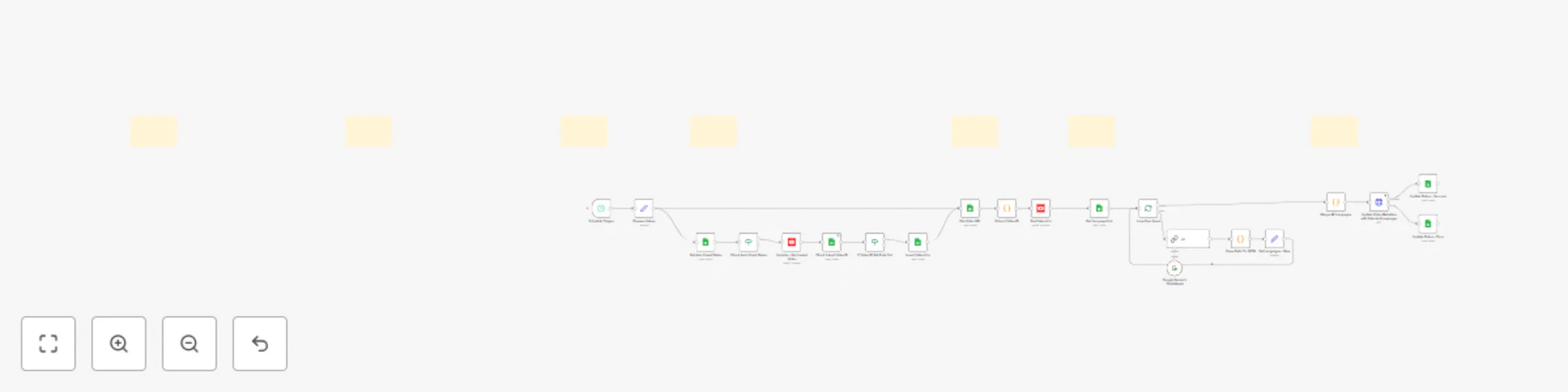
### Translating your YouTube video titles and descriptions into multiple languages is one of the simplest ways to expand your channel's global reach. But doing it manually is super tedious and time-consuming. This n8n workflow automates the entire process: from detecting your latest video, translating its metadata into multiple languages using AI, to publishing the translated versions directly to YouTube - all managed and tracked through a connected Google Sheet only. ## What Problem Is This Workflow Solving? Manually translating YouTube metadata—titles, descriptions, and tags—is both time-consuming and costly, especially as your video library grows. For example, let's say you want to translate the metadata of 50 videos into 5 languages, and if you spend 10 minutes on each video, it could take over 40 hours of manual work. **This workflow automates the localization of your YouTube metadata, making it fast and efficient to translate large volumes of content.** Instead of spending days on translations, you can handle bulk updates in minutes: - **Save Time and Resources**: Instantly translate metadata for dozens or hundreds of videos, freeing you from repetitive, manual tasks. - **Expand Your Global Reach**: Enable your videos to appear in search results across multiple languages, reaching new audiences worldwide. - **Boost Engagement and SEO**: Localized metadata helps your videos get discovered and increases viewer engagement, leading to higher watch times and better performance. - **Make Content More Accessible**: Welcome viewers from different linguistic backgrounds, making your channel inclusive and inviting. ## Who Is This For? Use cases are many: This workflow is perfect for YouTubers who want to automate multilingual metadata updates and eliminate repetitive manual tasks. It’s especially useful for creators whose content is visually driven and easy to follow, such as: - DIY and How-to Channels - Travel and Nature Channels - Fitness and Workout Channels - Cooking Channels - Art and Craft Channels ## How It Works ### **Phase 1: Prepare Values & Auto Crawl Mode** - **Set up a Schedule Trigger**: In the **Schedule Trigger** node in n8n, define your preferred interval to automatically run the workflow on a recurring schedule; no manual execution needed. - **Set Required Parameters**: In the **Prepare Values** node in n8n, you must enter the following: - **spreadsheet_id**: to link the workflow to your connected Google Sheet - **channel_name**: to specify which tab of the Google Sheet contains the video URLs to process - **channel_id**: to define the YouTube channel the workflow will act upon - **Set Target Languages**: In the **Languages** tab of your connected Google Sheet, list all languages you'd like to generate translated titles and descriptions for. These will be used later during the translation phase. - **Choose Crawling Mode**: In the **Auto** tab of your Google Sheet, configure the **Auto Crawl** setting in **Column B** based on your preferred method: - Select **No** (Turn off **Auto Crawl**): You must manually input the video URL(s) in the **channel_name** tab and set the status to **Ready** for **1 video only**. - Select **Yes** (Turn on **Auto Crawl**): The workflow will automatically fetch **one of the latest videos** from your connected YouTube channel (based on **channel_id**) into the **channel_name** tab in your Google Sheet. ### **Phase 2: Trigger The Process** - Once everything is properly set up, the workflow in n8n can be activated - either manually or automatically via the **Schedule Trigger**, which runs based on the interval you’ve configured earlier. - The tool then checks the **Auto Crawl** status in **Column B** in the **Auto** tab of your connected Google Sheet to determine the route: - If **Auto Crawl** = **No**: The workflow skips auto-fetching and proceeds directly to the next phase, expecting that the video URL is already entered manually and marked as **Ready** in its status. - If **Auto Crawl** = **Yes**: The tool connects to your YouTube channel using the predefined **channel_id**. It fetches one of the latest videos and checks whether that video’s ID already exists in the list of processed videos. - If the video **has not been processed yet**, its URL will be inserted into the **channel_name** tab, and its status in **Column A** will automatically be set to **Ready**, ensuring it proceeds to the next step. - If it **already exists**, the video is **skipped** to avoid reprocessing. ⚠️ **Important**: When **Auto Crawl** = **Yes**, do not manually add another URL and set its status to **Ready** in the **channel_name** tab in the Google Sheet. Doing so may trigger the same video twice, causing data conflicts and redundant processing. ### **Phase 3: Collect Video Information** - Once a new video URL appears in your connected Google Sheet and its status is set **Ready** in **Column A** (under the specified **channel_name** tab), the workflow picks it up automatically. - Then, it extracts the **Video ID** from the URL and sends a **GET** request to the **YouTube API** to retrieve that video’s title and description in your channel’s default language for the next steps. ### **Phase 4: Generate Translated Metadata In Preset Languages** - The tool reads your target languages from the **Languages** tab in your connected Google Sheet. - A loop runs through each language code one at a time. - For each language, the tool sends your original title and description to **Google Gemini’s Chat Model**. Then, the AI returns the content translated into the target language. - The output is returned in JSON data, then restructured to ensure each language’s data is clearly separated and ready for the next step. ### **Phase 5: Update Translated Metadata On YouTube & Log Status** - All translated titles and descriptions from previous steps are combined into one structured format. - The tool sends a **PUT** request to the **YouTube API** to update the video’s metadata directly with the new multilingual-translated content. - If the update is successful, the video's status in **Column A** in the **channel_name** tab in the connected Google Sheet is marked as **Success**. - If the update fails, the video’s status is marked as **Error** for later review or retry. ## How To Set Up - Download the working package. - Import the package into your n8n interface. - Duplicate the [**Youtube - Update Video Metadata in Multi-Languages Google Sheet template**](https://docs.google.com/spreadsheets/d/188bmZHGdao3yWwpHYAXTgLsweR4vpGBXpmx_d6MVtDs/edit?gid=1119232763#gid=1119232763) into your Google Sheets account. For the **channel_name** tab in the template, you can rename it with your actual YouTube channel's name for easier tracking. - Set up necessary credentials in Google Cloud Console for tools access and usability: - For Google Sheets access, please ensure connection in the following nodes: Node **Get Auto Crawl Status** → connected to the **Auto** tab Node **Check Latest Video ID** → connected to the **channel_name** tab Node **Insert Video Info** → connected to the **channel_name** tab Node **Get Video URL** → connected to the **channel_name** tab Node **Get Language List** → connected to the **Languages** tab Node **Update Status - Success** → connected to the **channel_name** tab Node **Update Status - Error** → connected to the **channel_name** tab - For YouTube access, ensure connection to **YouTube API** in the following nodes: Node **YouTube - Get Latest Video** Node **Get Video Info** Node **Update Video Metadata with Selected Languages** - For Google Gemini access, ensure connection to **Google Gemini API** in the following node: Node **Google Gemini’s Chat Model** - Set a **Schedule Trigger** in n8n to run the workflow automatically at your preferred interval. - Define necessary parameters in Node **Prepare Values** in your n8n workflow: - **spreadsheet_id**: your connected Google Sheet ID - **channel_name**: the tab in your connected Google Sheet contains the video URLs and receives process updates (should be renamed with your actual YouTube channel’s name for easy tracking) - **channel_id**: your YouTube channel ID - Check the status of the **Auto Crawl** function in the **Auto** tab in your connected Google Sheet: + By default, its status is **No**: You’ll manually insert a video URL and mark its row as **Ready**. + In case you want to turn it on, please change it to **Yes**: The tool will automatically fetch the latest video(s) from your channel. - Activate the workflow in n8n. - To manually update a video: + Set **Auto Crawl** to **No** + Insert the video URL into the **channel_name** tab + Set the status to **Ready** - To automate with **Auto Crawl**: + Set **Auto Crawl** to **Yes** + The tool will auto-fetch one of the new videos and set its status to **Ready** - Track results of the original row in the **channel_name** tab of your Google Sheet and YouTube: + If the row’s status is **Success**, the metadata is updated on YouTube with all the set languages and you can check things out on the platform directly. + If the row’s status is **Error**, you can do manual review or retry. ## Requirements - Basic setup in **Google Cloud Console** with **OAuth2** credentials in the following configurations: - **Google Sheets API** enabled, with edit permissions on the connected spreadsheet - **YouTube API** enabled, with an account that has Owner or Editor role on the target channel - API access to **Google Gemini** for generating multilingual translated content via AI. ## How To Customize - **Adjust the trigger interval**: Change the schedule in the **Schedule Trigger** node to fit your needs (e.g. every 10 minutes, hourly, etc.). - **Add or remove target languages**: Simply update the **Languages** tab in your connected Google Sheet. No changes in n8n are required. - **Customize the translation style**: You can edit the prompt inside the **AI** node to change the tone, format, or style of the translations. However, do not modify the output structure format - doing so will break the workflow. - **Add alerts or notifications when finished**: Feel free to integrate additional nodes (like Telegram or Email) to notify you and your team when updates succeed or fail. ## FAQs: ### 1. Can I use this workflow for more than one YouTube channel? Not directly. This workflow is currently designed to connect to a single YouTube channel ID at a time. However, if you’d like to manage multiple YouTube channels within one Google Sheet and a unified n8n interface, we can customize the setup for you. Feel free to reach out to [**Agent Circle**](https://www.agentcircle.ai/) for a tailored setup and guidance. ### 2. What happens if I manually enter a video URL while Auto Crawl is ON? Avoid this. Manually adding a URL with status **Ready** in the **channel_name** tab while **Auto Crawl** = **Yes** may cause duplicate processing, API conflicts, or data overwrites. ### 3. How many languages can I translate into at once? There's no strict limit. You can list as many languages as needed in the **Languages** tab in your connected Google Sheet. Refer to the **All Languages** tab in the Google Sheet template for valid languages and language codes (e.g., en, fr, es, de). ### 4. Do I need to change anything in n8n when I add more languages? No - simply update the **Languages** tab in your connected Google Sheet. No work in n8n is needed for this. ### 5. Can I change the AI model from Google Gemini to something else? Yes. You can replace the **Google Gemini Chat Model** node with another chat model, such as **OpenAI GPT-4**, or any compatible LLM provider. ### 6. What happens if the metadata update to YouTube fails? The video's status in **Column A** of the **channel_name** tab in your connected Google Sheet will be marked **Error**. You can then review, fix, and re-run the process. ### 7. Can I edit the translation prompt in the AI node for my own brand tone? Absolutely. You can customize the translation prompt in the AI node to adjust tone, format, or even brand voice. Just make sure the structure of the returned JSON remains intact. ### 8. Is the workflow GDPR or YouTube policy-compliant? Yes - as long as you're the **owner** or have **editor** access to the YouTube channel and use the official YouTube API with proper OAuth2 authentication. ### 9. Can I schedule this workflow to run every day? Yes. In the **Schedule Trigger** node in n8n, set your preferred interval - e.g., daily, every 12 hours, etc. ### 10. Does this work with unlisted or private videos? No - YouTube API typically returns data only for public videos. For private/unlisted videos, additional permissions and scopes are required. If you need support for this case, feel free to contact [**Agent Circle**](https://www.agentcircle.ai/) for personalized consultation and setup assistance. ## Need Help? If you need a step-by-step guide to set up this workflow or want it customized for your specific business needs, feel free to reach out to [**Agent Circle**](https://www.agentcircle.ai/). We’re always here to support and help you to bring automation ideas to life. Join our community on different platforms for assistance, inspiration and tips from others. Website: https://www.agentcircle.ai/ Etsy: https://www.etsy.com/shop/AgentCircle Gumroad: http://agentcircle.gumroad.com/ Discord Global: https://discord.gg/d8SkCzKwnP FB Page Global: https://www.facebook.com/agentcircle/ FB Group Global: https://www.facebook.com/groups/aiagentcircle/ X: https://x.com/agent_circle YouTube: https://www.youtube.com/@agentcircle LinkedIn: https://www.linkedin.com/company/agentcircle
Extract YouTube channel videos to Google Sheets with metadata tracking
### This N8N template demonstrates how to use our tool to collect a list of videos from any YouTube channel - including video URLs, titles, descriptions, thumbnail links, publish dates, and more - all saved cleanly into a connected Google Sheet. Use cases are many: Whether you're **a YouTube content strategist** tracking competitors, **a marketing team** building dashboards from video metadata, or **an automation pro** connecting YouTube to downstream workflows, **researchers and analysts** collecting structured video data at scale, this tool gives you what you need! ## How It Works - The workflow begins when you click **Execute Workflow** or **Test Workflow** manually in N8N. - It reads the list of full channel URLs, custom channel URLs or channel IDs from the **Channel URLs** tab in the connected Google Sheet. Only the channels with the **Ready** status will be processed. - A **Switch** node detects whether the input is a full/custom channel URL, or a raw channel ID, and routes it accordingly. + If the input is already a **channel ID**, the tool prepares the data structure before sending it to the YouTube API call in the next step. + If the input is a **full channel URL** or a **custom channel URL**, the workflow extracts the **username**, then sends a **HTTP Request** to the YouTube API to retrieve the corresponding Channel ID, and prepares the data structure before continuing. - Once the valid **Channel ID** is set, the tool sends a request to YouTube API endpoint to retrieve a list of public videos. By default, the number of videos extracted per channel is limited to 10. - The API response is checked for success: + If successful, the video data is split into individual entries, cleaned, and added to the **Videos** tab in the connected Google Sheet. The original rows' status in the **Channel URLs** tab is marked as **Finished**. + If an error occurs, the rows' status in the **Channel URLs** tab is marked as **Error** for later review. ## How To Use - Download the workflow package. - Import the workflow package into your N8N interface. - Duplicate the [**YouTube - Get Channel Videos** Google Sheet template](https://docs.google.com/spreadsheets/d/1GIdiUUx1PtEZXOzSUP3aJkrDaVcJdxCGRmCOT94BytA/edit?gid=426418282#gid=426418282) into your Google Sheets account. - Set up **Google Cloud Console** credentials in the following nodes in N8N, ensuring enabled access and suitable rights to Google Sheets and YouTube services: + For Google Sheets access, ensure each node is properly connected to the correct tab in your connected Google Sheet: Node **Google Sheets - Get Channel URLs** → connected to the **Channel URLs** tab; Node **Google Sheets - Update Data** → connected to the **Videos** tab; Node **Google Sheets - Update Data - Success** → connected to the **Channel URLs** tab; Node **Google Sheets - Update Data - Error** → connected to the **Channel URLs** tab. + For YouTube access, set up a GET method to connect to YouTube API in the following nodes: Node **HTTP Request - Get Channel ID**; Node **HTTP Request - Get Channel Videos**. - In your connected Google Sheet, enter the full channel URLs, custom channel URLs or channel IDs that you want to crawl and set the rows' status to **Ready**. - Run the workflow by clicking **Execute Workflow** or **Test Workflow** in N8N. - View the results in your connected Google Sheet: Successful fetches will update the original rows' status to **Finished** and the videos' information show up in the **Videos** tab. If any URL or ID fails, the rows' status will be marked as **Error**. ## Requirements - Basic setup in Google Cloud Console (OAuth or API Key method enabled) with enabled access to YouTube and Google Sheets. ## How To Customize - By default, the workflow is manually triggered in N8N. However, you can automate the process by adding **a Google Sheets trigger** that monitors new entries automatically. - If you want to fetch more video metadata like durations, or view counts, you can expand the HTTP Request and post-processing nodes to include those. - The workflow, by default, collects **up to 10 videos per channel**. If you’d like to fetch more, in the connected Google Sheet, simply enter your desired video number limit in **Column C** in the **Channel URLs** tab. The tool will use that value when calling the YouTube API. ## Need Help? Join our community on different platforms for support, inspiration and tips from others. Website: https://www.agentcircle.ai/ Etsy: https://www.etsy.com/shop/AgentCircle Gumroad: http://agentcircle.gumroad.com/ Discord Global: https://discord.gg/d8SkCzKwnP FB Page Global: https://www.facebook.com/agentcircle/ FB Group Global: https://www.facebook.com/groups/aiagentcircle/ X: https://x.com/agent_circle YouTube: https://www.youtube.com/@agentcircle LinkedIn: https://www.linkedin.com/company/agentcircle
Extract YouTube video statistics and save to Google Sheets
### This N8N template makes it easy to extract key YouTube video data - including title, view count, like count, comment count, and many more - and save it directly into a connected Google Sheet. Use cases are many: Whether you're **YouTubers**, **content strategists**, **growth marketers**, and **automation engineers**, this tool gives you fast, structured access to video-level insights in seconds. ## How It Works - The workflow begins when you click **Execute Workflow** or **Test Workflow** manually in N8N. - It reads the list of video URLs in the connected Google Sheet. Only the URLs marked with the **Ready** status will be processed. - The tool loops through each video and prepares the necessary data for the YouTube API call later. - For each available URL, the tool extracts the video ID and sends a request to the YouTube API to fetch key metrics. - The response is checked: - **If successful**: the video’s statistics are written back to the corresponding row in the Google Sheet and the row's status is marked as **Finished**. - **If unsuccessful**: the row's status is updated to **Error** for later review. ## How To Use - Download the workflow package. - Import the workflow package into your N8N interface. - Duplicate the [**YouTube - Get Video Statistics** Google Sheet template](https://docs.google.com/spreadsheets/d/1I9gyb27WiRHz--g-xi-QH1W3WppZJdSfY6L32-DyUw0/edit?gid=426418282#gid=426418282) into your Google Sheets account. - Set up **Google Cloud Console** credentials in the following nodes in N8N, ensuring enabled access and suitable rights to Google Sheets and YouTube services: + For Google Sheets access, ensure each node is properly connected to the correct tab in your connected Google Sheet template: Node **Google Sheets - Get Video URLs** → connected to Tab **Video URLs**; Node **Google Sheets - Update Data** → connected to Tab **Video URLs**; Node **Google Sheets - Update Data - Error** → connected to Tab **Video URLs**. + For YouTube access, set up a GET method to connect to YouTube API in the following node: Node **HTTP - Find Video Data**. - In your connected Google Sheet, enter the video URLs that you want to crawl and set the rows' status to **Ready**. - Run the workflow by clicking **Execute Workflow** or **Test Workflow** in N8N. - View the results in your connected Google Sheet: Successful fetches will update the rows' status in **Column A** in the **Video URLs** tab to **Finished** and the video metrics will populate. If the call fails, the rows' status in **Column A** in the tab will be marked as **Error**. ## Requirements - Basic setup in Google Cloud Console (OAuth or API Key method enabled) with enabled access to YouTube and Google Sheets. ## How To Customize - By default, the workflow is manually triggered in N8N. However, you can automate the process by adding **a Google Sheets trigger** that monitors new entries automatically. - If you want to fetch additional video fields or analytics (like tags, category ID, etc.), you can expand the **HTTP - Find Video Data** node to include those. ## Need Help? Join our community on different platforms for support, inspiration and tips from others. Website: https://www.agentcircle.ai/ Etsy: https://www.etsy.com/shop/AgentCircle Gumroad: http://agentcircle.gumroad.com/ Discord Global: https://discord.gg/d8SkCzKwnP FB Page Global: https://www.facebook.com/agentcircle/ FB Group Global: https://www.facebook.com/groups/aiagentcircle/ X: https://x.com/agent_circle YouTube: https://www.youtube.com/@agentcircle LinkedIn: https://www.linkedin.com/company/agentcircle
Gather complete YouTube channel data to Google Sheets
### This N8N template demonstrates how to use our tool to collect key information from any YouTube channel - including title, description, custom URL, stats (views, subscribers, videos), creation date, country, keywords, thumbnails, and channel ID. Everything is fetched and saved directly in a linked Google Sheet. Use cases are many: Whether you're part of an MCN or YouTube channel network, a digital marketing agency, an influencer analyst, or a growth-focused YouTube consultant, this tool helps you instantly access detailed channel data for scouting, benchmarking, and strategic planning. It's perfect for competitive research, brand vetting, or building your next performance dashboard. ## How It Works - The workflow starts when you manually click **Test Workflow** or **Execute Workflow** in N8N. - It reads through the list of **full channel URLs or custom channel URLs** from the **Channel URLs** tab in a connected Google Sheet. Only the URLs marked with the **Ready** status will be processed. - The tool loops through each row and prepares the necessary data for the YouTube API call later. - A **Switch** node detects the URL type of each input (whether it's a full or custom channel URL) and routes it accordingly. - Based on the input type, the appropriate YouTube API endpoint is triggered to fetch channel metrics. - It checks whether the API call is successful before continuing: - If successful, the fetched data is written back to the connected Google Sheet in the same row and the row's status is updated to **Finished**. - If it fails, the row's status is updated to **Error**. ## How To Use - Download the workflow package. - Import the workflow package into your N8N interface. - Duplicate the [**YouTube - Get Channel Information** Google Sheet template](https://docs.google.com/spreadsheets/d/1easnNMrm8ovxhlZQwPUge6UbPnUVFKBeaQY5EmmG1gM/edit?gid=426418282#gid=426418282) into your Google Sheets account. - Set up **Google Cloud Console** credentials in the following nodes in N8N, ensuring enabled access and suitable rights to Google Sheets and YouTube services: + For Google Sheets access, ensure each node is properly connected to the correct tab in your connected Google Sheet template: Node **Google Sheets - Get Channel URLs** → connected to Tab **Channel URLs**; Node **Google Sheets - Update Data** → connected to Tab **Channel URLs**; Node **Google Sheets - Update Data - Error** → connected to Tab **Channel URLs**. + For YouTube access, set up a GET method to connect to YouTube API in the following nodes: Node **HTTP Request - Get Comments For Video URLs 1**; Node **HTTP Request - Get Comments For Video URLs 2**. - In your connected Google Sheet, enter the full or custom channel URLs that you want to crawl and set the rows' status to **Ready**. - Run the workflow by clicking **Execute Workflow** or **Test Workflow** in N8N. - View the results in your Google Sheet: Successful fetches will update channel data in the same row in **Channel URLs** tab and the row's status is updated to **Finished**; otherwise, the row's status will be changed to **Error**. ## Requirements - Basic setup in Google Cloud Console (OAuth or API Key method enabled) with enabled access to YouTube and Google Sheets. ## How To Customize - By default, the workflow is manually triggered in N8N. However, you can automate the process by adding a Google Sheets trigger that monitors new entries in your **YouTube – Get Channel Information** template and starts the workflow automatically. ## Need Help? Join our community on different platforms for support, inspiration and tips from others. Website: https://www.agentcircle.ai/ Etsy: https://www.etsy.com/shop/AgentCircle Gumroad: http://agentcircle.gumroad.com/ Discord Global: https://discord.gg/d8SkCzKwnP FB Page Global: https://www.facebook.com/agentcircle/ FB Group Global: https://www.facebook.com/groups/aiagentcircle/ X: https://x.com/agent_circle YouTube: https://www.youtube.com/@agentcircle LinkedIn: https://www.linkedin.com/company/agentcircle
Extract and store YouTube video comments in Google Sheets
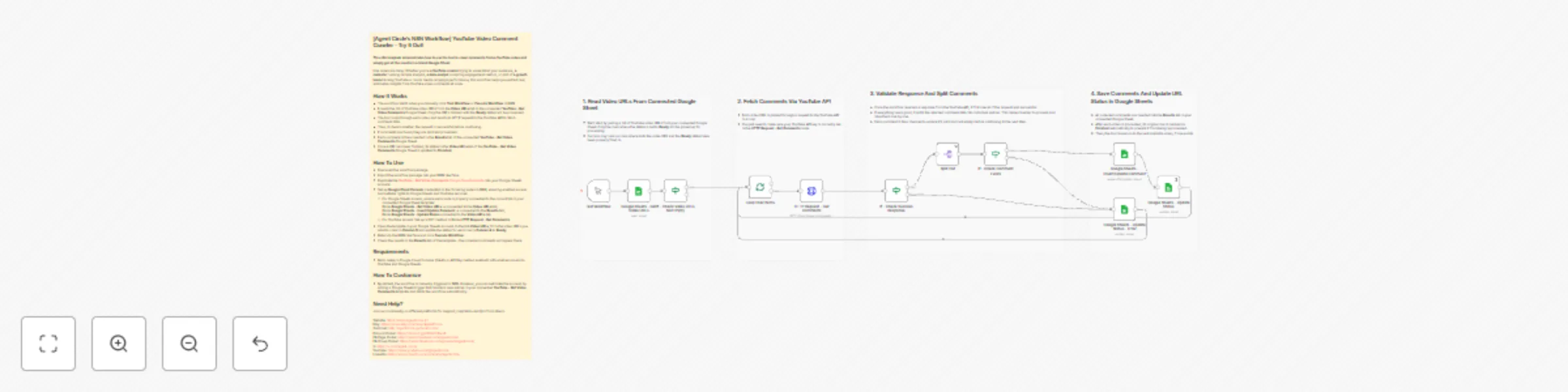
### This n8n template demonstrates how to use the tool to crawl comments from a YouTube video and simply get all the results in a linked Google Sheet. Use cases are many: Whether you're **a YouTube creator** trying to understand your audience, **a marketer** running sample analysis, **a data analyst** compiling engagement metrics, or part of **a growth team** tracking YouTube or social media campaign performance, this workflow helps you extract real, actionable insights from YouTube video comments at scale. ## How It Works - The workflow starts when you manually click **Test Workflow** or **Execute Workflow** in N8N. - It reads the list of YouTube video URLs from the **Video URLs** tab in the connected **YouTube – Get Video Comments** Google Sheet. Only the URLs marked with the **Ready** status will be processed. - The tool loops through each video and sends an HTTP request to the YouTube API to fetch comment data. - Then, it checks whether the request is successful before continuing. - If comments are found, they are split and processed. - Each comment is then inserted in the **Results** tab of the connected **YouTube – Get Video Comments** Google Sheet. - Once a URL has been finished, its status in the **Video URLs** tab of the **YouTube – Get Video Comments** Google Sheet is updated to **Finished**. ## How To Use - Download the workflow package. - Import the workflow package into your N8N interface. - Duplicate the [**"YouTube - Get Video Comments"** Google Sheet template](https://docs.google.com/spreadsheets/d/1F5yEhjBWu3fnwgHGLsPLD9_tWRqUnxu4p0DEvUTae1Y/edit?gid=426418282#gid=426418282) into your Google Sheets account. - Set up **Google Cloud Console** credentials in the following nodes in N8N, ensuring enabled access and suitable rights to Google Sheets and YouTube services: + For Google Sheets access, ensure each node is properly connected to the correct tab in your connected Google Sheet template: Node **Google Sheets - Get Video URLs** → connected to the **Video URLs** tab; Node **Google Sheets - Insert/Update Comment** → connected to the **Results** tab; Node **Google Sheets - Update Status** connected to the **Video URLs** tab. + For YouTube access: Set up a GET method in Node **HTTP Request - Get Comments**. - Open the template in your Google Sheets account. In the tab **Video URLs**, fill in the video URLs you want to crawl in **Column B** and update the status for each row in **Column A** to **Ready**. - Return to the N8N interface and click **Execute Workflow**. - Check the results in the **Results** tab of the template - the collected comments will appear there. ## Requirements - Basic setup in Google Cloud Console (OAuth or API Key method enabled) with enabled access to YouTube and Google Sheets. ## How To Customize - By default, the workflow is manually triggered in N8N. However, you can automate the process by adding a Google Sheets trigger that monitors new entries in your connected **YouTube – Get Video Comments** template and starts the workflow automatically. ## Need Help? Join our community on different platforms for support, inspiration and tips from others. Website: https://www.agentcircle.ai/ Etsy: https://www.etsy.com/shop/AgentCircle Gumroad: http://agentcircle.gumroad.com/ Discord Global: https://discord.gg/d8SkCzKwnP FB Page Global: https://www.facebook.com/agentcircle/ FB Group Global: https://www.facebook.com/groups/aiagentcircle/ X: https://x.com/agent_circle YouTube: https://www.youtube.com/@agentcircle LinkedIn: https://www.linkedin.com/company/agentcircle
Free AI image generator - n8n automation workflow with Gemini/ChatGPT
### This n8n template demonstrates how to use AI to generate custom images from scratch - fully automated, prompt-driven, and ready to deploy at scale. Use cases are many: You can use it for marketing visuals, character art, digital posters, storyboards, or even daily image generation for your personal purposes. ## How It Works - The flow is triggered by a chat message in N8N or via Telegram. The default image size is 1080 x 1920 pixels. To use a different size, update the values in the **“Fields - Set Values”** node before triggering the workflow. - The input is parsed into a clean, structured prompt using a multi-step transformation process. - Our AI Agent sends the final prompt to Google Gemini’s image model for generation (you can also integrate with OpenAI or other chat models). - The raw image data created by the AI Agent will be run through a number of codes to make sure it's feasible for your preview if needed and downloading. - Then, we use an HTTP node to fetch the result so you can preview the image. - You can send it back to the chat message in N8N or Telegram, or save it locally to your disk. ## How To Use - Download the workflow package. - Import the package into your N8N interface. - Set up the credentials in the following nodes for tool access and usability: **"Telegram Trigger"**; **"AI Agent - Create Image From Prompt"**; **"Telegram Response"** or **"Save Image To Disk"** (based on your wish). - Activate the **"Telegram Response"** OR **"Save Image To Disk"** node to specify where you want to save your image later. - Open the chat interface (via N8N or Telegram). - Type your image prompt or detailed descriptions and send. - Wait for the process to run and finish in a few seconds. - Check the result in your desired saving location. ## Requirements - Google Gemini account with image generation access. - Telegram bot access and chat setup (optional). - Connection to local storage (optional). ## How To Customize - We’re setting the default image size to 1080 x 1920 pixels and the default image model to "flux". You can customize both of these values in the **“Fields – Set Values”** node. Supported image model options include: "flux", "kontext", "turbo", and "gptimage". - In the **“AI Agent – Create Image From Prompt”** node, you can also change the AI chat model. By default, it uses Google Gemini, but you can easily replace it with OpenAI ChatGPT, Microsoft AI Copilot, or any other compatible provider. ## Need Help? Join our community on different platforms for support, inspiration and tips from others. Website: https://www.agentcircle.ai/ Etsy: https://www.etsy.com/shop/AgentCircle Gumroad: http://agentcircle.gumroad.com/ Discord Global: https://discord.gg/d8SkCzKwnP FB Page Global: https://www.facebook.com/agentcircle/ FB Group Global: https://www.facebook.com/groups/aiagentcircle/ X: https://x.com/agent_circle YouTube: https://www.youtube.com/@agentcircle LinkedIn: https://www.linkedin.com/company/agentcircle
AI YouTube trend explorer – n8n automation workflow with Gemini/ChatGPT
### This n8n template helps you automatically discover, analyze, and track trending topics and videos on YouTube using an AI-powered agent. Use cases are many: This workflow is perfect for **YouTube creators** needing fresh video ideas, **digital marketers** scouting new campaign topics, **social media managers** who want to catch trends early, and **researchers** who want to analyze what’s viral. ## How It Works - The workflow starts whenever a chat message is received (e.g., a trend question, a topic prompt, or a request for insights). - Incoming chat is routed to the **AI Agent – Trend Explorer** node: + First, the agent triggers the **Workflow – YouTube Search** tool to gather the latest trending topics and keywords from YouTube. + Next, the agent supplies this real-time YouTube data to the **OpenAI Chat Model** for deep analysis, trend interpretation, and unique insights. + To provide context-aware answers and track ongoing interests, the agent also references a **Simple Memory** module, recalling past queries, and user instructions. - Finally, the result is a fast, data-driven, and smart trend report delivered instantly to your chat. ## How To Set Up - Download the workflow package (including 2 .json files) and import it into your n8n interface. - Set up necessary access in the following components of the **AI Agent - Trend Explorer** node: + **OpenAI Chat Model**: allows API connection for trend insights. + **Workflow – YouTube Search**: searches for trending videos based on the query. + **Simple Memory** (optional): enhances experience for ongoing sessions. - Start by sending a chat message on n8n. - Check the response from the AI agent in the same chat box. - Ask follow-ups, explore deeper, or trigger new searches - all in one chat thread. ## Requirements - n8n instance (self-hosted or cloud). - Set up API access to **OpenAI Chat Model** for chat-based AI. ## How To Customize - **Connect to your favorite chat platforms**: Easily integrate with additional chat triggers such as Telegram, Slack, or your preferred messaging app. - **Choose your preferred AI model**: If you want a different viewpoint, simply swap OpenAI Chat Model for Google Gemini, Claude, or any compatible LLM model in your workflow. - **Upgrade memory for smarter conversations**: For long-term recall or more advanced, context-aware chats, replace **Simple Memory** with a vector database like Pinecone or Redis. ## Need Help? If you’d like this workflow customized to fit your tools and platforms availability, or if you’re looking to build a tailored AI Agent for your own business - please feel free to reach out to [**Agent Circle**](https://www.agentcircle.ai/). We’re always here to support and help you to bring automation ideas to life. Join our community on different platforms for support, inspiration and tips from others. Website: https://www.agentcircle.ai/ Etsy: https://www.etsy.com/shop/AgentCircle Gumroad: http://agentcircle.gumroad.com/ Discord Global: https://discord.gg/d8SkCzKwnP FB Page Global: https://www.facebook.com/agentcircle/ FB Group Global: https://www.facebook.com/groups/aiagentcircle/ X: https://x.com/agent_circle YouTube: https://www.youtube.com/@agentcircle LinkedIn: https://www.linkedin.com/company/agentcircle