Fetch latest RSS articles and store non-duplicates in Google Sheets

Workflow preview

Workflow preview
100%
Fetch latest RSS articles and store non-duplicates in Google Sheets preview
Open on n8n.io

1. Workflow Overview

RSS Feed Latest Article Fetcher Workflow This n8n workflow fetches URLs from an RSS feed, checks which URLs have a valid RSS feed and if true, fetches the latest articles from those URLs. It then s...

Best for

  • Market Research automation workflows
  • advanced n8n builders looking for reusable templates

Tools used

n8n-nodes-base.manualtrigger, n8n-nodes-base.rssfeedread, n8n-nodes-base.stickynote, n8n-nodes-base.code, n8n-nodes-base.set, n8n-nodes-base.stopanderror, n8n-nodes-base.googlesheets, n8n-nodes-base.httprequest

Source and attribution

This workflow is cataloged by N8N Workflows and links back to its original n8n.io source page by WeblineIndia.

Original n8n.io source

1.1 Workflow description

Title
Fetch latest RSS articles and store non-duplicates in Google Sheets
Workflow name
Fetch latest RSS articles and store non-duplicates in Google Sheets

RSS Feed Latest Article Fetcher Workflow

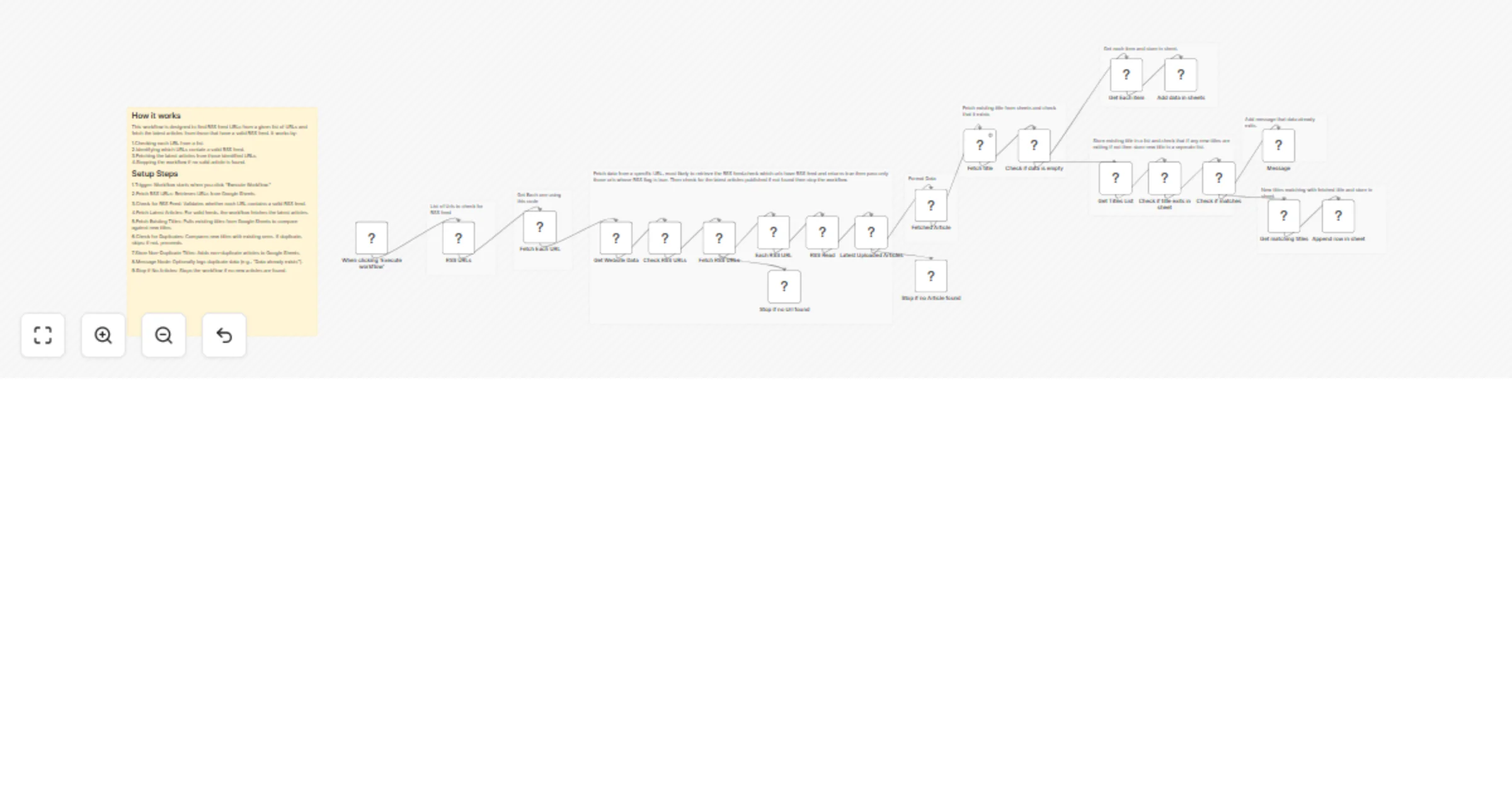
This n8n workflow fetches URLs from an RSS feed, checks which URLs have a valid RSS feed and if true, fetches the latest articles from those URLs. It then stores the article details, including the article link, in Google Sheets.

Quick Implementation Steps

  1. Import this JSON workflow into n8n.
  2. Connect your application or RSS feed URLs to be checked.
  3. Add Google Sheets API credentials to store the fetched articles.
  4. Enable the workflow — done!

What It Does

  1. Fetches RSS Feed URLs
  • Retrieves a list of URLs from an RSS feed source.
  1. Checks Each URL for RSS Feed
  • Verifies which URLs contain a valid RSS feed.
  1. Fetches Latest Articles
  • For URLs with valid RSS feeds, it fetches the latest articles from those feeds.
  1. Stores Articles in Google Sheets
  • Adds the article data, including article links, to a Google Sheet for record-keeping.

Who’s It For

This workflow is ideal for:

  • Content aggregators looking to fetch articles from multiple RSS feeds.
  • Teams needing to automate article collection and storage for easy reference.
  • Organizations aiming to centralize their content curation process in Google Sheets.

Requirements

  • n8n (Self-Hosted or Cloud)
  • Google Sheets API credentials with permissions to append data
  • A list of RSS feed URLs to check

How It Works

  1. Trigger: Workflow is triggered by clicking "Execute Workflow".
  2. Fetch RSS URLs: Retrieves a list of URLs to check for RSS feeds.
  3. Check for RSS Feed: Validates whether the URLs have a valid RSS feed.
  4. Fetch Latest Articles: For valid RSS feeds, the workflow fetches the latest articles.
  5. Store in Sheets: The fetched articles, along with their links, are added to a Google Sheet.
  6. Stop if No Articles Found: If no valid articles are found, the workflow automatically stops.

Setup Instructions

  1. Import Workflow: Workflows → Import from File in n8n.
  2. RSS Feed URL Setup: Input the URLs you want to check for RSS feeds.
  3. Google Sheets Setup: Connect your Google Sheets account and configure the spreadsheet where articles will be stored.
  4. Run the Workflow: Trigger the workflow manually by clicking "Execute Workflow" and monitor the results in your Google Sheet.

Logic Overview

Step Node Description
1. Trigger Execute Workflow: Initiates the workflow process when triggered. The workflow begins when you manually execute it.
2. Fetch RSS URLs RSS Feed: Retrieves a list of RSS URLs from Google Sheets.
3. Check for RSS Feed Check RSS URLs: Verifies whether each URL has a valid RSS feed using an HTTP Request node.
4. Fetch Latest Articles Fetch Each URL: Fetches the latest articles from valid RSS feeds using the RSS Feed Read node.
5. Fetch Existing Titles Fetch Existing Title: Retrieves stored titles from Google Sheets for comparison.
6. Check for Duplicates Check if Title Exists: Compares new titles with existing ones. Duplicates are skipped; new ones proceed.
7. Store Only Non-Duplicate Titles Append Row in Sheets: Stores new (non-duplicate) articles in Google Sheets.
8. Optional Message Node Message: Logs duplicate events (e.g., "Data already exists").
9. Stop if No Articles Found Stop: Halts workflow if no new articles are found or added.

Customization Options

  • RSS URL List: Adjust the list of URLs to fetch articles from.
  • Google Sheets: Modify the Google Sheets integration to store additional data (e.g., article content, author).
  • Error Handling: Add custom error messages if no RSS feed is found or no articles are fetched.

Troubleshooting

  • No Articles Fetched: Ensure the RSS feed URLs are correctly formatted and active.
  • Google Sheets Issues: Verify that the Google Sheets API credentials are correctly configured and the sheet is accessible.
  • Workflow Not Triggering: Check the execution trigger settings to ensure the workflow is activated manually.

Use Case Examples

  1. Blog Aggregator: Automatically fetch and store the latest blog articles from multiple RSS feeds into a central Google Sheet for analysis.
  2. Content Curation: Gather the latest articles from industry-related RSS feeds and share them with your team.

Need Help?

If you need help setting up, customizing or extending this workflow, WeblineIndia can assist with full n8n development, workflow automation, content fetching systems and custom integrations.

1.2 Logical Blocks

This catalog entry is organized from the workflow JSON. The node-level section below shows the executable blocks available for review before importing the template.

2. Block-by-Block Analysis

Block 1 - When clicking ‘Execute workflow’

Type / Role
n8n-nodes-base.manualTrigger - manualTrigger
Config choices
Version 1

Block 2 - RSS Read

Type / Role
n8n-nodes-base.rssFeedRead - rssFeedRead
Config choices
Version 1.2

Block 3 - Sticky Note

Type / Role
n8n-nodes-base.stickyNote - stickyNote
Config choices
Version 1

Block 4 - Sticky Note2

Type / Role
n8n-nodes-base.stickyNote - stickyNote
Config choices
Version 1

Block 5 - Sticky Note1

Type / Role
n8n-nodes-base.stickyNote - stickyNote
Config choices
Version 1

Block 6 - Fetch Each URL

Type / Role
n8n-nodes-base.code - code
Config choices
Version 2

Block 7 - Fetched Article

Type / Role
n8n-nodes-base.set - set
Config choices
Version 3.4

Block 8 - Stop if no Article found

Type / Role
n8n-nodes-base.stopAndError - stopAndError
Config choices
Version 1

Block 9 - Sticky Note3

Type / Role
n8n-nodes-base.stickyNote - stickyNote
Config choices
Version 1

Block 10 - RSS URLs

Type / Role
n8n-nodes-base.googleSheets - googleSheets
Config choices
Version 4.7

Block 11 - Get Website Data

Type / Role
n8n-nodes-base.httpRequest - httpRequest
Config choices
Version 4.3

Block 12 - Check RSS URLs

Type / Role
n8n-nodes-base.code - code
Config choices
Version 2

Block 13 - Fetch RSS URLs

Type / Role
n8n-nodes-base.if - if
Config choices
Version 2.2

Block 14 - Latest Uploaded Articles

Type / Role
n8n-nodes-base.if - if
Config choices
Version 2.2

Block 15 - Add data in sheets

Type / Role
n8n-nodes-base.googleSheets - googleSheets
Config choices
Version 4.7

Block 16 - Sticky Note4

Type / Role
n8n-nodes-base.stickyNote - stickyNote
Config choices
Version 1

Block 17 - Fetch title

Type / Role
n8n-nodes-base.googleSheets - googleSheets
Config choices
Version 4.7

Block 18 - Get Titles List

Type / Role
n8n-nodes-base.code - code
Config choices
Version 2

Block 19 - Check if data is empty

Type / Role
n8n-nodes-base.if - if
Config choices
Version 2.2

Block 20 - Get Each item

Type / Role
n8n-nodes-base.code - code
Config choices
Version 2

Block 21 - Append row in sheet

Type / Role
n8n-nodes-base.googleSheets - googleSheets
Config choices
Version 4.7

Block 22 - Check if title exits in sheet

Type / Role
n8n-nodes-base.code - code
Config choices
Version 2

Block 23 - Stop if no Url found

Type / Role
n8n-nodes-base.stopAndError - stopAndError
Config choices
Version 1

Block 24 - Each RSS URL

Type / Role
n8n-nodes-base.code - code
Config choices
Version 2

Showing the first 24 of 32 workflow blocks. Download the JSON for the full node graph.

3. Summary Table

Workflow Fetch latest RSS articles and store non-duplicates in Google Sheets
Complexity advanced
Nodes 32
Categories Market Research
Author WeblineIndia
Published 04 Apr 2026

4. Reproducing the Workflow from Scratch

  1. 1. Download the workflow JSON

    Use the JSON export at /data/workflows/14704/14704.json as the source template for this automation.

  2. 2. Import the template into n8n

    Open n8n, import the downloaded JSON, and review each node before activating the workflow.

  3. 3. Configure credentials and variables

    Replace placeholder credentials, API keys, webhook URLs, account IDs, and environment-specific values with your own settings.

  4. 4. Test with sample data

    Run the workflow manually or in a staging workspace, inspect node output, and confirm downstream systems receive the expected data.

  5. 5. Activate and monitor

    Enable the workflow only after testing, then monitor executions, errors, and rate limits during the first production runs.

5. General Notes & Resources

Review imported nodes carefully before activation. This catalog entry is intended to help you inspect the workflow structure, understand required services, and find related templates faster.

Node names, credentials, schedules, webhook paths, and external service limits may need adjustment for your workspace.

Frequently asked questions

What does Fetch latest RSS articles and store non-duplicates in Google Sheets do?

RSS Feed Latest Article Fetcher Workflow This n8n workflow fetches URLs from an RSS feed, checks which URLs have a valid RSS feed and if true, fetches the latest articles from those URLs. It then s...

What do I need before importing this workflow?

Review the workflow JSON, configure any required credentials in n8n, and test the automation in a safe workspace before using it in production.

Can I customize this workflow?

Yes. Use the block-by-block analysis and the downloadable JSON to inspect each node, then adjust credentials, prompts, schedules, filters, or destinations for your Market Research use case.