Extract product details from search result URLs with MrScraper and Google Sheets
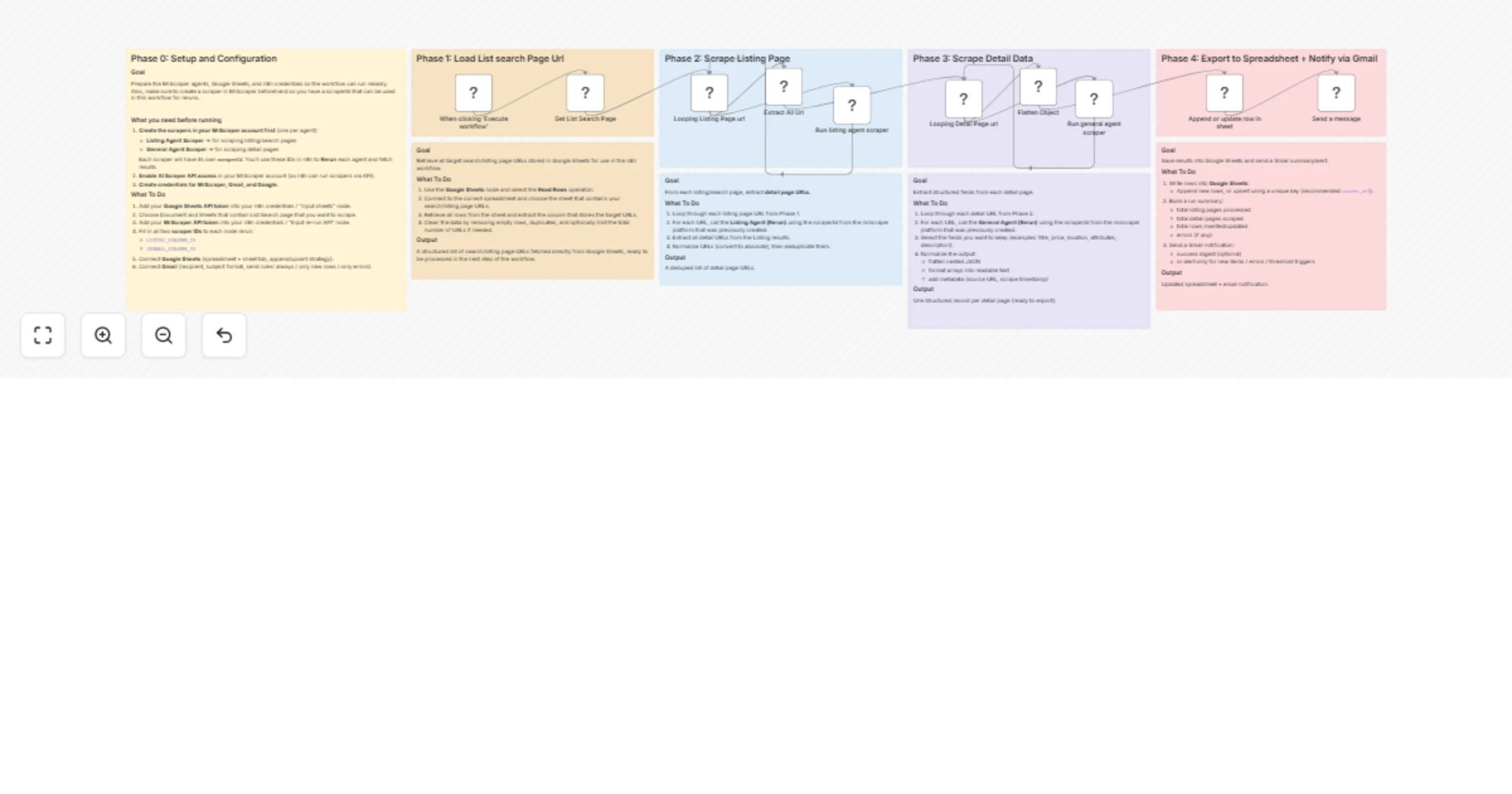
Workflow preview

$20/month : Unlimited workflows
2500 executions/month

THE #1 IN WEB SCRAPING
Scrape any website without limits
HOSTINGER  Early Deal
DISCOUNT 20% Try free
Early DealDISCOUNT 20%
Self-hosted n8n
Unlimited workflows - from $4.99/mo

#1 hub for scraping, AI & automation
6000+ actors - $5 credits/mo
Overview
Description
This n8n template automates the extraction of structured product data from search results pages — using a pre-built list of search/listing URLs stored in Google Sheets as the starting point. Instead of crawling a domain from scratch, this workflow picks up exactly where your research left off: you bring the URLs, it brings the data.
Perfect for price monitoring, product research, competitor analysis, or building any kind of structured product database from e-commerce or directory sites.
How It Works
- Phase 1 – Load Search Page URLs: The workflow reads your pre-prepared list of search or listing page URLs directly from a Google Sheets tab. This gives you full control over which pages get scraped without any crawling step.
- Phase 2 – Scrape Listing Pages: Each URL is looped through the Listing Agent, which navigates the search results page and extracts all individual product/detail page URLs. Duplicates are automatically removed.
- Phase 3 – Scrape Detail Pages: Every detail URL is then processed by the General Agent, which extracts structured fields such as title, price, description, attributes, and more. Nested JSON is automatically flattened into clean, spreadsheet-ready rows.
- Phase 4 – Export & Notify: All scraped records are appended or upserted into a Google Sheets output tab. A Gmail notification is sent on completion with a run summary.
How to Set Up
- Create 2 scrapers in your MrScraper account:
- Listing Agent Scraper (for extracting detail URLs from search/listing pages)
- General Agent Scraper (for extracting structured data from each detail page)
- Copy the
scraperIdfor each — you'll need these in n8n.
Enable AI Scraper API access in your MrScraper account settings.
Prepare your Google Sheet with search URLs:
- Create a sheet with a column containing the listing/search page URLs you want to scrape
- This is your input — add as many URLs as needed
- Add your credentials in n8n:
- MrScraper API token
- Google Sheets OAuth2 (for both input and output sheets)
- Gmail OAuth2
- Configure the "Get List Search Page" node:
- Connect to the spreadsheet and sheet tab containing your input URLs
- Configure the Listing Agent node:
- Enter your Listing
scraperId - Adjust
maxPagesbased on how many result pages to scrape per URL
- Configure the General Agent node:
- Enter your General
scraperId
- Configure the output Google Sheets node:
- Enter your output spreadsheet and sheet tab URL
- Set a unique match key (recommended:
url) for upsert to avoid duplicates on re-runs
- Configure Gmail:
- Set recipient email, subject line, and message body for your run notification
Requirements
- MrScraper account with API access enabled
- Google Sheets (OAuth2 connected) — one sheet for input URLs, one for output data
- Gmail (OAuth2 connected)
Good to Know
- Unlike a full crawl workflow, this template is input-driven — you control exactly which pages are scraped by managing your Google Sheets input list.
- You can run this on a schedule and simply add new URLs to the input sheet whenever you want fresh data scraped.
- The
Flatten Objectnode handles deeply nested JSON automatically, so most sites won't require any manual field mapping. - Use upsert mode with a unique key in the output sheet to safely re-run the workflow without creating duplicate rows.
Customising This Workflow
- Scheduled monitoring: Replace the manual trigger with a Schedule Trigger and keep your input sheet updated to run automated price or availability checks.
- Multi-category tracking: Organise your input sheet by category or source site and add a Filter node to process specific subsets on each run.
- Add data enrichment: Insert an AI node after Phase 3 to summarise descriptions, classify products, or translate content before saving to Sheets.
- Slack or webhook alerts: Swap the Gmail node for a Slack or webhook notification if you prefer real-time alerts in a different channel.