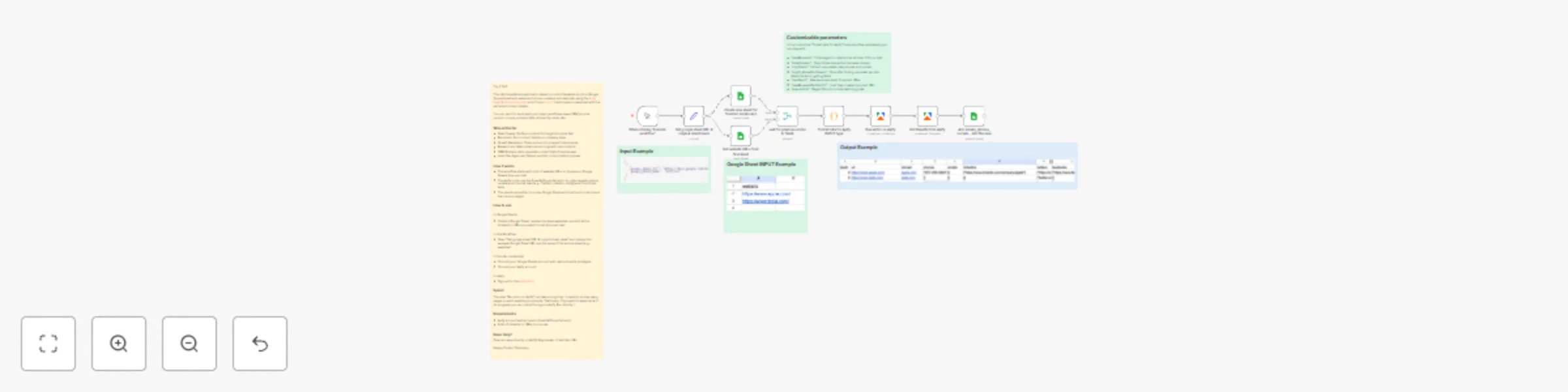
Extract emails, phones & social links from websites with Apify and Google Sheets

Workflow preview

Workflow preview
100%
Extract emails, phones & social links from websites with Apify and Google Sheets preview
Open on n8n.io

Important notice

This workflow is provided as-is. Please review and test before using in production.

1. Workflow Overview

Try It Out! This n8n template shows how to, based on a list of website, enrich a Google Spreadsheet with emails and phone numbers automatically using the [Apify Email & Phone Extractor](https://api...

Best for

  • Lead Generation automation workflows
  • intermediate n8n builders looking for reusable templates

Tools used

n8n-nodes-base.manualtrigger, n8n-nodes-base.stickynote, n8n-nodes-base.set, n8n-nodes-base.merge, n8n-nodes-base.code, @apify/n8n-nodes-apify.apify, n8n-nodes-base.googlesheets

Source and attribution

This workflow is cataloged by N8N Workflows and links back to its original n8n.io source page by Anchor.

Original n8n.io source

1.1 Workflow description

Title
Extract emails, phones & social links from websites with Apify and Google Sheets
Workflow name
Extract emails, phones & social links from websites with Apify and Google Sheets

Try It Out!

This n8n template shows how to, based on a list of website, enrich a Google Spreadsheet with emails and phone numbers automatically using the Apify Email & Phone Extractor actor from Anchor. It will create a new sheet with the extracted contact details.

You can use it to build lead enrichment workflows, keep CRM records current, or prep outreach lists, all directly inside n8n.

Who is this for

  • Sales Teams: Surface contacts for target accounts fast.
  • Recruiters: Find contact details on company sites.
  • Growth Marketers: Clean and enrich prospect lists at scale.
  • Researchers: Map industries and orgs with real contacts.
  • CRM Builders: Auto-populate contact fields from the web.
  • Lead-Gen Agencies: Deliver verified contact data at volume.

How it works

  • The workflow starts with a list of website URLs or domains in Google Sheets (one per row).
  • The Apify node runs the Email & Phone Extractor to collect emails, phone numbers, and social links (e.g., Twitter, LinkedIn, Instagram) from those sites.
  • The results are written to a new Google Sheet with the found contacts and their source pages.

How to use

In Google Sheets:

  • Create a Google Sheet, rename the sheet websites, and add all the domains or URLs you want to scan (one per row).

In this Workflow:

  • Open “Set google sheet URL & original sheet name” and replace the example Google Sheet URL and the name of the source sheet (e.g., websites).

In the n8n credentials:

  • Connect your Google Sheets account with read and write privileges.
  • Connect your Apify account.

In Apify:

Speed

The step "Run actor on Apify" can take a long time. It needs to scrape many pages on each website you provide. That's why. If you want to keep track of its progress, you can check the logs on Apify Run direclty !

Requirements

  • Apify account with access to Email & Phone Extractor.
  • A list of domains or URLs to process.

Need Help?

Open an issue directly on Apify! Avg answer in less than 24h

Happy Contact Discovery

1.2 Logical Blocks

This catalog entry is organized from the workflow JSON. The node-level section below shows the executable blocks available for review before importing the template.

2. Block-by-Block Analysis

Block 1 - When clicking ‘Execute workflow’

Type / Role
n8n-nodes-base.manualTrigger - manualTrigger
Config choices
Version 1

Block 2 - Sticky Note7

Type / Role
n8n-nodes-base.stickyNote - stickyNote
Config choices
Version 1

Block 3 - Sticky Note

Type / Role
n8n-nodes-base.stickyNote - stickyNote
Config choices
Version 1

Block 4 - Sticky Note1

Type / Role
n8n-nodes-base.stickyNote - stickyNote
Config choices
Version 1

Block 5 - Set google sheet URL & original sheet name

Type / Role
n8n-nodes-base.set - set
Config choices
Version 3.4

Block 6 - Sticky Note2

Type / Role
n8n-nodes-base.stickyNote - stickyNote
Config choices
Version 1

Block 7 - wait for previous nodes to finish

Type / Role
n8n-nodes-base.merge - merge
Config choices
Version 3.2

Block 8 - format data for Apify INPUT type

Type / Role
n8n-nodes-base.code - code
Config choices
Version 2

Block 9 - Run Actor on Apify

Type / Role
@apify/n8n-nodes-apify.apify - apify
Config choices
Version 1

Block 10 - Get Results from Apify

Type / Role
@apify/n8n-nodes-apify.apify - apify
Config choices
Version 1

Block 11 - Add emails, phones, socials... into the new Sheet

Type / Role
n8n-nodes-base.googleSheets - googleSheets
Config choices
Version 4.6

Block 12 - Create new sheet for founded emails and phones

Type / Role
n8n-nodes-base.googleSheets - googleSheets
Config choices
Version 4.6

Block 13 - Get website URLs from first sheet

Type / Role
n8n-nodes-base.googleSheets - googleSheets
Config choices
Version 4.6

Block 14 - Sticky Note3

Type / Role
n8n-nodes-base.stickyNote - stickyNote
Config choices
Version 1

3. Summary Table

Workflow Extract emails, phones & social links from websites with Apify and Google Sheets
Complexity intermediate
Nodes 14
Categories Lead Generation
Author Anchor
Published 11 Nov 2025

4. Reproducing the Workflow from Scratch

  1. 1. Download the workflow JSON

    Use the JSON export at /data/workflows/10739/10739.json as the source template for this automation.

  2. 2. Import the template into n8n

    Open n8n, import the downloaded JSON, and review each node before activating the workflow.

  3. 3. Configure credentials and variables

    Replace placeholder credentials, API keys, webhook URLs, account IDs, and environment-specific values with your own settings.

  4. 4. Test with sample data

    Run the workflow manually or in a staging workspace, inspect node output, and confirm downstream systems receive the expected data.

  5. 5. Activate and monitor

    Enable the workflow only after testing, then monitor executions, errors, and rate limits during the first production runs.

5. General Notes & Resources

Review imported nodes carefully before activation. This catalog entry is intended to help you inspect the workflow structure, understand required services, and find related templates faster.

Node names, credentials, schedules, webhook paths, and external service limits may need adjustment for your workspace.

Frequently asked questions

What does Extract emails, phones & social links from websites with Apify and Google Sheets do?

Try It Out! This n8n template shows how to, based on a list of website, enrich a Google Spreadsheet with emails and phone numbers automatically using the [Apify Email & Phone Extractor](https://api...

What do I need before importing this workflow?

Review the workflow JSON, configure any required credentials in n8n, and test the automation in a safe workspace before using it in production.

Can I customize this workflow?

Yes. Use the block-by-block analysis and the downloadable JSON to inspect each node, then adjust credentials, prompts, schedules, filters, or destinations for your Lead Generation use case.