Extract contacts from business cards to Google Sheets with GPT4o

Workflow preview

Workflow preview
100%
Extract contacts from business cards to Google Sheets with GPT4o preview
Open on n8n.io

Important notice

This workflow is provided as-is. Please review and test before using in production.

1. Workflow Overview

Auto Extract Contacts from Business Cards to Sheet With GPT4o [![Watch the video](https://s3.ap southeast 1.amazonaws.com/automatewith.me/n8n free workflow to auto generate leads from name cards...

Best for

  • Lead Generation automation workflows
  • Multimodal AI automation workflows
  • advanced n8n builders looking for reusable templates

Tools used

n8n-nodes-base.stickynote, n8n-nodes-base.formtrigger, n8n-nodes-base.googlesheets, n8n-nodes-base.code, @n8n/n8n-nodes-langchain.outputparserstructured, @n8n/n8n-nodes-langchain.lmchatopenai, @n8n/n8n-nodes-langchain.agent, n8n-nodes-base.filter

Source and attribution

This workflow is cataloged by N8N Workflows and links back to its original n8n.io source page by Trung Tran.

Original n8n.io source

1.1 Workflow description

Title
Extract contacts from business cards to Google Sheets with GPT4o
Workflow name
Extract contacts from business cards to Google Sheets with GPT4o

đź“„ Auto Extract Contacts from Business Cards to Sheet With GPT4o

> This smart workflow extracts names, phone numbers, emails, and more from uploaded name card photos using AI, then logs them neatly into your Google Sheet. No typing. No mess. Just upload and go.

👤 Who’s it for

  • Sales & Business Development Teams
  • Recruiters & Talent Acquisition Specialists
  • Event Teams collecting business cards
  • Admins who manage contact databases manually

⚙️ How it works / What it does

This workflow automates the extraction of contact details from uploaded name card (business card) images and stores them in a structured Google Sheet for easy tracking and follow-up.

Workflow Steps:

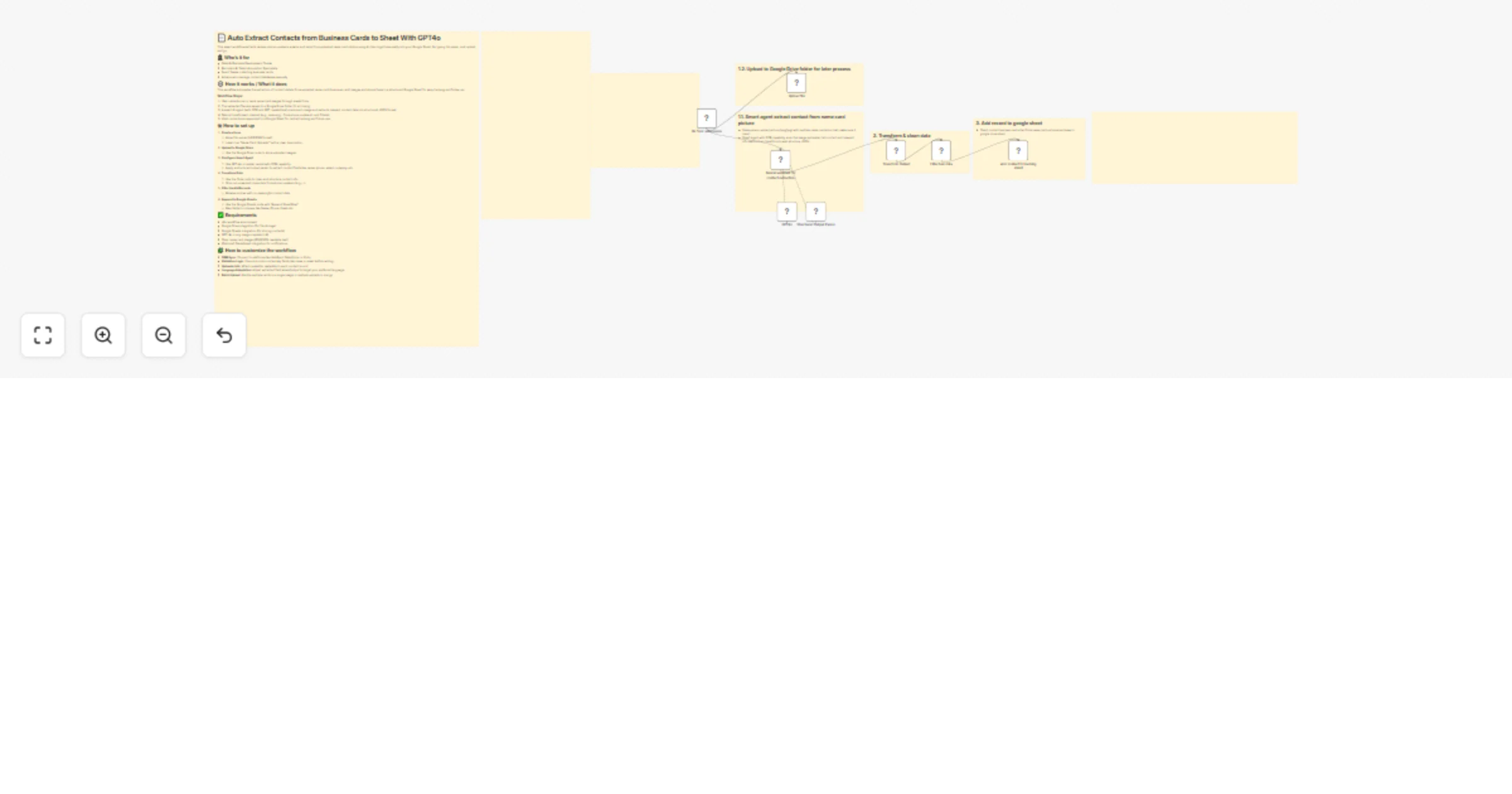
  1. User uploads one or more name card images through a web form.
  2. The uploaded files are saved to a Google Drive folder for archiving.
  3. A smart AI agent (with OCR and GPT capabilities) scans each image and extracts relevant contact data into structured JSON format.
  4. Data is transformed, cleaned (e.g., removing + from phone numbers), and filtered.
  5. Valid contacts are appended to a Google Sheet for central tracking and future use.

đź›  How to set up

  1. Create a Form

    • Allow file upload (JPG/PNG format).
    • Label it as “Name Card Uploader” with a clear description.
  2. Upload to Google Drive

    • Use the Google Drive node to store uploaded images.
  3. Configure Smart Agent

    • Use GPT-4o or similar model with OCR capability.
    • Apply a structured output parser to extract contact fields like name, phone, email, company, etc.
  4. Transform Data

    • Use the Code node to clean and structure contact info.
    • Strip out unwanted characters from phone numbers (e.g., +).
  5. Filter Invalid Records

    • Remove entries with no meaningful contact data.
  6. Append to Google Sheets

    • Use the Google Sheets node with "Append Sheet Row".
    • Map fields to columns like Name, Phone, Email, etc.

âś… Requirements

  • n8n workflow environment
  • Google Drive integration (for file storage)
  • Google Sheets integration (for storing contacts)
  • GPT-4o or any image-capable LLM
  • Clear name card images (PNG/JPG, readable text)
  • (Optional) Slack/email integration for notifications

đź§© How to customize the workflow

  • CRM Sync: Connect to platforms like HubSpot, Salesforce, or Zoho.
  • Validation Logic: Ensure records contain key fields like name or email before writing.
  • Uploader Info: Attach submitter metadata to each contact record.
  • Language Adaptation: Adjust extracted field labels/output to target your preferred language.
  • Batch Upload: Handle multiple cards in a single image or multiple uploads in one go.

1.2 Logical Blocks

This catalog entry is organized from the workflow JSON. The node-level section below shows the executable blocks available for review before importing the template.

2. Block-by-Block Analysis

Block 1 - Sticky Note7

Type / Role
n8n-nodes-base.stickyNote - stickyNote
Config choices
Version 1

Block 2 - Sticky Note3

Type / Role
n8n-nodes-base.stickyNote - stickyNote
Config choices
Version 1

Block 3 - Sticky Note5

Type / Role
n8n-nodes-base.stickyNote - stickyNote
Config choices
Version 1

Block 4 - Sticky Note

Type / Role
n8n-nodes-base.stickyNote - stickyNote
Config choices
Version 1

Block 5 - Sticky Note6

Type / Role
n8n-nodes-base.stickyNote - stickyNote
Config choices
Version 1

Block 6 - On form submission

Type / Role
n8n-nodes-base.formTrigger - formTrigger
Config choices
Version 2.2

Block 7 - Add contact to tracking sheet

Type / Role
n8n-nodes-base.googleSheets - googleSheets
Config choices
Version 4.6

Block 8 - Transform Output

Type / Role
n8n-nodes-base.code - code
Config choices
Version 2

Block 9 - Structured Output Parser

Type / Role
@n8n/n8n-nodes-langchain.outputParserStructured - outputParserStructured
Config choices
Version 1.3

Block 10 - GPT4o

Type / Role
@n8n/n8n-nodes-langchain.lmChatOpenAi - lmChatOpenAi
Config choices
Version 1.2

Block 11 - Sticky Note8

Type / Role
n8n-nodes-base.stickyNote - stickyNote
Config choices
Version 1

Block 12 - Neural assistant for contact extraction

Type / Role
@n8n/n8n-nodes-langchain.agent - agent
Config choices
Version 2.1

Block 13 - Filter bad data

Type / Role
n8n-nodes-base.filter - filter
Config choices
Version 2.2

Block 14 - Upload file

Type / Role
n8n-nodes-base.googleDrive - googleDrive
Config choices
Version 3

Block 15 - Sticky Note9

Type / Role
n8n-nodes-base.stickyNote - stickyNote
Config choices
Version 1

Block 16 - Sticky Note10

Type / Role
n8n-nodes-base.stickyNote - stickyNote
Config choices
Version 1

3. Summary Table

Workflow Extract contacts from business cards to Google Sheets with GPT4o
Complexity advanced
Nodes 16
Categories Lead Generation, Multimodal AI
Author Trung Tran
Published 02 Aug 2025

4. Reproducing the Workflow from Scratch

  1. 1. Download the workflow JSON

    Use the JSON export at /data/workflows/6840/6840.json as the source template for this automation.

  2. 2. Import the template into n8n

    Open n8n, import the downloaded JSON, and review each node before activating the workflow.

  3. 3. Configure credentials and variables

    Replace placeholder credentials, API keys, webhook URLs, account IDs, and environment-specific values with your own settings.

  4. 4. Test with sample data

    Run the workflow manually or in a staging workspace, inspect node output, and confirm downstream systems receive the expected data.

  5. 5. Activate and monitor

    Enable the workflow only after testing, then monitor executions, errors, and rate limits during the first production runs.

5. General Notes & Resources

Review imported nodes carefully before activation. This catalog entry is intended to help you inspect the workflow structure, understand required services, and find related templates faster.

Node names, credentials, schedules, webhook paths, and external service limits may need adjustment for your workspace.

Frequently asked questions

What does Extract contacts from business cards to Google Sheets with GPT4o do?

Auto Extract Contacts from Business Cards to Sheet With GPT4o [![Watch the video](https://s3.ap southeast 1.amazonaws.com/automatewith.me/n8n free workflow to auto generate leads from name cards...

What do I need before importing this workflow?

Review the workflow JSON, configure any required credentials in n8n, and test the automation in a safe workspace before using it in production.

Can I customize this workflow?

Yes. Use the block-by-block analysis and the downloadable JSON to inspect each node, then adjust credentials, prompts, schedules, filters, or destinations for your Lead Generation, Multimodal AI use case.