Extract competitor SERP rankings from Google Search to Sheets with Bright Data

Workflow preview

Workflow preview
100%
Extract competitor SERP rankings from Google Search to Sheets with Bright Data preview
Open on n8n.io

Important notice

This workflow is provided as-is. Please review and test before using in production.

1. Workflow Overview

Extract Competitor SERP Rankings from Google Search to Sheets with Bright Data This template requires a self hosted n8n instance to run. A comprehensive n8n automation that extracts competitor d...

Best for

  • Market Research automation workflows
  • intermediate n8n builders looking for reusable templates

Tools used

n8n-nodes-base.manualtrigger, n8n-nodes-base.googlesheets, n8n-nodes-base.code, n8n-nodes-base.splitinbatches, n8n-nodes-base.httprequest, n8n-nodes-base.stickynote

Source and attribution

This workflow is cataloged by N8N Workflows and links back to its original n8n.io source page by Dvir Sharon.

Original n8n.io source

1.1 Workflow description

Title
Extract competitor SERP rankings from Google Search to Sheets with Bright Data
Workflow name
Extract competitor SERP rankings from Google Search to Sheets with Bright Data

🔍 Extract Competitor SERP Rankings from Google Search to Sheets with Bright Data

This template requires a self-hosted n8n instance to run.

A comprehensive n8n automation that extracts competitor data from Google search results for specific keywords and target countries, automatically saving structured data to Google Sheets for competitive analysis and market research.


📋 Overview

This workflow provides a professional competitor analysis solution that identifies ranking websites for specific search terms across different countries. Perfect for SEO research, competitive intelligence, market analysis, and content strategy planning. The system uses Bright Data's SERP API for accurate search result extraction and advanced HTML parsing for detailed competitor information.

Who is this for?

  • SEO professionals conducting competitive analysis
  • Digital marketers researching market landscapes
  • Business analysts studying competitor positioning
  • Content strategists analyzing competitor content approaches
  • Market researchers tracking competitive intelligence across regions

What problem is this workflow solving?

  • Extracting competitor data from Google search results
  • Processing multiple keywords across different countries
  • Organizing results in a structured, analyzable format
  • Eliminating manual copy-paste work
  • Ensuring consistent data collection methodology

What this workflow does

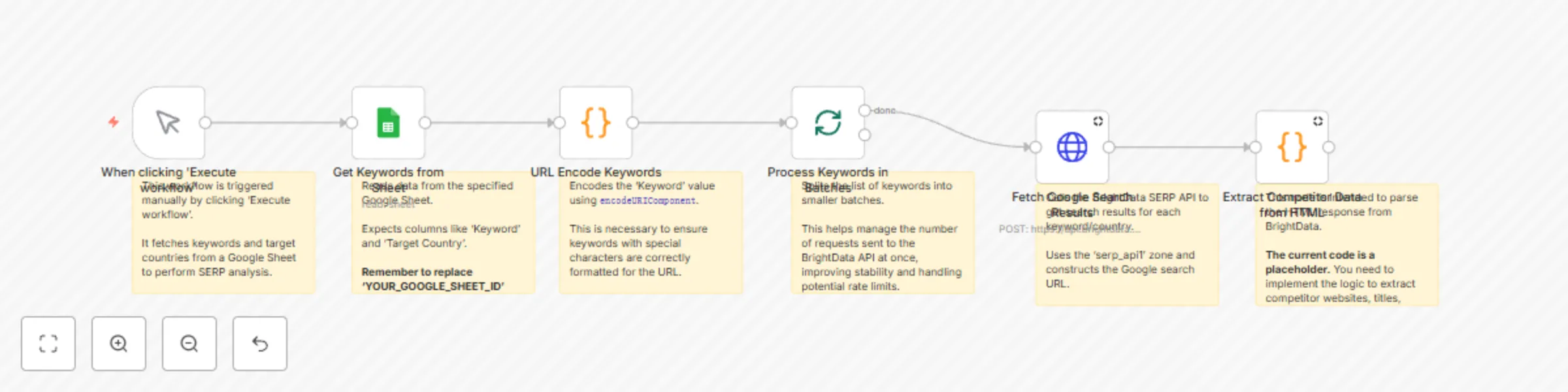
  1. Manual Trigger: Starts the workflow execution
  2. Get Keywords from Sheet: Fetches keywords and target countries from Google Sheets
  3. URL Encode Keywords: Converts keywords to URL-safe format
  4. Process Keywords in Batches: Handles multiple keywords sequentially
  5. Fetch Google Search Results: Uses Bright Data SERP API to scrape HTML
  6. Extract Competitor Data from HTML: Parses HTML to extract competitor details
  7. Save Competitor Results to Sheet: Stores structured data in Google Sheets
  8. Wait to Avoid Rate Limits: Implements 30-second delays between requests

Output Data Points

Field Description Example
Keyword Original search term digital marketing services
Target Country Geographic target US
websiteName Domain/company name hubspot
websiteUrl Complete website URL https://www.hubspot.com/marketing
websiteTitle Page title from search results Digital Marketing Software & Tools
websiteDescription Meta description/snippet Grow your business with HubSpot's digital marketing tools...

⚙️ Setup

Prerequisites

  • n8n instance (self-hosted)
  • Google account with Sheets access
  • Bright Data account with SERP API access

Google Sheet Structure

This workflow utilizes two Google Sheets: one for input keywords and one for outputting competitor data.

Input Sheet: "Keywords"

This sheet should contain the keywords and target countries for your search queries.

Column Header Data Type Description Example
Keyword Text The search term you want to analyze. digital marketing
Country Text The 2-letter ISO country code for the target region of the search (e.g., US, GB, DE). US
Output Sheet: "Competitor Results"

This sheet will be populated automatically by the workflow with the extracted competitor data.

Column Header Data Type Description Example
Keyword Text The original search term used for the query. digital marketing services
Target Country Text The 2-letter ISO country code of the search results. US
websiteName Text The name of the website or domain found in the search results. hubspot
websiteUrl URL The full URL of the website or page found in the search results. https://www.hubspot.com/marketing
websiteTitle Text The title of the page as displayed in the Google search results. Digital Marketing Software & Tools
websiteDescription Text The meta description or snippet text displayed under the title in search results. Grow your business with HubSpot's digital marketing tools...

Step-by-Step Setup

  1. Import the Workflow: Copy JSON → n8n → Workflows → + Add → Import from JSON
  2. Configure Bright Data Credentials:
    • Credential Type: HTTP Header Auth
    • Header Name: Authorization
    • Header Value: Bearer YOUR_API_TOKEN
  3. Configure Google Sheets:
    • Create two new Google Sheets as described above: one named "Keywords" (for input) and one named "Competitor Results" (for output).
    • Set up Google Sheets OAuth2 credentials within n8n.
  4. Update Workflow Settings:
    • Replace placeholders: YOUR_GOOGLE_SHEET_ID (for both input and output sheets), YOUR_BRIGHTDATA_CREDENTIAL_ID.
    • Ensure correct sheet/tab names are selected in the Google Sheets nodes.
  5. Test & Activate: Add test data to your "Keywords" sheet → Execute workflow → Verify output in your "Competitor Results" sheet.

🛠 How to Customize

  • Add More Data Points: Modify the JavaScript code in the "Extract Competitor Data from HTML" node to parse and extract additional information from the HTML.
  • Custom Filtering: Implement logic to exclude specific domains, filter results by title length, or other criteria.
  • Expand Geographic Coverage: Add more 2-letter ISO country codes to the Bright Data SERP API call to broaden your competitive analysis.
  • Batch Processing: Adjust the settings in the "Process Keywords in Batches" node to optimize for your Bright Data plan and desired execution speed.
  • Rate Limiting: Modify the "Wait" node (default: 30 seconds) to increase or decrease the delay between requests based on API limits or performance needs.

📊 Use Cases & Examples

  • SEO Competitive Analysis: Identify top-ranking competitors for your target keywords and analyze their strategies.
  • Market Entry Research: Understand the competitive landscape in new geographic regions before expanding.
  • Content Strategy Planning: Analyze competitor page titles and meta descriptions for inspiration and to identify content gaps.
  • International Market Research: Compare search engine results and competitor positioning across different countries.

📈 Performance & Limits

  • Single Keyword: 30–60 seconds per keyword.
  • Batch of 10 Keywords: Typically takes 5–10 minutes.
  • Large Lists (50+ Keywords): Expect execution times of 30–60 minutes or more, depending on batching and rate limits.
  • Success Rate: Generally 95%+ for data extraction.
  • Data Accuracy: Typically 98%+ for extracted fields.
  • API Calls: 1 Bright Data SERP API call per keyword, plus multiple Google Sheets writes per execution.
  • Rate Limit: A 30-second delay between requests is recommended to prevent exceeding API limits.

🧰 Troubleshooting

  • Bright Data API error: Double-check your API token, ensure you have sufficient credits, and confirm SERP API access is enabled on your Bright Data account.
  • No keywords found: Verify the Google Sheet ID and ensure the column headers in your "Keywords" sheet precisely match the specifications (e.g., "Keyword", "Country").
  • Google Sheets permission denied: Re-authenticate your Google Sheets credentials within n8n and check that the correct sharing settings are applied to your sheets.
  • No results extracted: Review the JavaScript parsing logic in the "Extract Competitor Data from HTML" node. Also, verify the validity of your keywords and target countries.
  • Loop not processing all: Check the batch settings in the "Process Keywords in Batches" node and ensure all connections within the loop are correctly configured.

🤝 Support & Community

  • n8n Forum: <https://community.n8n.io>
  • n8n Docs: <https://docs.n8n.io>
  • Bright Data Support: Access support directly via your Bright Data dashboard.
  • GitHub Issues: Report any bugs or suggest new features on the n8n GitHub repository.

🎯 Final Notes

This workflow provides a comprehensive foundation for competitor research and market analysis. Customize it to fit your specific industry needs and competitive intelligence requirements.


Please note that this template uses Community Nodes. Ensure you understand the risks before using community nodes.

1.2 Logical Blocks

This catalog entry is organized from the workflow JSON. The node-level section below shows the executable blocks available for review before importing the template.

2. Block-by-Block Analysis

Block 1 - When clicking 'Execute workflow'

Type / Role
n8n-nodes-base.manualTrigger - manualTrigger
Config choices
Version 1

Block 2 - Get Keywords from Sheet

Type / Role
n8n-nodes-base.googleSheets - googleSheets
Config choices
Version 4.6

Block 3 - URL Encode Keywords

Type / Role
n8n-nodes-base.code - code
Config choices
Version 2

Block 4 - Process Keywords in Batches

Type / Role
n8n-nodes-base.splitInBatches - splitInBatches
Config choices
Version 3

Block 5 - Fetch Google Search Results

Type / Role
n8n-nodes-base.httpRequest - httpRequest
Config choices
Version 4.2

Block 6 - Extract Competitor Data from HTML

Type / Role
n8n-nodes-base.code - code
Config choices
Version 2

Block 7 - Workflow Start

Type / Role
n8n-nodes-base.stickyNote - stickyNote
Config choices
Version 1

Block 8 - Read Keywords

Type / Role
n8n-nodes-base.stickyNote - stickyNote
Config choices
Version 1

Block 9 - Encode Keywords

Type / Role
n8n-nodes-base.stickyNote - stickyNote
Config choices
Version 1

Block 10 - Batch Processing

Type / Role
n8n-nodes-base.stickyNote - stickyNote
Config choices
Version 1

Block 11 - Fetch SERP Data

Type / Role
n8n-nodes-base.stickyNote - stickyNote
Config choices
Version 1

Block 12 - Extract Data (Placeholder)

Type / Role
n8n-nodes-base.stickyNote - stickyNote
Config choices
Version 1

3. Summary Table

Workflow Extract competitor SERP rankings from Google Search to Sheets with Bright Data
Complexity intermediate
Nodes 12
Categories Market Research
Author Dvir Sharon
Published 03 Jun 2025

4. Reproducing the Workflow from Scratch

  1. 1. Download the workflow JSON

    Use the JSON export at /data/workflows/4625/4625.json as the source template for this automation.

  2. 2. Import the template into n8n

    Open n8n, import the downloaded JSON, and review each node before activating the workflow.

  3. 3. Configure credentials and variables

    Replace placeholder credentials, API keys, webhook URLs, account IDs, and environment-specific values with your own settings.

  4. 4. Test with sample data

    Run the workflow manually or in a staging workspace, inspect node output, and confirm downstream systems receive the expected data.

  5. 5. Activate and monitor

    Enable the workflow only after testing, then monitor executions, errors, and rate limits during the first production runs.

5. General Notes & Resources

Review imported nodes carefully before activation. This catalog entry is intended to help you inspect the workflow structure, understand required services, and find related templates faster.

Node names, credentials, schedules, webhook paths, and external service limits may need adjustment for your workspace.

Frequently asked questions

What does Extract competitor SERP rankings from Google Search to Sheets with Bright Data do?

Extract Competitor SERP Rankings from Google Search to Sheets with Bright Data This template requires a self hosted n8n instance to run. A comprehensive n8n automation that extracts competitor d...

What do I need before importing this workflow?

Review the workflow JSON, configure any required credentials in n8n, and test the automation in a safe workspace before using it in production.

Can I customize this workflow?

Yes. Use the block-by-block analysis and the downloadable JSON to inspect each node, then adjust credentials, prompts, schedules, filters, or destinations for your Market Research use case.