D

Dvir Sharon

8
Workflows

Workflows by Dvir Sharon

Workflow preview: LinkedIn job finder automation using Bright Data API & Google Sheets
Free advanced

LinkedIn job finder automation using Bright Data API & Google Sheets

💼 LinkedIn Job Finder Automation using Bright Data API & Google Sheets ======================================================================= A comprehensive n8n automation that searches LinkedIn job postings using Bright Data’s API and automatically organizes results in Google Sheets for efficient job hunting and recruitment workflows. 📋 Overview ----------- This workflow provides an automated LinkedIn job search solution that collects job postings based on your search criteria and organizes them in Google Sheets. Perfect for job seekers, recruiters, HR professionals, and talent acquisition teams. ✨ Key Features -------------- * **🔍 Smart Job Search:** Form-based input for city, job title, country, and job type * **🛍 LinkedIn Integration:** Uses Bright Data’s LinkedIn dataset for accurate job posting data * **📊 Automated Organization:** Populates Google Sheets with structured job data * **📧 Real-time Processing:** Processes job search requests in real-time * **📈 Data Storage:** Stores job details including company info, locations, and apply links * **🔄 Batch Processing:** Handles multiple job postings efficiently * **⚡ Fast & Reliable:** Built-in error handling for scraping * **🎯 Customizable Filters:** Advanced job filtering based on criteria 🎯 What This Workflow Does -------------------------- ### Input * **Job Search Criteria:** City, job title, country, and optional job type * **Search Parameters:** Configurable filters and limits * **Output Preferences:** Google Sheets destination ### Processing Steps 1. Form Submission 2. Data Request to Bright Data API 3. Status Monitoring 4. Data Extraction 5. Data Filtering 6. Sheet Update 7. Error Handling ### Output Data Points Field Description Example Job Title Position title from posting Senior Software Engineer Company Name Employer company name Tech Solutions Inc. Job Detail Job summary/description Remote position requiring 5+ years… Location Job location San Francisco, CA Company URL Company profile link [View Profile](“https://linkedin.com/company/techsolutions”) Apply Link Direct application link [Apply Now](“https://linkedin.com/jobs/view/123456789”) 🚀 Setup Instructions --------------------- ### Prerequisites * n8n instance (self-hosted or cloud) * Google account with Sheets access * Bright Data account with LinkedIn dataset access ### Steps 1. **Import the Workflow:** Use JSON import in n8n 2. **Configure Bright Data:** Add API credentials and dataset ID 3. **Configure Google Sheets:** Create sheet, set credentials, map columns 4. **Update Workflow Settings:** Replace placeholders with your actual data 5. **Test & Activate:** Submit test form and verify data in Google Sheets 📖 Usage Guide -------------- ### Submitting Job Searches Go to your webhook URL and fill in the form with: * **City:** e.g., New York * **Job Title:** e.g., Software Engineer * **Country:** e.g., US * **Job Type:** Optional (Full-Time, Remote, etc.) ### Understanding Results * Comprehensive job data * Company info and profile links * Direct application links * Location and job descriptions ### Customizing Search Parameters Edit the `Create Snapshot ID` node to change: * Time range (e.g., “Past month”) * Result limits * Company filters 🔧 Customization Options ------------------------ * **More Data Points:** Add salary, seniority, applicants, etc. * **Custom Form Fields:** Add filters for salary, experience, industry * **Multiple Sheets:** Route results by job type or location 🚨 Troubleshooting ------------------ * **Bright Data connection failed:** Check API credentials and dataset access * **No job data extracted:** Verify search parameters and API limits * **Google Sheets permission denied:** Re-authenticate and check sharing * **Form not working:** Check webhook URL and field mappings * **Filter issues:** Review logic and data types * **Execution failed:** Check logs, retry logic, and network status 📊 Use Cases & Examples ----------------------- * **Job Seeker Dashboard:** Automate job search and track applications * **Recruitment Pipeline:** Source candidates and monitor hiring trends * **Market Research:** Analyze job trends and salary benchmarks * **HR Analytics:** Support workforce planning and competitive insights ⚙️ Advanced Configuration ------------------------- * **Batch Processing:** Queue multiple searches with delays * **Search History:** Track and analyze past searches * **Tool Integration:** Connect to CRM, Slack, databases, BI tools 📈 Performance & Limits ----------------------- * **Processing Time:** 30–60 seconds per search * **Concurrent Requests:** 2–3 (depends on Bright Data plan) * **Data Accuracy:** 95%+ * **Success Rate:** 90%+ * **Daily Capacity:** 50–200 searches * **Memory:** ~50MB per execution * **API Calls:** 3–4 Bright Data + 1 Google Sheets per search 🤝 Support & Community ---------------------- * **n8n Community:** [community.n8n.io](“https://community.n8n.io”) * **Documentation:** [docs.n8n.io](“https://docs.n8n.io”) * **Bright Data Support:** Via your Bright Data dashboard * **GitHub Issues:** Report bugs and request features 🎯 Ready to Use! ---------------- Your workflow is ready for automated LinkedIn job searching. Customize it to your recruiting or job search needs. **Webhook URL:** `https://your-n8n-instance.com/webhook/linkedin-job-finder</code></p>` ### `What Gets Extracted:` ` * ✅ Job Title * ✅ Company Information * ✅ Location Data * ✅ Job Details * ✅ Application Links * ✅ Processing Timestamps ### Use Cases: * 🔍 Job Search Automation * 📊 Recruitment Intelligence * 📝 Market Research * 🎯 HR Analytics `

D
Dvir Sharon
HR
8 Jun 2025
18176
0
Workflow preview: Discover & analyze TikTok influencers with Bright Data, Claude AI & email outreach
Free advanced

Discover & analyze TikTok influencers with Bright Data, Claude AI & email outreach

# 🎯 Automated TikTok Influencer Discovery & Analysis A complete **n8n** automation that discovers TikTok influencers using **Bright Data**, evaluates their fit using **Claude AI**, and sends personalized outreach emails. Designed for marketing teams and brands that need a scalable, intelligent way to find and connect with relevant creators. --- ## 📋 Overview This workflow provides a full-service influencer discovery pipeline: it finds TikTok profiles using search keywords, uses AI to assess alignment with your brand, and initiates contact with qualified influencers. Ideal for influencer marketing, brand partnerships, and campaign planning. --- ## ✨ Key Features - **🔍 Keyword-Based Discovery** Locate TikTok influencers by specific niche-related keywords. - **📊 Bright Data Integration** Access accurate TikTok profile data from Bright Data’s datasets. - **🤖 AI-Powered Analysis** Claude AI evaluates each profile's fit with your brand based on bio, content, and more. - **📧 Smart Email Notifications** Sends tailored outreach emails to creators deemed highly relevant. - **📈 Data Storage** Google Sheets stores profile details, AI evaluation results, and outreach status. - **🎯 Intelligent Filtering** Processes only influencers who meet your criteria (e.g., 5000+ followers, industry match). - **⚡ Fast & Reliable** Uses professional scraping with robust error handling. - **🔄 Batch Processing** Supports bulk influencer processing through a single automated flow. --- ## 🎯 What This Workflow Does ### **Input** - **Search Keywords** – TikTok terms for finding niche creators - **Business Info** – Brand description and industry - **Collaboration Criteria** – Follower count minimum, niche alignment ### **Processing Steps** 1. Form Submission 2. TikTok Discovery via Bright Data 3. Data Extraction and Normalization 4. Save to Google Sheets 5. Relevance Scoring via Claude AI 6. Filtering Based on AI Score + Follower Count 7. Personalized Email Outreach ### **Output Data Points** | Field | Description | Example | |---------------|------------------------------------|----------------------------------| | Profile ID | TikTok profile identifier | tiktoker123456 | | Username | TikTok handle | @creativecreator | | URL | Profile link | https://tiktok.com/@creativecreator | | Description | Creator bio | "Fashion & lifestyle content..." | | Followers | Total follower count | 50,000 | | Collaboration | AI assessment of brand fit | "Highly Relevant" | | Analysis | 50-word Claude AI relevance summary| "Strong alignment with fashion..."| --- ## 🚀 Setup Instructions ### **Prerequisites** - n8n (cloud or self-hosted) - Bright Data account with TikTok access - Google Sheets + Gmail - Anthropic Claude API key - 10–15 minutes setup time ### **Step-by-Step Setup** 1. **Import Workflow** via JSON in n8n 2. **Configure Bright Data** – Add API credentials and dataset ID 3. **Google Sheets** – Setup credentials and map columns 4. **Claude AI** – Insert API key and select desired model 5. **Gmail** – Authenticate Gmail and update mail node settings 6. **Update Variables** – Replace placeholders with business info 7. **Test & Launch** – Submit a sample form and verify all outputs --- ## 📖 Usage Guide ### **Adding Search Keywords** Submit the form with search terms, business description, and industry category to trigger the workflow. ### **Understanding AI Analysis** - Emails are sent **only** if: - Collaboration status = *Highly Relevant* - Follower count ≥ 5000 - Industry alignment confirmed - Claude AI returns a 50-word analysis justifying the match ### **Customizing Filters** Edit the **"Find the Collaborator"** prompt to adjust: - Follower thresholds - Industry relevance - Additional metrics (e.g., engagement rate) ### **Viewing Results** Google Sheets log includes: - Influencer metadata - AI scores and rationale - Collaboration status - Email delivery timestamp --- ## 🔧 Customization Options - **Add More Fields:** Engagement rate, contact email, content themes - **Email Personalization:** Customize message templates or integrate other mail services - **Enhanced Filtering:** Use engagement rates, region, content frequency --- ## 🚨 Troubleshooting | Issue | Fix | |-------|-----| | Bright Data fails | Recheck API and dataset ID | | No influencer data | Adjust keywords or dataset scope | | Sheets permission error | Re-authenticate and check sharing | | Claude fails | Validate API key and prompt | | Emails not sent | Re-auth Gmail or update recipient field | | Form not triggering | Reconfirm webhook URL and permissions | ### **Advanced Debugging** - Check n8n execution logs - Run individual nodes for pinpointing failures - Confirm all data formats - Handle API rate limits - Add error-catch nodes for retries --- ## 📊 Use Cases & Examples - **Brand Discovery:** Fashion, tech, fitness creators - **Competitor Insights:** Find influencers used by rival brands - **Campaign Planning:** Build targeted influencer lists - **Market Research:** Identify creator trends across regions --- ## ⚙️ Advanced Configuration - **Batch Execution:** Process multiple keywords with delay logic - **Engagement Metrics:** Scrape and calculate likes-to-follower ratios - **CRM Integration:** Sync qualified profiles to HubSpot, Salesforce, or Slack --- ## 📈 Performance & Limits - **Processing Time:** 3–5 minutes per keyword - **Concurrency:** 3–5 simultaneous fetches (depends on plan) - **Accuracy:** >95% influencer data reliability - **Success Rate:** 90%+ for outreach and processing

D
Dvir Sharon
Lead Generation
8 Jun 2025
3358
0
Workflow preview: Extract competitor SERP rankings from Google Search to Sheets with Bright Data
Free intermediate

Extract competitor SERP rankings from Google Search to Sheets with Bright Data

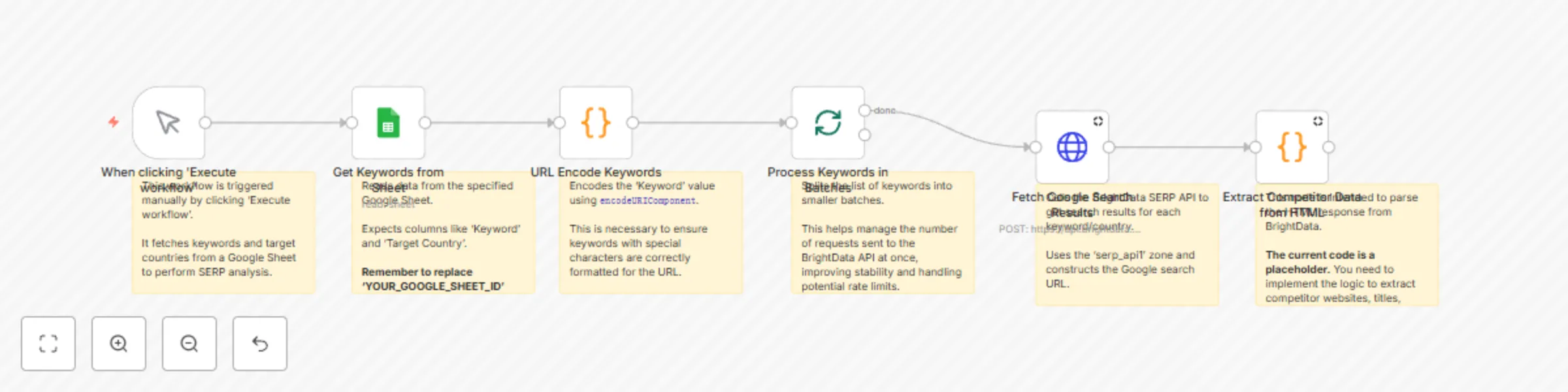
## 🔍 Extract Competitor SERP Rankings from Google Search to Sheets with Bright Data This template requires a self-hosted n8n instance to run. A comprehensive n8n automation that extracts competitor data from Google search results for specific keywords and target countries, automatically saving structured data to Google Sheets for competitive analysis and market research. --- ## 📋 Overview This workflow provides a professional competitor analysis solution that identifies ranking websites for specific search terms across different countries. Perfect for SEO research, competitive intelligence, market analysis, and content strategy planning. The system uses Bright Data's SERP API for accurate search result extraction and advanced HTML parsing for detailed competitor information. ### Who is this for? * SEO professionals conducting competitive analysis * Digital marketers researching market landscapes * Business analysts studying competitor positioning * Content strategists analyzing competitor content approaches * Market researchers tracking competitive intelligence across regions ### What problem is this workflow solving? * Extracting competitor data from Google search results * Processing multiple keywords across different countries * Organizing results in a structured, analyzable format * Eliminating manual copy-paste work * Ensuring consistent data collection methodology ### What this workflow does 1. **Manual Trigger:** Starts the workflow execution 2. **Get Keywords from Sheet:** Fetches keywords and target countries from Google Sheets 3. **URL Encode Keywords:** Converts keywords to URL-safe format 4. **Process Keywords in Batches:** Handles multiple keywords sequentially 5. **Fetch Google Search Results:** Uses Bright Data SERP API to scrape HTML 6. **Extract Competitor Data from HTML:** Parses HTML to extract competitor details 7. **Save Competitor Results to Sheet:** Stores structured data in Google Sheets 8. **Wait to Avoid Rate Limits:** Implements 30-second delays between requests ### Output Data Points | Field | Description | Example | | :--------------- | :--------------------------------- | :------------------------------------------ | | Keyword | Original search term | digital marketing services | | Target Country | Geographic target | US | | websiteName | Domain/company name | hubspot | | websiteUrl | Complete website URL | https://www.hubspot.com/marketing | | websiteTitle | Page title from search results | Digital Marketing Software & Tools | | websiteDescription | Meta description/snippet | Grow your business with HubSpot's digital marketing tools... | --- ## ⚙️ Setup ### Prerequisites * n8n instance (self-hosted) * Google account with Sheets access * Bright Data account with SERP API access ### Google Sheet Structure This workflow utilizes two Google Sheets: one for **input keywords** and one for **outputting competitor data**. #### Input Sheet: "Keywords" This sheet should contain the keywords and target countries for your search queries. | Column Header | Data Type | Description | Example | | :------------- | :-------- | :------------------------------------------------- | :-------------- | | **Keyword** | Text | The search term you want to analyze. | digital marketing | | **Country** | Text | The 2-letter ISO country code for the target region of the search (e.g., US, GB, DE). | US | #### Output Sheet: "Competitor Results" This sheet will be populated automatically by the workflow with the extracted competitor data. | Column Header | Data Type | Description | Example | | :----------------- | :-------- | :---------------------------------------------------------------------------------- | :----------------------------------------------- | | **Keyword** | Text | The original search term used for the query. | digital marketing services | | **Target Country** | Text | The 2-letter ISO country code of the search results. | US | | **websiteName** | Text | The name of the website or domain found in the search results. | hubspot | | **websiteUrl** | URL | The full URL of the website or page found in the search results. | https://www.hubspot.com/marketing | | **websiteTitle** | Text | The title of the page as displayed in the Google search results. | Digital Marketing Software & Tools | | **websiteDescription** | Text | The meta description or snippet text displayed under the title in search results. | Grow your business with HubSpot's digital marketing tools... | ### Step-by-Step Setup 1. **Import the Workflow:** Copy JSON → n8n → Workflows → + Add → Import from JSON 2. **Configure Bright Data Credentials:** * Credential Type: HTTP Header Auth * Header Name: Authorization * Header Value: `Bearer YOUR_API_TOKEN` 3. **Configure Google Sheets:** * Create two new Google Sheets as described above: one named "Keywords" (for input) and one named "Competitor Results" (for output). * Set up Google Sheets OAuth2 credentials within n8n. 4. **Update Workflow Settings:** * Replace placeholders: `YOUR_GOOGLE_SHEET_ID` (for both input and output sheets), `YOUR_BRIGHTDATA_CREDENTIAL_ID`. * Ensure correct sheet/tab names are selected in the Google Sheets nodes. 5. **Test & Activate:** Add test data to your "Keywords" sheet → Execute workflow → Verify output in your "Competitor Results" sheet. --- ## 🛠 How to Customize * **Add More Data Points:** Modify the JavaScript code in the "Extract Competitor Data from HTML" node to parse and extract additional information from the HTML. * **Custom Filtering:** Implement logic to exclude specific domains, filter results by title length, or other criteria. * **Expand Geographic Coverage:** Add more 2-letter ISO country codes to the Bright Data SERP API call to broaden your competitive analysis. * **Batch Processing:** Adjust the settings in the "Process Keywords in Batches" node to optimize for your Bright Data plan and desired execution speed. * **Rate Limiting:** Modify the "Wait" node (default: 30 seconds) to increase or decrease the delay between requests based on API limits or performance needs. --- ## 📊 Use Cases & Examples * **SEO Competitive Analysis:** Identify top-ranking competitors for your target keywords and analyze their strategies. * **Market Entry Research:** Understand the competitive landscape in new geographic regions before expanding. * **Content Strategy Planning:** Analyze competitor page titles and meta descriptions for inspiration and to identify content gaps. * **International Market Research:** Compare search engine results and competitor positioning across different countries. --- ## 📈 Performance & Limits * **Single Keyword:** 30–60 seconds per keyword. * **Batch of 10 Keywords:** Typically takes 5–10 minutes. * **Large Lists (50+ Keywords):** Expect execution times of 30–60 minutes or more, depending on batching and rate limits. * **Success Rate:** Generally 95%+ for data extraction. * **Data Accuracy:** Typically 98%+ for extracted fields. * **API Calls:** 1 Bright Data SERP API call per keyword, plus multiple Google Sheets writes per execution. * **Rate Limit:** A 30-second delay between requests is recommended to prevent exceeding API limits. --- ## 🧰 Troubleshooting * **Bright Data API error:** Double-check your API token, ensure you have sufficient credits, and confirm SERP API access is enabled on your Bright Data account. * **No keywords found:** Verify the Google Sheet ID and ensure the column headers in your "Keywords" sheet precisely match the specifications (e.g., "Keyword", "Country"). * **Google Sheets permission denied:** Re-authenticate your Google Sheets credentials within n8n and check that the correct sharing settings are applied to your sheets. * **No results extracted:** Review the JavaScript parsing logic in the "Extract Competitor Data from HTML" node. Also, verify the validity of your keywords and target countries. * **Loop not processing all:** Check the batch settings in the "Process Keywords in Batches" node and ensure all connections within the loop are correctly configured. --- ## 🤝 Support & Community * **n8n Forum:** &lt;https://community.n8n.io&gt; * **n8n Docs:** &lt;https://docs.n8n.io&gt; * **Bright Data Support:** Access support directly via your Bright Data dashboard. * **GitHub Issues:** Report any bugs or suggest new features on the n8n GitHub repository. --- ## 🎯 Final Notes This workflow provides a comprehensive foundation for competitor research and market analysis. Customize it to fit your specific industry needs and competitive intelligence requirements. --- **Please note that this template uses Community Nodes. Ensure you understand the risks before using community nodes.**

D
Dvir Sharon
Market Research
3 Jun 2025
741
0
Workflow preview: Auto-publish latest news on X with AI content generation using keywords and Bright Data
Free advanced

Auto-publish latest news on X with AI content generation using keywords and Bright Data

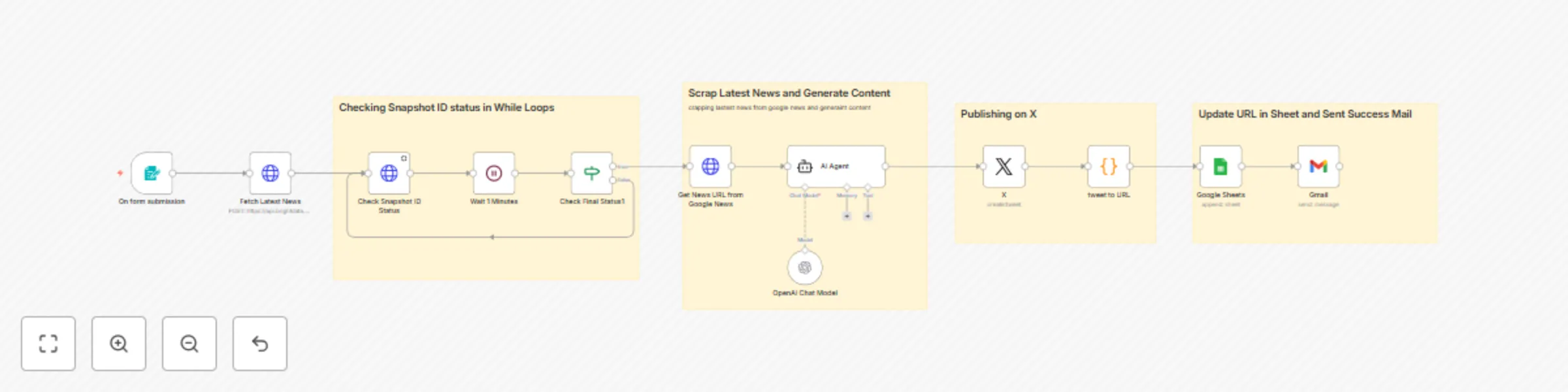
# 📰 Publish Latest News on X and Other Social Media Platforms Using Keyword A comprehensive n8n automation that fetches the latest news based on keywords, generates AI-powered social media content, and automatically publishes to X (Twitter) with complete tracking and notification systems. ## 📋 Overview This workflow provides a professional news publishing solution that automatically discovers breaking news, creates engaging social media content using AI, and publishes to X (Twitter) with comprehensive tracking. Perfect for news organizations, content creators, social media managers, and businesses wanting to stay current with automated news sharing. The system uses BrightData's Google News dataset, OpenAI's GPT-4o for content generation, and multi-platform integration for complete automation. ## ⭐ Key Features - **📝 Form-Based Input**: Clean web form for keyword and country submission - **📰 Real-Time News Fetching**: BrightData Google News integration for latest articles - **🤖 AI Content Generation**: GPT-4o powered tweet creation with hashtags - **📱 Auto X Publishing**: Direct posting to X (Twitter) with URL tracking - **📊 Complete Tracking**: Google Sheets logging of all published content - **🔔 Email Notifications**: Success alerts with tweet links - **🌍 Multi-Country Support**: Localized news for US, India, UK, Australia - **⚡ Status Monitoring**: Real-time progress tracking with retry logic - **🛡 Error Handling**: Robust error management and validation - **🔄 Loop Management**: Intelligent waiting for news processing completion ## 🎯 What This Workflow Does **Input:** - **News Name**: Keyword or topic for news search (required) - **Country**: Target country for localized news (dropdown: US/IN/GB/AU) **Processing:** 1. **Form Submission**: Captures news keyword and target country 2. **News Triggering**: Initiates BrightData Google News scraping job 3. **Status Monitoring**: Checks scraping progress with intelligent retry loop 4. **Data Retrieval**: Fetches latest news articles when ready 5. **AI Content Creation**: Generates engaging tweet content using GPT-4o 6. **Social Publishing**: Posts content to X (Twitter) automatically 7. **URL Generation**: Creates direct tweet links for tracking 8. **Data Logging**: Saves content and URLs to Google Sheets 9. **Email Notification**: Sends success confirmation with tweet link 10. **Completion**: Workflow ends with full audit trail ## 📋 Output Data Points | Field | Description | Example | | :------------ | :---------------------------------- | :----------------------------------------------------------------------------------------------------- | | TweetMessage | AI-generated social media content | "Breaking: AI revolution transforming healthcare with 40% efficiency gains. New study shows promising results in patient care automation. #AI #Healthcare #Innovation #TechNews #US" | | TweetURL | Direct link to published tweet | `https://twitter.com/i/web/status/1234567890123456789` | ## 🛠️ Setup Instructions **Prerequisites:** - n8n instance (self-hosted or cloud) - X (Twitter) account with API v2 access - OpenAI account with GPT-4o access - Gmail account for notifications - Google account with Sheets access - BrightData account with Google News dataset access - Basic understanding of social media automation **Step 1: Import the Workflow** 1. Copy the JSON workflow code from the provided file. 2. In n8n, click "+ Add workflow". 3. Select "Import from JSON". 4. Paste the workflow code and click "Import". 5. The workflow will appear with all nodes properly connected. **Step 2: Configure API Credentials** **X (Twitter) API Setup:** 1. Create X Developer Account at [developer.twitter.com](https://developer.twitter.com/). 2. Create new app and generate API keys. 3. In n8n: `Credentials` → `+ Add credential` → `Twitter OAuth2 API`. 4. Add your Twitter API credentials: - API Key - API Secret Key - Bearer Token - Access Token - Access Token Secret 5. Test the connection with a sample tweet. **OpenAI API Configuration:** 1. Get API key from [platform.openai.com](https://platform.openai.com/). 2. Ensure GPT-4o model access is available. 3. In n8n: `Credentials` → `+ Add credential` → `OpenAI API`. 4. Add your OpenAI API key. 5. Verify model access in the "OpenAI Chat Model" node. **Gmail Integration:** 1. Create "Gmail OAuth2" credential. 2. Follow OAuth setup process. 3. Grant email sending permissions. 4. Test with sample email. **BrightData News API:** 1. The workflow uses pre-configured token: `5662edde-6735-4c5d-a6c6-693043a5a9a5`. 2. Dataset ID: `gd_lnsxoxzi1omrwnka5r` (Google News). 3. Verify access to Google News dataset. 4. Test API connection. **Google Sheets Integration:** 1. Create "Google Sheets OAuth2 API" credential. 2. Complete OAuth authentication. 3. Grant read/write permissions. 4. Test connection. **Step 3: Configure Google Sheets Integration** 1. **Create Google Sheets Structure**: - **Sheet Name**: "Publish Latest News on Social Media Platforms Using Keyword" - **Tab**: "Data" (default) - **Columns**: - Tweet Message: AI-generated content posted to X - Tweet URL: Direct link to published tweet 2. **Sheet Configuration**: - Create new Google Sheet or use existing one. - Add the required column headers. - Copy Sheet ID from URL: `https://docs.google.com/spreadsheets/d/SHEET_ID_HERE/edit`. - Current configured Sheet ID: `1koxNrwdeuaSBdREuKc7JQh3d9blEk0sQDJ8VgVLjPOo`. 3. **Update Workflow Settings**: - Open "Google Sheets" node. - Replace Document ID with your Sheet ID. - Select your Google Sheets credential. - Choose "Data" sheet/tab. - Verify column mapping is correct. **Step 4: Configure Form Interface** **Form Settings:** 1. Open "On form submission" node. 2. **Form configuration**: - **Title**: "News Publisher" - **Description**: "publish latest news to direct social media" - **Fields**: - News Name (text, required) - Country (dropdown: US, IN, GB, AU, required) - **Webhook URL**: Copy webhook URL from form trigger node. - Current webhook ID: `8d320705-688c-4150-a393-cf899d2bbb52`. - Test form accessibility and submission. **Step 5: Configure Email Notifications** **Gmail Setup:** 1. Open "Gmail" node. 2. Update recipient email: `[email protected]`. 3. Email template includes: - Success confirmation - Direct tweet link - Professional formatting 4. Test email delivery. **Step 6: Test the Workflow** **Sample Test Data:** Use these examples for testing: | News Name | Country | Expected Results | | :-------------------- | :------ | :------------------------------------------------- | | artificial intelligence | US | Latest AI news with US-specific hashtags | | cricket world cup | IN | Sports news with India-focused content | | brexit update | GB | UK political news with British hashtags | | bushfire news | AU | Australian environmental news | **Testing Process:** 1. Activate the workflow (toggle switch). 2. Navigate to the webhook form URL. 3. Submit test data. 4. Monitor execution progress: - News fetching (30-60 seconds) - AI content generation (10-15 seconds) - X publishing (5-10 seconds) - Sheet update and email (5 seconds) 5. Verify results in all platforms. ## 📖 Usage Guide **Using the Form Interface** 1. Navigate to the webhook URL provided by the form trigger. 2. Enter news keyword or topic (e.g., "climate change", "stock market", "technology"). 3. Select target country from dropdown. 4. Click submit and wait for processing. 5. Check email for success notification with tweet link. **Example Inputs to Test** | News Name | Country | Expected | | :-------------------------------- | :------ | :----------------------------------------------------- | | "artificial intelligence breakthrough" | "US" | Latest AI developments with tech hashtags | | "football premier league" | "GB" | UK football news with sports hashtags | | "stock market updates" | "IN" | Indian market news with finance hashtags | | "hollywood movies" | "AU" | Entertainment news with Australian perspective | **Country-Specific Considerations** - **United States (US)**: - Focus on national news and global impact. - Hashtags: `#USA`, `#American`, `#Breaking`, `#News`. - Time zone considerations for optimal posting. - **India (IN)**: - Emphasis on regional relevance. - Hashtags: `#India`, `#Indian`, `#News`, `#Breaking`. - Cultural context in content generation. - **United Kingdom (GB)**: - British perspective and terminology. - Hashtags: `#UK`, `#British`, `#News`, `#Breaking`. - Focus on European context. - **Australia (AU)**: - Australian angle and regional focus. - Hashtags: `#Australia`, `#Australian`, `#News`, `#Breaking`. - Pacific region context. ## 📊 Reading the Results **Google Sheets Data** The output sheet contains: - Complete tweet content with hashtags and formatting. - Direct tweet URLs for easy access and sharing. - Chronological record of all published content. - Audit trail for content management. **Email Notifications** Success emails include: - Confirmation that content was published. - Direct link to view the tweet. - Professional formatting for easy reference. **X (Twitter) Posts** Published content features: - AI-optimized messaging within 260 character limit. - Relevant hashtags based on topic and country. - Engaging format designed for social media. - Professional tone suitable for news sharing. ## 🔧 Customization Options **Expanding Social Media Platforms** Add more platforms to the publishing workflow: ```javascript // Add LinkedIn publishing { "node": "LinkedIn", "type": "n8n-nodes-base.linkedin", "parameters": { "text": "={{ $json.output }}", "additionalFields": {} } } // Add Facebook posting { "node": "Facebook", "type": "n8n-nodes-base.facebook", "parameters": { "pageId": "YOUR_PAGE_ID", "message": "={{ $json.output }}" } }

D
Dvir Sharon
Social Media
1 Jun 2025
3601
0
Workflow preview: Extract Google My Business leads by service or location with Bright Data
Free advanced

Extract Google My Business leads by service or location with Bright Data

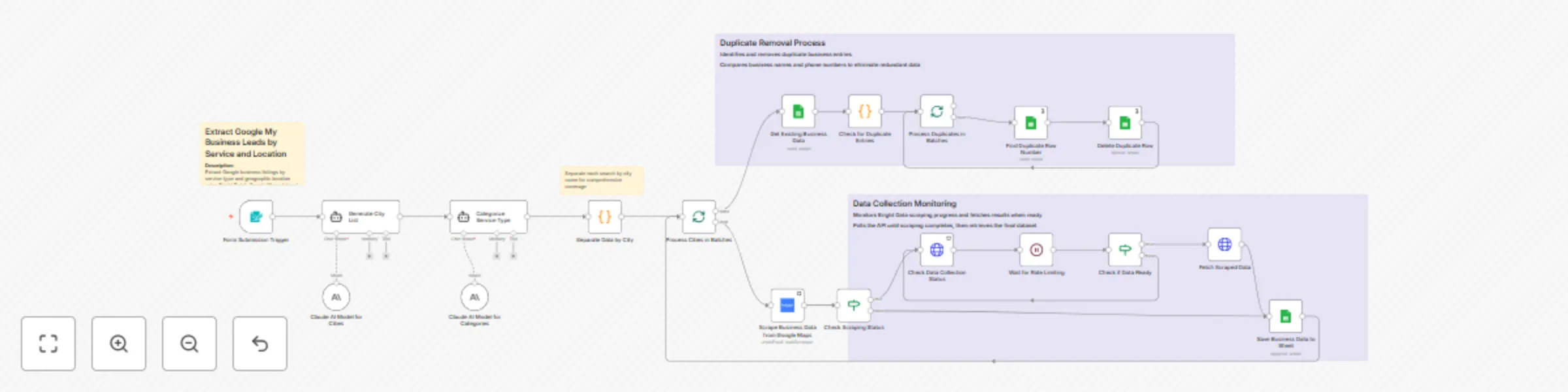
## 📍 Extract Google My Business Leads by Service & Location with Bright Data to Google Sheets![image.png](fileId:1508) This template requires a self-hosted n8n instance to run. A comprehensive n8n automation that extracts Google My Business listings by service type and geographic location using Bright Data's Google Maps dataset, with intelligent city expansion and automatic duplicate removal. --- ## 👥 Who is this for? * Lead generation professionals * Sales teams * Marketing agencies * Business development representatives * Entrepreneurs conducting outreach or market research --- ## ❓ What problem is this solving? Manual lead generation from Google Maps is time-consuming and inefficient. This workflow automates the process of finding businesses by service type and location, expanding searches across cities, removing duplicates, and organizing results in a structured format. --- ## ⚙️ What this workflow does ### Input Processing * Accepts service type, state, and country via web form * Uses Claude AI to generate city lists * Auto-categorizes services * Creates search queries per city ### Data Collection * Uses Bright Data's Google Maps dataset * Processes in batches with rate limits * Monitors scraping with retry logic * Formats and handles API responses ### Quality Control * Removes duplicates by name and phone * Maintains clean data in Google Sheets * Ensures structured, usable datasets ### 📄 Output Data Points | Field | Description | Example | | :-------------- | :-------------------------- | :---------------------------- | | Business Name | Company or business name | TechFix Computer Repair | | Category | Business category type | Electronics | | Country | Country location | US | | City | Specific city searched | Austin | | Phone Number | Contact phone number | +1 (555) 123-4567 | | Website URL | Business website | https://techfix.com | | Google Maps URL | Direct Maps link | https://maps.google.com/... | | Address | Full business address | 123 Main St, Austin, TX | | Operating Hours | Business hours | Mon-Fri 9AM-6PM | | Google Rating | Star rating | 4.5 | | Total Reviews | Number of reviews | 127 | | Reviews URL | Link to reviews | https://maps.google.com/reviews... | --- ## 🚀 Setup Instructions ### Prerequisites * n8n instance (self-hosted or cloud) * Google account with Sheets access * Bright Data account with Google Maps dataset access * Anthropic API key for Claude AI ### Step-by-Step 1. Import the workflow JSON into n8n 2. Configure Bright Data credentials and dataset access 3. Set up Google Sheets and OAuth2 credentials 4. Configure Claude AI with your API key 5. Replace all placeholder credential IDs and tokens. For improved security, use credentials instead of hardcoding the API token placeholder in the HTTP Request node. 6. Test with sample data (e.g., "Coffee Shop" in California, US) 7. Activate the workflow and use the form for submissions --- ## 🛠 How to Customize ### Modify Geographic Scope * Add countries to the form dropdown * Customize Claude prompts for city generation * Adjust search logic for international markets ### Enhance Data Collection * Add more fields from Bright Data * Include revenue, employee count, social profiles ### Improve Duplicate Detection * Use fuzzy matching for similar names * Include address-based checks ### Customize Output Format * Transform data for CRM compatibility * Export to CSV, database, or multiple destinations ### Implement Advanced Features * Integrate email finder services * Include lead scoring logic * Discover social media profiles ### Batch Processing Optimization * Adjust batch sizes per Bright Data limits * Use parallel processing and retry logic ### Integration Options * Connect to CRMs like HubSpot or Salesforce * Trigger email automation * Integrate with marketing platforms

D
Dvir Sharon
Lead Generation
1 Jun 2025
1170
0
Workflow preview: Monitor Google Shopping prices with Bright Data & email alerts
Free advanced

Monitor Google Shopping prices with Bright Data & email alerts

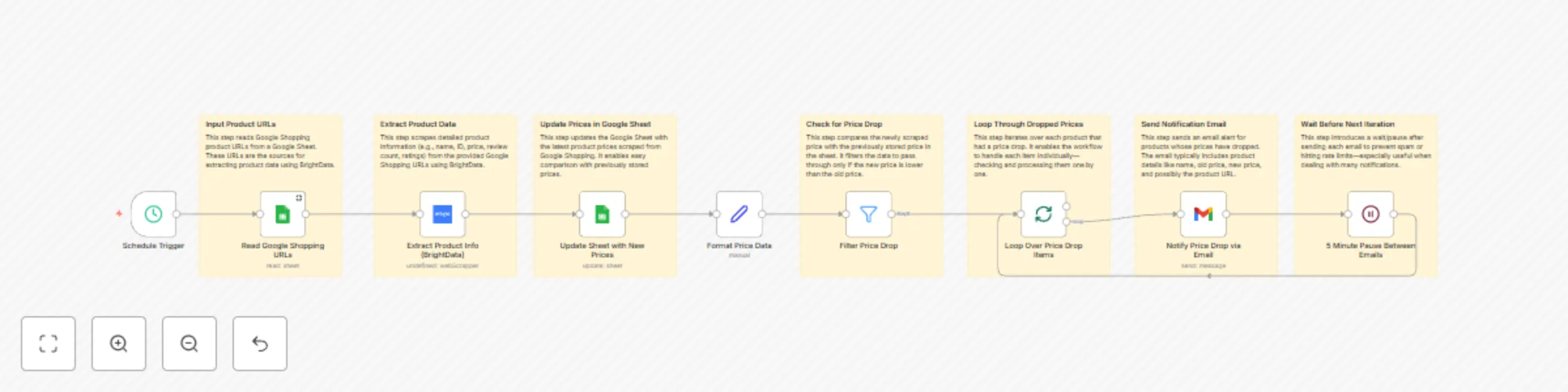
## 🛒 Monitor Google Shopping Prices with Bright Data & Email Alerts This template requires a self-hosted n8n instance to run. A comprehensive n8n automation that monitors product prices daily using Bright Data's Google Shopping dataset and sends smart email alerts when price conditions are met. --- ## 📋 Overview This workflow provides an automated price monitoring solution that tracks product prices from Google Shopping daily and sends intelligent email notifications. Perfect for e-commerce monitoring, competitor analysis, deal hunting, and inventory management. --- ## ✨ Key Features * 🕘 **Scheduled Monitoring:** Daily automated price checks at 9 AM * 🛍️ **Google Shopping Integration:** Uses Bright Data's dataset for accurate pricing * 📊 **Smart Price Comparison:** Compares current prices with historical data * 📧 **Intelligent Alerts:** Sends emails only when prices meet criteria * 📈 **Data Storage:** Updates Google Sheets with latest pricing data * 🔄 **Batch Processing:** Handles multiple products with rate limiting * ⚡ **Fast & Reliable:** Built-in error handling * 🎯 **Customizable Filters:** Advanced price comparison logic --- ## 🎯 What This Workflow Does 1. Schedule Trigger: Runs daily at 9 AM 2. Data Retrieval: Fetches product list from Google Sheets 3. Price Extraction: Scrapes current prices using Bright Data 4. Data Update: Updates Google Sheets with new prices 5. Price Comparison: Compares new vs. old prices 6. Smart Filtering: Filters products that meet alert criteria 7. Email Notifications: Sends alerts for qualifying changes 8. Rate Limiting: Adds delay between emails ### Output Data Points | Field | Description | Example | | :------------ | :------------------------- | :------------------------------- | | Product URL | Original Google Shopping URL | https://shopping.google.com/product/... | | Product Name | Product title | iPhone 15 Pro Max 256GB | | Ratings | Product rating score | 4.5 | | Reviews | Number of reviews | 1,247 | | Old Price | Previous price | $1,199.00 | | New Price | Current scraped price | $1,199.00 | | Timestamp | When the check occurred | 2025-05-30T09:00:00Z | --- ## 🚀 Setup Instructions ### Prerequisites * n8n instance (self-hosted or cloud) * Google account with Sheets access * Bright Data account with Google Shopping dataset access * Gmail account for notifications ### Steps 1. Import the workflow JSON into n8n 2. Configure Bright Data credentials and dataset access 3. Set up Google Sheets with required columns 4. Configure Gmail OAuth2 credentials 5. Update sheet IDs and schedule settings 6. Test with sample products and activate --- ## 📖 Usage Guide ### Google Sheet Structure Your Google Sheet should have the following columns to ensure the workflow functions correctly: * **Product URL** (Text): The direct URL to the Google Shopping product page. This is the primary identifier for the product. * **Product Name** (Text): The name of the product. This will be automatically populated or updated by the workflow. * **Old Price** (Number/Currency): The price of the product from the previous check. This column is crucial for price comparison. * **New Price** (Number/Currency): The most recently scraped price of the product. * **Ratings** (Number): The star rating of the product. * **Reviews** (Number): The total number of reviews for the product. * **Timestamp** (Datetime): The date and time when the price check was performed. ### Adding Products * Add Google Shopping URLs to your Google Sheet. * The workflow will fetch product details and track prices. * Historical price data builds over time. ### Understanding Price Alerts The default setting for this workflow is to send an email alert when the **new price equals the old price**. This might seem counterintuitive, but it's useful for specific scenarios, such as: * **Monitoring stable pricing:** If you are tracking a product and want to be notified when its price has remained consistent over time, indicating a potential stable buying opportunity or a benchmark. * **Verifying data consistency:** To confirm that the scraping process is working correctly and consistently retrieving the same price when no changes are expected. You can easily **customize the alert logic** to trigger on different conditions as described below. ### Customizing Alert Logic * **Price drops:** `new_price &lt; old_price` * **Significant drops:** `new_price &lt; (old_price * 0.9)` (e.g., price dropped by more than 10%) * **Price increases:** `new_price &gt; old_price` * **Any change:** `new_price != old_price` ### Reading the Results * Real-time pricing data * Historical tracking * Product metadata * Timestamps for each check --- ## 🔧 Customization Options * **Add More Data:** Descriptions, availability, seller info, shipping, images * **Modify Email Templates:** Customize subject and body * **Multiple Recipients:** Duplicate email node and change recipients * **Webhook Integration:** Add real-time triggers or Slack alerts --- ## 🚨 Troubleshooting * **Bright Data connection failed:** Check API credentials and dataset access * **No price data extracted:** Verify URLs and test with different products * **Google Sheets permission denied:** Re-authenticate and check sharing * **Emails not sending:** Re-auth Gmail OAuth and verify recipients * **Filter not working:** Check price formats and logic * **Workflow failed:** Check logs, retry logic, and network status --- ## 📊 Use Cases & Examples * **E-commerce Monitoring:** Track competitor pricing and trends * **Deal Hunting:** Get alerts for price drops on wishlist items * **Inventory Management:** Monitor supplier pricing for procurement * **Market Research:** Analyze pricing trends and generate reports --- ## ⚙️ Advanced Configuration * **Batch Processing:** Increase batch size, add delays, use parallel processing * **Price History:** Store historical data, calculate averages, forecast trends * **Tool Integration:** CRM, Slack, databases, BI tools (Tableau, Power BI) --- ## 📈 Performance & Limits * **Single URL:** 2–5 seconds * **Concurrent Requests:** 3–5 (depends on Bright Data plan) * **Data Accuracy:** 95%+ * **Success Rate:** 90%+ * **Daily Capacity:** 100–500 products * **Memory:** ~100MB per execution * **API Calls:** 1 Bright Data + 2 Google Sheets per product --- ## 🤝 Support & Community * **n8n Forum:** &lt;https://community.n8n.io&gt; * **Documentation:** &lt;https://docs.n8n.io&gt; * **Bright Data Support:** Via your Bright Data dashboard * **GitHub Issues:** Report bugs and request features --- ## 🎯 Ready to Use! Your workflow provides a solid foundation for automated price monitoring. Customize it to fit your specific needs and use cases for maximum effectiveness in tracking Google Shopping prices with intelligent email notifications. --- **Please note that this template uses Community Nodes. Ensure you understand the risks before using community nodes.**

D
Dvir Sharon
Market Research
1 Jun 2025
486
0
Workflow preview: Goodreads quote extraction with Bright Data and Gemini
Free intermediate

Goodreads quote extraction with Bright Data and Gemini

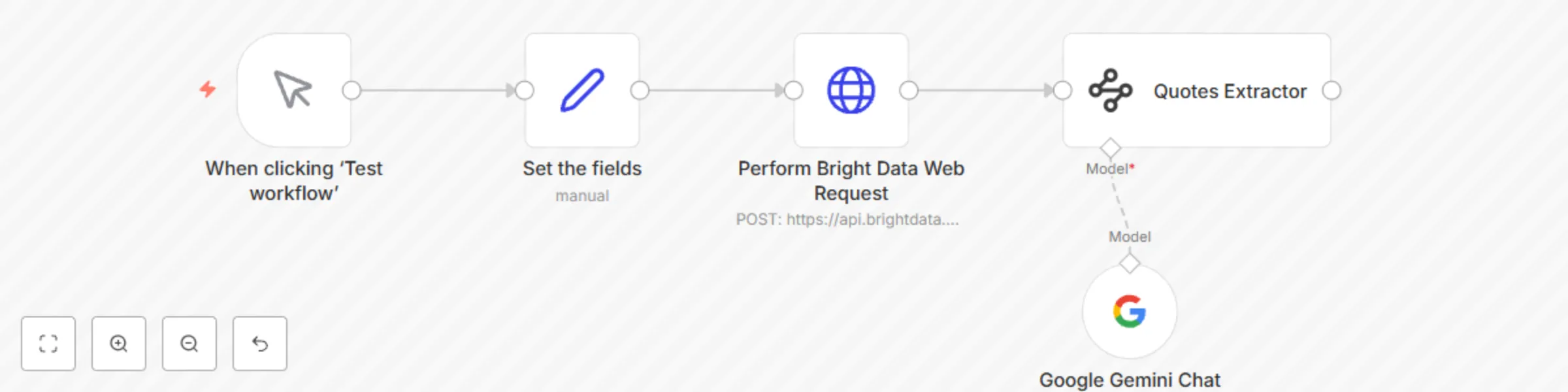
# Goodreads Quote Extraction with Bright Data and Gemini This workflow demonstrates how to fetch data specifically from **Goodreads** web pages using Bright Data and then extract specific information (quotes) from that data using a Google Gemini AI model. ![image2.png](fileId:1408) ## How it works * The workflow is triggered manually. * It sends a request to a Bright Data collector to scrape data from a predefined list of **Goodreads** URLs. * The collected text data from **Goodreads** is then passed to a Google Gemini AI node. * The AI node processes the text and extracts quotes based on a specified JSON schema output format. ## Set up steps Setting up this workflow should take only a few minutes. * You will need a Bright Data API key to configure the 'Header Auth' credential. * You will need a Google Gemini API key to configure the 'Google Gemini(PaLM) Api account' credential. * Ensure the correct Bright Data collector ID is set in the 'Perform Bright Data Web Request' node URL. * Make sure the full list of target **Goodreads** URLs is correctly added to the 'Perform Bright Data Web Request' node's body. * Link your created credentials to the respective nodes ('Perform Bright Data Web Request' and 'Quotes Extractor'). * Keep detailed descriptions for specific node configurations in sticky notes inside your workflow canvas.

D
Dvir Sharon
Miscellaneous
28 May 2025
222
0
Workflow preview: Generate content ideas with Gemini Pro and store in Google Sheets
Free intermediate

Generate content ideas with Gemini Pro and store in Google Sheets

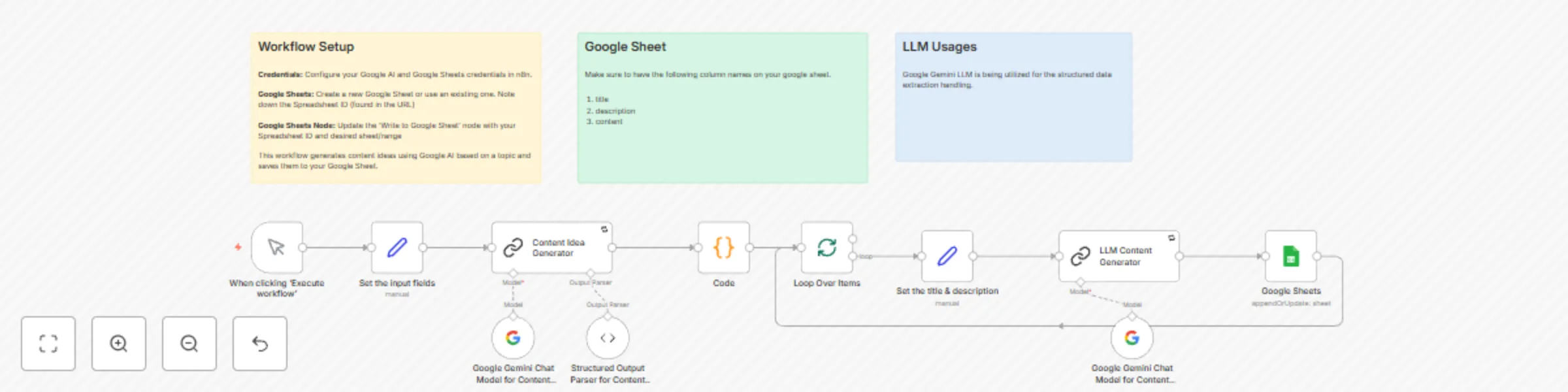
# Automated Content Idea Generation and Expansion with Google Gemini and Google Sheets This n8n workflow automates the process of generating content ideas based on a user-defined topic, then expands each idea into a more detailed content piece (like a blog post) using Google Gemini, and finally saves all the generated data (idea title, description, and full content) into a Google Sheet. It's a powerful tool for streamlining content creation workflows. This workflow includes: * Generation of multiple content ideas from a single topic. * Expansion of each idea into detailed content using AI. * Storage of ideas and generated content in a structured Google Sheet. * Sticky Notes within the workflow for inline documentation and setup guidance. ## Prerequisites 1. **n8n Instance:** You need a running n8n instance (self-hosted or cloud). 2. **Google AI Account:** Access to Google AI (Gemini). You will need an API key. 3. **Google Account:** Access to Google Sheets. You will need to create or use an existing spreadsheet with specific column headers. ## Installation and Setup 1. **Import the Workflow:** * Copy the entire JSON code provided. * In your n8n instance, go to "Workflows". * Click "New" -&gt; "Import from JSON". * Paste the JSON code and click "Import". 2. **Configure Credentials:** * **Google AI (Gemini):** * Find the "Google Gemini Chat Model for Content Idea Generator" node and the "Google Gemini Chat Model for Content Generation" node. * Click on the "Credentials" field in *both* nodes (it will likely show a placeholder name like "Google Gemini(PaLM) Api account"). * Click "Create New". * Select "Google AI API". * Enter your Google AI API Key. * Save the credential. (You can reuse the same credential for both nodes). * **Google Sheets:** * Find the "Google Sheets" node. * Click on the "Credentials" field (it will likely show a placeholder name like "Google Sheets account"). * Click "Create New". * Select "Google Sheets OAuth2 API". * Follow the steps to connect your Google Account and grant n8n access to Google Sheets. * Save the credential. 3. **Configure Google Sheets Node:** * Open the "Google Sheets" node settings. * **Spreadsheet ID:** Replace the placeholder value with the actual ID of your Google Sheet. You can find the Spreadsheet ID in the URL of your Google Sheet (it's the long string of characters between `/d/` and `/edit`). * **Sheet Name:** Select or enter the name or GID of the sheet within your spreadsheet where you want to save the data (e.g., `Sheet1` or `gid=0`). * **Columns:** Ensure your Google Sheet has columns named `title`, `description`, and `content`. The node is configured to map the generated data to these specific column headers. * Save the node settings. 4. **Review Sticky Notes:** * Look at the Sticky Notes placed around the workflow canvas. They provide helpful context and reminders for setup, required Google Sheet columns, and the AI models used. ## How to Use 1. **Activate the Workflow:** Toggle the workflow switch to "Active". 2. **Trigger the Workflow:** * Since this workflow uses a "When clicking ‘Execute workflow’" node as the trigger, you can run it directly from the n8n editor. * Click the "Execute Workflow" button. * The workflow will start automatically. 3. **Set the Topic:** * Open the "Set the input fields" node. * Modify the `topic` value to the subject you want to generate content ideas about. * Save the node settings. 4. **Monitor Execution:** Watch the workflow execute. The nodes will light up as they process. The "Loop Over Items" node will show multiple executions as it processes each generated idea. 5. **Check Results:** * The generated content ideas (title, description) and the expanded content will be written as new rows in the Google Sheet you configured. Each row will correspond to one generated idea and its content. This workflow provides a robust starting point for AI-assisted content creation. You can customize the AI prompts in the "Content Idea Generator" and "LLM Content Generator" nodes to refine the output style and format, or integrate additional steps like sending notifications or further processing the generated content.

D
Dvir Sharon
Content Creation
27 May 2025
3638
0