Escalate VIP Zendesk tickets with GPT-4, Slack alerts and email summaries

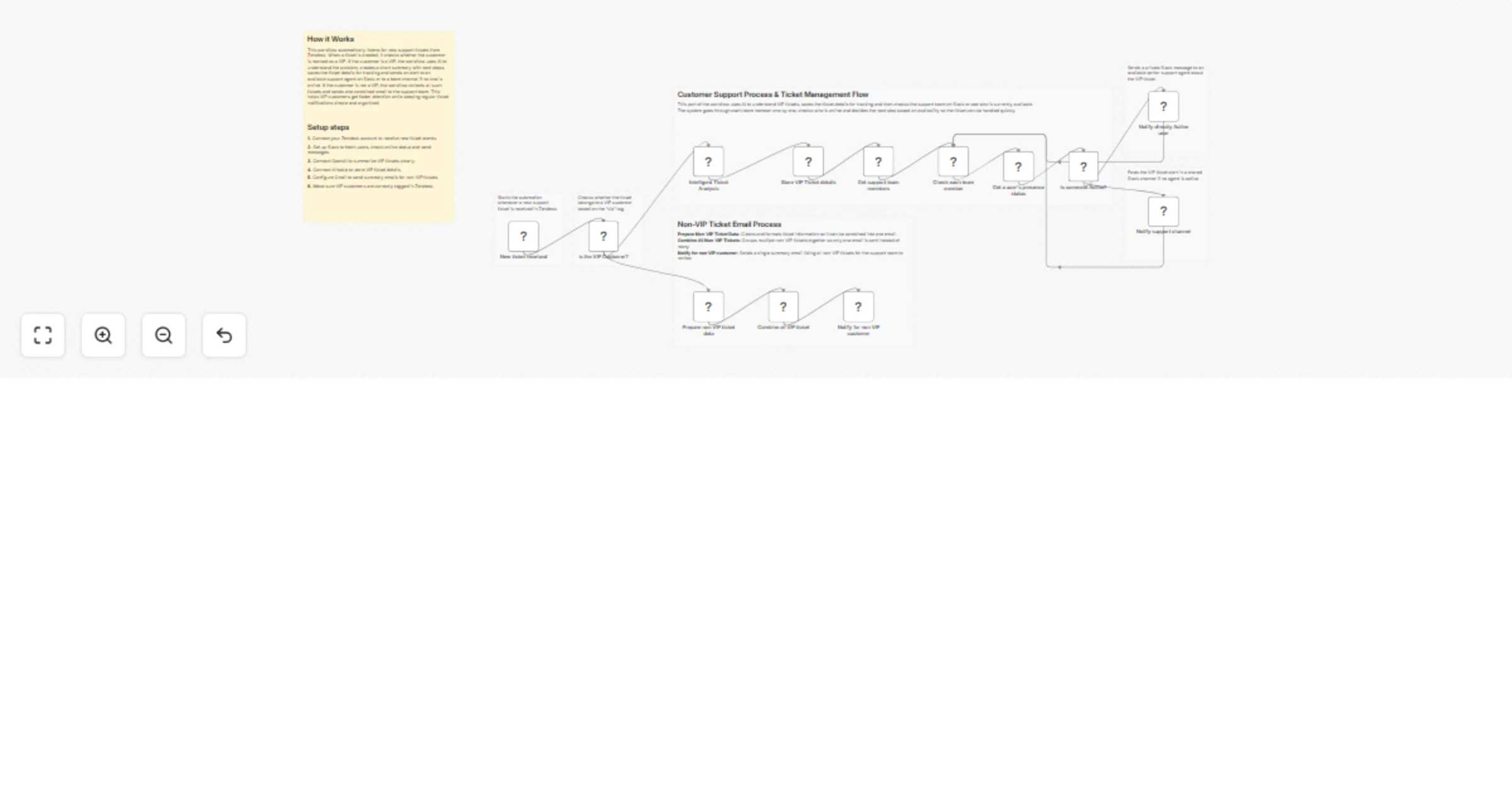
Workflow preview

Workflow preview
100%
Escalate VIP Zendesk tickets with GPT-4, Slack alerts and email summaries preview
Open on n8n.io

1. Workflow Overview

(Retail) VIP Customer Escalation Flow This workflow automatically monitors new Zendesk support tickets, identifies VIP customers, generates AI based ticket summaries, alerts available support agent...

Best for

  • Ticket Management automation workflows
  • AI Summarization automation workflows
  • advanced n8n builders looking for reusable templates

Tools used

n8n-nodes-base.slack, n8n-nodes-base.if, n8n-nodes-base.zendesktrigger, @n8n/n8n-nodes-langchain.openai, n8n-nodes-base.airtable, n8n-nodes-base.splitinbatches, n8n-nodes-base.set, n8n-nodes-base.aggregate

Source and attribution

This workflow is cataloged by N8N Workflows and links back to its original n8n.io source page by WeblineIndia.

Original n8n.io source

1.1 Workflow description

Title
Escalate VIP Zendesk tickets with GPT-4, Slack alerts and email summaries
Workflow name
Escalate VIP Zendesk tickets with GPT-4, Slack alerts and email summaries

(Retail) VIP Customer Escalation Flow

This workflow automatically monitors new Zendesk support tickets, identifies VIP customers, generates AI-based ticket summaries, alerts available support agents on Slack and sends a consolidated email for non-VIP tickets.

This workflow listens for new Zendesk tickets and checks whether the customer is a VIP.VIP tickets are prioritized using AI summaries and instant Slack alerts, while non-VIP tickets are grouped and sent as a single email notification to the support team.

You get:

  • Instant VIP ticket alerts on Slack
  • AI-generated issue summary and next steps
  • Automatic agent availability check
  • One clean email for all non-VIP tickets
  • Ticket tracking stored for reporting

Ideal for support teams who want to prioritize high-value customers without manual effort.

Quick Start – Implementation Steps

  1. Connect your Zendesk account and enable the Zendesk Trigger.
  2. Add your OpenAI API key for ticket summarization.
  3. Connect your Slack workspace and select users/channels.
  4. Configure Airtable to store VIP ticket data (optional but recommended).
  5. Connect Gmail to send non-VIP ticket summary emails.
  6. Activate the workflow — automation starts immediately.

What It Does

This workflow automates VIP ticket handling and notifications:

  1. Detects new Zendesk support tickets.
  2. Checks if the ticket belongs to a VIP customer.
  3. Uses AI to summarize VIP ticket issues and suggest next steps.
  4. Saves VIP ticket data for tracking and audits.
  5. Finds active support agents on Slack.
  6. Sends direct Slack alerts to active agents or a fallback channel.
  7. Collects non-VIP tickets into a single list.
  8. Sends one summary email for all non-VIP tickets.

This prevents alert fatigue while ensuring VIP customers get fast attention.

Who’s It For

This workflow is ideal for:

  • Customer support teams
  • Helpdesk managers
  • SaaS and e-commerce businesses
  • High-touch B2B support teams
  • Operations teams handling VIP customers
  • Anyone needing smarter ticket prioritization

Requirements to Use This Workflow

To run this workflow, you need:

  • n8n instance (cloud or self-hosted)
  • Zendesk account with API access
  • OpenAI API key
  • Slack workspace with bot permissions
  • Gmail account (or SMTP alternative)
  • Airtable account (optional, for logging)

How It Works

  1. Ticket Trigger – Workflow starts when a new Zendesk ticket is created.
  2. VIP Check – Verifies whether the ticket contains a VIP tag.
  3. AI Summary – AI reads the ticket and generates a short summary and next steps.
  4. Save VIP Ticket – VIP tickets are stored for tracking and reporting.
  5. Agent Availability Check – Slack users are checked for online presence.
  6. Slack Alert – Sends alert to an active agent or team channel.
  7. Non-VIP Collection – Non-VIP tickets are grouped together.
  8. Email Notification – One summary email is sent to the support team.

Setup Steps

  1. Import the workflow JSON into n8n.
  2. Configure Zendesk Trigger with OAuth.
  3. Add your OpenAI credentials.
  4. Map fields in the Airtable node (if used).
  5. Connect Slack API and select users/channels.
  6. Configure Gmail recipient and email format.
  7. Test with a sample VIP and non-VIP ticket.
  8. Activate the workflow.

How To Customize Nodes

Customize VIP Logic

You can enhance VIP detection by:

  • Adding spend-based logic
  • Checking customer lifetime value
  • Using CRM or database lookups

Customize Slack Alerts

You may add:

  • Emojis or mentions (@here, @team)
  • Ticket priority highlighting
  • Direct Zendesk ticket links

Customize Email Content

You can:

  • Add branding
  • Include SLA warnings
  • Add escalation notes

Customize AI Output

Adjust the AI prompt to:

  • Change summary length
  • Add tone (urgent, polite, technical)
  • Include troubleshooting steps

Add-Ons (Optional Enhancements)

You can extend this workflow to:

  • Auto-assign tickets to senior agents
  • Add SLA breach detection
  • Log VIP interactions to CRM
  • Add sentiment analysis
  • Create dashboards using Airtable or Google Sheets
  • Trigger SMS or WhatsApp alerts
  • Add priority-based routing (VIP / High / Normal)

Use Case Examples

1. VIP Customer Escalation

Ensure top customers always get instant attention.

2. Support Load Management

Reduce Slack and email noise with grouped notifications.

3. AI-Assisted Support

Help agents understand issues faster with AI summaries.

4. Audit & Reporting

Track VIP issues and resolutions over time.

Troubleshooting Guide

Issue Possible Cause Solution
No Slack alert No active users Check fallback channel
AI summary missing OpenAI key invalid Reconnect OpenAI credentials
Multiple emails sent Aggregate node missing Ensure aggregation is enabled
VIP not detected Tag mismatch Check tag name and case
Airtable error Field mismatch Match column names exactly

Need Expert Help?

If you need help extending this workflow with advanced features like adding CRM integration, advanced VIP logic, dashboards or scaling this for production then our n8n automation experts at WeblineIndia can help you build reliable, enterprise-ready automations.

1.2 Logical Blocks

This catalog entry is organized from the workflow JSON. The node-level section below shows the executable blocks available for review before importing the template.

2. Block-by-Block Analysis

Block 1 - Get a user's presence status

Type / Role
n8n-nodes-base.slack - slack
Config choices
Version 2.3

Block 2 - is the VIP Customer?

Type / Role
n8n-nodes-base.if - if
Config choices
Version 2.2

Block 3 - New ticket received

Type / Role
n8n-nodes-base.zendeskTrigger - zendeskTrigger
Config choices
Version 1

Block 4 - Intelligent Ticket Analysis

Type / Role
@n8n/n8n-nodes-langchain.openAi - openAi
Config choices
Version 2

Block 5 - Store VIP Ticket details

Type / Role
n8n-nodes-base.airtable - airtable
Config choices
Version 2.1

Block 6 - Get support team members

Type / Role
n8n-nodes-base.slack - slack
Config choices
Version 2.3

Block 7 - Check each team member

Type / Role
n8n-nodes-base.splitInBatches - splitInBatches
Config choices
Version 3

Block 8 - Is someone Active?

Type / Role
n8n-nodes-base.if - if
Config choices
Version 2.2

Block 9 - Notify support channel

Type / Role
n8n-nodes-base.slack - slack
Config choices
Version 2.3

Block 10 - Prepare non VIP ticket data

Type / Role
n8n-nodes-base.set - set
Config choices
Version 3.4

Block 11 - Notify directly Active user

Type / Role
n8n-nodes-base.slack - slack
Config choices
Version 2.3

Block 12 - Combine all VIP ticket

Type / Role
n8n-nodes-base.aggregate - aggregate
Config choices
Version 1

Block 13 - Notify for non VIP customer

Type / Role
n8n-nodes-base.gmail - gmail
Config choices
Version 2.1

Block 14 - Sticky Note7

Type / Role
n8n-nodes-base.stickyNote - stickyNote
Config choices
Version 1

Block 15 - Sticky Note8

Type / Role
n8n-nodes-base.stickyNote - stickyNote
Config choices
Version 1

Block 16 - Sticky Note9

Type / Role
n8n-nodes-base.stickyNote - stickyNote
Config choices
Version 1

Block 17 - Sticky Note10

Type / Role
n8n-nodes-base.stickyNote - stickyNote
Config choices
Version 1

Block 18 - Sticky Note11

Type / Role
n8n-nodes-base.stickyNote - stickyNote
Config choices
Version 1

Block 19 - Sticky Note12

Type / Role
n8n-nodes-base.stickyNote - stickyNote
Config choices
Version 1

Block 20 - Sticky Note13

Type / Role
n8n-nodes-base.stickyNote - stickyNote
Config choices
Version 1

3. Summary Table

Workflow Escalate VIP Zendesk tickets with GPT-4, Slack alerts and email summaries
Complexity advanced
Nodes 20
Categories Ticket Management, AI Summarization
Author WeblineIndia
Published 31 Mar 2026

4. Reproducing the Workflow from Scratch

  1. 1. Download the workflow JSON

    Use the JSON export at /data/workflows/14530/14530.json as the source template for this automation.

  2. 2. Import the template into n8n

    Open n8n, import the downloaded JSON, and review each node before activating the workflow.

  3. 3. Configure credentials and variables

    Replace placeholder credentials, API keys, webhook URLs, account IDs, and environment-specific values with your own settings.

  4. 4. Test with sample data

    Run the workflow manually or in a staging workspace, inspect node output, and confirm downstream systems receive the expected data.

  5. 5. Activate and monitor

    Enable the workflow only after testing, then monitor executions, errors, and rate limits during the first production runs.

5. General Notes & Resources

Review imported nodes carefully before activation. This catalog entry is intended to help you inspect the workflow structure, understand required services, and find related templates faster.

Node names, credentials, schedules, webhook paths, and external service limits may need adjustment for your workspace.

Frequently asked questions

What does Escalate VIP Zendesk tickets with GPT-4, Slack alerts and email summaries do?

(Retail) VIP Customer Escalation Flow This workflow automatically monitors new Zendesk support tickets, identifies VIP customers, generates AI based ticket summaries, alerts available support agent...

What do I need before importing this workflow?

Review the workflow JSON, configure any required credentials in n8n, and test the automation in a safe workspace before using it in production.

Can I customize this workflow?

Yes. Use the block-by-block analysis and the downloadable JSON to inspect each node, then adjust credentials, prompts, schedules, filters, or destinations for your Ticket Management, AI Summarization use case.