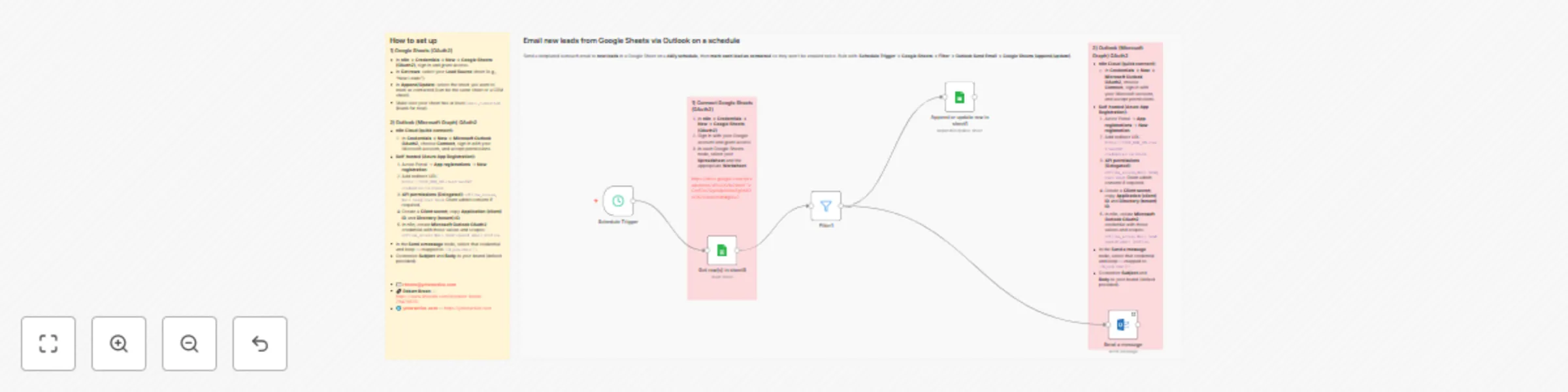
Email new leads from Google Sheets via Outlook on a schedule

Workflow preview

Workflow preview
100%
Email new leads from Google Sheets via Outlook on a schedule preview
Open on n8n.io

Important notice

This workflow is provided as-is. Please review and test before using in production.

1. Workflow Overview

Send a templated outreach email to new leads in a Google Sheet on a daily schedule , then mark each lead as contacted so they won’t be emailed twice. Built with: Schedule Trigger → Google Sheets → ...

Best for

  • Lead Nurturing automation workflows
  • intermediate n8n builders looking for reusable templates

Tools used

n8n-nodes-base.microsoftoutlook, n8n-nodes-base.scheduletrigger, n8n-nodes-base.googlesheets, n8n-nodes-base.filter, n8n-nodes-base.stickynote

Source and attribution

This workflow is cataloged by N8N Workflows and links back to its original n8n.io source page by Robert Breen.

Original n8n.io source

1.1 Workflow description

Title
Email new leads from Google Sheets via Outlook on a schedule
Workflow name
Email new leads from Google Sheets via Outlook on a schedule

Send a templated outreach email to new leads in a Google Sheet on a daily schedule, then mark each lead as contacted so they won’t be emailed twice. Built with: Schedule Trigger → Google Sheets → Filter → Outlook Send Email → Google Sheets (append/update).


Who’s it for

  • Teams that collect leads in Sheets and want automatic, once-per-lead outreach
  • Solo founders/consultants running simple top-of-funnel follow-ups
  • Anyone prototyping CRM-lite flows in n8n

How it works / What it does

  1. Schedule Trigger runs daily (e.g., 09:00).
  2. Get rows (Google Sheets) pulls leads from your sheet.
  3. Filter keeps only rows where Contacted is empty.
  4. Outlook – Send a message emails each remaining lead (to = {{$json.Email}}).
  5. Google Sheets (appendOrUpdate) writes back Contacted = Yes (match on Email) to prevent re-sending.

How to set up

1) Google Sheets (OAuth2)

  • In n8n → Credentials → New → Google Sheets (OAuth2), sign in and grant access.
  • In Get rows: select your Lead Source sheet (e.g., “New Leads”).
  • In Append/Update: select the sheet you want to mark as contacted (can be the same sheet or a CRM sheet).
  • Make sure your sheet has at least: Email, Contacted (blank for new).

2) Outlook (Microsoft Graph) OAuth2

  • n8n Cloud (quick connect):
    • In Credentials → New → Microsoft Outlook OAuth2, choose Connect, sign in with your Microsoft account, and accept permissions.
  • Self-hosted (Azure App Registration):
    1. Azure Portal → App registrationsNew registration.
    2. Add redirect URL: https://YOUR_N8N_URL/rest/oauth2-credential/callback.
    3. API permissions (Delegated): offline_access, Mail.Send, User.Read. Grant admin consent if required.
    4. Create a Client secret; copy Application (client) ID and Directory (tenant) ID.
    5. In n8n, create Microsoft Outlook OAuth2 credential with those values and scopes: offline_access Mail.Send openid email profile.
  • In the Send a message node, select that credential and keep To mapped to {{$json.Email}}.
  • Customize Subject and Body to your brand (default provided).

Requirements

  • A Google Sheet of leads with an Email column (and an optional Contacted column).
  • A Microsoft account with permission to send mail via Microsoft Graph (Outlook).

How to customize the workflow

  • Email content: Edit subject/body (add variables like {{$json.FirstName}}).
  • Send window: Change Schedule Trigger time/interval.
  • Idempotency: Use the same sheet for read+write (match on Email) or separate source/CRM sheets.
  • Logging: Add a Sheet or Notion append step after send for an audit trail.

Security & best practices

  • No hardcoded secrets: Always use OAuth2 credentials (Sheets & Outlook).
  • Sanitize PII: If publishing, remove real spreadsheet IDs/URLs and personal emails/phone numbers.
  • Sticky notes are mandatory: Add a yellow sticky note in the workflow with this description and a short setup checklist. Use neutral sticky notes for per-node tips.

Troubleshooting

  • No emails sent: Ensure Contacted is blank for new rows and the Filter checks “is empty.”
  • Auth errors (Outlook): Reconnect credential; confirm Graph scopes and tenant consent.
  • Sheets errors: Re-select spreadsheet/tab; verify headers (Email, Contacted).
  • Duplicates: Confirm Append/Update uses matching column = Email.

Tags & category

Category: Sales & CRM
Tags: outreach, follow-up, google-sheets, outlook, schedule, dedupe, cold-email


Changelog

v1.0.0 — Initial release: scheduled outreach, Outlook email, de-dupe via Contacted = Yes.


Contact

Need help customizing (personalization, rate-limits, CRM sync, bounce checks)?

1.2 Logical Blocks

This catalog entry is organized from the workflow JSON. The node-level section below shows the executable blocks available for review before importing the template.

2. Block-by-Block Analysis

Block 1 - Send a message

Type / Role
n8n-nodes-base.microsoftOutlook - microsoftOutlook
Config choices
Version 2

Block 2 - Schedule Trigger

Type / Role
n8n-nodes-base.scheduleTrigger - scheduleTrigger
Config choices
Version 1.2

Block 3 - Get row(s) in sheet3

Type / Role
n8n-nodes-base.googleSheets - googleSheets
Config choices
Version 4.7

Block 4 - Filter1

Type / Role
n8n-nodes-base.filter - filter
Config choices
Version 2.2

Block 5 - Append or update row in sheet1

Type / Role
n8n-nodes-base.googleSheets - googleSheets
Config choices
Version 4.7

Block 6 - Sticky Note58

Type / Role
n8n-nodes-base.stickyNote - stickyNote
Config choices
Version 1

Block 7 - Sticky Note6

Type / Role
n8n-nodes-base.stickyNote - stickyNote
Config choices
Version 1

Block 8 - Sticky Note70

Type / Role
n8n-nodes-base.stickyNote - stickyNote
Config choices
Version 1

Block 9 - Sticky Note7

Type / Role
n8n-nodes-base.stickyNote - stickyNote
Config choices
Version 1

3. Summary Table

Workflow Email new leads from Google Sheets via Outlook on a schedule
Complexity intermediate
Nodes 9
Categories Lead Nurturing
Author Robert Breen
Published 31 Aug 2025

4. Reproducing the Workflow from Scratch

  1. 1. Download the workflow JSON

    Use the JSON export at /data/workflows/8095/8095.json as the source template for this automation.

  2. 2. Import the template into n8n

    Open n8n, import the downloaded JSON, and review each node before activating the workflow.

  3. 3. Configure credentials and variables

    Replace placeholder credentials, API keys, webhook URLs, account IDs, and environment-specific values with your own settings.

  4. 4. Test with sample data

    Run the workflow manually or in a staging workspace, inspect node output, and confirm downstream systems receive the expected data.

  5. 5. Activate and monitor

    Enable the workflow only after testing, then monitor executions, errors, and rate limits during the first production runs.

5. General Notes & Resources

Review imported nodes carefully before activation. This catalog entry is intended to help you inspect the workflow structure, understand required services, and find related templates faster.

Node names, credentials, schedules, webhook paths, and external service limits may need adjustment for your workspace.

Frequently asked questions

What does Email new leads from Google Sheets via Outlook on a schedule do?

Send a templated outreach email to new leads in a Google Sheet on a daily schedule , then mark each lead as contacted so they won’t be emailed twice. Built with: Schedule Trigger → Google Sheets → ...

What do I need before importing this workflow?

Review the workflow JSON, configure any required credentials in n8n, and test the automation in a safe workspace before using it in production.

Can I customize this workflow?

Yes. Use the block-by-block analysis and the downloadable JSON to inspect each node, then adjust credentials, prompts, schedules, filters, or destinations for your Lead Nurturing use case.