Daily weather reports with OpenWeather API, Google Sheets, and Gmail

Workflow preview

Workflow preview
100%
Daily weather reports with OpenWeather API, Google Sheets, and Gmail preview
Open on n8n.io

Important notice

This workflow is provided as-is. Please review and test before using in production.

1. Workflow Overview

Daily Weather Reports with OpenWeather API, Google Sheets, and Gmail This workflow fetches real time weather data from the OpenWeather API, stores it in a Google Sheet, formats it into a beautifull...

Best for

  • Personal Productivity automation workflows
  • intermediate n8n builders looking for reusable templates

Tools used

n8n-nodes-base.stickynote, n8n-nodes-base.httprequest, n8n-nodes-base.googlesheets, n8n-nodes-base.html, n8n-nodes-base.gmail, n8n-nodes-base.scheduletrigger

Source and attribution

This workflow is cataloged by N8N Workflows and links back to its original n8n.io source page by WeblineIndia.

Original n8n.io source

1.1 Workflow description

Title
Daily weather reports with OpenWeather API, Google Sheets, and Gmail
Workflow name
Daily weather reports with OpenWeather API, Google Sheets, and Gmail

Daily Weather Reports with OpenWeather API, Google Sheets, and Gmail

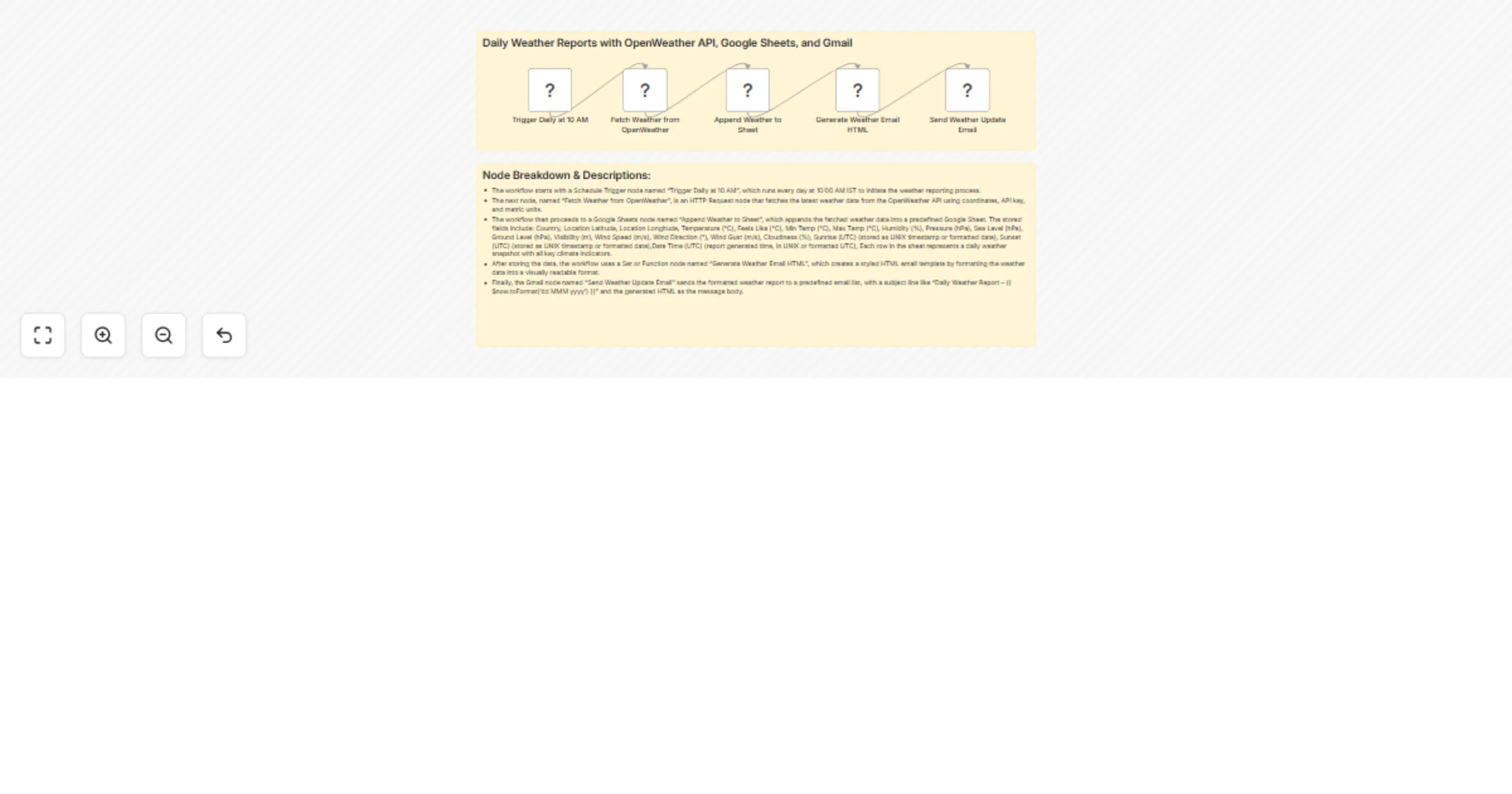
This workflow fetches real-time weather data from the OpenWeather API, stores it in a Google Sheet, formats it into a beautifully styled HTML report and emails it to recipients automatically every day at 10:00 AM. It helps teams track and monitor daily weather trends and optionally correlate them with energy production or field operations.

Who’s it for?

  • Renewable energy teams monitoring solar/wind energy output vs weather
  • Facility or operations managers requiring daily climate updates
  • Researchers or analysts logging environmental metrics
  • Any team needing automated, daily weather reports by email

How it works?

  • The workflow begins with a Schedule Trigger set to run at 10:00 AM IST daily.
  • It calls the OpenWeather API to fetch weather metrics for a predefined location.
  • The data is then passed to a Google Sheets node named "Append Weather to Sheet", which stores all the key values into a structured spreadsheet.
  • A Set or Function node generates a clean, styled HTML email using inline CSS and the weather values.
  • Finally, a Gmail node sends this report to one or more recipients with a clear subject line and formatted body.

How to set up?

  1. Create/Open your n8n instance (Cloud or Self-hosted).
  2. Connect the following credentials:
    • Google Sheets (OAuth2)
    • Gmail (OAuth2)
  3. Set your OpenWeather API key in the HTTP Request node (api.openweathermap.org).
  4. Replace latitude/longitude in the request URL as per your location.
  5. Link a Google Sheet and define the correct tab name and headers.
  6. Configure recipient email(s) in the Gmail node.
  7. Deploy the workflow and test.

Requirements

  • n8n account (self-hosted or cloud)
  • OpenWeather API key (free or paid)
  • Google account with access to:
    • Google Sheets
    • Gmail
  • A valid Google Sheet created with the following headers (columns):
Country
Location Latitude
Location Longitude
Temperature (°C)
Feels Like (°C)
Min Temp (°C)
Max Temp (°C)
Humidity (%)
Pressure (hPa)
Sea Level (hPa)
Ground Level (hPa)
Visibility (m)
Wind Speed (m/s)
Wind Direction (°)
Wind Gust (m/s)
Cloudiness (%)
Sunrise (UTC)
Sunset (UTC)
Date Time (UTC)

How to customize?

  • Change the scheduled time in the Schedule Trigger node.
  • Modify the location coordinates in the OpenWeather API URL.
  • Update the HTML template with different formatting or styling.
  • Add a second email or sheet for energy output to correlate with weather.
  • Extend the workflow with Slack, Notion, or Telegram alerts.

Add‑ons

  • Integrate with a solar energy API to track power production with weather.
  • Post weather summaries to Notion, Slack or internal dashboards.
  • Generate a visual chart in Google Sheets over time using the collected data.
  • Trigger alerts when specific thresholds are exceeded (e.g., wind gust > 10 m/s).

Use Case Examples

  • Solar farm reporting: Monitor daily weather impact on solar panel output.
  • Logistics planning: Notify teams of visibility or wind risks before dispatch.
  • Site operations: Send forecasts to maintenance or ground staff.
  • Academic/weather logging: Track atmospheric data over time.

Common Troubleshooting

Issue Possible Cause Solution
Email not sent Gmail credentials not connected properly Reconnect Gmail account via n8n credential manager
Weather data is missing fields API response changed or API key invalid Verify OpenWeather API key and URL format
Google Sheet not updating Incorrect spreadsheet ID or tab name Double-check spreadsheet ID and sheet name in node
HTML email renders incorrectly Broken or missing tags in HTML Test output HTML separately in browser/email preview tool

Need Help?

If you need assistance setting up or customizing this workflow, feel free reach out. We’re here to help!

1.2 Logical Blocks

This catalog entry is organized from the workflow JSON. The node-level section below shows the executable blocks available for review before importing the template.

2. Block-by-Block Analysis

Block 1 - Sticky Note

Type / Role
n8n-nodes-base.stickyNote - stickyNote
Config choices
Version 1

Block 2 - Sticky Note1

Type / Role
n8n-nodes-base.stickyNote - stickyNote
Config choices
Version 1

Block 3 - Fetch Weather from OpenWeather

Type / Role
n8n-nodes-base.httpRequest - httpRequest
Config choices
Version 4.2

Block 4 - Append Weather to Sheet

Type / Role
n8n-nodes-base.googleSheets - googleSheets
Config choices
Version 4.6

Block 5 - Generate Weather Email HTML

Type / Role
n8n-nodes-base.html - html
Config choices
Version 1.2

Block 6 - Send Weather Update Email

Type / Role
n8n-nodes-base.gmail - gmail
Config choices
Version 2.1

Block 7 - Trigger Daily at 10 AM

Type / Role
n8n-nodes-base.scheduleTrigger - scheduleTrigger
Config choices
Version 1.2

3. Summary Table

Workflow Daily weather reports with OpenWeather API, Google Sheets, and Gmail
Complexity intermediate
Nodes 7
Categories Personal Productivity
Author WeblineIndia
Published 31 Jul 2025

4. Reproducing the Workflow from Scratch

  1. 1. Download the workflow JSON

    Use the JSON export at /data/workflows/6738/6738.json as the source template for this automation.

  2. 2. Import the template into n8n

    Open n8n, import the downloaded JSON, and review each node before activating the workflow.

  3. 3. Configure credentials and variables

    Replace placeholder credentials, API keys, webhook URLs, account IDs, and environment-specific values with your own settings.

  4. 4. Test with sample data

    Run the workflow manually or in a staging workspace, inspect node output, and confirm downstream systems receive the expected data.

  5. 5. Activate and monitor

    Enable the workflow only after testing, then monitor executions, errors, and rate limits during the first production runs.

5. General Notes & Resources

Review imported nodes carefully before activation. This catalog entry is intended to help you inspect the workflow structure, understand required services, and find related templates faster.

Node names, credentials, schedules, webhook paths, and external service limits may need adjustment for your workspace.

Frequently asked questions

What does Daily weather reports with OpenWeather API, Google Sheets, and Gmail do?

Daily Weather Reports with OpenWeather API, Google Sheets, and Gmail This workflow fetches real time weather data from the OpenWeather API, stores it in a Google Sheet, formats it into a beautifull...

What do I need before importing this workflow?

Review the workflow JSON, configure any required credentials in n8n, and test the automation in a safe workspace before using it in production.

Can I customize this workflow?

Yes. Use the block-by-block analysis and the downloadable JSON to inspect each node, then adjust credentials, prompts, schedules, filters, or destinations for your Personal Productivity use case.