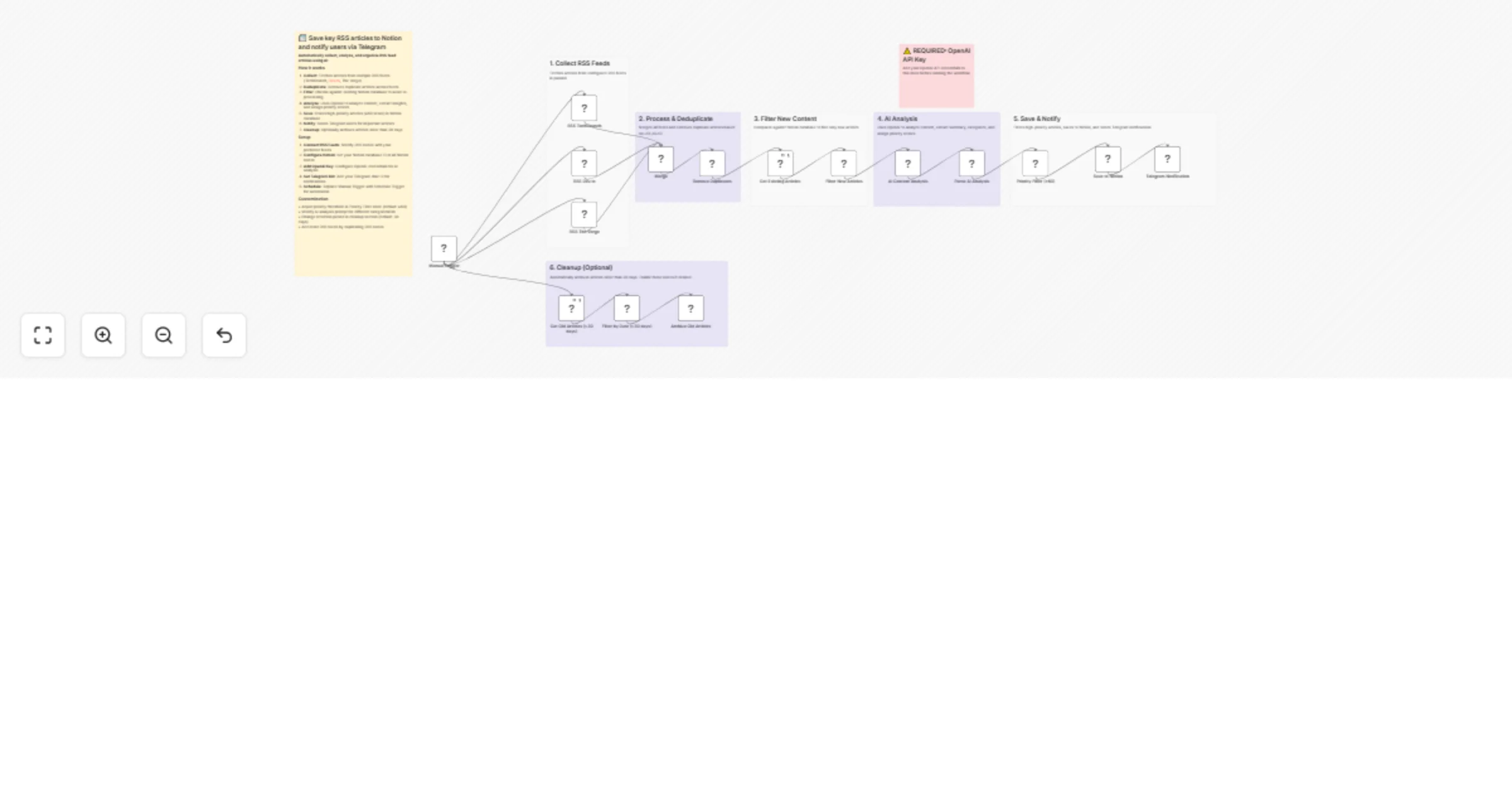
Curate key RSS articles with OpenAI, save to Notion, and notify via Telegram

Workflow preview

Workflow preview
100%
Curate key RSS articles with OpenAI, save to Notion, and notify via Telegram preview
Open on n8n.io

1. Workflow Overview

Think of this workflow as your personal news assistant that: Monitors multiple technology websites 24/7 Uses AI to read and understand each article Filters out low quality content automatically. Sa...

Best for

  • Market Research automation workflows
  • AI Summarization automation workflows
  • advanced n8n builders looking for reusable templates

Tools used

n8n-nodes-base.stickynote, n8n-nodes-base.manualtrigger, n8n-nodes-base.rssfeedread, n8n-nodes-base.code, n8n-nodes-base.notion, n8n-nodes-base.httprequest, n8n-nodes-base.if, n8n-nodes-base.telegram

Source and attribution

This workflow is cataloged by N8N Workflows and links back to its original n8n.io source page by Prueba.

Original n8n.io source

1.1 Workflow description

Title
Curate key RSS articles with OpenAI, save to Notion, and notify via Telegram
Workflow name
Curate key RSS articles with OpenAI, save to Notion, and notify via Telegram

Think of this workflow as your personal news assistant that:

  • Monitors multiple technology websites 24/7
  • Uses AI to read and understand each article
  • Filters out low-quality content automatically.
  • Saves the best articles to Notion with summaries.
  • Sends you Telegram alerts for must-read content.

Prerequisites (What You Need Before Starting)

1. Notion Account (Free)

  • Sign up at notion.so
  • You'll store all curated articles here

2. OpenAI Account (Paid)

  • Sign up at platform.openai.com
  • Cost: $0.01-0.02 per article ($15-30/month for 50 articles/day)
  • Needed for AI content analysis

3. Telegram Account (Free)

  • Download Telegram app
  • Needed for instant notifications

4. RSS Feed URLs (Free)

  • Included: TechCrunch, Dev.to, The Verge
  • Optional: Add your own favorite tech blogs

Step-by-Step Configuration

STEP 1: Create Your Notion Database

1.1 Create New Database
  1. Open Notion (notion.so)
  2. Click "+ New Page"
  3. Select "Table" view
  4. Name it "Content Curator"
1.2 Add Required Properties

Click "+ New Property" and add each:

  • Title (Rich Text) - Already exists by default
  • URL (URL type)
  • Summary (Rich Text)
  • Category (Select) - Add options: Technology, AI, Business, DevOps, Other
  • Tags (Rich Text)
  • Sentiment (Select) - Add options: Positive, Neutral, Negative
  • Priority (Number)
  • Source (Rich Text)
  • Published (Date)
  • Added Date (Date)
  • Status (Select) - Add options: New, Read, Archived
1.3 Get Database ID
  1. Open your Notion database
  2. Click "Share" button (top right)
  3. Click "Copy Link"
  4. Extract the ID from URL:
  • URL: https://www.notion.so/28e3a42420b2801e8ef5c680e49afc2e
  • ID: 28e3a42420b2801e8ef5c680e49afc2e
  1. Save this ID - you'll need it multiple times

STEP 2: Create Notion Integration

2.1 Create Integration
  1. Go to: notion.so/my-integrations
  2. Click "+ New Integration"
  3. Name: "RSS Content Curator"
  4. Select your workspace
  5. Click "Submit"
  6. Copy the "Internal Integration Token" (starts with secret_)
  7. IMPORTANT: Save this token safely!
2.2 Connect Integration to Database
  1. Open your "Content Curator" database in Notion
  2. Click "•••" (three dots, top right)
  3. Scroll to "Add connections"
  4. Select "RSS Content Curator"
  5. Click "Confirm"

STEP 3: Set Up OpenAI

  1. Go to: platform.openai.com
  2. Sign up or log in
  3. Add payment method (required)
  4. Navigate to: platform.openai.com/api-keys
  5. Click "+ Create new secret key"
  6. Name: "n8n-content-curator"
  7. Copy the key (starts with sk-)
  8. IMPORTANT: You can't see this key again - save it now!

STEP 4: Create Telegram Bot

4.1 Create the Bot
  1. Open Telegram app
  2. Search for "@BotFather"
  3. Start chat with BotFather
  4. Send: /newbot
  5. Follow prompts:
  • Bot name: "My Content Curator"
  • Username: "my_content_curator_bot"
  1. Copy the HTTP API token
  2. Save this token
4.2 Get Your Chat ID
  1. Search for your bot in Telegram
  2. Start a chat and send any message
  3. Open in browser:
https://api.telegram.org/bot<YOUR_BOT_TOKEN>/getUpdates

(Replace <YOUR_BOT_TOKEN> with your actual token) 4. Find "chat":{"id": followed by a number 5. Copy that number (e.g., 8346316847) 6. Save this Chat ID


STEP 5: Import Workflow to n8n

  1. Log in to n8n
  2. Click "Workflows" → "Add Workflow"
  3. Click three dots (⋮) → "Import from File"
  4. Select RSS_AI_Content_Curator_Enhanced.json
  5. Click "Import"

STEP 6: Configure Notion Credentials

Four nodes need Notion connection:

  1. Get Existing Articles
  2. Get Old Articles (>30 days)
  3. Save to Notion
  4. Archive Old Articles

For EACH node:

  1. Click the node
  2. Find "Credential to connect with"
  3. Click "Create New"
  4. Select "Notion API"
  5. Name: "My Notion Curator"
  6. Paste your Integration Token from Step 2.1
  7. Click "Save"

Update Database IDs:

  1. In each Notion node, find "Database ID" field
  2. Click refresh icon next to it
  3. Select "From list"
  4. Choose your "Content Curator" database
  5. Test: Click "Execute Node"
  6. Success = green checkmark ✓

STEP 7: Configure OpenAI Credentials

  1. Click on "AI Content Analysis" node
  2. Find "Authentication" section
  3. Under "HTTP Header Auth", click "Create New"
  4. Fill in:
  • Name: Authorization
  • Value: Bearer sk-YOUR_API_KEY_HERE (Replace with your actual OpenAI key from Step 3)
  1. Click "Save"

STEP 8: Configure Telegram Credentials

  1. Click on "Telegram Notification" node
  2. Under "Credential to connect with", click "Create New"
  3. Select "Telegram API"
  4. Name: "My Telegram Bot"
  5. Paste Bot Token from Step 4.1
  6. Click "Save"

Update Chat ID:

  1. In "Telegram Notification" node
  2. Find "Chat ID" field
  3. Paste your Chat ID from Step 4.2
  4. Test: Click "Execute Node"

STEP 9: Test the Workflow

Manual Test Run
  1. Verify all nodes show green (no errors)
  2. Click "Execute Workflow" (top right)
  3. Watch nodes light up in sequence
  4. Check for red error nodes
  5. If all green:
  • Open Notion - should see new articles
  • Check Telegram - may see notification if high-priority article found
Expected Results:
  • Workflow fetches from 3 RSS feeds
  • Removes duplicate articles
  • Checks which are new (not already in Notion)
  • AI analyzes each article (summary, category, priority)
  • Articles with priority ≥60 saved to Notion
  • High-priority articles trigger Telegram notification

STEP 10: Activate Automatic Execution

Replace Manual Trigger
  1. Click "Manual Trigger" node
  2. Press Delete
  3. Click "+" to add node
  4. Search "Schedule Trigger"
  5. Select it
Configure Schedule

Choose one:

  • Every 4 hours: More updates, higher cost
  • Every 6 hours: Balanced (recommended)
  • Every 12 hours: Lower cost
  • Daily at specific time: Minimal cost

Example for every 6 hours:

  • Mode: "Every X"
  • Value: 6
  • Unit: Hours
Activate
  1. Click toggle switch (top right)
  2. Should turn green: "Active"
  3. Workflow now runs automatically!

1.2 Logical Blocks

This catalog entry is organized from the workflow JSON. The node-level section below shows the executable blocks available for review before importing the template.

2. Block-by-Block Analysis

Block 1 - Main Overview

Type / Role
n8n-nodes-base.stickyNote - stickyNote
Config choices
Version 1

Block 2 - Section 1

Type / Role
n8n-nodes-base.stickyNote - stickyNote
Config choices
Version 1

Block 3 - Section 2

Type / Role
n8n-nodes-base.stickyNote - stickyNote
Config choices
Version 1

Block 4 - Section 3

Type / Role
n8n-nodes-base.stickyNote - stickyNote
Config choices
Version 1

Block 5 - Warning AI

Type / Role
n8n-nodes-base.stickyNote - stickyNote
Config choices
Version 1

Block 6 - Section 4

Type / Role
n8n-nodes-base.stickyNote - stickyNote
Config choices
Version 1

Block 7 - Section 5

Type / Role
n8n-nodes-base.stickyNote - stickyNote
Config choices
Version 1

Block 8 - Section 6 Optional

Type / Role
n8n-nodes-base.stickyNote - stickyNote
Config choices
Version 1

Block 9 - Manual Trigger

Type / Role
n8n-nodes-base.manualTrigger - manualTrigger
Config choices
Version 1

Block 10 - RSS TechCrunch

Type / Role
n8n-nodes-base.rssFeedRead - rssFeedRead
Config choices
Version 1.2

Block 11 - RSS Dev.to

Type / Role
n8n-nodes-base.rssFeedRead - rssFeedRead
Config choices
Version 1.2

Block 12 - RSS The Verge

Type / Role
n8n-nodes-base.rssFeedRead - rssFeedRead
Config choices
Version 1.2

Block 13 - Remove Duplicates

Type / Role
n8n-nodes-base.code - code
Config choices
Version 2

Block 14 - Get Existing Articles

Type / Role
n8n-nodes-base.notion - notion
Config choices
Version 2.2

Block 15 - Filter New Articles

Type / Role
n8n-nodes-base.code - code
Config choices
Version 2

Block 16 - AI Content Analysis

Type / Role
n8n-nodes-base.httpRequest - httpRequest
Config choices
Version 4.2

Block 17 - Parse AI Analysis

Type / Role
n8n-nodes-base.code - code
Config choices
Version 2

Block 18 - Priority Filter (≥60)

Type / Role
n8n-nodes-base.if - if
Config choices
Version 1

Block 19 - Telegram Notification

Type / Role
n8n-nodes-base.telegram - telegram
Config choices
Version 1.2

Block 20 - Get Old Articles (>30 days)

Type / Role
n8n-nodes-base.notion - notion
Config choices
Version 2

Block 21 - Archive Old Articles

Type / Role
n8n-nodes-base.notion - notion
Config choices
Version 2

Block 22 - Merge

Type / Role
n8n-nodes-base.merge - merge
Config choices
Version 3.2

Block 23 - Save to Notion

Type / Role
n8n-nodes-base.notion - notion
Config choices
Version 2.2

Block 24 - Filter by Date (>30 days)

Type / Role
n8n-nodes-base.code - code
Config choices
Version 2

3. Summary Table

Workflow Curate key RSS articles with OpenAI, save to Notion, and notify via Telegram
Complexity advanced
Nodes 24
Categories Market Research, AI Summarization
Author Prueba
Published 08 Jan 2026

4. Reproducing the Workflow from Scratch

  1. 1. Download the workflow JSON

    Use the JSON export at /data/workflows/12589/12589.json as the source template for this automation.

  2. 2. Import the template into n8n

    Open n8n, import the downloaded JSON, and review each node before activating the workflow.

  3. 3. Configure credentials and variables

    Replace placeholder credentials, API keys, webhook URLs, account IDs, and environment-specific values with your own settings.

  4. 4. Test with sample data

    Run the workflow manually or in a staging workspace, inspect node output, and confirm downstream systems receive the expected data.

  5. 5. Activate and monitor

    Enable the workflow only after testing, then monitor executions, errors, and rate limits during the first production runs.

5. General Notes & Resources

Review imported nodes carefully before activation. This catalog entry is intended to help you inspect the workflow structure, understand required services, and find related templates faster.

Node names, credentials, schedules, webhook paths, and external service limits may need adjustment for your workspace.

Frequently asked questions

What does Curate key RSS articles with OpenAI, save to Notion, and notify via Telegram do?

Think of this workflow as your personal news assistant that: Monitors multiple technology websites 24/7 Uses AI to read and understand each article Filters out low quality content automatically. Sa...

What do I need before importing this workflow?

Review the workflow JSON, configure any required credentials in n8n, and test the automation in a safe workspace before using it in production.

Can I customize this workflow?

Yes. Use the block-by-block analysis and the downloadable JSON to inspect each node, then adjust credentials, prompts, schedules, filters, or destinations for your Market Research, AI Summarization use case.