Prueba
Workflows by Prueba
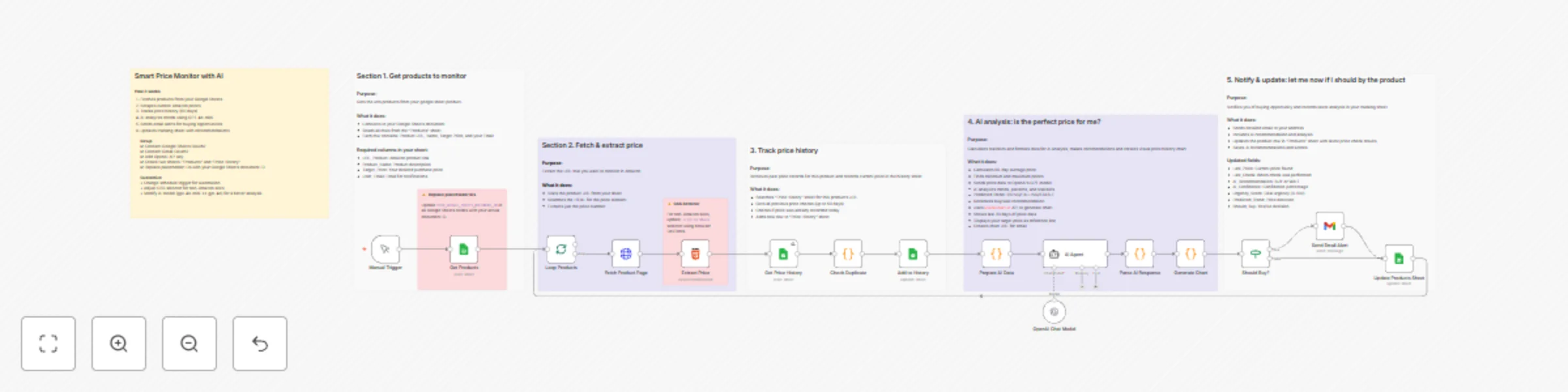
Automated smart price monitor with AI prediction, Google Sheets and Gmail
## Think of this workflow as your personal shopping assistant that: - Watches prices for you 24/7 - Learns when prices are good or bad - Sends you an email when it's time to buy - Keeps a history of all price changes --- ## ✅ Prerequisites (What You Need Before Starting) ### 1. **Google Account** (Free) - You need Gmail and Google Sheets ### 2. **OpenAI Account** (Paid - but cheap) - Needed for AI price analysis ### 3. **Product URLs** - Currently configured for Amazon products --- ## 🔧 Step-by-Step Configuration ### STEP 1: Create Your Google Sheets #### 1.1 Create Products Sheet 1. Go to Google Sheets (sheets.google.com) 2. Click "Blank" to create new spreadsheet 3. Name it "Smart Price Monitor" 4. Create first sheet named "Products" 5. Add these column headers in Row 1: - Column A: `URL_Product` - Column B: `Product_Name` - Column C: `Target_Price` - Column D: `User_Email` - Column E: `Last_Price` - Column F: `Last_Check` - Column G: `AI_Recommendation` - Column H: `AI_Confidence` - Column I: `Urgency_Score` - Column J: `Predicted_Trend` - Column K: `Should_Buy` #### 1.2 Create Price History Sheet 1. In the same spreadsheet, create new sheet (click + at bottom) 2. Name it "Price_History" 3. Add these column headers in Row 1: - Column A: `URL_Product` - Column B: `Price` - Column C: `Date` - Column D: `Timestamp` #### 1.3 Add Your First Product In the "Products" sheet, add your first product: - Row 2, Column A: Paste full Amazon URL - Row 2, Column B: Type product name (e.g., "Sony Headphones") - Row 2, Column C: Type your maximum price (e.g., 150) - Row 2, Column D: Type your email address --- ### STEP 2: Get Google Sheets ID 1. Open your Google Sheet 2. Look at the URL in your browser 3. Copy the long code between `/d/` and `/edit` 4. Example URL: `https://docs.google.com/spreadsheets/d/1ABC123xyz456/edit` - Your ID is: `1ABC123xyz456` 5. Save this ID - you'll need it further --- ### STEP 3: Set Up Google Cloud Connection #### 3.1 Create Google Cloud Project 1. Go to: console.cloud.google.com 2. Click "Create Project" 3. Name it "Price Monitor" 4. Click "Create" #### 3.2 Enable Google Sheets API 1. In the search bar, type "Google Sheets API" 2. Click on it and click "Enable" --- ### STEP 4: Set Up OpenAI Account 1. Go to: platform.openai.com 2. Click "Sign Up" or "Log In" 3. Add payment method (required for API use) 4. Go to: platform.openai.com/api-keys 5. Click "Create new secret key" 6. Name it "n8n-price-monitor" 7. Copy the key (starts with "sk-") 8. **IMPORTANT:** Save this key safely - you can't see it again! --- ### STEP 5: Import the Workflow 1. In n8n, click "Workflows" in the left sidebar 2. Click "Add Workflow" button (top right) 3. Click the three dots menu (⋮) 4. Select "Import from File" 5. Choose the .json file 6. Click "Import" --- ### STEP 6: Configure Google Sheets Credentials #### 6.1 Update Google Sheet IDs You need to update 5 nodes with your Sheet ID: **Nodes to update:** 1. "Get Products" 2. "Get Price History" 3. "Add to History" 4. "Update Product Sheet" **How to update each:** 1. Click on the node 2. Find "Document ID" field 3. Delete "YOUR_GOOGLE_SHEETS_DOCUMENT_ID" 4. Paste your Sheet ID from Step 2 5. Click "Refresh" icon next to the field 6. Select your sheet name from dropdown 7. Click "Execute Node" to test 8. If you see data, it works! --- ### STEP 7: Configure OpenAI Credentials 1. Click on "OpenAI Chat Model" node (bottom of workflow) 2. Under "Credential to connect with", click "Create New" 3. Select "OpenAI API" 4. Give it a name: "My OpenAI" 5. Paste your API key from Step 4 (starts with "sk-") 6. Click "Save" --- ### STEP 8: Configure Gmail Credentials 1. Click on "Send Email Notification" node 2. Under "Credential to connect with", click "Create New" 3. Select "Gmail OAuth2" 4. Follow the on-screen instructions to connect your Gmail 5. Authorize n8n to send emails on your behalf 6. Click "Save" --- ## Test the Workflow ### 1 Manual Test 1. Make sure you have at least one product in your Google Sheet 2. Click "Execute Workflow" button (top right) 3. Watch the nodes light up as they execute 4. Check for any red error nodes 5. If all green, check your email! ### 2 Verify Results 1. Check your "Price_History" sheet - you should see new entries 2. Check your "Products" sheet - last columns should be updated 3. If product price meets criteria, check your email for notification --- ### Set Up Automatic Execution ### 1 Replace Manual Trigger 1. Click on "Manual Trigger" node 2. Press Delete key 3. Click "+" to add new node 4. Search for "Schedule Trigger" 5. Select it ### 2 Activate Workflow 1. Click the toggle switch at the top right 2. It should turn green and say "Active" 3. Your workflow is now running automatically!
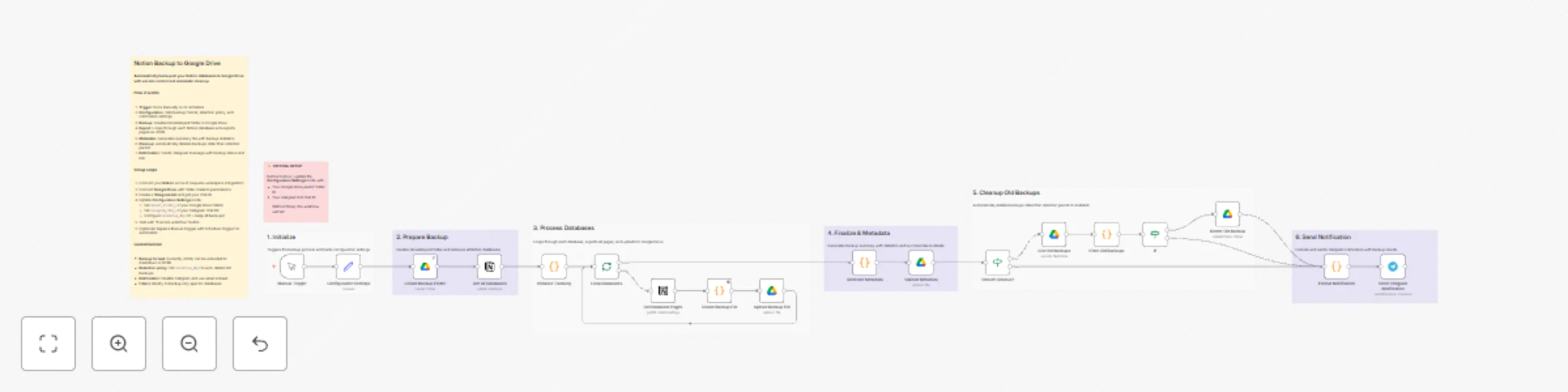
Automatic Notion database backup to Google Drive with Telegram notifications
## 🔍 Workflow Overview ## What This Workflow Does This workflow automatically saves copies of all your Notion databases to Google Drive. It's like creating a safety backup of your important Notion information, similar to saving important documents in a filing cabinet. **Target Audience:** Anyone who uses Notion and wants to protect their data by creating automatic backups to Google Drive. --- ## Prerequisites (What You Need Before Starting) ### Required Accounts 1. **Notion Account** - Where your databases are stored 2. **Google Account** - For Google Drive storage 3. **Telegram Account** - To receive backup notifications (free messaging app) ### Required Software - **n8n Community Edition v2.0.0** installed on your computer or server - **Web browser** (Chrome, Firefox, Safari, or Edge) --- ## Step-by-Step Configuration Guide ### PART 1: Setting Up Notion Access #### Step 1: Create a Notion Integration #### Step 2: Share Your Databases with the integration --- ### PART 2: Setting Up Google Drive Access #### Step 1: Create a Google Drive Folder #### Step 2: Connect Google Drive to n8n --- ### PART 3: Setting Up Telegram Notifications #### Step 1: Create a Telegram Bot #### Step 2: Get Your Chat ID #### Step 3: Connect Telegram to n8n --- ### PART 4: Installing the Workflow in n8n #### Step 1: Import the Workflow #### Step 2: Configure Credentials 1. **For Notion nodes** (Get All Databases, Get Database Pages) 2. **For Google Drive nodes** (Create Backup Folder, Upload Backup File, etc.) 3. **For Telegram node** (Send Telegram Notification) #### Step 3: Configure the Workflow Settings --- ### PART 5: Testing Your Workflow #### Step 1: Run a Test #### Step 2: Verify the Backup #### If Something Goes Wrong - **Red X marks on nodes**: Check that all credentials are properly connected - **"Not found" errors**: Make sure you shared your Notion databases with the integration - **No Telegram message**: Verify your Chat ID is correct - **No files in Google Drive**: Check your Folder ID is correct