Block 1 - Schedule Trigger
- Type / Role
- n8n-nodes-base.scheduleTrigger - scheduleTrigger
- Config choices
- Version 1.2


 Early Deal
This workflow is provided as-is. Please review and test before using in production.
This workflow provides a powerful way to automatically document and maintain an inventory of all your n8n workflows in a Google Sheet. By running on a schedule or manually, it fetches details about...
n8n-nodes-base.scheduletrigger, n8n-nodes-base.manualtrigger, n8n-nodes-base.n8n, n8n-nodes-base.splitinbatches, n8n-nodes-base.code, n8n-nodes-base.googlesheets, n8n-nodes-base.wait, n8n-nodes-base.stickynote
This workflow is cataloged by N8N Workflows and links back to its original n8n.io source page by PollupAI.
Original n8n.io sourceThis workflow provides a powerful way to automatically document and maintain an inventory of all your n8n workflows in a Google Sheet. By running on a schedule or manually, it fetches details about every workflow on your instance, processes the key information, and then populates a spreadsheet. This creates a centralized, up-to-date dashboard for auditing, monitoring, and understanding your automation landscape.
This workflow is ideal for n8n administrators, developers, and teams who manage multiple workflows. If you need a clear and simple way to track all your automations, their components, and their statuses without manually checking each one, this template is for you. It's particularly useful for maintaining technical documentation, auditing node usage across your instance, and quickly finding specific workflows.
As the number of workflows on an n8n instance grows, it becomes challenging to keep track of them all. Questions like "Which workflows use the HubSpot node?", "Which workflows are inactive?", or "When was this workflow last updated?" become difficult to answer. This workflow solves that problem by creating a single source of truth in a Google Sheet. It automates the process of cataloging your workflows, saving you time and ensuring your documentation is always current.
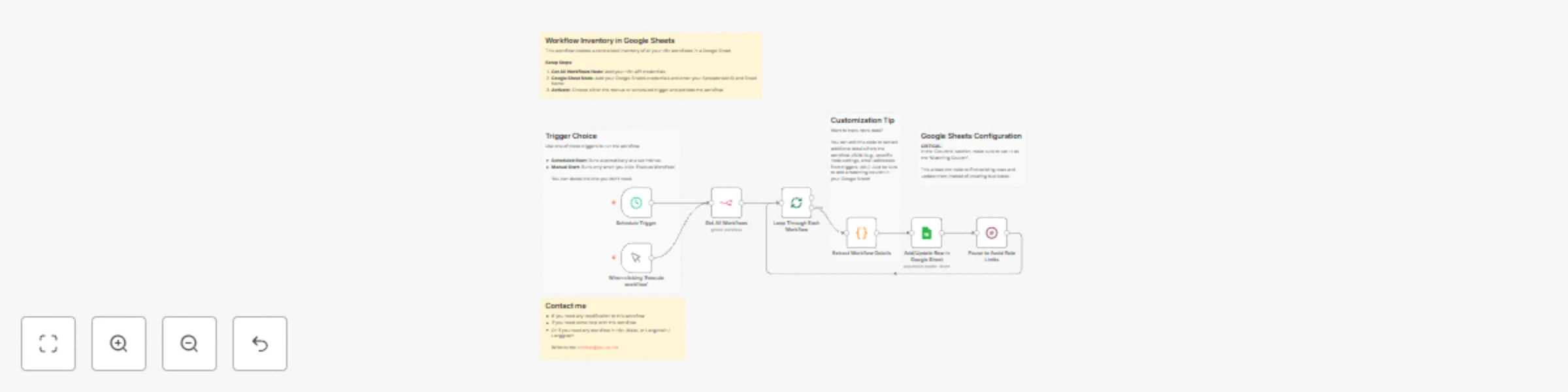
Get All Workflows node connects to your n8n instance via the API to retrieve a complete list of your workflows and their associated data.Loop Through Each Workflow node iterates through each retrieved workflow one by one so they can be processed individually.Extract Workflow Details node uses custom code to process the data for each workflow, extracting essential details like its name, ID, tags, and a unique list of all node types it contains.Add/Update Row in Google Sheet node then takes this information and appends or updates a row in your designated spreadsheet, using the workflow ID as a unique key to prevent duplicates.Pause to Avoid Rate Limits node adds a short delay to prevent issues with API limits before the loop continues to the next workflow.Configure Get All Workflows Node:
Get All Workflows node.Prepare Your Google Sheet:
id, title, link, tags, nodes, CreatedAt, UpdatedAt, Active, Archived.Configure Add/Update Row in Google Sheet Node:
Add/Update Row in Google Sheet node..../spreadsheets/d/THIS_IS_THE_ID/edit).id field is set as the 'Matching Columns' value. This is crucial for updating existing rows correctly.Activate the Workflow:
Schedule Trigger to run the sync automatically at regular intervals.Extract Workflow Details node to extract other pieces of information from the workflow JSON. For example, you could parse the settings object or count the total number of nodes. Remember to add a corresponding column in your Google Sheet and map it in the Google Sheets node.Loop Through Each Workflow node (in the second output) to be alerted when the sync is complete or if an error occurs.IF node after the Loop Through Each Workflow node to filter which workflows get added to the sheet. For instance, you could choose to only log active workflows ({{ $('Loop Through Each Workflow').item.json.active }} is true) or workflows containing a specific tag.Pause to Avoid Rate Limits node is set to pause between each entry. You can adjust this time or remove it entirely if you have a small number of workflows and are not concerned about hitting API rate limits.This catalog entry is organized from the workflow JSON. The node-level section below shows the executable blocks available for review before importing the template.
| Workflow | Create workflow inventory dashboard with n8n API and Google Sheets |
|---|---|
| Complexity | intermediate |
| Nodes | 12 |
| Categories | Project Management |
| Author | PollupAI |
| Published | 30 Sept 2025 |
Use the JSON export at /data/workflows/9113/9113.json as the source template for this automation.
Open n8n, import the downloaded JSON, and review each node before activating the workflow.
Replace placeholder credentials, API keys, webhook URLs, account IDs, and environment-specific values with your own settings.
Run the workflow manually or in a staging workspace, inspect node output, and confirm downstream systems receive the expected data.
Enable the workflow only after testing, then monitor executions, errors, and rate limits during the first production runs.
Review imported nodes carefully before activation. This catalog entry is intended to help you inspect the workflow structure, understand required services, and find related templates faster.
Node names, credentials, schedules, webhook paths, and external service limits may need adjustment for your workspace.
This workflow provides a powerful way to automatically document and maintain an inventory of all your n8n workflows in a Google Sheet. By running on a schedule or manually, it fetches details about...
Review the workflow JSON, configure any required credentials in n8n, and test the automation in a safe workspace before using it in production.
Yes. Use the block-by-block analysis and the downloadable JSON to inspect each node, then adjust credentials, prompts, schedules, filters, or destinations for your Project Management use case.