Block 1 - Note: Gmail Creds
- Type / Role
- n8n-nodes-base.stickyNote - stickyNote
- Config choices
- Version 1


 Early Deal
This workflow is provided as-is. Please review and test before using in production.
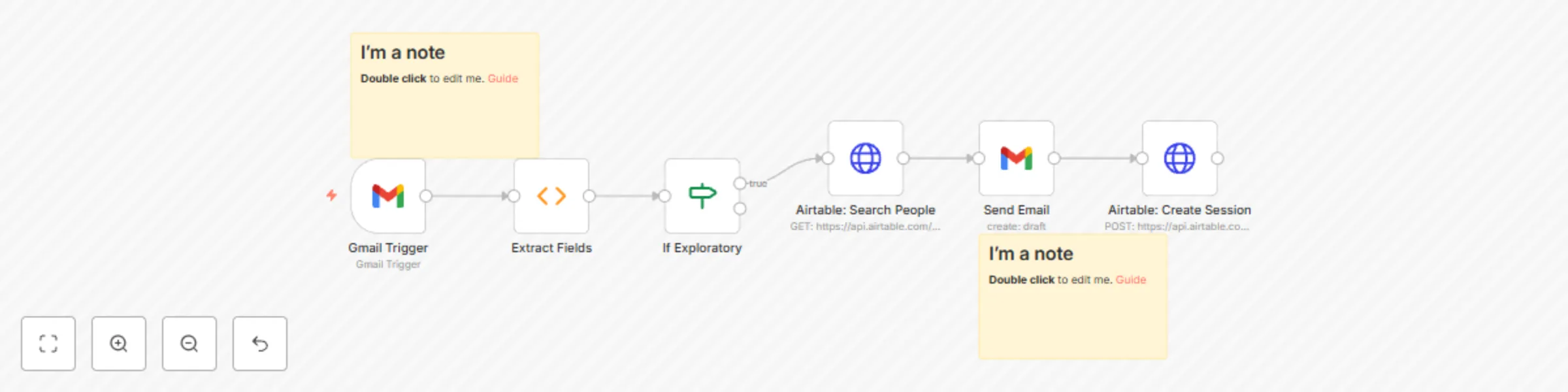
Description Whenever a Zoom “Meeting assets” email arrives in your Gmail inbox, this workflow will: 1) Trigger on new Gmail messages filtered by the subject “Meeting assets”. 2) Extract from the em...
n8n-nodes-base.stickynote, n8n-nodes-base.gmailtrigger, n8n-nodes-base.function, n8n-nodes-base.if, n8n-nodes-base.httprequest, n8n-nodes-base.gmail
This workflow is cataloged by N8N Workflows and links back to its original n8n.io source page by LuisBetancourt.co.
Original n8n.io sourceWhenever a Zoom “Meeting assets” email arrives in your Gmail inbox, this workflow will:
Trigger on new Gmail messages filtered by the subject “Meeting assets”.
Extract from the email (HTML or plain text):
Type of session (e.g. “1 hour”, “2 hours”, or “exploratory call”).
Lookup the client in your Master Airtable base, table People, by full name.
Send a personalized Gmail to the client with all extracted details.
Create a new record in your Sessions table in Airtable, linking back to that client.
- n8n v1.50 or higher
- A Gmail account with OAuth2 credentials configured
- An Airtable base containing:
- Table People with a Full Name field (and email).
- Table Sessions with fields: DateTime, Duration, Quick Summary, Detailed Summary, Next Steps, and a Linked Record to People.
- An Airtable Personal Access Token with read/write access to that base.
Timezone conversion: Use a Function node with moment-timezone to convert UTC if needed.
Error handling: Add a catch node to log or notify if any field fails to parse.
Alternate notifications: Swap the Gmail node for Slack, Microsoft Teams, or SMS integrations.
With this documentation, your team can import and deploy the workflow in minutes.
This catalog entry is organized from the workflow JSON. The node-level section below shows the executable blocks available for review before importing the template.
| Workflow | Create & send client session summaries from Zoom meetings via Gmail and Airtable |
|---|---|
| Complexity | intermediate |
| Nodes | 8 |
| Categories | CRM |
| Author | LuisBetancourt.co |
| Published | 23 Jul 2025 |
Use the JSON export at /data/workflows/6324/6324.json as the source template for this automation.
Open n8n, import the downloaded JSON, and review each node before activating the workflow.
Replace placeholder credentials, API keys, webhook URLs, account IDs, and environment-specific values with your own settings.
Run the workflow manually or in a staging workspace, inspect node output, and confirm downstream systems receive the expected data.
Enable the workflow only after testing, then monitor executions, errors, and rate limits during the first production runs.
Review imported nodes carefully before activation. This catalog entry is intended to help you inspect the workflow structure, understand required services, and find related templates faster.
Node names, credentials, schedules, webhook paths, and external service limits may need adjustment for your workspace.
Description Whenever a Zoom “Meeting assets” email arrives in your Gmail inbox, this workflow will: 1) Trigger on new Gmail messages filtered by the subject “Meeting assets”. 2) Extract from the em...
Review the workflow JSON, configure any required credentials in n8n, and test the automation in a safe workspace before using it in production.
Yes. Use the block-by-block analysis and the downloadable JSON to inspect each node, then adjust credentials, prompts, schedules, filters, or destinations for your CRM use case.