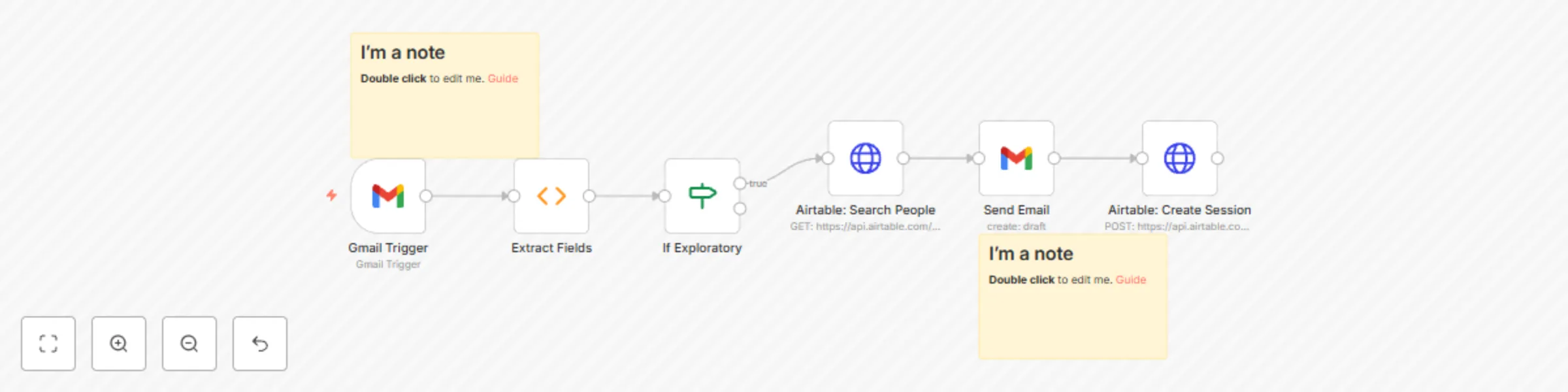
Create & send client session summaries from Zoom meetings via Gmail and Airtable
## Description
Whenever a Zoom “Meeting assets” email arrives in your Gmail inbox, this workflow will:
1) Trigger on new Gmail messages filtered by the subject “Meeting assets”.
2) Extract from the email (HTML or plain text):
3) Type of session (e.g. “1 hour”, “2 hours”, or “exploratory call”).
- Client’s full name.
- Session date & time (from the GMT… timestamp).
- Duration (HH:MM:SS).
- Recording link.
- Quick summary.
- Detailed summary.
- List of next steps.
4) Lookup the client in your Master Airtable base, table People, by full name.
5) Send a personalized Gmail to the client with all extracted details.
6) Create a new record in your Sessions table in Airtable, linking back to that client.
## Quick Start
1. Import this JSON into n8n as a new workflow.
2. Connect your Gmail credentials (OAuth2).
3. Connect your Airtable credentials (Personal Access Token).
4. In the Search Records node:
5. Base → your Master base ID.
6. Table → “Your people table”.
7. Filter By Formula → ={Full Name} = '{{ $json.clientName }}'.
8. In the Create Record node: Table → “Sessions”.
9. Map each field (dateTime, duration, summaries, next steps, client link).
10. Activate the workflow.
## Prerequisites
- n8n v1.50 or higher
- A Gmail account with OAuth2 credentials configured
- An Airtable base containing:
- Table People with a Full Name field (and email).
- Table Sessions with fields: DateTime, Duration, Quick Summary, Detailed Summary, Next Steps, and a Linked Record to People.
- An Airtable Personal Access Token with read/write access to that base.
## Tips & Extensions
- Timezone conversion: Use a Function node with moment-timezone to convert UTC if needed.
- Error handling: Add a catch node to log or notify if any field fails to parse.
- Alternate notifications: Swap the Gmail node for Slack, Microsoft Teams, or SMS integrations.
- With this documentation, your team can import and deploy the workflow in minutes.
## Enjoy!