Create QuickBooks Online customers with sales receipts for new Stripe payments

Workflow preview

Workflow preview
100%
Create QuickBooks Online customers with sales receipts for new Stripe payments preview
Open on n8n.io

Important notice

This workflow is provided as-is. Please review and test before using in production.

1. Workflow Overview

Streamline your accounting by automatically creating QuickBooks Online customers and sales receipts whenever a successful Stripe payment is processed. Ideal for businesses looking to reduce manual ...

Best for

  • Invoice Processing automation workflows
  • intermediate n8n builders looking for reusable templates

Tools used

n8n-nodes-base.httprequest, n8n-nodes-base.stripe, n8n-nodes-base.stripetrigger, n8n-nodes-base.if, n8n-nodes-base.merge, n8n-nodes-base.quickbooks

Source and attribution

This workflow is cataloged by N8N Workflows and links back to its original n8n.io source page by Artur.

Original n8n.io source

1.1 Workflow description

Title
Create QuickBooks Online customers with sales receipts for new Stripe payments
Workflow name
Create QuickBooks Online customers with sales receipts for new Stripe payments

Streamline your accounting by automatically creating QuickBooks Online customers and sales receipts whenever a successful Stripe payment is processed. Ideal for businesses looking to reduce manual data entry and improve accounting efficiency.

How it works

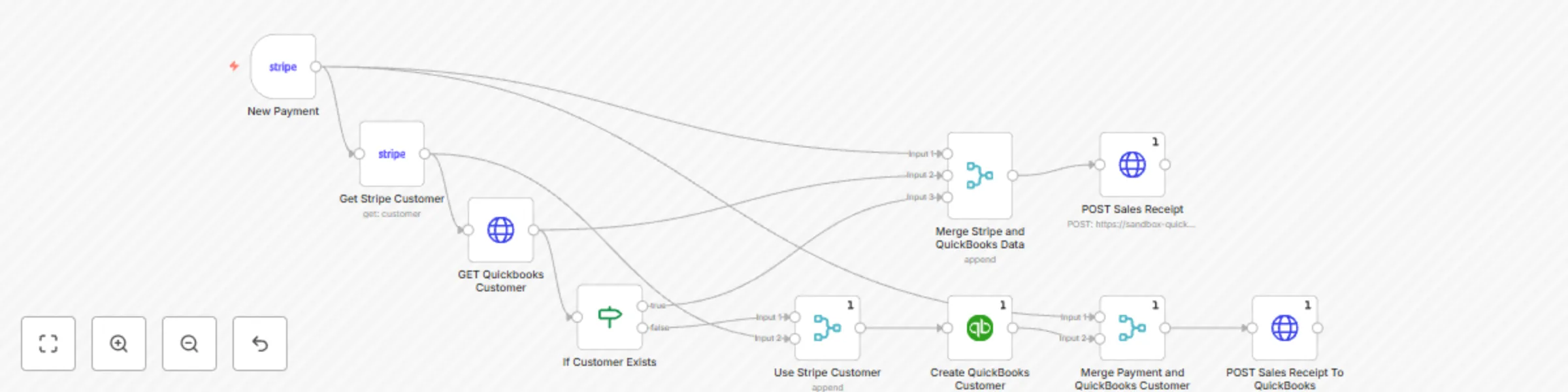
  1. Trigger: The workflow is triggered when a new successful payment intent event is received from Stripe.
  2. Retrieve Customer Data: Fetches customer details from Stripe associated with the payment.
  3. Check QuickBooks Customer: Searches QuickBooks Online to see if the customer already exists using their email address.
  4. Create or Use Existing Customer: If the customer doesn't exist in QuickBooks, they are created; otherwise, the existing customer is used.
  5. Generate Sales Receipt: A sales receipt is created in QuickBooks Online with payment details, including item descriptions, amounts, and currency.

Set up steps

  1. Connect Accounts: Authenticate both your QuickBooks Online and Stripe accounts in n8n.
  2. Webhook Setup: Configure the Stripe webhook to send payment_intent.succeeded events to this workflow.
  3. Test the Workflow: Trigger a test payment in Stripe to validate the integration.
  4. Customize Details: Adjust item descriptions or other fields in the QuickBooks sales receipt JSON body as needed.

This workflow requires basic familiarity with n8n, but setup can be completed in under 15 minutes for most users.

1.2 Logical Blocks

This catalog entry is organized from the workflow JSON. The node-level section below shows the executable blocks available for review before importing the template.

2. Block-by-Block Analysis

Block 1 - POST Sales Receipt

Type / Role
n8n-nodes-base.httpRequest - httpRequest
Config choices
Version 4.2

Block 2 - GET Quickbooks Customer

Type / Role
n8n-nodes-base.httpRequest - httpRequest
Config choices
Version 4.2

Block 3 - Get Stripe Customer

Type / Role
n8n-nodes-base.stripe - stripe
Config choices
Version 1

Block 4 - New Payment

Type / Role
n8n-nodes-base.stripeTrigger - stripeTrigger
Config choices
Version 1

Block 5 - If Customer Exists

Type / Role
n8n-nodes-base.if - if
Config choices
Version 2.2

Block 6 - Use Stripe Customer

Type / Role
n8n-nodes-base.merge - merge
Config choices
Version 3

Block 7 - Create QuickBooks Customer

Type / Role
n8n-nodes-base.quickbooks - quickbooks
Config choices
Version 1

Block 8 - Merge Stripe and QuickBooks Data

Type / Role
n8n-nodes-base.merge - merge
Config choices
Version 3

Block 9 - Merge Payment and QuickBooks Customer

Type / Role
n8n-nodes-base.merge - merge
Config choices
Version 3

Block 10 - POST Sales Receipt To QuickBooks

Type / Role
n8n-nodes-base.httpRequest - httpRequest
Config choices
Version 4.2

3. Summary Table

Workflow Create QuickBooks Online customers with sales receipts for new Stripe payments
Complexity intermediate
Nodes 10
Categories Invoice Processing
Author Artur
Published 27 Jan 2025

4. Reproducing the Workflow from Scratch

  1. 1. Download the workflow JSON

    Use the JSON export at /data/workflows/2807/2807.json as the source template for this automation.

  2. 2. Import the template into n8n

    Open n8n, import the downloaded JSON, and review each node before activating the workflow.

  3. 3. Configure credentials and variables

    Replace placeholder credentials, API keys, webhook URLs, account IDs, and environment-specific values with your own settings.

  4. 4. Test with sample data

    Run the workflow manually or in a staging workspace, inspect node output, and confirm downstream systems receive the expected data.

  5. 5. Activate and monitor

    Enable the workflow only after testing, then monitor executions, errors, and rate limits during the first production runs.

5. General Notes & Resources

Review imported nodes carefully before activation. This catalog entry is intended to help you inspect the workflow structure, understand required services, and find related templates faster.

Node names, credentials, schedules, webhook paths, and external service limits may need adjustment for your workspace.

Frequently asked questions

What does Create QuickBooks Online customers with sales receipts for new Stripe payments do?

Streamline your accounting by automatically creating QuickBooks Online customers and sales receipts whenever a successful Stripe payment is processed. Ideal for businesses looking to reduce manual ...

What do I need before importing this workflow?

Review the workflow JSON, configure any required credentials in n8n, and test the automation in a safe workspace before using it in production.

Can I customize this workflow?

Yes. Use the block-by-block analysis and the downloadable JSON to inspect each node, then adjust credentials, prompts, schedules, filters, or destinations for your Invoice Processing use case.