A

Artur

9
Workflows

Workflows by Artur

Workflow preview: Connect Pipedrive deal outcomes to GA4 & Google Ads via Measurement Protocol
Free advanced

Connect Pipedrive deal outcomes to GA4 & Google Ads via Measurement Protocol

## Who’s it for **Problem:** Your ads and GA4 often optimize to shallow web events (form fills), while the *real* value sits in Pipedrive (Qualified, Closed Won). That gap means bidding chases cheap leads instead of revenue. **Solution:** This template turns Pipedrive deal milestones into **server-side GA4 events** (via Measurement Protocol), matched to the original visitor by `client_id`—no external database. You mark them as **Key events** in GA4 and, when ready, import them into Google Ads. **Business value:** Ads can optimize on **actual CRM outcomes with value** (and currency), improving CAC/ROAS and reducing lead spam. Everything stays GA4-centric, consent-aware, and deduped with deterministic `event_id`, so you get reliable attribution without building a custom Ads integration. If you’re serious about scaling paid spend toward **high-quality, high-value deals**, this is the missing link. This is **not plug-and-play**. Expect **\~2 hours of developer work** to integrate: ## What it does On **Deal Updated**, the workflow checks for target stages (e.g., Qualified, Closed Won), fetches the linked Person’s **client\_id**, builds a GA4 **Measurement Protocol** event (with `value`, `currency`, deterministic `event_id`), and posts it server-side. Success updates deal-level dedupe flags; failures are logged to a Pipedrive Note. Credentials use n8n **Credentials**—no hardcoded secrets. ## How it works (high level) A Pipedrive trigger listens for stage changes → an eligibility check gates sends → a payload builder composes the GA4 event → an HTTP call posts to GA4. Sticky notes in the canvas explain the whole setup and what to edit. ## Requirements GA4 installed on your site; GA4 **Measurement ID** + **API Secret** (same data stream); Pipedrive Person field for `client_id`, optional `consent_granted`; Pipedrive Deal booleans for dedupe; n8n credentials configured (no secrets in nodes). ## How to customize the workflow * Change which stages send events and the event names. * Adjust `value` logic (e.g., margin- or probability-weighted). * Choose skip-on-no-consent vs. `non_personalized_ads: true`. * Add extra params (`deal_id`, `pipeline_stage`, etc.) to GA4 as custom dimensions (event-scoped). ## Troubleshooting & debugging * If `client_id` is null: GA4 not initialized yet, consent denied, GTM var not firing, or adblockers—fix site capture first. * If GA4 shows events in DebugView but Ads import is empty: events not marked as Key events, GA4↔Ads not linked/imported, or wrong stream/secret pairing. * Use `https://www.google-analytics.com/debug/mp/collect` only for payload validation; it won’t verify your API secret. Final sends go to `/mp/collect`.

A
Artur
CRM
3 Sep 2025
45
0
Workflow preview: Facebook / Meta ads performance monitoring with Slack alerts (CTR, CPC, ROAS)
Free intermediate

Facebook / Meta ads performance monitoring with Slack alerts (CTR, CPC, ROAS)

### Who’s it for This workflow is for **marketing teams, performance marketers, and media buyers** running Facebook (Meta) Ads who want to stay on top of creative performance without manually checking Ads Manager every day. ### What it does The workflow automatically monitors **Facebook Ads performance at the ad creative level** and sends **real-time Slack notifications** when key metrics cross your thresholds. It tracks CTR, CPC, ROAS, spend, and conversions over a rolling time window, then flags: * **Underperformers** (e.g. CTR below 0.5% for 2 days). * **Top performers** (e.g. ROAS above 5x). ### What business value this workflow provides * **Faster detection of problems** Instead of waiting for a weekly report, you know within a day (or whatever window you configure) if an ad’s CTR is tanking or if spend is producing poor ROAS. That prevents wasted budget. * **Highlighting winners** When an ad’s ROAS is high (e.g. >5x), you get an instant Slack ping. You can then shift budget to scale it before performance fades. * **Reduced manual monitoring** Normally someone has to log into Meta Ads Manager daily, filter by campaign/ad, export CSVs, check CTR/ROAS, then write up notes. That’s time-consuming and error-prone. Automating this means you spend less time gathering data and more time making decisions. * **Team visibility** Posting to Slack means the whole marketing team is aligned on what’s working and what isn’t, without sharing dashboards or CSVs around. ### How it works 1. Workflow trigger (manual or scheduled). 2. Fetch **ad-level insights** from the Facebook Ads API. 3. A Code node normalizes metrics (CTR %, CPC, ROAS, spend, conversions). 4. Compare against your **CTR and ROAS thresholds**. 5. If conditions are met, send a **Slack block message** with ad name, ID, spend, CTR, CPC, ROAS, and the reasons it was flagged. ### How to set up * In the *Edit Fields* node, set your `act_id` (Facebook Ad Account ID) and `campaign_id`. * Adjust `ctr_min`, `roas_top`, and `lookback_days` to fit your goals. * Connect your **Slack credentials** and set the channel for alerts. ### Requirements * A Facebook (Meta) Ads account with API access. * Slack workspace with a bot/app that has `chat:write` permission. * n8n credentials for both services. ### How to customize * Add ad thumbnails by including `creative` in the insights fields. * Extend the workflow to **automatically pause underperforming ads**.

A
Artur
Social Media
28 Aug 2025
162
0
Workflow preview: Ga4 anomaly detection with automated Slack & email alerts
Free intermediate

Ga4 anomaly detection with automated Slack & email alerts

## Who’s it for Teams that monitor traffic, signups, or conversions in Google Analytics 4 and want automatic Slack/email alerts when a channel suddenly spikes or drops. ## What it does This n8n template pulls daily GA4 metrics, detects outliers with a rolling mean and z-score, and sends alerts with a sparkline chart. It supports per-channel analysis (e.g., `sessionDefaultChannelGroup`) and consolidates multiple anomalies into a single email while posting each one to Slack. ## How it works * **HTTP Request (GA4 Data API)** fetches `sessions`, `newUsers`, `conversions`, `bounceRate` by `date` + channel. * **Code** calculates 7-day moving average and z-scores, flags anomalies, and builds QuickChart links. * **If** filters on `alert === true` and optional `ALERT_ME` toggle. * **Slack** posts an alert + chart. * **Email** sends one summary email (subject + HTML table + charts). ## Requirements * GA4 OAuth2 credential in n8n. * Slack API credential (bot with chat\:write). * Email credential (SMTP or service). * GA4 property ID and at least several recent days of data. ## Where to find your GA4 Property ID * **In the GA UI:** 1. Open **Google Analytics** → bottom-left **Admin** (gear). 2. In the **Property** column, click **Property settings**. 3. Copy **Property ID** — it’s a **numeric** value (e.g., `481356553`). * **From the URL (quick way):** When you’re inside the GA4 property, the URL looks like: `…/analytics/web/#/p123456789/…` → the digits after **`p`** are your **Property ID** (`123456789` in this example). * **What *not* to use:** * **Measurement ID** (looks like `G-XXXXXXX`) — that’s the data stream ID, **not** the property ID. * **Universal Analytics IDs** (`UA-XXXXX-Y`) — those are legacy and won’t work with GA4 Data API. * **In this template:** Put that numeric ID into the **Set → `PROPERTY_ID`** field. The HTTP node path `properties/{{ $json.PROPERTY_ID }}:runReport` expects **only the number**, no prefixes. ## How to set up 1. Open the **Set (Define variables)** node and fill: `PROPERTY_ID`, `LOOKBACK_DAYS`, `ALERT_PCT`, `Z_THRESHOLD`, `CHANNEL_DIM`, `ALERT_ME`. 2. Connect your **Google Analytics OAuth2**, **Slack**, and **Email** credentials. 3. In **Email Send**, map `Subject` → `{{$json.emailSubject}}` and **HTML** body → `{{$json.emailHtml}}`. Keep **Execute once** enabled. 4. Run the workflow. ## How to customize * Change the moving-average window (`WINDOW/MA_WINDOW`) and chart range (`LAST_N_DAYS_CHART`). * Swap `CHANNEL_DIM` (e.g., source/medium) to analyze different dimensions. * Add/remove metrics in the GA4 request and the metrics list in the Code node. * Tweak thresholds to reduce noise: raise `Z_THRESHOLD` or `ALERT_PCT`. ## Output example ![Screenshot 20250826 at 18.32.15.png](fileId:2202)

A
Artur
Market Research
26 Aug 2025
39
0
Workflow preview: Convert Reddit threads into short vertical videos with AI
Free advanced

Convert Reddit threads into short vertical videos with AI

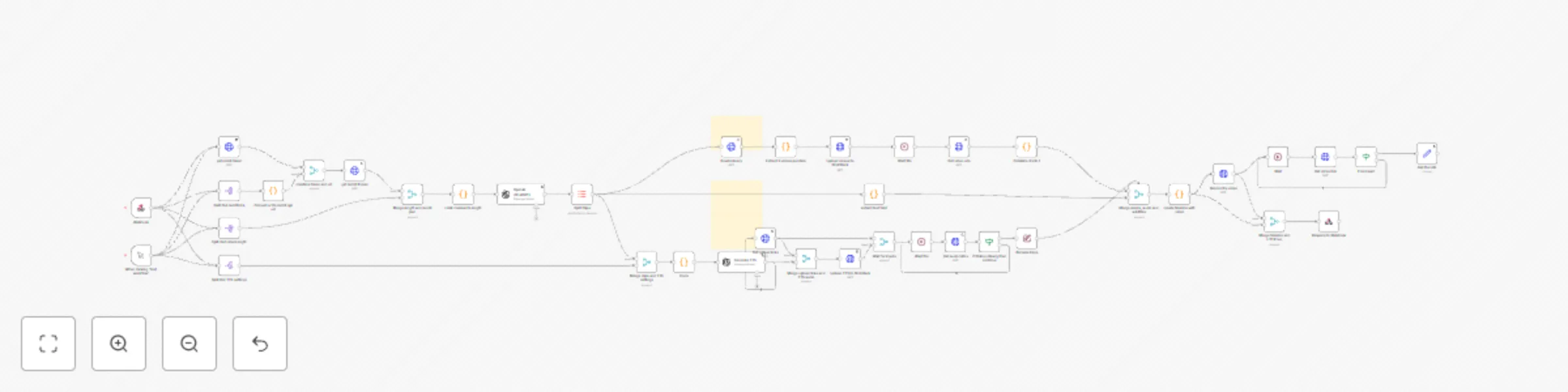
# Convert Reddit threads into short vertical videos with AI ## Who is this for? This workflow is ideal for: - **Content creators** and **video editors** automating short-form content production - **Reddit storytellers** converting text posts into engaging TikTok, YouTube Shorts, or Reels - **Social media managers** repurposing community discussions into visual narratives ## What problem is this solving? Manually converting Reddit posts into vertical video content is time-consuming: - You have to read, summarize, write a script - Generate TTS - Find stock footage - Edit everything in a timeline This workflow automates the full pipeline. It converts any Reddit thread into a polished video with: - TTS narration - Subtitle overlays - B-roll from Pexels - Automatic rendering via Shotstack ## What this workflow does This workflow: 1. **Extracts Reddit post and comments** via Reddit API 2. **Summarizes the thread into structured clips** using OpenAI 3. **Generates search queries** for each clip for stock footage 4. **Queries Pexels API** for relevant vertical videos 5. **Generates TTS audio** for each clip using OpenAI Whisper 6. **Creates subtitles** matching the audio 7. **Uploads footage/audio to Shotstack** 8. **Renders a full vertical video (720x1280)** with synced TTS, subtitles, and b-roll 9. **Returns a final video URL** ## Setup - Create accounts and API keys for: - [Reddit Developer App](https://www.reddit.com/prefs/apps) - [OpenAI](https://platform.openai.com/) - [Pexels](https://www.pexels.com/api/) - [Shotstack](https://shotstack.io/) - Add credentials in n8n: - Reddit (HTTP Basic Auth) - OpenAI (API Key) - Shotstack (HTTP Header Auth) - Pexels (HTTP Header Auth) - Trigger via webhook or manual node. The input must include: ```json { "voice": "nova", "ttsSpeed": 1, "videoLength": 60, "redditLink": "https://www.reddit.com/r/example/comments/example_id/example_title" } ``` ## How to customize this workflow - **Tweak OpenAI prompts** to change tone or clip granularity - **Change stock source** by swapping Pexels for another API - **Adjust TTS voices** or languages by modifying the `voice` field - **Modify video styling** (fonts, colors, fit modes) in the timeline construction code node - **Control duration** by editing the character length formula in the `Limit comments length` node ## Additional Notes - All stock videos are selected to match clip themes using generalized keywords to avoid API misses - Includes `wait` nodes to ensure Shotstack's async upload/render processes complete before proceeding - Annotated with **sticky notes** explaining major sections like TTS, Reddit input, and media timeline - Avoids community nodes to ensure cloud compatibility ## Template Category **AI**, **Marketing**, **Building Blocks**, **Other (Content Creation)**

A
Artur
Content Creation
2 Apr 2025
2874
0
Workflow preview: Automatically create Facebook ads from Google Sheets
Free intermediate

Automatically create Facebook ads from Google Sheets

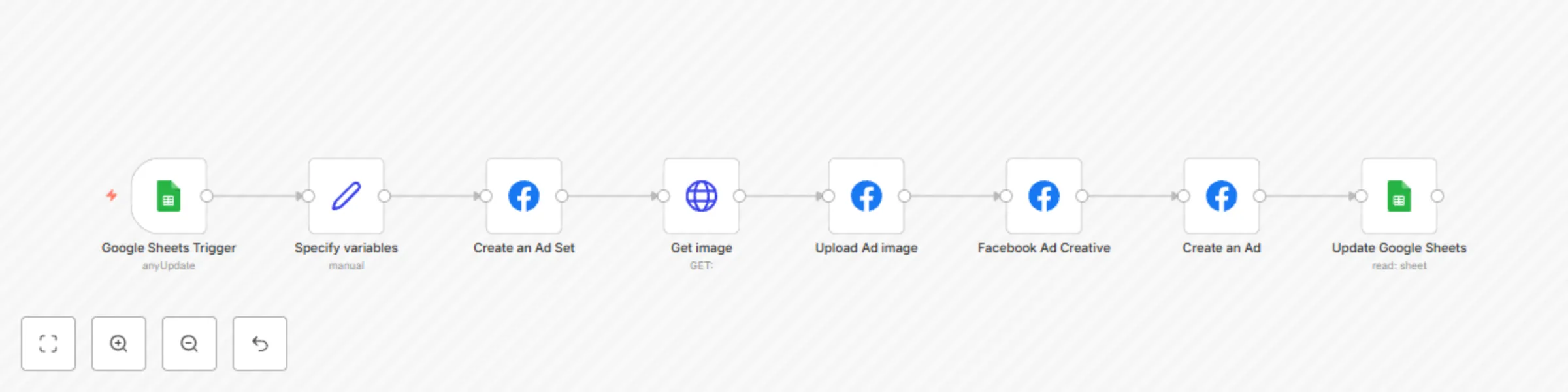
## Who is this for? This template is designed for **Marketing Managers**, **Performance Marketers**, and **Ad Ops professionals** who want to automate Facebook ad creation using structured data in **Google Sheets**. It’s ideal for teams running multiple creatives or testing ad variations without having to manually use Meta Ads Manager. > ⚠️ **Important Note:** This is **not a plug-and-play** workflow. It requires: - A configured **Facebook Business account** - A valid **Facebook App**, **Page**, and **Ad Account** - **Access tokens** and the correct Facebook Graph API credentials - A **basic understanding of the Meta API and JSON** to tweak ad set parameters like demographics, optimization goals, or sales objectives Additionally, launching Facebook ads will incur **real advertising costs**, so this template is best suited for users willing to make a time investment to set things up properly and test responsibly. Expect to spend time customizing targeting and budget strategies based on your campaign needs. ## What problem does this solve? Manually uploading creatives, setting up ad sets, and creating ads in Meta’s Ad Manager is time-consuming, repetitive, and error-prone—especially at scale. This workflow eliminates the manual work by pulling data from Google Sheets and using it to automatically: - Generate Facebook Ad Sets - Upload creative images - Build and launch Ad Creatives and Ads - Update your source spreadsheet with generated Ad IDs ![Screenshot 20250406 at 10.25.58.png](fileId:1083) ## What this workflow does Using a trigger from a **Google Sheets row update**, this workflow: 1. **Reads ad parameters** (like message, render URL, and campaign info) from a Google Sheet 2. **Generates ad set configuration** dynamically using variables in an “Edit Fields” node 3. **Creates a Facebook Ad Set** via the Graph API 4. **Fetches the ad image** from a render URL 5. **Uploads the image** to Facebook Ads Library 6. **Creates the Ad Creative** using the uploaded image and dynamic text 7. **Launches the Ad** using the generated Ad Set and Creative 8. **Updates the same Google Sheet** with the generated Ad ID and status All configuration fields like `campaign_id`, `act_id`, `pixel_id`, age ranges, interest targeting, and call-to-action links are defined up front in a single **Edit Fields** node, making the template easy to maintain or extend. #### **Google Sheet Structure** | Hooks | Render URL | Generate Ad | Ad ID | |-------|------------|-------------|-------| | Static ad text (e.g., “Visit us at...”) | Link to the creative asset (image) | Status: `generate`, `generated`, or `error` | Populated by the workflow with the created Facebook Ad ID | - **Hooks**: This is the primary ad copy. It will be used as the main text for the static ad. - **Render URL**: Direct link to the media asset (image or video) for the ad. - **Generate Ad**: Dropdown or text value that controls workflow execution: - `generate` — workflow will attempt to create the ad - `generated` — already processed - `error` — error occurred during generation - **Ad ID**: The Meta Ad ID will be written here once the ad is successfully created. ## Setup 1. Copy this [Google Sheet template](https://docs.google.com/spreadsheets/d/1RNRd87p7DL4G3j6F4xSD2jlLQc9wnqHnVfq1R42k9Uc/edit?gid=0#gid=0) and populate it with your data 2. Create a Facebook App and retrieve the access credentials for the **Facebook Graph API** 3. In n8n: - Connect your Google Sheets and Facebook Graph API accounts - Update the `Edit Fields` node with your actual `ad account ID`, `page ID`, `campaign ID`, `pixel ID`, and destination `link` - Deploy the workflow This workflow runs every time the `generate ad` column in your sheet is updated. ## How to customize this workflow to your needs - Modify the `Edit Fields` node to adjust ad set parameters like targeting, budget strategy, CTA type, and more - Expand interest-based targeting using more interest objects in the array - Add extra Google Sheet columns and map them to Facebook ad fields (e.g. different messages, URLs, creative assets) - Add logic to pause or duplicate ads based on performance

A
Artur
Social Media
2 Apr 2025
3357
0
Workflow preview: Automated Upwork job alerts with Airtable & Slack
Free intermediate

Automated Upwork job alerts with Airtable & Slack

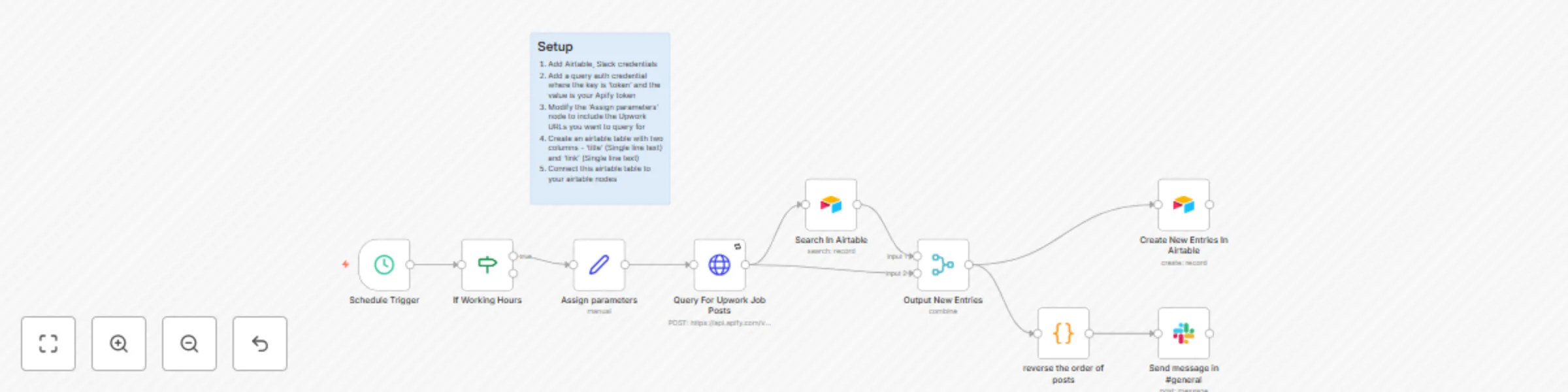
## **Overview** This **automated workflow** fetches **Upwork job postings** using **Apify**, removes duplicate job listings via **Airtable**, and sends new job opportunities to **Slack**. ### **Key Features:** - **Automated job retrieval** from Upwork via Apify API - **Duplicate filtering** using Airtable to store only unique jobs - **Slack notifications** for new job postings - **Runs every 30 minutes** during working hours (9 AM - 5 PM) This workflow **requires an active Apify subscription** to function, as it uses the Apify Upwork API to fetch job listings. ## Who is This For? This workflow is ideal for: - Freelancers looking to track Upwork jobs in real time - Recruiters automating job collection for analytics - Developers who want to integrate Upwork job data into their applications ## What Problem Does This Solve? Manually checking Upwork for jobs is time-consuming and inefficient. This workflow: - Automates job discovery based on your keywords - Filters out duplicate listings, ensuring only new jobs are stored - Notifies you on Slack when new jobs appear ## How the Workflow Works ### 1. Schedule Trigger (Every 20 Minutes) - Triggers the workflow at 20-minute intervals - Ensures job searches are only executed during working hours (9 AM - 5 PM) ### 2. Query Upwork for Jobs - Uses Apify API to scrape Upwork job posts for specific keywords (e.g., "n8n", "Python") ### 3. Find Existing Jobs in Airtable - Searches Airtable to check if a job (based on title and link) already exists ### 4. Filter Out Duplicate Jobs - The Merge Node compares Upwork jobs with Airtable data - The IF Node filters out jobs that are already stored in the database ### 5. Save Only New Jobs in Airtable - The Insert Node adds only new job listings to the Airtable collection ### 6. Send a Slack Notification - If a new job is found, a Slack message is sent with job details ## Setup Guide ### Required API Keys - Upwork Scraper (Apify Token) – Get your token from Apify - Airtable Credentials - Slack API Token – Connect Slack to n8n and set the channel ID (default: #general) ### Configuration Steps 1. Modify search keywords in the 'Assign Parameters' node (startUrls) 2. Adjust the Working Hours in the 'If Working Hours' node 3. Set your Slack channel in the Slack node 4. Ensure Airtable is connected properly - you'll need to create a table with 'title' and 'link' columns. 5. Adjust the 'If Working Hours' node to match your timezone and hours, or remove it altogether to receive notifications and updates constantly. ## How to Customize the Workflow - Change keywords: update the startUrls in the 'Assign Parameters' node to track different job categories - Change 'If Working Hours': Modify conditions in the IF Node to filter times based on your needs - Modify Slack Notifications: Adjust the Slack message format to include additional job details ## Why Use This Workflow? - Automated job tracking without manual searches - Prevents duplicate entries in Airtable - Instant Slack notifications for new job opportunities - Customizable – adapt the workflow to different job categories ## Next Steps 1. Run the workflow and test with a small set of keywords 2. Expand job categories for better coverage 3. Enhance notifications by integrating Telegram, Email, or a dashboard This workflow ensures real-time job tracking, prevents duplicates, and keeps you updated effortlessly.

A
Artur
Personal Productivity
11 Mar 2025
193
0
Workflow preview: Automated Upwork job alerts with MongoDB & Slack
Free intermediate

Automated Upwork job alerts with MongoDB & Slack

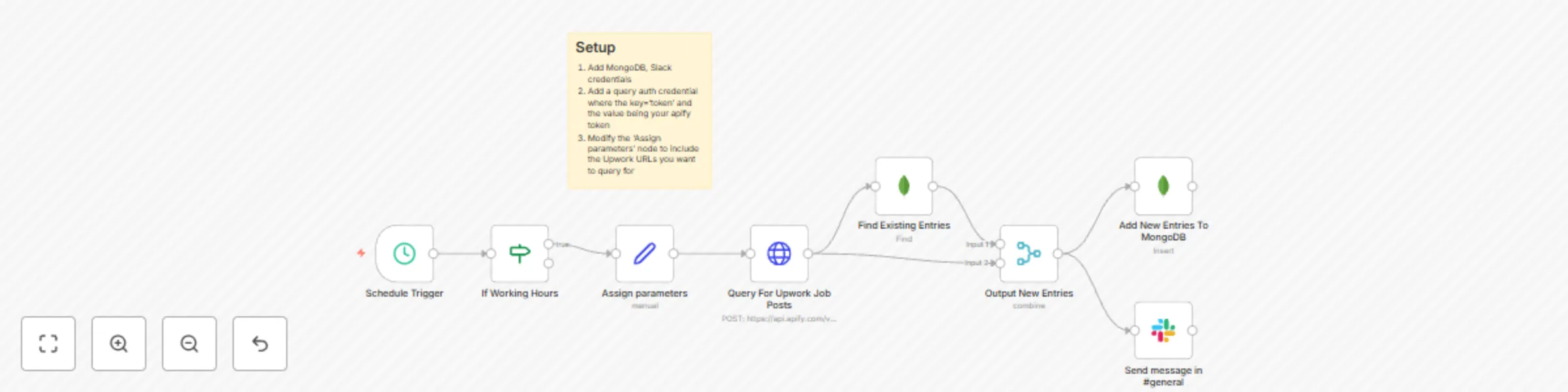
## **Overview** This **automated workflow** fetches **Upwork job postings** using **Apify**, removes duplicate job listings via **MongoDB**, and sends new job opportunities to **Slack**. ### **Key Features:** - **Automated job retrieval** from Upwork via Apify API - **Duplicate filtering** using MongoDB to store only unique jobs - **Slack notifications** for new job postings - **Runs every 20 minutes** during working hours (9 AM - 5 PM) This workflow **requires an active Apify subscription** to function, as it uses the Apify Upwork API to fetch job listings. ## Who is This For? This workflow is ideal for: - Freelancers looking to track Upwork jobs in real time - Recruiters automating job collection for analytics - Developers who want to integrate Upwork job data into their applications ## What Problem Does This Solve? Manually checking Upwork for jobs is time-consuming and inefficient. This workflow: - Automates job discovery based on your keywords - Filters out duplicate listings, ensuring only new jobs are stored - Notifies you on Slack when new jobs appear ## How the Workflow Works ### 1. Schedule Trigger (Every 20 Minutes) - Triggers the workflow at 20-minute intervals - Ensures job searches are only executed during working hours (9 AM - 5 PM) ### 2. Query Upwork for Jobs - Uses Apify API to scrape Upwork job posts for specific keywords (e.g., "n8n", "Python") ### 3. Find Existing Jobs in MongoDB - Searches MongoDB to check if a job (based on title and budget) already exists ### 4. Filter Out Duplicate Jobs - The Merge Node compares Upwork jobs with MongoDB data - The IF Node filters out jobs that are already stored in the database ### 5. Save Only New Jobs in MongoDB - The Insert Node adds only new job listings to the MongoDB collection ### 6. Send a Slack Notification - If a new job is found, a Slack message is sent with job details ## Setup Guide ### Required API Keys - Upwork Scraper (Apify Token) – Get your token from Apify - MongoDB Credentials – Set up MongoDB in n8n using your connection string - Slack API Token – Connect Slack to n8n and set the channel ID (default: #general) ### Configuration Steps 1. Modify search keywords in the 'Assign Parameters' node (startUrls) 2. Adjust the Working Hours in the 'If Working Hours' node 3. Set your Slack channel in the Slack node 4. Ensure MongoDB is connected properly 5. Adjust the 'If Working Hours' node to match your timezone and hours, or remove it altogether to receive notifications and updates constantly. ## How to Customize the Workflow - Change keywords: update the startUrls in the 'Assign Parameters' node to track different job categories - Change 'If Working Hours': Modify conditions in the IF Node to filter times based on your needs - Modify Slack Notifications: Adjust the Slack message format to include additional job details ## Why Use This Workflow? - Automated job tracking without manual searches - Prevents duplicate entries in MongoDB - Instant Slack notifications for new job opportunities - Customizable – adapt the workflow to different job categories ## Next Steps 1. Run the workflow and test with a small set of keywords 2. Expand job categories for better coverage 3. Enhance notifications by integrating Telegram, Email, or a dashboard This workflow ensures real-time job tracking, prevents duplicates, and keeps you updated effortlessly.

A
Artur
Personal Productivity
1 Feb 2025
5042
0
Workflow preview: Create QuickBooks Online customers with sales receipts for new Stripe payments
Free intermediate

Create QuickBooks Online customers with sales receipts for new Stripe payments

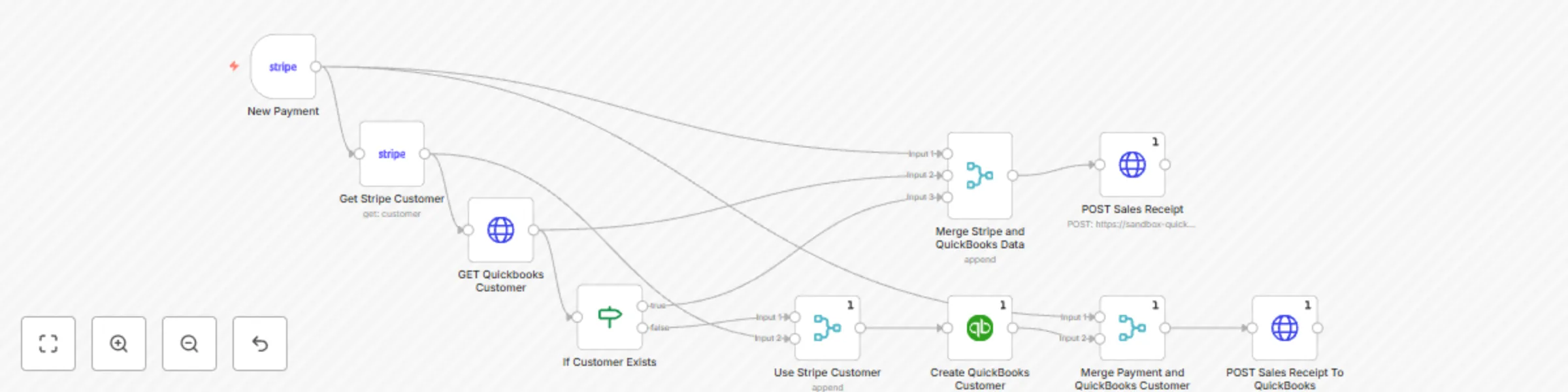
Streamline your accounting by automatically creating QuickBooks Online customers and sales receipts whenever a successful Stripe payment is processed. Ideal for businesses looking to reduce manual data entry and improve accounting efficiency. ## How it works 1. **Trigger**: The workflow is triggered when a new successful payment intent event is received from Stripe. 2. **Retrieve Customer Data**: Fetches customer details from Stripe associated with the payment. 3. **Check QuickBooks Customer**: Searches QuickBooks Online to see if the customer already exists using their email address. 4. **Create or Use Existing Customer**: If the customer doesn't exist in QuickBooks, they are created; otherwise, the existing customer is used. 5. **Generate Sales Receipt**: A sales receipt is created in QuickBooks Online with payment details, including item descriptions, amounts, and currency. ## Set up steps 1. **Connect Accounts**: Authenticate both your QuickBooks Online and Stripe accounts in n8n. 2. **Webhook Setup**: Configure the Stripe webhook to send `payment_intent.succeeded` events to this workflow. 3. **Test the Workflow**: Trigger a test payment in Stripe to validate the integration. 4. **Customize Details**: Adjust item descriptions or other fields in the QuickBooks sales receipt JSON body as needed. This workflow requires basic familiarity with n8n, but setup can be completed in under 15 minutes for most users.

A
Artur
Invoice Processing
27 Jan 2025
2795
0
Workflow preview: Remove personally identifiable information (PII) from CSV files with OpenAI
Free intermediate

Remove personally identifiable information (PII) from CSV files with OpenAI

# What this workflow does - Monitors Google Drive: The workflow triggers whenever a new CSV file is uploaded. - Uses AI to Identify PII Columns: The OpenAI node analyzes the data and identifies PII-containing columns (e.g., name, email, phone). - Removes PII: The workflow filters out these columns from the dataset. - Uploads Cleaned File: The sanitized file is renamed and re-uploaded to Google Drive, ensuring the original data remains intact. # How to customize this workflow to your needs - Adjust PII Identification: Modify the prompt in the OpenAI node to align with your specific data compliance requirements. - Include/Exclude File Types: Adjust the Google Drive Trigger settings to monitor specific file types (e.g., CSV only). - Output Destination: Change the folder in Google Drive where the sanitized file is uploaded. # Setup ### Prerequisites: - A Google Drive account. - An OpenAI API key. ### Workflow Configuration: - Configure the Google Drive Trigger to monitor a folder for new files. - Configure the OpenAI Node to connect with your API - Set the Google Drive Upload folder to a different location than the Trigger folder to prevent workflow loops.

A
Artur
Document Extraction
23 Jan 2025
1732
0