Create multi-platform social media content with Sonnet 4.5, GoToHuman approval & Sheets

Workflow preview

Workflow preview
100%
Create multi-platform social media content with Sonnet 4.5, GoToHuman approval & Sheets preview
Open on n8n.io

Important notice

This workflow is provided as-is. Please review and test before using in production.

1. Workflow Overview

The “Multiplatform Social Media Content Creator with GoToHuman Approval” workflow automates the creation, review, and publishing preparation of social media content across multiple platforms. It co...

Best for

  • Social Media automation workflows
  • AI Chatbot automation workflows
  • advanced n8n builders looking for reusable templates

Tools used

n8n-nodes-base.manualtrigger, @gotohuman/n8n-nodes-gotohuman.gotohuman, n8n-nodes-base.switch, n8n-nodes-base.splitinbatches, n8n-nodes-base.googlesheets, @n8n/n8n-nodes-langchain.agent, n8n-nodes-base.scheduletrigger, n8n-nodes-base.stickynote

Source and attribution

This workflow is cataloged by N8N Workflows and links back to its original n8n.io source page by Davide.

Original n8n.io source

1.1 Workflow description

Title
Create multi-platform social media content with Sonnet 4.5, GoToHuman approval & Sheets
Workflow name
Create multi-platform social media content with Sonnet 4.5, GoToHuman approval & Sheets

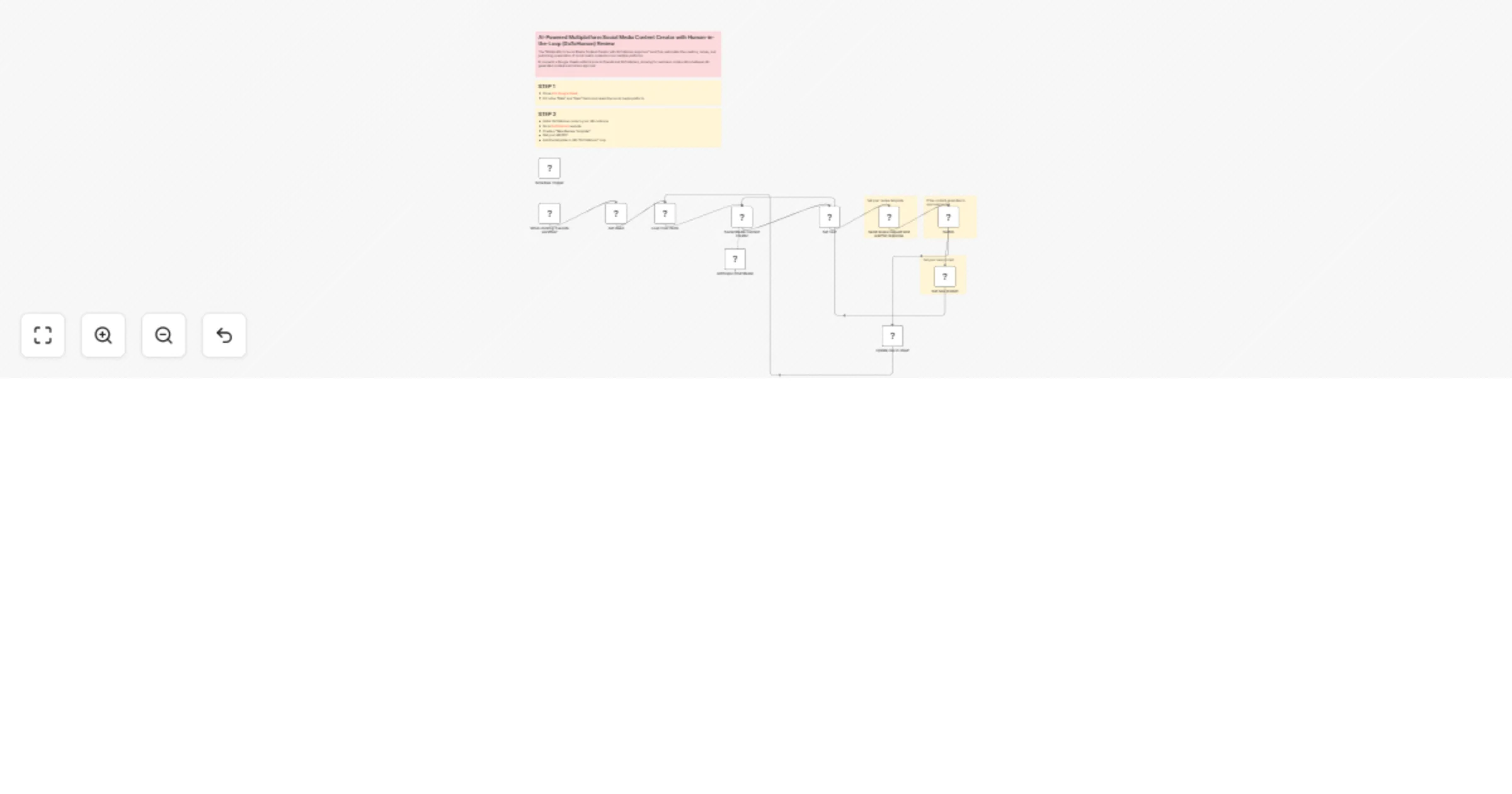
The “Multiplatform Social Media Content Creator with GoToHuman Approval” workflow automates the creation, review, and publishing preparation of social media content across multiple platforms.

It connects a Google Sheets editorial plan to Claude Sonnet 4.5 and GoToHuman, allowing for seamless collaboration between AI-generated content and human approval.

This workflow automates the creation and human-approval of social media content. It pulls post ideas from a Google Sheet, uses an AI model to generate platform-specific content, sends it for human review, and then updates the sheet based on the approval or rejection.


Key Advantages

  • AI-Assisted Content Creation: Automatically transforms content ideas into ready-to-publish social media posts optimized for each platform.
  • Human-in-the-Loop Approval: The GoToHuman integration ensures every AI-generated post is reviewed and validated by a person before going live.
  • Centralized Editorial Management: All content ideas, drafts, and approvals are synchronized in Google Sheets, creating a transparent and organized workflow.
  • Platform-Optimized Output: Adapts tone, format, hashtags, and structure depending on whether the post is for Instagram, Facebook, LinkedIn, or X.
  • Automated Revision Loop: If rejected, the workflow automatically refines and regenerates improved content—saving manual rework time.
  • Scalable and Collaborative: Ideal for marketing teams managing large volumes of social content that require quality control and brand consistency.
  • Time-Saving: Reduces content creation cycles by combining AI writing speed with controlled human oversight.

How it Works

  1. Trigger & Data Fetch: The process starts either manually or on a schedule. It first connects to a specified Google Sheet and retrieves all rows of data from the "Editorial Plan".
  2. AI Content Generation: The workflow loops over each row from the sheet. For each item, it takes the "IDEA" and "PLATFORM" fields and sends them to an Anthropic node ("Social Media Content Creator"). This node uses a detailed, pre-defined system prompt to transform the raw idea into a polished, platform-optimized social media post.
  3. Human Approval Loop: The generated post text is then sent to the GoToHuman node. This creates a task in the GoToHuman system, pausing the workflow and waiting for a human reviewer to make a decision. The platform information is also passed along as metadata for context.
  4. Decision Point: Once a human reviewer responds, the workflow resumes. A Switch node routes the execution based on the response:
    • If "approved": The workflow proceeds to update the original Google Sheet row. It marks the "APPROVED" column with an "x" and writes the final, approved post content into the "POST" column.
    • If "rejected": The workflow routes the rejected item back to the "Social Media Content Creator" AI node. Before doing so, a "Set" node prepares the data, effectively telling the AI to generate a new version of the post based on the same original idea and platform. This creates an iterative improvement loop until the content is approved.

Set up Steps

  1. Prepare the Google Sheet:

    • Create a Google Sheet with columns at least for: DATE, IDEA, PLATFORM, POST, and APPROVED.
    • Share this sheet with the Google service account or user that your n8n Google Sheets credential is configured with.
  2. Configure Credentials:

    • Google Sheets: Set up a OAuth2 credential in n8n for Google Sheets and authenticate it with an account that has access to your sheet.
    • Anthropic: Create an API key credential in n8n and enter your valid Claude API key.
    • GoToHuman: Configure the GoToHuman node with the necessary API credentials and specify the correct reviewTemplateID for your approval process.
  3. Adjust Node Parameters:

    • In the "Get row(s) in sheet" and "Update row in sheet" nodes, ensure the documentId matches your Google Sheet's ID. The sheet name should also be correct (e.g., gid=0 for the first sheet).
    • Review the system prompt in the "Social Media Content Creator" node to ensure it matches your brand's tone, style, and specific platform requirements.
    • In the GoToHuman node, verify that the fields mapping correctly passes the AI-generated text and that the metaKeyValues correctly passes the platform information.
  4. Activate the Workflow:

    • Save the workflow and toggle the "Active" switch to ON. You can now trigger it manually using the "Execute workflow" button or let it run automatically based on the defined schedule.

Need help customizing?

Contact me for consulting and support or add me on Linkedin.

1.2 Logical Blocks

This catalog entry is organized from the workflow JSON. The node-level section below shows the executable blocks available for review before importing the template.

2. Block-by-Block Analysis

Block 1 - When clicking ‘Execute workflow’

Type / Role
n8n-nodes-base.manualTrigger - manualTrigger
Config choices
Version 1

Block 2 - Send review request and wait for response

Type / Role
@gotohuman/n8n-nodes-gotohuman.gotoHuman - gotoHuman
Config choices
Version 1

Block 3 - Switch

Type / Role
n8n-nodes-base.switch - switch
Config choices
Version 3.2

Block 4 - Loop Over Items

Type / Role
n8n-nodes-base.splitInBatches - splitInBatches
Config choices
Version 3

Block 5 - Update row in sheet

Type / Role
n8n-nodes-base.googleSheets - googleSheets
Config choices
Version 4.7

Block 6 - Social Media Content Creator

Type / Role
@n8n/n8n-nodes-langchain.agent - agent
Config choices
Version 2.2

Block 7 - Schedule Trigger

Type / Role
n8n-nodes-base.scheduleTrigger - scheduleTrigger
Config choices
Version 1.2

Block 8 - Sticky Note

Type / Role
n8n-nodes-base.stickyNote - stickyNote
Config choices
Version 1

Block 9 - Set Text

Type / Role
n8n-nodes-base.set - set
Config choices
Version 3.4

Block 10 - Set new prompt

Type / Role
n8n-nodes-base.set - set
Config choices
Version 3.4

Block 11 - Sticky Note1

Type / Role
n8n-nodes-base.stickyNote - stickyNote
Config choices
Version 1

Block 12 - Sticky Note2

Type / Role
n8n-nodes-base.stickyNote - stickyNote
Config choices
Version 1

Block 13 - Get ideas

Type / Role
n8n-nodes-base.googleSheets - googleSheets
Config choices
Version 4.7

Block 14 - Sticky Note3

Type / Role
n8n-nodes-base.stickyNote - stickyNote
Config choices
Version 1

Block 15 - Sticky Note4

Type / Role
n8n-nodes-base.stickyNote - stickyNote
Config choices
Version 1

Block 16 - Sticky Note5

Type / Role
n8n-nodes-base.stickyNote - stickyNote
Config choices
Version 1

Block 17 - Anthropic Chat Model

Type / Role
@n8n/n8n-nodes-langchain.lmChatAnthropic - lmChatAnthropic
Config choices
Version 1.3

3. Summary Table

Workflow Create multi-platform social media content with Sonnet 4.5, GoToHuman approval & Sheets
Complexity advanced
Nodes 17
Categories Social Media, AI Chatbot
Author Davide
Published 09 Oct 2025

4. Reproducing the Workflow from Scratch

  1. 1. Download the workflow JSON

    Use the JSON export at /data/workflows/9402/9402.json as the source template for this automation.

  2. 2. Import the template into n8n

    Open n8n, import the downloaded JSON, and review each node before activating the workflow.

  3. 3. Configure credentials and variables

    Replace placeholder credentials, API keys, webhook URLs, account IDs, and environment-specific values with your own settings.

  4. 4. Test with sample data

    Run the workflow manually or in a staging workspace, inspect node output, and confirm downstream systems receive the expected data.

  5. 5. Activate and monitor

    Enable the workflow only after testing, then monitor executions, errors, and rate limits during the first production runs.

5. General Notes & Resources

Review imported nodes carefully before activation. This catalog entry is intended to help you inspect the workflow structure, understand required services, and find related templates faster.

Node names, credentials, schedules, webhook paths, and external service limits may need adjustment for your workspace.

Frequently asked questions

What does Create multi-platform social media content with Sonnet 4.5, GoToHuman approval & Sheets do?

The “Multiplatform Social Media Content Creator with GoToHuman Approval” workflow automates the creation, review, and publishing preparation of social media content across multiple platforms. It co...

What do I need before importing this workflow?

Review the workflow JSON, configure any required credentials in n8n, and test the automation in a safe workspace before using it in production.

Can I customize this workflow?

Yes. Use the block-by-block analysis and the downloadable JSON to inspect each node, then adjust credentials, prompts, schedules, filters, or destinations for your Social Media, AI Chatbot use case.