Create and post social media image captions with GPT-4.1-mini and Google Sheets

Workflow preview

Workflow preview
100%
Create and post social media image captions with GPT-4.1-mini and Google Sheets preview
Open on n8n.io

Important notice

This workflow is provided as-is. Please review and test before using in production.

1. Workflow Overview

Social Media Posting Automation with Image and Caption How it works This AI powered workflow streamlines your social media posting process, transforming hours of manual caption writing, image uploa...

Best for

  • Social Media automation workflows
  • Multimodal AI automation workflows
  • advanced n8n builders looking for reusable templates

Tools used

n8n-nodes-base.splitinbatches, n8n-nodes-base.googlesheets, n8n-nodes-base.twitter, n8n-nodes-base.facebookgraphapi, n8n-nodes-base.httprequest, n8n-nodes-base.linkedin, n8n-nodes-base.switch, n8n-nodes-base.wait

Source and attribution

This workflow is cataloged by N8N Workflows and links back to its original n8n.io source page by Samyotech.

Original n8n.io source

1.1 Workflow description

Title
Create and post social media image captions with GPT-4.1-mini and Google Sheets
Workflow name
Create and post social media image captions with GPT-4.1-mini and Google Sheets

Social Media Posting Automation with Image and Caption

How it works

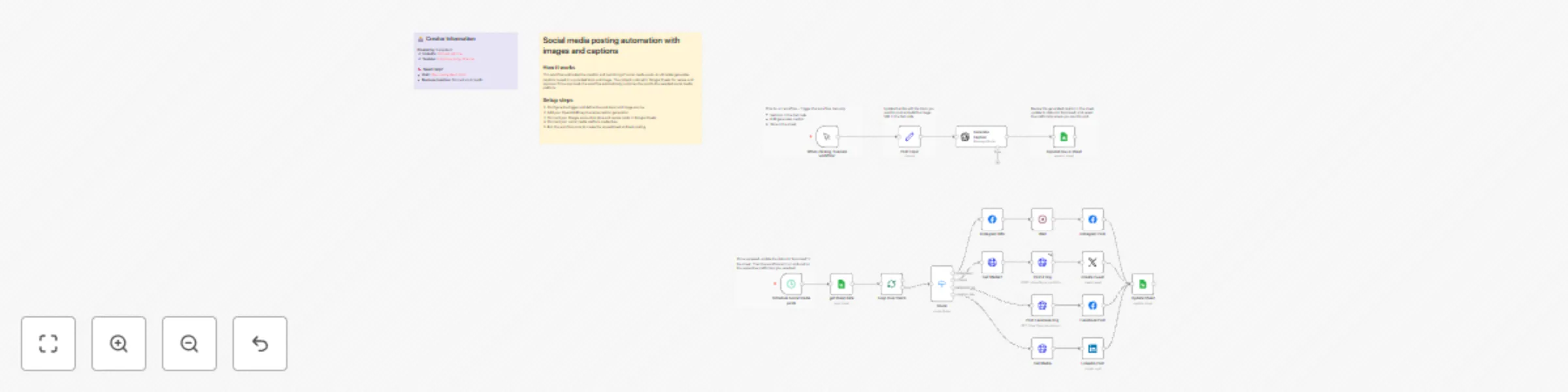
This AI-powered workflow streamlines your social media posting process, transforming hours of manual caption writing, image uploading, and scheduling into a fully automated system. You define the topic and image once, and the workflow handles caption generation, review, approval, and posting to your selected platforms.

Automated Flow

  1. Generate Caption
    Trigger the workflow manually and set your post topic and image URL in the Set node. The AI (GPT-4.1-mini) generates a high-quality, engaging social media caption tailored to your audience, platform, and content goals.

  2. Store in Google Sheet
    The generated caption, along with your image URL and post metadata, is automatically appended to your Google Sheet. This creates a central location to review and manage all your social media content.

  3. Review and Approve
    You review the generated caption in the sheet, make any edits if needed, and update the status to Approved. You can also select the platform(s) where you want to post.

  4. Automatic Posting
    Once the status is updated to Approved, the next workflow is triggered automatically. It posts your caption and image to the selected social media platform(s) without any further manual effort.

The result?
A seamless, end-to-end social media posting process where captions are AI-generated, stored, reviewed, and posted automatically. Focus on strategy and engagement instead of repetitive manual posting.


Setup Steps

Setup time: ~10–15 minutes
What you’ll need: OpenAI API key, Google account, access to your social media platform(s)

  1. Connect Your Google Account

    • Click on the Google Sheets node in your workflow.
    • Select the Credential dropdown and choose + Create New Credential.
    • Authenticate your Google account and grant the necessary permissions.
  2. Initialize Your Spreadsheet

    • Run the workflow once by clicking the play button on the start node.
    • This will automatically create a Google Sheet with all the required columns for caption tracking and approval.
  3. Add Your OpenAI API Key

    • Navigate to the AI Agent node.
    • Click the Credential dropdown and select + Create New Credential.
    • Paste your OpenAI API key and save.
    • Get your API key from platform.openai.com/api-keys.
  4. Set Post Topic and Image

    • Update the title in the Set node with the topic you want to post.
    • Add the image URL associated with your post.
  5. Review Captions and Approve

    • Open your Google Sheet, review the generated captions, and update the status to Approved.
    • Select the platform(s) where the post should go live.
  6. Go Live

    • Once the status is updated, the workflow will automatically post your content to the selected social media platform(s).
    • Sit back and watch your AI-generated captions and images go live automatically.

Ready to automate your social media? Activate your workflow and start posting smarter today! 🚀💡✅

1.2 Logical Blocks

This catalog entry is organized from the workflow JSON. The node-level section below shows the executable blocks available for review before importing the template.

2. Block-by-Block Analysis

Block 1 - Loop Over Items

Type / Role
n8n-nodes-base.splitInBatches - splitInBatches
Config choices
Version 3

Block 2 - get sheet data

Type / Role
n8n-nodes-base.googleSheets - googleSheets
Config choices
Version 4.7

Block 3 - Create Tweet

Type / Role
n8n-nodes-base.twitter - twitter
Config choices
Version 2

Block 4 - Instagram IMG

Type / Role
n8n-nodes-base.facebookGraphApi - facebookGraphApi
Config choices
Version 1

Block 5 - Instagram Post

Type / Role
n8n-nodes-base.facebookGraphApi - facebookGraphApi
Config choices
Version 1

Block 6 - Update Sheet

Type / Role
n8n-nodes-base.googleSheets - googleSheets
Config choices
Version 4.7

Block 7 - Get Media

Type / Role
n8n-nodes-base.httpRequest - httpRequest
Config choices
Version 4.3

Block 8 - Linkedin Post

Type / Role
n8n-nodes-base.linkedIn - linkedIn
Config choices
Version 1

Block 9 - Route

Type / Role
n8n-nodes-base.switch - switch
Config choices
Version 3.2

Block 10 - Wait

Type / Role
n8n-nodes-base.wait - wait
Config choices
Version 1.1

Block 11 - When clicking ‘Execute workflow’

Type / Role
n8n-nodes-base.manualTrigger - manualTrigger
Config choices
Version 1

Block 12 - Append row in sheet

Type / Role
n8n-nodes-base.googleSheets - googleSheets
Config choices
Version 4.7

Block 13 - Post Topic

Type / Role
n8n-nodes-base.set - set
Config choices
Version 3.4

Block 14 - Sticky Note8

Type / Role
n8n-nodes-base.stickyNote - stickyNote
Config choices
Version 1

Block 15 - Sticky Note

Type / Role
n8n-nodes-base.stickyNote - stickyNote
Config choices
Version 1

Block 16 - Sticky Note1

Type / Role
n8n-nodes-base.stickyNote - stickyNote
Config choices
Version 1

Block 17 - Sticky Note2

Type / Role
n8n-nodes-base.stickyNote - stickyNote
Config choices
Version 1

Block 18 - Sticky Note3

Type / Role
n8n-nodes-base.stickyNote - stickyNote
Config choices
Version 1

Block 19 - Sticky Note4

Type / Role
n8n-nodes-base.stickyNote - stickyNote
Config choices
Version 1

Block 20 - Schedule social media posts

Type / Role
n8n-nodes-base.scheduleTrigger - scheduleTrigger
Config choices
Version 1.2

Block 21 - Generate Caption

Type / Role
@n8n/n8n-nodes-langchain.openAi - openAi
Config choices
Version 1.8

Block 22 - Get Media2

Type / Role
n8n-nodes-base.httpRequest - httpRequest
Config choices
Version 4.3

Block 23 - Facebook Post

Type / Role
n8n-nodes-base.facebookGraphApi - facebookGraphApi
Config choices
Version 1

Block 24 - Post Facebook Img

Type / Role
n8n-nodes-base.httpRequest - httpRequest
Config choices
Version 4.3

Showing the first 24 of 25 workflow blocks. Download the JSON for the full node graph.

3. Summary Table

Workflow Create and post social media image captions with GPT-4.1-mini and Google Sheets
Complexity advanced
Nodes 25
Categories Social Media, Multimodal AI
Author Samyotech
Published 09 Jan 2026

4. Reproducing the Workflow from Scratch

  1. 1. Download the workflow JSON

    Use the JSON export at /data/workflows/12596/12596.json as the source template for this automation.

  2. 2. Import the template into n8n

    Open n8n, import the downloaded JSON, and review each node before activating the workflow.

  3. 3. Configure credentials and variables

    Replace placeholder credentials, API keys, webhook URLs, account IDs, and environment-specific values with your own settings.

  4. 4. Test with sample data

    Run the workflow manually or in a staging workspace, inspect node output, and confirm downstream systems receive the expected data.

  5. 5. Activate and monitor

    Enable the workflow only after testing, then monitor executions, errors, and rate limits during the first production runs.

5. General Notes & Resources

Review imported nodes carefully before activation. This catalog entry is intended to help you inspect the workflow structure, understand required services, and find related templates faster.

Node names, credentials, schedules, webhook paths, and external service limits may need adjustment for your workspace.

Frequently asked questions

What does Create and post social media image captions with GPT-4.1-mini and Google Sheets do?

Social Media Posting Automation with Image and Caption How it works This AI powered workflow streamlines your social media posting process, transforming hours of manual caption writing, image uploa...

What do I need before importing this workflow?

Review the workflow JSON, configure any required credentials in n8n, and test the automation in a safe workspace before using it in production.

Can I customize this workflow?

Yes. Use the block-by-block analysis and the downloadable JSON to inspect each node, then adjust credentials, prompts, schedules, filters, or destinations for your Social Media, Multimodal AI use case.