Samyotech
Workflows by Samyotech
Create and post social media image captions with GPT-4.1-mini and Google Sheets
# Social Media Posting Automation with Image and Caption ## How it works This AI-powered workflow streamlines your social media posting process, transforming hours of manual caption writing, image uploading, and scheduling into a fully automated system. You define the topic and image once, and the workflow handles caption generation, review, approval, and posting to your selected platforms. ### Automated Flow 1. **Generate Caption** Trigger the workflow manually and set your post topic and image URL in the Set node. The AI (GPT-4.1-mini) generates a high-quality, engaging social media caption tailored to your audience, platform, and content goals. 2. **Store in Google Sheet** The generated caption, along with your image URL and post metadata, is automatically appended to your Google Sheet. This creates a central location to review and manage all your social media content. 3. **Review and Approve** You review the generated caption in the sheet, make any edits if needed, and update the status to **Approved**. You can also select the platform(s) where you want to post. 4. **Automatic Posting** Once the status is updated to Approved, the next workflow is triggered automatically. It posts your caption and image to the selected social media platform(s) without any further manual effort. **The result?** A seamless, end-to-end social media posting process where captions are AI-generated, stored, reviewed, and posted automatically. Focus on strategy and engagement instead of repetitive manual posting. --- ## Setup Steps **Setup time:** ~10–15 minutes **What you’ll need:** OpenAI API key, Google account, access to your social media platform(s) 1. **Connect Your Google Account** - Click on the Google Sheets node in your workflow. - Select the Credential dropdown and choose **+ Create New Credential**. - Authenticate your Google account and grant the necessary permissions. 2. **Initialize Your Spreadsheet** - Run the workflow once by clicking the play button on the start node. - This will automatically create a Google Sheet with all the required columns for caption tracking and approval. 3. **Add Your OpenAI API Key** - Navigate to the AI Agent node. - Click the Credential dropdown and select **+ Create New Credential**. - Paste your OpenAI API key and save. - Get your API key from [platform.openai.com/api-keys](https://platform.openai.com/api-keys). 4. **Set Post Topic and Image** - Update the title in the Set node with the topic you want to post. - Add the image URL associated with your post. 5. **Review Captions and Approve** - Open your Google Sheet, review the generated captions, and update the status to **Approved**. - Select the platform(s) where the post should go live. 6. **Go Live** - Once the status is updated, the workflow will automatically post your content to the selected social media platform(s). - Sit back and watch your AI-generated captions and images go live automatically. **Ready to automate your social media?** Activate your workflow and start posting smarter today! 🚀💡✅
Send AI-curated weekly news digests with RSS, Vector DB & GPT-4o
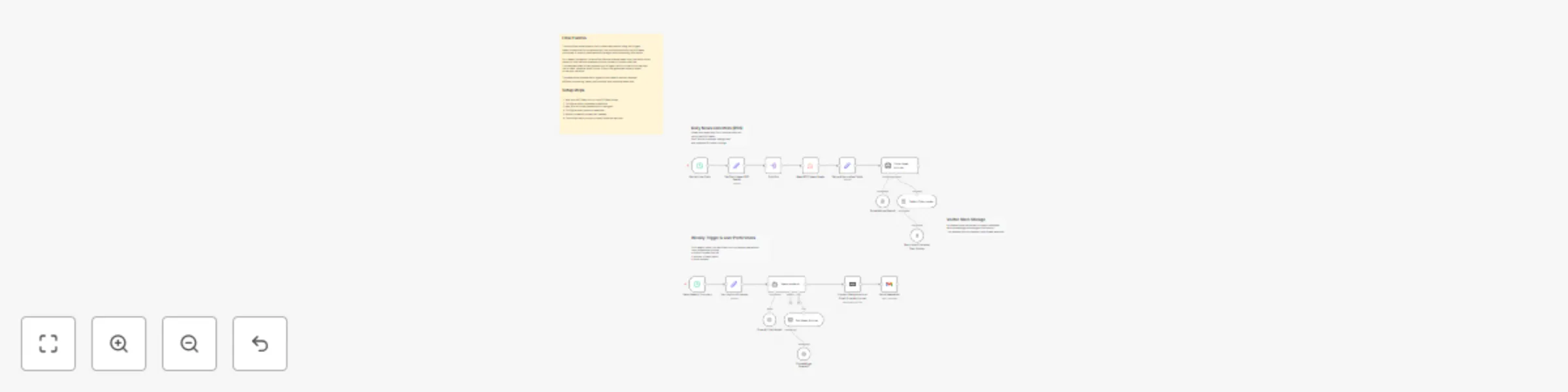
## What this workflow does This workflow implements a two-stage news automation system designed for reusable and topic-driven email delivery. News articles are continuously collected from multiple platforms using RSS feeds and stored in a vector database with semantic embeddings and category metadata. Instead of fetching news on demand, the workflow separates daily ingestion from weekly delivery. This allows the same news data to be reused across different topics, audiences, or delivery schedules. On a weekly basis, relevant articles are retrieved from the vector store based on defined areas of interest and item limits. The selected news is then processed by an AI agent, which converts the raw articles into a structured, email-ready format before sending the final content to users. ## How it works 1. News articles are collected daily from multiple RSS feeds 2. Articles are categorized and stored in a vector database 3. On a weekly trigger, topic preferences are evaluated 4. Relevant articles are retrieved using vector-based search 5. An AI agent formats the content for email delivery 6. The email is sent to the user ## Setup To use this workflow, complete the following steps: 1. Add and configure your RSS feed sources 2. Connect a vector database and embedding model 3. Configure AI model credentials for content generation 4. Set up email service credentials 5. Define weekly scheduling and topic inputs 6. Test retrieval and email output ## Customization You can customize this workflow by: - Adding or removing RSS feed sources - Adjusting news categories or topic filters - Changing the number of articles retrieved per topic - Modifying the AI agent’s writing tone or structure - Reusing the vector store for other content workflows - Updating email frequency or delivery format ## Requirements - RSS feed URLs - Vector database credentials - AI model credentials - Email service credentials