Block 1 - Respond to Webhook
- Type / Role
- n8n-nodes-base.respondToWebhook - respondToWebhook
- Config choices
- Version 1.1


 Early Deal
This workflow is provided as-is. Please review and test before using in production.
AI Lead Capture System Complete Setup Guide Prerequisites n8n instance (cloud or self hosted) Google AI Studio account (free tier available) Google account for Sheets integration Website with chat ...
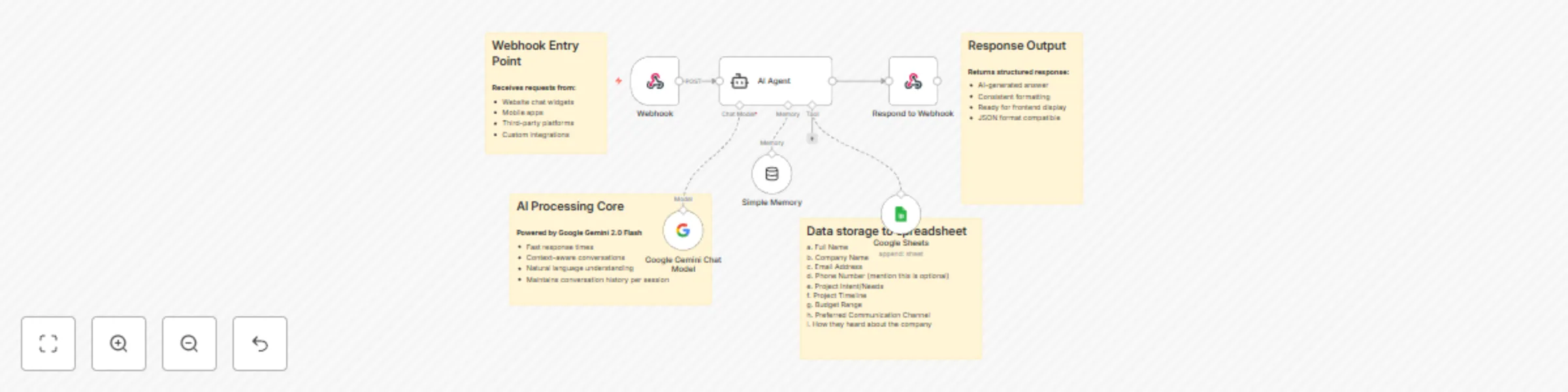
n8n-nodes-base.respondtowebhook, n8n-nodes-base.webhook, n8n-nodes-base.googlesheetstool, @n8n/n8n-nodes-langchain.memorybufferwindow, @n8n/n8n-nodes-langchain.lmchatgooglegemini, @n8n/n8n-nodes-langchain.agent, n8n-nodes-base.stickynote
This workflow is cataloged by N8N Workflows and links back to its original n8n.io source page by David Olusola.
Original n8n.io sourcen8n instance (cloud or self-hosted) Google AI Studio account (free tier available) Google account for Sheets integration Website with chat widget capability
Step 1: Set Up Google AI Studio
Go to Google AI Studio Create account or sign in with Google Navigate to "Get API Key" Create new API key for your project Copy and securely store the API key Free tier limits: 15 requests/minute, 1 million tokens/month
Step 2: Configure Google Sheets
Create new Google Sheet for lead storage Add column headers (exact names):
Full Name Company Name Email Address Phone Number Project Intent/Needs Project Timeline Budget Range Preferred Communication Channel How they heard about DAEX AI
Copy the Google Sheet ID from URL (between /d/ and /edit) Ensure sheet is accessible to your Google account
Step 3: Import n8n Workflow
Open your n8n instance Create new workflow Click "..." menu → Import from JSON Paste the provided workflow JSON Workflow will appear with all nodes connected
Step 4: Set Up Google Gemini API
In n8n, go to Credentials → Add Credential Search for "Google PaLM API" Enter your API key from Step 1 Test connection Link to the "Google Gemini Chat Model" node
Step 5: Configure Google Sheets Access
Go to Credentials → Add Credential Select "Google Sheets OAuth2 API" Follow OAuth flow to authorize your Google account Test connection with your sheet Link to the "Google Sheets" node
Step 6: Update Company Information
Open the AI Agent node In the system message, replace all mentions of:
Company name and description Service offerings and specializations FAQ knowledge base Typical project timelines and pricing ranges
Adjust conversation tone to match your brand voice
Step 7: Configure Lead Qualification Fields
In the AI Agent system message, modify the required information list:
Add/remove qualification questions Adjust budget ranges for your services Customize timeline options Update communication channel preferences
In Google Sheets node, update column mappings if you changed fields
Step 8: Set Up Sheet Integration
Open Google Sheets node Click on Document ID dropdown Select your lead capture sheet Verify all column mappings match your sheet headers Test with sample data
Step 9: Get Webhook URL
Open Webhook node in n8n Copy the webhook URL (starts with your n8n domain) Note: URL format is https://your-n8n-domain.com/webhook/[unique-id]
Step 10: Connect Your Chat Widget Choose your integration method: Option A: Direct JavaScript Integration javascript// Add to your website function sendMessage(message, sessionId) { fetch('YOUR_WEBHOOK_URL', { method: 'POST', headers: { 'Content-Type': 'application/json' }, body: JSON.stringify({ message: message, sessionId: sessionId || 'visitor-' + Date.now() }) }) .then(response => response.json()) .then(data => { // Display AI response in your chat widget displayMessage(data.message); }); } Option B: Chat Platform Webhook
Open your chat platform settings (Intercom, Crisp, etc.) Find webhook/integration section Add webhook URL pointing to your n8n endpoint Configure to send message and session data
Option C: Zapier/Make.com Integration
Create new Zap/Scenario Trigger: New chat message from your platform Action: HTTP POST to your n8n webhook Map message content and session ID
Step 11: Test Complete Flow
Send test message through your chat widget Verify AI responds appropriately Check conversation context is maintained Confirm lead data appears in Google Sheets Test with various conversation scenarios
Step 12: Monitor Performance
Check n8n execution logs for errors Monitor Google Sheets for data quality Review conversation logs for improvement opportunities Track response times and conversion rates
Step 13: Fine-Tune Conversations
Analyze real conversation logs Update system prompts based on common questions Add new FAQ knowledge to the AI agent Adjust qualification questions based on lead quality Optimize for your specific customer patterns
Step 14: Add Lead Scoring
Create new column in Google Sheets for "Lead Score" Update AI agent to calculate scores based on:
Budget range (higher budget = higher score) Timeline urgency (sooner = higher score) Project complexity (complex = higher score)
Add conditional formatting in Google Sheets to highlight high-value leads
Step 15: Set Up Notifications
Add email notification node after Google Sheets Configure to send alerts for high-priority leads Include lead details and conversation summary Set up different notification rules for different lead scores
Step 16: Analytics Dashboard
Connect Google Sheets to Google Data Studio or similar Create dashboard showing:
Daily lead volume Conversion rates by source Average qualification time Lead quality scores Revenue pipeline from captured leads
Troubleshooting Common Issues AI Not Responding
Check Google Gemini API key validity Verify API quota not exceeded Review n8n execution logs for errors
Data Not Saving to Sheets
Confirm Google Sheets permissions Check column name matching Verify sheet ID is correct
Chat Widget Not Connecting
Test webhook URL directly with curl/Postman Verify JSON format matches expected structure Check CORS settings if browser-based integration
Conversation Context Lost
Ensure sessionId is unique per visitor Check memory node configuration Verify sessionId is passed consistently
This catalog entry is organized from the workflow JSON. The node-level section below shows the executable blocks available for review before importing the template.
| Workflow | Conversational lead capture with Gemini 2.0 Flash AI and Google Sheets |
|---|---|
| Complexity | intermediate |
| Nodes | 10 |
| Categories | Lead Generation, AI Chatbot |
| Author | David Olusola |
| Published | 28 Jun 2025 |
Use the JSON export at /data/workflows/5427/5427.json as the source template for this automation.
Open n8n, import the downloaded JSON, and review each node before activating the workflow.
Replace placeholder credentials, API keys, webhook URLs, account IDs, and environment-specific values with your own settings.
Run the workflow manually or in a staging workspace, inspect node output, and confirm downstream systems receive the expected data.
Enable the workflow only after testing, then monitor executions, errors, and rate limits during the first production runs.
Review imported nodes carefully before activation. This catalog entry is intended to help you inspect the workflow structure, understand required services, and find related templates faster.
Node names, credentials, schedules, webhook paths, and external service limits may need adjustment for your workspace.
AI Lead Capture System Complete Setup Guide Prerequisites n8n instance (cloud or self hosted) Google AI Studio account (free tier available) Google account for Sheets integration Website with chat ...
Review the workflow JSON, configure any required credentials in n8n, and test the automation in a safe workspace before using it in production.
Yes. Use the block-by-block analysis and the downloadable JSON to inspect each node, then adjust credentials, prompts, schedules, filters, or destinations for your Lead Generation, AI Chatbot use case.