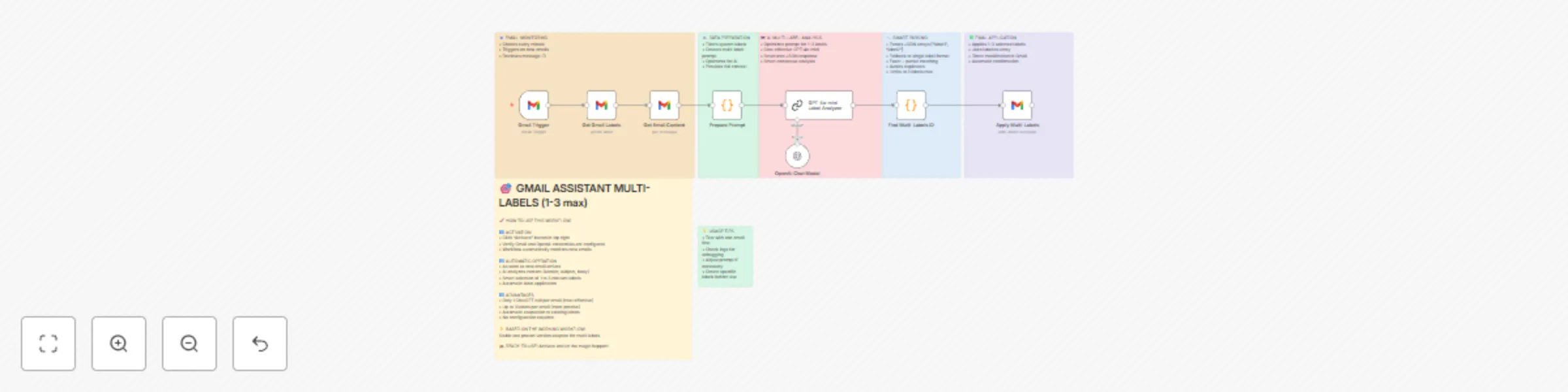
Categorize Gmail emails using GPT-4o-mini with multi-label analysis

Workflow preview

Workflow preview
100%
Categorize Gmail emails using GPT-4o-mini with multi-label analysis preview
Open on n8n.io

Important notice

This workflow is provided as-is. Please review and test before using in production.

1. Workflow Overview

Automatically Categorize Gmail Emails with GPT 4o mini Multi Label Analysis Description The "Automatically Categorize Gmail Emails with GPT 4o mini Multi Label Analysis" template is designed specif...

Best for

  • Ticket Management automation workflows
  • AI Summarization automation workflows
  • advanced n8n builders looking for reusable templates

Tools used

n8n-nodes-base.gmailtrigger, n8n-nodes-base.gmail, n8n-nodes-base.code, @n8n/n8n-nodes-langchain.lmchatopenai, @n8n/n8n-nodes-langchain.chainllm, n8n-nodes-base.stickynote

Source and attribution

This workflow is cataloged by N8N Workflows and links back to its original n8n.io source page by Radouane Driouich.

Original n8n.io source

1.1 Workflow description

Title
Categorize Gmail emails using GPT-4o-mini with multi-label analysis
Workflow name
Categorize Gmail emails using GPT-4o-mini with multi-label analysis

Automatically Categorize Gmail Emails with GPT-4o-mini Multi-Label Analysis

Description

The "Automatically Categorize Gmail Emails with GPT-4o-mini Multi-Label Analysis" template is designed specifically for professionals, business owners, entrepreneurs, and anyone struggling to manage a high volume of daily emails. It solves common inbox problems such as email overload, missed important messages, manual sorting inefficiencies, and unorganized inbox clutter. By using intelligent content analysis powered by GPT-4o-mini, this workflow automatically categorizes incoming Gmail messages with relevant labels, ensuring efficient email management and significantly boosting productivity.

Workflow Overview

How It Works

  • Email Detection: Continuously monitors your Gmail inbox every minute to detect new incoming emails.
  • Content Extraction: Retrieves key email components including sender details, subject line, and body content for analysis.
  • Intelligent Labeling: Utilizes GPT-4o-mini AI to contextually analyze each email and assign 1-3 relevant labels based on your existing Gmail label structure.
  • Automatic Application: Applies the selected labels directly to your emails, equipped with robust error-handling mechanisms to ensure accuracy and reliability.

Key Benefits

  • Organized Inbox: Automatically maintains inbox order and clarity.
  • Time-Saving: Reduces manual email management effort significantly.
  • Customization: Fully adaptable to specific labeling and organizational requirements.

Pre-conditions

Before using this template, ensure the following prerequisites are met:

  • Active Gmail account with OAuth2 enabled.
  • Active OpenAI account with GPT-4o-mini API key.
  • Clearly defined labels set up in your Gmail account (e.g., "Work", "Personal", "Urgent").

Setup Instructions

Follow these straightforward setup steps to activate the workflow:

  1. Connect Gmail Account

    • Authorize your Gmail account using OAuth2 (takes approximately 2-3 minutes).
  2. Configure OpenAI GPT-4o-mini API

    • Enter and validate your GPT-4o-mini API key to enable advanced email analysis.
  3. Establish Gmail Labels

    • Ensure necessary labels are created within Gmail. Examples include "Work", "Personal", and "Urgent".
  4. Activate and Verify

    • Click the "Activate" button in n8n.
    • Send a test email to your Gmail inbox to confirm that labels are applied correctly.

Customization Tips

You can easily customize this workflow to fit your specific needs:

  • Modify Gmail Labels: Create and adapt labels to match your business or personal categorization strategy.
  • Adjust GPT-4o-mini Criteria: Fine-tune the AI prompts to improve accuracy and relevance based on your unique email management needs.
  • Expand the Workflow: Integrate additional conditions, actions, or external applications to further automate and optimize your email management processes.

Improve your daily workflow efficiency and achieve a clutter-free Gmail inbox by leveraging the power of GPT-4o-mini today.

1.2 Logical Blocks

This catalog entry is organized from the workflow JSON. The node-level section below shows the executable blocks available for review before importing the template.

2. Block-by-Block Analysis

Block 1 - Gmail Trigger

Type / Role
n8n-nodes-base.gmailTrigger - gmailTrigger
Config choices
Version 1

Block 2 - Get Gmail Labels

Type / Role
n8n-nodes-base.gmail - gmail
Config choices
Version 2.1

Block 3 - Get Email Content

Type / Role
n8n-nodes-base.gmail - gmail
Config choices
Version 2.1

Block 4 - Prepare Prompt

Type / Role
n8n-nodes-base.code - code
Config choices
Version 2

Block 5 - OpenAI Chat Model

Type / Role
@n8n/n8n-nodes-langchain.lmChatOpenAi - lmChatOpenAi
Config choices
Version 1.2

Block 6 - GPT‑4o‑mini Label Analyzer

Type / Role
@n8n/n8n-nodes-langchain.chainLlm - chainLlm
Config choices
Version 1.5

Block 7 - Find Multi-Labels ID

Type / Role
n8n-nodes-base.code - code
Config choices
Version 2

Block 8 - Apply Multi-Labels

Type / Role
n8n-nodes-base.gmail - gmail
Config choices
Version 2.1

Block 9 - 📋 USER GUIDE

Type / Role
n8n-nodes-base.stickyNote - stickyNote
Config choices
Version 1

Block 10 - 📧 TRIGGER

Type / Role
n8n-nodes-base.stickyNote - stickyNote
Config choices
Version 1

Block 11 - 🤖 AI INTELLIGENCE

Type / Role
n8n-nodes-base.stickyNote - stickyNote
Config choices
Version 1

Block 12 - ⚙️ PROCESSING

Type / Role
n8n-nodes-base.stickyNote - stickyNote
Config choices
Version 1

Block 13 - 🔧 PARSING

Type / Role
n8n-nodes-base.stickyNote - stickyNote
Config choices
Version 1

Block 14 - ✅ APPLICATION

Type / Role
n8n-nodes-base.stickyNote - stickyNote
Config choices
Version 1

Block 15 - 💡 TIPS

Type / Role
n8n-nodes-base.stickyNote - stickyNote
Config choices
Version 1

3. Summary Table

Workflow Categorize Gmail emails using GPT-4o-mini with multi-label analysis
Complexity advanced
Nodes 15
Categories Ticket Management, AI Summarization
Author Radouane Driouich
Published 07 Jul 2025

4. Reproducing the Workflow from Scratch

  1. 1. Download the workflow JSON

    Use the JSON export at /data/workflows/5727/5727.json as the source template for this automation.

  2. 2. Import the template into n8n

    Open n8n, import the downloaded JSON, and review each node before activating the workflow.

  3. 3. Configure credentials and variables

    Replace placeholder credentials, API keys, webhook URLs, account IDs, and environment-specific values with your own settings.

  4. 4. Test with sample data

    Run the workflow manually or in a staging workspace, inspect node output, and confirm downstream systems receive the expected data.

  5. 5. Activate and monitor

    Enable the workflow only after testing, then monitor executions, errors, and rate limits during the first production runs.

5. General Notes & Resources

Review imported nodes carefully before activation. This catalog entry is intended to help you inspect the workflow structure, understand required services, and find related templates faster.

Node names, credentials, schedules, webhook paths, and external service limits may need adjustment for your workspace.

Frequently asked questions

What does Categorize Gmail emails using GPT-4o-mini with multi-label analysis do?

Automatically Categorize Gmail Emails with GPT 4o mini Multi Label Analysis Description The "Automatically Categorize Gmail Emails with GPT 4o mini Multi Label Analysis" template is designed specif...

What do I need before importing this workflow?

Review the workflow JSON, configure any required credentials in n8n, and test the automation in a safe workspace before using it in production.

Can I customize this workflow?

Yes. Use the block-by-block analysis and the downloadable JSON to inspect each node, then adjust credentials, prompts, schedules, filters, or destinations for your Ticket Management, AI Summarization use case.