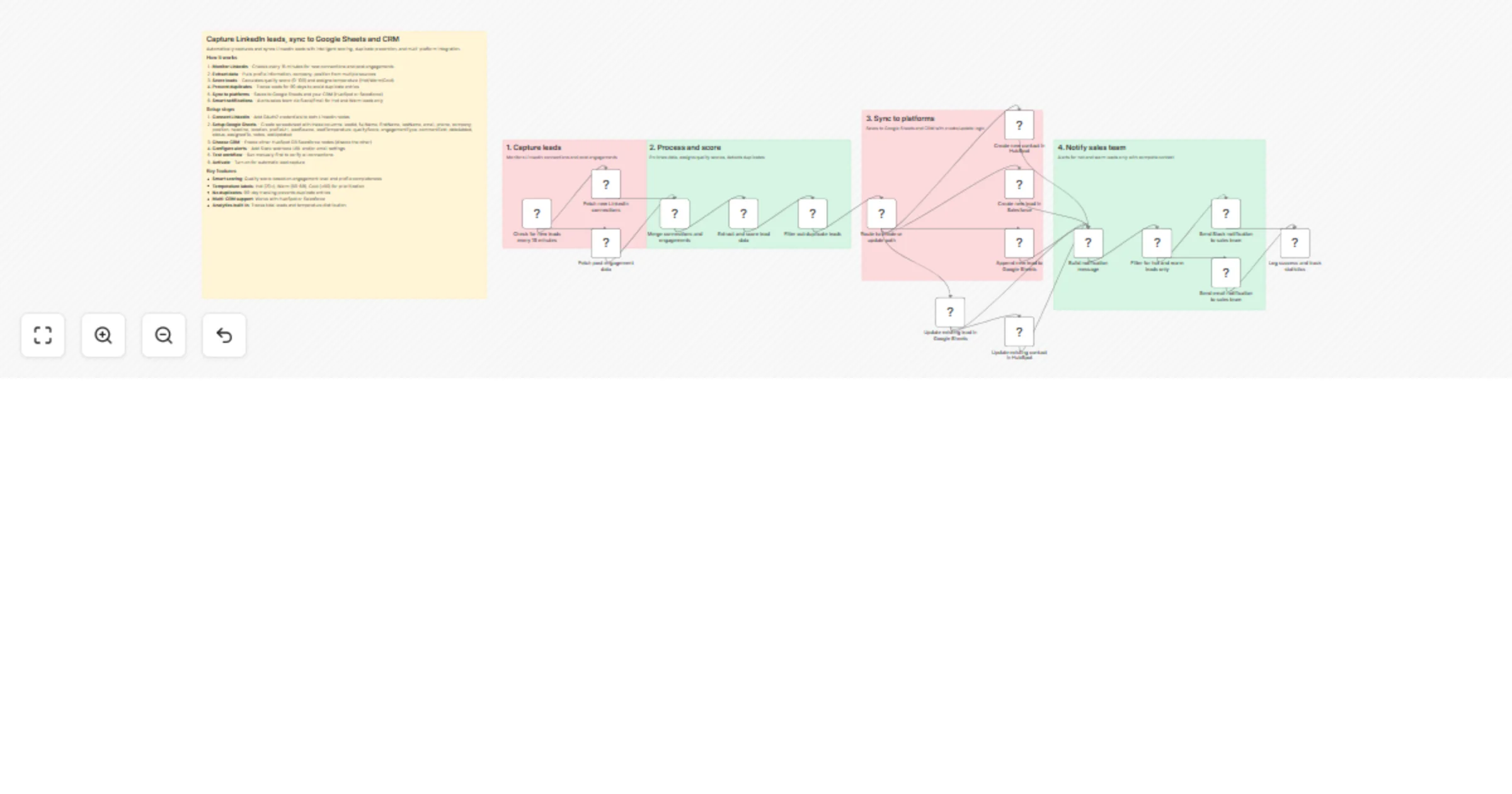
Capture LinkedIn leads and sync them with Google Sheets, HubSpot or Salesforce

Workflow preview

Workflow preview
100%
Capture LinkedIn leads and sync them with Google Sheets, HubSpot or Salesforce preview
Open on n8n.io

1. Workflow Overview

This n8n workflow automatically captures LinkedIn leads from multiple sources (new connections, post engagements), enriches the data with AI powered scoring, eliminates duplicates, syncs to Google ...

Best for

  • Lead Generation automation workflows
  • AI Summarization automation workflows
  • advanced n8n builders looking for reusable templates

Tools used

n8n-nodes-base.scheduletrigger, n8n-nodes-base.linkedin, n8n-nodes-base.merge, n8n-nodes-base.code, n8n-nodes-base.switch, n8n-nodes-base.googlesheets, n8n-nodes-base.httprequest, n8n-nodes-base.filter

Source and attribution

This workflow is cataloged by N8N Workflows and links back to its original n8n.io source page by Oneclick AI Squad.

Original n8n.io source

1.1 Workflow description

Title
Capture LinkedIn leads and sync them with Google Sheets, HubSpot or Salesforce
Workflow name
Capture LinkedIn leads and sync them with Google Sheets, HubSpot or Salesforce

This n8n workflow automatically captures LinkedIn leads from multiple sources (new connections, post engagements), enriches the data with AI-powered scoring, eliminates duplicates, syncs to Google Sheets and your CRM (HubSpot or Salesforce), and sends instant notifications to your sales team for high-quality leads. No more manual copy-pasting or lost opportunities—every LinkedIn interaction becomes a tracked, qualified lead ready for follow-up.

Benefits

  • Zero Manual Data Entry: Eliminates tedious copy-paste work—saves 10+ hours per week for active LinkedIn users
  • Smart Lead Scoring: AI calculates quality scores (0-100) and assigns temperature labels (Hot/Warm/Cold) based on engagement patterns
  • Multi-Source Capture: Monitors new connections, post comments, likes, and shares to catch leads from all touchpoints
  • Duplicate Prevention: Tracks leads for 90 days to avoid database clutter and redundant outreach
  • Instant Sales Alerts: Notifies team via Slack/Email within seconds for Hot & Warm leads, enabling rapid follow-up
  • CRM Integration: Syncs directly to HubSpot or Salesforce with custom fields for lead temperature and quality metrics
  • Built-in Analytics: Tracks cumulative statistics (total leads, temperature distribution) for performance monitoring
  • Always-On Automation: Runs every 15 minutes 24/7, capturing leads even when you're sleeping or in meetings

Useful for Which Industry

  • B2B SaaS & Tech: Sales teams prospecting decision-makers and capturing demo requests from LinkedIn content
  • Consulting & Professional Services: Agencies tracking client inquiries and partnership opportunities from thought leadership posts
  • Recruiting & HR: Talent acquisition teams building candidate pipelines from LinkedIn engagement
  • Real Estate & Financial Services: Agents capturing high-intent leads from market updates and educational content
  • Marketing Agencies: Business development teams converting social engagement into qualified opportunities
  • E-Learning & Coaching: Course creators and consultants tracking interested prospects from free content
  • Manufacturing & B2B Sales: Enterprise sales teams monitoring buying committee members engaging with product content

How it works

  1. Monitor LinkedIn - Checks every 15 minutes for new connections and post engagements
  2. Extract data - Pulls profile information, company, position from multiple sources
  3. Score leads - Calculates quality score (0-100) and assigns temperature (Hot/Warm/Cold)
  4. Prevent duplicates - Tracks leads for 90 days to avoid duplicate entries
  5. Sync to platforms - Saves to Google Sheets and your CRM (HubSpot or Salesforce)
  6. Smart notifications - Alerts sales team via Slack/Email for Hot and Warm leads only

Setup steps

  1. Connect LinkedIn - Add OAuth2 credentials to both LinkedIn nodes
  2. Setup Google Sheets - Create spreadsheet with these columns: leadId, fullName, firstName, lastName, email, phone, company, position, headline, location, profileUrl, leadSource, leadTemperature, qualityScore, engagementType, commentText, dateAdded, status, assignedTo, notes, lastUpdated
  3. Choose CRM - Enable either HubSpot OR Salesforce nodes (disable the other)
  4. Configure alerts - Add Slack webhook URL and/or email settings
  5. Test workflow - Run manually first to verify all connections
  6. Activate - Turn on for automatic lead capture

Key features

  • Smart scoring: Quality score based on engagement level and profile completeness
  • Temperature labels: Hot (70+), Warm (50-69), Cold (<50) for prioritization
  • No duplicates: 90-day tracking prevents duplicate entries
  • Multi-CRM support: Works with HubSpot or Salesforce
  • Analytics built-in: Tracks total leads and temperature distribution

1.2 Logical Blocks

This catalog entry is organized from the workflow JSON. The node-level section below shows the executable blocks available for review before importing the template.

2. Block-by-Block Analysis

Block 1 - Check for new leads every 15 minutes

Type / Role
n8n-nodes-base.scheduleTrigger - scheduleTrigger
Config choices
Version 1.2

Block 2 - Fetch new LinkedIn connections

Type / Role
n8n-nodes-base.linkedIn - linkedIn
Config choices
Version 1

Block 3 - Fetch post engagement data

Type / Role
n8n-nodes-base.linkedIn - linkedIn
Config choices
Version 1

Block 4 - Merge connections and engagements

Type / Role
n8n-nodes-base.merge - merge
Config choices
Version 3

Block 5 - Extract and score lead data

Type / Role
n8n-nodes-base.code - code
Config choices
Version 2

Block 6 - Filter out duplicate leads

Type / Role
n8n-nodes-base.code - code
Config choices
Version 2

Block 7 - Route to create or update path

Type / Role
n8n-nodes-base.switch - switch
Config choices
Version 3

Block 8 - Append new lead to Google Sheets

Type / Role
n8n-nodes-base.googleSheets - googleSheets
Config choices
Version 4.5

Block 9 - Update existing lead in Google Sheets

Type / Role
n8n-nodes-base.googleSheets - googleSheets
Config choices
Version 4.5

Block 10 - Create new contact in HubSpot

Type / Role
n8n-nodes-base.httpRequest - httpRequest
Config choices
Version 4.2

Block 11 - Update existing contact in HubSpot

Type / Role
n8n-nodes-base.httpRequest - httpRequest
Config choices
Version 4.2

Block 12 - Create new lead in Salesforce

Type / Role
n8n-nodes-base.httpRequest - httpRequest
Config choices
Version 4.2

Block 13 - Build notification message

Type / Role
n8n-nodes-base.code - code
Config choices
Version 2

Block 14 - Filter for hot and warm leads only

Type / Role
n8n-nodes-base.filter - filter
Config choices
Version 2

Block 15 - Send Slack notification to sales team

Type / Role
n8n-nodes-base.httpRequest - httpRequest
Config choices
Version 4.2

Block 16 - Send email notification to sales team

Type / Role
n8n-nodes-base.emailSend - emailSend
Config choices
Version 2.1

Block 17 - Log success and track statistics

Type / Role
n8n-nodes-base.code - code
Config choices
Version 2

Block 18 - Sticky Note

Type / Role
n8n-nodes-base.stickyNote - stickyNote
Config choices
Version 1

Block 19 - Sticky Note1

Type / Role
n8n-nodes-base.stickyNote - stickyNote
Config choices
Version 1

Block 20 - Sticky Note2

Type / Role
n8n-nodes-base.stickyNote - stickyNote
Config choices
Version 1

Block 21 - Sticky Note3

Type / Role
n8n-nodes-base.stickyNote - stickyNote
Config choices
Version 1

Block 22 - Sticky Note4

Type / Role
n8n-nodes-base.stickyNote - stickyNote
Config choices
Version 1

3. Summary Table

Workflow Capture LinkedIn leads and sync them with Google Sheets, HubSpot or Salesforce
Complexity advanced
Nodes 22
Categories Lead Generation, AI Summarization
Author Oneclick AI Squad
Published 08 Jan 2026

4. Reproducing the Workflow from Scratch

  1. 1. Download the workflow JSON

    Use the JSON export at /data/workflows/12580/12580.json as the source template for this automation.

  2. 2. Import the template into n8n

    Open n8n, import the downloaded JSON, and review each node before activating the workflow.

  3. 3. Configure credentials and variables

    Replace placeholder credentials, API keys, webhook URLs, account IDs, and environment-specific values with your own settings.

  4. 4. Test with sample data

    Run the workflow manually or in a staging workspace, inspect node output, and confirm downstream systems receive the expected data.

  5. 5. Activate and monitor

    Enable the workflow only after testing, then monitor executions, errors, and rate limits during the first production runs.

5. General Notes & Resources

Review imported nodes carefully before activation. This catalog entry is intended to help you inspect the workflow structure, understand required services, and find related templates faster.

Node names, credentials, schedules, webhook paths, and external service limits may need adjustment for your workspace.

Frequently asked questions

What does Capture LinkedIn leads and sync them with Google Sheets, HubSpot or Salesforce do?

This n8n workflow automatically captures LinkedIn leads from multiple sources (new connections, post engagements), enriches the data with AI powered scoring, eliminates duplicates, syncs to Google ...

What do I need before importing this workflow?

Review the workflow JSON, configure any required credentials in n8n, and test the automation in a safe workspace before using it in production.

Can I customize this workflow?

Yes. Use the block-by-block analysis and the downloadable JSON to inspect each node, then adjust credentials, prompts, schedules, filters, or destinations for your Lead Generation, AI Summarization use case.