Block 1 - Assign to group
- Type / Role
- n8n-nodes-base.httpRequest - httpRequest
- Config choices
- Version 4.2


 Early Deal
This workflow is provided as-is. Please review and test before using in production.
Turn Gumroad buyers into loyal email subscribers and keep your CRM up‑to‑date. When someone makes a purchase on your Gumroad store, this n8n workflow instantly adds that customer to the right [Mail...
n8n-nodes-base.httprequest, n8n-nodes-base.gumroadtrigger, n8n-nodes-base.googlesheets, n8n-nodes-base.stickynote, n8n-nodes-base.mailerlite
This workflow is cataloged by N8N Workflows and links back to its original n8n.io source page by Aitor | 1Node.
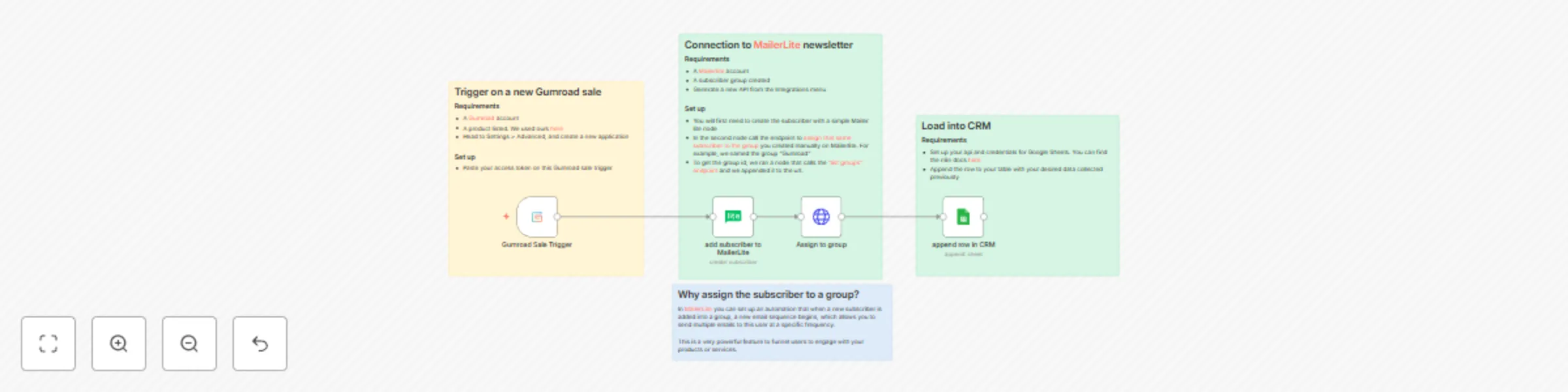
Original n8n.io sourceWhen someone makes a purchase on your Gumroad store, this n8n workflow instantly adds that customer to the right MailerLite group (so your nurture sequence starts on time) and writes the sale details into your Google Sheets CRM. You’ll never copy‑and‑paste orders again, and every buyer begins receiving your follow‑up emails the moment they purchase.
Listen for a new sale on Gumroad The Gumroad trigger watches your account 24/7 and fires as soon as a sale is completed.
Create (or update) the subscriber in MailerLite Their name and email are added to MailerLite. If they already exist, the workflow simply updates their profile.
Assign the subscriber to your Gumroad group Grouping lets your MailerLite automation send the right onboarding or upsell sequence without manual tagging.
Log the purchase in Google Sheets The buyer’s contact details, product, price, and date are appended as a new row in your CRM sheet.
Create an application in Gumroad. Copy the access token, you’ll paste it into the Gumroad trigger node.
Grab your MailerLite API key MailerLite dashboard → Integrations → API. Paste it into the two MailerLite nodes.
Prepare a Google Sheets spreadsheet Add column headers like Name, Email, Product, Price, Date.
Open the template in n8n Cloud or Desktop
In the Gumroad node, paste your token.
In the MailerLite nodes, paste your API keys and replace the group id.
In the Google Sheets node, replace the credentials, pick your spreadsheet and worksheet.
Feel free to contact us at 1 Node. Get instant access to a library of free resources we created.
This catalog entry is organized from the workflow JSON. The node-level section below shows the executable blocks available for review before importing the template.
| Workflow | Capture Gumroad sales, add buyer to MailerLite group, log to Google Sheets CRM |
|---|---|
| Complexity | intermediate |
| Nodes | 8 |
| Categories | Social Media |
| Author | Aitor | 1Node |
| Published | 23 Apr 2025 |
Use the JSON export at /data/workflows/3676/3676.json as the source template for this automation.
Open n8n, import the downloaded JSON, and review each node before activating the workflow.
Replace placeholder credentials, API keys, webhook URLs, account IDs, and environment-specific values with your own settings.
Run the workflow manually or in a staging workspace, inspect node output, and confirm downstream systems receive the expected data.
Enable the workflow only after testing, then monitor executions, errors, and rate limits during the first production runs.
Review imported nodes carefully before activation. This catalog entry is intended to help you inspect the workflow structure, understand required services, and find related templates faster.
Node names, credentials, schedules, webhook paths, and external service limits may need adjustment for your workspace.
Turn Gumroad buyers into loyal email subscribers and keep your CRM up‑to‑date. When someone makes a purchase on your Gumroad store, this n8n workflow instantly adds that customer to the right [Mail...
Review the workflow JSON, configure any required credentials in n8n, and test the automation in a safe workspace before using it in production.
Yes. Use the block-by-block analysis and the downloadable JSON to inspect each node, then adjust credentials, prompts, schedules, filters, or destinations for your Social Media use case.