A

Aitor | 1Node

23
Workflows

Workflows by Aitor | 1Node

Workflow preview: High-Speed AI Chat with OpenAI's gpt-oss-120B Model via Cerebras Inference
Free intermediate

High-Speed AI Chat with OpenAI's gpt-oss-120B Model via Cerebras Inference

## Overview This n8n workflow provides seamless integration with Cerebras' high-performance inference platform to leverage OpenAI's open-source GPT-OSS-120B model. With industry-leading speeds of thousands of tokens per second and ultra-low latency under 0.5 seconds, this template enables developers and businesses to build responsive AI applications without the complexity of managing infrastructure or dealing with slow response times that plague traditional AI integrations. ## How it works This streamlined workflow establishes a direct connection to Cerebras' inference API through four simple nodes. When a chat message is received, the workflow processes it through the configured API key, sends it to the Cerebras endpoint with your specified parameters (temperature, completion tokens, top P, reasoning effort), and returns the AI-generated response. ## Detailed Workflow Explanation **1. When chat message received**: This trigger node initiates the workflow whenever a new chat message is detected. It captures the user's input and passes it to the next node in the chain, supporting various input formats and message sources. **2. Set API Key**: A manual configuration node where you securely store your Cerebras API key. This node handles authentication and ensures your requests are properly authorized when communicating with the Cerebras inference API. **3. Cerebras endpoint**: The core HTTP request node that communicates with Cerebras' chat completions API. This node is pre-configured to work with the GPT-OSS-120B model and includes parameter settings for temperature, completion tokens, top P, and reasoning effort that can be customized based on your specific needs. **4. Return Output**: The final node that processes and formats the AI response, delivering the generated text back to your application or user interface in a clean, usable format. ## Who is it for **Developers** building real-time chat applications, conversational AI systems, or interactive web applications who need consistent sub-second response times without managing complex AI infrastructure. **Content creators** and marketing teams who require rapid text generation for blogs, social media content, product descriptions, or marketing copy, enabling faster content production cycles and improved productivity. **Businesses** implementing customer service automation, lead qualification systems, or interactive FAQ solutions where response latency directly impacts user experience and conversion rates. **SaaS companies** looking to integrate AI features into existing products without the overhead of training models or managing inference servers, allowing them to focus on core business logic. **Researchers and data scientists** experimenting with high-performance language models for prototyping, A/B testing different prompting strategies, or conducting performance benchmarks against other AI providers. **Startups and small teams** seeking enterprise-grade AI capabilities without the infrastructure costs or technical complexity typically associated with large language model deployment. ## Comprehensive Setup Instructions **1. Cerebras Account Setup** - Visit Cerebras and create a new account - Complete email verification and profile setup - Navigate to the API Keys section in your dashboard - Generate a new API key and securely store it - Review the rate limits for free tier accounts and upgrade if needed **2. N8N Workflow Configuration** - Import the template into your n8n instance - Click on the "Set API Key" node and enter your Cerebras API key - Configure the trigger node based on your input source (webhook, manual, scheduled) - Test the workflow using the built-in execution feature **3. Parameter Customization** - Open the "Cerebras endpoint" node to access the parameter configuration - Adjust temperature, completion tokens, top P, and reasoning effort based on your use case - Save and test the workflow to ensure proper functionality ## Customization and Configuration Guide **Model Parameters in the Cerebras Endpoint Node**: - **Temperature** (0.0-2.0): Lower values (0.1-0.3) for factual, consistent responses; higher values (0.7-1.5) for creative, varied content - **Completion Tokens**: Set based on expected response length - 150 for short answers, 500+ for detailed explanations, 1000+ for long-form content - **Top P** (0.1-1.0): Controls response diversity; 0.9 works well for most applications, lower values for more focused responses - **Reasoning Effort**: Adjusts the model's computational effort for complex reasoning tasks; higher values for analytical or problem-solving queries **Use Case Specific Configurations**: - **Customer Support**: Temperature 0.2, moderate completion tokens, consistent helpful responses - **Creative Writing**: Temperature 1.0-1.2, higher completion tokens for diverse, imaginative content - **Technical Documentation**: Temperature 0.3, structured output with examples and code snippets - **Casual Conversation**: Temperature 0.7, balanced creativity and coherence **Integration Scenarios**: - Connect the trigger to webhooks for external application integration - Modify the output node to format responses for specific platforms (Slack, Discord, web apps) - Add conditional logic to handle different types of user queries - Implement input validation and sanitization for production environments ## Possible Enhancements **Multi-model support**: Extend the workflow to switch between different Cerebras models based on query complexity or specific requirements. **Response caching**: Add caching mechanisms to store frequently requested responses, reducing API calls and improving performance. **Advanced error handling**: Implement retry logic and fallback mechanisms for improved reliability in production environments. **Content filtering**: Integrate moderation capabilities to ensure appropriate responses in customer-facing applications. **Analytics integration**: Connect monitoring tools to track usage patterns, response quality, and performance metrics. **Multi-channel triggers**: Set up automated responses for various platforms like Slack, Discord, or custom webhooks. **Template management**: Create reusable prompt templates for different scenarios and use cases. **Output formatting**: Add post-processing for specific output formats (HTML, Markdown, JSON) based on integration requirements.

A
Aitor | 1Node
AI Chatbot
20 Aug 2025
615
0
Workflow preview: Chat with uncensored Dolphin Mixtral 8x22B using Novita AI
Free intermediate

Chat with uncensored Dolphin Mixtral 8x22B using Novita AI

This n8n workflow enables you to chat with the uncensored Dolphin Mixtral 8x22B large language model through the Novita AI inference. It provides a streamlined process for sending user messages to the model and returning its responses, making it easy to integrate into chatbots, automation, or internal tools. ### How It Works - **User messages** are received from chat trigger - The edit node **prepares and formats** the request for Novita AI's chat completion endpoint. - The message is sent to **Dolphin Mixtral 8x22B** (uncensored) via the Novita API. - The model's reply is **extracted and returned** as a clean string, ready for display or further automation. ### Set Up Steps 1. **Create a [Novita AI](https://novita.ai/?ref=mze5m2e&utm_source=affiliate) account** - Sign up at [Novita AI](https://novita.ai/?ref=mze5m2e&utm_source=affiliate) to access the API. 2. **Get your Novita API key** - Log into your Novita account and generate your API key. 3. **Configure the workflow in n8n** - Insert your Novita API key in the "Set fields" node, as well as additional endpoint parameters you might want to add to optimize your api 4. **(Optional) Customize or extend** - Add input triggers (chat, webhook, etc.), post-processing nodes, or error handling as needed. ### Useful links - [Novita chat completion docs](https://novita.ai/docs/api-reference/model-apis-llm-create-chat-completion) - [Novita Privacy Policy](https://novita.ai/legal/privacy-policy) ### Notes - **Dolphin Mixtral 8x22B** is uncensored: The model is very permissive and does not have restrictive safety alignment, so ensure your use case is appropriate and consider adding your own safety checks, as well as reviewing Novita's privacy policy. - You can review and adapt the workflow steps inside n8n to fit your requirements, such as saving chat logs, formatting responses, or integrating with other tools.

A
Aitor | 1Node
Engineering
31 Jul 2025
692
0
Workflow preview: Trigger outbound Vapi AI voice calls from new Jotform submissions
Free intermediate

Trigger outbound Vapi AI voice calls from new Jotform submissions

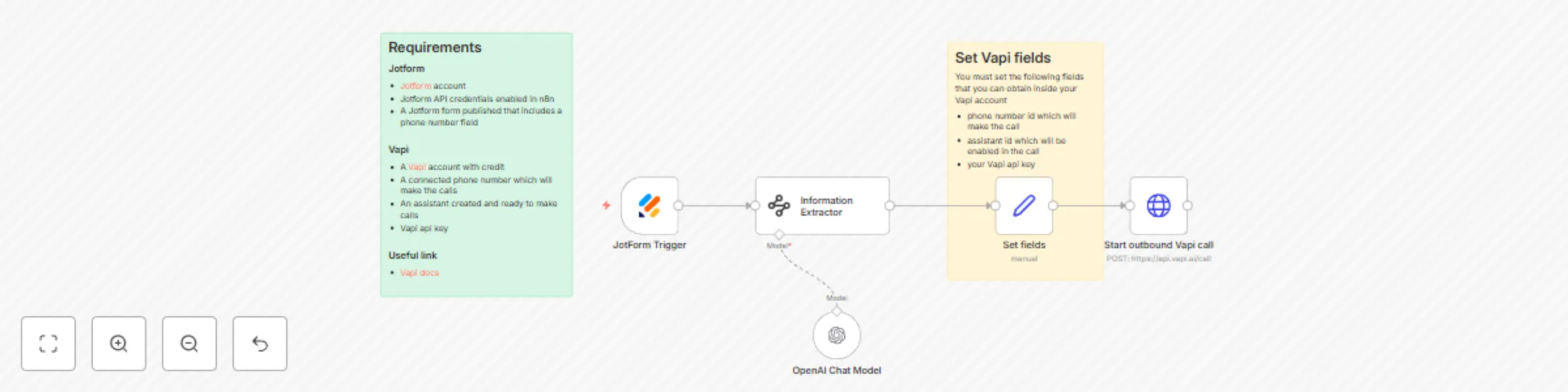
This workflow connects JotForm submissions to **[Vapi AI](https://vapi.ai/?aff=onenode)**, triggering a personalized outbound call via an AI voice assistant immediately after a user submits your form. ## Requirements ### JotForm - A **[JotForm account](https://www.jotform.com/?partner=https://1node.ai)** - **JotForm API credentials** enabled in n8n - A **published JotForm form** with a phone number field ### Vapi - A **[Vapi account](https://vapi.ai/?aff=onenode)** with credit - A connected **phone number** for making calls - An **assistant** created and ready for outbound calls - Your **Vapi API key** --- ## Workflow Steps ### 1. JotForm Trigger - Starts the workflow when a new form submission is received. ### 2. Information Extractor - **Formats the phone number** with a `+`, country code, and full number (e.g., `+391234567890`) for compatibility with Vapi. ### 4. Set Fields for Vapi - Configure these fields: - `phone_number_id`: ID of the Vapi number used for the call - `assistant_id`: ID of the Vapi assistant - `api_key`: Your Vapi API key ### 5. Start Outbound Vapi Call - Sends a POST request to `https://api.vapi.ai/call` with: - The formatted phone number - All required Vapi fields - Any additional info mapped from the form, for personalization --- ## Customization - **Add more form fields:** Include extra data (such as name, appointment time) and add to the Vapi payload. - **Conditional logic:** Use n8n filter nodes to control if/when calls are made. - **Dynamic assistant selection:** Route submissions to different assistants or numbers based on user responses. --- ## Notes - Ensure phone numbers are formatted correctly in the extractor node to prevent call errors. - Any field from your form can be passed in the API payload and used in the assistant's script. --- ## Need Help? For additional resources or help, visit **[1 Node](https://1node.ai)**.

A
Aitor | 1Node
Lead Nurturing
30 Jul 2025
973
0
Workflow preview: Automate video content posting to multiple social platforms with Postiz
Free advanced

Automate video content posting to multiple social platforms with Postiz

*This workflow contains community nodes that are only compatible with the self-hosted version of n8n.* This workflow automates the distribution and scheduling of video content across **multiple social platforms** (TikTok, YouTube, Facebook, Instagram, Threads) through **[Postiz](https://postiz.com/?ref=onenode)**. Videos are collected from Google Drive, approved manually, and scheduled via the Postiz community node. --- ## 🧾 Requirements - **Google Drive** account with access to the folder that will watch for new items uploaded. - videos in `mp4` format ready to be shared or, alternatively you can connect a community node from Cloud Convert to convert the format before uploading into Postiz. - [**Postiz**](https://postiz.com/?ref=onenode) account with integrations for TikTok, YouTube, Facebook, Instagram, and Threads --- ## 🔗 Useful Links - [Postiz Docs](https://docs.postiz.com/) - [Postiz Community Node](https://www.npmjs.com/package/n8n-nodes-postiz) --- ## 🔄 Workflow Steps 1. **Trigger: Google Drive File Added** - Watches your selected Google Drive folder for new file uploads. 2. **Download File** - Downloads the detected video from Drive. 3. **Upload to Postiz** - Video is uploaded to Postiz to prepare for social scheduling. 4. **Set Fields** - Manual setting of social options 5. **Extract Datetime (AI)** - Uses OpenAI to find/predict intended publish date & time, as the datetime format is required to schedule on Postiz 6. **Get Social Integrations** - Fetches a list of user’s connected platforms from Postiz. 7. **Split and Filter Integrations** - Splits the process per platform (TikTok, YouTube, Facebook, Instagram, Threads). 8. **Schedule Post** - For each enabled platform, schedules the video with chosen options. --- ## 🙋‍♂️ Need Help? Connect with **[1 Node](https://1node.ai)**

A
Aitor | 1Node
Social Media
30 Jul 2025
2800
0
Workflow preview: Automate outbound voice calls with Vapi from form submissions
Free intermediate

Automate outbound voice calls with Vapi from form submissions

This n8n automation connects your n8n form submissions to **[Vapi AI](https://vapi.ai/?aff=onenode)**, enabling you to **immediately call new respondents** with a personalized voice AI assistant, as soon as the form is submitted. ## 🧾 Requirements ### n8n Form - An **n8n form** node published and accessible to users. - The form must include a **phone number field**: - Accept full international phone number with `+` and country code. Example: `+11234567890` - (Optional) Add more form fields as needed for your use case. ### Vapi - A [**Vapi**](https://vapi.ai/?aff=onenode) account with credit. - A connected **phone number** for outbound calls. - An **assistant** created and ready to make calls. - Your **Vapi API key**. ### 🔗 Useful Link - [Vapi calll endpoint](https://docs.vapi.ai/api-reference/calls/create) --- ## 🔄 Workflow Breakdown ### 1. **Trigger: Form Submission (n8n Form)** - Starts when a submission is received from your form. ### 2. **Wait 2 Minutes** - Inserts a 2-minute pause before the next steps. ### 3. **Set Vapi Fields (Manual Step)** #### Step-by-Step: Configuring Vapi Parameters in the ‘Set fields’ Node 1. **Open the ‘Set’ node** where you map Vapi parameters. 2. **Add fields** (if not present): - `phone_number_id`: The sender phone number ID from your Vapi dashboard. - `assistant_id`: The ID of the Vapi AI assistant you want to use. - `api_key`: Paste your Vapi API key here (keep secure). 3. **(Optional) Add more fields** for personalization, such as: - `first_name`, `product`, `reason`, etc., if captured in your form. ### 4. **Start Outbound Vapi Call** - Sends a **POST** request to `https://api.vapi.ai/call`. - Payload includes: - Phone number from form - Chosen assistant ID - Vapi number ID - Any additional info you choose to pass for customizing the call --- ## 🎨 Customization ### How to Adapt for Different Use Cases - **Collect More Info:** Add fields to your n8n form for details such as name, product type, issue/context, preferred language, etc. - **Use Extra Data in Calls:** In the HTTP request node, pass these fields in the API request body to Vapi. Tailor your assistant’s script to reference these for a personalized experience. - **Conditional Calls:** Add n8n logic nodes to filter/categorize submissions (e.g., only call if a checkbox is ticked or if value matches certain criteria). - **Dynamic Assistant Selection:** Select assistant or Vapi number based on user responses (e.g., route to different assistants by region or requested service). --- ## 📇 Using Additional Form Fields in Vapi Calls - Any field collected on your n8n form can be included in the call payload, simply add it in the HTTP request payload. - Vapi can use these variables for dynamically constructing prompts, personalizing the call flow, or branching logic in the interaction. - Example: If your form collects `first_name` and `appointment_time`, both can be sent to Vapi and referenced in the call script or as variables in your assistant’s logic. --- ## 🙋‍♂️ Need Help? Feel free to contact us at [**1 Node**](https://1node.ai) Explore more [**free resources**](https://1node.ai/resources) created for automating n8n and Vapi.

A
Aitor | 1Node
Lead Nurturing
28 Jul 2025
2013
0
Workflow preview: Automate outbound Vapi voice calls from new Google Sheets rows
Free intermediate

Automate outbound Vapi voice calls from new Google Sheets rows

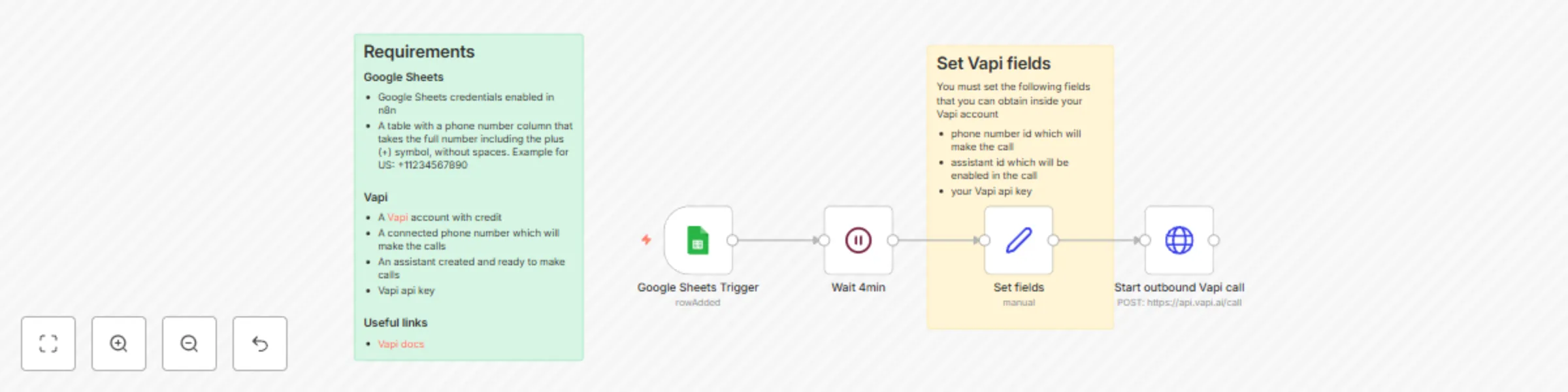
This n8n automation connects your Google Sheets to **[Vapi](https://vapi.ai/?aff=onenode)**, enabling you to automatically **call new contacts** as soon as their information is added to your spreadsheet. Instantly reach out with a personalized voice call from a Vapi AI assistant, based on any event that adds a new row to your sheet. ## 🧾 Requirements ### Google Sheets - **Google Sheets credentials** enabled and tested in n8n. - A table in your Google Sheet formatted as follows: #### Required Columns & Data Types | Column Name | Example Value | Data Type | Notes | |---------------|----------------|-------------------|-----------------------------------------------| | phone_number | +11234567890 | Text (String) | Must include the `+` and country code, no spaces or dashes. Mandatory for workflow. | | *(optional)* | first_name | John | Text (String) | For call personalization. | | *(optional)* | email | [email protected] | Text (String) | For follow-ups or records. | | *(additional)*| Any extra info | | | Can be used for advanced customization. | - Ensure all columns contain data in plain text format. - Phone number field **must never be empty** and follow the E.164 international format: `+` + country code + phone number. ---- ### Vapi - A [**Vapi**](https://vapi.ai/?aff=onenode) account with credit. - A connected **phone number** (to originate calls). - An **assistant** (AI voice agent) created and ready to make calls. - Your **Vapi API key**. ### 🔗 Useful Link - [Vapi Docs](https://docs.vapi.ai/) --- ## 🛠️ Comprehensive Setup Instructions ### 1. **Prepare Your Google Sheet** - Create a Google Sheet with the required column names as listed above. - Ensure your `phone_number` column is correctly formatted (international format, no spaces). - Optionally, add columns such as `first_name`, `email`, or any field your workflow should use. ### 2. **Set Up Google Sheets Credentials in n8n** - In n8n, go to "Credentials" and create Google Sheets credentials. - Authenticate with your Google account and test the connection. ### 3. **Configure the n8n Workflow** - Add a **Google Sheets Trigger** node: - Set trigger mode to "New Row". - Select your Google Sheet and worksheet. - Add a **Wait** node: - Configure a wait time (e.g., 4 minutes) between trigger and next action. ### 4. **Map & Set Vapi Fields** - Add a **Set** node: - Create fields required by the Vapi API: - `phone_number_id`: Copy from your Vapi dashboard. - `assistant_id`: Use the ID of your AI assistant. - `api_key`: Store securely (see n8n secret management). - `to`: Set as the Google Sheet's `phone_number` value. Example: `{{ $json["phone_number"] }}` - (Optional) Map extra fields from Sheet (e.g., `first_name`, `email`) for personalized calls. ### 5. **Add the HTTP Request to Vapi** - Add an **HTTP Request** node: - Method: `POST` - URL: `https://api.vapi.ai/call` - Body parameters: Use all mapped fields from previous step. ### 6. **Test the Workflow** - Add a new row to your Google Sheet. - Verify that, after the wait period, Vapi attempts the call and uses personalized information. --- ## 🎨 Customization Options - **Personalize Calls Further:** Add additional columns like `first_name`, `product`, or `appointment_time` in Google Sheets. Map these into the API call so Vapi can use them for dynamic greetings or contextual responses. - **Conditional Flows:** Insert n8n logic nodes (IF, Switch) before making the Vapi call. For example, only call if a "Consent" column is TRUE, or select different assistants based on region or product interest. - **Multiple Assistants/Numbers:** Store different assistant IDs or phone number IDs in columns, and dynamically route calls based on sheet data (e.g., region-specific assistants). - **Advanced Field Mapping:** Pass any relevant sheet fields into the API payload and configure your Vapi assistant scripts to utilize these variables for high-touch, customized user interactions. --- ## 📇 Example Google Sheet Setup | phone_number | first_name | email | product | consent | |--------------|------------|------------------|------------|---------| | +11234567890 | John | [email protected] | Widget A | TRUE | | +44207123456 | Maria | [email protected] | Widget B | FALSE | - In n8n, map only those rows where `consent`=TRUE. --- ## 🙋‍♂️ Need Help? Feel free to contact us at [**1 Node**](https://1node.ai) Get instant access to a library of [**free resources**](https://1node.ai/resources) we created.

A
Aitor | 1Node
Content Creation
28 Jul 2025
1711
0
Workflow preview: Auto-call new Typeform submissions with Vapi voice assistant
Free intermediate

Auto-call new Typeform submissions with Vapi voice assistant

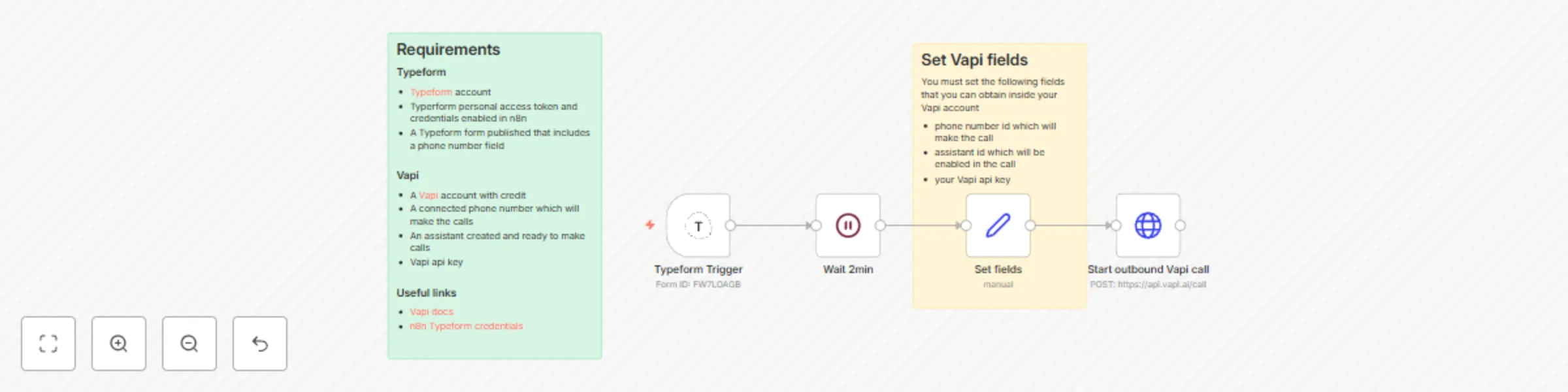
This n8n automation connects your **[Typeform](https://typeform.cello.so/e2pbXQKsijA)** forms with **[Vapi AI](https://vapi.ai/?aff=onenode)**, allowing you to **immediately call new form respondents** with a personalized message from a Vapi AI assistant, as soon as a form submission is received. ## 🧾 Requirements ### Typeform - A [**Typeform**](https://typeform.cello.so/e2pbXQKsijA) account - Typeform **personal access token** and **credentials** enabled in n8n - A **Typeform form** published that includes a phone number field ### Vapi - A [**Vapi**](https://vapi.ai/?aff=onenode) account with credit - A connected **phone number** to make calls - An **assistant** created and ready to make calls - Your **Vapi API key** ### 🔗 Useful Links - [n8n Typeform Credentials Setup](https://docs.n8n.io/integrations/builtin/credentials/typeform/) - [Vapi Docs](https://docs.vapi.ai/) --- ## 🔄 Workflow Breakdown ### 1. **Trigger: Typeform Submission** - Triggered when a new response is submitted to your Typeform. - The form must include a phone number field. ### 2. **Wait 2 Minutes** - Adds a short delay before proceeding. - Useful to ensure form data is fully synced or to give time for related automations. ### 3. **Set Vapi Fields (Manual Step)** - Set the required fields for the Vapi API call: - `phone number id` - connected in Vapi - `assistant id` - the assistant enabled in the call - `Vapi API key` - your secure API key ### 4. **Start Outbound Vapi Call** - Sends a **POST** request to `https://api.vapi.ai/call` - Payload includes: - Respondent’s phone number (from Typeform) - Vapi assistant id - Vapi phone number id to initiate the call --- ## ✏️ Template Customization Guidance ### How to Adapt for Your Specific Needs - **Personalize the Call Content:** Include additional fields in your Typeform (e.g., first name, interest, location). In n8n, map these form fields into the payload sent to Vapi. Update your Vapi assistant’s prompt/script to reference these variables for a highly personalized experience. - **Conditional Call Logic:** Use n8n's logic nodes (e.g., IF, Switch) to, for example: - Only trigger calls if a respondent checks a checkbox (e.g., consent or interest). - Use a different Vapi assistant or phone number based on responses (e.g., language preference or location). - **Advanced Routing:** Configure the workflow to choose different assistants, phone numbers, or call scripts based on the respondent’s answers. Store assistant IDs or numbers as environment variables or reference them from a lookup table for dynamic selection. --- ## 📞 Examples: Using Form Data to Personalize Calls - **Greeting by Name:** If your Typeform collects `first_name`, map it into the Vapi payload. Your assistant script can begin, "Hi {{first_name}}, thanks for your interest in XYZ!" - **Custom Message Based on Product Interest:** Add a `product_interest` field in Typeform. Pass its value to Vapi and have the assistant mention the product, e.g., “I see you’re interested in our Premium Plan…” - **Reference Appointment Times or Locations:** Collect `appointment_time` and/or `city` fields, and tailor the call to reconfirm booking details using these inputs. --- ## 🛠️ Troubleshooting & Tips - **Call Not Triggering:** Ensure your Typeform webhook connection and credentials are correctly set up in n8n. Check that your workflow is active and the trigger node is configured for the correct form. - **Invalid Phone Number Format:** Vapi requires numbers in full international format (e.g., `+11234567890`). Use n8n expressions to clean or verify the incoming number if needed. - **Missing Data in the Call:** Confirm that additional fields (e.g., `first_name`) exist in the Typeform response and that your mapping in n8n matches the exact field names. - **Failed API Call:** Double-check your Vapi phone number id, assistant id, and API key. Use n8n’s execution logs to inspect the payload sent to Vapi for debugging. - **Duplicate Calls:** If your Typeform allows multiple submissions, add logic in n8n to check for and avoid duplicate calls, for example by maintaining a record of called numbers. --- ## 🙋‍♂️ Need Help? Feel free to contact us at [**1 Node**](https://1node.ai) Get instant access to a library of [**free resources**](https://1node.ai/resources) we created.

A
Aitor | 1Node
Lead Nurturing
28 Jul 2025
389
0
Workflow preview: Generate lead qualification reports in Gmail from Tally Forms via Qwen-3
Free intermediate

Generate lead qualification reports in Gmail from Tally Forms via Qwen-3

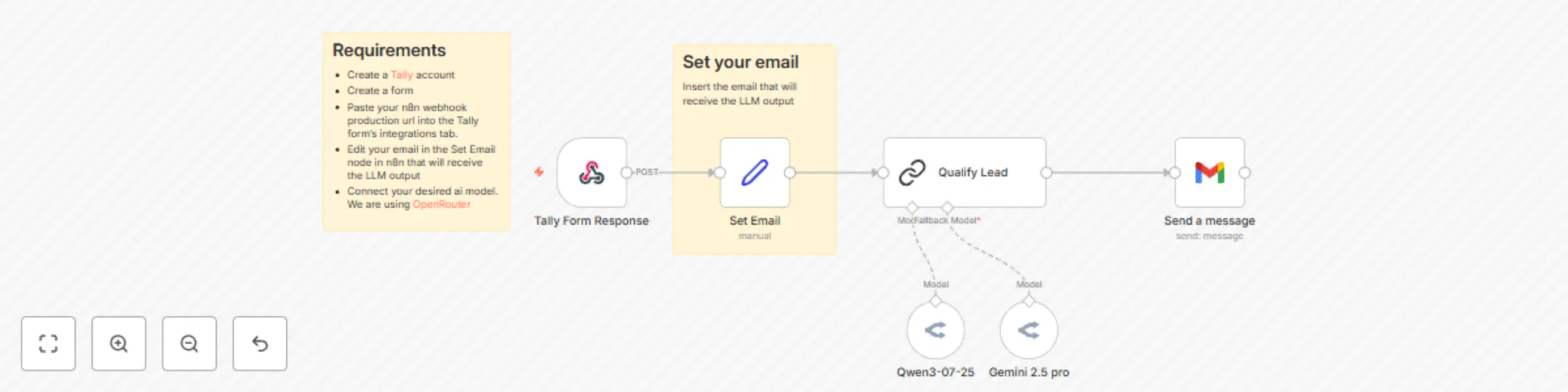
This automated n8n workflow streamlines lead qualification by taking structured lead data from Tally forms, enriching it with Qwen-3’s AI analysis, and promptly notifying your sales or delivery teams. It provides concise summaries, actionable insights, and highlights missing information to focus outreach efforts efficiently. The workflow includes security best practices to prevent prompt injections and ensures data integrity and privacy throughout. ## Requirements ### Tally Forms - A [Tally](https://tally.cello.so/LEr7LHMwPcG) account with an active lead qualification form - Webhook integration enabled to send form responses to n8n ### Qwen-3 Large Language Model - API key and access to your chosen AI model via [OpenRouter](https://openrouter.ai) ### Gmail Notification - Gmail account credentials connected in n8n ## Workflow Breakdown 1. **Trigger: Receive Tally form submission via n8n Webhook** The workflow starts from a Webhook node listening for POST requests from your Tally form. 2. **Extract and map Tally form data** Parse JSON to obtain fields like Company Name, Full Name, Work Email, Employee Count, Industry, Main Challenges Encountered, Goals With the Project, Urgency or Date When Solution Is Needed, Estimated Budget, and Anything Else We Should Know. 3. **Construct the Lead Qualification prompt** Combine a secure system prompt with user data from the form. This prompt instructs Qwen-3 to generate summaries, identify key challenges, recommend action points, suggest follow-up questions, and more. 4. **Send notification with AI analysis** Deliver the formatted message through your chosen channel(s) such as email or Slack, enabling your team to quickly act on qualified leads. ## Potential Improvements - **Capture Lead Role and Authority:** Add fields to the form for role and decision-making authority to improve lead qualification accuracy. - **Expand Notification Channels:** Include SMS or Microsoft Teams notifications alongside email and Slack for better team reach. - **Automate Lead Scoring:** Incorporate a numeric or qualitative lead score based on key input factors to prioritize follow-ups. - **Integrate CRM Task Creation:** Automatically create follow-up tasks or reminders in CRM systemss. ## 🙋‍♂️ Need Help? Feel free to contact us at [**1 Node**](https://1node.ai) Get instant access to a library of [**free resources**](https://1node.ai/resources) we created.

A
Aitor | 1Node
Lead Generation
25 Jul 2025
373
0
Workflow preview: Manage Stripe data using natural language with Kimi K2 via OpenRouter
Free intermediate

Manage Stripe data using natural language with Kimi K2 via OpenRouter

Elevate your Stripe workflows with an AI agent that intelligently, securely, and interactively handles essential Stripe data operations. Leveraging the Kimi K2 model via OpenRouter, this n8n template enables safe data retrieval. From fetching summarized financial insights to managing customer discounts, while strictly enforcing privacy, concise outputs, and operational boundaries. --- ## 🧾 Requirements **Stripe:** - Active Stripe account - API key with read and write access. **n8n:** - Deployed n8n instance (cloud or self-hosted) **OpenRouter:** - Active OpenRouter account with credit - API key from OpenRouter --- ## 🔗 Useful Links - [Stripe](https://stripe.com) - [n8n Stripe Credentials Setup](https://docs.n8n.io/integrations/builtin/credentials/stripe/) - [OpenRouter](https://openrouter.ai/) --- ## 🚦 Workflow Breakdown 1. **Trigger: User Request** - Workflow initiates when an authenticated user sends a message in the chat trigger. 2. **AI Agent (Kimi K2 OpenRouter): Intent Analysis** - Determines whether the user wants to: - List customers, charges, or coupons - Retrieve the account’s balance - Create a new coupon in Stripe - Filters unsupported or unclear requests, explaining permissions or terminology as needed. 3. **Stripe Data Retrieval** - For data queries: - Only returns summarized, masked lists (e.g., last 10 transactions/customers) - Sensitive details, such as card numbers, are automatically masked or truncated - Never exposes or logs confidential information 4. **Coupon Creation** - When a coupon creation is requested: - AI agent collects coupon parameters (discount, expiration, restrictions) - Clearly summarizes the action and **requires explicit user confirmation** before proceeding - Creates the coupon upon confirmation and replies with only the public-safe coupon details --- ## 🛡️ Privacy & Security - **No data storage:** All responses are ephemeral; sensitive Stripe data is never retained. - **Strict minimization:** Outputs are tightly scoped; only partial identifiers are shown and only when necessary. - **Retention rules enforced:** No logs, exports, or secondary storage of Stripe data. - **Confirmation required:** Actions modifying Stripe (like coupon creation) always require the user to approve before execution. - **Compliance-ready:** Aligned with Stripe and general data protection standards. --- ## ⏱️ Setup Steps - Setup time: 10–15 minutes - Add Stripe API credentials in n8n - Add the OpenRouter API credentials in n8n and select your desired AI model to run the agent. In our template we selected Kimi K2 from Moonshot AI. --- ## ✅ Summary This workflow template connects a privacy-prioritized AI agent (Kimi K2 via OpenRouter) with your Stripe account to enable: - Fast, summarized access to customer, transaction, coupon, and balance data - Secure, confirmed creation of discounts/coupons - Complete adherence to authorization, privacy, and operational best practices --- ## 🙋‍♂️ Need Help? Feel free to contact us at [1 Node](https://1node.ai) Get instant access to a library of [free resources](https://1node.ai/resources) we created.

A
Aitor | 1Node
CRM
21 Jul 2025
380
0
Workflow preview: Automate outbound voice calls from Go High Level opportunities with Vapi
Free intermediate

Automate outbound voice calls from Go High Level opportunities with Vapi

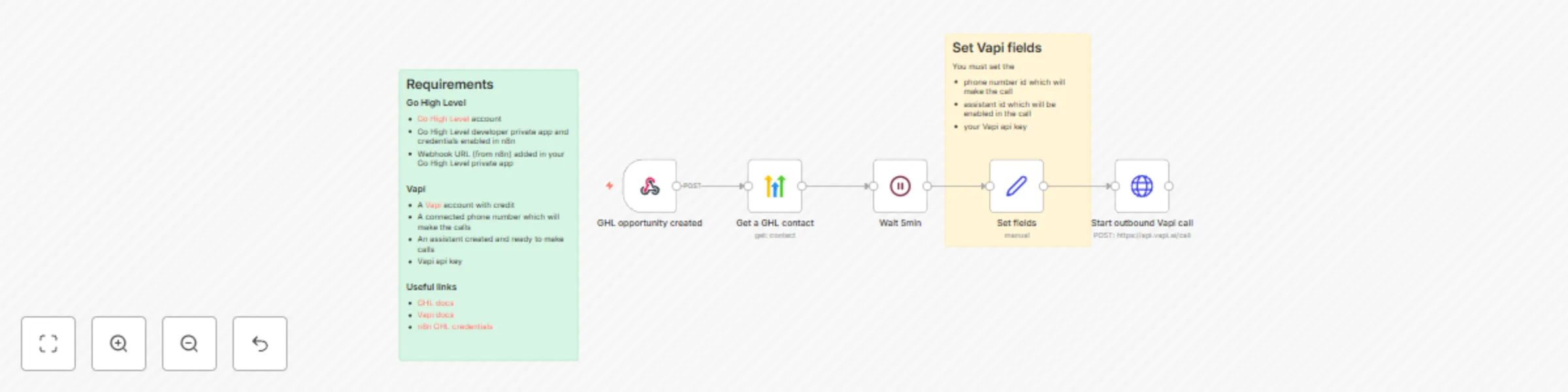
This workflow triggers when a **new opportunity** is created in **Go High Level (GHL)**, fetches the associated contact details, and initiates an **outbound call** using **Vapi**. The call is made by a Vapi assistant configured with the appropriate credentials. --- ## 🧾 Requirements ### Go High Level (GHL) - A [**Go High Level**](https://www.gohighlevel.com/78476a2?fp_ref=1node) account - GHL **developer private app** and **credentials** enabled in n8n - **Webhook URL** from n8n added to your GHL private app ### Vapi - A [**Vapi**](https://vapi.ai/?aff=onenode) account with credit - A connected **phone number** to make calls - An **assistant** created and ready to make calls - Your **Vapi API key** ### 🔗 Useful Links - [GHL Docs](https://help.gohighlevel.com/) - [Vapi Docs](https://docs.vapi.ai/) - [n8n GHL Credentials Setup](https://docs.n8n.io/integrations/builtin/credentials/highlevel/) --- ## 🔄 Workflow Breakdown ### 1. **Trigger: GHL Opportunity Created** - Triggered by a **Webhook (POST)** from Go High Level when a new opportunity is created. - Webhook URL must be enabled in your GHL private app. ### 2. **Get a GHL Contact** - Retrieves contact details from GHL CRM using the contact ID from the opportunity. - Includes information such as phone number, name, and custom fields. ### 3. **Wait 5 Minutes** - Introduces a short delay before making the call to avoid immediate outreach. - Helps ensure data is synced and gives the system time for any follow-up automation. ### 4. **Set Vapi Fields (Manual Step)** - Set the required fields for the Vapi API call: - `vapiPhoneNumberId` – the number id making the call - `vapiAssistantId` – the assistant who will handle the call - `vapiApi` – your secure Vapi API key ### 5. **Start Outbound Vapi Call** - Sends a **POST** request to `https://api.vapi.ai/call` - Payload includes: - Contact’s phone number - Selected Vapi assistant - Vapi phone number id to start the call --- ## ✅ Summary This n8n automation connects your CRM ([Go High Level](https://www.gohighlevel.com/78476a2?fp_ref=1node)) with voice automation ([Vapi](https://vapi.ai/?aff=onenode)) to **immediately respond to new opportunities**. Once a lead is created, they will receive a **personalized voice call** from a Vapi AI assistant. --- ## 🙋‍♂️ Need Help? Feel free to contact us at [**1 Node**](https://1node.ai) Get instant access to a library of [**free resources**](https://1node.ai/resources) we created.

A
Aitor | 1Node
Lead Nurturing
17 Jul 2025
1442
0
Workflow preview: Hostinger form lead capture & qualification with OpenAI, Beehiiv & Google Sheets
Free intermediate

Hostinger form lead capture & qualification with OpenAI, Beehiiv & Google Sheets

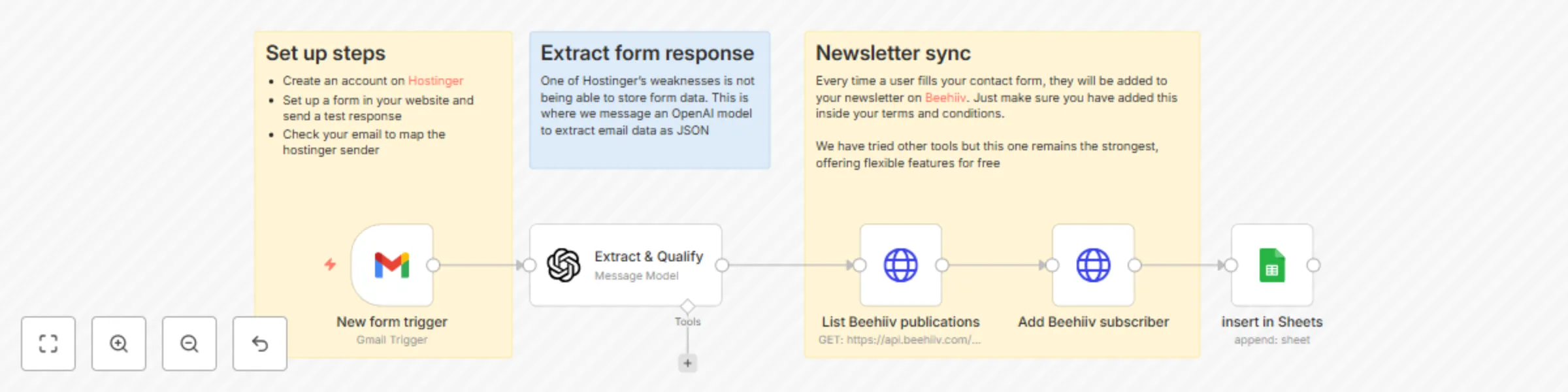
This n8n workflow provides a robust solution for Hostinger website owners looking to streamline their lead capture and qualification process. By integrating AI and popular marketing tools, it ensures efficient management of new leads. ### How it works This workflow automates the process of capturing leads from a Hostinger website form, qualifying them using an AI model, and syncing them with Beehiiv and Google Sheets. * A new form submission on your Hostinger website triggers the workflow via Gmail. * An AI model (OpenAI) extracts and qualifies relevant data from the form response, transforming it into a structured JSON format. * The qualified lead is then added as a new subscriber to your Beehiiv newsletter. * Finally, the lead information is appended to a Google Sheet for comprehensive tracking and record-keeping. ### Set up steps * Create an account on [Hostinger](https://hostinger.es?REFERRALCODE=6MKHELLOUQOS) and set up a form on your website. * Configure a Gmail trigger to capture form submissions from your Hostinger email sender. * Ensure your email is mapped correctly for the Hostinger sender. * Set up your OpenAI API key for the "Extract & Qualify Message Model" node. * Create an account on [Beehiiv](https://www.beehiiv.com?via=1node-ai). Obtain your Beehiiv API key and create your credentials. * Set up a Google Sheet and configure the "insert in Sheets" node with the correct mapping. #### Approximate setup time: 15-30 minutes ### Why you need this? You need this workflow if you're a Hostinger website owner who wants to: * **Automate lead capture:** Say goodbye to manual lead processing and ensure no lead slips through the cracks. * **Qualify leads intelligently:** Leverage AI to instantly extract and qualify crucial lead information, saving you valuable time and improving lead quality. * **Grow your audience efficiently:** Seamlessly add qualified leads to your Beehiiv newsletter, nurturing them from the moment they express interest. * **Maintain organized records:** Automatically centralize all your lead data in a Google Sheet for easy access, analysis, and follow-up. * **Boost productivity:** Free up your time from repetitive administrative tasks and focus on growing your business. ### 👉 Need Help? Feel free to contact us at [1 Node](https://1node.ai). Get instant access to a library of [free resources](https://1node.ai/resources) we created.

A
Aitor | 1Node
Lead Generation
2 Jun 2025
576
0
Workflow preview: Track Partnerstack affiliate events with Google Sheets & Telegram notifications
Free intermediate

Track Partnerstack affiliate events with Google Sheets & Telegram notifications

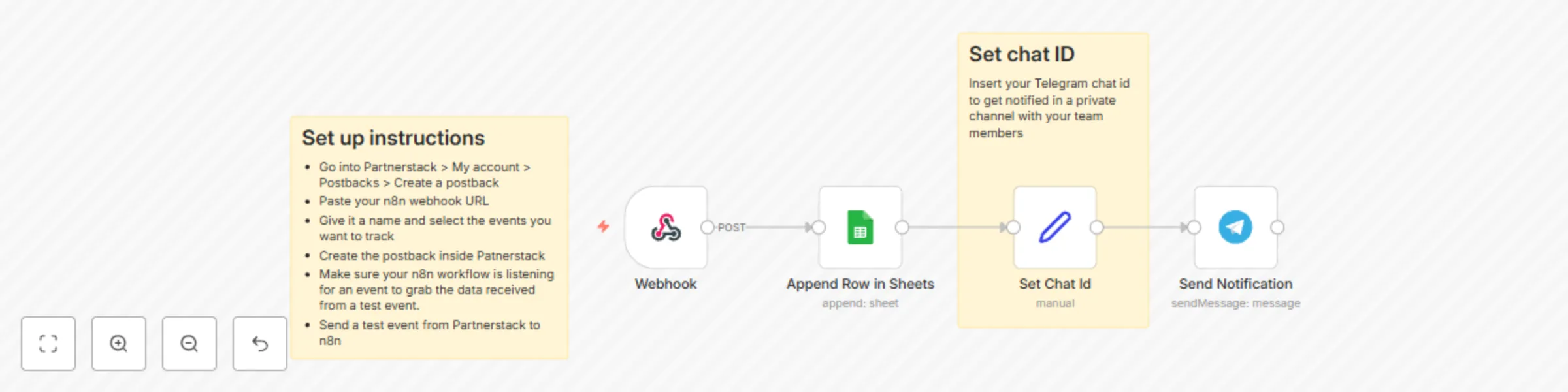
This n8n workflow captures Partnerstack events via a webhook, logs the event data into a Google Sheet, and sends a Telegram notification. ### How it Works: 1. **Webhook Node (Trigger)**: Listens for incoming POST requests. When an event occurs in Partnerstack (e.g., a new referral signs up), the workflow is triggered, capturing the event data. 2. **Append Row in Sheets Node**: Takes the received Partnerstack event data and appends it as a new row to a designated Google Sheet. This creates a historical log of all captured events. 3. **Set Chat ID Node**: Defines the specific Telegram chat ID where notifications will be sent. 4. **Send Notification Node (Telegram)**: Sends a message to the specified Telegram chat. The message content includes details from the Partnerstack event, providing real-time alerts. ### Setup Requirements: * **Partnerstack Postback**: Configure a postback in Partnerstack (`My account > Postbacks > Create a postback`). Paste the URL provided by n8n's **Webhook** node. Select the Partnerstack events you wish to track. * **Google Sheets Authentication**: Provide n8n with Google credentials that have write access to your target Google Sheet. Specify the sheet name. * **Telegram Integration**: You'll need a Telegram bot token (from BotFather) and the specific chat ID for the destination Telegram chat/channel. #### Additional Notes: This workflow efficiently automates logging of Partnerstack activities and provides immediate team awareness through Telegram notifications, streamlining event monitoring and response. ### 👉 Need Help? Feel free to contact us at [1 Node](https://1node.ai). Get instant access to a library of [free resources](https://1node.ai/resources) we created.

A
Aitor | 1Node
CRM
31 May 2025
369
0
Workflow preview: Transcribe voice messages from Telegram using OpenAI Whisper-1
Free intermediate

Transcribe voice messages from Telegram using OpenAI Whisper-1

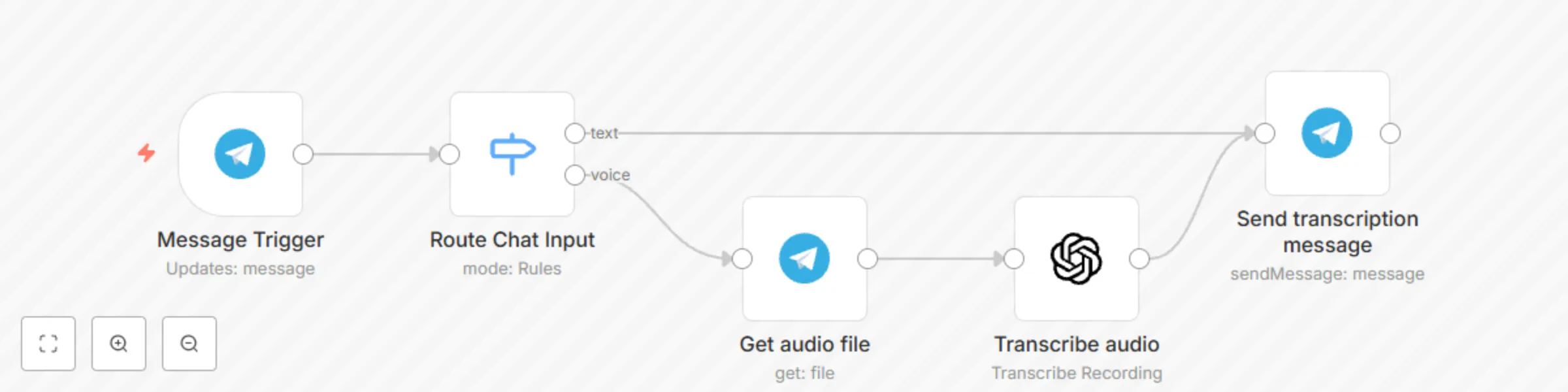
This n8n workflow processes incoming Telegram messages, differentiating between text and voice messages. ### How it works: 1. **Message Trigger**: The workflow initiates when a new message is received via the Telegram "Message Trigger" node. 2. **Switch Node**: This node acts as a router. It examines the incoming message: * If the message is `text`, it directs the flow along the "text" branch. * If the message contains `voice`, it directs the flow along the "voice" branch. 3. **Get Audio File**: For audio messages, this node downloads the audio file from Telegram. 4. **Transcribe Audio**: The downloaded audio file is then sent to an "OpenAI Transcribe Recording" node, which uses OpenAI's `whisper-1` speech-to-text model to convert the audio into a text transcript. 5. **Send Transcription Message**: Regardless of whether the original message was text or transcribed audio, the final text content is then passed to a "Send transcription message" node. ### Setup Requirements: * **Telegram Bot Token**: You will need a Telegram bot token configured in the "Message Trigger" node to receive messages. * **OpenAI API Key**: An OpenAI API key is required for the "Transcribe audio" node to perform speech transcription. ### Additional Notes: This workflow provides a foundational step for building more complex AI-driven applications. The transcribed text or original text message can be easily piped into an AI agent (e.g., a large language model) for analysis, response generation, or interaction with other tools, extending the bot's capabilities beyond simple message reception and transcription. ### 👉 Need Help? Feel free to contact us at [1 Node](https://1node.ai). Get instant access to a library of [free resources](https://1node.ai/resources) we created.

A
Aitor | 1Node
Support Chatbot
31 May 2025
7099
0
Workflow preview: n8n Workflow Error Alerts with Google Sheets, Telegram, and Gmail
Free intermediate

n8n Workflow Error Alerts with Google Sheets, Telegram, and Gmail

This n8n workflow provides a robust error handling and notification system for your n8n workflows. When an error occurs, it automatically logs the error details to Google Sheets, sends a notification to a Telegram channel, and dispatches an email alert, ensuring you're immediately aware of any issues. ### How it works - **Error Trigger:** The workflow is activated whenever an error occurs in another n8n workflow. - **Log Error (Google Sheets):** Error details (e.g., workflow name, error message, timestamp) are appended to a specified Google Sheet, creating a centralized log for all errors. - **Edit Fields (Manual Configuration):** This node allows you to manually set the Telegram chat ID and recipient email for notifications. - **Notify in channel (Telegram):** An error notification containing relevant details is sent to your configured Telegram channel. - **Send email (Gmail):** An email alert with comprehensive error information is sent to the specified recipient. ### Set up steps This setup will take approximately 10-15 minutes. 1. **Download the workflow:** Download this workflow and import it into your n8n instance. 2. **Configure the Error Trigger:** This trigger will automatically activate when an error occurs in any workflow. Make sure you set this workflow as the "Error Workflow" inside the workflows where you want to be alerted. 3. **Configure Log error (Google Sheets):** - Connect your Google Sheets account credentials. - Specify the Google Sheet ID and the sheet name where you want to log the errors. - Ensure the sheet has appropriate headers (e.g., "Timestamp", "Workflow Name", "Error Message", "Error Details") to receive the data. 4. **Configure Edit Fields:** - In the "Edit Fields" node, manually enter your Telegram chat ID. This is the ID of the chat or channel where you want to receive Telegram notifications. - Insert the recipient's email address where you want to receive email alerts. 5. **Configure Notify in channel (Telegram):** - Connect your Telegram account credentials. - Ensure the "Chat ID" field is correctly linked to the output from the "Edit Fields" node. 6. **Configure Send email (Gmail):** - Connect your Gmail account credentials. - Ensure the "To" email address is correctly linked to the output from the "Edit Fields" node. - Customize the subject and body of the email to include relevant error information from the "Error Trigger" node. 7. **Test the workflow:** To test, you can intentionally create an error in another simple n8n workflow. This error workflow should then trigger this error handling workflow, and you can verify if the log is updated, Telegram message is sent, and email is received. Make sure that the workflow you are testing has the "Error Workflow" selected in the workflow's settings. ### Requirements - **n8n instance:** An active n8n instance (self-hosted or cloud). - **Google Account:** A Google account with access to Google Sheets. - **Telegram Account:** A Telegram account and a chat/channel ID for notifications. - **Gmail Account:** A Gmail account to send email alerts. ### Need help? Feel free to contact us at [1 Node](https://1node.ai). Get instant access to a library of [free resources](https://1node.ai/resources) we created.

A
Aitor | 1Node
DevOps
26 May 2025
2144
0
Workflow preview: Generate Daily E-Commerce Order Reports with Supabase, GPT-4.1 and Gmail
Free intermediate

Generate Daily E-Commerce Order Reports with Supabase, GPT-4.1 and Gmail

This n8n workflow automates the generation and delivery of a daily order summary via email. It leverages an AI Agent to fetch and summarize e-commerce order data from the last 24 hours stored in Supabase, providing a concise overview of the daily business operations. ### How it works - **Scheduled Trigger:** The workflow is triggered every day at 8 AM. - **Sender Email Configuration:** A manual step allows you to set the sender's email address. - **AI Agent:** An AI Agent node acts as the central intelligence, interacting with various tools to gather and process data. - **Supabase Data Fetching:** The AI Agent calls "Get Orders," "Get Order Items," "Get Clients," and "Get Products" tables to retrieve relevant e-commerce data from your Supabase database. - **OpenAI Chat Model:** An OpenAI Chat Model with the 4.1 model is integrated to help the AI Agent understand and summarize the fetched data into a human-readable format. - **Gmail Summary:** Finally, the workflow sends a summarized report to your specified email address using the "Send Gmail Summary" node. ### Set up steps This setup will take approximately 15-20 minutes. 1. **Download the workflow:** Download this workflow and import it into your n8n instance. 2. **Configure the Daily 8am trigger:** Ensure the "Daily 8am" trigger is active and set to your desired timezone. 3. **Set Sender Email:** In the "Set Sender Email" node, manually enter the email address you wish to use as the sender for the daily reports. 4. **Configure AI Agent:** - **Chat Model:** Connect your OpenAI Chat Model credential. - **Memory & Tools:** Ensure all the necessary nodes ("Get Orders", "Get Order Items", "Get Clients", "Get Products", "Send Gmail Summary") are correctly linked to the AI Agent. In our workflow we call data from 4 tables in Supabase. 5. **Configure Supabase Database Connections:** - For each of the "Get Orders," "Get Order Items," "Get Clients," and "Get Products" nodes, you will need to configure your Supabase credentials to access your e-commerce database. - Select the tables (e.g., `orders`, `order_items`, `clients`, `products`) that you want the AI agent to pull data from in your Supabase schema. 6. **Configure Gmail Credentials:** In the "Send Gmail Summary" node, connect your Gmail account credentials to allow n8n to send emails on your behalf. 7. **Test the workflow:** Run the workflow manually to ensure all connections are working correctly and the email summary is generated as expected. ### Requirements - **n8n instance:** An active n8n instance (self-hosted or cloud). - **Supabase Account:** A Supabase account with your e-commerce order data accessible. - **OpenAI API Key:** An OpenAI API key for the Chat Model. - **Gmail Account:** A Gmail account credentials to send the daily summaries. ### Need help? Feel free to contact us at [1 Node](https://1node.ai). Get instant access to a library of [free resources](https://1node.ai/resources) we created.

A
Aitor | 1Node
Document Extraction
26 May 2025
2117
0
Workflow preview: Build a Pipedrive MCP server with Google Gemini AI
Free advanced

Build a Pipedrive MCP server with Google Gemini AI

This n8n workflow leverages the power of AI and automation to streamline Pipedrive's CRM operations using natural language commands. It allows you to interact with your Deals, Leads, Persons, and Organizations simply by sending a message. ### How it Works The workflow initiates the process by sending the incoming message to an AI Agent. The AI Agent is powered by Google Gemini Chat Model and utilizing n8n's Simple Memory to maintain context, interprets the natural language command. Based on the interpreted command, the AI Agent instructs the MCP Client node to perform specific actions. The MCP Client then interacts with various nodes from Pipedrive designed to manage Deals, Leads, Persons, and Organizations within your CRM. These nodes can perform actions like creating, getting, updating, or searching for data in each category. Finally, a Gmail node sends a summary compiling the actions executed. ### Set Up Steps - **Set up your MCP Client:** Paste the MCP URL from your MCP Trigger node into the MCP Client node. - **Configure the AI Agent:** Connect your Google Gemini Chat Model credentials or your desired LLM. - **Configure [Pipedrive](https://aff.trypipedrive.com/gfq51z688ekq):** The individual nodes for Deals, Leads, Persons, and Organizations will need to be connected to your specific CRM. Add your Oath credentials for Pipedrive by creating a private app. - **Configuring each specific node** (Create Deal, Get Lead, Update Person, Search Organization, etc.) to perform the desired action. - **Configure Send Summary:** Set up the Gmail node to send the summary email. ### Benefits - **Significant Time Saving:** Automates data entry, retrieval, and updates in your CRM, freeing up valuable time for sales teams and managers. - **Increased Efficiency:** Perform multiple CRM actions with a single natural language command. - **Simplified CRM Interaction:** Interact with your CRM using natural language instead of navigating complex interfaces. - **Reduced Errors:** Automation minimizes manual data entry errors. ### Suggested Enhancements - **Integrate More CRM Operations:** Add nodes for additional CRM functionalities like logging activities, managing tasks, or working with other modules and tools. - **Connect to Other Tools:** Integrate with other sales or marketing tools to create a more comprehensive workflow. - **Advanced AI Capabilities:** Explore fine-tuning the AI model for better understanding of specific industry jargon or complex requests. Should you add more nodes and tools, you might want to insert a specific prompt to the AI agent to give more context about the tools and actions to perform. - **User Management and Permissions:** Customize the private app's permissions on your Pipedrive account to limit access. - **Error Handling and Notifications:** Add more robust error handling and notification systems to be alerted if a workflow run fails. ### Need help? Feel free to contact us at [1 Node](https://1node.ai). Get instant access to a library of [free resources](https://1node.ai/resources) we created.

A
Aitor | 1Node
CRM
14 May 2025
1377
0
Workflow preview: Automate Cal.com meeting attendee management with Google Sheets, Beehiiv & Telegram
Free intermediate

Automate Cal.com meeting attendee management with Google Sheets, Beehiiv & Telegram

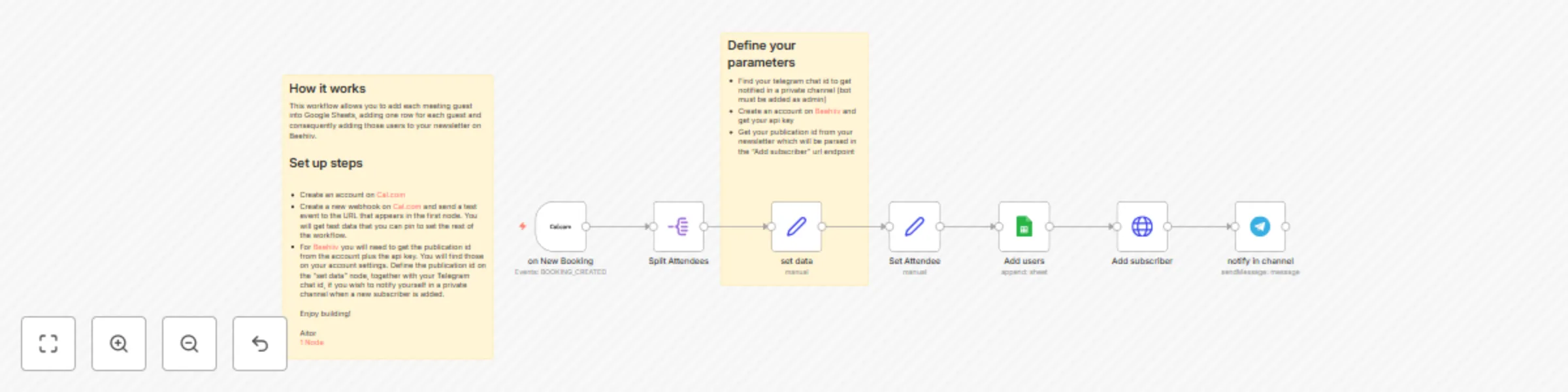
This n8n workflow template automates the process of managing meeting guests booked through Cal.com. It captures attendee information, logs it in a Google Sheet, and subscribes new guests to your Beehiiv newsletter, while also notifying you in Telegram. ### How it Works This workflow is designed to streamline your post-booking process. When a new meeting is booked via Cal.com, the workflow automatically triggers. It extracts the attendee details, adds a new row with the guest's information to a designated Google Sheet, and then adds the guest as a subscriber to your Beehiiv newsletter. Finally, it sends a notification to a specified Telegram channel, keeping you informed of new subscribers. ### Features - **Automated Data Entry:** Automatically log meeting guest details into Google Sheets. - **Newsletter Growth:** Effortlessly add new meeting guests to your Beehiiv subscriber list. - **Real-time Notifications:** Get instant alerts in Telegram for new subscribers. - **Seamless Integration:** Connects Cal.com, Google Sheets, Beehiiv, and Telegram. ### Set Up To use this workflow, you will need the following: - **[Cal.com](https://refer.cal.com/1node):** Set up a Cal.com account and configure a webhook to trigger the workflow on new bookings. You will need the webhook URL provided by the first node in this workflow. - **Google Cloud:** A Google Cloud account with access to Google Sheets. You will need to specify the Sheet and the range where data should be added. - **[Beehiiv](https://www.beehiiv.com?via=1node-ai):** A Beehiiv account. You will need your Beehiiv API key and the publication ID of your newsletter. - **Telegram Account:** A Telegram account and a channel where you want to receive notifications. You will need your Telegram Bot Token and the chat ID of the channel. - **Configure each node** in the workflow with your respective API keys, IDs, and sheet details as required. The "Define your parameters" box in the workflow provides guidance on finding your Telegram chat ID and Beehiiv API key/publication ID. ### Additional Enhancements This workflow can be extended and customized further: - **Conditional Logic:** Add filters to only subscribe guests based on certain criteria (e.g., specific meeting types). - **Data Enrichment:** Integrate with other services to enrich guest data before adding to Google Sheets or Beehiiv. - **CRM Integration:** Connect to a CRM to create or update contact records for new guests. - **Custom Notifications:** Customize the content and format of the Telegram notification. ### Need Help? If you need assistance setting up this workflow, encounter any issues, or would like to explore setting up similar automation workflows tailored to your company's specific needs, please contact us at [1 Node](https://1node.ai).

A
Aitor | 1Node
Social Media
9 May 2025
1409
0
Workflow preview: Build a personal assistant with Google Gemini, Gmail and Calendar using MCP
Free advanced

Build a personal assistant with Google Gemini, Gmail and Calendar using MCP

### Talk to Your Apps: Building a Personal Assistant MCP Server with Google Gemini Wouldn't it be cool to just *tell* your computer or phone to "schedule a meeting with Sarah next Tuesday at 3 PM" or "find John Doe's email address" and have it actually *do* it? That's the dream of a personal assistant! With n8n and the power of MCP and AI models like Google Gemini, you can actually build something pretty close to that. We've put together a workflow that shows you how you can use a natural language chat interface to interact with your other apps, like your CRM, email, and calendar. ### What You Need to Get Started Before you dive in, you'll need a few things: * **n8n:** An n8n instance (either cloud or self-hosted) to build and run your workflow. * **Google Gemini Access:** Access to the Google Gemini model via an API key. * **Credentials for Your Apps:** API keys or login details for the specific CRM, Email, and Calendar services you want to connect (like Google Sheets for CRM, Gmail, Google Calendar, etc., depending on your chosen nodes). * **A Chat Interface:** A way to send messages to n8n to trigger the workflow (e.g., via a chat app node or webhook). ### How it Works (In Simple Terms) Imagine this workflow is like a helpful assistant who sits between you and your computer. **Step 1: You Talk, the AI Agent Listens** It all starts when you send a message through your connected chat interface. Think of this as you speaking directly to your assistant. **Step 2: The Assistant's Brain (Google Gemini)** Your message goes straight to the assistant's "brain." In this case, the brain is powered by a smart AI model like Google Gemini. In our template we are using the latest Gemini 2.5 Pro. But this is totally up to you. Experiment and track which model fits the kind of tasks you will pass to the agent. Its job is to *understand* exactly what you're asking for. * Are you asking to create something? * Are you asking to find information? * Are you asking to update something? The brain also uses a "memory" so it can remember what you've talked about recently, making the conversation feel more natural. We are using the default context window, which is the past 5 interactions. **Step 3: The Assistant Decides What Tool to Use** Once the brain understands your request, the assistant figures out the best way to help you. It looks at the request and thinks, "Okay, to do this, I need to use one of my tools." **Step 4: The Assistant's Toolbox (MCP & Your Apps)** Here's where the "MCP" part comes in. Think of "MCP" (Model Context Protocol) as the assistant's special toolbox. Inside this toolbox are connections to all the different apps and services you use – your CRM for contacts, your email service, and your calendar. The MCP system acts like a manager for these tools, making them available to the assistant whenever they're needed. **Step 5: Using the Right Tool for the Job** Based on what you asked for, the assistant picks the correct tool from the toolbox. * If you asked to find a contact, it grabs the "Get Contact" node from the CRM section. * If you wanted to schedule a meeting, it picks the "Create Event" node from the Calendar section. * If you asked to draft an email, it uses the "Draft Email" node. **Step 6: The Tool Takes Action** Now, the node or set of nodes get to work! It performs the action you requested within the specific app. * The CRM tool finds or adds the contact. * The Email tool drafts the message. * The Calendar tool creates the event. **Step 7: Task Completed!** And just like that, your request is handled automatically, all because you simply told your assistant what you wanted in plain language. ### Why This is Awesome This kind of workflow shows the power of combining AI with automation platforms like n8n. You can move beyond clicking buttons and filling out forms, and instead, interact with your digital life using natural conversation. n8n makes it possible to visually build these complex connections between your chat, the AI brain, and all your different apps. ### Taking it Further (Possible Enhancements) This is just the start! You could enhance this personal assistant by: * Connecting more apps and services (task managers, project tools, etc.). * Adding capabilities to search the web or internal documents. * Implementing more sophisticated memory or context handling. * Getting a notification when the AI agent is done completing each task such as in Slack or Microsoft Teams. * Allowing the assistant to ask clarifying questions if needed. Building a robust prompt for the AI agent. ### Ready to Automate Your Workflow? Imagine the dozens of hours your team could save weekly by automating repetitive tasks through a simple, natural language interface. ### Need help? Feel free to contact us at [1 Node](https://1node.ai). Get instant access to a library of [free resources](https://1node.ai/resources) we created.

A
Aitor | 1Node
Personal Productivity
7 May 2025
34645
0
Workflow preview: Build an MCP server with Airtable
Free intermediate

Build an MCP server with Airtable

### Who is this for? This template is designed for anyone who wants to integrate MCP with their AI Agents using Airtable. Whether you're a developer, a data analyst, or an automation enthusiast, if you're looking to leverage the power of MCP and Airtable in your n8n workflows, this template is for you. ### What problem is this workflow solving? This template caters to MCP beginners seeking a hands-on example and developers looking to integrate Airtable MCP service. When integrating MCP with Airtable, manually updating AI Agents after changes to Airtable data on the MCP Server is time-consuming and error-prone. This template automates the process, enabling the AI Agent to instantly recognize changes made to Airtable on the MCP Server. In data management, for example, it ensures that record updates or additions in Airtable are automatically detected by the AI Agent. With detailed steps, it simplifies the integration process for all users. ### What this workflow does This workflow focuses on integrating MCP with Airtable within n8n. Specifically, it allows you to build an MCP Server and Client using Airtable nodes in n8n. Any changes made to the Airtable Base/Table on the MCP Server are automatically recognized by the MCP Client in the workflow. This means that you can make changes to your Airtable (such as adding, deleting, or modifying records) on the MCP Server, and the MCP Client in the n8n workflow will immediately detect these changes without any manual intervention. ### Setup #### Requirements An active n8n account. Access to Airtable API. A sample base and rows in Airtable that you can use to test. An API key from your preferred LLM to power the AI agent. #### Step-by-step guide 1. **Create a new workflow in n8n:** Log in to your n8n account and create a new workflow. 2. **Add Airtable nodes:** Search for and add the Airtable nodes to your workflow that you wish the MCP client to have access to. 3. **Set up the MCP Server and Client:** Use the appropriate nodes in n8n to set up the MCP Server and Client. Connect the Airtable nodes to the MCP nodes as required. 4. **Activate and test the workflow:** Talk to the chat trigger once all credentials have been updated and table data synced and try adding some rows, deleting or finding and updating cells. ### How to customize this workflow to your needs If you want to customize this workflow, you can: * **Modify the triggers:** You can change the conditions under which the MCP Client detects changes. For example, you can set it to detect changes only in specific fields or based on certain record values in Airtable. * **Integrate with other services:** You can add more nodes to the workflow to integrate with other services, such as sending notifications to Slack or triggering further actions based on the detected Airtable changes. --- ### Need help? Feel free to contact us at [1 Node](https://1node.ai). Get instant access to a library of [free resources](https://1node.ai/resources) we created.

A
Aitor | 1Node
Engineering
6 May 2025
8012
0
Workflow preview: Build a document QA system with RAG using Milvus, Cohere, and OpenAI for Google Drive
Free intermediate

Build a document QA system with RAG using Milvus, Cohere, and OpenAI for Google Drive

### Template Description This template creates a powerful Retrieval Augmented Generation (RAG) AI agent workflow in [n8n](https://n8n.partnerlinks.io/5xf5bs8y3ruv). It monitors a specified Google Drive folder for new PDF files, extracts their content, generates vector embeddings using Cohere, and stores these embeddings in a Milvus vector database. Subsequently, it enables a RAG agent that can retrieve relevant information from the Milvus database based on user queries and generate responses using OpenAI, enhanced by the retrieved context. ### Functionality The workflow automates the process of ingesting documents into a vector database for use with a RAG system. 1. **Watch New Files:** Triggers when a new file (specifically targeting PDFs) is added to a designated Google Drive folder. 2. **Download New:** Downloads the newly added file from Google Drive. 3. **Extract from File:** Extracts text content from the downloaded PDF file. 4. **Default Data Loader / Set Chunks:** Processes the extracted text, splitting it into manageable chunks for embedding. 5. **Embeddings Cohere:** Generates vector embeddings for each text chunk using the Cohere API. 6. **Insert into Milvus:** Inserts the generated vector embeddings and associated metadata into a Milvus vector database. 7. **When chat message received:** Adapt the trigger tool to fit your needs. 8. **RAG Agent:** Orchestrates the RAG process. 9. **Retrieve from Milvus:** Queries the Milvus database with the user's chat query to find the most relevant chunks. 10. **Memory:** Manages conversation history for the RAG agent to optimize cost and response speed. 11. **OpenAI / Cohere embeddings:** Uses ChatGPT 4o for text generation. ### Requirements To use this template, you will need: * An [n8n instance](https://n8n.partnerlinks.io/5xf5bs8y3ruv) (cloud or self-hosted). * Access to a Google Drive account to monitor a folder. * A Milvus instance or access to a Milvus cloud service like [Zilliz](https://zilliz.com). * A [Cohere](https://cohere.com) API key for generating embeddings. * An OpenAI API key for the RAG agent's text generation. ### Usage 1. Set up the required credentials in n8n for Google Drive, Milvus, Cohere, and OpenAI. 2. Configure the "Watch New Files" node to point to the Google Drive folder you want to monitor for PDFs. 3. Ensure your Milvus instance is running and the target cluster is set up correctly. 4. Activate the workflow. 5. Add PDF files to the monitored Google Drive folder. The workflow will automatically process them and insert their embeddings into Milvus. 6. Interact with the RAG agent. The agent will use the data in Milvus to provide context-aware answers. ### Benefits * Automates document ingestion for RAG applications. * Leverages Milvus for high-performance vector storage and search. * Uses Cohere for generating high-quality text embeddings. * Enables building a context-aware AI agent using your own documents. ### Suggested improvements * **Support for More File Types:** Extend the "Watch New Files" node and subsequent extraction steps to handle various document types (e.g., .docx, .txt, .csv, web pages) in addition to PDFs. * **Error Handling and Notifications:** Implement robust error handling for each step of the workflow (e.g., failed downloads, extraction errors, Milvus insertion failures) and add notification mechanisms (e.g., email, Slack) to alert the user. ### Get in touch with us Contact us at [https://1node.ai](https://1node.ai)

A
Aitor | 1Node
Internal Wiki
4 May 2025
3393
0
Workflow preview: Auto-post breaking news content using Perplexity AI to X (Twitter)
Free intermediate

Auto-post breaking news content using Perplexity AI to X (Twitter)

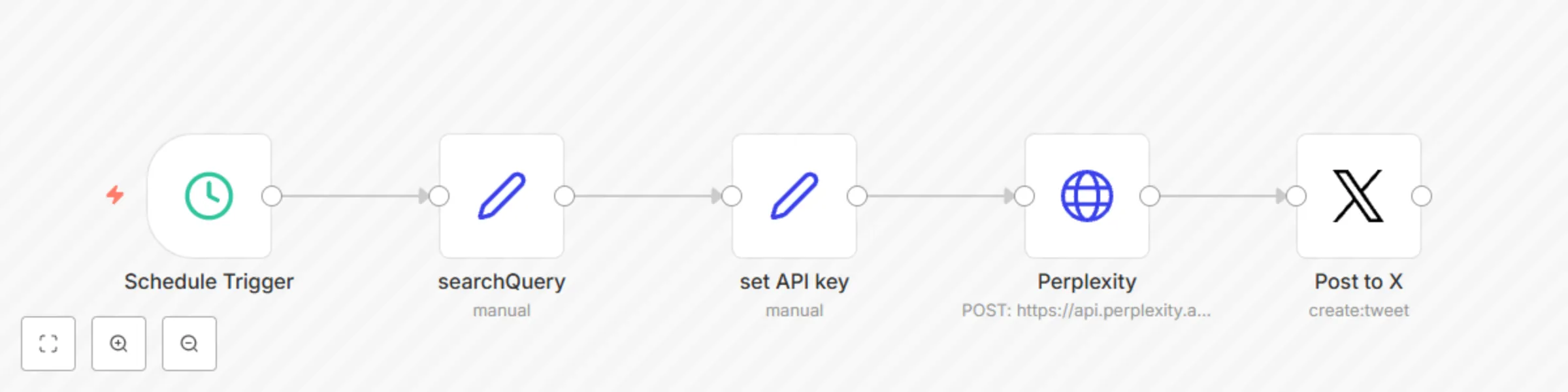
Stay ahead of the curve and keep your followers informed—automatically. This n8n workflow uses Perplexity AI to generate insightful answers to scheduled queries, then auto-posts the responses directly to X (Twitter). --- ### ⚙️ What this workflow does 1. **Scheduled Trigger** – Runs at set times (daily, hourly, etc.). 2. **searchQuery** – Define what kind of trending or relevant insight you want (e.g. “latest AI trends”). 3. **set API Key** – Securely insert your Perplexity API key. 4. **Perplexity API Call** – Fetches a short, insightful response to your query. 5. **Post to X** – Automatically publishes the result as a tweet. --- ### 🧩 Requirements - An [n8n](https://n8n.partnerlinks.io/5xf5bs8y3ruv) account (self-hosted or cloud) - A [Perplexity API key](https://www.perplexity.ai) - A connected X (Twitter) account via n8n’s credentials --- ### ✅ Setup Steps 1. Add this workflow into your n8n account. 2. Edit the `searchQuery` node with a topic (e.g. “What’s new in ecommerce automation?”). 3. Paste your Perplexity API key into the `set API key` node. 4. Connect your X (Twitter) account in the final node. 5. Adjust the schedule timing to suit your content frequency. --- ### 💡 Ideas to Improve - 💬 Add a formatting step to shorten or hashtag the response. - 📊 Pull multiple trending questions and auto-schedule posts. - 🔁 Loop responses to queue a full week of content. - 🌐 Translate content before posting to reach a global audience. --- ### 🆘 Need help? Feel free to contact us at [1 Node](https://1node.ai). Get instant access to a library of [free resources](https://1node.ai/resources) we created.

A
Aitor | 1Node
Social Media
2 May 2025
4398
0
Workflow preview: Convert Gumroad sales to Beehiiv subscribers with Sheets & Telegram alerts
Free intermediate

Convert Gumroad sales to Beehiiv subscribers with Sheets & Telegram alerts

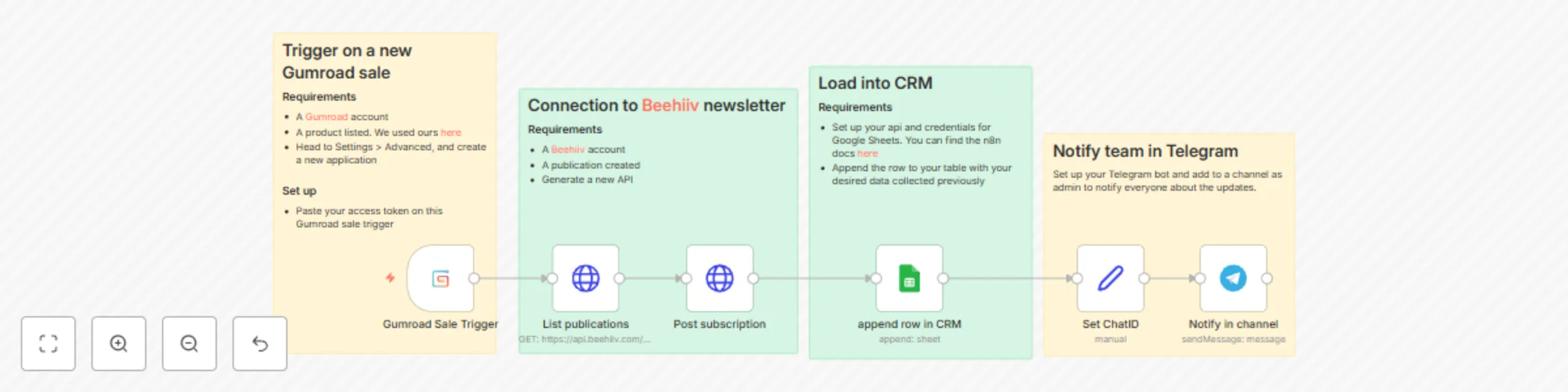
## Turn Gumroad buyers into newsletter subscribers on [Beehiiv](https://www.beehiiv.com?via=1node-ai), log to Google Sheets and get notified on Telegram ### Requirements - **Gumroad account** - **Gumroad application** + **API key** - **Product listed** on Gumroad - **[Beehiiv](https://www.beehiiv.com?via=1node-ai) account** - **Publication created** on Beehiiv - **Beehiiv API key** - **Google Sheets access** (with API credentials) - **Telegram Bot** created + Bot Token - **Telegram Channel** created and Bot added as admin --- ### Set Up #### 1. Trigger on a New Gumroad Sale - Create a **new application** in Gumroad (**Settings > Advanced**). - Copy your **API key** (access token). - Paste it into the **Gumroad Sale Trigger** node. #### 2. Connect to [Beehiiv](https://www.beehiiv.com?via=1node-ai) Newsletter - Create a **publication** inside Beehiiv. - Generate and copy your **Beehiiv API key**. - Use it to **list publications** and **post a new subscription**. #### 3. Load Into CRM (Google Sheets) - Set up your **Google Sheets API credentials** - Append the subscriber's data into your CRM #### 4. Send a Telegram Message - Create a **Telegram Bot** and get your **Bot Token**. - Add the Bot to your **Telegram Channel** and make it an admin. - In the **Telegram Send Message** node: - Use your **Bot Token**. - Set your **Channel Username** or **Chat ID**. - Customize the message content (e.g., "New Sale from {{customerEmail}} 🎉"). --- ### Further Optimizations - **Add more data to [Beehiiv](https://www.beehiiv.com?via=1node-ai)**: Include optional fields like first name, last name, custom tags, etc., when posting the subscription. - **Customize your Telegram message**: Personalize the message with product name, sale amount, or customer name. - **Enhance CRM data**: Add additional sale details into Google Sheets, like product ID, purchase timestamp, or affiliate code if available. - **Error Handling**: Add an error workflow to retry failed Beehiiv or Google Sheets updates automatically or log the error messages in your team chat in Slack or Microsoft Teams. --- ✅ **That's it!** Every time a new sale happens, the customer is added to your Beehiiv newsletter, saved in your CRM, and you receive an instant notification on Telegram! ### Get in touch with us Feel free to contact us at [1 Node](https://1node.ai). Get instant access to a library of [free resources](https://1node.ai/resources) we created.

A
Aitor | 1Node
Social Media
26 Apr 2025
431
0
Workflow preview: Capture Gumroad sales, add buyer to MailerLite group, log to Google Sheets CRM
Free intermediate

Capture Gumroad sales, add buyer to MailerLite group, log to Google Sheets CRM

### Turn Gumroad buyers into loyal email subscribers and keep your CRM up‑to‑date. When someone makes a purchase on your Gumroad store, this n8n workflow instantly adds that customer to the right [MailerLite](https://www.mailerlite.com/a/Kr9Yplim6ZhV) group (so your nurture sequence starts on time) and writes the sale details into your Google Sheets CRM. You’ll never copy‑and‑paste orders again, and every buyer begins receiving your follow‑up emails the moment they purchase. ### Requirements 1. A [Gumroad](https://gumroad.com) account with a product listed 2. A [MailerLite](https://www.mailerlite.com/a/Kr9Yplim6ZhV) account. 3. A MailerLite group of subscribers created 4. Enabled APIs and credentials for Google Sheets, MailerLite and Gumroad ### How it works - **Listen for a new sale on Gumroad** The Gumroad trigger watches your account 24/7 and fires as soon as a sale is completed. - **Create (or update) the subscriber in MailerLite** Their name and email are added to MailerLite. If they already exist, the workflow simply updates their profile. - **Assign the subscriber to your Gumroad group** Grouping lets your MailerLite automation send the right onboarding or upsell sequence without manual tagging. - **Log the purchase in Google Sheets** The buyer’s contact details, product, price, and date are appended as a new row in your CRM sheet. ### Set‑up steps - Create an application in Gumroad. Copy the access token, you’ll paste it into the Gumroad trigger node. - Grab your MailerLite API key MailerLite dashboard → Integrations → API. Paste it into the two MailerLite nodes. - Prepare a Google Sheets spreadsheet Add column headers like Name, Email, Product, Price, Date. Open the template in n8n Cloud or Desktop In the Gumroad node, paste your token. In the MailerLite nodes, paste your API keys and replace the group id. In the Google Sheets node, replace the credentials, pick your spreadsheet and worksheet. ### Get in touch with us Feel free to contact us at [1 Node](https://1node.ai). Get instant access to a library of [free resources](https://1node.ai/resources) we created.

A
Aitor | 1Node
Social Media
24 Apr 2025
496
0