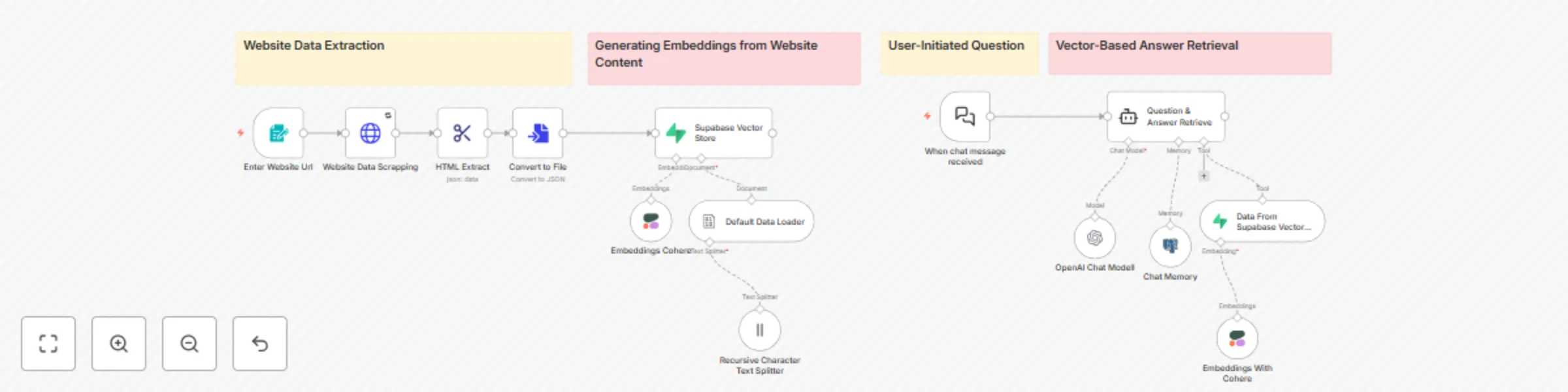
Build website Q&A chatbot with RAG, OpenAI GPT-4o-mini and Supabase Vector DB

Workflow preview

Workflow preview
100%
Build website Q&A chatbot with RAG, OpenAI GPT-4o-mini and Supabase Vector DB preview
Open on n8n.io

Important notice

This workflow is provided as-is. Please review and test before using in production.

1. Workflow Overview

What problem does this workflow solve? Many websites lack a smart, searchable interface. Visitors often leave due to unanswered questions. This workflow transforms any website into a Retrieval Au...

Best for

  • Support Chatbot automation workflows
  • AI RAG automation workflows
  • advanced n8n builders looking for reusable templates

Tools used

@n8n/n8n-nodes-langchain.chattrigger, n8n-nodes-base.htmlextract, @n8n/n8n-nodes-langchain.documentdefaultdataloader, @n8n/n8n-nodes-langchain.textsplitterrecursivecharactertextsplitter, @n8n/n8n-nodes-langchain.vectorstoresupabase, n8n-nodes-base.formtrigger, n8n-nodes-base.stickynote, n8n-nodes-base.httprequest

Source and attribution

This workflow is cataloged by N8N Workflows and links back to its original n8n.io source page by InfyOm Technologies.

Original n8n.io source

1.1 Workflow description

Title
Build website Q&A chatbot with RAG, OpenAI GPT-4o-mini and Supabase Vector DB
Workflow name
Build website Q&A chatbot with RAG, OpenAI GPT-4o-mini and Supabase Vector DB

✅ What problem does this workflow solve?

Many websites lack a smart, searchable interface. Visitors often leave due to unanswered questions. This workflow transforms any website into a Retrieval-Augmented Generation (RAG) chatbot—automatically extracting content, creating embeddings, and enabling real-time, context-aware chat on your own site.


⚙️ What does this workflow do?

  1. Accepts a website URL through a form trigger.
  2. Fetches and cleans website content.
  3. Parses content into smaller sections.
  4. Generates vector embeddings using OpenAI (or your embedding model).
  5. Stores embeddings and metadata in Supabase’s vector database.
  6. When a user asks a question:
    • Searches Supabase for relevant chunks via similarity search.
    • Retrieves matching content as context.
    • Sends context + question to OpenAI to generate an accurate answer.
  7. Returns the AI-generated response to the user in the chat interface.

🔧 Setup Instructions

🖥️ Website Form Trigger

  • Use a Form / HTTP Trigger to submit website URLs for indexing.

📥 Content Extraction & Chunking

  • Use HTTP nodes to fetch HTML.
  • Clean and parse it (e.g., remove scripts, ads).
  • Use a Function node to split into manageable text chunks.

🧠 Embedding Generation

  • Call OpenAI (or Cohere) to generate embeddings for each chunk.
  • Insert vectors and metadata into Supabase via its API or n8n Supabase node.

💬 User Query Handling

  • Use a Chat Trigger (webhook/UI) to receive user questions.
  • Convert the question into an embedding.
  • Query Supabase with similarity search (e.g., match_documents RPC).
  • Retrieve top-matching chunks and feed them into OpenAI with the user question.
  • Return the reply to the user.

🛠 AI & Database Setup

  • OpenAI API key for embedding and chat.
  • A Supabase project with:
    • vector extension enabled
    • Tables for document chunks and embeddings
    • A similarity search function like match_documents

💬 How to Embed the Chat Widget on Your Website

You can add the chatbot interface to your website with a simple JavaScript snippet.

Steps:

  1. Open the "When chat message received" node
  2. Copy Chat URL
  3. Make sure, "Make Chat Publicly Available "Toggle is enabled
  4. Make sure the mode is "Embedded Chat"
  5. Follow the instructions given on this package here.

🧠 How it Works

  1. Submit URL → Form Trigger
  2. Fetch Website Content → HTTP Request
  3. Clean & Chunk Content → Function Node
  4. Make Embeddings (OpenAI/Cohere)
  5. Store in Supabase → embeddings + metadata
  6. User Chat → Chat Trigger
  7. Search for Similar Content → Supabase similarity match
  8. Generate Answer → OpenAI completion w/ context
  9. Send Reply → Chat interface returns answer

🗂 Why Supabase?

Supabase offers a scalable Postgres-based vector database with extensions like pgvector, making it easy to:

  • Store vector data alongside metadata
  • Run ANN (Approximate Nearest Neighbor) similarity searches
  • Integrate seamlessly with n8n and your chatbot UI :contentReference[oaicite:1]{index=1}

👤 Who can use this?

  • 📝 Documentation websites
  • 👩‍💼 Support portals
  • 🏢 Product/Landing pages
  • 🛠 Internal knowledge bases

Perfect for anyone who wants a smart, website-specific chatbot without building an entire AI stack from scratch.


🚀 Ready to Deploy?

Plug in your:

  • ✅ OpenAI API Key
  • ✅ Supabase project credentials
  • ✅ Chat UI or webhook endpoint

… and launch your AI-powered, website-specific RAG chatbot in minutes!

1.2 Logical Blocks

This catalog entry is organized from the workflow JSON. The node-level section below shows the executable blocks available for review before importing the template.

2. Block-by-Block Analysis

Block 1 - When chat message received

Type / Role
@n8n/n8n-nodes-langchain.chatTrigger - chatTrigger
Config choices
Version 1.1

Block 2 - HTML Extract

Type / Role
n8n-nodes-base.htmlExtract - htmlExtract
Config choices
Version 1

Block 3 - Default Data Loader

Type / Role
@n8n/n8n-nodes-langchain.documentDefaultDataLoader - documentDefaultDataLoader
Config choices
Version 1

Block 4 - Recursive Character Text Splitter

Type / Role
@n8n/n8n-nodes-langchain.textSplitterRecursiveCharacterTextSplitter - textSplitterRecursiveCharacterTextSplitter
Config choices
Version 1

Block 5 - Supabase Vector Store

Type / Role
@n8n/n8n-nodes-langchain.vectorStoreSupabase - vectorStoreSupabase
Config choices
Version 1.1

Block 6 - Enter Website Url

Type / Role
n8n-nodes-base.formTrigger - formTrigger
Config choices
Version 2.2

Block 7 - Sticky Note1

Type / Role
n8n-nodes-base.stickyNote - stickyNote
Config choices
Version 1

Block 8 - Sticky Note2

Type / Role
n8n-nodes-base.stickyNote - stickyNote
Config choices
Version 1

Block 9 - Sticky Note3

Type / Role
n8n-nodes-base.stickyNote - stickyNote
Config choices
Version 1

Block 10 - Sticky Note

Type / Role
n8n-nodes-base.stickyNote - stickyNote
Config choices
Version 1

Block 11 - Website Data Scrapping

Type / Role
n8n-nodes-base.httpRequest - httpRequest
Config choices
Version 4.1

Block 12 - Convert to File

Type / Role
n8n-nodes-base.convertToFile - convertToFile
Config choices
Version 1.1

Block 13 - Embeddings Cohere

Type / Role
@n8n/n8n-nodes-langchain.embeddingsCohere - embeddingsCohere
Config choices
Version 1

Block 14 - Question & Answer Retrieve

Type / Role
@n8n/n8n-nodes-langchain.agent - agent
Config choices
Version 1.8

Block 15 - Data From Supabase Vector Store

Type / Role
@n8n/n8n-nodes-langchain.vectorStoreSupabase - vectorStoreSupabase
Config choices
Version 1.1

Block 16 - Embeddings With Cohere

Type / Role
@n8n/n8n-nodes-langchain.embeddingsCohere - embeddingsCohere
Config choices
Version 1

Block 17 - Chat Memory

Type / Role
@n8n/n8n-nodes-langchain.memoryPostgresChat - memoryPostgresChat
Config choices
Version 1.3

Block 18 - OpenAI Chat Modell

Type / Role
@n8n/n8n-nodes-langchain.lmChatOpenAi - lmChatOpenAi
Config choices
Version 1.2

3. Summary Table

Workflow Build website Q&A chatbot with RAG, OpenAI GPT-4o-mini and Supabase Vector DB
Complexity advanced
Nodes 18
Categories Support Chatbot, AI RAG
Author InfyOm Technologies
Published 21 Jul 2025

4. Reproducing the Workflow from Scratch

  1. 1. Download the workflow JSON

    Use the JSON export at /data/workflows/6212/6212.json as the source template for this automation.

  2. 2. Import the template into n8n

    Open n8n, import the downloaded JSON, and review each node before activating the workflow.

  3. 3. Configure credentials and variables

    Replace placeholder credentials, API keys, webhook URLs, account IDs, and environment-specific values with your own settings.

  4. 4. Test with sample data

    Run the workflow manually or in a staging workspace, inspect node output, and confirm downstream systems receive the expected data.

  5. 5. Activate and monitor

    Enable the workflow only after testing, then monitor executions, errors, and rate limits during the first production runs.

5. General Notes & Resources

Review imported nodes carefully before activation. This catalog entry is intended to help you inspect the workflow structure, understand required services, and find related templates faster.

Node names, credentials, schedules, webhook paths, and external service limits may need adjustment for your workspace.

Frequently asked questions

What does Build website Q&A chatbot with RAG, OpenAI GPT-4o-mini and Supabase Vector DB do?

What problem does this workflow solve? Many websites lack a smart, searchable interface. Visitors often leave due to unanswered questions. This workflow transforms any website into a Retrieval Au...

What do I need before importing this workflow?

Review the workflow JSON, configure any required credentials in n8n, and test the automation in a safe workspace before using it in production.

Can I customize this workflow?

Yes. Use the block-by-block analysis and the downloadable JSON to inspect each node, then adjust credentials, prompts, schedules, filters, or destinations for your Support Chatbot, AI RAG use case.