Block 1 - When chat message received
- Type / Role
- @n8n/n8n-nodes-langchain.chatTrigger - chatTrigger
- Config choices
- Version 1.1


 Early Deal
This workflow is provided as-is. Please review and test before using in production.
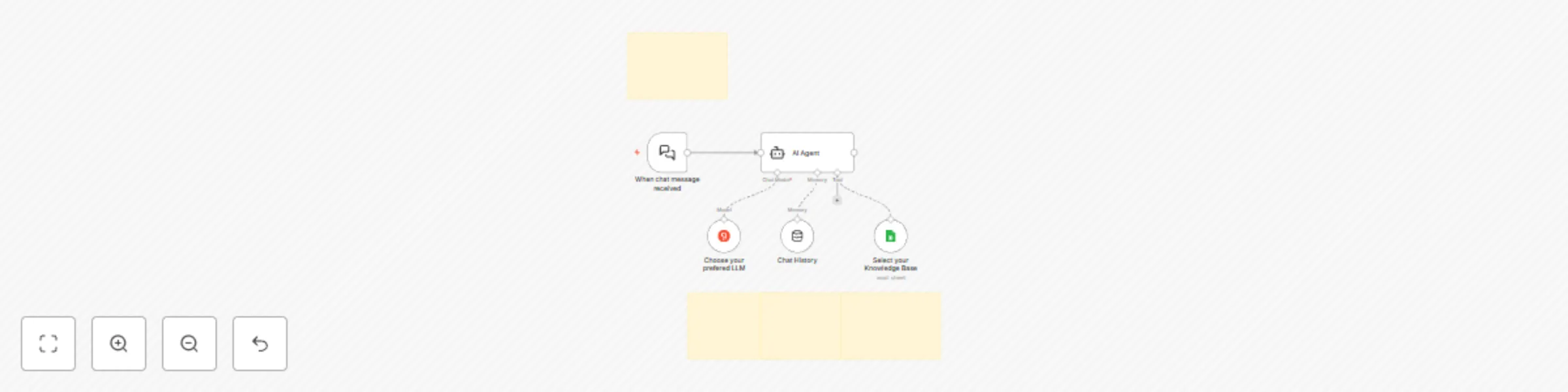
Build a Website Customer Support Chatbot with Groq AI and Google Sheets as its Knowledge Base. Setup Instructions Prerequisites 1. API Credentials Required: Groq API credentials You'll need a valid...
@n8n/n8n-nodes-langchain.chattrigger, @n8n/n8n-nodes-langchain.memorybufferwindow, @n8n/n8n-nodes-langchain.agent, n8n-nodes-base.stickynote, @n8n/n8n-nodes-langchain.lmchatgroq, n8n-nodes-base.googlesheetstool
This workflow is cataloged by N8N Workflows and links back to its original n8n.io source page by Gegenfeld.
Original n8n.io sourceBuild a Website Customer Support Chatbot with Groq AI and Google Sheets as its Knowledge Base.
Add Required Credentials:
Configure the Groq Chat Model:
Set Up Your Knowledge Base:
Configure the Google Sheets Node:
Customize the AI Agent:
Test the Chatbot:
Deploy to Your Website:
Your Google Sheet should be structured with clear headers and organized data. Example format:
| Question | Answer | Category | Keywords |
|---|---|---|---|
| How do I reset my password? | To reset your password, click the "Forgot Password" link on the login page and follow the instructions sent to your email. | Account | password, reset, forgot, login |
| What are your shipping rates? | Standard shipping is $5.99. Express shipping is $12.99. Orders over $50 qualify for free standard shipping. | Shipping | rates, costs, delivery, free shipping |
| How do I return an item? | Returns can be initiated within 30 days of purchase by logging into your account and selecting "Start a Return" in your order history. | Returns | return policy, exchange, refund |
Each row should contain a complete customer query and response pair, with optional categorization and keywords to help the AI find relevant information quickly.
You can use and replace the placeholders in the following code: View on Codepen (external link)
Put the customized Code inside your website's head element (before the </head> tag).
This catalog entry is organized from the workflow JSON. The node-level section below shows the executable blocks available for review before importing the template.
| Workflow | Build a website customer support chatbot with Groq AI and Google Sheets knowledge base |
|---|---|
| Complexity | intermediate |
| Nodes | 9 |
| Categories | Support Chatbot, AI Chatbot |
| Author | Gegenfeld |
| Published | 30 Mar 2025 |
Use the JSON export at /data/workflows/3364/3364.json as the source template for this automation.
Open n8n, import the downloaded JSON, and review each node before activating the workflow.
Replace placeholder credentials, API keys, webhook URLs, account IDs, and environment-specific values with your own settings.
Run the workflow manually or in a staging workspace, inspect node output, and confirm downstream systems receive the expected data.
Enable the workflow only after testing, then monitor executions, errors, and rate limits during the first production runs.
Review imported nodes carefully before activation. This catalog entry is intended to help you inspect the workflow structure, understand required services, and find related templates faster.
Node names, credentials, schedules, webhook paths, and external service limits may need adjustment for your workspace.
Build a Website Customer Support Chatbot with Groq AI and Google Sheets as its Knowledge Base. Setup Instructions Prerequisites 1. API Credentials Required: Groq API credentials You'll need a valid...
Review the workflow JSON, configure any required credentials in n8n, and test the automation in a safe workspace before using it in production.
Yes. Use the block-by-block analysis and the downloadable JSON to inspect each node, then adjust credentials, prompts, schedules, filters, or destinations for your Support Chatbot, AI Chatbot use case.