G

Gegenfeld

16
Workflows

Workflows by Gegenfeld

Workflow preview: Automatically replace and relight the background of any image using APImage
Free intermediate

Automatically replace and relight the background of any image using APImage

This workflow takes an **image URL** and a description of the desired background, then uses the APImage AI API to produce a high-quality image, **preserving the subject** and applying a natural-looking **new background**. ## Example Result Here you can see a before-and-after image, generated by APImage, using this workflow. ![APImage Replace Background Example.png](fileId:2636) --- ## Who This Workflow is For This workflow is perfect for anyone looking to generate polished, professional images quickly: - **E-commerce Teams**: Ensure consistent product images with uniform, professional backdrops to reinforce brand identity and trust. - **Content Creators**: Generate eye-catching visuals for social media, blogs, or marketing campaigns quickly. - **Designers**: Produce realistic mockups and conceptual designs without hours of manual editing. - **Businesses of All Sizes**: Automate large-scale image pipelines efficiently without expanding staff or budget. - **Anyone Needing AI Imaging**: Personal or professional projects can benefit from this automated, high-quality workflow. --- ## How the Workflow Works ![Replace and Relight image background for product images APImage n8n workflow.jpg](fileId:2637) This n8n workflow leverages a **Form Trigger** and APImage’s AI endpoint to automate background replacement: ```text ┌───────────────┐ │ Input Image │ │ (URL / source)│ └───────┬───────┘ │ ▼ ┌──────────────────────────┐ │ Background Replacement │ │ + Lighting Optimization│ │ (APImage AI) │ └───────┬──────────────────┘ │ ▼ ┌──────────────────────┐ │ Download Image │ │ (default name: data) │ └───────┬──────────────┘ │ ▼ ┌───────────────────────────┐ │ Output Nodes │ │ (DBs, Cloud, CMS, APIs) │ └───────────────────────────┘ ```` - **Form Trigger:** Collects the image URL and descriptive prompt. Can be swapped with any data source node (databases, cloud storage, APIs). - **APImage Integration:** Processes the image, separates the subject, generates the new background, and preserves realistic lighting and shadows. - **Download Node:** Retrieves the processed image for storage or further use. - **Output Options:** Automatically upload images to Google Drive, Dropbox, Airtable, Notion, Amazon S3, or any other database, creating a fully automated pipeline. ## How to Set Up the Workflow 1. Add Your APImage API Key 2. Open the APImage API node. 3. Replace **Bearer _YOUR_API_KEY_** with your API key from the [APImage Dashboard 🡥](https://apimage.org/dashboard). ## Test the Workflow 1. Enter a valid image URL and a descriptive prompt in the Replace Background form. 2. Click Run Workflow to see the processed image downloaded locally. 3. Optional: Customize Output Storage 4. Add nodes after the Download step to automatically save images to your preferred storage service or database. ## Requirements - n8n instance: Cloud or self-hosted instance. - APImage account and API key: Required to access the AI API. ## How to Customize the Workflow - **Change Background Prompts:** Modify the form or connect to dynamic sources like databases, CMS, or cloud storage. - **Adjust AI Settings:** Customize preserve_subject, light_direction, and light_strength in the APImage node for perfect results. - **Extend Outputs:** Connect to additional platforms for automatic sharing with teams, clients, or CMS systems. - **Automate Input:** Replace manual form triggers with automated triggers from Google Sheets, Airtable, Shopify, or product databases to handle bulk processing without manual intervention. ## Example Use Cases - **E-commerce:** Consistent product images with professional backgrounds. - **Marketing & Social Media:** Quickly generate visuals adapted to multiple themes. - **Photography & Design:** Produce mockups, portraits, and conceptual images with realistic lighting. - **Business Automation:** Scale image pipelines efficiently for large volumes. ## FAQ **Q: What types of images are supported?** A: JPG, PNG, and WebP are supported. **Q: Can I choose a custom background?** A: Yes. Provide a text description or integrate with other nodes supplying pre-defined backgrounds. **Q: What is the default filename for processed images?** A: The default filename is data, unless renamed in the workflow. **Q: Do I need to store images locally?** A: No. Connect output nodes to databases, cloud storage, or CMS platforms to store images automatically. **Q: Can APImage be used in automated workflows?** A: Absolutely. Integrate with n8n to process images automatically from various sources. **Q: Does it enhance image quality?** A: APImage adjusts lighting and contrast for natural, realistic results. **Q: How is background replacement different from background removal?** A: Background removal makes the background transparent. Background replacement swaps it with a new one and adjusts lighting for a natural look. **Q: Are there limits to the number of images processed?** A: Limits depend on your subscription plan and allocated credits

G
Gegenfeld
Content Creation
16 Sep 2025
241
0
Workflow preview: Query and answer questions from Excel spreadsheets with GPT-4 Mini
Free intermediate

Query and answer questions from Excel spreadsheets with GPT-4 Mini

This workflow creates an intelligent chatbot that uses your Microsoft Excel workbooks as a knowledge base. The AI agent can automatically query your Excel spreadsheets to provide accurate, contextual responses based on your stored data and information. ![825shots_so 1.jpg](fileId:1893) ## Who's it for This template is perfect for: * Business teams who maintain their knowledge base in Excel spreadsheets * Organizations with existing data and processes in Microsoft 365 * Small businesses using Excel for inventory, customer data, or documentation * Teams wanting to make their Excel data conversationally accessible without complex database setup * Companies looking to leverage familiar Excel workflows with AI capabilities ## How it works The workflow combines OpenAI's language model with Microsoft Excel's spreadsheet capabilities to create a smart chatbot. When users ask questions, the AI agent automatically determines which Excel worksheets and data ranges are relevant and uses that information to generate helpful responses. The system maintains conversation history for natural, contextual interactions. ## How to set up 1. **Add your credentials:** - Configure your **Microsoft Excel** (Office 365) credentials in the Get Excel Data node - Set up your **OpenAI API** credentials in the OpenAI Chat Model node 2. **Configure your Excel connection:** - Click the **Get Excel Data** node - Select your Excel workbook containing your knowledge base data - The AI will automatically determine relevant worksheets and data ranges 3. **Customize the AI model:** - Open the **OpenAI Chat Model** node - Choose your preferred model (GPT-4, GPT-3.5-turbo, etc.) - Adjust token limits if needed 4. **Test the chatbot:** - Click the **Chat** button to start a conversation - Ask questions related to your Excel data 5. **Optional - Make it public:** - Enable public access in the Chat Trigger node - Embed the provided code into your website ## Requirements - n8n instance (cloud or self-hosted) - Microsoft 365 account with Excel Online access - Excel workbooks with data you want to query - OpenAI API key with available credits - Microsoft Graph API permissions for Excel access ## How to customize the workflow **Change the AI Provider:** You can replace the OpenAI Chat Model with other providers like Anthropic Claude, Google Gemini, or local models by swapping the language model node. **Adjust Context Window:** Modify the "Remember Chat History" node to increase or decrease how many previous messages the AI remembers (default is 10 interactions). **Update System Instructions:** Edit the Smart AI Agent's system message to change how the assistant behaves or add specific instructions for your use case. **Connect Multiple Workbooks:** Add additional Get Excel Data nodes to give the AI access to multiple Excel workbooks within your Microsoft 365 environment. **Add Data Validation:** Include nodes to validate Excel data format and structure before processing to ensure consistent AI responses. **Add More Tools:** Extend the AI agent with additional tools like web search, email sending, or integration with other Microsoft 365 services. ## Workflow Structure ``` Chat Trigger → Smart AI Agent ← OpenAI Chat Model ↓ Get Excel Data ↑ Remember Chat History ``` The Smart AI Agent orchestrates the conversation, deciding when to query Excel and how to use the retrieved data in responses. The memory buffer ensures natural conversation flow by maintaining context across interactions.

G
Gegenfeld
Internal Wiki
29 Jul 2025
208
0
Workflow preview: Dynamic MongoDB knowledge base chatbot with OpenAI GPT
Free intermediate

Dynamic MongoDB knowledge base chatbot with OpenAI GPT

This workflow creates an intelligent chatbot that uses your MongoDB database as a knowledge base. The AI agent can automatically query your MongoDB collections to provide accurate, contextual responses based on your stored documents and data. ![63shots_so 1.jpg](fileId:1892) ## Who's it for This template is perfect for: * Developers using MongoDB for document-based data storage * Organizations with complex, nested data structures in MongoDB * Teams managing large-scale applications with MongoDB Atlas * Businesses wanting to leverage NoSQL flexibility for AI chatbots * Companies with existing MongoDB infrastructure and expertise ## How it works The workflow combines OpenAI's language model with MongoDB's document database capabilities to create a smart chatbot. When users ask questions, the AI agent automatically constructs MongoDB queries to find relevant documents and uses that data to generate helpful responses. The system maintains conversation history for natural, contextual interactions. ## How to set up 1. **Add your credentials:** - Configure your **MongoDB** connection string and credentials in the MongoDB Database Lookup node - Set up your **OpenAI API** credentials in the OpenAI Chat Model node 2. **Configure your MongoDB connection:** - Click the **MongoDB Database Lookup** node - Specify your MongoDB collection containing your knowledge base data - The AI will automatically construct queries to find relevant documents 3. **Customize the AI model:** - Open the **OpenAI Chat Model** node - Choose your preferred model (GPT-4, GPT-3.5-turbo, etc.) - Adjust token limits if needed 4. **Test the chatbot:** - Click the **Chat** button to start a conversation - Ask questions related to your MongoDB data 5. **Optional - Make it public:** - Enable public access in the Chat Trigger node - Embed the provided code into your website ## Requirements - n8n instance (cloud or self-hosted) - MongoDB instance (self-hosted, MongoDB Atlas, or other MongoDB service) - OpenAI API key with available credits - MongoDB user credentials with read permissions on target collections ## How to customize the workflow **Change the AI Provider:** You can replace the OpenAI Chat Model with other providers like Anthropic Claude, Google Gemini, or local models by swapping the language model node. **Adjust Context Window:** Modify the "Remember Chat History" node to increase or decrease how many previous messages the AI remembers (default is 10 interactions). **Update System Instructions:** Edit the Smart AI Agent's system message to change how the assistant behaves or add specific instructions for your use case. **Connect Multiple Collections:** Add additional MongoDB Database Lookup nodes to give the AI access to multiple collections within your MongoDB database. **Optimize Query Performance:** Create appropriate indexes on your MongoDB collections to improve query performance for frequently accessed data. **Add More Tools:** Extend the AI agent with additional tools like web search, email sending, or integration with other services. ## Workflow Structure ``` Chat Trigger → Smart AI Agent ← OpenAI Chat Model ↓ MongoDB Database Lookup ↑ Remember Chat History ``` The Smart AI Agent orchestrates the conversation, deciding when to query MongoDB and how to use the retrieved documents in responses. The memory buffer ensures natural conversation flow by maintaining context across interactions.

G
Gegenfeld
Internal Wiki
29 Jul 2025
82
0
Workflow preview: AI chatbot with OpenAI GPT-4.1-Mini and Supabase database knowledge base
Free intermediate

AI chatbot with OpenAI GPT-4.1-Mini and Supabase database knowledge base

This workflow creates an intelligent chatbot that uses your Supabase database as a knowledge base. The AI agent can automatically query your Supabase tables to provide accurate, contextual responses based on your stored data. ![AI Chatbot Supabase Database Website Embed.jpg](fileId:1887) ## Who's it for This template is perfect for: * Developers building applications with Supabase backend * Teams using Supabase for real-time data management * Organizations wanting PostgreSQL-powered AI chatbots * Startups leveraging Supabase's Firebase alternative ecosystem * Teams needing scalable, real-time database integration with AI ## How it works The workflow combines OpenAI's language model with Supabase's PostgreSQL database capabilities to create a smart chatbot. When users ask questions, the AI agent automatically determines which Supabase records are relevant and uses that data to generate helpful responses. The system maintains conversation history for natural, contextual interactions. ## How to set up 1. **Add your credentials:** - Configure your **Supabase** project URL and API key in the Supabase Database node - Set up your **OpenAI API** credentials in the OpenAI Chat Model node 2. **Configure your Supabase connection:** - Click the **Supabase Database** node - Select your Supabase table containing your knowledge base data - The AI will automatically determine relevant records - no need to specify individual record IDs 3. **Customize the AI model:** - Open the **OpenAI Chat Model** node - Choose your preferred model (GPT-4, GPT-3.5-turbo, etc.) - Adjust token limits if needed 4. **Test the chatbot:** - Click the **Chat** button to start a conversation - Ask questions related to your Supabase data 5. **Optional - Make it public:** - Enable public access in the Chat Trigger node - Embed the provided code into your website ## Requirements - n8n instance (cloud or self-hosted) - Supabase project with tables containing your knowledge base data - OpenAI API key with available credits - Supabase API key with appropriate read permissions ## How to customize the workflow **Change the AI Provider:** You can replace the OpenAI Chat Model with other providers like Anthropic Claude, Google Gemini, or local models by swapping the language model node. **Adjust Context Window:** Modify the "Remember Chat History" node to increase or decrease how many previous messages the AI remembers (default is 10 interactions). **Update System Instructions:** Edit the Smart AI Agent's system message to change how the assistant behaves or add specific instructions for your use case. **Connect Multiple Tables:** Add additional Supabase Database nodes to give the AI access to multiple tables within your Supabase project. **Add Real-time Features:** Leverage Supabase's real-time capabilities by integrating webhooks or subscriptions to keep your chatbot data current. **Add More Tools:** Extend the AI agent with additional tools like web search, email sending, or integration with other services. ## Workflow Structure ``` Chat Trigger → Smart AI Agent ← OpenAI Chat Model ↓ Supabase Database ↑ Remember Chat History ``` The Smart AI Agent orchestrates the conversation, deciding when to query Supabase and how to use the retrieved data in responses. The memory buffer ensures natural conversation flow by maintaining context across interactions.

G
Gegenfeld
Internal Wiki
29 Jul 2025
101
0
Workflow preview: AI chatbot that queries Baserow database with OpenAI GPT-4 mini
Free intermediate

AI chatbot that queries Baserow database with OpenAI GPT-4 mini

This workflow creates an intelligent chatbot that uses your Baserow database as a knowledge base. The AI agent can automatically query your Baserow tables to provide accurate, contextual responses based on your stored data. ![AI Chatbot Baserow Database Integration.jpg](fileId:1886) ## Who's it for This template is perfect for: * Support teams using Baserow for knowledge management * Small businesses managing customer data in Baserow * Teams looking for an open-source alternative to Airtable-based chatbots * Organizations that want to make their Baserow data conversationally accessible * Self-hosted solution enthusiasts who prefer controlling their data ## How it works The workflow combines OpenAI's language model with Baserow's open-source database capabilities to create a smart chatbot. When users ask questions, the AI agent automatically determines which Baserow records are relevant and uses that data to generate helpful responses. The system maintains conversation history for natural, contextual interactions. ## How to set up 1. **Add your credentials:** - Configure your **Baserow** API credentials in the Baserow Database node - Set up your **OpenAI API** credentials in the OpenAI Chat Model node 2. **Configure your Baserow connection:** - Click the **Baserow Database** node - Select your Baserow table containing your knowledge base data - The AI will automatically determine relevant records - no need to specify individual record IDs 3. **Customize the AI model:** - Open the **OpenAI Chat Model** node - Choose your preferred model (GPT-4, GPT-3.5-turbo, etc.) - Adjust token limits if needed 4. **Test the chatbot:** - Click the **Chat** button to start a conversation - Ask questions related to your Baserow data 5. **Optional - Make it public:** - Enable public access in the Chat Trigger node - Embed the provided code into your website ## Requirements - n8n instance (cloud or self-hosted) - Baserow instance (self-hosted or cloud) with data you want to query - OpenAI API key with available credits - Baserow API token with appropriate permissions ## How to customize the workflow **Change the AI Provider:** You can replace the OpenAI Chat Model with other providers like Anthropic Claude, Google Gemini, or local models by swapping the language model node. **Adjust Context Window:** Modify the "Remember Chat History" node to increase or decrease how many previous messages the AI remembers (default is 10 interactions). **Update System Instructions:** Edit the Smart AI Agent's system message to change how the assistant behaves or add specific instructions for your use case. **Connect Multiple Tables:** Add additional Baserow Database nodes to give the AI access to multiple tables within your Baserow workspace. **Add More Tools:** Extend the AI agent with additional tools like web search, email sending, or integration with other services. ## Workflow Structure ``` Chat Trigger → Smart AI Agent ← OpenAI Chat Model ↓ Baserow Database ↑ Remember Chat History ``` The Smart AI Agent orchestrates the conversation, deciding when to query Baserow and how to use the retrieved data in responses. The memory buffer ensures natural conversation flow by maintaining context across interactions.

G
Gegenfeld
Support Chatbot
29 Jul 2025
69
0
Workflow preview: Automated background removal from images with APImage AI
Free intermediate

Automated background removal from images with APImage AI

This workflow **automatically removes backgrounds from images** using the APImage API. Simply provide an image URL, and the workflow will process it through **AI-powered background removal**, then download the processed image for use in your projects. ![APImage API Remove Backgrounf from Image with AI n8n workflow template.jpg](fileId:1874) ## Who's it for This template is perfect for: * E-commerce businesses needing clean product images * Content creators who need transparent background images * Marketing teams processing large batches of images * Developers building image processing applications * Anyone who regularly needs background-free images ## How it works The workflow uses APImage's AI-powered background removal service to automatically detect and remove backgrounds from images. You provide an image URL through a form interface, the API processes the image using advanced AI algorithms, and returns a clean image with the background removed. The processed image is then downloaded and ready for use. ## How to set up 1. **Get your APImage API key:** - Sign in to the [APImage Dashboard 🡥](https://apimage.org/dashboard) (or create a new APImage account) - Copy your API key from the dashboard 2. **Configure the API connection:** - Double-click the **APImage Integration** node - Replace `YOUR_API_KEY` with your actual API key (keep the `Bearer` prefix) 3. **Test the workflow:** - Click the **Remove Background** form trigger - Enter an image URL in the form - Submit to process the image 4. **Set up output destination (optional):** - Add nodes after the **Download** node to save images to your preferred storage - Options include Google Drive, Dropbox, databases, or cloud storage ## Requirements - n8n instance (cloud or self-hosted) - [APImage 🡥](https://apimage.org) account and valid API key - Images accessible via public URLs for processing ## How to customize the workflow **Replace Input Source:** Swap the Form Trigger with data from other sources like: - Database queries (MySQL, PostgreSQL, SQLite) - Cloud storage (Google Drive, Dropbox, S3) - Other APIs or webhooks - Airtable, Notion, or other productivity tools **Add Output Destinations:** Connect additional nodes after the Download step to save processed images to: - Cloud storage services (Google Drive, Dropbox, S3) - Databases for organized storage - Content management systems - Social media platforms - Email attachments **Batch Processing:** Modify the workflow to process multiple images by connecting it to data sources that provide arrays of image URLs. **Add Image Validation:** Include nodes to validate image URLs or file formats before processing to avoid API errors. ## Workflow Structure ``` Form Trigger → APImage Integration → Download → [Your Output Destination] ``` The Form Trigger collects image URLs, APImage Integration processes the background removal via API, Download retrieves the processed image, and you can add any output destination for the final images. ## API Details The workflow sends a POST request to `https://apimage.org/api/ai-remove-background` with: - **Authorization header:** Your API key - **image_url:** The URL of the image to process - **async:** Set to false for immediate processing The processed image is returned with a transparent background and downloaded automatically.

G
Gegenfeld
Content Creation
27 Jul 2025
833
0
Workflow preview: Create a knowledge base chatbot with OpenAI and Notion for website embedding
Free intermediate

Create a knowledge base chatbot with OpenAI and Notion for website embedding

This workflow creates an **AI chatbot** that uses your **Notion database** as a knowledge base and allows for **website embedding** (e.g., as a customer support chatbot). The AI agent can **automatically query** your Notion pages and databases to provide accurate, **contextual responses** based on your stored content. ![AI Chatbot Notion Database Integration n8n workflow website embed.jpg](fileId:1871) ## Who's it for This template is perfect for: * Support teams who maintain their knowledge base in Notion * Content creators and teams managing documentation in Notion databases * Businesses looking to make their Notion workspace conversationally accessible * Anyone who wants to turn their Notion content into an interactive AI assistant ## How it works The workflow combines OpenAI's language model with Notion's database capabilities to create a smart chatbot. When users ask questions, the AI agent automatically determines which Notion pages or database entries are relevant and uses that content to generate helpful responses. The system maintains conversation history for natural, contextual interactions. ## How to set up 1. **Add your credentials:** - Configure your **Notion API** integration in the Set & Get Notion Database node - Set up your **OpenAI API** credentials in the OpenAI Chat Model node 2. **Configure your Notion connection:** - Click the **Set & Get Notion Database** node - Select your Notion database or page containing your knowledge base content - The AI will automatically determine relevant pages - no need to specify individual page IDs 3. **Customize the AI model:** - Open the **OpenAI Chat Model** node - Choose your preferred model (GPT-4, GPT-3.5-turbo, etc.) - Adjust token limits if needed 4. **Test the chatbot:** - Click the **Chat** button to start a conversation - Ask questions related to your Notion content 5. **Optional - Make it public:** - Enable public access in the Chat Trigger node - Embed the provided code into your website ## Requirements - n8n instance (cloud or self-hosted) - Notion workspace with databases or pages you want to query - OpenAI API key with available credits - Notion API integration with proper permissions ## How to customize the workflow **Change the AI Provider:** You can replace the OpenAI Chat Model with other providers like Anthropic Claude, Google Gemini, or local models by swapping the language model node. **Adjust Context Window:** Modify the "Remember Chat History" node to increase or decrease how many previous messages the AI remembers (default is 10 interactions). **Update System Instructions:** Edit the Smart AI Agent's system message to change how the assistant behaves or add specific instructions for your use case. **Connect Multiple Databases:** Add additional Notion Database nodes to give the AI access to multiple databases or pages within your workspace. **Add More Tools:** Extend the AI agent with additional tools like web search, email sending, or integration with other services. ## Workflow Structure ``` Chat Trigger → Smart AI Agent ← OpenAI Chat Model ↓ Set & Get Notion Database ↑ Remember Chat History ``` The Smart AI Agent orchestrates the conversation, deciding when to query Notion and how to use the retrieved content in responses. The memory buffer ensures natural conversation flow by maintaining context across interactions.

G
Gegenfeld
Support Chatbot
27 Jul 2025
338
0
Workflow preview: Create a smart chatbot using OpenAI GPT and Airtable knowledge base
Free intermediate

Create a smart chatbot using OpenAI GPT and Airtable knowledge base

This workflow creates an intelligent chatbot that uses your Airtable database as a knowledge base. The AI agent can automatically query your Airtable records to provide accurate, contextual responses based on your stored data. ![AI Chatbot with Airtable Integration.jpg](fileId:1865) ## Who's it for This template is perfect for: * Support teams who want to automate responses using their knowledge base * Content creators managing media libraries in Airtable * Businesses looking to deploy AI chatbots with custom data sources * Anyone who wants to make their Airtable data conversationally accessible ## How it works The workflow combines OpenAI's language model with Airtable's database capabilities to create a smart chatbot. When users ask questions, the AI agent automatically determines which Airtable records are relevant and uses that data to generate helpful responses. The system maintains conversation history for natural, contextual interactions. ## How to set up 1. **Add your credentials:** - Configure your **Airtable Personal Access Token** in the Airtable Database node - Set up your **OpenAI API** credentials in the OpenAI Chat Model node 2. **Configure your Airtable connection:** - Click the **Airtable Database** node - Select your Base and Table containing your knowledge base data - The AI will automatically determine relevant records - no need to specify Record IDs 3. **Customize the AI model:** - Open the **OpenAI Chat Model** node - Choose your preferred model (GPT-4, GPT-3.5-turbo, etc.) - Adjust token limits if needed 4. **Test the chatbot:** - Click the **Chat** button to start a conversation - Ask questions related to your Airtable data 5. **Optional - Make it public:** - Enable public access in the Chat Trigger node - Embed the provided code into your website ## Requirements - n8n instance (cloud or self-hosted) - Airtable account with data you want to query - OpenAI API key with available credits - Airtable Personal Access Token ## How to customize the workflow **Change the AI Provider:** You can replace the OpenAI Chat Model with other providers like Anthropic Claude, Google Gemini, or local models by swapping the language model node. **Adjust Context Window:** Modify the "Remember Chat History" node to increase or decrease how many previous messages the AI remembers (default is 10 interactions). **Update System Instructions:** Edit the Smart AI Agent's system message to change how the assistant behaves or add specific instructions for your use case. **Connect Multiple Tables:** Add additional Airtable Database nodes to give the AI access to multiple tables or bases. **Add More Tools:** Extend the AI agent with additional tools like web search, email sending, or integration with other services. ## Workflow Structure ``` Chat Trigger → Smart AI Agent ← OpenAI Chat Model ↓ Airtable Database ↑ Remember Chat History ``` The Smart AI Agent orchestrates the conversation, deciding when to query Airtable and how to use the retrieved data in responses. The memory buffer ensures natural conversation flow by maintaining context across interactions.

G
Gegenfeld
Support Chatbot
26 Jul 2025
89
0
Workflow preview: Remove image backgrounds with APImage AI: Airtable to Google Drive
Free intermediate

Remove image backgrounds with APImage AI: Airtable to Google Drive

# AI Background Removal Workflow This workflow **automatically removes backgrounds** from images stored in **Airtable** using the **[APImage API 🡥](https://apimage.org)**, then downloads and saves the processed images to **Google Drive**. Perfect for batch processing product photos, portraits, or any images that need clean, transparent backgrounds. The source (Airtable) and the storage (Google Drive) can be **changed to any service** or database you want/use. ![Remove Background Images Automated AI n8n workflow.jpg](fileId:1864) ## 🧩 Nodes Overview ### 1. **Remove Background** (Manual Trigger) This manual trigger starts the background removal process when clicked. **Customization Options:** - Replace with **Schedule Trigger** for automatic daily/weekly processing - Replace with **Webhook Trigger** to start via API calls - Replace with **File Trigger** to process when new files are added --- ### 2. **Get a Record** (Airtable) Retrieves media files from your Airtable "Creatives Library" database. - Connects to the "Media Files" table in your Airtable base - Fetches records containing image thumbnails for processing - Returns all matching records with their thumbnail URLs and metadata **Required Airtable Structure:** - Table with image/attachment field (currently expects "Thumbnail" field) - Optional fields: File Name, Media Type, Upload Date, File Size **Customization Options:** - Replace with **Google Sheets**, **Notion**, or any database node - Add filters to process only specific records - Change to different tables with image URLs --- ### 3. **Code** (JavaScript Processing) Processes Airtable records and prepares thumbnail data for background removal. - Extracts thumbnail URLs from each record - Chooses best quality thumbnail (large > full > original) - Creates clean filenames by removing special characters - Adds processing metadata and timestamps **Key Features:** ```javascript // Selects best thumbnail quality if (thumbnail.thumbnails?.large?.url) { thumbnailUrl = thumbnail.thumbnails.large.url; } // Creates clean filename cleanFileName: (record.fields['File Name'] || 'unknown') .replace(/[^a-zA-Z0-9]/g, '_') .toLowerCase() ``` **Easy Customization for Different Databases:** - **Product Database**: Change field mappings to 'Product Name', 'SKU', 'Category' - **Portfolio Database**: Use 'Project Name', 'Client', 'Tags' - **Employee Database**: Use 'Full Name', 'Department', 'Position' --- ### 4. **Split Out** Converts the array of thumbnails into individual items for parallel processing. - Enables processing multiple images simultaneously - Each item contains all thumbnail metadata for downstream nodes --- ### 5. **APImage API** (HTTP Request) Calls the APImage service to remove backgrounds from images. **API Endpoint:** ``` POST https://apimage.org/api/ai-remove-background ``` **Request Configuration:** - **Header**: `Authorization: Bearer YOUR_API_KEY` - **Body**: `image_url: {{ $json.originalThumbnailUrl }}` ✅ **Setup Required:** 1. Replace `YOUR_API_KEY` with your actual API key 2. Get your key from [APImage Dashboard 🡥](https://apimage.org/dashboard) --- ### 6. **Download** (HTTP Request) Downloads the processed image from APImage's servers using the returned URL. - Fetches the background-removed image file - Prepares image data for upload to storage --- ### 7. **Upload File** (Google Drive) Saves processed images to your Google Drive in a "bg_removal" folder. **Customization Options:** - Replace with **Dropbox**, **OneDrive**, **AWS S3**, or **FTP** upload - Create date-based folder structures - Use dynamic filenames with metadata - Upload to multiple destinations simultaneously --- ## ✨ How To Get Started 1. **Set up APImage API:** - Double-click the **APImage API** node - Replace `YOUR_API_KEY` with your actual API key - Keep the `Bearer` prefix 2. **Configure Airtable:** - Ensure your Airtable has a table with image attachments - Update field names in the **Code** node if different from defaults 3. **Test the workflow:** - Click the **Remove Background** trigger node - Verify images are processed and uploaded successfully 🔗 [Get your API Key 🡥](https://apimage.org/dashboard) --- ## 🔧 How to Customize ### **Input Customization** (Left Section) Replace the Airtable integration with any data source containing image URLs: - **Google Sheets** with product catalogs - **Notion** databases with image galleries - **Webhooks** from external systems - **File system** monitoring for new uploads - **Database** queries for image records ### **Output Customization** (Right Section) Modify where processed images are stored: - **Multiple Storage**: Upload to Google Drive + Dropbox simultaneously - **Database Updates**: Update original records with processed image URLs - **Email/Slack**: Send processed images via communication tools - **Website Integration**: Upload directly to WordPress, Shopify, etc. ### **Processing Customization** - **Batch Processing**: Limit concurrent API calls - **Quality Control**: Add image validation before/after processing - **Format Conversion**: Use Sharp node for resizing or format changes - **Metadata Preservation**: Extract and maintain EXIF data --- ## 📋 Workflow Connections ```text Remove Background → Get a Record → Code → Split Out → APImage API → Download → Upload File ``` --- ## 🎯 Perfect For - **E-commerce**: Batch process product photos for clean, professional listings - **Marketing Teams**: Remove backgrounds from brand assets and imagery - **Photographers**: Automate background removal for portrait sessions - **Content Creators**: Prepare images for presentations and social media - **Design Agencies**: Streamline asset preparation workflows --- ## 📚 Resources - [APImage API Documentation 🡥](https://apimage.org/docs) - [Airtable API Reference 🡥](https://airtable.com/developers/web/api/introduction) - [n8n Documentation 🡥](https://docs.n8n.io) --- **⚡ Processing Speed**: Handles multiple images in parallel for fast batch processing **🔒 Secure**: API keys stored safely in n8n credentials **🔄 Reliable**: Built-in error handling and retry mechanisms

G
Gegenfeld
Content Creation
26 Jul 2025
278
0
Workflow preview: Generate AI images with APImage and upload to Google Drive
Free intermediate

Generate AI images with APImage and upload to Google Drive

# AI Image Generator Workflow This workflow lets you automatically generate AI images with the **[APImage API 🡥](https://apimage.org)**, download the generated image, and upload it to any serivce you want (e.g., Google Drive, Notion, Social Media, etc.). ![AI Image Generate APImage.jpg](fileId:1860) ## 🧩 Nodes Overview ### 1. **Generate Image** (Trigger) This node contains the following fields: - **Image Prompt**: *(text input)* - **Dimensions**: `Square`, `Landscape`, `Portrait` - **AI Model**: `Basic`, `Premium` This acts as the entry point to your workflow. It collects input and sends it to the APImage API node. **_Note: You can swap this node with any other node that lets you define the parameters shown above._** --- ### 2. **APImage API** (HTTP Request) This node sends a `POST` request to: ``` https://apimage.org/api/ai-image-generate ```` The request body is dynamically filled with values from the first node: ```json { "prompt": "{{ $json['Describe the image you want'] }}", "dimensions": "{{ $json['Dimensions'] }}", "model": "{{ $json['AI Model'] }}" } ```` ✅ Make sure to set your **API Key** in the `Authorization` header like this: `Bearer YOUR_API_KEY` 🔐 You can find your API Key in your [APImage Dashboard 🡥](https://apimage.org/dashboard) --- ### 3. **Download Image** (HTTP Request) Once the image is generated, this node downloads the image file using the URL returned by the API: ```js {{ $json.images[0] }} ``` The image is stored in the output field: `generated_image` --- ### 4. **Upload to Google Drive** This node takes the image from the `generated_image` field and uploads it to your connected Google Drive. 📁 You can configure a different target folder or replace this node with: * Dropbox * WordPress * Notion * Shopify * Any other destination Make sure to pass the correct **filename and file field**, as defined in the "Download Image" node. [Set up Google Drive credentials 🡥](https://docs.n8n.io/integrations/builtin/app-nodes/n8n-nodes-base.googledrive) --- ## ✨ How To Get Started 1. Double-click the **APImage API** node. 2. Replace `YOUR_API_KEY` with your actual key (keep `Bearer` prefix). 3. Open the **Generate Image** node and test the form. 🔗 [Open the Dashboard 🡥](https://apimage.org/dashboard) --- ## 🔧 How to Customize * Replace the **Form Trigger** with another node if you're collecting data elsewhere (e.g., via Airtable, Notion, Webhook, Database, etc.) * Modify the **Upload node** if you'd like to send the image to other tools like Slack, Notion, Email, or an S3 bucket. --- ## 📚 API Docs & Resources * [APImage API Docs 🡥](https://apimage.org/docs) * [n8n Documentation 🡥](https://docs.n8n.io) --- ## 🖇️ Node Connections ```text Generate Image → APImage API → Download Image → Upload to Google Drive ``` --- ✅ This template is ideal for: * Content creators automating media generation * SaaS integrations for AI tools * Text-to-image pipelines

G
Gegenfeld
Content Creation
25 Jul 2025
751
0
Workflow preview: Monitor SEO keyword rankings with LLaMA AI & Apify Google SERP scraping
Free advanced

Monitor SEO keyword rankings with LLaMA AI & Apify Google SERP scraping

## Who is this template for? This SEO Keyword Monitoring workflow template is perfect for SEO professionals, digital marketing agencies, website owners, and content strategists who need to track their search rankings and get actionable insights when they're not performing well. Whether you're managing multiple client sites, monitoring your own brand's visibility, or conducting competitive analysis, this automation provides comprehensive rank tracking with AI-powered recommendations. ![Monitor SEO Keyword Rankings with AIpowered Google Search API Scraping n8n workflow.png](fileId:1357) ## What problem does this workflow solve? Manual keyword rank tracking is time-consuming and often provides limited actionable insights. SEO professionals typically struggle with: - Manually checking search rankings across different countries and languages - Identifying why a website isn't ranking for target keywords - Getting specific, actionable recommendations for SEO improvements - Tracking competitor performance and market positioning - Scaling rank monitoring across multiple keywords and domains - Generating professional reports for clients or stakeholders ## What this workflow does This n8n workflow automates comprehensive SEO keyword monitoring with intelligent analysis and reporting. It tracks your rankings in Google search results and provides AI-powered insights when your site isn't performing as expected. Here's what it includes: - **Multi-language web form** that accepts keyword, domain, country (24 options), and language (12 options) - **Intelligent localization** that converts country/language selections into proper API codes - **Real-time Google SERP scraping** using Apify's Google Search API (up to 100 results per query) - **Automated rank detection** that checks if your domain appears in the search results - **Dual email reporting system:** - **Success reports:** Beautiful HTML tables showing your rankings, competitor positions, titles, URLs, and descriptions - **AI-powered improvement reports:** When your site doesn't rank, an AI agent (LLaMA 70B) analyzes the search results and provides specific, actionable SEO recommendations - **Professional email formatting** with HTML markup for easy sharing with clients or teams ## Setup Getting started is straightforward: ### Connect your Apify account - Sign up for a free [Apify account 🡥](https://www.apify.com?fpr=z2bab) - Get your Personal API Token from **Settings → API & Integrations** - Replace `YOUR_API_TOKEN` in the HTTP Request node with your actual token ### Configure the AI model - The workflow uses **Groq AI with LLaMA 70B** by default - Connect your Groq account or replace with **OpenAI**, **Claude**, or another LLM - The AI agent analyzes search results and provides tailored SEO recommendations ### Set up email delivery / data export - Configure the **Mailjet** nodes with your email credentials - Or replace with **Gmail**, **Outlook**, **SMTP**, or other email providers - Or replace with/add **Google Sheets**, **Airtable**, **Notion** or similar service, for data storage - Set your sender and recipient email addresses ### Test the workflow - Click **"Test workflow"** to access the web form - Enter a keyword, domain, country, and language - Check your email for either ranking results or AI-powered recommendations ### Activate the workflow - Turn on the trigger so you can access the form anytime - Share the form URL with team members or clients ## How to customize this workflow This template is highly flexible and can be adapted for various SEO monitoring needs: - **Scale up monitoring:** Add loops to track multiple keywords simultaneously - **Alternative outputs:** Replace email nodes with **Google Sheets**, **Airtable**, or **Notion** for data storage - **Team notifications:** Connect to **Slack**, **Discord**, or **Microsoft Teams** for instant alerts - **Scheduled monitoring:** Add **cron triggers** for daily, weekly, or monthly automated checks - **Enhanced analysis:** Integrate additional AI models for deeper competitive analysis - **Custom reporting:** Modify the HTML templates to match your brand or client requirements - **Data persistence:** Add **database connections** to store historical ranking data - **Competitor tracking:** Expand the logic to monitor multiple domains for the same keywords ## Key features - **24 country support:** Track rankings in major markets worldwide - **12 language options:** Monitor multilingual SEO performance - **AI-powered insights:** Get specific recommendations when rankings are low - **Professional reporting:** HTML-formatted emails ready for client delivery - **Competitor analysis:** See who's ranking above you with full SERP data - **Scalable architecture:** Easy to extend for enterprise-level monitoring This workflow transforms manual rank checking into an intelligent, automated system that not only tracks your performance but actively helps you improve it with AI-driven recommendations. Developed by [Gegenfeld 🡥](https://gegenfeld.com) and [codecope 🡥](https://codecope.org/) in Berlin, Germany.

G
Gegenfeld
Market Research
22 May 2025
772
0
Workflow preview: Track SEO keyword rankings in Google Search with ScrapingBee API
Free intermediate

Track SEO keyword rankings in Google Search with ScrapingBee API

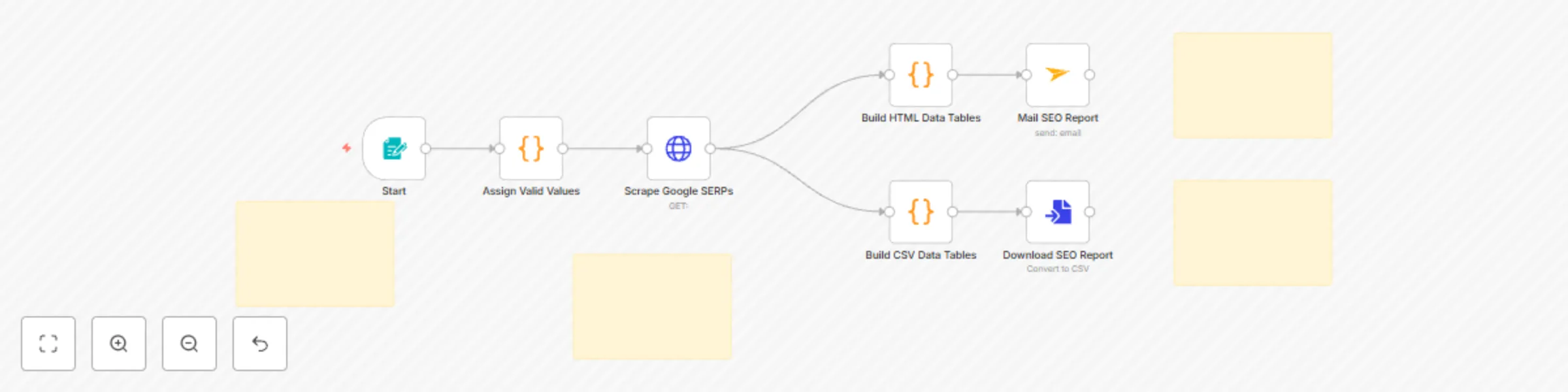
## Who is this template for? This SEO Reporting workflow template is ideal for digital marketers, SEO consultants, content strategists, and founders who need to quickly gather, format, and store Google search result data. If you regularly audit SERPs, track keyword performance, or monitor competitors, this automation lets you generate polished SEO reports in seconds—ready to share or analyze further. ![Google SERP Scraper n8n.jpg](fileId:1315) ## What problem does this workflow solve? Scraping and formatting Google search results for SEO insights is often manual, repetitive, and error-prone or requires expensive software. Professionals frequently face challenges like: * Collecting live, structured data from Google for multiple keywords * Converting raw search results into readable reports for clients or stakeholders * Logging changes in rankings or URLs across time for historical tracking * Exporting SEO data into spreadsheets for deeper analysis * High monthly software fees ## What this workflow does This n8n workflow scrapes the top organic Google search results for a given keyword and automatically creates a downloadable report while also logging the results in a table format for long-term storage or further processing. Here’s what it includes: * A trigger form that accepts a search keyword from the user * An automated API call to fetch Google’s SERP data * Two output formats: a formatted **HTML table** for emails and a **Markdown table** for download (e.g., for Excel, Airtable or Google Sheets) * Automatic CSV file generation for download * Optional email delivery of the report ## Setup Getting started is simple: 1. **Enter your API key** * Add your API key to the “Scrape Google SERPs” HTTP Request node (Step-by-step guide inside the template) * Replace the default query with your own custom Google search parameters if needed 2. **Set up delivery options** * Update your email in the “Mail SEO Report” node for report delivery * Use the downloadable file output from the “Convert to File” node * Optional: Add a Google Sheets (or similar) node which imports the file 3. **Test the workflow** * Use the built-in form to input a keyword * Confirm that results appear in both your email and downloadable file 4. **Activate the workflow** * Turn on the trigger so your team or clients can submit keywords at any time ## How to customize this workflow This template is easy to extend for a variety of SEO automation needs: * Add a loop to handle multiple keywords at once * Connect to Airtable, Notion or Google Sheets * Integrate with Slack or Discord for notifications * Apply additional filtering to track only new or changed search results * Schedule it to run daily or weekly with a cron trigger By combining live SERP scraping, report formatting, and spreadsheet integration, this workflow gives you a fast and flexible SEO reporting system you can use right away or scale up as needed.

G
Gegenfeld
Market Research
16 May 2025
412
0
Workflow preview: Query PostgreSQL database with natural language using Groq AI chatbot
Free intermediate

Query PostgreSQL database with natural language using Groq AI chatbot

This guide shows you how to deploy a chatbot that lets you query your **PostgreSQL** database using natural language. You will build a system that accepts chat messages, retains conversation history, constructs dynamic SQL queries, and returns responses generated by an AI model. By following these instructions, you will have a working solution that integrates n8n’s AI Agent capabilities with **PostgreSQL**. ![AI Chatbot PostgreSQL.png](fileId:1161) ### Prerequisites Before you begin, ensure that you have the following: * An active n8n instance (self-hosted or cloud) running version 1.50.0 or later. * Valid **PostgreSQL** credentials configured in n8n. * API credentials for the Groq Chat Model (or your preferred AI language model). * Basic familiarity with SQL (specifically **PostgreSQL** syntax) and n8n node concepts such as chat triggers and memory buffers. * Access to the n8n Docs on AI Agents for further reference. ### Workflow Setup 1. **Chat Interface & Trigger** * **When Chat Message Received:** This node listens for incoming chat messages via a webhook. When a message arrives, it triggers the workflow immediately. 2. **Conversation Memory** * **Chat History:** This memory buffer node stores the last 10 interactions. It supplies conversation context to the AI Agent, ensuring that responses consider previous messages. 3. **AI Agent Core** * **AI Agent (Tools Agent):** The AI Agent node orchestrates the conversation by receiving the chat input and conversation history. It dynamically generates **PostgreSQL**-compatible SQL queries based on your requests and coordinates calls to external tools (such as **PostgreSQL** nodes). 4. **Database Interactions** * **PostgreSQL Node (Query Execution):** This node executes the SQL query generated by the AI Agent against your **PostgreSQL** database. You reference the query using an expression (e.g., `{{$node["AI Agent"].json.sql_query}}`), allowing the agent’s output to control data retrieval. * **PostgreSQL Node (Schema Retrieval):** This node (or a dedicated step using the **PostgreSQL** node) retrieves a list of relevant tables from your **PostgreSQL** database (e.g., from the `public` schema, excluding system schemas like `pg_catalog` or `information_schema`). The agent uses this information to understand the available tables. This typically involves executing a query like `SELECT table_name FROM information_schema.tables WHERE table_schema = 'public';`. * **PostgreSQL Node (Table Definition Retrieval):** This node (or another dedicated step using the **PostgreSQL** node) fetches detailed metadata (such as column names, data types, and potentially relationships using foreign keys) for a specific table. The table name (and schema if necessary) is supplied dynamically by the AI Agent. This often involves querying `information_schema.columns`, e.g., `SELECT column_name, data_type FROM information_schema.columns WHERE table_name = '{{dynamic_table_name}}' AND table_schema = 'public';`. 5. **Language Model Processing** * **Groq Chat Model:** This node connects to the Groq Chat API to generate text completions. It processes the combined input (chat message, context, and data fetched from **PostgreSQL**) and produces the final response. 6. **Guidance & Customization** * **Sticky Notes:** These nodes provide guidance on: * Switching the chat model if you wish to use another provider (e.g., OpenAI or Anthropic). * Adjusting the maximum token count per interaction. * Customizing the SQL queries (ensuring **PostgreSQL** compatibility) and the context window size. * They help you modify the workflow to suit your environment and requirements. ### Workflow Connections * The **Chat Trigger** passes the incoming message to the **AI Agent**. * The **Chat History** node supplies conversation context to the AI Agent. * The **AI Agent** calls the **PostgreSQL** nodes as external tools, generating and sending dynamic SQL queries. * The **Groq Chat Model** processes the consolidated input from the agent and outputs the natural language response delivered to the user. ### Testing the Workflow 1. Send a chat message using the chat interface. 2. Observe how the AI Agent processes the input and generates a corresponding **PostgreSQL** SQL query. 3. Verify that the **PostgreSQL** nodes execute the query correctly against your database and return data. 4. Confirm that the Groq Chat Model produces a coherent natural language response based on the query results. 5. Refer to the sticky notes for guidance if you need to fine-tune any node settings or SQL queries. ### Next Steps and References * **Customize Your AI Model:** Replace the Groq Chat Model with another language model (such as the OpenAI Chat Model) by updating the node credentials and configuration. * **Enhance Memory Settings:** Adjust the Chat History node’s context window to retain more or fewer messages based on your needs. * **Modify SQL Queries:** Update the SQL queries within the **PostgreSQL** nodes or refine the prompts for the AI Agent to ensure they match your specific database schema and desired data, adhering to **PostgreSQL** syntax. * **Further Reading:** Consult the n8n Docs on AI Agents for additional details and examples to expand your workflow’s capabilities. * **Set Up a Website Chatbot:** Copy & Paste and replace the placeholders in the following code to embed the chatbot into your personal or company’s website: [View in CodePen 🡥](https://codepen.io/olemai/pen/RNwPdVp) By following these steps, you will deploy a robust AI chatbot workflow that integrates with your **PostgreSQL** database, allowing you to query data using natural language.

G
Gegenfeld
Internal Wiki
24 Apr 2025
1016
0
Workflow preview: Generate SEO keywords with AI: topic to keyword list in seconds
Free intermediate

Generate SEO keywords with AI: topic to keyword list in seconds

## Who is this template for? This **AI Keyword Generator** workflow template is designed for **marketers**, **SEO specialists**, and **content creators** who need to quickly generate high-quality keyword lists for their content strategy. Instead of spending hours researching keywords manually, this AI-powered tool delivers targeted keyword suggestions based on your specific criteria. ![979shots_so.jpg](fileId:1109) ## What problem does this workflow solve? Keyword research is a time-consuming but essential part of SEO and content marketing. Many professionals struggle with: * Finding relevant keywords that match specific search intents * Balancing between short-tail and long-tail keywords * Generating comprehensive keyword lists that cover different aspects of a topic * Consistently identifying high-potential keywords for content creation ## What this workflow does This n8n workflow leverages AI to automatically generate a customized list of 15-20 high-potential keywords based on three simple inputs: * **Topic** - The main subject area you want keywords for * **Search Intent** - Choose between Navigational, Informational, Commercial, or Transactional * **Keyword Type** - Select Short-Tail or Long-Tail keywords The workflow processes your input through an AI language model that follows SEO best practices to generate relevant keywords. It then formats the results and delivers them directly to your email inbox, ready for use in your SEO strategy. ## Setup Setting up this workflow is straightforward: 1. **Add your credentials** for the AI language model in the "Select your Chat Model" node * Click on the node and connect your Groq account (and choose any LLM you want, like: *OpenAI*, *Claude AI* or *Llama*) or replace with another LLM provider 2. **Configure email delivery** in the "Send Result" node * Update the "sendTo" parameter with your email address * Add your Gmail credentials or replace with your preferred email service 3. **Test your workflow** by clicking the "Test Workflow" button * Use the form to enter your topic, search intent, and keyword type * Check your email for the generated keyword report 4. **Activate the workflow** once testing is complete ## How to customize this workflow The template is highly adaptable to fit your specific needs: * **Replace the email node** with a database or spreadsheet node to store keywords * **Modify the AI prompts** in the "AI Keyword Agent" to adjust the keyword generation strategy * **Add additional filtering nodes** to further refine keywords based on custom criteria * **Integrate with other SEO tools** to analyze competition or search volume for generated keywords This workflow serves as a powerful starting point for automating your keyword research process, saving you valuable time while delivering consistent, high-quality results.

G
Gegenfeld
Market Research
14 Apr 2025
2996
0
Workflow preview: Build a website customer support chatbot with Groq AI and Google Sheets knowledge base
Free intermediate

Build a website customer support chatbot with Groq AI and Google Sheets knowledge base

Build a Website Customer Support Chatbot with Groq AI and Google Sheets as its Knowledge Base. ## Setup Instructions ### Prerequisites 1. **API Credentials Required:** - Groq API credentials - You'll need a valid API key from Groq - Google Sheets credentials - OAuth authentication required to access your knowledge base sheets ### Step-by-Step Setup 1. **Add Required Credentials:** - Click on the Credentials menu and add your Groq API credentials - Set up Google OAuth credentials for Google Sheets access 2. **Configure the Groq Chat Model:** - Click on the "Groq Chat Model" node - Select your preferred Groq model (e.g., Llama-3-70b or Mixtral-8x7b) - Set token limits and other parameters as needed 3. **Set Up Your Knowledge Base:** - Create a Google Sheet with your support information (example structure below) - Note the Google Sheet ID from the URL 4. **Configure the Google Sheets Node:** - Click on the "Google Sheets" node - Select your document ID from the dropdown - Select the specific sheet name containing your knowledge base 5. **Customize the AI Agent:** - Modify the system message to match your brand's tone and support style - Adjust the context window length in the "Chat History" node based on your needs 6. **Test the Chatbot:** - Click the "Chat" button to test with sample customer questions - Verify the AI retrieves correct information from your knowledge base 7. **Deploy to Your Website:** - Click "Make Public" to generate an embed code - Add the embed code to your website HTML ### Knowledge Base Structure Example Your Google Sheet should be structured with clear headers and organized data. Example format: | Question | Answer | Category | Keywords | |----------|--------|----------|----------| | How do I reset my password? | To reset your password, click the "Forgot Password" link on the login page and follow the instructions sent to your email. | Account | password, reset, forgot, login | | What are your shipping rates? | Standard shipping is $5.99. Express shipping is $12.99. Orders over $50 qualify for free standard shipping. | Shipping | rates, costs, delivery, free shipping | | How do I return an item? | Returns can be initiated within 30 days of purchase by logging into your account and selecting "Start a Return" in your order history. | Returns | return policy, exchange, refund | Each row should contain a complete customer query and response pair, with optional categorization and keywords to help the AI find relevant information quickly. ## Website Embedding You can use and replace the placeholders in the following code: [View on Codepen (external link)](https://codepen.io/olemai/pen/RNwPdVp) Put the customized Code inside your website's head element (before the `</head>` tag).

G
Gegenfeld
Support Chatbot
30 Mar 2025
214
0
Workflow preview: AI-powered chatbot workflow with MySQL database integration
Free intermediate

AI-powered chatbot workflow with MySQL database integration

# AI-Powered Chatbot Workflow with MySQL Integration This guide shows you how to deploy a chatbot that lets you query your database using natural language. You will build a system that accepts chat messages, retains conversation history, constructs dynamic SQL queries, and returns responses generated by an AI model. By following these instructions, you will have a working solution that integrates n8n’s AI Agent capabilities with MySQL. --- ## Prerequisites Before you begin, ensure that you have the following: 1. An active n8n instance (self-hosted or cloud) running version 1.50.0 or later. 2. Valid MySQL credentials configured in n8n. 3. API credentials for the Groq Chat Model (or your preferred AI language model). 4. Basic familiarity with SQL and n8n node concepts such as chat triggers and memory buffers. 5. Access to the [n8n Docs on AI Agents](https://docs.n8n.io/advanced-ai/) for further reference. --- ## Workflow Setup ### 1. Chat Interface & Trigger - **When Chat Message Received** This node listens for incoming chat messages via a webhook. When a message arrives, it triggers the workflow immediately. ### 2. Conversation Memory - **Chat History** This memory buffer node stores the last 10 interactions. It supplies conversation context to the AI Agent, ensuring that responses consider previous messages. ### 3. AI Agent Core - **AI Agent (Tools Agent)** The AI Agent node orchestrates the conversation by receiving the chat input and conversation history. It dynamically generates SQL queries based on your requests and coordinates calls to external tools (such as MySQL nodes). ### 4. Database Interactions - **MySQL Node** This node executes the SQL query generated by the AI Agent. You reference the query using an expression (e.g., `{{$node["AI Agent"].json.sql_query}}`), allowing the agent’s output to control data retrieval. - **MySQL Schema Node** This node retrieves a list of base tables from your MySQL database (excluding system schemas). The agent uses this information to understand the available tables. - **MySQL Definition Node** This node fetches detailed metadata (such as column names, data types, and relationships) for a specific table. The table and schema names are supplied dynamically by the AI Agent. ### 5. Language Model Processing - **Groq Chat Model** This node connects to the Groq Chat API to generate text completions. It processes the combined input (chat message, context, and data fetched from MySQL) and produces the final response. ### 6. Guidance & Customization - **Sticky Notes** These nodes provide guidance on: - Switching the chat model if you wish to use another provider (e.g., OpenAI or Anthropic). - Adjusting the maximum token count per interaction. - Customizing the SQL queries and the context window size. They help you modify the workflow to suit your environment and requirements. ### Workflow Connections - The **Chat Trigger** passes the incoming message to the **AI Agent**. - The **Chat History** node supplies conversation context to the AI Agent. - The **AI Agent** calls the MySQL nodes as external tools, generating and sending dynamic SQL queries. - The **Groq Chat Model** processes the consolidated input from the agent and outputs the natural language response delivered to the user. ### Testing the Workflow 1. Send a chat message using the chat interface. 2. Observe how the AI Agent processes the input and generates a corresponding SQL query. 3. Verify that the MySQL nodes execute the query and return data. 4. Confirm that the Groq Chat Model produces a coherent natural language response. 5. Refer to the sticky notes for guidance if you need to fine-tune any node settings. --- ## Next Steps and References - **Customize Your AI Model** Replace the Groq Chat Model with another language model (such as the OpenAI Chat Model) by updating the node credentials and configuration. - **Enhance Memory Settings** Adjust the Chat History node’s context window to retain more or fewer messages based on your needs. - **Modify SQL Queries** Update the SQL queries in the MySQL nodes to match your specific database schema and desired data. - **Further Reading** Consult the [n8n Docs on AI Agents](https://docs.n8n.io/advanced-ai/) for additional details and examples to expand your workflow’s capabilities. - **Set Up a Website Chatbot** Copy & Paste and replace the placeholders in the following code to embed the chatbot into your personal or company's website: [View in CodePen 🡥](https://codepen.io/olemai/pen/RNwPdVp) --- By following these steps, you will deploy a robust AI chatbot workflow that integrates with your MySQL database, allowing you to query data using natural language.

G
Gegenfeld
Internal Wiki
23 Feb 2025
6726
0